Workflows
WordCraft’s ribbon groups its tools into tabs: Home, Insert, Draw, Design, Layout, References, Mailings, Review, View, Developer, Zotero and Help. Other tabs appear when you select something they apply to, such as Table Design for a table. If you can’t find a command, type its name into Search commands and help.
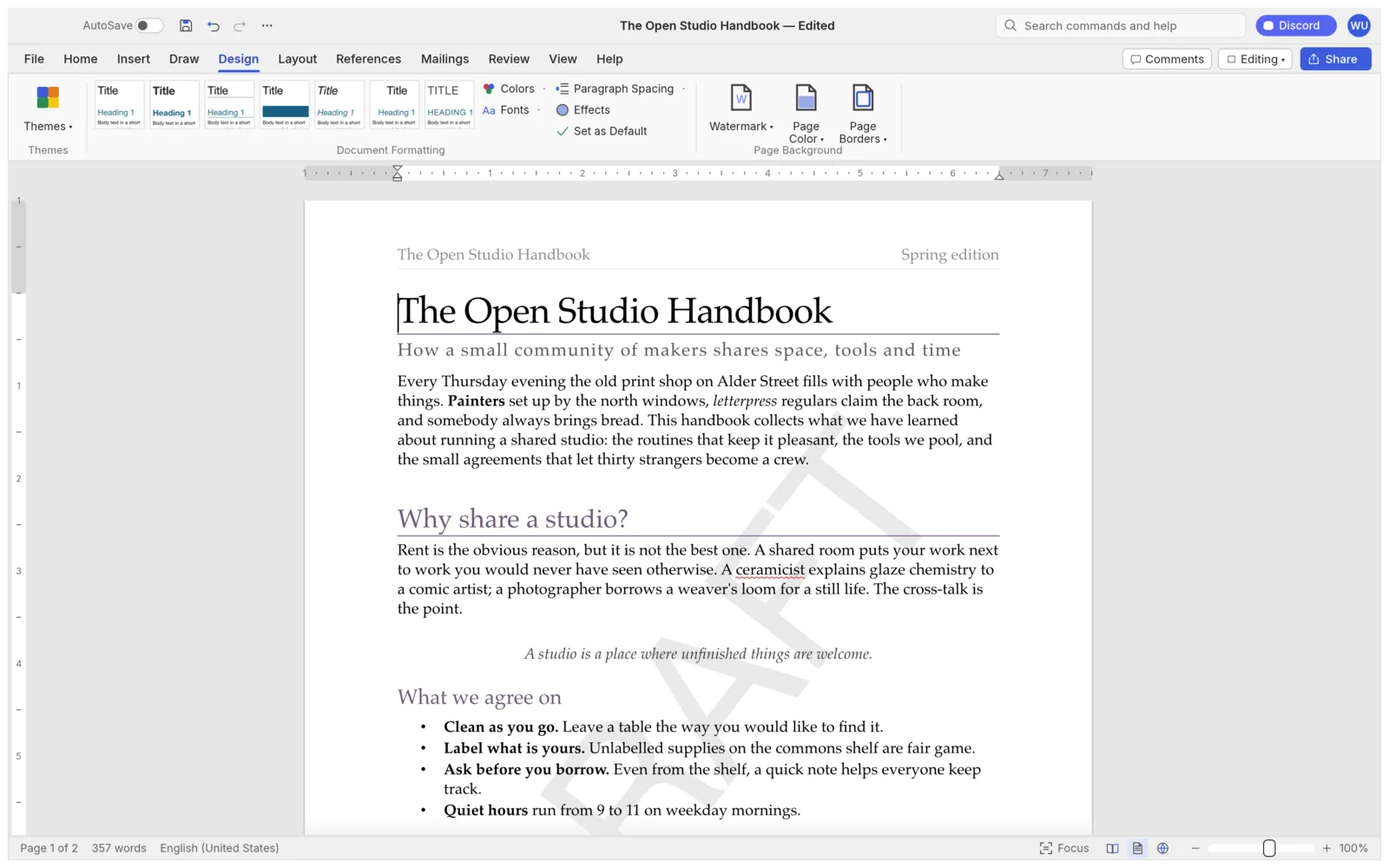
Format with styles
Section titled “Format with styles”Styles keep a document consistent: change a style once and every paragraph using it updates.
- Pick a style in the Styles gallery on the Home tab. Point at one to preview it.
- Open the Styles pane to create a style, or to change one.
- On the Design tab, choose a theme or style set to restyle the whole document at once. You can also set the page color, add a page border or add a watermark there.
Format Painter copies formatting from one place to another. F4 repeats your last action.
Add tables, pictures and shapes
Section titled “Add tables, pictures and shapes”On the Insert tab:
- Table: drag across the grid to choose its size. You can then merge and split cells, apply a table style with banded rows, repeat the header row on every page, sort rows and add formulas.
- Pictures: resize, crop, recolor, adjust brightness and contrast, or remove the background. Choose how text wraps around it: square, top and bottom, behind or in front of the text.
- Shapes and text boxes work the same way.
Lay out pages
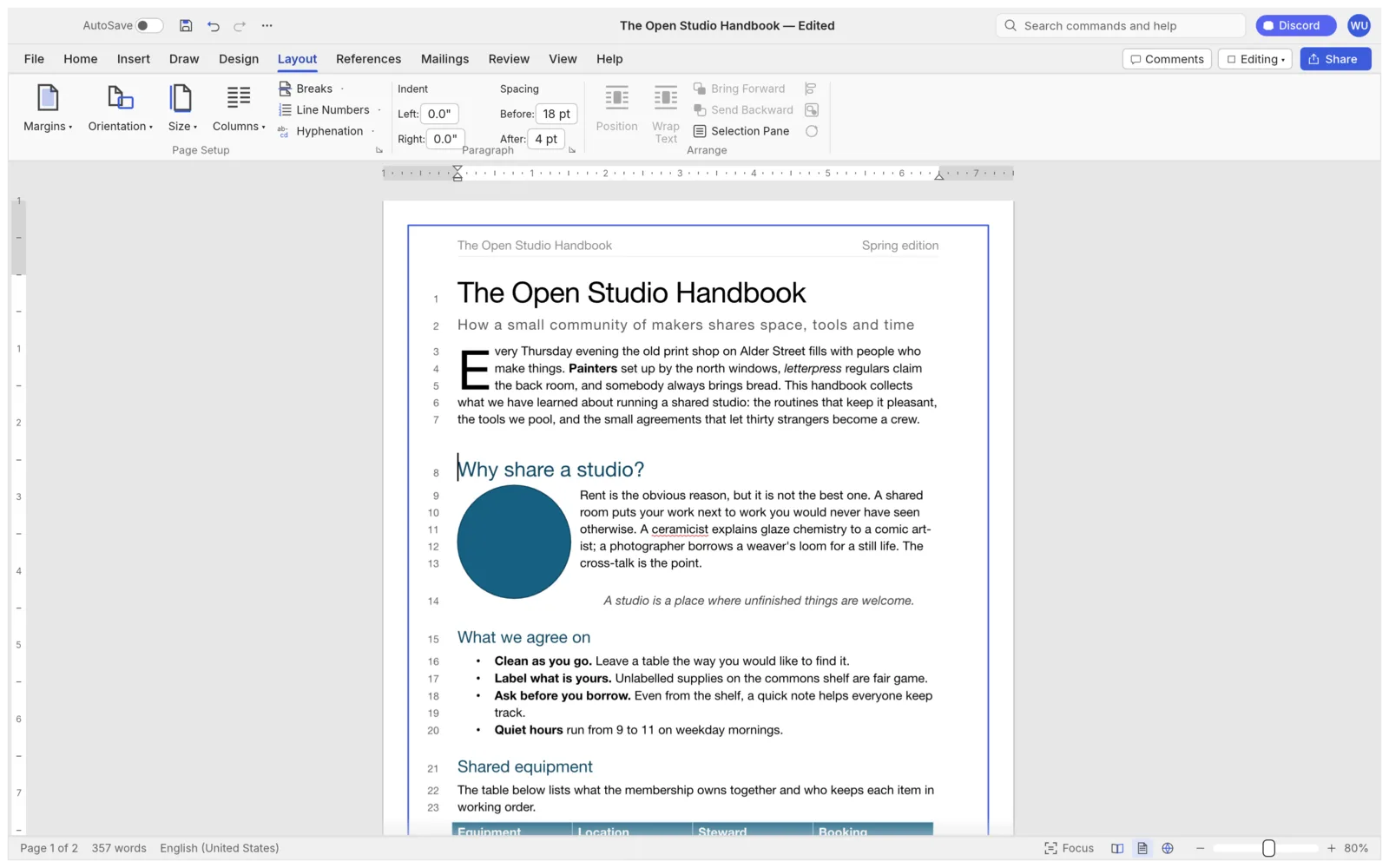
Section titled “Lay out pages”On the Layout tab, set margins, orientation, page size and columns, and add page, column or section breaks. Headers and footers can differ on the first page, and on odd and even pages.
The tab also has drop caps, automatic hyphenation and line numbers.
Add references
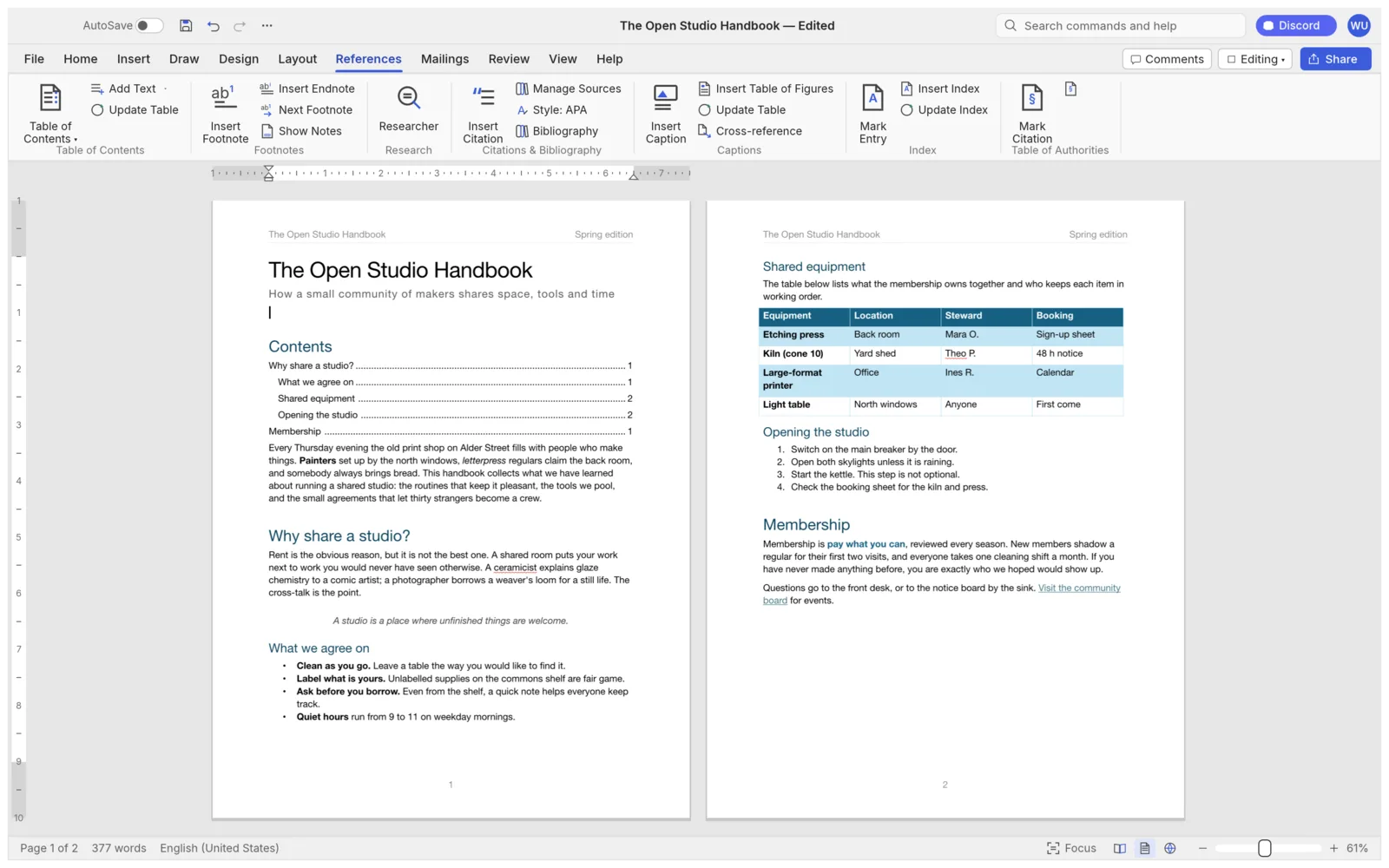
Section titled “Add references”On the References tab:
- Table of Contents: built from your headings. Update it after you change them.
- Footnotes and endnotes.
- Citations and bibliography: in APA, MLA, Chicago or IEEE style. If you keep your sources in Zotero, see Zotero.
- Captions, a table of figures, cross-references and an index.
Review and edit with others
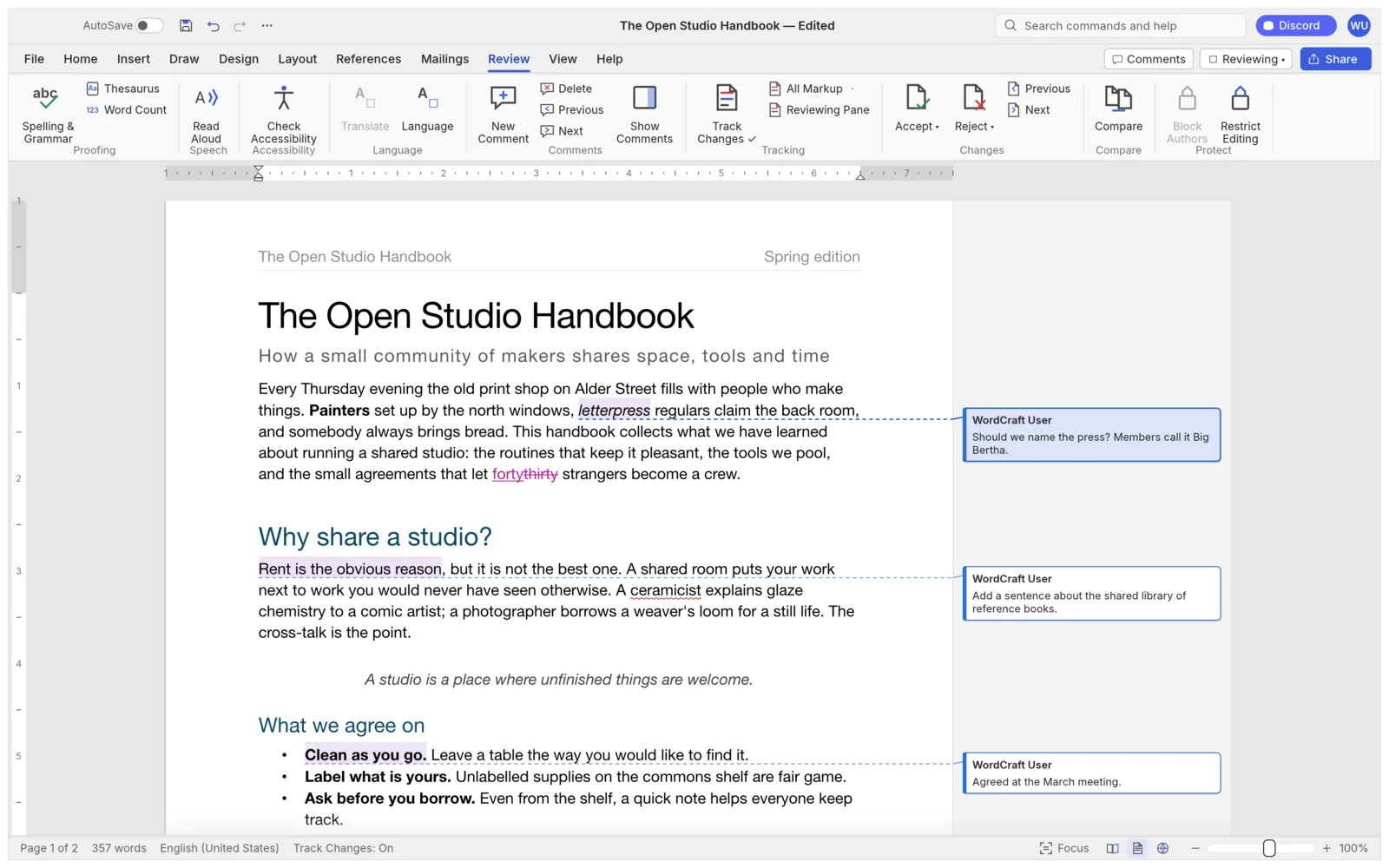
Section titled “Review and edit with others”On the Review tab:
- Spelling and grammar are checked as you type. F7 goes through every issue. For languages other than English, see Languages and spelling.
- Track Changes records every edit with the author’s name. Others can then accept or reject each change.
- Comments appear as balloons in the margin, or in a pane.
- Compare shows what changed between two versions of a document.
- Read Aloud reads the document to you, skipping citations and the bibliography.
- The accessibility checker finds things that make a document hard to read with assistive technology, such as pictures without alt text.
Write equations
Section titled “Write equations”- Place the cursor where the equation goes and press Alt+=, or choose Insert › Equation. The arrow under the button lists ready-made equations.
- Type the equation. The Equation tab opens with its symbols. The … button next to the symbol strip (All symbol sets) lists every set.
- Press Esc, or choose Close Equation, to go back to the text.
Protect a document
Section titled “Protect a document”- To set a password, choose File › Info › Protect Document › Encrypt with Password… and enter a password. Anyone opening the document must enter it, and WordCraft asks for it when you open the file. The same place has Change Password… and Remove Password. Only .docx, .docm, .dotx, .dotm, .odt and .ott files can have a password. WordCraft keeps no recovery copy of a password-protected document (see Document recovery).
- To restrict editing, Review › Restrict Editing opens a pane where you can limit formatting to certain styles, or allow only one kind of editing. Choose Start Enforcing Protection to turn it on. The password is optional: without one, anyone can turn the protection off.
- For content controls, the Developer tab has check boxes, drop-down lists, date pickers, picture controls and repeating sections for building forms. Design Mode shows and edits the controls themselves.
Send a mail merge
Section titled “Send a mail merge”On the Mailings tab, pick your recipient list (a CSV or spreadsheet file), then add merge fields, an address block and a greeting line. Preview the results, then finish to a new document. You can also print envelopes and labels.
Change how you view the document
Section titled “Change how you view the document”On the View tab:
- Read Mode for reading, Focus to hide everything but the text, and Immersive Reader.
- Outline and Draft views, and Print Layout and Web Layout to switch back.
- Navigation pane to jump between headings, or to search the document.
- Zoom, one or several pages side by side, rulers and gridlines.
- Split, New Window, Arrange All and Switch Windows to work in two places at once, or in several documents.
- Full Screen, Interface Theme and Dark Mode.
Read mode replaces the ribbon with its own bar. Use it to set the Column width, Text size and Line spacing, and a Page color of None, Sepia or Inverse. These only change how you see the document, not the file.
To change the interface language, choose File › Options › Language. By default, WordCraft follows your system’s language.
- Choose File › Print (Ctrl+P, ⌘P on a Mac).
- Pick your printer under Printer. If it isn’t listed, press Refresh printers.
- Set the options below. The preview on the right shows each sheet.
- Press Print.
To get a file instead, press Save these pages as PDF…. In the web version, Print opens your browser’s print dialog.
| Option | Choices |
|---|---|
| Copies | Up to 999. Collate copies keeps each copy in order. |
| Pages | All pages, Current page, Selected pages or Custom range, such as 1-3, 5. You can also print only odd or even pages. |
| Two-sided printing | One-sided, or two-sided on the long or short edge. |
| Grayscale | Prints without color. |
| Orientation | Automatic, Portrait or Landscape. |
| Pages per sheet | 1, 2, 4, 6, 9 or 16, or a booklet bound on the left or right. For a booklet, print two-sided on the short edge. |
| Scale to paper size | Fits every page onto the paper you pick, without changing the document. |
A line under the options shows how many pages will print, and turns red if a range isn’t valid. Print Markup prints comments and tracked changes beside the pages.
Two more settings are in File › Options › Display: Print the page color and Update fields before printing. Both are off by default.
If printing fails, see I can’t print, or my printer isn’t listed.
Change settings
Section titled “Change settings”File › Options has a page for each kind of setting. These are the ones people look for:
- General: Interface theme and Interface size, Dark page (white text on black), Show the Start screen when WordCraft starts, and the User name and Initials that go on your comments and tracked changes.
- Display: Show all formatting marks, Show rulers, and the printing options described above.
- Save: AutoSave documents you have saved in WordCraft writes your changes to the file a moment after you stop typing. It’s not available in the web version. Under Privacy for this document, Remove my name from comments, changes and file properties when saving keeps your name out of the saved file, and your open document keeps it.
- Accessibility: the Speed of Read Aloud, and Skip citations & bibliography.
- Advanced: Recent documents to show, Measurement units, Show KeyTips (Alt or F10), Animate the caret, and Show alignment guides when moving pictures and shapes. Keyboard shortcuts and Ribbon and Quick Access Toolbar each have a Customize… button, to change a shortcut or the ribbon’s layout. User templates sets the folder for your own templates.
For spelling and the dictionaries folder, see Languages and spelling.
Open and save other formats
Section titled “Open and save other formats”File › Open opens .docx, .doc (Word 97–2003), .odt, .rtf, .html, .md, .tex and .txt. File › Save As saves in any of these except .doc. File › Export saves a copy as a PDF, .docx, .odt, .rtf, .html, .md, .tex, .txt or a page image (.png), among others.
Converting between formats can lose some formatting. To share a document that must look the same everywhere, export a PDF.
Record a macro
Section titled “Record a macro”A macro records a sequence of steps and plays them back, so you can repeat a task in one go. Find Record Macro and Macros on the View tab.
Keyboard shortcuts
Section titled “Keyboard shortcuts”WordCraft uses the shortcuts you’d expect from a word processor. On a Mac, use ⌘ in place of Ctrl.
| Shortcut | What it does |
|---|---|
| Ctrl+B, Ctrl+I, Ctrl+U | Bold, italic, underline |
| Ctrl+S | Save |
| Ctrl+P | Open File › Print |
| Ctrl+F | Search in the Navigation pane |
| Ctrl+H | Find and replace (Control+H on a Mac) |
| F3 | Find next |
| F12 | Save As |
| Alt+= | Insert an equation |
| Shift+F3 | Change case |
| Shift+F7 | Thesaurus |
| Ctrl+Z | Undo |
| Ctrl+Y or Ctrl+Shift+Z | Redo |
| F4 | Repeat the last action |
| F7 | Check spelling and grammar |
| F8 | Extend the selection |
| Enter in a list | Continue the list |
| Tab in a list | Indent the item one level |