
Set Japanese type
This guide shows how to set Japanese type with the East Asian options of the Paragraph and Character panels: line-break rules, punctuation spacing, hanging punctuation, the leading model, character alignment and proportional metrics.
Turn on the East Asian options
Section titled “Turn on the East Asian options”The Japanese paragraph and character options are hidden until you turn them on.
- On Windows and Linux, choose Edit → Preferences… (Ctrl+K). On macOS, choose VectorCraft → Settings → Type….
- On the Type page, under Language Options, turn on Show East Asian Options. The option is off by default.
- Open the Paragraph panel with Window → Type → Paragraph (Ctrl+Alt+T, or Cmd+Option+T on macOS). The Mojikumi Set and Kinsoku Set menus appear below Hyphenate. If you do not see them, choose Show Options in the panel menu.
- Open the Character panel with Window → Type → Character (Ctrl+T, or Cmd+T on macOS).
The option adds these commands:
| Where | What appears |
|---|---|
| Paragraph panel | Mojikumi Set and Kinsoku Set |
| Paragraph panel menu | Top-to-Top Leading, Bottom-to-Bottom Leading, Burasagari and Kinsoku Shori Type |
| Character panel menu | Character Alignment, Proportional Metrics, Tate-chu-yoko, Tate-chu-yoko Settings… and Standard Vertical Roman Alignment |
| Type menu | Composite Fonts… |
To find a Japanese font, open the font menu in the Character panel and click Japanese in the row of script filters. The list then shows only CJK font families, which include the Japanese families. The filter appears whether or not the East Asian options are on. Choose fonts describes all of the font menu’s filters.
Paragraph settings apply to the paragraphs of the selected type objects, or to the paragraphs that your Type tool selection touches. Character settings apply to the selected type objects, or to the characters you selected with the Type tool.
Keep characters off the start and end of lines with kinsoku
Section titled “Keep characters off the start and end of lines with kinsoku”Kinsoku rules stop certain Japanese characters from starting or ending a line in area type.
- Select the type object, or click in the paragraph with the Type tool.
- In the Paragraph panel, choose a set from the Kinsoku Set menu.
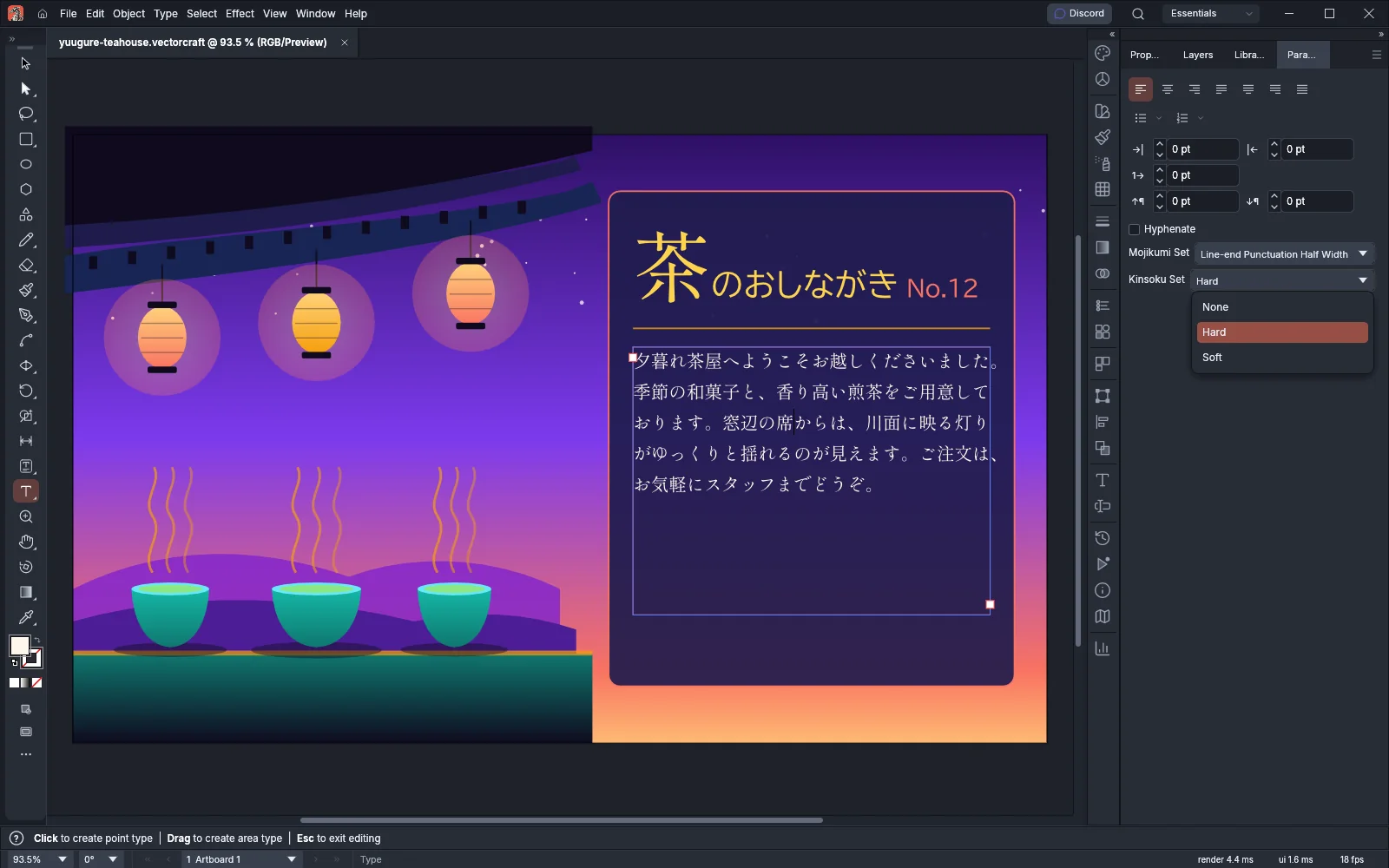
| Kinsoku Set | What it does |
|---|---|
| None | A line can break between any two characters that allow a break. |
| Hard | Closing brackets, commas, full stops, iteration marks, the prolonged sound mark ー, small kana and similar characters do not start a line. Opening brackets do not end a line. This is the default. |
| Soft | The same as Hard, except that 々, ー and small kana can start a line. |
When the selected paragraphs use different sets, the menu is blank.
To choose how a line keeps those characters off its ends, open the Paragraph panel menu and choose an item from Kinsoku Shori Type:
| Kinsoku Shori Type | What it does |
|---|---|
| Push In First | The characters that would start the next line stay on this line when the line can close up enough to fit them. Otherwise the character before them moves to the next line. |
| Push Out First | The character before them moves to the next line, unless that leaves the line more than an em short. In that case VectorCraft pushes the characters in when the line can close up enough. |
| Push Out Only | The character before them always moves to the next line, unless Burasagari hangs a comma or full stop that does not fit. This is the default. |
When VectorCraft pushes characters in, it closes up the gaps next to CJK characters on the line, each by at most a tenth of an em. Kinsoku Shori Type has no effect when Kinsoku Set is None. When the selected paragraphs use different types, no item is checked.
Set spacing between Japanese characters with mojikumi
Section titled “Set spacing between Japanese characters with mojikumi”Mojikumi sets how much space Japanese punctuation takes. The glyph of a full-width punctuation mark fills half of its width, and the other half is space: before an opening bracket, and after a closing bracket, comma or full stop.
- Select the type object, or click in the paragraph with the Type tool.
- In the Paragraph panel, choose a set from the Mojikumi Set menu.
| Mojikumi Set | What it does |
|---|---|
| None | Every character takes its full width. |
| Line-end Punctuation Half Width | Two or more punctuation marks in a row share one half-em space. A closing bracket, comma or full stop at the end of a line is set half width. |
Type that you make with the Type tools uses Line-end Punctuation Half Width. Text from documents made before this option existed, and imported text, keeps None.
Hang punctuation with burasagari
Section titled “Hang punctuation with burasagari”Burasagari lets an East Asian comma or full stop (、。,.、。) that ends a line of area type stand outside the frame. Closing brackets and Latin punctuation do not hang.
- Select the type object, or click in the paragraph with the Type tool.
- Open the Paragraph panel menu and choose Burasagari, then choose None, Regular or Force.
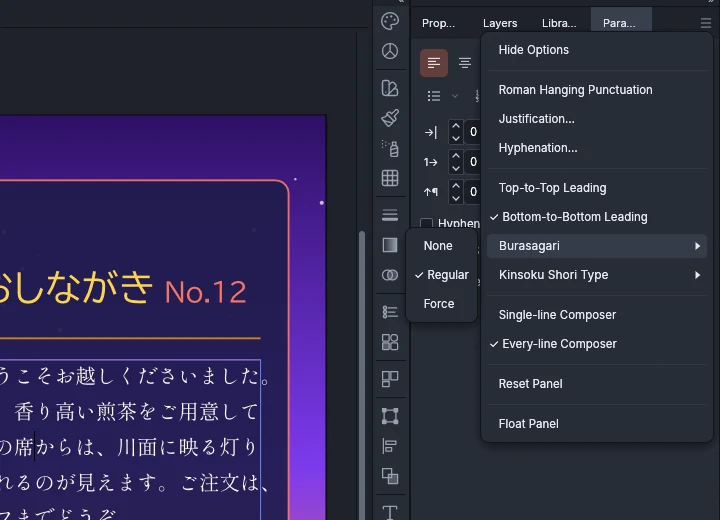
| Burasagari | What it does |
|---|---|
| None | A comma or full stop that does not fit moves to the next line, together with the character before it. |
| Regular | A comma or full stop that does not fit hangs outside the line. One that fits stays inside. New type uses Regular. |
| Force | A comma or full stop that ends a line always hangs, and the rest of the line fills the full width. |
Text from older documents and imported text keeps None. The exception is type in the older .ai text format with binding punctuation turned on, which opens with Force. Roman Hanging Punctuation, in the same menu, hangs Latin punctuation and does not change East Asian punctuation.
Measure leading from the top or bottom of lines
Section titled “Measure leading from the top or bottom of lines”The leading model sets where VectorCraft measures the space between lines.
- Select the type object, or click in the paragraph with the Type tool.
- Open the Paragraph panel menu and choose Top-to-Top Leading or Bottom-to-Bottom Leading. The current model has a check mark.
| Leading model | What it does |
|---|---|
| Bottom-to-Bottom Leading | Leading runs from one line’s baseline to the next. A line’s leading is the space above it, and the first baseline of area type follows First Baseline in Area Type Options. This is the default. |
| Top-to-Top Leading | Leading runs from the top of one line’s em box to the top of the next. In vertical type it runs from the right side of the em box. A line’s leading is the space below it, and the first line of area type touches the top of the frame. |
Reset Panel in the Paragraph panel menu sets the paragraphs back to Bottom-to-Bottom Leading, Line-end Punctuation Half Width, Regular burasagari, the Hard kinsoku set and Push Out Only, along with the panel’s other defaults.
Align characters of different sizes
Section titled “Align characters of different sizes”Character Alignment sets how smaller characters line up with the largest character on the same line, for example smaller kana and Latin text next to a large kanji in a heading.
- With the Type tool, select the characters, or select the type object to set all of its text.
- Open the Character panel menu and choose Character Alignment, then choose an alignment.
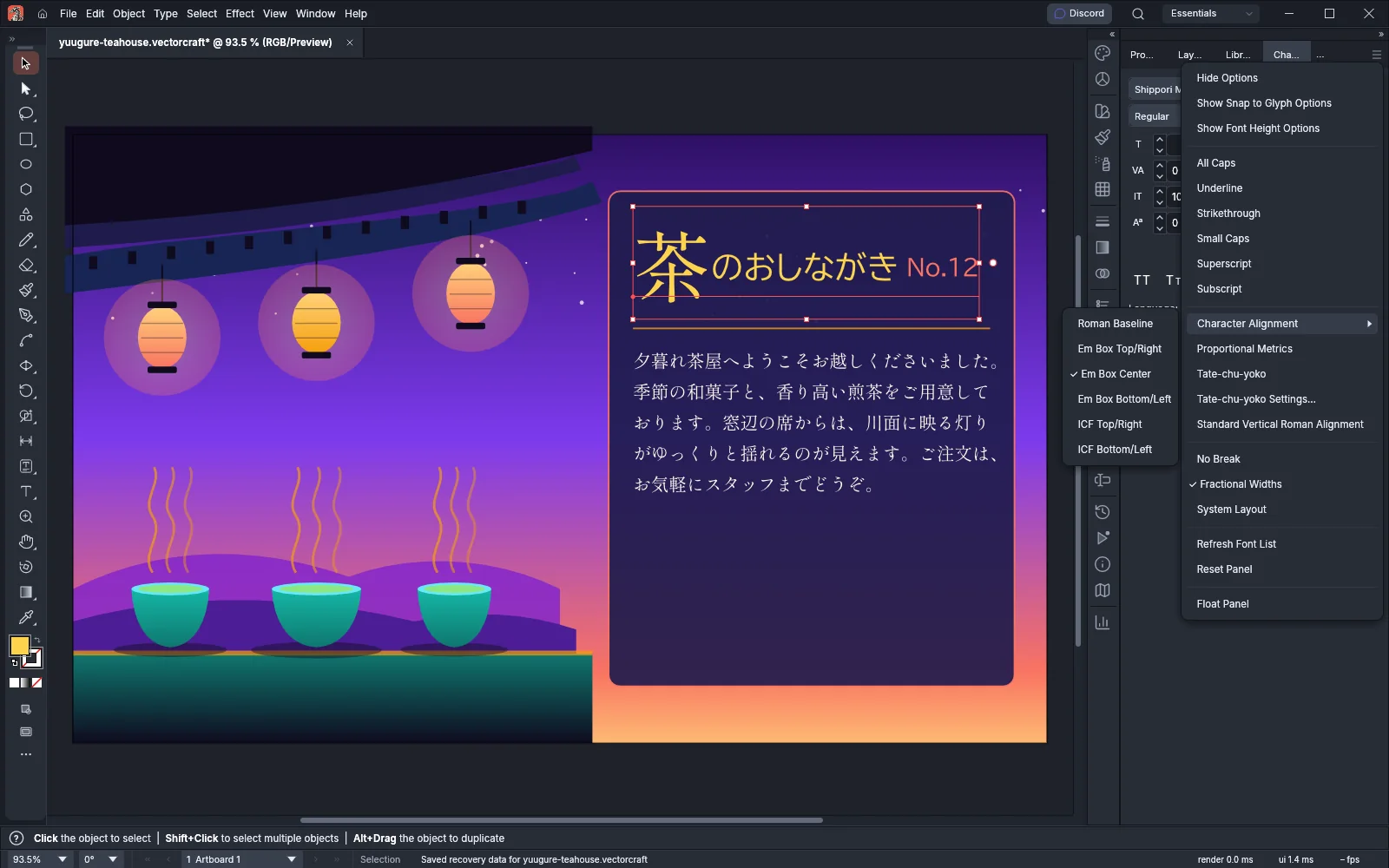
| Character Alignment | Where smaller characters line up |
|---|---|
| Roman Baseline | On the Latin baseline. This is the default. |
| Em Box Top/Right | At the top of the em boxes, or the right side in vertical type |
| Em Box Center | At the center of the em boxes |
| Em Box Bottom/Left | At the bottom of the em boxes, or the left side in vertical type |
| ICF Top/Right | At the top of the ideographic character face, or the right side in vertical type |
| ICF Bottom/Left | At the bottom of the ideographic character face, or the left side in vertical type |
The ideographic character face (ICF) is the average box that the ideographs fill inside the em box.
Use proportional metrics
Section titled “Use proportional metrics”Proportional Metrics sets full-width characters on the widths that the font gives each glyph, instead of a full em each.
- With the Type tool, select the characters, or select the type object to set all of its text.
- Open the Character panel menu and choose Proportional Metrics. A check mark appears next to it. Choose it again to turn it off.
In horizontal type, VectorCraft uses the font’s proportional widths (the OpenType palt feature). In vertical type, upright glyphs use the font’s proportional heights (vpal).