
Save PDF files for print and sharing
This page covers File → Save as PDF… and every section of the Save PDF dialog: the presets, the PDF/X and PDF/A standards, the options in each section, the Summary, and saving your settings as a preset. It also shows how Export As and Export for Screens write PDF files.
Save a PDF
Section titled “Save a PDF”- Open the document and choose File → Save as PDF…. The Save PDF dialog opens on its General section.
- Under Preset, pick the preset that fits the job. See Choose a preset.
- If the print shop asks for a PDF standard, pick it under Standard. See Choose a PDF standard and compatibility.
- Under Artboards in the General section, choose All, or choose Range and type the artboard numbers, for example
1-3, 5. Each artboard becomes one page. - Click a section in the section list to change its options: General, Compression, Marks and Bleeds, Output, Advanced or Security.
- Click Summary to check what differs from the preset and read any warnings.
- Press Save PDF, then pick a name and a folder in the save panel. In the web version, the browser downloads the file.
When VectorCraft cannot write the file, for example because the range names an artboard that does not exist, the dialog stays open so you can fix the setting.
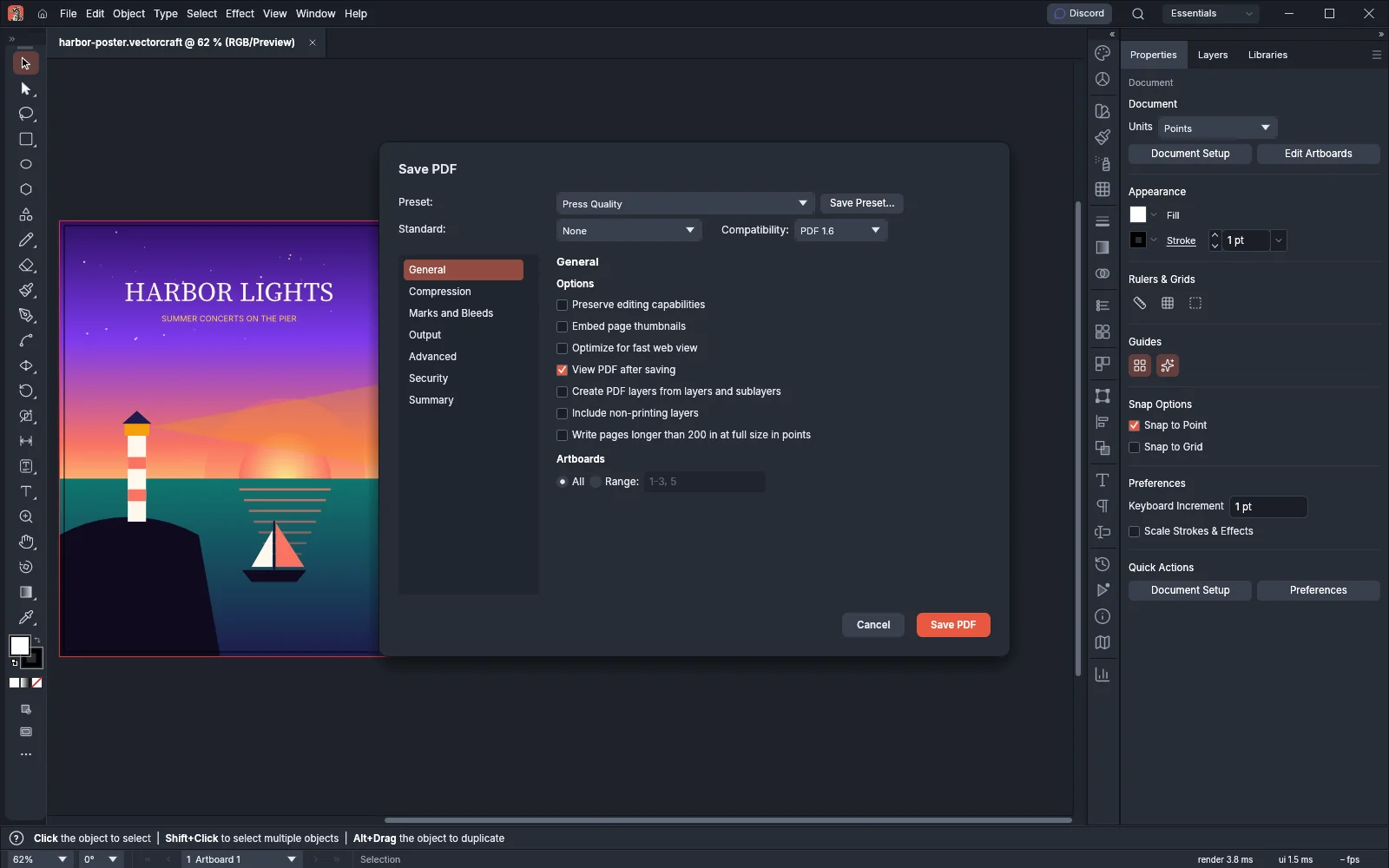
File → Save As… with the PDF format opens the same dialog, filled with the PDF options the document was last saved with.
Choose a preset
Section titled “Choose a preset”Choosing a preset replaces every setting in the dialog with the preset’s settings. Your artboard choice stays as it was. The built-in presets come first in the list, followed by the presets you saved. Built-in presets cannot be changed or deleted. To make your own, see Save the settings as a preset and Create and share PDF presets.
| Preset | Use it for | Main settings |
|---|---|---|
| VectorCraft Default | Files you will edit again in VectorCraft | PDF 1.7, Preserve editing capabilities on, images kept at their resolution |
| High Quality Print | Desktop printers and proofs | PDF 1.6, color and grayscale images Bicubic to 300 ppi above 450 ppi with Automatic compression |
| Press Quality | Commercial printing | As High Quality Print with ZIP image compression, the document’s bleed, and colors converted to Document CMYK, keeping the numbers of colors that are already CMYK |
| Smallest File Size | Screens, email and the web | PDF 1.6, Optimize for fast web view on, images Bicubic to 100 ppi above 150 ppi with JPEG at Medium quality |
| PDF/X-1a:2001 | Print exchange with CMYK and spot colors only | Standard PDF/X-1a, PDF 1.3, the document’s bleed, transparency flattened |
| PDF/X-3:2002 | Print exchange with color-managed colors | Standard PDF/X-3, PDF 1.3, the document’s bleed, transparency flattened |
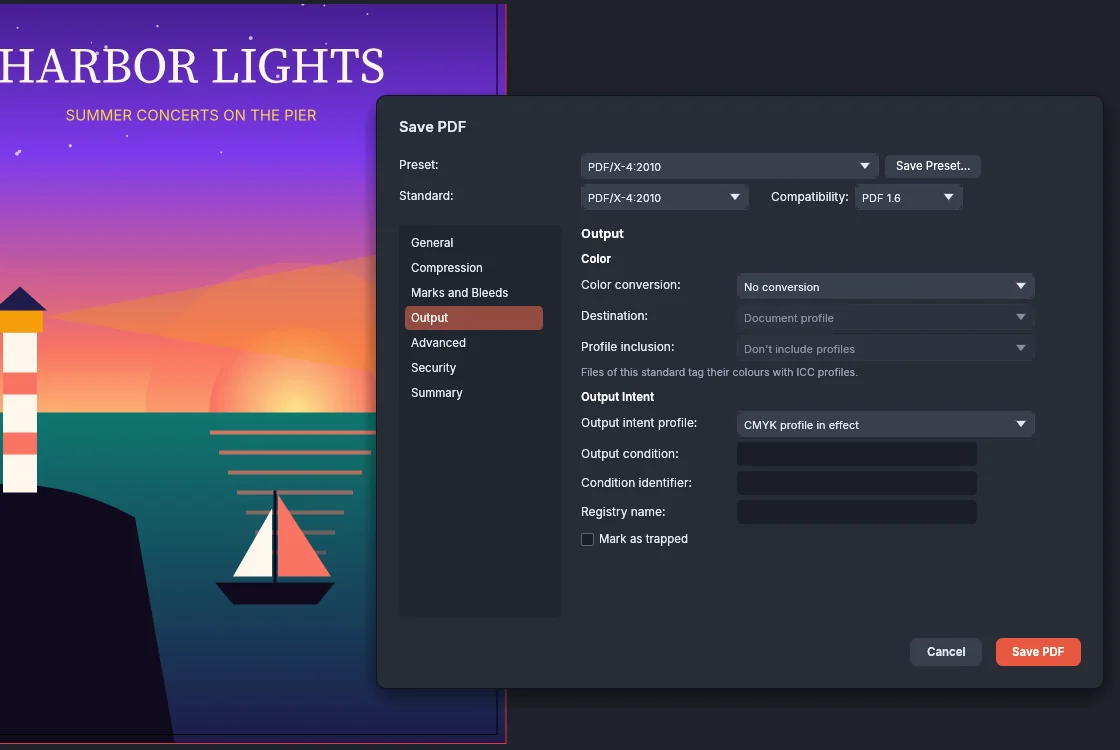
| PDF/X-4:2010 | Print exchange that keeps live transparency and layers | Standard PDF/X-4, PDF 1.6, the document’s bleed |
Every built-in preset except VectorCraft Default sets monochrome images to CCITT Group 4 compression. The print presets and the PDF/X presets resample monochrome images to 1200 ppi above 1800 ppi, and Smallest File Size resamples them to 300 ppi above 450 ppi. VectorCraft 0.24.1 writes CCITT Group 4 images with ZIP compression, so a document with a monochrome image saved with one of these presets shows a warning (see Compression options).
Choose a PDF standard and compatibility
Section titled “Choose a PDF standard and compatibility”Standard makes the file follow a published PDF standard. Compatibility sets the PDF version written in the file. The default is None at PDF 1.7. The Compatibility list offers PDF 1.3, 1.4, 1.5, 1.6, 1.7 and 2.0, and it dims the versions that the chosen standard does not allow.
When you choose a standard, the dialog changes these settings:
- Compatibility changes to the standard’s version when the current version is not allowed.
- Preserve editing capabilities turns off.
- Both passwords are cleared, and the Security section becomes unavailable.
- With PDF/X-1a or PDF/X-3, Create PDF layers from layers and sublayers turns off.
| Standard | Versions | What the file keeps or changes |
|---|---|---|
| None | Any | Nothing beyond your settings |
| PDF/A-2b | PDF 1.4 to 1.7 (1.7 when chosen) | Colors are tagged with ICC profiles. The file carries its own output intent, so the Output Intent fields are unavailable. |
| PDF/X-1a:2001 | PDF 1.3 or 1.4, written as 1.3 | Colors and images are converted to CMYK without profiles, while gray and spot colors stay as they are. Transparency is flattened, and the file has no PDF layers. |
| PDF/X-3:2002 | PDF 1.3 or 1.4, written as 1.3 | Colors are tagged with ICC profiles, transparency is flattened, and the file has no PDF layers |
| PDF/X-4:2010 | PDF 1.4 to 1.6 (1.6 when chosen) | Colors are tagged with ICC profiles, and transparency and PDF layers are kept |
Every PDF/X file has an output intent (by default the CMYK profile in effect), a trim box on every page that matches the artboard, and a title. A document without a title is saved with the title “Untitled”. Fonts are embedded, or written as outlines when Convert text to outlines is on. When the written file would still break its standard, for example because transparency is left after flattening, VectorCraft does not save it and shows the reason.
General options
Section titled “General options”| Option | Default | What it does |
|---|---|---|
| Preserve editing capabilities | Off (on in VectorCraft Default) | Saves the full VectorCraft document inside the PDF, so the file reopens in VectorCraft with nothing lost. It is unavailable with a standard. It applies only to a PDF of every artboard in order; with a range, VectorCraft leaves it out and adds a warning. |
| Embed page thumbnails | Off | Adds a small picture of each page, 106 px on its long side |
| Optimize for fast web view | Off | Writes the file so that a browser shows the first page while the rest downloads |
| View PDF after saving | Off | Opens the saved file in your system’s PDF viewer. The web version downloads the file instead. |
| Create PDF layers from layers and sublayers | Off | Writes each layer and sublayer as a PDF layer that a PDF viewer can show or hide. It needs PDF 1.5 or later and is unavailable with PDF/X-1a and PDF/X-3. |
| Include non-printing layers | Off | Keeps layers whose Print option is off. Without this option, those layers are left out unless Create PDF layers from layers and sublayers is on. |
| Write pages longer than 200 in at full size in points | Off | Writes a page with a side longer than 14,400 pt (200 in) at its size in points. It is available with Standard None at PDF 1.5 or later. |
| Artboards | All | All saves every artboard. Range saves the artboards you type, for example 1-3, 5. |
Compression options
Section titled “Compression options”The Compression section has a group of rows for Color images, Grayscale images and Monochrome images. In each group, the first row sets the resampling method, the resolution to resample to, and the resolution above which an image is resampled. The second row sets the compression.
| Setting | Choices | Default |
|---|---|---|
| Resampling | No downsampling, Average, Subsample, Bicubic | No downsampling |
| to | 9 to 2400 ppi | 300 ppi (monochrome 1200 ppi) |
| above | 9 to 2400 ppi | 450 ppi (monochrome 1800 ppi) |
| Compression for color and grayscale images | None, ZIP, JPEG, JPEG 2000, Automatic | Automatic |
| Quality for color and grayscale images | Minimum, Low, Medium, High, Maximum | Maximum |
| Compression for monochrome images | None, CCITT Group 3, CCITT Group 4, ZIP, Run Length | ZIP |
| Compress text and line art | On or off | On |
- Automatic keeps JPEG images as JPEG and compresses the others without loss.
- Quality is available when the compression is JPEG, JPEG 2000 or Automatic.
- JPEG needs opaque pixels, so images with transparency are always compressed without loss.
- VectorCraft 0.24.1 writes images set to None or JPEG 2000, and monochrome images set to None, CCITT Group 3, CCITT Group 4 or Run Length, with ZIP compression instead. The Summary and the status bar show a warning when that happens.
Marks and Bleeds options
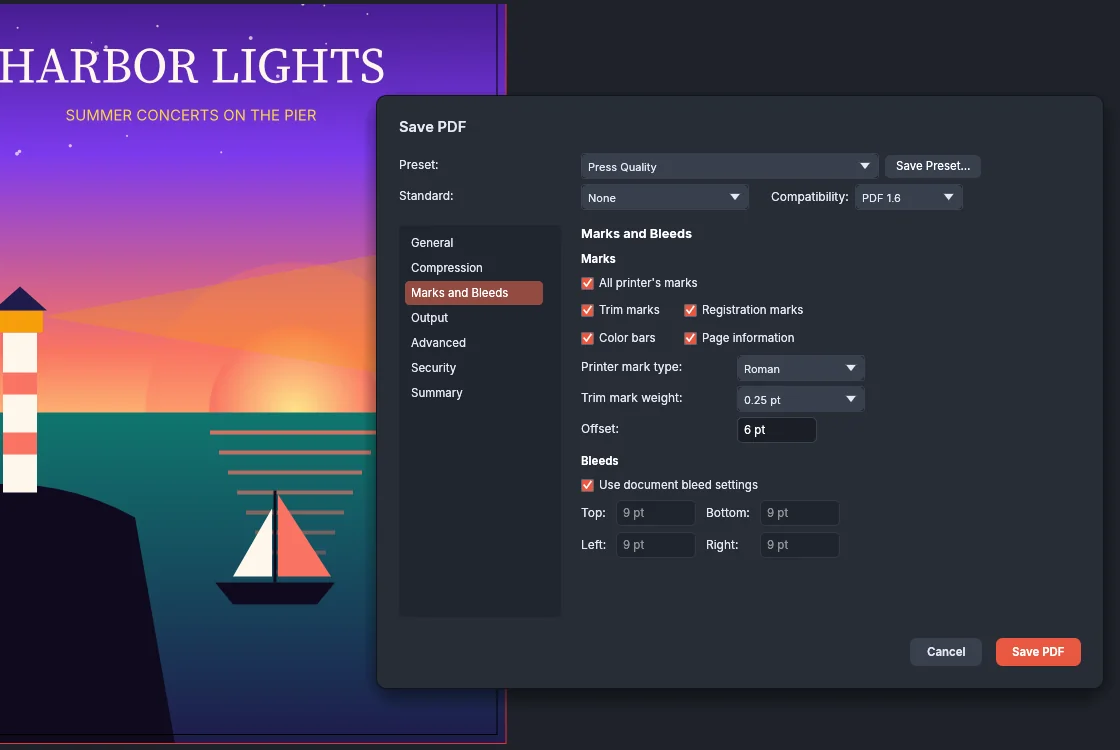
Section titled “Marks and Bleeds options”Printer’s marks are drawn outside the artboard in the registration color, so they print on every plate. Bleed extends the page past the artboard so that art which runs off the edge still prints after trimming.
| Option | Choices or range | Default |
|---|---|---|
| All printer’s marks | Turns the four marks on or off together | Off |
| Trim marks | Lines at the corners that show where to cut | Off |
| Registration marks | Targets at the middle of each side for lining up the plates | Off |
| Color bars | Color swatches above the page | Off |
| Page information | The document title, the artboard and the date (in UTC) below the page | Off |
| Printer mark type | Roman or Japanese | Roman |
| Trim mark weight | 0.125 pt, 0.25 pt, 0.5 pt | 0.25 pt |
| Offset | 0 to 72 pt from the artboard edge | 6 pt |
| Use document bleed settings | Uses the bleed from the document setup and shows it in the four fields, dimmed | Off (on in Press Quality and the PDF/X presets) |
| Top, Bottom, Left, Right | 0 to 72 pt each | 0 pt |
Lengths show in the document’s units. Each page’s trim box matches the artboard, and its bleed box adds the bleed. When a PDF/X file leaves out a bleed that the document sets, the Summary warns you to turn on Use document bleed settings.
Output options
Section titled “Output options”The Output section controls how colors are converted and which ICC profiles the file carries.
| Option | Choices | Default |
|---|---|---|
| Color conversion | No conversion, Convert to destination, Convert to destination (preserve numbers) | No conversion |
| Destination | Document profile, Document CMYK, then every color profile | Document profile |
| Profile inclusion | Don’t include profiles, Include all profiles, Include destination profile, Include tagged source profiles | Don’t include profiles |
| Output intent profile | None (with a PDF/X standard, CMYK profile in effect), then every color profile | None |
| Output condition, Condition identifier, Registry name | Text | Empty |
| Mark as trapped | On or off | Off |
- Convert to destination converts every color to the destination profile’s color model, including colors of that model that use another profile.
- Convert to destination (preserve numbers) converts only colors of the other model, and keeps the numbers of colors already in the destination’s model.
- Gray colors stay gray. Images are converted the same way as colors. Printer’s marks are not converted.
- Document CMYK is the CMYK profile of the color settings in effect, in an RGB document as well as a CMYK one.
- Destination is available while a conversion is chosen, and with PDF/X-1a, which always converts to CMYK.
- Profile inclusion is unavailable with a standard. PDF/A-2b, PDF/X-3 and PDF/X-4 always tag colors with ICC profiles, and PDF/X-1a never does.
- With PDF/A-2b the Output Intent fields are unavailable.
For color settings and soft proofing before you save, see Manage color and proof for print.
Advanced options
Section titled “Advanced options”| Option | Choices or range | Default |
|---|---|---|
| Subset fonts below … of characters used | 0 to 100% | 100% |
| Convert text to outlines | On or off | Off |
| Overprint | Preserve or Discard | Preserve |
| Flattener preset | High Resolution, Medium Resolution, Low Resolution, and the flattener presets you saved | High Resolution |
- With Convert text to outlines off, type is saved as real text that you can select and search in a PDF viewer, in embedded font subsets. Turned on, every glyph is saved as an outline, and Subset fonts below becomes unavailable.
- VectorCraft 0.24.1 always embeds fonts as subsets of the characters used. A value below 100% is accepted, and the Summary shows a warning that it is not applied.
- Preserve keeps overprinting fills and strokes overprinting. Discard makes them knock out.
- Flattener preset is available for PDF 1.3 files and the PDF/X-1a and PDF/X-3 standards, which have no transparency. The preset sets how VectorCraft flattens transparent art into opaque art and images.
Security options
Section titled “Security options”The Security section protects the PDF with passwords. It is unavailable when a PDF standard is chosen.
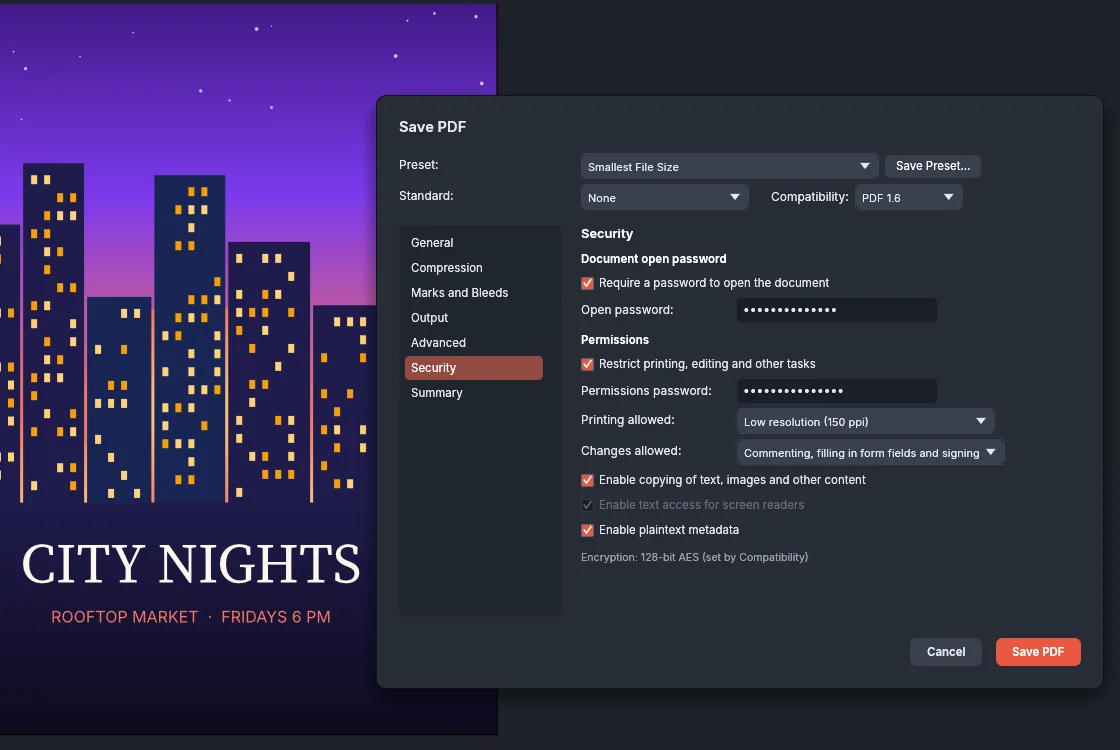
- To require a password to open the file, turn on Require a password to open the document and type the password in Open password.
- To limit what people can do with the file, turn on Restrict printing, editing and other tasks and type a different password in Permissions password.
- Choose what Printing allowed and Changes allowed permit, and whether copying and screen readers are allowed.
| Option | Choices | Default |
|---|---|---|
| Printing allowed | None, Low resolution (150 ppi), High resolution | High resolution |
| Changes allowed | None, Inserting, deleting and rotating pages, Filling in form fields and signing, Commenting, filling in form fields and signing, Any except extracting pages | Any except extracting pages |
| Enable copying of text, images and other content | On or off | On |
| Enable text access for screen readers | On or off. It stays on while copying is on. | On |
| Enable plaintext metadata | On or off. It is available with a password at PDF 1.5 or later. | On |
The encryption depends on Compatibility, and the note under the options names it:
| Compatibility | Encryption |
|---|---|
| PDF 1.3 | 40-bit RC4 |
| PDF 1.4, PDF 1.5 | 128-bit RC4 |
| PDF 1.6 | 128-bit AES |
| PDF 1.7, PDF 2.0 | 256-bit AES |
- The open password and the permissions password must be different.
- At PDF 1.3 to 1.6, a password can have up to 32 ASCII characters. At PDF 1.7 and 2.0, it can have up to 127 bytes of any characters.
- A PDF 1.3 file cannot limit printing to low resolution. Choose PDF 1.4 or later, or allow high-resolution printing.
- Permissions apply only with a permissions password. Without one, the Summary warns that they are not applied.
- A 40-bit key at PDF 1.3 is weak, and the Summary warns about it. Choose PDF 1.6 or later for stronger protection.
- Presets never store passwords.
Check the Summary before you save
Section titled “Check the Summary before you save”Click Summary in the section list to check the settings before you save.
- Options lists each option that differs from the chosen preset, as the section, the option and its value, for example “General › Thumbnails: On”. When nothing differs, it reads “Every option matches the preset.”
- Warnings lists what VectorCraft will change or leave out in this document, such as flattened transparency, a left-out bleed or permissions without a password. It reads “None.” when there is nothing to report.
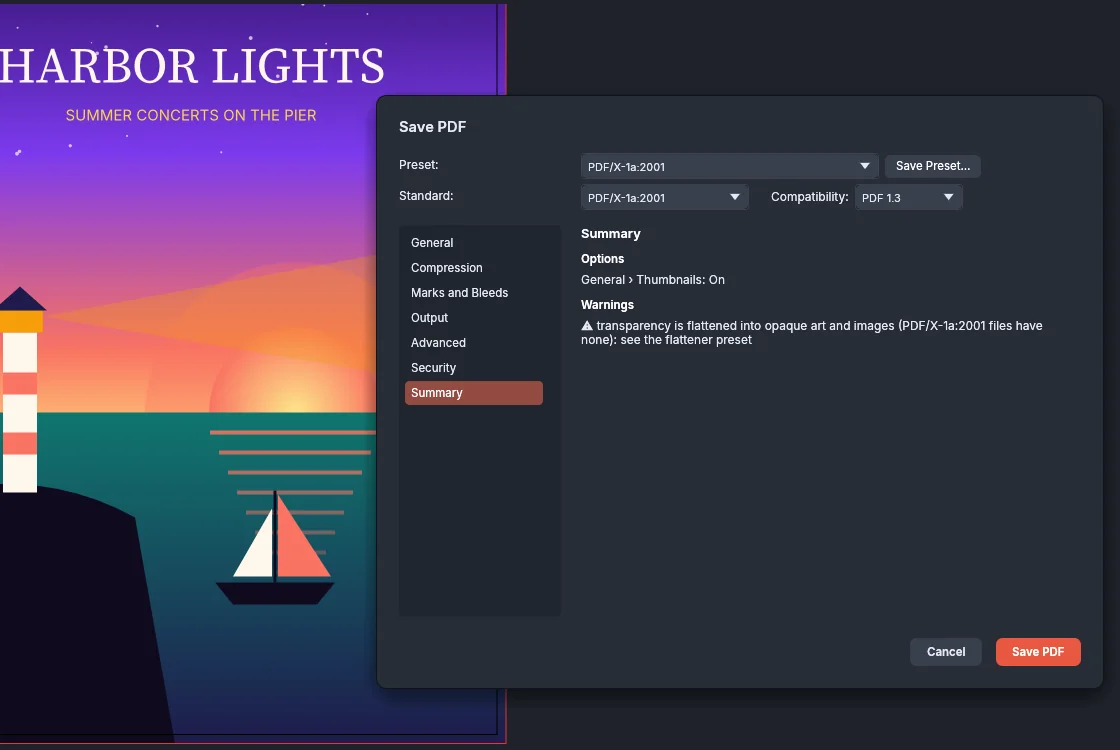
The Summary checks the open document, so its warnings change with the art. In this example, the glow around the sun and the lighthouse beam are transparent, so PDF/X-1a flattens them.
Save the settings as a preset
Section titled “Save the settings as a preset”- Set up the dialog the way you want.
- Click Save Preset… next to the Preset list. A Save as preset row appears with a name, such as “PDF Preset 1”.
- Type a name and press Save (or Save PDF, or Enter, while the row shows). Press Cancel to close the row without saving.
The new preset becomes the chosen preset, and it appears in the Preset list of Save PDF and in the PDF Preset list of Export for Screens. A preset keeps every setting except the artboard range and the passwords. You cannot save over a built-in preset. When you use the name of a preset you saved before, its settings are replaced. To edit, delete, import or export presets, see Create and share PDF presets.
Write PDFs from Export As and Export for Screens
Section titled “Write PDFs from Export As and Export for Screens”Export As
Section titled “Export As”- Choose File → Export → Export As…, and choose PDF as the format.
- Turn on Use Artboards, and choose All or a Range. The dialog notes “One page per artboard.”
- Press Export… and pick the file name. The Save PDF dialog opens with your artboard choice, and Save PDF writes the file.
With Use Artboards off, VectorCraft writes a PDF of the bounds of the visible art at once, with the VectorCraft Default settings, and the Save PDF dialog does not open.
Export for Screens
Section titled “Export for Screens”Choose File → Export → Export for Screens… to open the Export for Screens dialog.
- A PDF format row writes a PDF of each chosen artboard or asset. A PDF Print row adds trim marks, registration marks, color bars and page information.
- To choose the preset for the PDF rows, open Format Settings, choose PDF under Format, and pick from the PDF Preset list. It lists the built-in presets and the presets you saved. The default is VectorCraft Default.
- Export PDFs As chooses Single File (every chosen artboard as a page of one PDF) or Multiple Files. It is available when a row writes PDF and Select is not set to Full Document.
For the rest of Export for Screens, see Export for screens and the web.