
Getting started
1. Install PdfCraft
Section titled “1. Install PdfCraft”The quickest way is ArtCraft Launcher: install it, then press Install on PdfCraft’s card. To download PdfCraft on its own, see Install and update.
2. Open a PDF
Section titled “2. Open a PDF”PdfCraft starts on its Home page, with recommended tools and your recent files. Click Open file, press Ctrl+O (⌘O on a Mac), or drop a PDF anywhere in the window. Each PDF opens in its own tab at the top. The house button at the top left brings Home back.
If a PDF needs a password to open, PdfCraft asks for it first. Enter it and choose Open.
To keep a folder at hand, such as where your scanner or a synced cloud drive saves PDFs, choose File › Pin folder to Home… and pick it. Home then lists that folder’s newest PDFs.
3. Find your way around
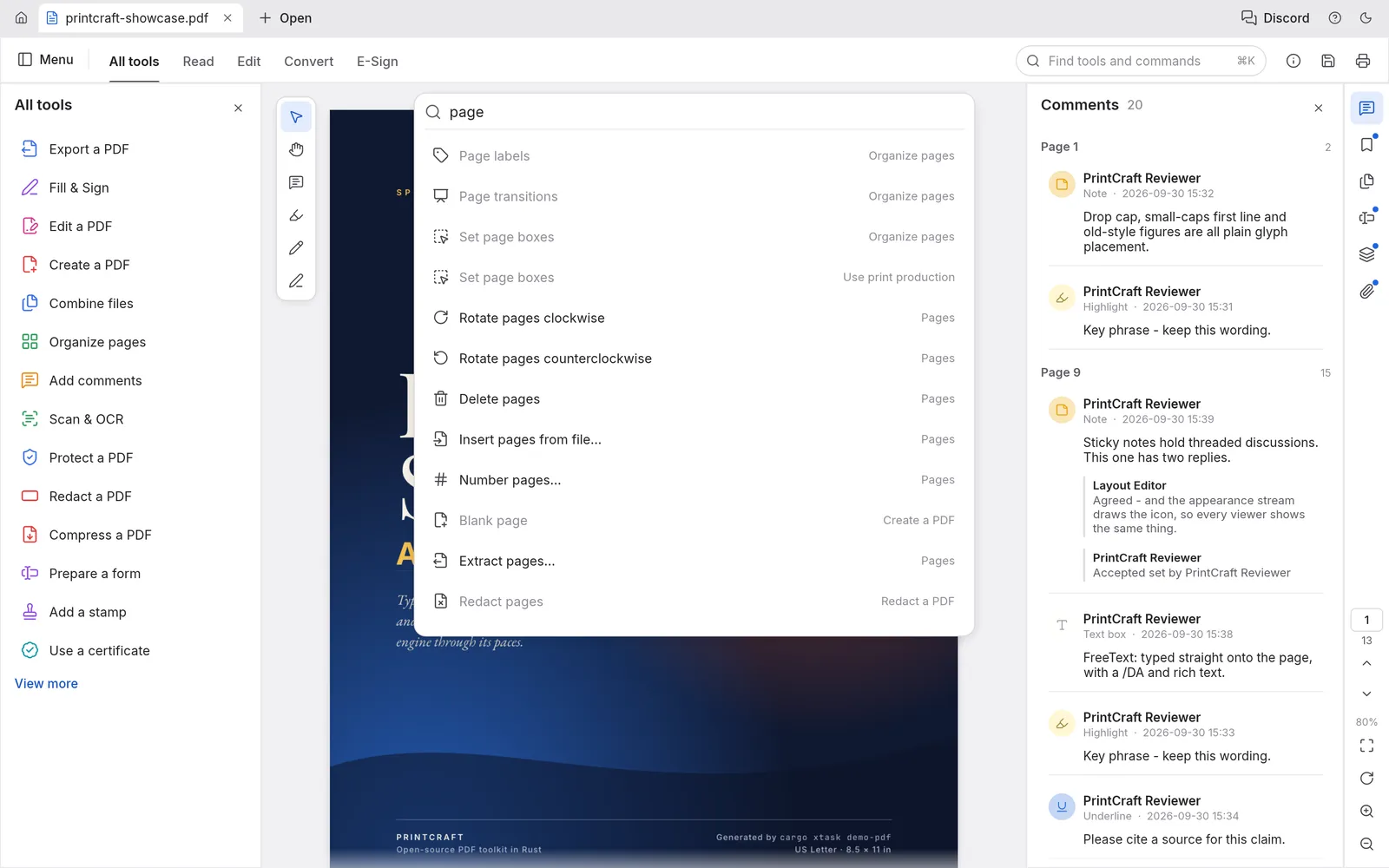
Section titled “3. Find your way around”- The menus at the top left are File, Edit, View, Sign, Window and Help. On a Mac they are in the menu bar at the top of the screen.
- All tools, Edit, Convert and E-Sign, next to them, change which tools the panel on the left shows.
- The buttons down the right edge open side panels: comments, bookmarks, page thumbnails, form fields, layers and attachments.
- The controls at the bottom right show the page number and change the zoom.
- Find tools and commands at the top (Ctrl+K, ⌘K on a Mac) finds any tool or command by name.
4. Move through the document
Section titled “4. Move through the document”Scroll, or type a page number in the box at the bottom right. Ctrl+F (⌘F) finds text. Ctrl+1 shows the page at its actual size, Ctrl+2 fits its width, and Ctrl+0 fits the whole page. View › Page display switches between single page and two-page view.
5. Add a comment
Section titled “5. Add a comment”Choose Add comments in the tools panel. Select some text and highlight it, or add a sticky note where you click. Every comment appears in the Comments panel on the right, where you can reply to it.
6. Save
Section titled “6. Save”Press Ctrl+S (⌘S on a Mac) to save the PDF, or Ctrl+Shift+S to save a copy under another name.
PdfCraft saves a copy of unsaved changes every minute. If it closes unexpectedly, it offers to recover them the next time it starts.
Next steps
Section titled “Next steps”- Workflows: comments, editing, protecting, converting and OCR.
- Organize pages: reorder, combine and split.
- Forms and signing: fill in and sign forms.