This page lists every item of the File and Edit menus, in menu order, with what it does, its default shortcut and the guide that covers it. The Object menu has its own page.
Where Windows and Linux use Ctrl, macOS uses Cmd, and where they use Alt, macOS uses Option. A shortcut cell that reads “None” means the item has no default shortcut. You can give any item a shortcut in Edit → Keyboard Shortcuts…, and Keyboard shortcuts lists every default.
An item that cannot run right now is grayed out. For example, File → Save is grayed out while a document that saves back to its own file has no unsaved changes, File → Export Selection… while nothing is selected, and Edit → Edit Original while no linked image or placed document is selected. One item is always grayed out because it does not work yet: Edit → Spelling → Check Spelling….
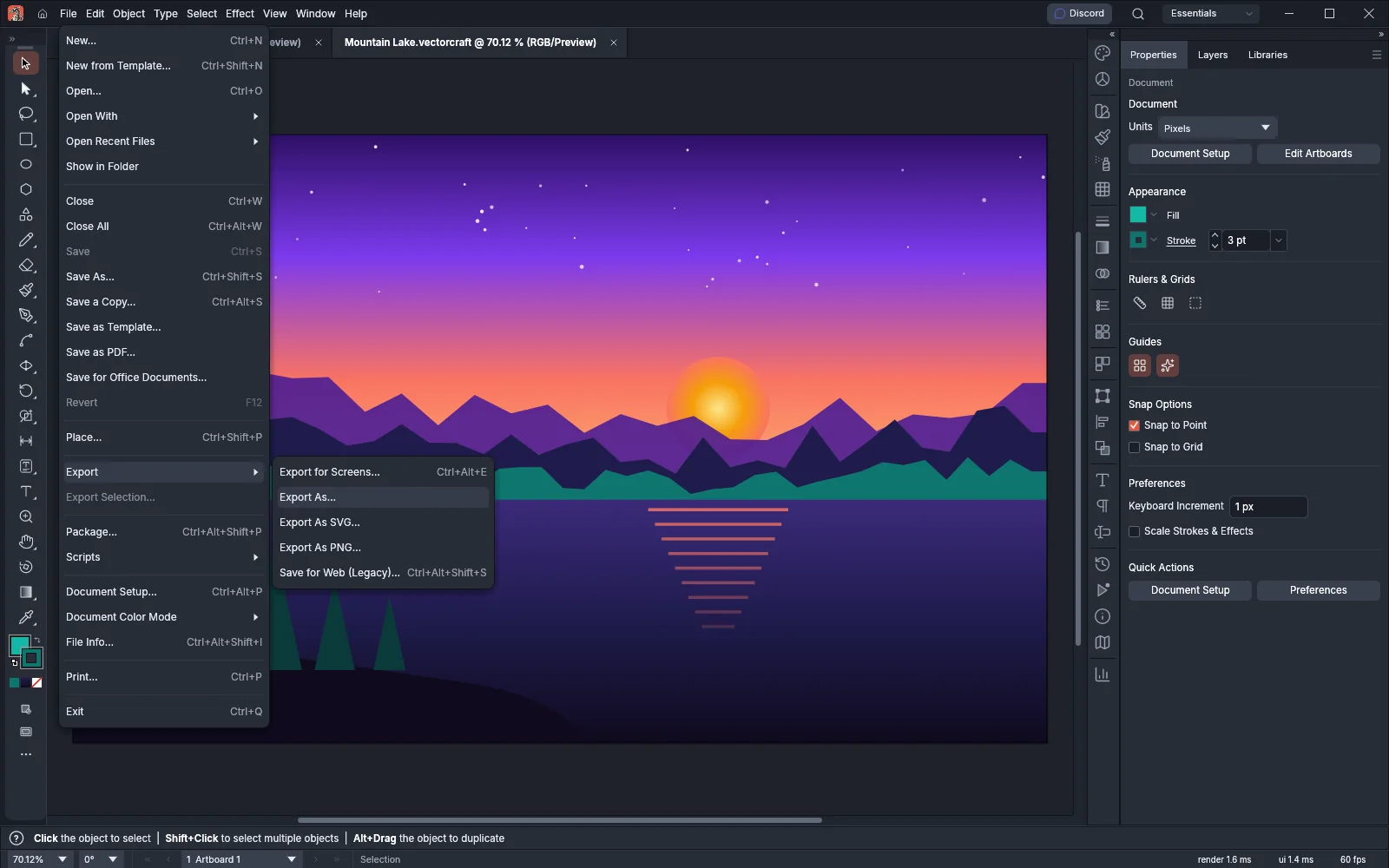
| Item |
What it does |
Windows and Linux |
macOS |
Guide |
| New… |
Opens the New Document dialog. |
Ctrl+N |
Cmd+N |
Set up documents and artboards |
| New from Template… |
Opens a template as a new untitled document. |
Ctrl+Shift+N |
Cmd+Shift+N |
Open and save files |
| Open… |
Opens a file from disk. |
Ctrl+O |
Cmd+O |
Open and save files |
| Open With |
Lists the importer plug-ins, each of which opens a file with that importer. With no importer plug-in installed, the submenu shows “No importer plug-ins installed”. |
None |
None |
Install and manage plug-ins |
| Open Recent Files |
Lists the files you opened last, by name: 20 by default, or the number set in Number of Recent Files to Display under Preferences → File Handling (up to 30). Clear Recent Files at the end empties the list. |
None |
None |
Open and save files |
| Show in Folder |
Shows the document’s file in the system file manager. It is grayed out for a document that has not been saved. |
None |
None |
Open and save files |
Ctrl+Alt+N (Cmd+Option+N on macOS) makes a new document with the settings the New Document dialog would open with, without showing the dialog. This shortcut has no menu item.
| Item |
What it does |
Windows and Linux |
macOS |
Guide |
| Close |
Closes the current document window. When the document has another window open (Window → New Window), only this window closes and the document stays open. When the last window of a document closes and the document has unsaved changes, VectorCraft asks whether to save them. |
Ctrl+W |
Cmd+W |
Open and save files |
| Close All |
Closes every open document, asking about each one with unsaved changes. |
Ctrl+Alt+W |
Cmd+Option+W |
Open and save files |
| Save |
Saves the document to its file. A document that was never saved asks for a name and a location first. It is grayed out while a document that saves back to its own file has no unsaved changes. It stays available for a document that was never saved or was opened from a format VectorCraft cannot save, such as PNG. |
Ctrl+S |
Cmd+S |
Open and save files |
| Save As… |
Saves under a new name, location or format. The document then takes the new file’s name and format. |
Ctrl+Shift+S |
Cmd+Shift+S |
Open and save files |
| Save a Copy… |
Writes a copy. The document keeps its file name and its unsaved state. |
Ctrl+Alt+S |
Cmd+Option+S |
Open and save files |
| Save as Template… |
Writes a template (.vctemplate, or .ait) that opens as a new untitled document. |
None |
None |
Open and save files |
| Save as PDF… |
Opens the Save PDF dialog with its presets and settings. |
None |
None |
Open and save files |
| Save for Office Documents… |
Saves one artboard as a PNG picture for office documents and slides, at 150 ppi unless you change it. |
None |
None |
Open and save files |
| Revert |
Discards the changes since the last save and reloads the saved file in the same tab, after asking. It is grayed out until a saved document has changes. |
F12 |
F12 |
Open and save files |
| Item |
What it does |
Windows and Linux |
macOS |
Guide |
| Place… |
Brings one or more files into the open document, linked or embedded, as a template, or in place of the selected object. |
Ctrl+Shift+P |
Cmd+Shift+P |
Work with placed images |
| Export → Export for Screens… |
Exports artboards and assets in several formats and sizes in one step. |
Ctrl+Alt+E |
Cmd+Option+E |
Export for screens and the web |
| Export → Export As… |
Exports one file in the format you pick, then shows that format’s options. |
None |
None |
Export for screens and the web |
| Export → Export As SVG… |
Opens SVG Options, then writes an SVG file. |
None |
None |
Export for screens and the web |
| Export → Export As PNG… |
Asks for a file name, then shows PNG Options. |
None |
None |
Export for screens and the web |
| Export → Save for Web (Legacy)… |
Opens Save for Web, which compares image formats and settings side by side before saving. |
Ctrl+Alt+Shift+S |
Cmd+Option+Shift+S |
Export for screens and the web |
| Export Selection… |
Adds the selected objects as assets and opens Export for Screens on its Assets tab. It is grayed out while nothing is selected. |
None |
None |
Export for screens and the web |
| Item |
What it does |
Windows and Linux |
macOS |
Guide |
| Package… |
Collects the saved document with its linked files and fonts in one folder. A document that was never saved asks you to save it first. |
Ctrl+Alt+Shift+P |
Cmd+Option+Shift+P |
Open and save files |
| Scripts |
Lists the scripts in your scripts folder, with each subfolder as a submenu. |
None |
None |
Run scripts |
| Scripts → Check Script… |
Checks a script without running it and shows a report. |
None |
None |
Run scripts |
| Scripts → Other Script… |
Asks for a .js or .jsx file and runs it, after a warning unless you have turned the warning off. |
Ctrl+F12 |
Cmd+F12 |
Run scripts |
| Item |
What it does |
Windows and Linux |
macOS |
Guide |
| Document Setup… |
Opens Document Setup, with its General, Transparency and Type tabs. |
Ctrl+Alt+P |
Cmd+Option+P |
Set up documents and artboards |
| Document Color Mode → CMYK Color or RGB Color |
Switches the document to that color mode and converts its colors, in one undo step. |
None |
None |
Set up documents and artboards |
| File Info… |
Sets the document’s title, author, description, keywords, rating and copyright. SVG, PDF and PNG exports carry this information. |
Ctrl+Alt+Shift+I |
Cmd+Option+Shift+I |
Open and save files |
| Item |
What it does |
Windows and Linux |
macOS |
Guide |
| Print… |
Opens the Print dialog. |
Ctrl+P |
Cmd+P |
Print your artwork |
| Exit |
Closes VectorCraft, asking about each document with unsaved changes. On macOS this item is VectorCraft → Quit VectorCraft. |
Ctrl+Q |
Cmd+Q |
Open and save files |
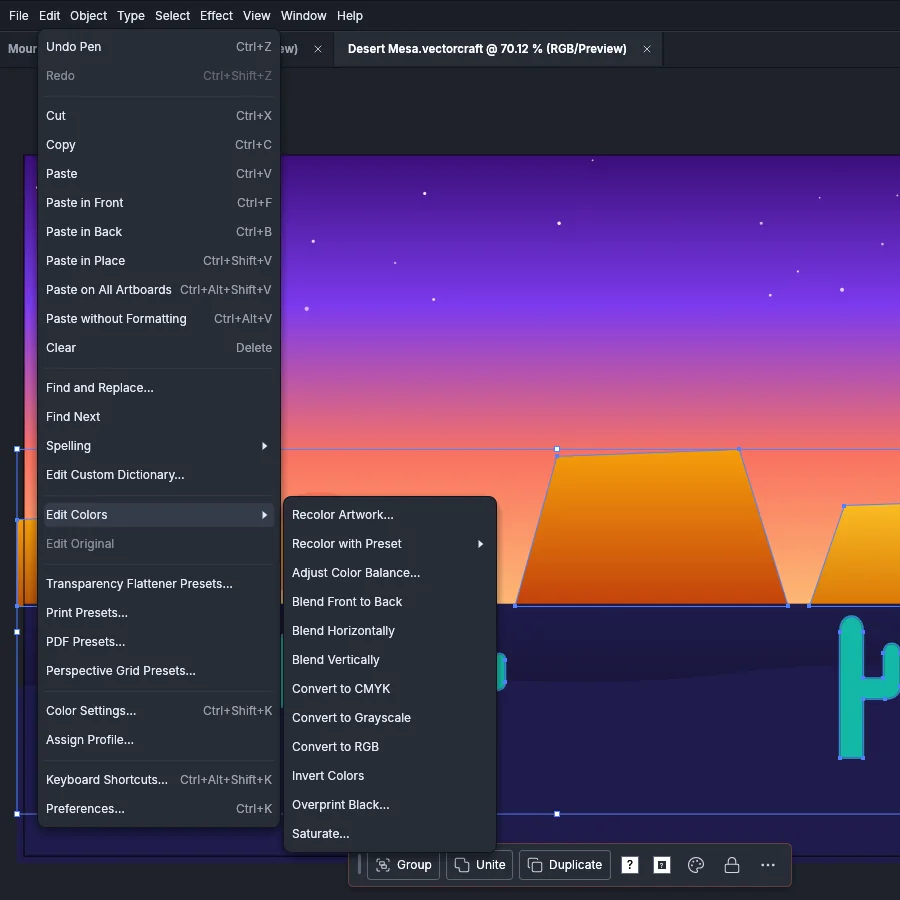
| Item |
What it does |
Windows and Linux |
macOS |
Guide |
| Undo |
Undoes the last step. The item names the step, for example Undo Pen. |
Ctrl+Z |
Cmd+Z |
Keyboard shortcuts |
| Redo |
Redoes the step you undid last. |
Ctrl+Shift+Z |
Cmd+Shift+Z |
Keyboard shortcuts |
| Cut |
Removes the selection and puts it on the clipboard. |
Ctrl+X or F2 |
Cmd+X |
Copy and paste between apps |
| Copy |
Puts a copy of the selection on the clipboard. |
Ctrl+C or F3 |
Cmd+C |
Copy and paste between apps |
| Paste |
Pastes the clipboard into the document. |
Ctrl+V or F4 |
Cmd+V |
Copy and paste between apps |
| Paste in Front |
Pastes at the place the objects were copied from, just above the top selected object, or at the top of the current layer when nothing is selected. |
Ctrl+F |
Cmd+F |
Copy and paste between apps |
| Paste in Back |
Pastes at the place the objects were copied from, just below the bottom selected object, or at the bottom of the current layer when nothing is selected. |
Ctrl+B |
Cmd+B |
Copy and paste between apps |
| Paste in Place |
Pastes at the place the objects were copied from. |
Ctrl+Shift+V |
Cmd+Shift+V |
Copy and paste between apps |
| Paste on All Artboards |
Pastes a copy on every artboard, at the same position relative to each artboard. |
Ctrl+Alt+Shift+V |
Cmd+Option+Shift+V |
Copy and paste between apps |
| Paste without Formatting |
Pastes as Paste does, and gives pasted text the default character style. |
Ctrl+Alt+V |
Cmd+Option+V |
Copy and paste between apps |
| Clear |
Deletes the selected objects, or the selected ruler guides. |
Delete |
Delete |
Keyboard shortcuts |
On Windows and Linux, F2, F3 and F4 also cut, copy and paste. On every system, Backspace also deletes the selected objects.
| Item |
What it does |
Windows and Linux |
macOS |
Guide |
| Find and Replace… |
Finds text in every text object and replaces it, with Match Case and Whole Word options. |
None |
None |
Work with styles and long text |
| Find Next |
Selects the next text object that contains the text you searched for. |
None |
None |
Work with styles and long text |
| Spelling → Auto Spell Check |
Turns on or off a red underline under words that the dictionaries do not know. |
None |
None |
Check spelling |
| Spelling → Check Spelling… |
This item is grayed out because it does not work yet. Pressing its shortcut does not run anything. |
Ctrl+I |
Cmd+I |
Check spelling |
| Edit Custom Dictionary… |
Lists the words of your custom dictionary, where you can add, change and delete words. |
None |
None |
Check spelling |
These commands change the colors of the selected art. None of them has a default shortcut.
| Item |
What it does |
Guide |
| Recolor Artwork… |
Lists the selection’s colors next to the new colors that replace them, with a live preview. |
Fill, stroke and color |
| Recolor with Preset → 1 Color Job…, 2 Color Job…, 3 Color Job… |
Opens Recolor Artwork set up to reduce the art to that many colors. |
Fill, stroke and color |
| Recolor with Preset → Color Library… |
Opens Recolor Artwork limited to the colors of a library. |
Fill, stroke and color |
| Adjust Color Balance… |
Shows a slider for each color channel, with a live preview. |
Fill, stroke and color |
| Blend Front to Back |
Grades the fills of three or more filled objects between the frontmost fill and the backmost fill. |
Fill, stroke and color |
| Blend Horizontally |
Grades the fills of three or more filled objects between the leftmost fill and the rightmost fill. |
Fill, stroke and color |
| Blend Vertically |
Grades the fills of three or more filled objects between the top fill and the bottom fill. |
Fill, stroke and color |
| Convert to CMYK, Convert to Grayscale, Convert to RGB |
Converts the colors to that color model. |
Fill, stroke and color |
| Invert Colors |
Replaces each color with its RGB inverse. |
Fill, stroke and color |
| Overprint Black… |
Sets black fills and strokes to overprint, or stops them overprinting. Black means a K value at or above the percentage you set (100% by default) with no cyan, magenta or yellow, unless you include CMY blacks, and no link to a spot swatch, unless you include spot blacks. |
Manage color and proof |
| Saturate… |
Raises or lowers the saturation of the colors by a percentage from −100 to 100, with a live preview. |
Fill, stroke and color |
| Item |
What it does |
Windows and Linux |
macOS |
Guide |
| Edit Original |
Opens the selected linked image’s file in the system’s default app for its type. A placed VectorCraft document opens in a new tab. It is grayed out while no linked image or placed document is selected. |
None |
None |
Work with placed images |
| Transparency Flattener Presets… |
Manages the presets that flatten transparency for print and export. |
None |
None |
Manage color and proof |
| Print Presets… |
Manages saved print settings. |
None |
None |
Print your artwork |
| PDF Presets… |
Manages the presets of the Save PDF dialog. |
None |
None |
Open and save files |
| Perspective Grid Presets… |
Manages saved perspective grids. |
None |
None |
Draw in perspective |
The Print, PDF and Perspective Grid preset dialogs have New…, Edit…, Delete, Import… and Export… buttons. The Transparency Flattener Presets dialog has New, Delete, Import… and Export…. The built-in flattener and PDF presets and the [Default] print preset cannot be changed.
| Item |
What it does |
Windows and Linux |
macOS |
Guide |
| Color Settings… |
Sets the RGB and CMYK working spaces, the rendering intent and black point compensation. VectorCraft keeps them for the next start. |
Ctrl+Shift+K |
Cmd+Shift+K |
Manage color and proof |
| Assign Profile… |
Tags the document with color profiles. The color numbers stay the same. |
None |
None |
Manage color and proof |
| Keyboard Shortcuts… |
Opens the keyboard shortcuts editor. |
Ctrl+Alt+Shift+K |
Cmd+Option+Shift+K |
Keyboard shortcuts |
| Preferences… |
Opens Preferences. On macOS this item is VectorCraft → Settings. |
Ctrl+K |
Cmd+K |
Preferences |
On macOS, VectorCraft uses the system menu bar and adds a VectorCraft menu before File. Windows and Linux show the menus inside the window, starting with File, and have no VectorCraft menu. Two items of the File and Edit menus move to the VectorCraft menu on macOS:
| Windows and Linux |
macOS |
Shortcut on macOS |
| Edit → Preferences… |
VectorCraft → Settings, a submenu with one item for each Preferences page, from General… to Devices… |
Cmd+K opens General; Cmd+, also opens Preferences |
| File → Exit |
VectorCraft → Quit VectorCraft |
Cmd+Q |
Quit VectorCraft asks about each document with unsaved changes, as Exit does. The VectorCraft menu also holds About VectorCraft, Language, Appearance, Services, Hide VectorCraft (Ctrl+Cmd+H), Hide Others (Cmd+Option+H) and Show All. On macOS, F2, F3 and F4 do not cut, copy and paste.
