
Save and recall views
A saved view stores the position, zoom and rotation of the canvas under a name in the document, so you can return to that part of the artwork from the View menu. This page covers saving a view, going to it, renaming and deleting views, and what a view keeps.
Save a view
Section titled “Save a view”- Scroll, zoom and rotate the canvas until it shows the part of the artwork you want. See Zoom and pan the canvas and Rotate the view.
- Choose View → New View…. The New View dialog opens. Its Name field holds the first free name of the form View 1, View 2 and so on.
- Type a name for the view, such as Flower Bed, and click OK.
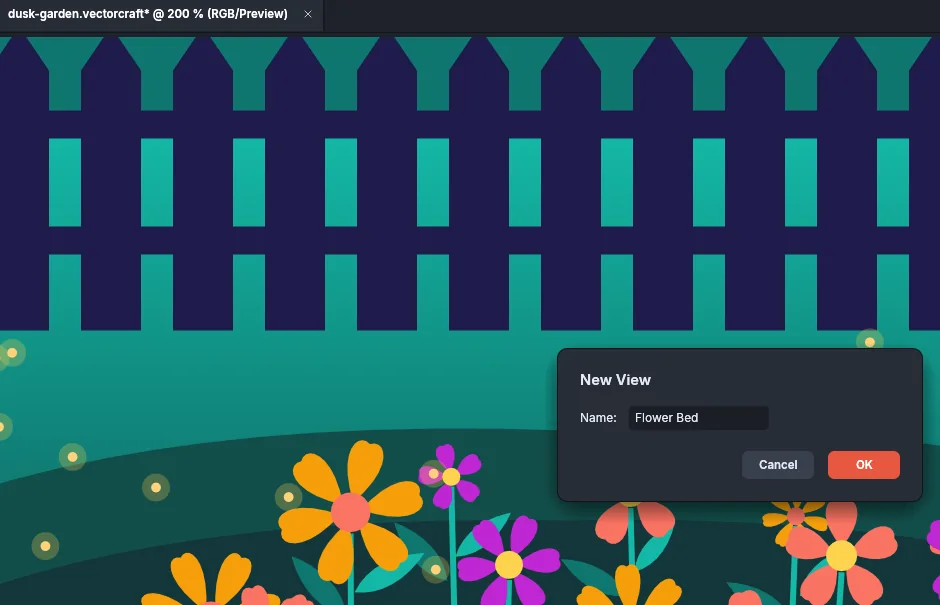
VectorCraft adds the view to the list at the bottom of the View menu. These rules apply to names and to the number of views:
- A name can be up to 255 characters long. VectorCraft removes spaces at the start and end of the name. If you leave the name blank, the view gets the first free View N name.
- Each name can be used once in a document. VectorCraft does not save a view under a name another view of the document already has.
- A document holds up to 25 saved views. When it has 25, New View… does not save another one; delete a view first.
Saving a view changes the document, so its tab shows an asterisk until you save the file. To remove the view you just saved, choose Edit → Undo New View.
Go to a saved view
Section titled “Go to a saved view”- Open the View menu. The saved views are listed at its bottom, below Edit Views…, in the order you saved them.
- Choose the name of a view.
The canvas moves to the position, zoom and rotation stored in the view. When the document is open in more than one window, only the window you are working in changes. To open another window on the same document, choose Window → New Window. See Work in several windows.
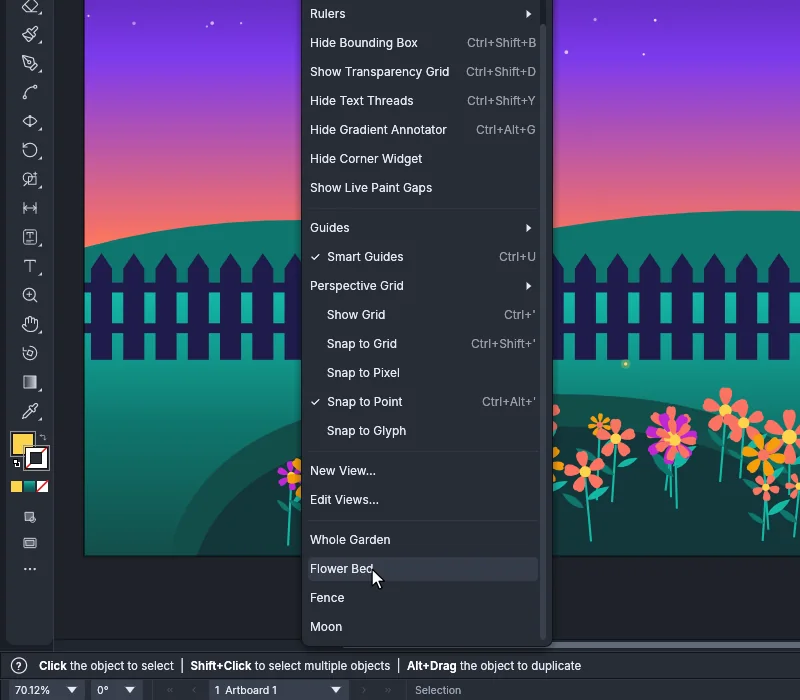
When the document has no saved views, nothing is listed below Edit Views….
Rename or delete views
Section titled “Rename or delete views”- Choose View → Edit Views…. The command is dimmed until the document has a saved view.
- In the Saved Views list, click a view.
- Do one of these:
- To rename the view, type the new name in the Name field.
- To delete the view, click Delete. VectorCraft removes the view from the list and selects the view below it (the view above, when you delete the last one).
- Repeat steps 2 and 3 for any other views you want to change.
- Click OK.
Nothing changes until you click OK. OK applies every rename and deletion you made in the dialog as one undo step, so one Edit → Undo reverses all of them. Cancel closes the dialog and leaves the views as they were.
If you clear a Name field, the view keeps its old name. If two views would end up with the same name, OK leaves the dialog open so you can change one of them.
What a saved view keeps
Section titled “What a saved view keeps”| Setting | Saved in the view |
|---|---|
| Position (the point at the center of the canvas) | Yes |
| Zoom | Yes |
| Rotation (measured clockwise on screen, as View → Rotate View turns the view) | Yes |
| Outline or Preview, Pixel Preview, guides, rulers and other View menu settings | No. Going to a view does not change them |
- Going to a view keeps its zoom within the range the canvas can show, from 3.13% to 64,000%.
- Saved views are stored in the document. When you save the document as a
.vectorcraftfile, its views are saved with it and are listed in the View menu when you open the file again. For saving files, see Open and save files. - When it opens a file, VectorCraft leaves out any view it cannot list or show: views past the 25th, views with a blank name or a name an earlier view already has, and views without a usable position or zoom.
- A
.vectorcraftfile also reopens at the view its window showed when you saved it. That view is not added to the list of saved views, and changing the view does not mark the document as changed.
New View… and Edit Views… have no default keyboard shortcuts. Keyboard shortcuts lists the shortcuts of the other View menu commands.