
VectorCraft
VectorCraft is a vector illustration app. If you have used a professional vector editor before, it will feel familiar: the Pen, Direct Selection, Pathfinder, Smart Guides, and the Appearance, Swatches and Layers panels are all there, in the places and on the shortcuts you’d expect. It runs on Windows, macOS, Linux and FreeBSD, and in a web browser. It is free and open source (MIT or Apache-2.0), and made by the ArtCraft team.
What it does
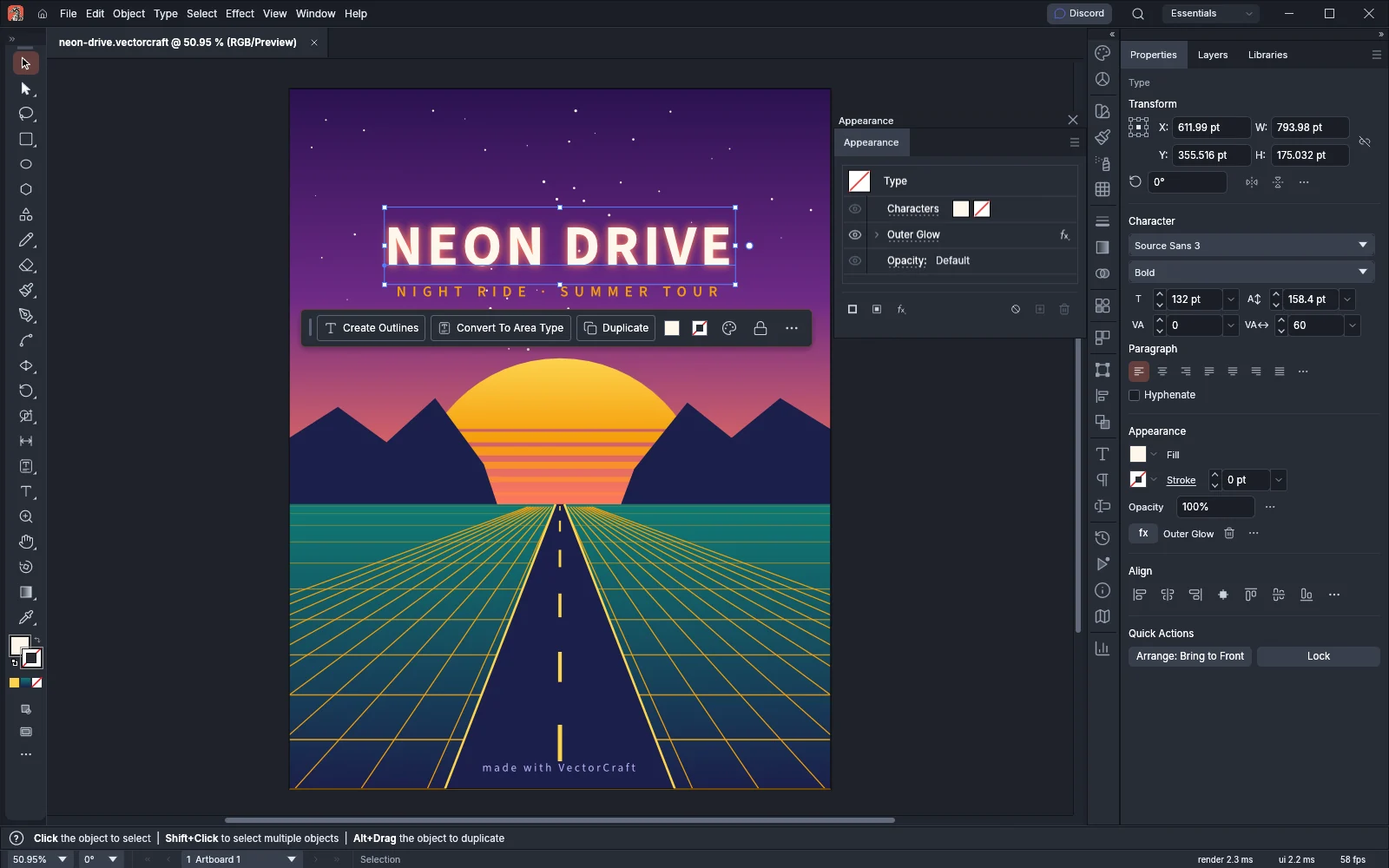
Section titled “What it does”- Drawing: the Pen, Curvature and Pencil tools, shapes, the Paintbrush and Blob Brush, and the Shaper tool.
- Brushes and widths: calligraphic, scatter, art, pattern and bristle brushes from the Brushes panel and brush libraries, and the Width tool (Shift+W), which changes a stroke’s width along its path.
- Reshaping: the Warp (Shift+R), Twirl, Pucker, Bloat, Scallop, Crystallize and Wrinkle tools reshape paths as you drag over them.
- Editing paths: Direct Selection, anchor point tools, Join, Simplify, Offset Path and Outline Stroke.
- Combining shapes: Pathfinder and the Shape Builder tool.
- Paint: swatches, gradients, gradient meshes, patterns, Live Paint and Recolor Artwork.
- Color Wheel: the Color Wheel panel (Window → Color Wheel) shows a hue ring around a square of saturation and brightness. A click or a drag sets the color of the fill or the stroke, whichever is active, and a drag is one undo step. Fill, stroke and color covers it.
- Live effects: blends, Repeat (radial, grid and mirror), Envelope Distort, drop shadows and glows, and 3D effects such as Revolve and Extrude & Bevel. They stay editable until you expand them. Make 3D artwork covers the 3D and Materials panel.
- Type: point, area and path type, threaded text frames, character and paragraph styles, OpenType features and vertical type.
- Spelling: Edit → Spelling → Auto Spell Check underlines words that are not in the dictionary. Right-click an underlined word to choose a suggestion, Ignore All or Add to Dictionary, and use Edit → Edit Custom Dictionary… to change the words you added. Check spelling covers both.
- Layout and drawing aids: several artboards in one document, guides, grids and the Dimension tool.
- Perspective drawing: View → Perspective Grid → Show Grid shows the grid, and the One Point Perspective, Two Point Perspective and Three Point Perspective submenus under View → Perspective Grid choose its type. The Perspective Grid Tool (Shift+P) adjusts the grid, and the Perspective Selection Tool (Shift+V) moves art along its planes.
- Symbols: the Symbols panel stores art that you place many times, and every placed copy changes when you edit the symbol. The Symbol Sprayer Tool (Shift+S) and the Shifter, Scruncher, Sizer, Spinner, Stainer, Screener and Styler tools spray and adjust many copies at once.
- Graphs: nine graph types (column, stacked column, bar, stacked bar, line, area, scatter, pie and radar) drawn from a data table.
- Variables and data sets: variables hold the text, images, visibility and graph data of one template, and each data set fills the template with one row’s values. You can import data sets from a CSV file.
- Web slices: cut a design into slices and save each one as a separate image with File → Export → Save for Web (Legacy)….
- Tracing: Image Trace turns a picture into vector shapes.
- Output: Export for Screens, PDF with print presets, printing (including posters tiled across several sheets) and Package.
- Contextual Task Bar: a bar under the selection shows buttons for the likely next steps, such as Ungroup, Isolate and Duplicate for a group. Turn it on or off with Window → Contextual Task Bar.
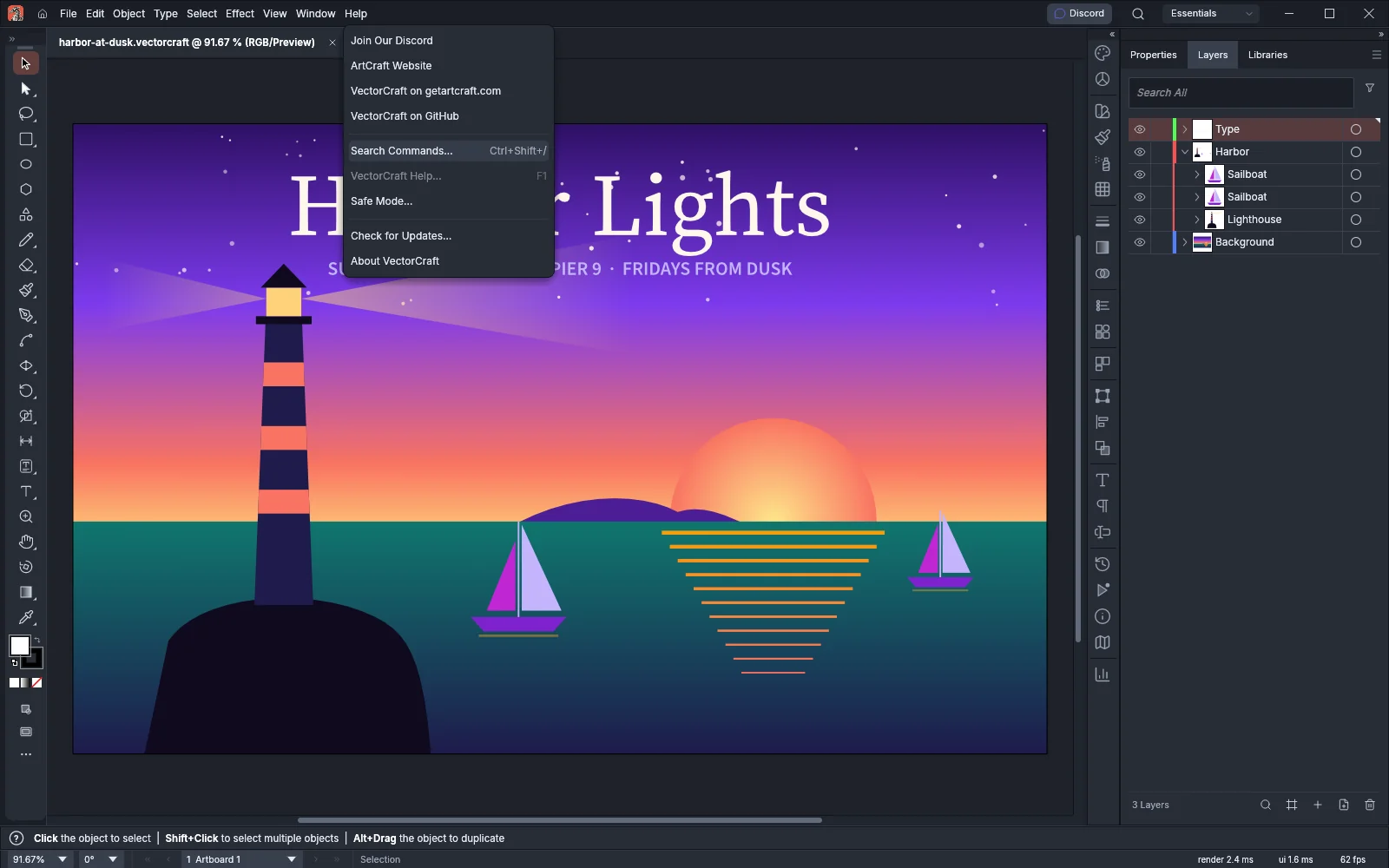
- Search Commands: Help → Search Commands… (Ctrl+Shift+/, or Cmd+Shift+/ on macOS) finds any command or tool by name.
- Scripts: File → Scripts lists the
.jsand.jsxscripts in your Scripts folder and runs the one you choose. A script you add to the folder appears in the menu without a restart. File → Scripts → Other Script… runs a script file from anywhere after a warning, and Window → Script Console shows what each run printed. Run scripts covers the folder, the warning and the console. - Command-line tool:
vectorcraft-cliconverts files between formats, runs commands on a document without opening a window, and runs the Model Context Protocol (MCP) server that AI agents connect to. - Interface: dark and light themes, workspaces and 28 languages.
Basic ideas
Section titled “Basic ideas”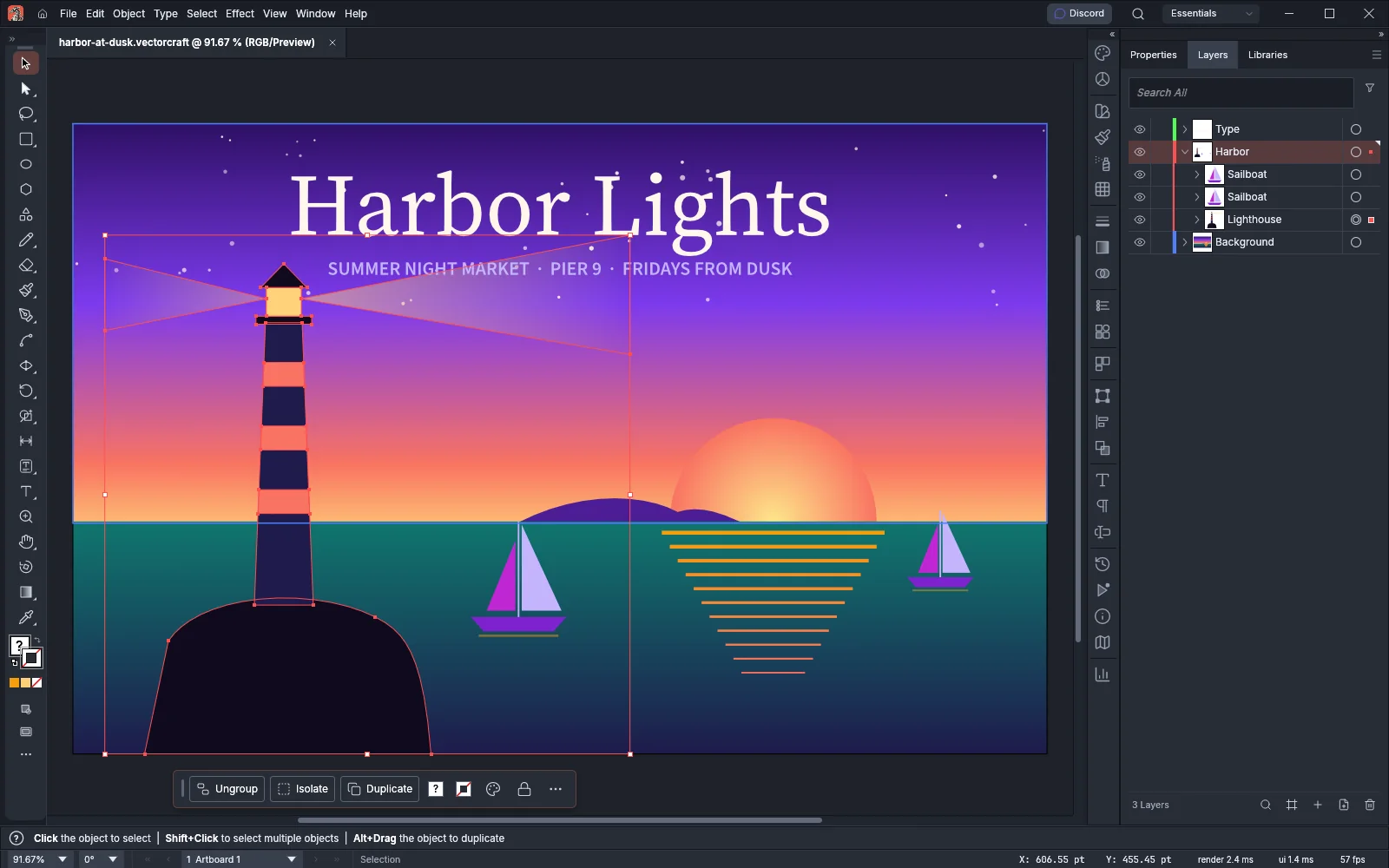
- Paths, anchor points and segments: every shape, line and letter outline is a path. A path runs through anchor points, and the segments between them are straight or curved. The Pen Tool (P) places anchor points, and the Direct Selection Tool (A) moves one anchor point or one segment. Draw and edit paths covers both.
- Fill and stroke: the fill paints the inside of a path, and the stroke paints its outline. X switches which of the two you are editing, Shift+X swaps their colors, and D sets a white fill and a 1 pt black stroke. Fill, stroke and color covers colors, gradients and patterns.
- Objects, groups and layers: each path, text frame or placed image is an object. Object → Group (Ctrl+G, or Cmd+G on macOS) joins objects so that they move and scale together, and Object → Ungroup (Ctrl+Shift+G, or Cmd+Shift+G on macOS) separates them again. Layers hold groups and objects in a stacking order, and a layer can hold sublayers. The Layers panel (Window → Layers) shows them all. Organize with layers and symbols covers layers, sublayers and symbols.
- Artboards and the canvas: an artboard is a page of the document, and one document can hold several artboards. The canvas is the work area around them, and you can keep art there while you work. The Artboard Tool (Shift+O) and the Artboards panel (Window → Artboards) add and arrange artboards. Set up a document and artboards covers sizes, presets and bleed.
- Live effects and the Appearance panel: an effect such as a drop shadow changes how an object looks but leaves its path as it is. The Appearance panel (Window → Appearance) lists an object’s fills, strokes and effects, and you can edit or remove each one later. Object → Expand Appearance turns the effects into ordinary objects. Apply effects and appearance covers every effect.
- CMYK and RGB: a document uses CMYK Color for print or RGB Color for screens. You choose the color mode under Advanced Options in the New Document window, and File → Document Color Mode changes it later and converts the document’s colors. The document tab shows the mode, for example (RGB/Preview). Manage color and proof for print covers color settings and proofing.
Your files
Section titled “Your files”VectorCraft saves its own .vectorcraft files. It also opens and saves SVG, PDF, PDF-compatible .ai and EPS. It opens Affinity documents (.af, .afdesign and .afpub), DXF, EMF and WMF drawings, and pictures such as PNG, JPEG, WebP, GIF, TIFF and BMP. Photoshop files (.psd and .psb) open as a single flattened picture. File → Export writes PNG, JPEG, WebP, PSD and other picture formats too. Open and save files lists every format.
Your files stay on your computer. VectorCraft doesn’t need an account.
What you need
Section titled “What you need”- Windows (64-bit, ARM or 32-bit), macOS 11 or later (Apple silicon or Intel), Linux, or FreeBSD.
- Or a modern web browser, for the web version.
Get help
Section titled “Get help”The Help menu links to the ArtCraft community and to VectorCraft’s pages:
| Command | What it does |
|---|---|
| Join Our Discord | Opens the ArtCraft community Discord at discord.gg/artcraft |
| ArtCraft Website | Opens getartcraft.com |
| VectorCraft on getartcraft.com | Opens VectorCraft’s page on the ArtCraft website |
| VectorCraft on GitHub | Opens VectorCraft’s GitHub repository, with its issues and releases |
| Search Commands… | Finds a command or tool by name (Ctrl+Shift+/, or Cmd+Shift+/ on macOS) |
| Safe Mode… | Lists the plug-ins VectorCraft has disabled, with Enable on Re-launch beside each one |
| Check for Updates… | Checks for a newer version of VectorCraft |
| About VectorCraft | Shows the version number, the community links, the licenses, the contributors and the models |
VectorCraft Help… (F1) is in the menu but grayed out, because it is not built yet. The web version does not check for updates.
On macOS, About VectorCraft is in the VectorCraft menu instead of the Help menu, together with Settings, Language, Appearance and Quit VectorCraft. Join Our Discord stays in the Help menu.
The Discord button at the top of the window opens the Discord server too. With no document open, the Home screen shows the same links under Community. To report a problem, open an issue on GitHub, and see Troubleshooting for fixes to common problems.
Guides
Section titled “Guides”- Getting started: draw, color and save your first illustration.
- Install and update: download VectorCraft for your system.
- Workflows: paths, live effects, type, artboards, tracing and exporting.
- Customize the workspace: workspaces, panels, your own toolbars, extra windows, the Navigator, Presentation Mode and the History panel.
- Keyboard shortcuts: changing shortcuts, and every default shortcut by menu and tool.
- Preferences: every page of the Preferences dialog and how to reset it.
- Panels: every panel, library and bar in the Window menu, with its default shortcut where it has one and the guide that covers it.
- Troubleshooting: fix common problems.
- Set up a document and artboards: New Document presets, artboards, units, bleed, color mode and moving around the canvas.
- Manage artboards: the Artboard tool’s canvas menu for copying, pasting, renaming, locking, deleting and turning artboards, fading the canvas outside them, and pasting art onto several artboards.
- Draw and transform shapes: shape tools, live corners, selecting, moving, rotating, scaling and repeating a transform.
- Copy and paste between apps: the paste commands, what other apps receive when you copy, and pasting art, pictures, text, spreadsheet tables and copied files.
- Select artwork: the Group Selection, Lasso and Magic Wand tools, the Select menu, Global Edit and saved selections.
- Draw and edit paths: the Pen, Curvature, Pencil, Paintbrush and Blob Brush tools, anchor editing and the Object → Path commands.
- Paint with brushes and variable widths: paint with the five brush kinds and shape strokes with the Width tool.
- Reshape with the warp tools: the Warp, Twirl, Pucker, Bloat and related tools, the Reshape tool, Puppet Warp and Envelope Distort.
- Cut, join and refine paths: the Eraser, Knife, Join and Shaper tools, the Smart Pen, the Contour tool and the path precision tools.
- Combine and cut shapes: Pathfinder, Shape Builder, compound paths, clipping masks and Live Paint.
- Draw in perspective: the perspective grid and its presets, the active plane, and drawing and moving art in perspective.
- Measure and dimension: the Measure tool, the Info panel, the Dimension tool and Document Info.
- Trace an image: placing an image and turning it into paths with Image Trace.
Color and type
Section titled “Color and type”- Fill, stroke and color: fill and stroke, swatches, the Stroke panel, gradients, gradient meshes, patterns and recoloring.
- Manage color and proof for print: color settings, proofing, overprint and separations previews, spot colors and flattening transparency.
- Add and style type: point type, area type, type on a path, threading and the Character and Paragraph panels.
- Work with styles and long text: paragraph and character styles, OpenType features and glyphs, tabs, text wrap and Find and Replace.
- Make lists and fit type to its frame: bulleted and numbered lists, the Bullets and Numbering dialog, Dynamic Text and Fit Headline.
- Check spelling: Auto Spell Check, fixing an underlined word from the context menu, and the custom dictionary.
- Set type in other languages: the language of type, the East Asian options, composite fonts and typing a character by its code on Windows.
Organize
Section titled “Organize”- Arrange, group and align: stacking order, groups, lock and hide, selecting similar objects and the Align panel.
- Organize with layers and symbols: layers, sublayers, template layers and reusable symbols.
- Work with placed images: the Links panel, relinking and embedding, cropping, rasterizing and Object Mosaic.
Effects
Section titled “Effects”- Apply effects and appearance: the Appearance panel, live effects, blends, Repeat, Envelope Distort, 3D and graphic styles.
- Make 3D artwork: the 3D and Materials panel, giving shapes, groups and type depth, revolving, lighting, Extrude & Bevel (Classic), and changing or removing a 3D effect.
- Make patterns, blends and repeats: pattern swatches and the Pattern Options panel, Repeat, Intertwine, objects on a path and blends.
Output
Section titled “Output”- Open and save files: the VectorCraft format, Save As formats, opening other files and placing them.
- Export for screens and the web: Export for Screens, assets, SVG and PNG options.
- Slice artwork for the web: cut a design into web images with slices.
- Print your artwork: the Print dialog, marks and bleed, scaling, separations and print presets.
- Print a large poster: spread one drawing across several sheets of paper.
Automate
Section titled “Automate”- Automate VectorCraft: command search, keyboard shortcuts, the Actions panel, running an action on a folder of files, checking a script, the command-line tool and the Model Context Protocol (MCP) server.
- Run scripts: the Scripts menu, running any script file, answering a script’s questions, stopping a script and the Script Console.
- AI agents: let an AI assistant draw and edit in VectorCraft.
- Make graphs and data-driven art: draw graphs from a data table and fill a template from a CSV file.
- Use the built-in plug-ins: find the extra tools and commands under Object → Plug-ins.
- Install and manage plug-ins: installing plug-ins, approving what they ask for, running their filters, effects, exporters and importers, and starting in Safe Mode.