
Write command steps for vectorcraft-cli
This guide shows you how to write a steps file, a list of VectorCraft commands that vectorcraft-cli run carries out in order without opening a window. It covers finding a command’s id and settings, the two forms a steps file can take, using the result of one step in a later one, mixing steps files with --cmd and --export, reading the output, and what vectorcraft-cli keeps from one run to the next.
The four price tags in the following image were drawn, named and saved by one steps file. The file has 89 steps. Each tag, its hole, its label and its price got its name from a step that referred back to the step that drew it.
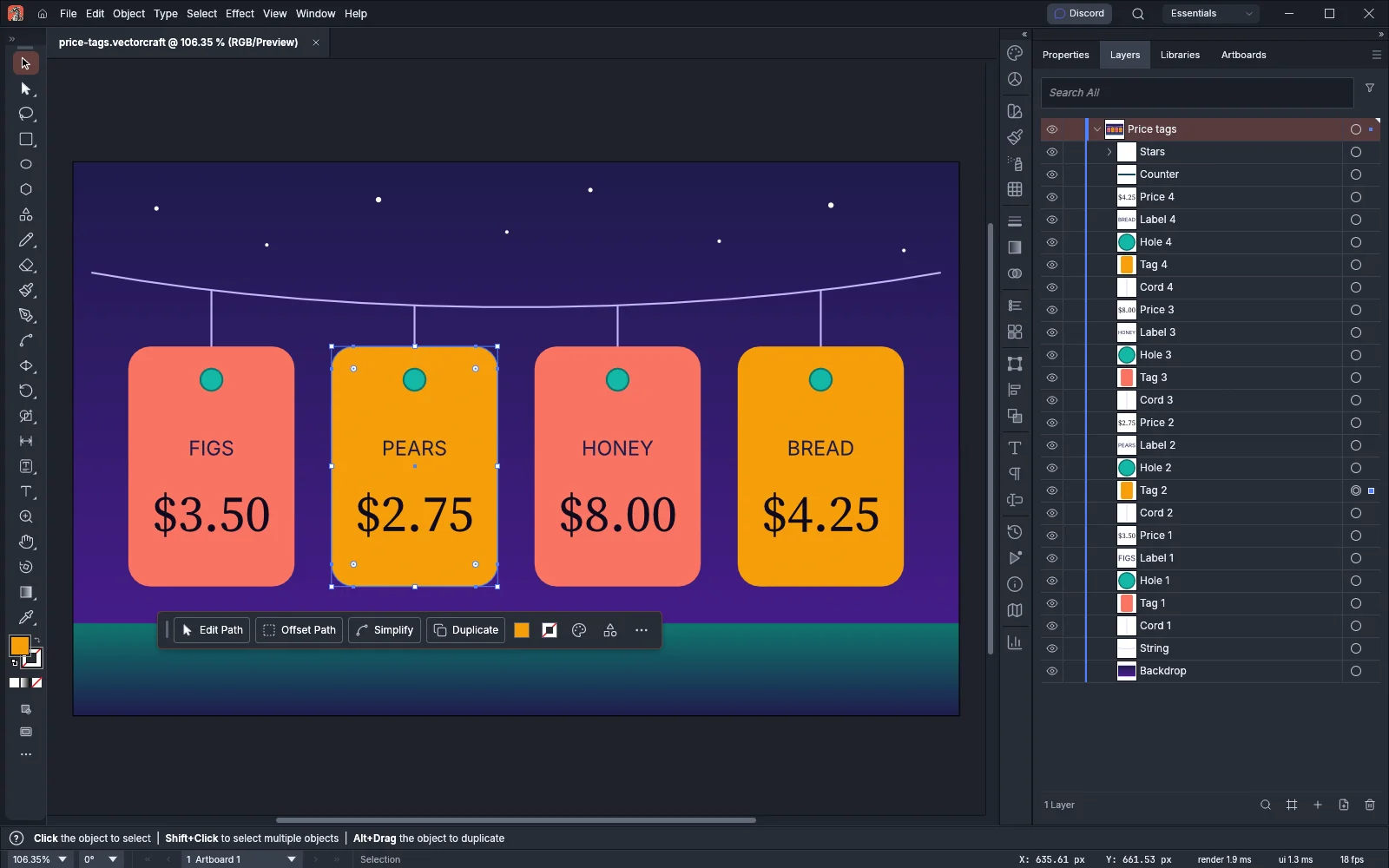
Find a command and its settings
Section titled “Find a command and its settings”Every step names a command by its id, such as shape.rectangle, and gives the command’s settings as params. To find them:
-
In VectorCraft, choose Help → Search Commands…, or press Ctrl+Shift+/ (Cmd+Shift+/ on macOS).
-
Type a word from the command’s name, for example
rectangle. Each result shows the command’s menu path, when it has one, and its label. A label can belong to more than one command: in VectorCraft 0.24.1,shape.rectangleandaddon.shapes.rectangleare both labeled Rectangle, so the list shows Rectangle twice.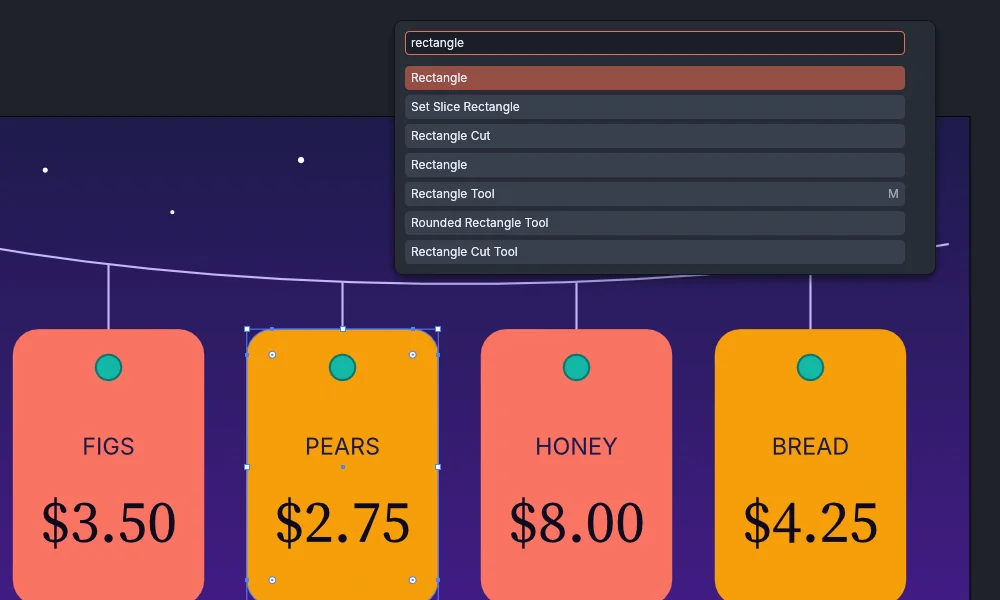
-
Press Escape to close the box without running anything.
-
In a terminal, run
vectorcraft-cli commandsand save the output, which is the full command catalog as JSON:Terminal window vectorcraft-cli commands > commands.json -
Search the file for the label you found. Each entry has the command’s
id, itslabel, itsmenupath, itsshortcut, and aparamstext that lists every setting. Entries also haveenabledanddisabled_reasonkeys, which the following sample leaves out:{"id": "shape.rectangle", "label": "Rectangle", "menu": [], "shortcut": null,"params": "{x, y, width, height, radius?: pt, rotation?: deg clockwise about the centre (0: upright)} → {id}"}A key with
?is optional. The part after→is what the command returns, which a later step can use. In VectorCraft 0.24.1 the catalog lists 1,430 commands.When the label matches more than one entry, as Rectangle does, compare the entries’
idandparamstext to pick the command you want, and use thatidin the step.
Search Commands also matches a command id, so typing shape.rectangle finds that command and leaves out addon.shapes.rectangle, whose id does not contain that text.
For a reference in Markdown, run the engine.apiReference command. It returns a section with a table of parameters for each built-in command that has a parameter schema. Commands without a schema, including plug-in commands, are not in the reference, and vectorcraft-cli commands still lists them with their params text.
vectorcraft-cli run --cmd engine.apiReference > reference.jsonlVectorCraft checks the keys of params before a command runs. A misspelled key stops the run with a message such as invalid parameters for `shape.rectangle`: unknown parameter `widht`; did you mean `width`?
Commands that only work in the desktop window, such as help.commandPalette, cannot run in vectorcraft-cli run. The error names the command and says that it needs the desktop app, started with vectorcraft --control 7979.
Write a steps file
Section titled “Write a steps file”A steps file is UTF-8 text in one of two forms. A file whose first character, after any spaces, tabs and blank lines, is [ is read as a JSON array. Any other file is read as JSON Lines, one step per line.
| Form | What it holds | Example |
|---|---|---|
| JSON array | One array of step objects | [{"command": "select.all"}, {"command": "paint.setFill", "params": {"color": "#F97362"}}] |
| JSON Lines | One step object on each line. Blank lines are skipped and do not count as steps. | {"command": "select.all"} on one line, then {"command": "paint.setFill", "params": {"color": "#F97362"}} on the next |
Each step is an object with two keys:
| Key | Value |
|---|---|
command |
The command id, as a string. You can write id instead, the name that the command_batch tool of the Model Context Protocol (MCP) server uses, but not both. |
params |
A JSON object with the command’s settings. Leave it out, or give null, for a command that needs none. |
Any other key stops the run, with a message such as unknown key `label`: a step has `command` (or `id`) and `params` .
To build a document from a steps file:
-
Create a text file, for example
price-tags.jsonl, and write one step on each line. This file starts the price tags document and draws the first tag:{"command": "file.new", "params": {"name": "price-tags", "width": 960, "height": 600, "units": "Pixels"}}{"command": "layer.setProps", "params": {"name": "Price tags"}}{"command": "shape.rectangle", "params": {"x": 60, "y": 200, "width": 180, "height": 260, "radius": 24}}{"command": "paint.setFill", "params": {"id": "$last.id", "color": "#F97362"}}{"command": "object.setProps", "params": {"id": "$2.id", "name": "Tag 1"}} -
Run the file with
--commands, and add--exportfor each file to write:Terminal window vectorcraft-cli run --commands price-tags.jsonl --export price-tags.vectorcraft --export price-tags.png -
Read the output.
vectorcraft-cliprints one line of JSON for each step, and writes each export file in the format its extension names.
When the run has no --in file and its first step is not file.new, it starts with a new default document, a Letter-size page.
To pass steps from another program, use --commands -, which reads them from standard input. Standard input can be read only once in a run.
A steps file can hold at most 64 MiB and 100,000 steps. VectorCraft skips a byte order mark at the start of the file.
Use a result from an earlier step
Section titled “Use a result from an earlier step”Most commands return a result, such as {"id": 5} from shape.rectangle. A later step can use that result in its params.
| Write | To get |
|---|---|
"$N" |
The whole result of step N. Steps count from 0, in the order they run. |
"$N.id" |
The id key of step N’s result |
"$N.ids.0" or "$N.ids[0]" |
The first item of the ids list in step N’s result |
"$last.id" |
The id of the result of the step just before |
"$$" at the start of a string |
One $. Write "$$4.50" to get the text $4.50. |
The reference must be the whole string. VectorCraft replaces it with the value, which can be a number, a list or an object. References also work inside lists, as in {"ids": ["$71.id", "$72.id"]}.
In the example in the previous section, step 3 fills the rectangle through "$last.id", because the rectangle is the step just before it. Step 4 names the rectangle through "$2.id", because the step just before it is the fill, whose result is {"objects": 1} and has no id.
A reference that names no value stops the run before the step runs. A price written as "$4.50", without the second $, fails with this message:
vectorcraft-cli: step 0 (text.create): `$4.50`: there is no step 4 before this one (steps count from 0; write $$ for a literal $)The MCP server’s command_batch tool reads the same references. See AI agents.
Mix steps files with –cmd and –export
Section titled “Mix steps files with –cmd and –export”--cmd, --commands and --export can be given in any order and as many times as you need. VectorCraft runs them in the order they appear on the command line:
- Each
--cmdis one step.--paramsgives the settings of the--cmdjust before it. - Each
--commandsadds the steps of its file at that place. Blank lines in the file do not count. - Each
--exportis one step that writes a file.
The numbers in $N count every step in that order, so a steps file can use the ids that an earlier --cmd made, and a later --cmd can use the results of the file’s steps. This command makes a new document, runs the steps from standard input, and names the object the last of those steps drew:
printf '{"command":"shape.star","params":{"cx":100,"cy":100,"radius1":50,"radius2":20}}\n' | vectorcraft-cli run --cmd file.new --params '{"width":200,"height":200}' --commands - --cmd object.setProps --params '{"id":"$last.id","name":"Star"}' --export star.svg--in FILE opens a file before the first step. vectorcraft-cli prints a line for the opened file, but that line is not a step, so the first step is still $0.
For image exports, --scale sets the pixels per point and --ppi sets the pixels per inch. When both are given, --ppi is used. Without either, image exports use the document’s raster effects resolution. An --export file that ends in .ait is written as a template.
Read the output and find a failed step
Section titled “Read the output and find a failed step”vectorcraft-cli run prints one line of JSON for each step, on standard output:
| Line | When |
|---|---|
{"path":"price-tags.vectorcraft","result":{"format":"vectorcraft","index":0},"step":"open"} |
--in opened a file. The result has more keys than shown here. |
{"command":"shape.rectangle","result":{"id":5},"step":"cmd"} |
A command ran. result is what it returned, or null. |
{"result":{"bytes":21677,"format":"png","path":"price-tags.png","warnings":[]},"step":"export"} |
An --export wrote a file |
The run stops at the first step that fails. VectorCraft prints the reason on standard error after vectorcraft-cli: and exits with a nonzero status. The message names the step by its number, counted from 0 as $N references count. For a command step it also names the command, and for an --export step it names the export file:
vectorcraft-cli: step 1 (object.setProps): `$5.id`: there is no step 5 before this one (steps count from 0; write $$ for a literal $)The steps before the failed one have run and printed their lines. A file is written only by a step that saves or exports it, so a run that fails before its save or --export step writes no file.
A steps file that is not valid stops the run before any step runs, including the --cmd steps given before it. When a line of a JSON Lines file, or an entry of an array, is not a valid step, the message gives the step number and its place in the file: line 3 in a JSON Lines file, or entry 3 in an array, counted from 1:
vectorcraft-cli: --commands bad.jsonl: step 2 (line 2): EOF while parsing an object at line 1 column 55When an array file is not valid JSON, the message gives the line and column of the error instead, with no step number:
vectorcraft-cli: --commands bad.json: expected value at line 2 column 13A file that holds more than 64 MiB or more than 100,000 steps, or is not UTF-8 text, also stops the run with a message that names the file and gives no step number.
Open, save and export inside the steps
Section titled “Open, save and export inside the steps”Besides the engine’s commands, run accepts these commands, which the desktop app adds:
| Command | What it does |
|---|---|
file.open |
{"path": "poster.svg"} opens any file VectorCraft reads as a new document. A template opens untitled. |
file.save |
Saves as .vectorcraft, .ai, .pdf, .svg or .svgz. Without path, it saves to the document’s own path and format. |
file.export |
Exports in the format of path or format, with options such as artboard, range and scale. Without path, the result holds the file as dataBase64. |
file.exportForScreens |
Exports artboards or assets to folder, or to a zip. Without folder, the result holds the files as dataBase64. |
tool.select |
{"tool": "pen"} selects a tool. Other tool names include selection and rectangle. |
tool.setOption |
Sets one option with key and value, or several with values, and returns the tool’s options. tool names the tool, and without it the command changes the active tool. {} returns the options without changing them. |
The price tags steps file ends with a save:
{"command": "select.none"}{"command": "file.save", "params": {"path": "C:/Art/price-tags.vectorcraft"}}Its output line reports the result:
{"command":"file.save","result":{"bytes":132069,"format":"vectorcraft","path":"C:/Art/price-tags.vectorcraft","warnings":[]},"step":"cmd"}With file.open in the steps, one steps file can open, change and save several documents in a single run. For the export options of each format, see Export for screens and the web and Convert files from the command line.
What vectorcraft-cli keeps between runs
Section titled “What vectorcraft-cli keeps between runs”vectorcraft-cli run and the headless MCP server keep these between runs, in the settings folder:
| Kept | Command that changes it | Where |
|---|---|---|
| Saved PDF presets | pdf.preset.save, pdf.preset.delete, pdf.preset.import |
One .vcpdfpresets file per preset in the PDF Presets folder |
| ICC profiles | color.loadProfile, color.removeProfile |
A copy of each profile in the Color Profiles folder. The original file can move or be deleted afterwards. |
| Color Settings | edit.colorSettings |
Color Settings.json: the RGB and CMYK working spaces, the rendering intent and black point compensation |
They also keep installed plug-ins and the custom dictionary’s words. They do not keep the document or any other setting. The desktop app reads and writes the same folders, so a preset that vectorcraft-cli deletes is also gone in the app. A profile over 32 MB, a presets file over 1 MB, or a damaged file is skipped.
To save a PDF preset in one run and use it in later ones:
-
Save the preset:
Terminal window vectorcraft-cli run --cmd pdf.preset.save --params '{"name":"Market Tags"}' -
In a later run, list the presets with
--cmd pdf.preset.list.Market Tagsis in the list, and any command that takes PDF options accepts it aspreset.
Nothing is read or written in these folders in two cases:
- The
VECTORCRAFT_NO_PREFSenvironment variable is set. - The MCP server runs with
--automation-read-rootor--automation-write-root.
VECTORCRAFT_CONFIG_DIR moves the settings folder, for the desktop app and vectorcraft-cli alike. For color settings and profiles in the app, see Manage color and proof.
Make the same file every time
Section titled “Make the same file every time”PNG, PDF, EPS, legacy .ai, packaged zip and saved .vectorcraft files record the time they were made, so two runs of the same steps write files with different bytes. Set the SOURCE_DATE_EPOCH environment variable to a whole number of seconds since 1 January 1970 (UTC), and VectorCraft records that time instead of the clock:
SOURCE_DATE_EPOCH=1791208980 vectorcraft-cli run --commands price-tags.jsonl --export price-tags.pdfIn PowerShell, set the variable first:
$env:SOURCE_DATE_EPOCH = "1791208980"vectorcraft-cli run --commands price-tags.jsonl --export price-tags.pdfWith the variable set, two runs that exported the price tags document to PDF and PNG wrote files with the same bytes. Without it, the two PDF files differed.
- When a command is given its own date, such as
createdinfile.newormodifiedin a save, VectorCraft uses that date instead of the variable. - A blank, negative or non-numeric value is ignored, and the clock sets the time.
- SVG files record no time, so they come out the same without the variable.
- A PDF exported with a password at PDF 1.4 or later still differs between runs, because its encryption uses random bytes. A password-protected PDF 1.3 export comes out the same with the variable set.