Workflows
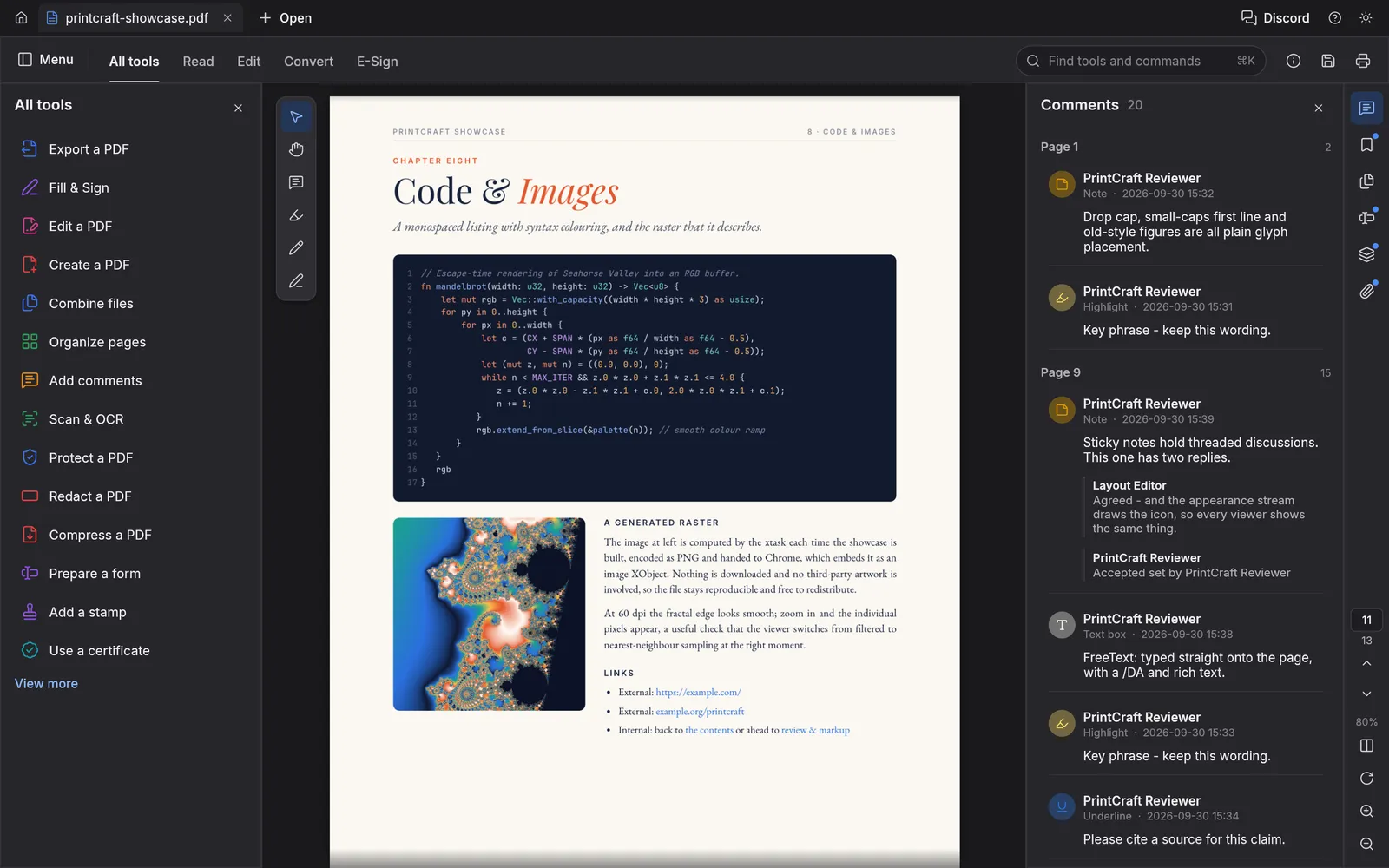
PdfCraft groups its tools in the All tools panel on the left: Export a PDF, Fill & Sign, Edit a PDF, Create a PDF, Combine files, Organize pages, Add comments, Scan & OCR, Protect a PDF, Redact a PDF, Compress a PDF, Prepare a form, Add a stamp, Use a certificate and more under View more. Pick one and its tools appear in the panel. The same commands are in the menus at the top. If you can’t find a command, press Ctrl+K (⌘K on a Mac) and type its name.
- View › Page display switches between Single page and Two-page view, and turns Continuous scrolling on or off.
- View › Zoom has Actual size (Ctrl+1), Fit to width (Ctrl+2), Zoom to page level (Ctrl+0) and more. Ctrl++ and Ctrl+− zoom in and out.
- View › Full screen mode (Ctrl+L) fills the screen with the page. Read mode hides the tools.
- F4 shows or hides the side panel, and Shift+F4 the tools panel. View › Side panels opens Comments, Bookmarks, Pages, Fields, Layers, Attachments or Signatures.
- View › Display theme chooses light, dark, or your system’s setting. The moon button at the top right switches too.
Find text
Section titled “Find text”Ctrl+F finds text in the document. Ctrl+G and Ctrl+Shift+G go to the next and previous match. Edit › Advanced search… (Ctrl+Shift+F) has more options.
Comment
Section titled “Comment”Choose Add comments to add a Sticky note, highlight, underline, strike through or squiggly-underline text, add a Text box, draw freehand, or draw a rectangle, oval, line or arrow. Every comment is listed in the Comments panel, by page. Click one to go to it, or reply to it there.
Add a stamp puts a stamp on the page from the stamp palette. Flatten comments makes comments part of the page, so they can no longer be changed.
Choose Edit a PDF:
- Edit text & images changes text and pictures already on the page. This works best on simple pages. It’s still weak on complex layouts and on right-to-left and Chinese, Japanese or Korean text.
- Text and Image add new text and pictures.
- Header and footer, Watermark and Background add, update or remove them on every page.
- Link adds or edits links. Bates numbering numbers the pages for legal work. Attach file attaches a file to the PDF.
Protect and redact
Section titled “Protect and redact”- Protect a PDF › Protect with password sets a password to open the document, or one to change it, and chooses what people can do: print, change pages, copy text and so on. The password is applied when you save. To open a PDF that has one, enter the password when PdfCraft asks for it.
- Remove hidden information lists things in the file you can’t see on the page, such as metadata, so you can pick what to remove.
- Redact a PDF blacks out text, pictures or whole pages. Mark what to remove with Redact text and images, or use Find text and redact to mark every match, then choose Apply redactions. Sanitize document removes everything hidden: metadata, attachments, comments, hidden text and layers, bookmarks, links and scripts. Form fields are flattened, so their values stay visible. Save afterward: saving rewrites the whole file, so nothing removed stays in it.
Convert
Section titled “Convert”- File › Export saves the PDF as Word, PowerPoint, RTF, HTML, plain text, or each page as a picture. Export all images… saves every picture in the document. The layout of Word exports isn’t kept well yet.
- File › Create makes a PDF from another file, several files, pictures or the clipboard. File › New blank PDF makes an empty one.
- Compress a PDF › Reduce file size makes a smaller copy. Advanced optimization chooses what to shrink.
Recognize scanned text
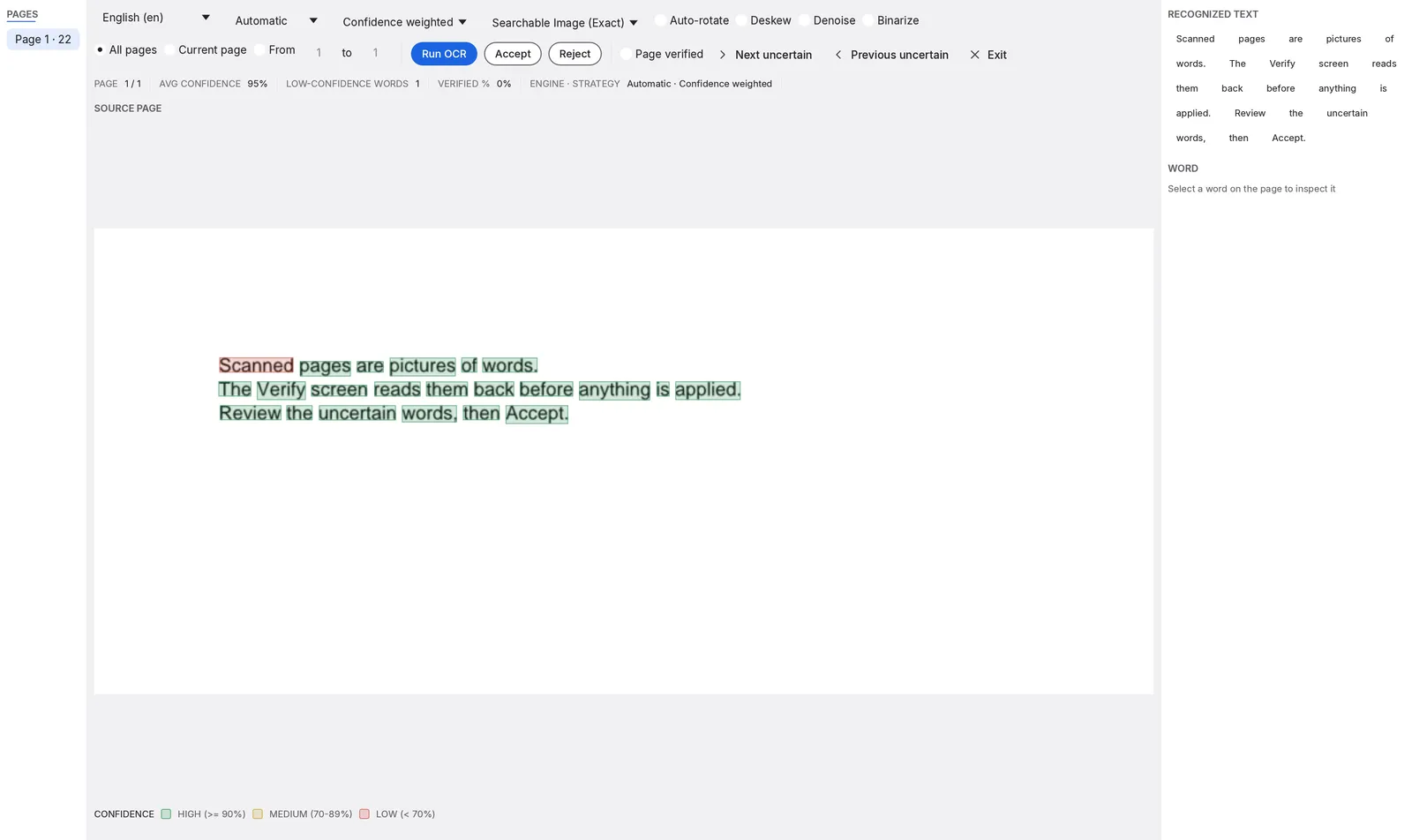
Section titled “Recognize scanned text”A scanned page is a picture of words, so you can’t search or copy it. Choose Scan & OCR › In this file to recognize the text, or In multiple files for several PDFs at once. Pick the language, the pages and whether to straighten or clean up the pages, then press Run OCR.
PdfCraft shows the words it found, colored by how sure it is. Go through the uncertain ones with Next uncertain (F8), click a word to correct it, then press Accept to add the text to the PDF, or Reject to leave it out. OCR works best on Latin-script languages.
To clean up a poor scan first, choose Scan & OCR › Enhance scanned file. It cleans the pictures in place, and the text, comments and links on the pages stay as they are. Pick the pages, then turn on what you need:
- Background removal turns a gray or yellowed paper background white and darkens faint strokes. Move the slider to 0 to switch it off.
- Edge shadow removal lightens shadows along the edges, such as a book’s gutter.
- Despeckle removes dust and scanner noise. It’s the only filter that black-and-white scans take.
Press Enhance to run it.
More tools
Section titled “More tools”View more in the tools panel also has Measure objects (distance, perimeter and area), Compare files (see below), Use guided actions (the Action Wizard), Prepare for accessibility (with Check for accessibility and tagging tools), and Apply PDF standards › Save as PDF/A for archiving.
Compare two versions of a file
Section titled “Compare two versions of a file”- Open both files, the older one first.
- Switch to the newer file, then choose Compare files › Select files to compare in the tools panel.
- Under Old file, pick the older version. To check only some pages of the new file, enter them under Pages.
- Press Compare.
PdfCraft compares the text word by word and shades the differences on the new file. The Compare panel lists them. Side by side shows both files, and New file only shows only the new one. Mark as comments turns the differences into comments, and Report… saves them.
- Choose File › Print… (Ctrl+P).
- Pick a Printer, or Save as PDF to get a print-ready file instead.
- Choose the pages and how they fit on the paper (see below). The preview on the right shows each sheet.
- Press Print.
If a document’s security settings don’t allow printing, PdfCraft won’t print it. See I can’t print this document.
Printer and paper
Section titled “Printer and paper”- Copies goes up to 999. Collate keeps each copy in order, and Print in grayscale drops the color.
- Two-sided can flip on the long or short edge.
- Paper includes US Letter, Legal, Tabloid, A0 to A6, ARCH and ANSI sizes, a 4 x 6 in label and a #10 envelope. PdfCraft remembers your last choice.
- Match page at 100% picks the standard paper that fits the page and prints it at full size.
- Properties… opens the printer’s own settings, such as the paper tray.
Print All pages, the Current page, or a range under Pages, such as 1-5. If you selected pages before opening Print, Selected pages is offered too. More options can limit the print to odd or even pages, or print in reverse order.
Fit pages on paper
Section titled “Fit pages on paper”| Tab | What it does |
|---|---|
| Size | Fit the page to the paper, print at Actual size, shrink only pages that are too big, or set a Custom scale. |
| Poster | Prints one page across several sheets, with an overlap and cut marks, so you can tape them together. |
| Multiple | Puts 2, 4, 6, 9 or 16 pages on one sheet. Cut and stack orders them so you can cut the sheets and stack the piles in page order. |
| Booklet | Prints sheets that fold into a booklet, bound on the left or right. |
| Label | Fits each page onto one label, such as a 4 x 6 in shipping label. |
Orientation can be portrait, landscape or automatic.
For scale drawings, use Actual size. Fit leaves a small margin, so it prints slightly smaller than 100%.
Comments, forms and other options
Section titled “Comments, forms and other options”- Comments & Forms chooses whether to print the document alone, with markups or stamps, or only the form fields.
- Advanced › Print as image sends each page as a picture, at 150, 300 or 600 dpi. Try it when a printer leaves out text, shading or transparency.
In the web version, Printer offers your browser’s print dialog instead of a list of printers.
Preferences
Section titled “Preferences”Choose Edit › Preferences… (Ctrl+,). The search box at the top finds a setting by name. These are the ones you are most likely to look for:
- Interface language, Interface size, and which side the Tools panel side and Navigation rail side are on.
- Reopen the files that were open when PdfCraft last closed, and Restore the last view to return to the page, zoom and page display a document had.
- Reload documents when their files change on disk, for files another program rewrites.
- Recent files to keep sets the length of the recent list. At 0 there is no list.
- Default workspace mode, Default page display, Default zoom and Show gaps between pages set how PDFs open. Turn on Always use my default zoom and page layout to ignore the layout a PDF asks for.
- Units for page sizes and margins, and Scroll speed for the mouse wheel and arrow keys. Invert middle-button drag reverses panning with the middle button.
- Name on new comments is the author shown on your comments.
- Flatten Fill & Sign when saving makes text, marks and signatures part of the page when you save.
- Show a notice when a document is secured controls the bar that tells you a document has restrictions.
- Enable Acrobat JavaScript is explained under Forms and signing.
Animation effects can follow your system or be turned on or off. If Use system title bar is there, it shows a basic title bar for the window buttons instead of the tab strip.
Keyboard shortcuts
Section titled “Keyboard shortcuts”On a Mac, use ⌘ in place of Ctrl. Help › Keyboard shortcuts lists them all.
| Shortcut | What it does |
|---|---|
| Ctrl+O | Open |
| Ctrl+S, Ctrl+Shift+S | Save, save as |
| Ctrl+W, Ctrl+Shift+W | Close the file, close all files |
| Ctrl+P | |
| Ctrl+D | Document properties |
| Ctrl+Z, Ctrl+Shift+Z | Undo, redo |
| Ctrl+F, Ctrl+Shift+F | Find, advanced search |
| Ctrl+G, Ctrl+Shift+G | Next match, previous match |
| Ctrl+K | Find tools and commands |
| Ctrl+Shift+N | Go to page |
| Ctrl+1, Ctrl+2, Ctrl+0 | Actual size, fit to width, whole page |
| Ctrl+3 | Fit visible |
| Ctrl++, Ctrl+− | Zoom in, zoom out |
| Ctrl+[, Ctrl+] | Previous view, next view |
| Ctrl+B | New bookmark |
| Ctrl+L | Full screen |
| F4, Shift+F4 | Side panel, tools panel |
| Ctrl+J | JavaScript console |
| Ctrl+, | Preferences |