
Export 3D objects as mesh files
This page shows how to export objects that have a 3D effect as mesh files for 3D apps and viewers, from the Asset Export panel.
Prepare an object
Section titled “Prepare an object”An object can be exported as a mesh when it has one of these 3D effects:
| Effect | How you apply it |
|---|---|
| Extrude & Bevel | Extrude in the 3D and Materials panel, or Effect → 3D and Materials → Extrude & Bevel…. Effect → 3D and Materials → 3D (Classic) → Extrude & Bevel (Classic)… also counts. |
| Revolve | Revolve in the 3D and Materials panel, or Effect → 3D and Materials → Revolve… |
| Inflate | Inflate in the 3D and Materials panel, or Effect → 3D and Materials → Inflate… |
| Rotate | Plane in the 3D and Materials panel, or Effect → 3D and Materials → Rotate… |
Make 3D artwork shows how to apply and adjust each effect. A group with a 3D effect exports as one asset that holds a mesh for each of its members.
VectorCraft names each asset, and its mesh file, after the object. Name the objects in the Layers panel before you collect them, or double-click an asset’s tile in the Asset Export panel later to rename it.
Collect the object as a 3D asset
Section titled “Collect the object as a 3D asset”- Select one or more objects that have a 3D effect.
- Choose Window → Asset Export.
- Open the panel menu and choose Export 3D Object. The command is dimmed when nothing is selected.
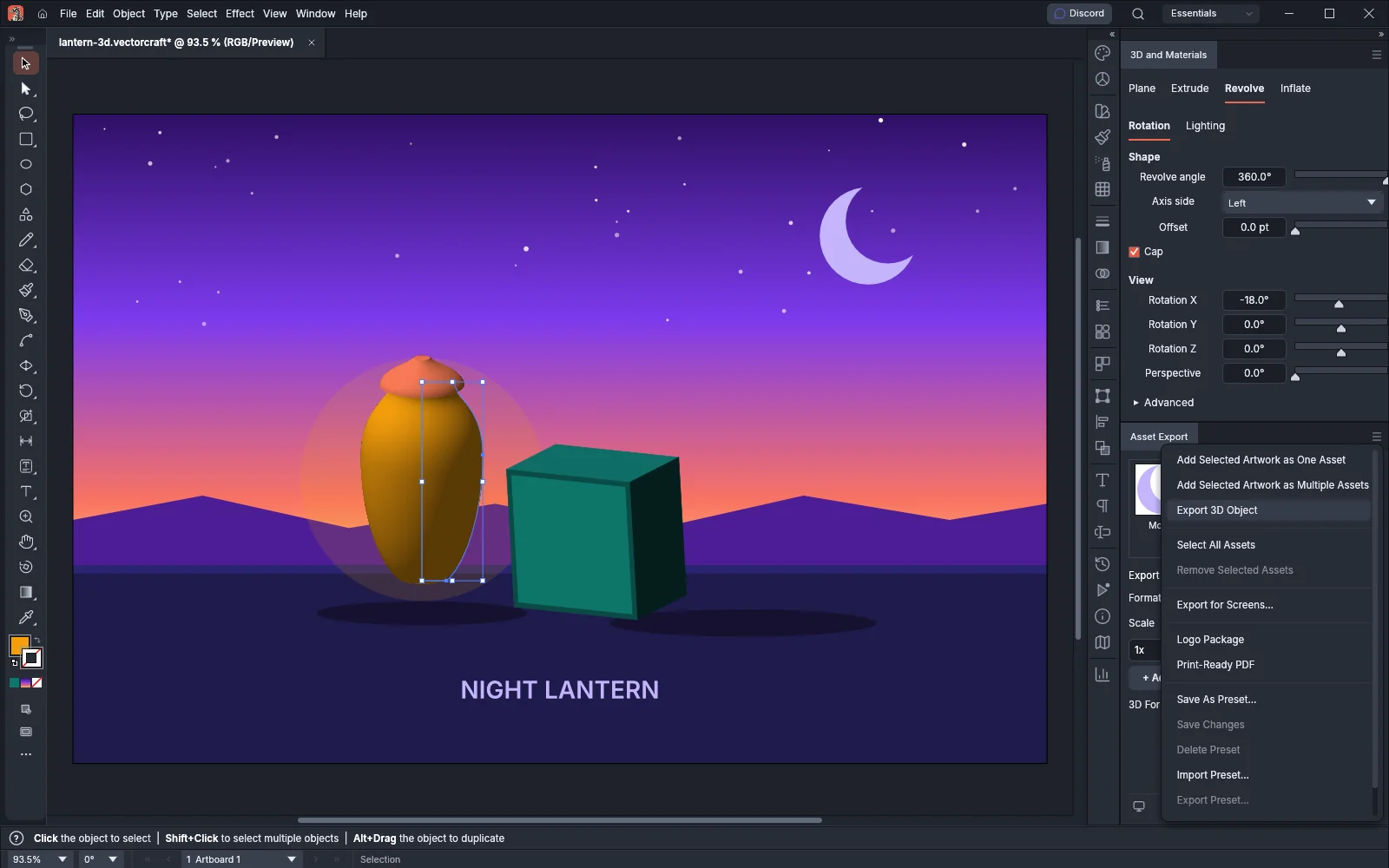
Each object becomes its own 3D asset, named after the object, or Asset 1, Asset 2 and so on when it has no name. The new assets are selected in the panel, and each tile shows a 3D mark in its top-left corner. An object that is already a 3D asset keeps its asset, so choosing the command again does not add a second tile.
When one of the selected objects cannot be exported, VectorCraft collects none of them and the status bar says why. See When an object is refused.
A 3D asset stays linked to its object. When you change the object or its 3D effect, the next export uses the object as it is then.
Choose the mesh format
Section titled “Choose the mesh format”A new 3D asset exports to USDA. To pick another format, select the 3D assets in the panel and choose a format from 3D Format under Export Settings. The row appears only when the selected assets, or all assets when none is selected, include a 3D asset. It is blank when those 3D assets use different formats.
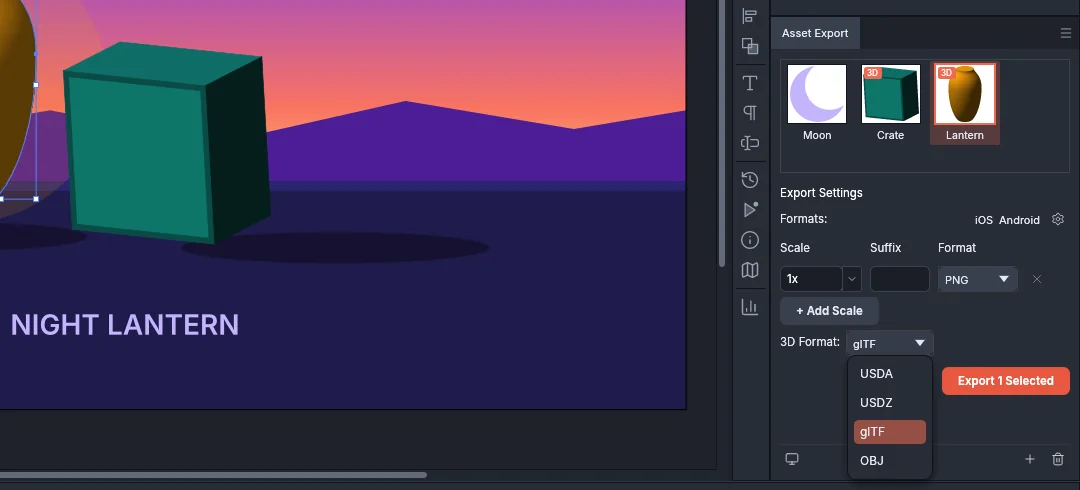
| Format | Files it writes | Notes |
|---|---|---|
| USDA (default) | <name>.usda |
Universal Scene Description as text |
| USDZ | <name>.usdz |
The same scene packed in one archive file |
| glTF | <name>.gltf |
glTF 2.0, one file with its mesh data inside |
| OBJ | <name>.obj and <name>.mtl |
The .mtl file holds the materials. Spaces and # in the name become _ |
The Format rows above 3D Format apply only to the picture assets, such as the Moon asset.
Export the mesh files
Section titled “Export the mesh files”- In the Asset Export panel, select the assets you want to export. With none selected, every asset is exported.
- Choose Export. With some assets selected, the button reads Export N Selected.
- Pick a folder.
VectorCraft writes each 3D asset as a mesh file in its format, and each picture asset as pictures in the Format rows, into the same folder. The mesh files are written first, while you wait. If a mesh cannot be written, the pictures are not exported and the status bar shows the reason. When the export finishes, the status bar shows how many files were written. With Open Location after Export on in Export for Screens (the default), the folder opens with the first file selected.
Each file is named after its asset. When two assets in one export would get the same file name, the later files get -2, -3 and so on. VectorCraft replaces a file with the same name in that folder and does not ask first.
Each mesh file holds:
- one mesh for each solid of the object: its fill, each of its strokes, and each member of a group;
- a material in the color each solid is painted, with the object’s opacity; solids of the same color share one material;
- the object at the angle its 3D effect turns it to, with the faces that point away from you included;
- positions with y pointing up, centered on the point the object turns about;
- sizes in points in USDA, USDZ and OBJ (the USD file records how many meters one point is), and in meters in glTF.
Export for Screens lists only the picture assets on its Assets tab. Use the Asset Export panel to export 3D assets.
To stop exporting an object as a mesh, select its tile and choose Remove Selected Assets from the panel menu, or click the trash icon. The object stays in the document.
In the web version, Export downloads the files. When a 3D export makes more than one file (an OBJ alone makes two), the files download as one .zip file named after the document with -3D at the end.
When an object is refused
Section titled “When an object is refused”VectorCraft checks each object when you choose Export 3D Object and again when you export. When it refuses an object, the status bar line ends with the object’s name and the reason, for example “Ground can’t be exported in 3D: the object has no 3D effect (Extrude & Bevel, Revolve, Inflate or Rotate)”. Other text comes before the name on that line.
When you choose Export 3D Object, the message names the object. An object without a name appears as # followed by its id number, such as #42. When you export, the message names the asset instead.
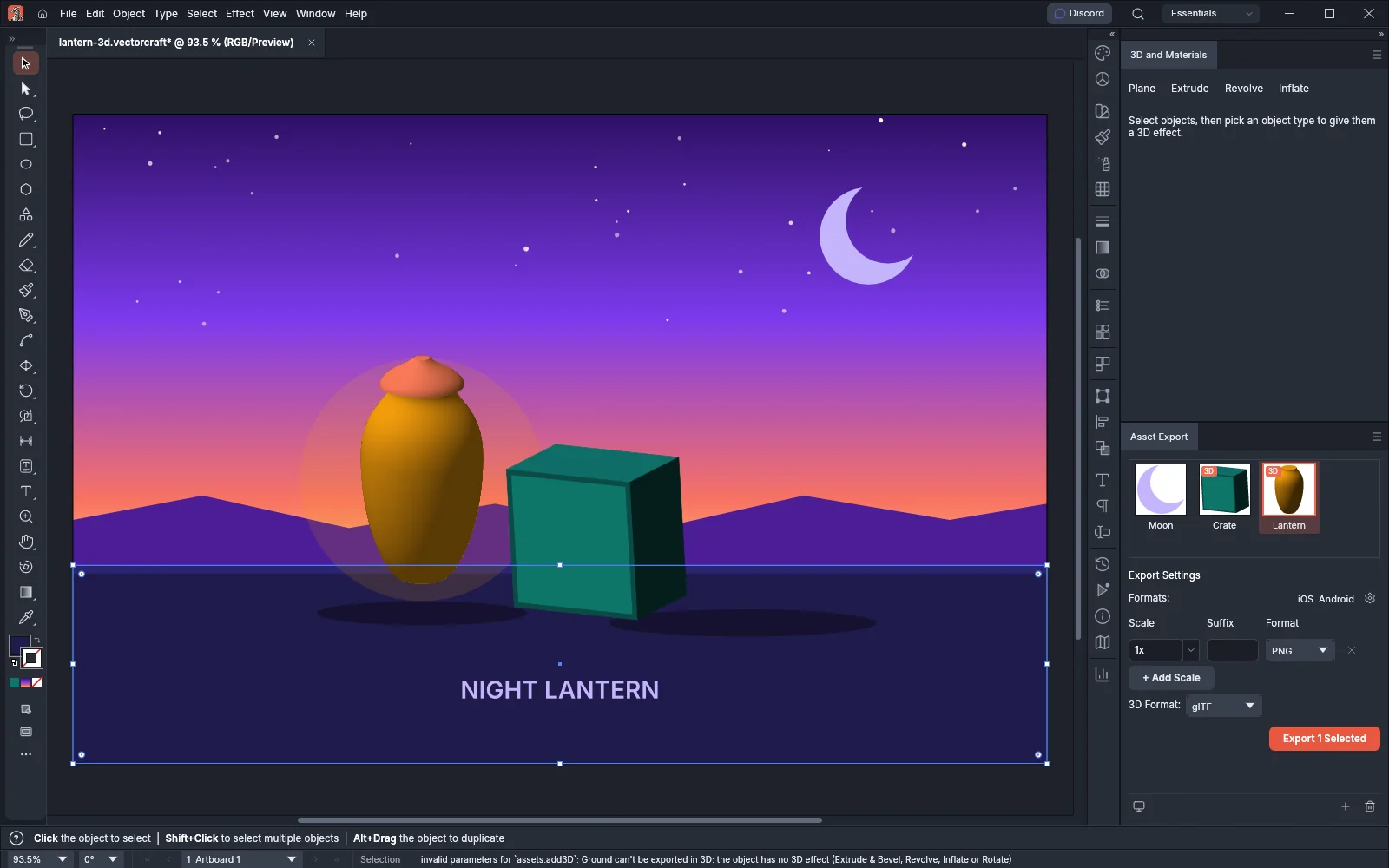
| Message after the name | Cause | What to change |
|---|---|---|
| the object has no 3D effect (Extrude & Bevel, Revolve, Inflate or Rotate) | The object has none of these effects, or its effect was removed after you collected it | Apply a 3D effect, or remove the asset |
| The 3D object has a hole that crosses its outline or another hole | A hole in a compound path crosses the outer edge or another hole | Reshape the path so that each hole sits inside the outline and does not cross another hole |
| The 3D object is too complex to export | The object would hold more than 2,000,000 triangles when you collect it, or the objects of one asset together would hold more than 2,000,000 when you export. The same message appears when a face takes too much work to cut into triangles, for example a face with a great many holes | Simplify the path or remove holes, or split the art into several objects and collect each one as its own asset |
| its 3D effect builds no solid | The effect draws nothing that has faces | Check the effect’s settings and the object’s fill and stroke |
| a 3D effect on a group’s fill or stroke draws nothing to export | A group’s 3D effect sits on its fill or stroke | Apply the effect to the group itself |