
Distort with the Free Transform tool
This guide covers the Free Transform tool: its floating widget, its three modes (Free Transform, Perspective Distort and Free Distort), the Constrain button, the modifier keys that distort without changing mode, and how to cancel or undo a distortion.
Shortcuts are written for Windows and Linux first, then macOS.
Pick the Free Transform tool and its mode
Section titled “Pick the Free Transform tool and its mode”- Select the objects you want to change, for example with the Selection tool (V). See Select artwork.
- Press E, or choose the Free Transform tool in the Tools panel. It shares a slot with the Puppet Warp tool.
- A bounding box with eight handles appears around the selection, and a small widget appears at the top left of the canvas. Click one of the widget’s three lower buttons to choose a mode.
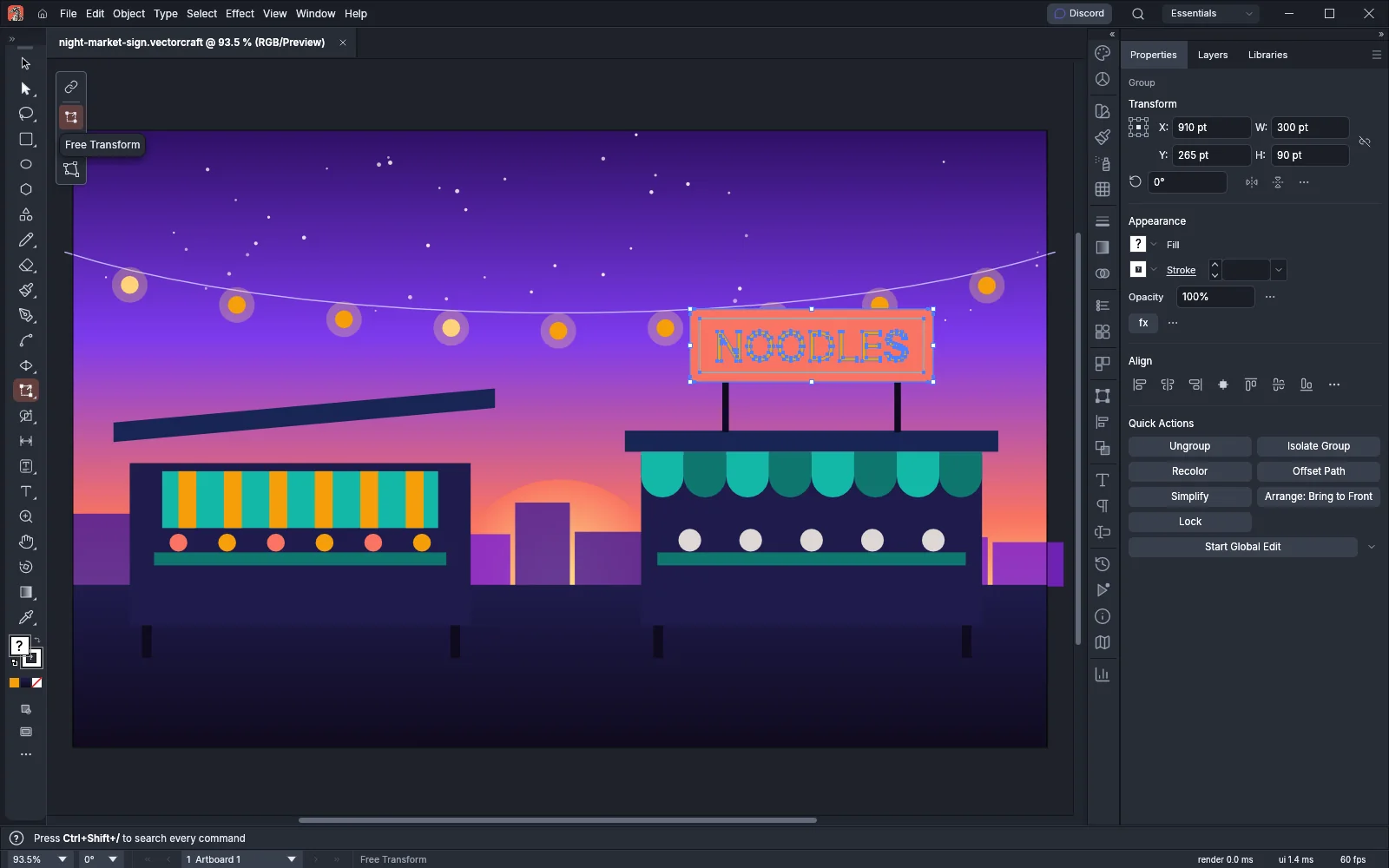
| Mode | Corner handle | Side handle | Outside a corner |
|---|---|---|---|
| Free Transform | Scales | Scales; with Ctrl (Cmd on macOS) shears | Rotates |
| Perspective Distort | Moves the corner, and the partner corner on the same side moves the same distance the opposite way | Not drawn, but dragging the middle of a side still scales | No rotation |
| Free Distort | Moves that corner alone | Moves both corners of that side | No rotation |
In every mode, a drag inside the bounding box moves the selection.
The Constrain button sits above the three modes. Turning it on has the same effect as holding Shift: scaling keeps the proportions, and moves and rotations snap to 45° steps. You can turn Constrain on or off only in Free Transform mode. In Perspective Distort and Free Distort the button is grayed out and not highlighted, even when Constrain is on. Constrain never changes a corner distortion. If you leave it on and switch to a distort mode, a drag inside the bounding box still moves in 45° steps, and in Perspective Distort a drag on the middle of a side still scales proportionally. To turn it off, switch back to Free Transform mode and click the button. VectorCraft keeps the Constrain setting between sessions. The mode is not kept, and the tool starts in Free Transform mode each time you start VectorCraft.
The widget is shown only while the Free Transform tool is active.
Scale, rotate, move and shear
Section titled “Scale, rotate, move and shear”In Free Transform mode the tool works like the bounding box of the Selection tool, with shearing added.
- Scale: drag a corner or side handle. Hold Shift to keep the proportions, or Alt (Option on macOS) to scale about the center.
- Rotate: point just outside a corner and drag. The selection rotates about its center. Hold Shift to rotate in 45° steps.
- Move: drag inside the bounding box. Hold Shift to move in 45° steps, measured from the Constrain Angle.
- Shear: start dragging a side handle, then press and hold Ctrl (Cmd on macOS). The selection slants along that side, about the opposite side. Add Alt (Option on macOS) to shear about the center.
Press Ctrl (Cmd on macOS) after the drag starts, not before. When you press Ctrl or Cmd before the pointer goes down, that drag uses the selection tool you used last instead of the Free Transform tool.
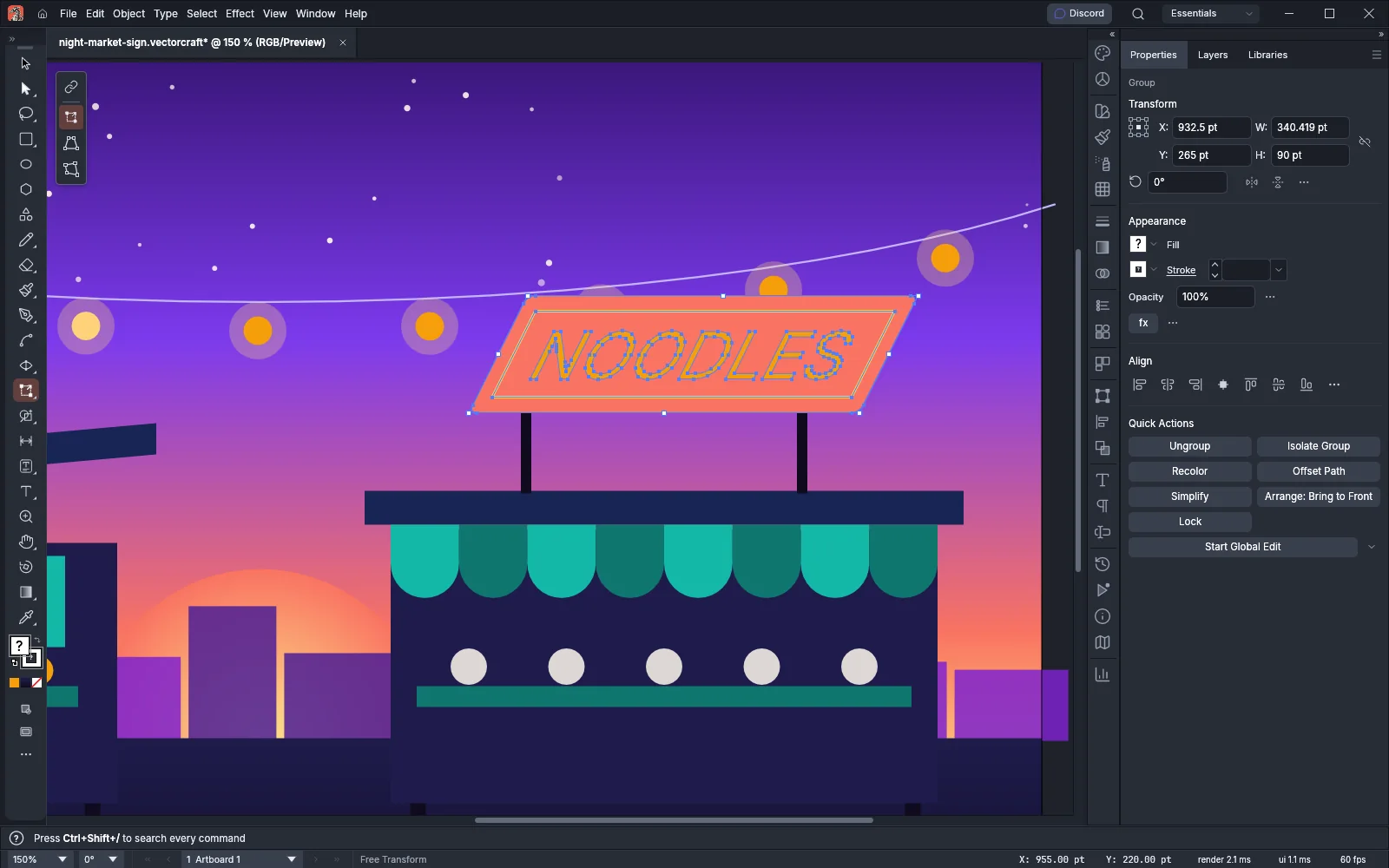
A drag follows the keys you hold at each moment. If you press or release a key part way through and the action changes, for example from scaling to shearing, VectorCraft cancels the preview so far and starts the new action as its own undo step.
Snapping and readouts
Section titled “Snapping and readouts”A scale from a handle snaps the same way as a scale with the Selection tool. VectorCraft checks the snapping options in this order and uses the first one that is on:
- With View → Snap to Pixel on, the moved side or corner snaps to whole pixels only.
- With View → Snap to Grid on, it snaps to the grid only.
- With Smart Guides on, it snaps to other objects. If View → Snap to Point is also on, it snaps to the ruler guides that are shown as well.
- With only View → Snap to Point on, it snaps to anchor points and to the ruler guides that are shown.
The tool shows readouts beside the pointer:
| Action | Readout | Preference that shows it |
|---|---|---|
| Scale | The new width and height | Transform Tools |
| Rotate | The angle | Transform Tools |
| Move | The distance moved, as dX and dY | Measurement Labels |
| Corner distortion | The distance the pointer moved, as dX and dY | Measurement Labels |
A shear shows no readout. Both preferences are on by default. They are in Edit → Preferences… → Smart Guides (Ctrl+K) on Windows and Linux, and in VectorCraft → Settings → Smart Guides… (Cmd+K) on macOS.
Distort in perspective
Section titled “Distort in perspective”Perspective Distort pulls two corners together or apart, so a flat shape looks as if it is tilted away from you.
- Select the artwork and press E.
- Click Perspective Distort in the widget. VectorCraft stops drawing the side handles, and only the four corner handles show. Dragging the middle of a side still scales the selection.
- Drag a corner. The corner moves along the direction in which you drag further, horizontally or vertically. The other corner on the same side moves the same distance the opposite way, so that side narrows or widens evenly about its middle.
- Release the mouse button.
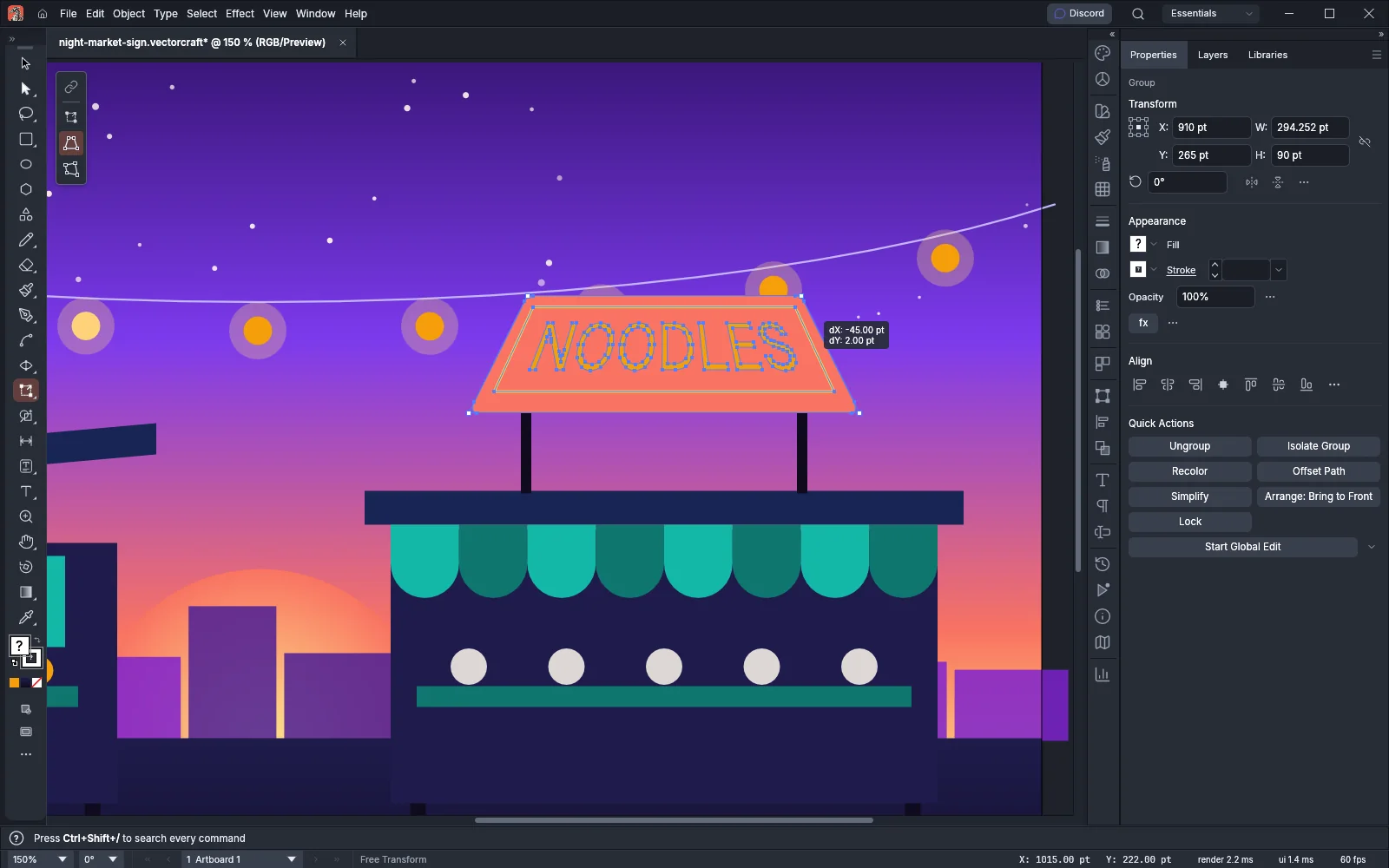
A drag inside the bounding box still moves the selection in this mode.
Distort freely
Section titled “Distort freely”Free Distort moves each corner on its own, so the bounding box can become any four-sided shape.
- Select the artwork and press E.
- Click Free Distort in the widget.
- Drag a corner handle to move that corner alone, or drag a side handle to move both corners of that side together.
- Release the mouse button.
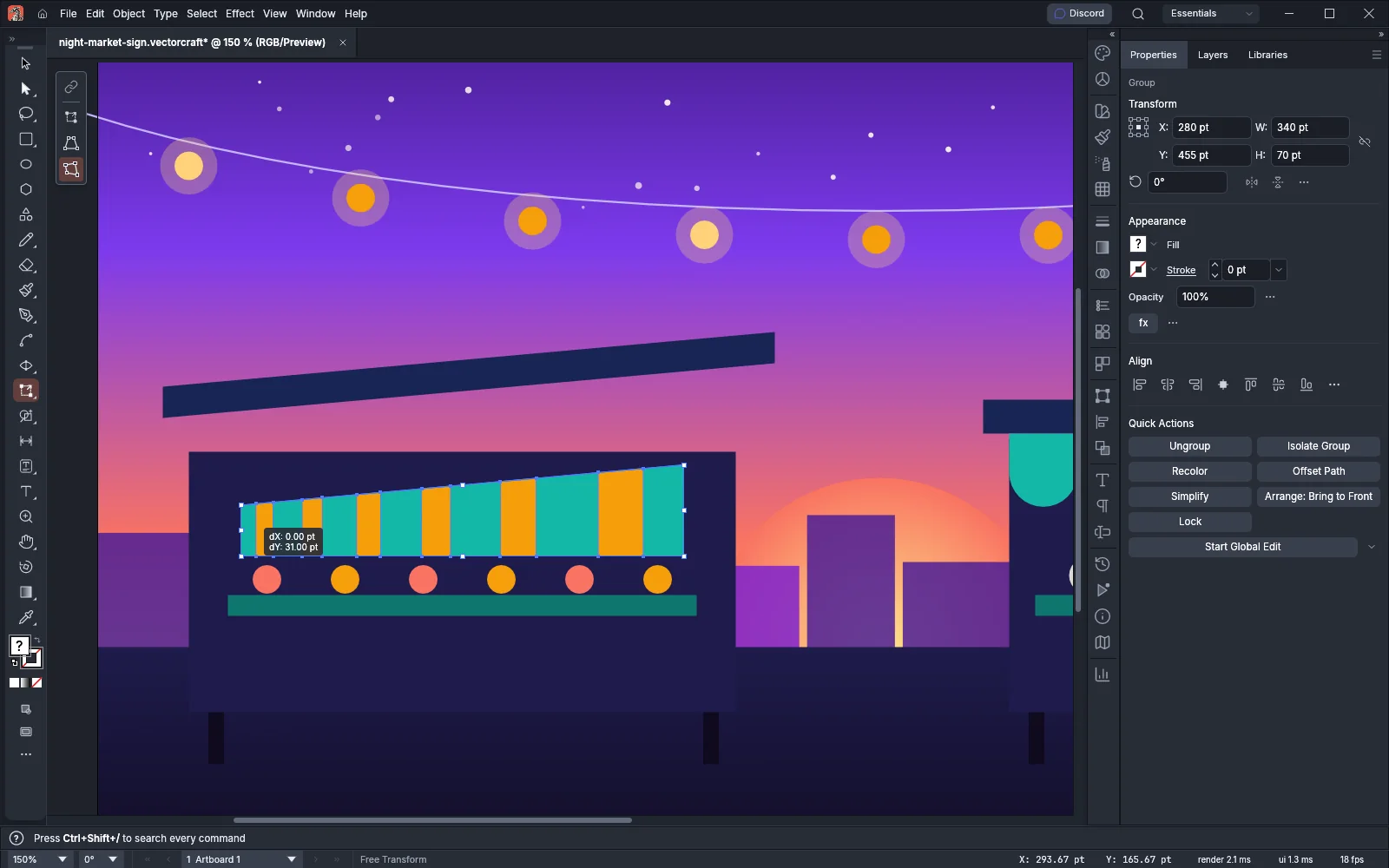
A distortion in either distort mode changes the paths themselves. VectorCraft moves every anchor point and direction handle of the selected paths to fit the new corners:
- A live shape, such as a rectangle or an ellipse, becomes an ordinary path.
- A group is distorted through every path inside it.
- Gradient fills and strokes follow the distortion.
- Type, placed images and symbols cannot be distorted point by point. Each one gets the closest scale, rotation and shear at its center instead. To bend type, convert it to outlines first with Type → Create Outlines.
To keep the original paths and change the distortion later, apply Effect → Distort & Transform → Free Distort… instead. See Apply effects and appearance.
Use the modifier keys instead of the widget
Section titled “Use the modifier keys instead of the widget”You can distort a corner in Free Transform mode without switching modes. Start dragging a corner handle, then hold the keys. As with shearing, press the keys after the drag starts.
| Action | Windows and Linux | macOS |
|---|---|---|
| Distort a corner freely, in any mode | Drag a corner, then hold Ctrl | Drag a corner, then hold Cmd |
| Distort a corner in perspective, in any mode | Drag a corner, then hold Ctrl+Alt+Shift | Drag a corner, then hold Cmd+Option+Shift |
| Shear along a side, in Free Transform mode | Drag a side handle, then hold Ctrl | Drag a side handle, then hold Cmd |
| Shear about the center | Drag a side handle, then hold Ctrl+Alt | Drag a side handle, then hold Cmd+Option |
| Scale proportionally, in Free Transform mode or on a side in Perspective Distort | Shift-drag a handle | Shift-drag a handle |
| Scale about the center, in Free Transform mode or on a side in Perspective Distort | Alt-drag a handle | Option-drag a handle |
Cancel or undo a distortion
Section titled “Cancel or undo a distortion”- Press Esc while you drag to cancel the drag. The selection returns to where it was before the drag.
- Choosing another tool while you drag also cancels the drag.
- After you release the mouse button, choose Edit → Undo (Ctrl+Z, Cmd+Z on macOS) to reverse the drag. Each drag is one undo step, named Move, Scale, Shear, Rotate or Distort after the action it made.
Shortcuts
Section titled “Shortcuts”| Action | Windows and Linux | macOS |
|---|---|---|
| Free Transform tool | E | E |
| Cancel a drag | Esc | Esc |
| Undo | Ctrl+Z | Cmd+Z |
| Preferences (Smart Guides page) | Ctrl+K | Cmd+K |
| Smart Guides | Ctrl+U | Cmd+U |
| Snap to Grid | Ctrl+Shift+’ | Cmd+Shift+’ |
| Snap to Point | Ctrl+Alt+’ | Cmd+Option+’ |