
Getting started
Shortcuts on this page use Ctrl. On a Mac, use ⌘ in place of Ctrl, and Option in place of Alt.
1. Install DesignCraft
Section titled “1. Install DesignCraft”The quickest way is ArtCraft Launcher: install it, then press Install on DesignCraft’s card. To download DesignCraft on its own, see Install and update.
2. Open the sample magazine
Section titled “2. Open the sample magazine”DesignCraft opens on its start screen, with three buttons: New file, Open and Open sample magazine. Below them are your recent files and a tile for each print page size.
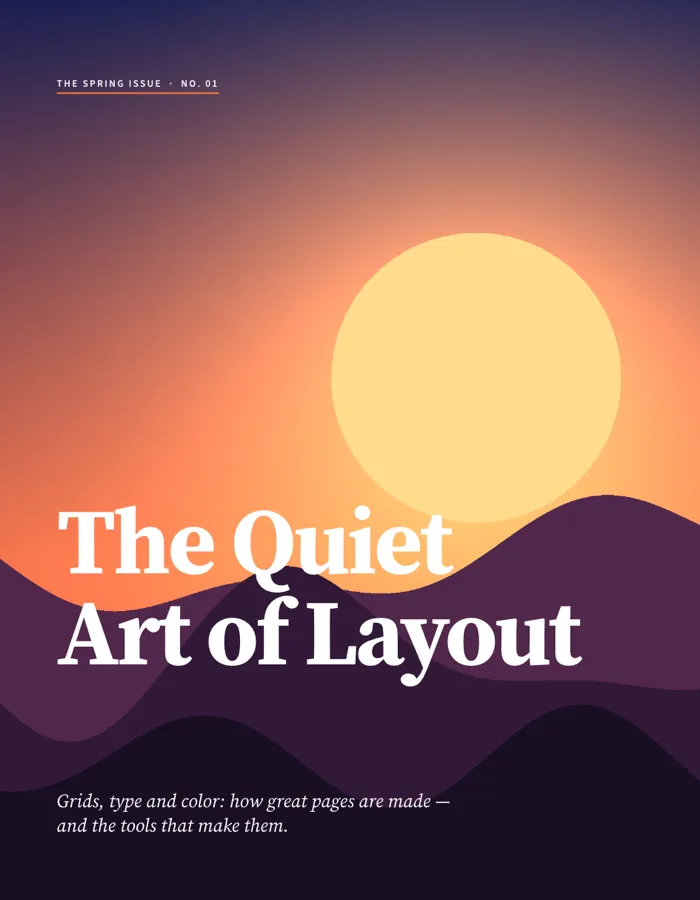
Click Open sample magazine to see a finished layout. It has a cover, styled feature pages, one story threaded through three columns and around a pull quote, and a page of swatches. You can open it again later from Help › Sample Document.
3. Start a document
Section titled “3. Start a document”Click New file, or choose File › New Document… (Ctrl+N).
- Pick a size on the Print, Web or Mobile tab, or type your own Width and Height.
- Set the number of Pages. Select Facing Pages for left and right pages side by side, as in a magazine.
- Set Columns, Column Gutter and the Margins. Add Bleed if the document is going to a printer.
- Select Primary Text Frame if you want a text frame that fills the margins on every page.
- Click Create.
To skip the dialog, click one of the size tiles under Start a new document on the start screen.
4. Add text and pictures
Section titled “4. Add text and pictures”- Choose the Type Tool (T) and drag on the page to draw a text frame, then type.
- To bring in a picture or a text file, choose File › Place… (Ctrl+D) and pick it. If an empty or picture frame is selected, the picture fills it. If not, click to place the picture at its own size, or drag to draw its frame.
- Choose the Selection Tool (V) to move and resize frames.
5. Save
Section titled “5. Save”Press Ctrl+S. DesignCraft saves a .designcraft file.
DesignCraft also saves recovery data in the background. If it closes unexpectedly, it reopens your unsaved documents the next time it starts.
6. Export a PDF
Section titled “6. Export a PDF”Choose File › Export PDF…, pick a Preset, click OK and choose where to save. Desktop Printing suits a home printer, Screen and Email a smaller file to send, and Commercial Printing or PDF/X-4 a print shop. See Export a PDF.
Next steps
Section titled “Next steps”- Workflows: pages, threaded text, styles, color and export.
- InDesign files: open an .idml or .indd file.
- Troubleshooting: if the window doesn’t open or something looks wrong.