
Zoom and pan the canvas
This page covers every way to zoom and move around a document: the Zoom and Hand tools, the View menu and its shortcuts, Zoom to Selection, the scroll bars, the mouse wheel, trackpads and touch screens, the zoom list and artboard navigator in the status bar, and the preferences that change how these work.
A document opens with its artboard fitted in the window. While Display Print Size at 100% Zoom is off, the zoom goes from 3.13% to 64,000%.
Zoom with the Zoom tool
Section titled “Zoom with the Zoom tool”- Choose the Zoom tool (Z). The hint line above the status bar lists what a click and a drag do.
- Click the part of the artwork you want to see more closely. The view zooms in one level, and the point you clicked stays under the pointer.
- To zoom out one level, Alt+click (Option+click on macOS).
- To zoom by dragging, use one of these, depending on Animated Zoom:
- While Animated Zoom and GPU Performance are both on in Preferences → Performance (both are on by default), drag right to zoom in and left to zoom out. The point where you pressed stays in place, and every 100 points of drag doubles or halves the zoom. To keep zooming in, press and hold the mouse button without moving it: after 0.3 seconds the view zooms in steadily, twice as close every second. Hold Alt (Option on macOS) as you hold the button to zoom out instead.
- While either setting is off, drag a marquee across the area you want to see. When you release the mouse button, the area fills the window. To move the marquee as you drag, hold Space; the marquee keeps its size until you release Space. A marquee 8 points or less wide or tall counts as a click.
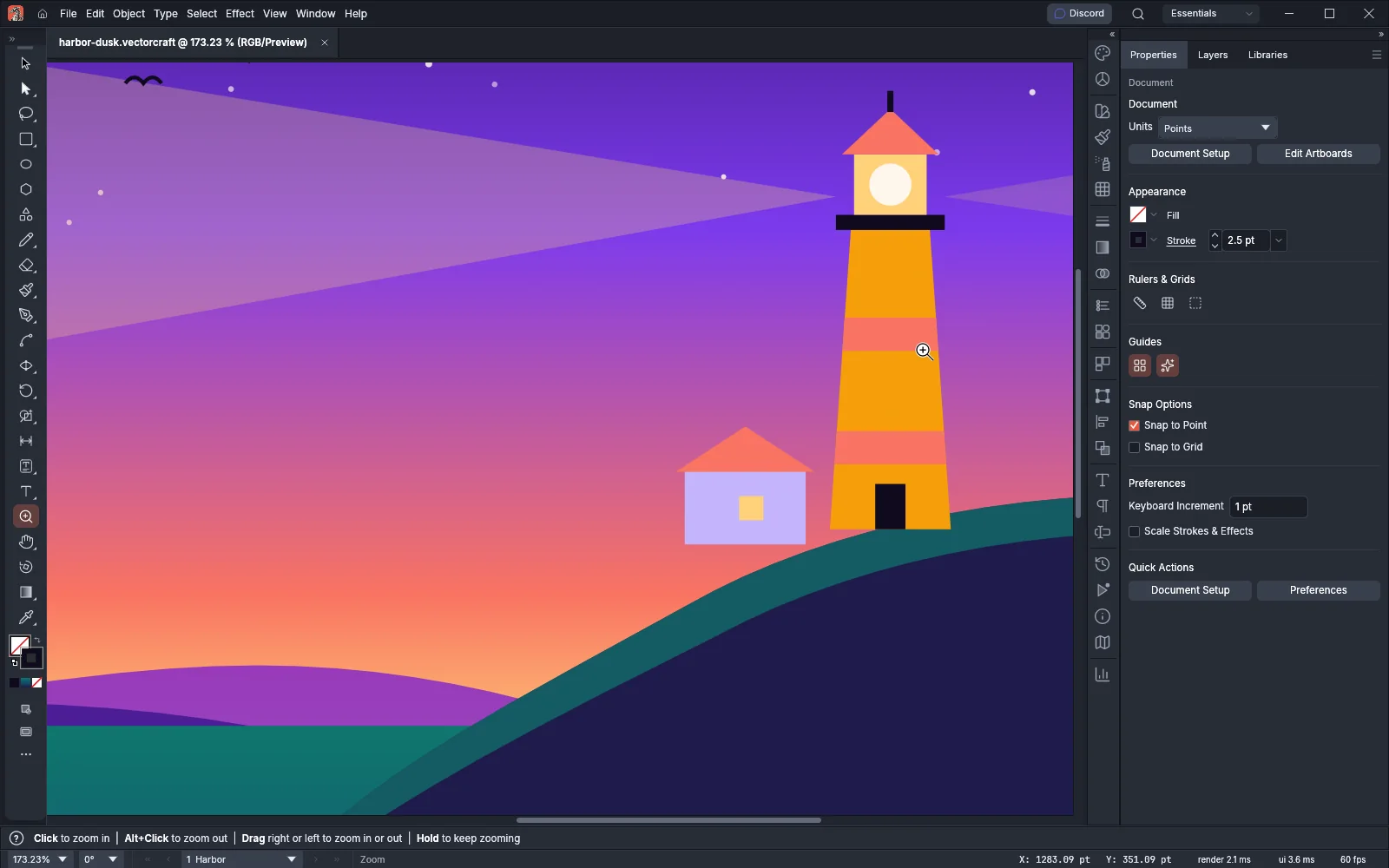
To use the Zoom tool while another tool is selected, hold Ctrl+Space (Cmd+Space on macOS) before you press the mouse button, then click or drag. Add Alt (Option on macOS) to zoom out. The selected tool stays selected.
You can also hold Z, click or drag with the Zoom tool, and release Z. VectorCraft switches back to the tool you had before. This works while Hold a Tool Shortcut to Use the Tool Temporarily is on in Preferences → General (it is on by default). A quick press of Z selects the Zoom tool and keeps it. Keyboard shortcuts describes how holding a tool’s key works.
Double-click the Zoom tool’s button in the Tools panel to show the active artboard at 100%, the same as View → Actual Size.
Zoom from the View menu and the keyboard
Section titled “Zoom from the View menu and the keyboard”The View menu has five zoom commands:
| Command | Windows and Linux | macOS | What it does |
|---|---|---|---|
| View → Zoom In | Ctrl+= | Cmd+= | Zooms in to the next zoom level |
| View → Zoom Out | Ctrl+- | Cmd+- | Zooms out to the previous zoom level |
| View → Fit Artboard in Window | Ctrl+0 | Cmd+0 | Fits the active artboard in the window, with a small margin |
| View → Fit All in Window | Ctrl+Alt+0 | Cmd+Option+0 | Fits all the artwork and every artboard in the window |
| View → Actual Size | Ctrl+1 | Cmd+1 | Shows the active artboard at 100%, centered in the window |
Zoom In and Zoom Out step through these levels: 3.13%, 4.17%, 6.25%, 8.33%, 12.5%, 16.67%, 25%, 33.33%, 50%, 66.67%, 100%, 150%, 200%, 300%, 400%, 600%, 800%, 1,200%, 1,600%, 2,400%, 3,200%, 4,800%, 6,400%, 12,800%, 25,600% and 64,000%. A click with the Zoom tool steps through the same levels.
While Zoom to Selection is on in Preferences → Selection & Anchor Display (it is on by default), Zoom In and Zoom Out also move the selection to the middle of the window. With nothing selected, they zoom around the middle of the window.
With nothing selected, you can also right-click the canvas and choose Zoom In, Zoom Out or Fit Artboard in Window from the menu.
Actual Size and Display Print Size at 100% Zoom
Section titled “Actual Size and Display Print Size at 100% Zoom”View → Actual Size shows the artwork at 100%. The meaning of 100% depends on Display Print Size at 100% Zoom in Preferences → General:
- While it is off (the default), one point of the document takes one point on the screen.
- While it is on, one inch of the document takes 96 points on the screen. 96 points is one inch at the screen density that the operating system’s display scaling is measured against.
The zoom in the status bar and the zoom levels are measured against this 100%.
Zoom to the selection
Section titled “Zoom to the selection”- Select the objects you want to see.
- Choose Object → Plug-ins → Arrange Tools → Zoom to Selection.
The view zooms and scrolls so that the selection’s visible bounds fill the window, with a small margin. The command needs a selection. Built-in plug-ins lists the other Arrange Tools commands.
Pan with the Hand tool, Space and the scroll bars
Section titled “Pan with the Hand tool, Space and the scroll bars”To move the view with the Hand tool:
- Choose the Hand tool (H), or hold Space with any tool before you press the mouse button.
- Drag in the window. The pointer becomes a closed hand, and the artwork moves with it.
- If you held Space, release it. The selected tool has not changed.
While Hold a Tool Shortcut to Use the Tool Temporarily is on (the default), you can also hold H, drag, and release H to go back to the tool you had before.
A drag with the middle mouse button pans the view whatever tool is selected. Double-click the Hand tool’s button in the Tools panel to fit the active artboard in the window, the same as View → Fit Artboard in Window.
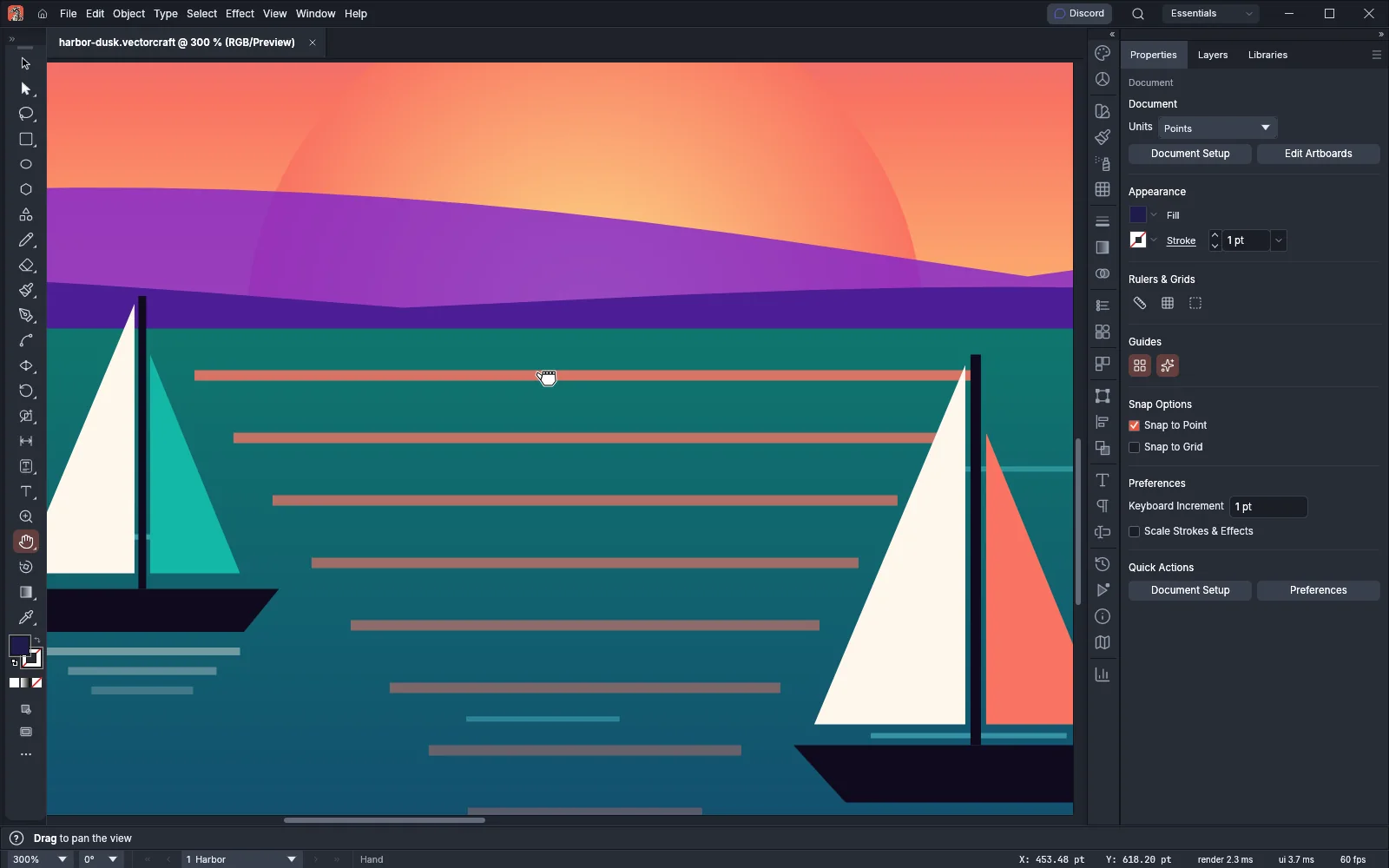
The scroll bars run along the bottom and right edges of the canvas:
- Drag a scroll bar’s thumb to scroll the view.
- Click the track on either side of the thumb to scroll most of a window’s width or height toward the click.
- Turn the mouse wheel over a scroll bar to scroll along that bar.
The scroll bars cover the artwork and the artboards, plus half a window on each side. They show in Normal Screen Mode and Full Screen Mode with Menu Bar, and are hidden in Full Screen Mode and Presentation Mode.
Use the mouse wheel, a trackpad or a touch screen
Section titled “Use the mouse wheel, a trackpad or a touch screen”When the wheel zooms, it zooms around the pointer. What the wheel does depends on two settings in Preferences → General: Zoom with Mouse Wheel (off by default) and Scroll Sideways with Cmd/Ctrl + Wheel (on by default).
| Input | Zoom with Mouse Wheel off | Zoom with Mouse Wheel on |
|---|---|---|
| Wheel | Scrolls up and down | Zooms in and out |
| Shift+wheel | Scrolls sideways | Scrolls up and down |
| Ctrl+wheel (Cmd+wheel on macOS) | Scrolls sideways. While Scroll Sideways with Cmd/Ctrl + Wheel is off, zooms in and out | Scrolls sideways |
| Alt+wheel (Option+wheel on macOS) | Zooms in and out | Zooms in and out |
| Ctrl+Alt+wheel (Cmd+Option+wheel on macOS) | Zooms in and out | Scrolls sideways |
While Animated Zoom is on in Preferences → Performance, the zoom from each notch of a mouse wheel is spread over a few frames. While it is off, each notch zooms at once.
With a trackpad:
| Input | Zoom with Mouse Wheel off | Zoom with Mouse Wheel on |
|---|---|---|
| Two-finger drag | Scrolls in the direction you drag | Up or down zooms in and out; sideways scrolls sideways |
| Shift+two-finger drag | Scrolls | Scrolls up and down |
| Ctrl+two-finger drag (Cmd on macOS) | Zooms in and out | Zooms in and out |
| Pinch | Zooms in and out around the pointer | Zooms in and out around the pointer |
On a Mac trackpad, and on Linux under Wayland, the zoom from a two-finger drag happens at once, whatever Animated Zoom is set to. On Windows and on Linux under X11, while Zoom with Mouse Wheel and Animated Zoom are both on, the zoom from a two-finger drag is spread over a few frames, the same as a wheel notch. On a Mac trackpad, turn two fingers to rotate the view. Rotate the view describes the gesture and its setting.
On a touch screen:
- Drag two fingers to pan.
- Pinch to zoom in and out.
- While Enable Touch Gestures is on in Preferences → Devices (it is on by default), tap with two fingers to undo and with three fingers to redo.
Use the status bar
Section titled “Use the status bar”The left end of the status bar holds the zoom list, the rotation list and the artboard navigator.
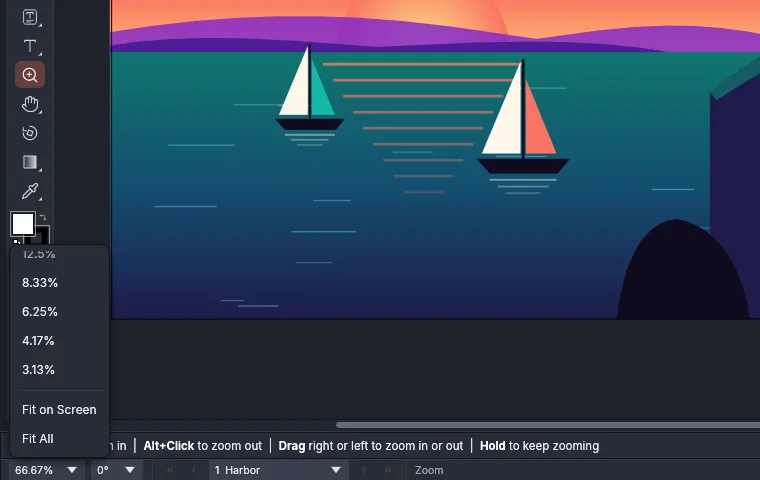
To zoom from the status bar:
- Click the zoom list at the left end of the status bar. It shows the current zoom, for example 66.67%.
- Choose a zoom level. The list opens above the status bar with the highest level first and the current level highlighted; scroll the list to reach the other levels.
- To fit the view instead, scroll to the end of the list, below 3.13%, and choose Fit on Screen, the same as View → Fit Artboard in Window, or Fit All, the same as View → Fit All in Window.
The rotation list beside the zoom list turns the view; see Rotate the view.
The artboard navigator has First Artboard and Previous Artboard buttons, a list of the artboards by number and name, and Next Artboard and Last Artboard buttons. Choosing an artboard there makes it the active artboard and fits it in the window. The four buttons have no shortcuts by default. To give them shortcuts, choose Edit → Keyboard Shortcuts…; see Keyboard shortcuts.
Preferences that change zooming
Section titled “Preferences that change zooming”To open Preferences, choose Edit → Preferences… (Ctrl+K). On macOS, choose VectorCraft → Settings → General… (Cmd+K).
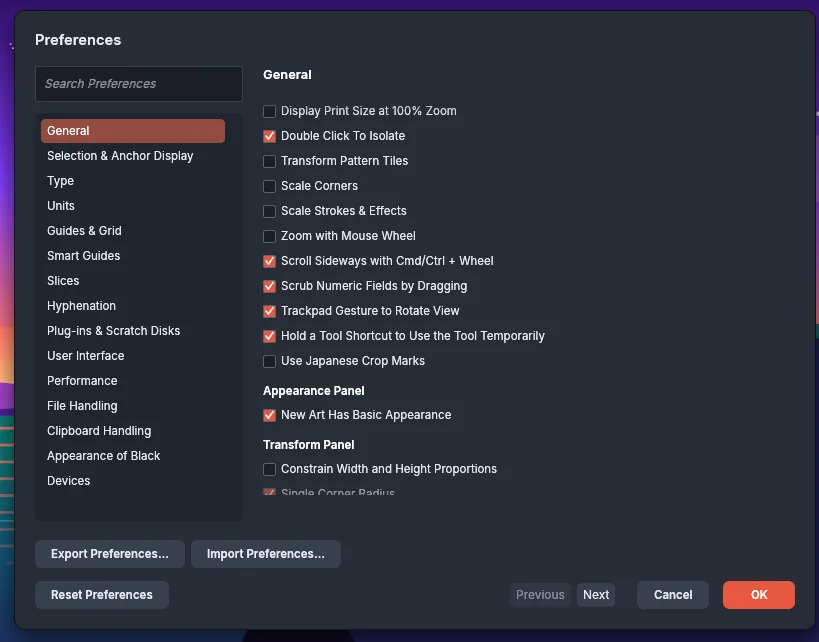
| Setting | Page | Default | What it changes |
|---|---|---|---|
| Display Print Size at 100% Zoom | General | Off | On, 100% shows one inch of the document as 96 screen points. See Actual Size and Display Print Size at 100% Zoom |
| Zoom with Mouse Wheel | General | Off | On, the wheel and an up or down two-finger drag on a trackpad zoom instead of scrolling |
| Scroll Sideways with Cmd/Ctrl + Wheel | General | On | On, Ctrl+wheel (Cmd+wheel on macOS) scrolls sideways instead of zooming. It is dimmed while Zoom with Mouse Wheel is on |
| Trackpad Gesture to Rotate View | General | On | On, turning two fingers on a Mac trackpad rotates the view |
| Hold a Tool Shortcut to Use the Tool Temporarily | General | On | On, holding Z or H uses the Zoom or Hand tool until you release the key, and then VectorCraft switches back to the tool you had before |
| Zoom to Selection | Selection & Anchor Display | On | On, Zoom In and Zoom Out move the selection to the middle of the window |
| GPU Performance | Performance | On | Off, the Zoom tool drags a marquee and Animated Zoom is dimmed |
| Animated Zoom | Performance | On | On, the Zoom tool zooms as you drag sideways or hold the button, and a mouse wheel’s zoom is spread over a few frames. Off, the Zoom tool drags a marquee |
| Enable Touch Gestures | Devices | On | On, a two-finger tap undoes and a three-finger tap redoes |
Preferences lists every setting.
Shortcuts
Section titled “Shortcuts”| Action | Windows and Linux | macOS |
|---|---|---|
| Zoom tool | Z | Z |
| Hand tool | H | H |
| Zoom In | Ctrl+= | Cmd+= |
| Zoom Out | Ctrl+- | Cmd+- |
| Fit Artboard in Window | Ctrl+0 | Cmd+0 |
| Fit All in Window | Ctrl+Alt+0 | Cmd+Option+0 |
| Actual Size | Ctrl+1 | Cmd+1 |
| Hand tool while held | Space or H | Space or H |
| Zoom tool while held | Ctrl+Space or Z | Cmd+Space or Z |
| Zoom out while held | Ctrl+Alt+Space | Cmd+Option+Space |
| Zoom out one level with the Zoom tool | Alt+click | Option+click |
| Pan with any tool | Middle-button drag | Middle-button drag |
Hold the keys for the Hand tool and the Zoom tool before you press the mouse button. Holding H or Z works while Hold a Tool Shortcut to Use the Tool Temporarily is on. Keyboard shortcuts lists every shortcut.