
Workflows
Each workflow below starts on What do you want to make? unless it says otherwise. Getting started covers the project page itself.
Recreate a website
Section titled “Recreate a website”- Pick A website and type its address.
- Say what you want, for example “Recreate this website”, and press Start.
In Clean room, Craft Anything sees the site as a visitor would: screenshots, visible text, measured layout, colors, fonts and spacing, and menus it opens. Each check compares your version with the original at three screen widths and says how alike each page is. Ask for changes in the box at the bottom (“make the header blue”, “add a contact form”).
In Deep mode it also reads the site’s JavaScript and watches its start page load. Studying a website needs a Chromium-based browser (Chrome, Edge, Brave) on your computer.
Recreate a game
Section titled “Recreate a game”- Pick A game and choose the game on your computer.
- Under Build with, choose Unity, Unreal, Godot or Rust.
- Say what you want, for example “The same game, with a high-score table”, and press Start.
Unity is the default. In Deep mode, a game made with Unreal or Godot is rebuilt with its own engine. Each check runs the game’s own self-test.
Settings → Engines gets the engines: it downloads Godot, Unity Hub or the Epic Games Launcher and checks each download. Signing in, licenses and installing Unity or Unreal themselves happen in those vendors’ apps. Unreal also needs Xcode on a Mac, or Visual Studio’s C++ tools on Windows.
To have a game’s pictures and 3D models generated, turn on Generate custom pictures and models and Add a fal.ai key. They’re paid from your own fal.ai account, within a budget per project ($5 unless you change it). With it off, the game is built without them.
Recreate an app
Section titled “Recreate an app”- Pick An app and choose the program on your computer.
- Add pictures of the original: screenshots help it look right.
- Say what you want, for example “The same app, but simpler”, and press Start.
In Clean room, the builder works from your pictures. If you turn on Study apps by running them in Settings → Safety, Craft Anything also starts the original once to picture its window and compare your version with it. In Deep mode it also reads the program’s code and files.
Start from nothing
Section titled “Start from nothing”Pick Nothing — start fresh and describe what you want, for example “A snake game in Rust” or “A notes app”. Craft Anything works out from your words whether it’s a website, an app or a game.
Work on your own project
Section titled “Work on your own project”On the Work on my project tab at the top of the Make screen, pick the folder of a project you already have and say what to change. The builder edits its files in place; there’s no original, so there’s no Clean room or Deep choice.
To start any project in a folder you pick, use Choose a folder… under Start. If the folder already has files, choose what they are:
- They’re my app: edit them in place: the builder changes those files.
- Start from them: the app is built in
app/beside them.
Settings → General can remember the answer (When a folder you pick has files), and also lists projects kept in other folders.
Study a program without building
Section titled “Study a program without building”In Deep mode, the Just look inside tab at the top of the Make screen opens a target for questions without building anything: what it does, what it connects to, how a feature works. Answers come with the evidence behind them.
Deep mode reads programs with its own engines, and with Ghidra too when it’s installed; install Ghidra from Settings → Engines.
Choose what the builder may do
Section titled “Choose what the builder may do”Settings → Safety decides how much the builder does on its own:
| Setting | Default | What it does |
|---|---|---|
| Auto mode | On | Builds keep going without asking. The builder still never deletes outside its project, changes system settings or publishes anything. |
| The builder’s questions | Decide yourself while Auto mode is on | Ask me shows each choice to you and waits; Decide yourself lets it choose and say what it chose. |
| Ask before running anything | On | Tools that run code from a target or change a phone ask first. |
| Study apps by running them | Off | Starts the original app or game once to picture its window. |
Each project can also choose Ask me or Decide yourself under its prompt box.
With Auto mode off, a card asks before a kind of command the builder isn’t allowed yet. Allow once lets it run this time; Always for this project stops the questions for that kind.
Set it per kind of action
Section titled “Set it per kind of action”To decide for one project without turning Auto mode off, choose Approvals under the prompt box. Each kind of action has a choice: Default, Allow, Ask or Refuse. Default follows Auto mode. The kinds are Reading the web, Other commands, Files outside the project, Pushing and publishing, Deleting outside the project, System changes and Other tools.
You can also type it in the box: /approvals publish ask. After /approvals, give a kind and a choice.
Settings → Safety lists what the open project already allows, under Allowed in.
Ask about a build without changing it
Section titled “Ask about a build without changing it”In the box at the bottom of a project, choose Just ask (or start your message with /btw) to get an answer about the build without changing anything. Change it asks the builder for a change.
Add notes while a build runs
Section titled “Add notes while a build runs”While a build runs, the box at the bottom says “Add more info.” Type a note and send it. The builder reads it at its next step. Your notes show as waiting below the feed:
- Press the up arrow to edit the last one, or choose the x beside a note to take it back.
- Choose Send now to stop the current step and send your notes at once.
To add screenshots, choose Attach pictures, or drop or paste them into the box. PNG, JPEG, WebP and GIF work, up to 20 MB each.
If you’re happy with a build, choose It’s done on the project page. Craft Anything keeps the build as it is and stops offering to carry on.
If another build is already running, a new one waits its turn. Builds at once in Settings → Builds sets how many run together.
Keep a build
Section titled “Keep a build”A build you like can change when you ask for the next change. To keep a version of an app or game, open its project when the build has finished and choose Pin this build. A pin sits in the Pinned section of the sidebar.
Pick what the pin keeps:
- A frozen copy keeps this version exactly as it is. Later builds can’t change it, and anything it saves stays with the copy. This is the default.
- A light copy takes less space. It copies the program and code, and shares dependencies and media with the project. If a shared file is rewritten in place, the pin sees the change.
The window shows how much space each takes. You can name the pin, or leave the name empty to use the project’s name and round.
Click a pin to open it. Right-click it to open another copy, close it, show its folder, go to its project, or rename it. Remove… deletes the pin’s copy and anything it saved there. The project stays. Close a running pin first.
Manage projects
Section titled “Manage projects”Right-click a project in the sidebar to Rename…, Duplicate or Delete…. The same buttons are on the project page. Rename changes only the name; the folder stays where it is. Duplicate makes a copy to try something else from. Delete asks first, and it isn’t offered while a build is running, so pause the build first.
Decide how far it refines
Section titled “Decide how far it refines”Settings → Builds sets when a build is close enough (Good enough), how many rounds of checks and fixes it may take (Refining rounds), how many more pages of a website it studies besides the one you gave (Website pages), whether apps and games refine until they look like your pictures (Match my pictures), and how many builds run at once (Builds at once).
The title bar shows what the AI has used since the app opened. Hover it for details. Each project shows its building time, its tokens and AI cost. Claude Code reports an estimate at API prices, which is not a bill, and your plan may cover it. It shows as AI cost (estimate). Other coding agents report tokens only. To bound the spend, lower Refining rounds and, for generated game art, Budget for a new project. When a game reaches its budget, Raise the budget by adds more.
Build with another AI
Section titled “Build with another AI”Settings → AI shows the AIs Craft Anything can use. Claude Code is the builder tested most. These can build too:
| Builder | How Craft Anything runs it | Has built a project in a real run |
|---|---|---|
| Claude Code | Your own claude program |
Yes |
| DeepSeek Harness | Your own dsh program |
Yes |
| GitHub Copilot CLI | Over ACP; sign in first with copilot login |
Yes |
| OpenCode | Locally or over SSH | Not yet |
| Codex | codex exec |
Not yet |
| Gemini CLI, Qwen Code, goose, Hermes, Maki | Their own programs, or over ACP with acp = true on that AI in config.toml |
Maki only, over ACP |
| Grok Build | Your own grok program, over ACP; sign in first with grok login. Deep mode only: Clean room, chat and questions are refused |
Yes |
| An API key: Anthropic, OpenAI, OpenRouter, Gemini (a Google AI Studio key), or a local OpenAI-compatible server such as Ollama | Craft Anything’s own agent | Not yet; questions and analysis work |
Add an AI
Section titled “Add an AI”- In Settings → AI, press Detect. It lists coding agents, local model servers (Ollama and LM Studio) and API keys it finds on your computer.
- Press Add beside the one you want. For one that needs a key, paste it into API key (stored in your system keychain) and press Add.
- For Ollama or LM Studio on another computer, or any service that speaks the OpenAI API, fill in Add an AI by its address: a name, the address (for example
http://192.168.1.20:11434/v1), and a model and key if it needs them.
If a coding agent is installed where Craft Anything doesn’t look, press Choose… beside its program. Settings → Engines → Your own tool installs does the same for engines and other tools.
An AI’s card has pickers for its model, Thinking depth and Context window, where it supports them.
To use a second Claude Code account, press Add another on the Claude Code row, then type that account’s folder into Claude Code folder (CLAUDE_CONFIG_DIR). Another folder is another sign-in.
Support changes quickly while Craft Anything is in alpha. The repository’s status page says how each one was checked.
Add tools with plugins
Section titled “Add tools with plugins”A plugin is any MCP server, on your computer or remote, whose tools Craft Anything then offers beside its own. Add one in Settings → Plugins. A plugin added there asks before each call, and its tools are offered from the next start.
Use the Advanced workbench
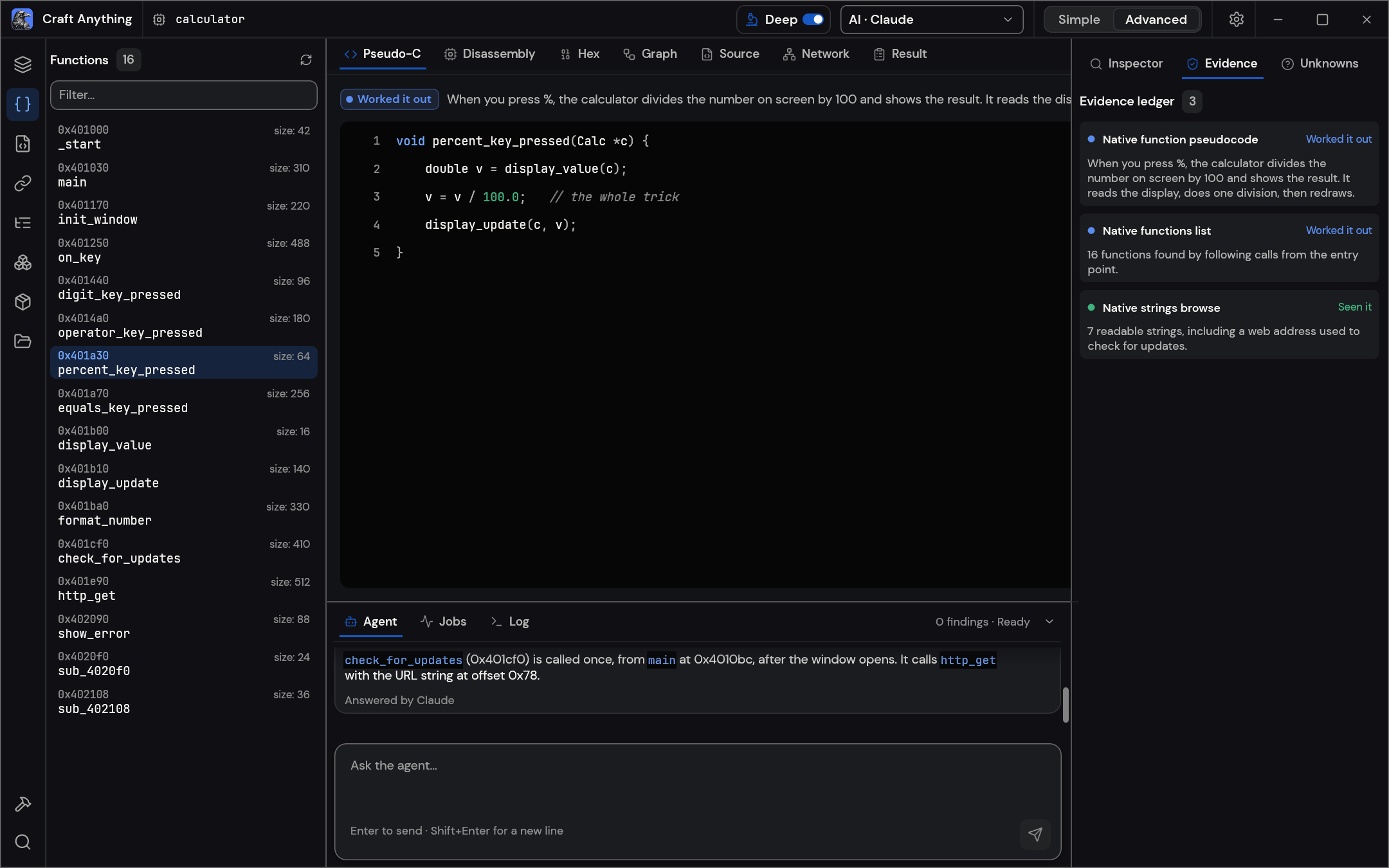
Section titled “Use the Advanced workbench”Choose Advanced in Settings → General → Mode for every tool: functions, strings, pseudo-C, disassembly, hex, call graphs, evidence, unknowns, jobs, logs and the agent console. In Advanced, the title bar also has the Simple/Advanced switch.
Keyboard shortcuts
Section titled “Keyboard shortcuts”| Keys | What they do |
|---|---|
| Ctrl+K (Cmd+K on a Mac) | Search every tool and command by name. The search also finds Open a file…, Open a folder or app bundle…, Export a report (Markdown), Switch light / dark theme and Go home |
| Esc | Close the search |
| Ctrl +, Ctrl −, Ctrl 0 (Cmd on a Mac) | Zoom in, zoom out, reset |
| Enter | Send a message |
| Shift+Enter | New line in a message |
| Up arrow, at the start of the message box | Bring back your previous message |
| Ctrl+V | Paste a picture into a message |
Export a report
Section titled “Export a report”Export a report saves everything found so far as a Markdown file: the conversation and the evidence behind it. It is a button beside the conversation when you ask about a file or website, and a command in the Ctrl+K search. On a Mac, the File menu in the menu bar has it too, beside New project (Cmd+N), Open a file… (Cmd+O) and Open a folder or app bundle… (Cmd+Shift+O).
From the command line
Section titled “From the command line”Every tool is also a command:
craft-anything-cli commands # every tool, by groupcraft-anything-cli rebuild https://example.com "Recreate this website"craft-anything-cli rebuild - "A snake game in Rust" --rounds 1Questions are asked in the terminal. To keep working on a project:
craft-anything-cli rebuild https://example.com "Make the header blue" --continue-in "<project folder>"craft-anything-cli rebuild - "Add a contact form" --project-folder "<your folder>" --existing editAdd --deep (or --clean-room) to choose the mode for one run.
rebuild has more options:
| Option | What it does |
|---|---|
--resume |
With --continue-in, carries on where the last run stopped |
--unattended |
Answers questions with the first choice and refuses approvals, so nothing waits for you |
--backend |
The coding agent to use, by name |
--build-with |
What to build with: unity, unreal, godot or rust |
--generate-assets |
Lets the builder generate pictures and 3D models for a new game (needs a fal.ai key) |
--rounds |
How many refining rounds after the first build. The default is 2 |
--projects-dir |
Where the new project folder goes |
Other commands:
craft-anything-cli ai list # your AIs; also detect, add, remove, on, off, modelcraft-anything-cli chat "What does it connect to?" --target <file> # ask the AI about a targetcraft-anything-cli report --html --out report.htmlcraft-anything-cli triage <file> # a first look at a filecraft-anything-cli capabilities # what this install can doreport writes Markdown unless you add --html. Add --no-evidence to leave out the evidence list. Add --project <folder> to any command to keep its evidence in a project folder, and --allow-run to let tools that run code go ahead without asking.
setup has --dry-run to show what it would change, --client to pick one app, --all-detected, --yes to skip the questions and --no-skill to leave out the skill.
From an AI agent (MCP)
Section titled “From an AI agent (MCP)”craft-anything-cli mcp # serve the essential tools to an MCP clientcraft-anything-cli mcp --all-tools # serve every toolcraft-anything-cli setup # connect Craft Anything to your coding-agent appsOn a shared computer, add --restricted. It turns off the tools that act on the machine, and the web and capture tools too. --allow-web and --allow-capture turn those two back on. --inbox <folder> is where the agent posts questions and approvals for you, and the app answers them.
An agent can then study a target or run a whole rebuild through the same engine the app uses. Large results come back as a summary first, with pages to read the rest.
Where projects are kept
Section titled “Where projects are kept”New projects go in Documents/Craft Anything; change the folder in Settings → General. Each project folder holds:
| Folder or file | What’s in it |
|---|---|
craft.json |
The request, target, status and history |
app/ |
The project the agent built |
capture/ |
What was recorded from the original |
checks/ |
Each comparison with the original |
investigation.cany/ |
The evidence |
inbox/ |
Open questions |