
Troubleshooting
This page lists common problems with VectorCraft and how to fix them. It also shows how to recover unsaved work, go back to the default settings, and find the version and the log to attach to a bug report.
The window doesn’t open, or stays black
Section titled “The window doesn’t open, or stays black”On a computer with two graphics processors, such as many laptops, VectorCraft picks one for you. If the one it picked can’t show the window, VectorCraft starts again on the next one by itself.
To choose the graphics processor yourself:
- Choose Edit → Preferences… (Ctrl+K), then click the Performance page. On macOS, choose VectorCraft → Settings → Performance….
- Set Graphics Processor to Power Saving (integrated) or High Performance (discrete). Automatic goes back to the default.
- Restart VectorCraft. The change takes effect the next time VectorCraft starts.
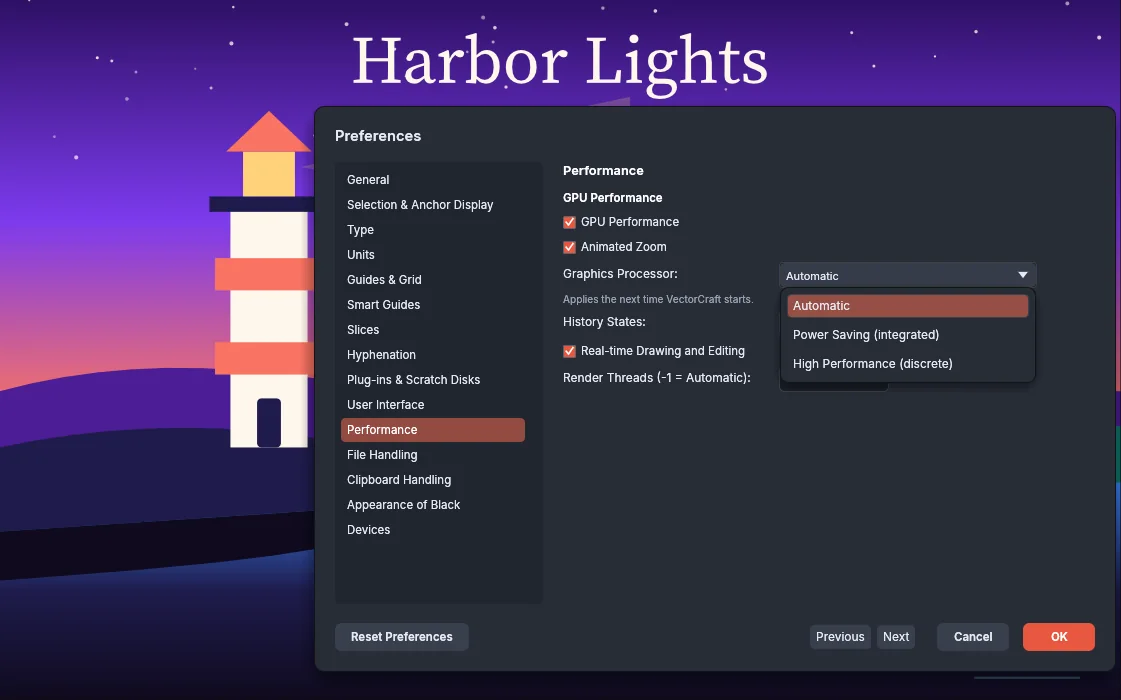
If VectorCraft doesn’t get far enough to open Preferences, choose the graphics processor when you start it. For example, in PowerShell, from the folder that contains vectorcraft.exe:
$env:WGPU_POWER_PREF = "high" # or "low" for the integrated one& .\vectorcraft.exeRemove-Item Env:WGPU_POWER_PREF # go back to the default for later launchesOn Linux or macOS, start it with WGPU_POWER_PREF=high vectorcraft. You can also set WGPU_ADAPTER_NAME to part of the graphics card’s name, such as nvidia or intel. The log lists the graphics processors VectorCraft found and the one it used.
VectorCraft feels slow with a big drawing
Section titled “VectorCraft feels slow with a big drawing”Drawings with thousands of paths can make hovering, zooming and panning lag. These settings and views change how much VectorCraft has to draw:
- Outline view: press Ctrl+Y (Cmd+Y on macOS) to show only the outlines. Press it again to return to the full preview.
- Hide layers you don’t need. Hidden layers aren’t drawn.
- Real-time Drawing and Editing: under Edit → Preferences… → Performance (Ctrl+K), turn it off and VectorCraft stops redrawing the document while you drag. You see the pending shape until you let go.
- Animated Zoom: turn it off in the same place. It is dimmed while GPU Performance is off.
- Render Threads: the number of threads that draw the canvas. -1 lets VectorCraft choose.
- Graphics Processor: on a laptop with two graphics processors, check that VectorCraft uses the one you expect. See The window doesn’t open, or stays black.
- History States: each open document keeps this many undo steps. A lower number uses less memory.
Preferences lists the defaults. Slowness on very large files is a known problem: see Known problems, not fixed yet.
Files can’t be dragged into the window on Linux
Section titled “Files can’t be dragged into the window on Linux”On a Wayland desktop, dropping files on VectorCraft’s window doesn’t work yet. Use File → Open or File → Place, or copy the file in your file manager and paste it into the document.
To drag files in:
- Choose Edit → Preferences… (Ctrl+K), then click the Performance page.
- Set Linux Display Server to X11 (XWayland).
- Restart VectorCraft.
A drawing tablet’s pen does nothing on Linux
Section titled “A drawing tablet’s pen does nothing on Linux”On Wayland, under KDE Plasma 6.3 or later and under GNOME, VectorCraft can’t get a pen’s input yet. If the pen is plugged in when VectorCraft starts, VectorCraft opens its window through XWayland instead, where the pen works and its pressure is read.
If you plug the pen in later, choose Edit → Preferences… (Ctrl+K), click the Performance page, set Linux Display Server to X11 (XWayland), and restart VectorCraft.
To keep the window on Wayland while a pen is plugged in, start VectorCraft with VECTORCRAFT_NATIVE_WAYLAND=1:
VECTORCRAFT_NATIVE_WAYLAND=1 vectorcraftThe pen then moves the pointer but does not draw. While Linux Display Server is set to X11 (XWayland), VectorCraft ignores VECTORCRAFT_NATIVE_WAYLAND and opens the window through XWayland.
The macOS menu bar shows no VectorCraft menus
Section titled “The macOS menu bar shows no VectorCraft menus”On macOS, VectorCraft puts its menus in the menu bar at the top of the screen. If they don’t show there, you can keep the menus inside VectorCraft’s window instead:
-
Quit VectorCraft.
-
In Terminal, start it with the
--in-window-menusoption:Terminal window /Applications/VectorCraft.app/Contents/MacOS/VectorCraft --in-window-menus
The menus then show in a bar at the top of the window. To start VectorCraft this way every time from Terminal, set VECTORCRAFT_IN_WINDOW_MENUS=1 instead of passing the option.
A menu item is grayed out
Section titled “A menu item is grayed out”Some items are listed but not built yet. Others only work when something is selected, or when the right kind of object is selected. If you can’t find a command at all, choose Help → Search Commands….
A file doesn’t look as it does in another app
Section titled “A file doesn’t look as it does in another app”VectorCraft is in alpha, and some things don’t come across between apps:
.aifiles: VectorCraft reads the PDF part that most.aifiles contain, and older.aifiles too. It saves.aifiles in the same PDF-compatible form, without another app’s own editing data, so some things may not be editable when the file is opened elsewhere.- Affinity documents: whatever VectorCraft couldn’t bring in, such as adjustments, blurs and brushes, is listed in a warning when the file opens. VectorCraft can’t save Affinity files.
- Photoshop files open as one flattened picture, without their layers.
Open and save files lists what VectorCraft opens and saves in each format. If you need an exact copy, keep the original file. Report the file if you can share it: real files are how we find these problems.
Text shows in the wrong font
Section titled “Text shows in the wrong font”When a document uses fonts that aren’t installed, the text shows in another font. In the desktop app, the Missing Fonts dialog opens after the document opens and lists each missing font. In the web version, no dialog opens; the status line shows how many fonts are missing.
- Click Search Fonts Folder to search the
Fontsfolder next to the document, or Find in Folder… to search a folder you pick and its subfolders. Search Fonts Folder appears only when that folder exists, and Find in Folder… appears only where VectorCraft can ask you for a folder. - Check the font files you want to add, and click Add Fonts. VectorCraft copies them into its own Fonts folder and redraws the text.
- To use another font instead, click Find Fonts. It opens Type → Find Font… with the first missing font selected.
Add or replace missing fonts describes each button.
Placed images are missing
Section titled “Placed images are missing”When a document opens and VectorCraft can’t find a linked image file, the Linked File Not Found dialog asks about one file at a time. Until you relink it, the image shows the preview saved with the document.
- When more files are missing, turn on Apply to All first. VectorCraft then looks for the others by name in the folder of the file you pick, or ignores them all when you click Ignore. The checkbox label shows how many more files are missing.
- Click Replace… to pick the file, or Find in Folder… to search a folder and its subfolders for every missing file. Ignore leaves the image linked to the missing file.
To fix missing images later, choose Window → Links. A red badge with ? marks each missing file. Choose Select Missing from the panel menu, then Relink… or Relink to Folder…. Fix missing links when a document opens has the details.
VectorCraft closed and I lost my work
Section titled “VectorCraft closed and I lost my work”Open VectorCraft again. If it kept copies of unsaved documents, the Recover Documents dialog lists them with the time of each copy.
- Click Restore to open them. Each one opens with [Recovered] after its name.
- Save each restored document to keep it.
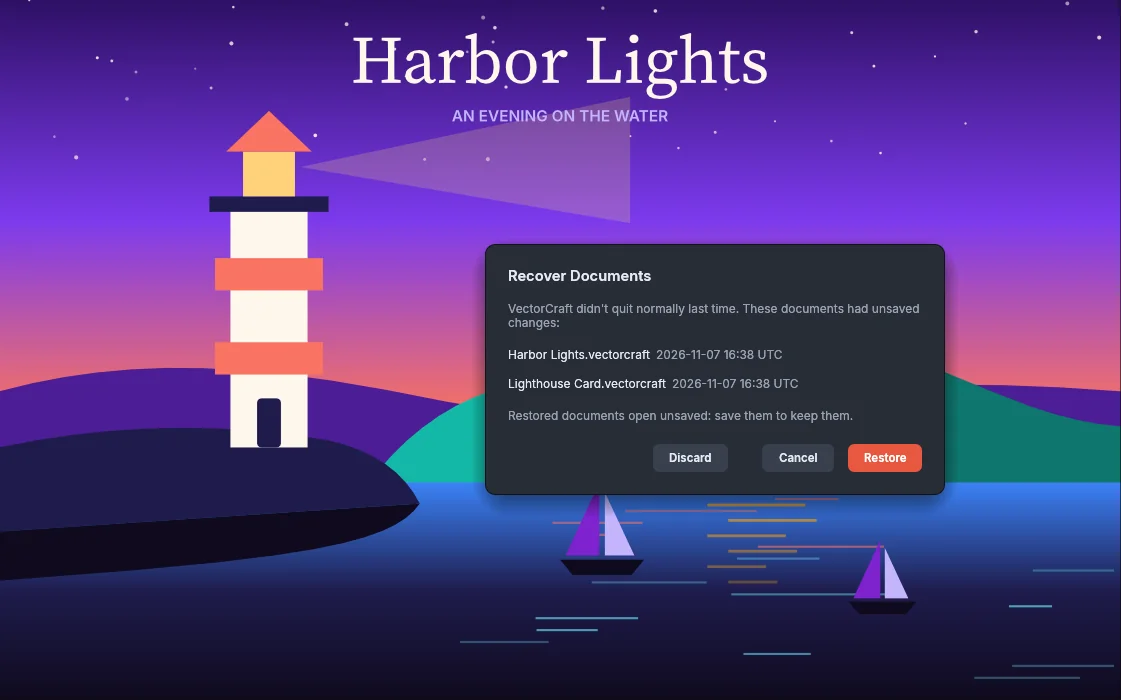
Discard deletes the copies. Cancel keeps them, and the dialog asks again the next time VectorCraft starts.
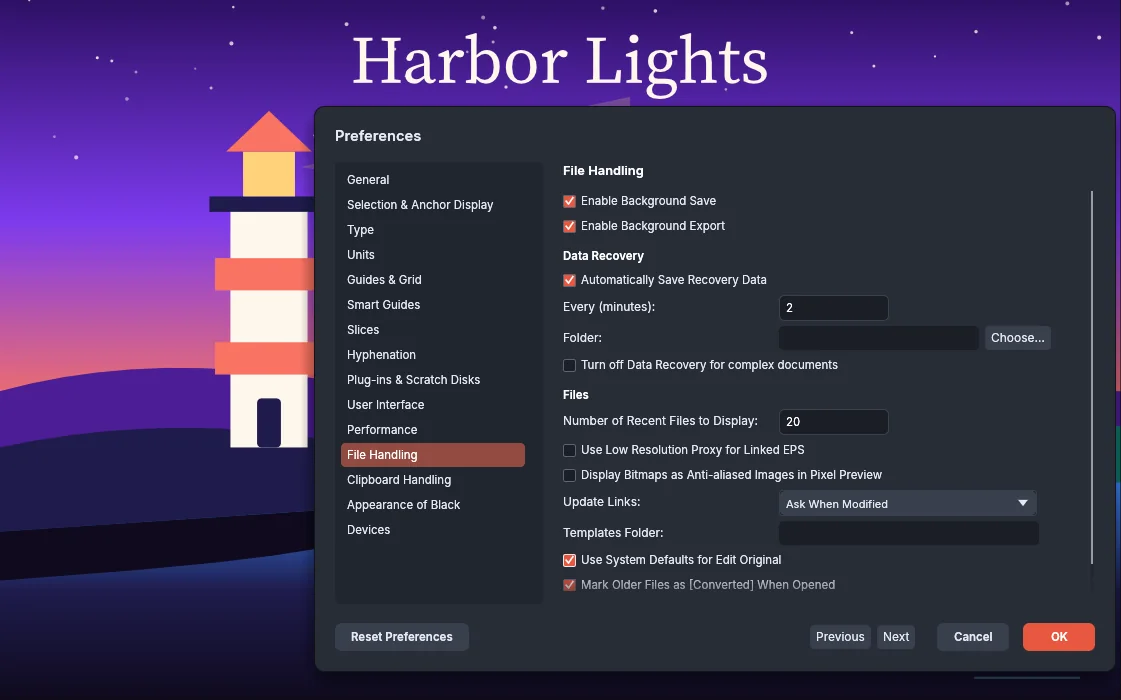
VectorCraft saves recovery copies of changed documents every two minutes by default. To change how often, or where they’re kept, choose Edit → Preferences… (Ctrl+K), click the File Handling page, and look under Data Recovery. On macOS, choose VectorCraft → Settings → File Handling….
| Setting | Default | What it does |
|---|---|---|
| Automatically Save Recovery Data | On | Keeps recovery copies of documents with unsaved changes. |
| Every (minutes) | 2 | How often VectorCraft saves the copies, from 1 to 60 minutes. |
| Folder | Empty | The folder for the copies. When it is empty, VectorCraft uses the Data Recovery folder in its settings folder. |
| Turn off Data Recovery for complex documents | Off | When on, VectorCraft keeps no copies of documents with more than 20,000 objects. |
Printing fails or the page comes out wrong
Section titled “Printing fails or the page comes out wrong”- Check the job first. In File → Print…, look at the preview and at Summary, which lists your changes and warns about art bigger than the page.
- Wrong page size, or art cut off: check Media and Scaling in General, and Unprintable margin in Advanced.
- Not sure what’s going to the printer? Choose PDF File under Printer and look at the PDF. If you print that PDF, turn off “fit to page” in your PDF viewer.
- Changes in the printer’s own settings are ignored: VectorCraft doesn’t read them back. Set the paper in the Print dialog.
Known problems, not fixed yet:
- Printing can fail with “Interface not compatible (0x80004005)” (#5987).
- Paper sizes and settings from the printer driver aren’t picked up (#5642).
- Prints can come out slightly smaller than set (#5520).
- Large-format printers with only a PCL driver print the wrong page size (#5339).
See Print your artwork.
The web version is slow or won’t start
Section titled “The web version is slow or won’t start”The web version uses the graphics card through WebGPU, which browsers only allow on secure pages. Open it from an https:// address, or from localhost. Over plain http:// elsewhere it falls back to slower WebGL2 graphics, and the clipboard doesn’t work.
VectorCraft stopped while a plug-in was loading
Section titled “VectorCraft stopped while a plug-in was loading”The next time it starts, VectorCraft names the plug-in and offers Safe Mode. You can disable the plug-in and continue, start normally, or start in Safe Mode, where no plug-ins load or run. Help → Safe Mode… lists the disabled plug-ins, and Enable on Re-launch turns one back on.
The Safe Mode dialog also notes that the plug-in may not be what stopped VectorCraft. Click one of these buttons:
| Button | What happens |
|---|---|
| Disable and Continue | Safe Mode ends and the other plug-ins load. That plug-in stays off at later launches until you turn it back on. |
| Start Normally | Safe Mode ends and every plug-in loads, that one included. |
| Start in Safe Mode | No plug-ins load or run until you quit VectorCraft. It asks again at the next launch. |
To turn a disabled plug-in back on:
- Choose Help → Safe Mode….
- Select Enable on Re-launch beside the plug-in.
- Click OK. The plug-in loads again the next time VectorCraft starts.
Start without plug-ins in Safe Mode has the details.
A script stops or undoes its work
Section titled “A script stops or undoes its work”VectorCraft keeps a script’s changes only when the script runs to its end. If the script stops at an error, reaches one of its limits, or you click Stop, VectorCraft puts every document back as it was before the run.
- To see why a run ended, choose Window → Script Console. The line that starts with ■ gives each run’s ending, such as Ended with an error or Out of fuel. An error that the script did not handle shows in red.
- When you click Stop in the status bar, or in a dialog the script opened, the status bar shows “The script was stopped and its changes were undone.”
- A script that adds a great many objects pauses with A Script Is Running. Click Continue to let it go on, or Stop to end it and undo its work.
- Files that the script saved or exported before it ended stay on disk. The message that ends the run names them.
- A script that runs to its end adds one undo step, Run Script. Choose Edit → Undo Run Script (Ctrl+Z, or Cmd+Z on macOS) to undo the whole run.
Stop a script describes each way to stop a run, and Read a script’s output in the Script Console lists every ending.
Start with default settings
Section titled “Start with default settings”If VectorCraft behaves oddly after you changed settings, put the preferences back to their defaults:
- Choose Edit → Preferences… (Ctrl+K). On macOS, choose VectorCraft → Settings → General… (Cmd+K).
- Click Reset Preferences at the bottom left of the dialog.
- Click OK to apply the defaults, or Cancel to keep your settings.
Your saved presets and libraries are kept. Reset Preferences lists what the reset changes.
To put the panels back, choose Window → Workspace → Reset Essentials. The item names the current workspace. See Customize the workspace.
To try VectorCraft once with the default settings without changing your saved ones, start it with VECTORCRAFT_NO_PREFS=1. VectorCraft then doesn’t read or save its settings, keeps no recovery copies, and writes no log file.
$env:VECTORCRAFT_NO_PREFS = "1"& .\vectorcraft.exeRemove-Item Env:VECTORCRAFT_NO_PREFSOn Linux or macOS, start it with VECTORCRAFT_NO_PREFS=1 vectorcraft.
Find your version for a bug report
Section titled “Find your version for a bug report”Choose Help → About VectorCraft (VectorCraft → About VectorCraft on macOS). The About tab shows the version number and, on its last line, the graphics processor VectorCraft draws with. Put both in your bug report.
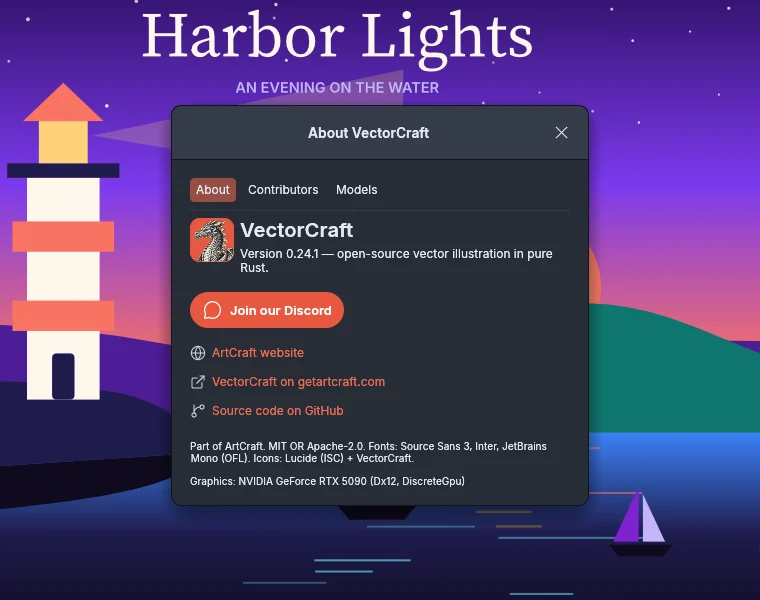
On macOS, Linux and FreeBSD, vectorcraft --version prints the version. Install and update shows how to get a newer version.
Find the log
Section titled “Find the log”VectorCraft writes a log you can attach to a bug report. It records the graphics processor it used, files it had trouble with, and errors it recovered from.
| System | Log folder |
|---|---|
| Windows | %APPDATA%\VectorCraft\logs\ |
| macOS | ~/Library/Application Support/VectorCraft/logs/ |
| Linux | ~/.config/vectorcraft/logs/ |
With the Windows portable zip, the log is in the VectorCraftData\logs folder next to vectorcraft.exe.
The current log is vectorcraft.log. The log from the run before is vectorcraft.1.log, so if VectorCraft crashed, attach that one too.
The folder above logs is VectorCraft’s settings folder.
Known problems, not fixed yet
Section titled “Known problems, not fixed yet”- Hovering with the Selection tools is slow over thousands of small paths (#5976).
- Hovering over a background rectangle under dense artwork is slower in 0.22.0 than in 0.21.1 (#5979).
- A large file lags even with the discrete graphics processor selected (#5961).
- Performance drops in full screen on an old Mac (#6039).
- The screen can flicker when you zoom (#5891).
- On Windows, VectorCraft is missing from the Open with list (#5740). Open the file with File → Open instead.
- Files from other Craft apps, such as
.pcraft, don’t open (#5444). - An Illustrator
.aifile can open as a blank document (#5769). - An EPS file can open as raster tiles instead of editable paths (#5846).
- On Windows, a desktop shortcut can appear after each update (#5356).
- On a laptop with Intel and NVIDIA graphics, the window can stay blank and close (#5476).
Still stuck?
Section titled “Still stuck?”- Ask in the ArtCraft Discord.
- Report a bug on GitHub, with the log attached.