
Work on a touch screen
This guide covers working on a touch screen or a tablet: the Touch workspace, the finger gestures on the canvas, and drawing with a pen. Both touch settings are on the Devices page of Preferences.
Switch to the Touch workspace
Section titled “Switch to the Touch workspace”The Touch workspace shows the Control bar at the top, the Tools panel with the Advanced toolbar, and the Contextual Task Bar under the selection. It opens the Align panel next to the dock.
- Choose Window → Workspace, or click the workspace switcher at the right end of the menu bar.
- Click Touch, the last of the built-in workspaces. The switcher now shows Touch.
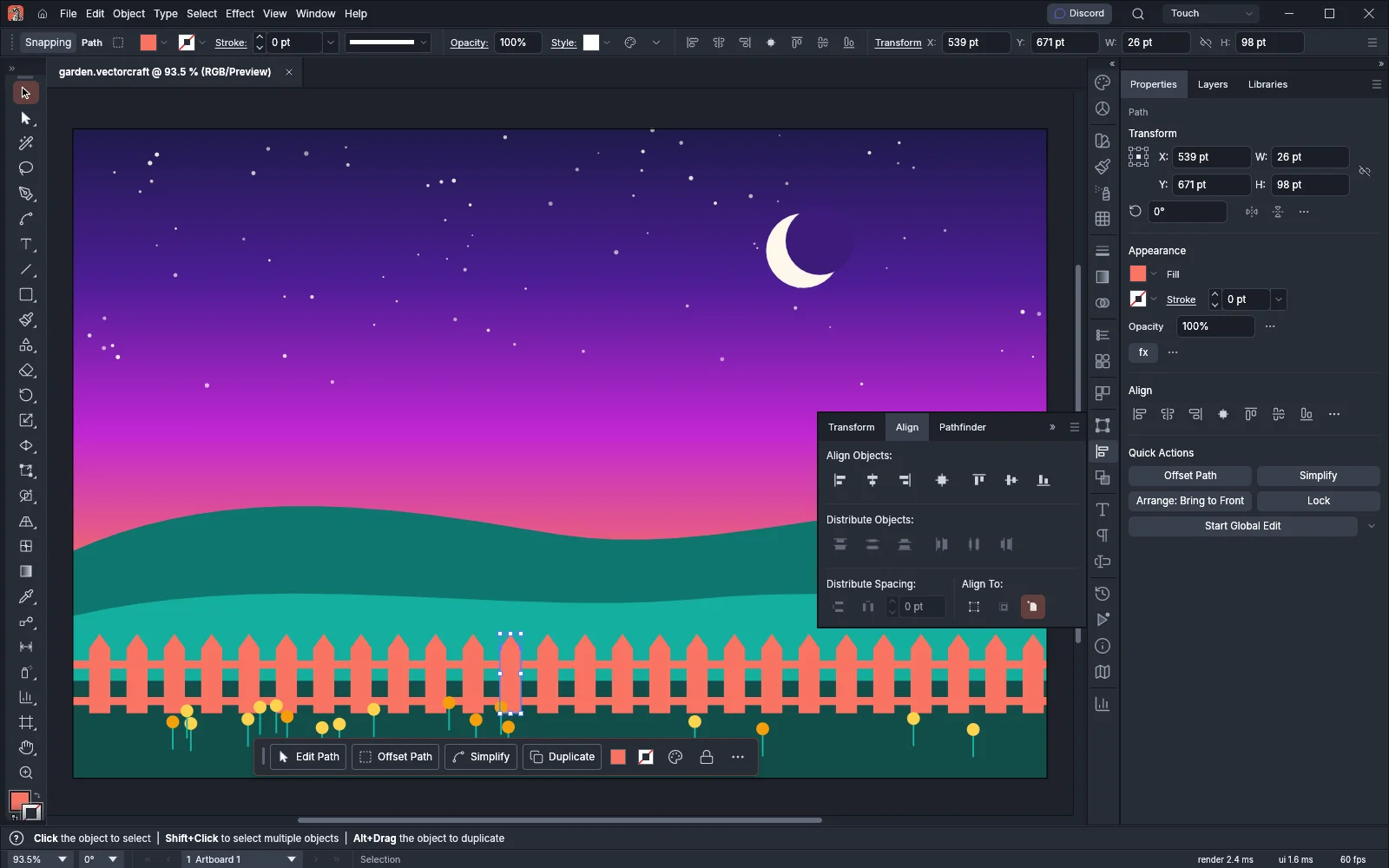
VectorCraft keeps the layout changes you make in Touch, as it does in every workspace. To go back to the saved layout, choose Window → Workspace → Reset Touch. To leave Touch, choose another workspace from the same list. Switch workspaces lists what each workspace shows.
Let VectorCraft switch for you (Enable Touch Workspace)
Section titled “Let VectorCraft switch for you (Enable Touch Workspace)”When Enable Touch Workspace is on, VectorCraft switches to the Touch workspace the first time you touch the screen, and remembers the workspace you were using.
- On Windows, Linux and the BSDs, choose Edit → Preferences… (Ctrl+K) and click Devices. On macOS, choose VectorCraft → Settings → Devices….
- Check or clear Enable Touch Workspace.
- Click OK.
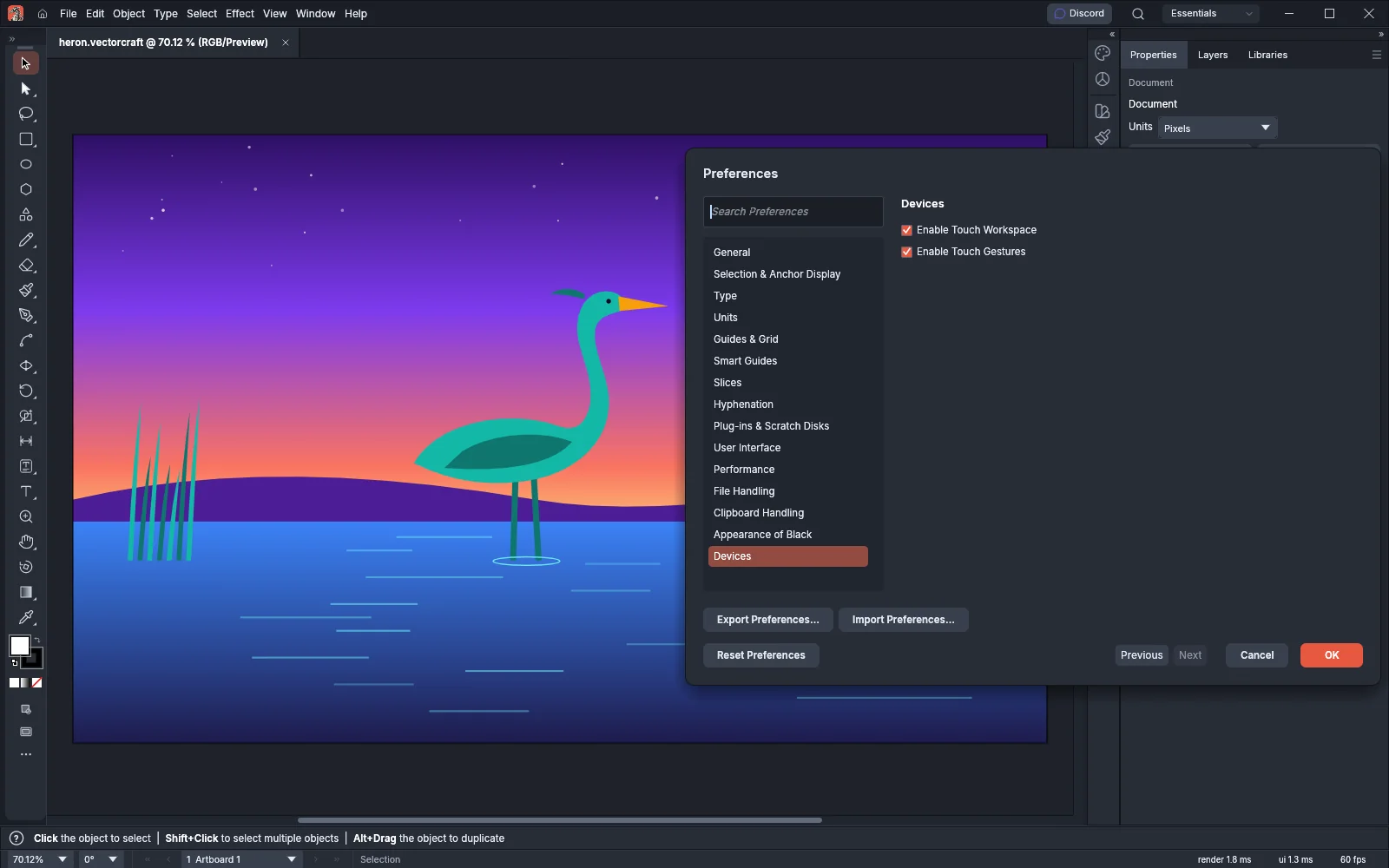
The Devices page has two settings:
| Setting | Default | What it does |
|---|---|---|
| Enable Touch Workspace | On | Switches to the Touch workspace the first time you touch the screen |
| Enable Touch Gestures | On | Turns the two-finger and three-finger taps on or off, and lets a second finger cancel what the first finger started |
When you clear Enable Touch Workspace after VectorCraft switched to Touch for you, VectorCraft switches back to the workspace you used before. If that workspace has been deleted, it switches to Essentials. If you chose Touch yourself from Window → Workspace, VectorCraft stays in Touch.
Importing a preferences file that turns Enable Touch Workspace on or off switches the workspace in the same way.
Zoom, pan, undo and redo with your fingers
Section titled “Zoom, pan, undo and redo with your fingers”Start each gesture with your fingers on the canvas.
| Gesture | What it does |
|---|---|
| Pinch two fingers together or apart | Zooms out or in around your fingers |
| Drag two fingers | Moves the view with your fingers |
| Tap two fingers | Undoes the last change, like Edit → Undo, Ctrl+Z (Cmd+Z on macOS) |
| Tap three fingers | Redoes the last change you undid, like Edit → Redo, Ctrl+Shift+Z (Cmd+Shift+Z on macOS) |
| Press and hold one finger | Opens the context menu |
- A tap counts only when you lift all fingers within half a second and none of them moves more than 16 points. If you hold the fingers down longer, or move one more than 16 points, the gesture does not undo or redo.
- One finger on its own works like the mouse pointer: it uses the current tool on the canvas and taps buttons, panels and menus.
- When a second finger lands while the first is still down, VectorCraft cancels what the first finger started with the tool.
- In Presentation Mode (View → Presentation Mode, Shift+F), the two-finger and three-finger taps do not undo or redo.
Draw with a pen
Section titled “Draw with a pen”In the web version of VectorCraft (see Install and update), a pen such as an Apple Pencil on an iPad draws with the current tool, and your fingers move the view.
- Open VectorCraft in the browser on your tablet.
- Touch the canvas with the pen. From then on, your fingers only pinch, pan and tap to undo or redo. A finger never uses a tool on the canvas, but it can still tap buttons, panels and menus.
- Draw with the pen. Brushes and tools that respond to pressure use the pen’s pressure, as described in Paint with brushes and variable widths.
- While the pen touches the screen, VectorCraft ignores your fingers, so a hand resting on the screen does not draw. When the pen lands, VectorCraft also cancels any fingers that were already down.
- Pressing with the eraser end of the pen selects the Eraser tool. Pressing with the tip again selects the tool you used before.
- Holding the pen over the screen moves the pointer without drawing, on tablets that report a hovering pen.
- To draw with your fingers again, reload the page. Until a pen touches the canvas, one finger uses the current tool.
In the Windows and macOS versions, a pen draws with the current tool and VectorCraft reads its pressure. The Linux version reads the pen and its pressure only when its window opens through X11 or XWayland. When a pen is attached as VectorCraft starts on a Wayland session, VectorCraft opens the window through XWayland. To choose how the window opens, set Linux Display Server on the Performance page of Preferences. If a pen does nothing on Linux, see Troubleshooting.
In the Windows, macOS and Linux versions, pressing with the eraser end of the pen selects the Eraser tool, and pressing with the tip again selects the tool you used before. These versions do not distinguish a pen from a mouse, so one finger still uses the current tool.
Turn the gestures off
Section titled “Turn the gestures off”- On Windows, Linux and the BSDs, choose Edit → Preferences… (Ctrl+K) and click Devices. On macOS, choose VectorCraft → Settings → Devices….
- Clear Enable Touch Gestures.
- Click OK.
With Enable Touch Gestures cleared, the two-finger and three-finger taps no longer undo or redo, and a second finger no longer cancels what the first finger started. Pinching to zoom and dragging two fingers to move the view still work.