
Place text from other files
This guide shows how to bring the text of a plain text file, a Rich Text file or a Word document into a VectorCraft document as area type, and how to write a document’s text back out to a text file.
Place a text file
Section titled “Place a text file”- Choose File → Place… (Ctrl+Shift+P, or Cmd+Shift+P on macOS) and pick a
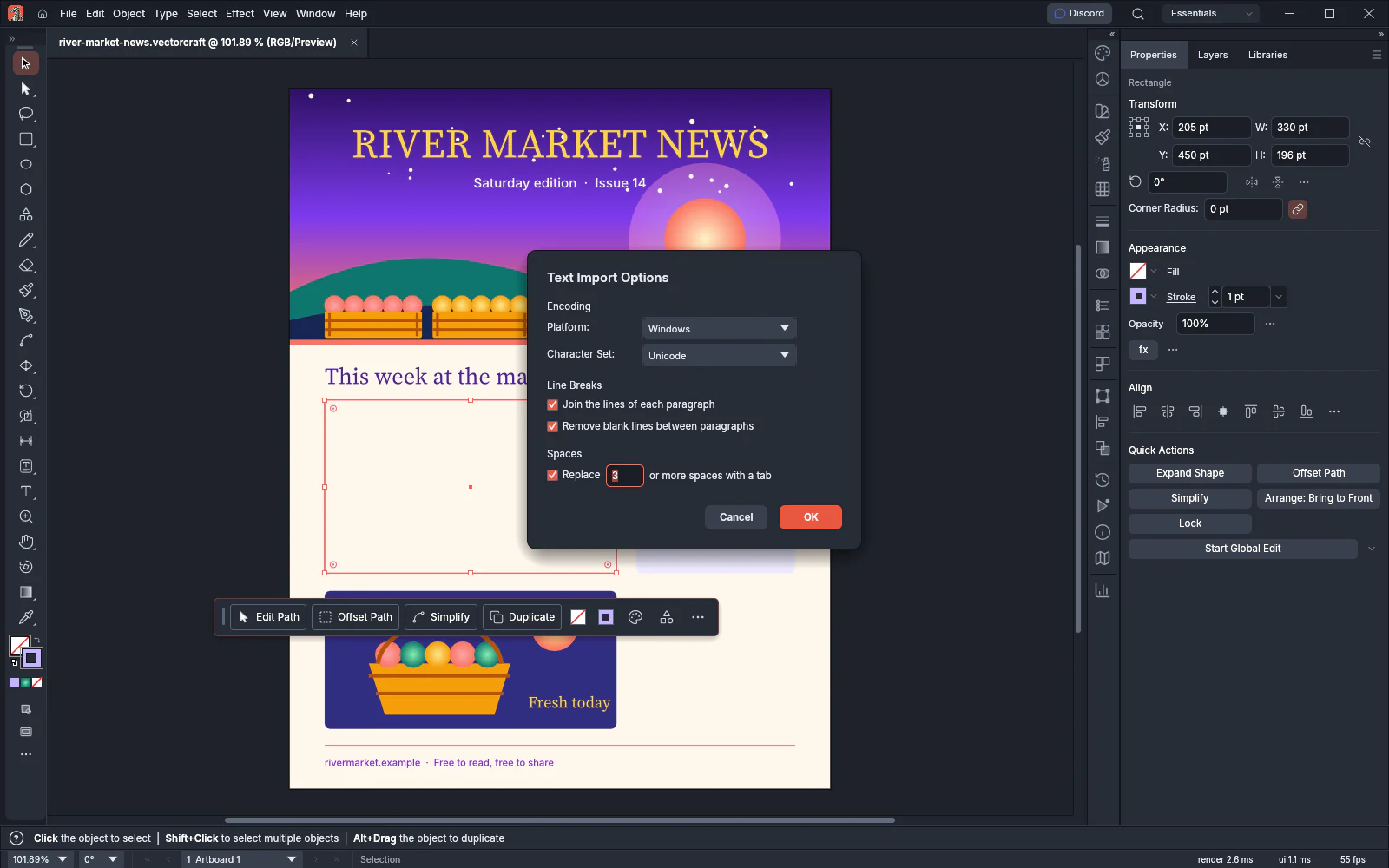
.txtfile. - In the Place dialog, press Place. The Text Import Options dialog opens.
- Set the options, as described in Set the Text Import Options, and press OK.
VectorCraft places the text as one area type object, names it after the file and selects it. The text is set in Source Sans 3 Regular at 12 pt. Placing it is one step that Edit → Undo reverses.
A file that holds only spaces and blank lines is not placed, and the status bar shows that the file has no text to place. A text file larger than 4 MB is not placed either.
Set the Text Import Options
Section titled “Set the Text Import Options”You use the options to set how VectorCraft reads the file and what it cleans up while reading. Every checkbox is off when the dialog opens.
| Option | What it does | Default |
|---|---|---|
| Platform | Windows or Mac: the system the file was saved on. It sets the 8-bit character set: Windows-1252 for Windows, Mac Roman for Mac. | Mac on macOS, Windows on other systems |
| Character Set | Unicode reads the file as UTF-8, or as UTF-16 when it starts with a byte order mark. ANSI reads it in the platform’s 8-bit character set. | Unicode |
| Join the lines of each paragraph | Joins each block of lines into one paragraph. A blank line ends the paragraph and stays as an empty paragraph. Turn it on for text that was wrapped by hand at a fixed width. | Off |
| Remove blank lines between paragraphs | Drops the blank lines. With Join the lines of each paragraph off, each line of the file stays a paragraph of its own. | Off |
| Replace n or more spaces with a tab | Changes each run of n or more spaces into one tab. Shorter runs stay as spaces. The number field is available while Replace is on and takes 2 to 100. | Off, 3 |
With Unicode, VectorCraft reads a file that is not valid UTF-8 in the platform’s 8-bit character set, so ANSI gives the same result for most 8-bit files. When accented letters or curly quotes come in as the wrong characters, set Platform to the system the file was saved on. ANSI makes a difference only for an 8-bit file whose first bytes match a byte order mark, or whose bytes also read as valid UTF-8.
VectorCraft always does these things:
- CR LF, LF and CR each end a line.
- Control characters other than tabs are removed.
- Blank lines at the end of the file are removed.
Join the lines of each paragraph also joins short lines that were never meant to run together, such as a list of prices typed one per line. Put a blank line between those lines in the file, or leave the option off and use Remove blank lines between paragraphs alone.
Place a Rich Text or Word document
Section titled “Place a Rich Text or Word document”Rich Text (.rtf), Word (.docx) and Word 97-2003 (.doc) files are placed the same way, without the Text Import Options: choose File → Place…, pick the file and press Place. The text keeps its formatting:
| Content | What is kept |
|---|---|
| Character formatting | Font, size, bold, italic, underline, strikethrough, all caps, small caps, superscript, subscript, raised and lowered text, and color |
| Paragraph formatting | Alignment, left and right indents, first-line indent, hanging indent in .docx files, space before and after, and right-to-left direction |
| Styles in Word documents | The formatting that paragraph and character styles give, with the formatting applied by hand on top |
| Tables | Each row becomes a paragraph, with a tab between its cells |
VectorCraft leaves out pictures and embedded objects, headers and footers, footnotes and endnotes, and hidden text. From Word documents it also leaves out comments and deleted text. From .docx files it also leaves out list numbers and symbol characters. From .doc files it also leaves out text boxes.
VectorCraft recognizes an RTF file by its content, whatever its name. A file named .txt is always read as plain text.
VectorCraft does not place a file in these cases, among others:
- A Rich Text file larger than 4 MB, or a Word document with more than 4 MB of text.
- A Rich Text or
.docxfile with more than 100,000 paragraphs, or with more than 100,000 runs of one formatting. - A
.docfile with a stream larger than 64 MB. - A
.docfile saved by a version of Word older than Word 97, an encrypted or obfuscated.docfile, or one last saved with fast save. Open it in a word processor and save it as.docxfirst.
Fit the placed text to your layout
Section titled “Fit the placed text to your layout”Placed text is area type, so it wraps inside its frame. VectorCraft sizes the frame and does not scale the text. Where the frame goes depends on how you place the file:
| How you place it | Where the frame goes |
|---|---|
| Press Place with one file | Centered in the view. The frame is the size of the artboard under the middle of the view, or of the first artboard when none is there, less 36 pt on each side. It is at least 72 pt wide and 72 pt high. |
| Select one object, turn on Replace in the Place dialog, then press Place | The frame takes the selected object’s place and size, and the object is removed. |
| Place several files, then click on the canvas with the loaded pointer | Centered on the point you click. The frame is the size of the artboard under the click, or of the first artboard when none is there, less 36 pt on each side. It is at least 72 pt wide and 72 pt high. |
| Place several files, then drag on the canvas with the loaded pointer | The frame is the size of the rectangle you drag. |
To pour text into a column you have laid out, draw a rectangle where the text should go, select it, and place the file with Replace on.
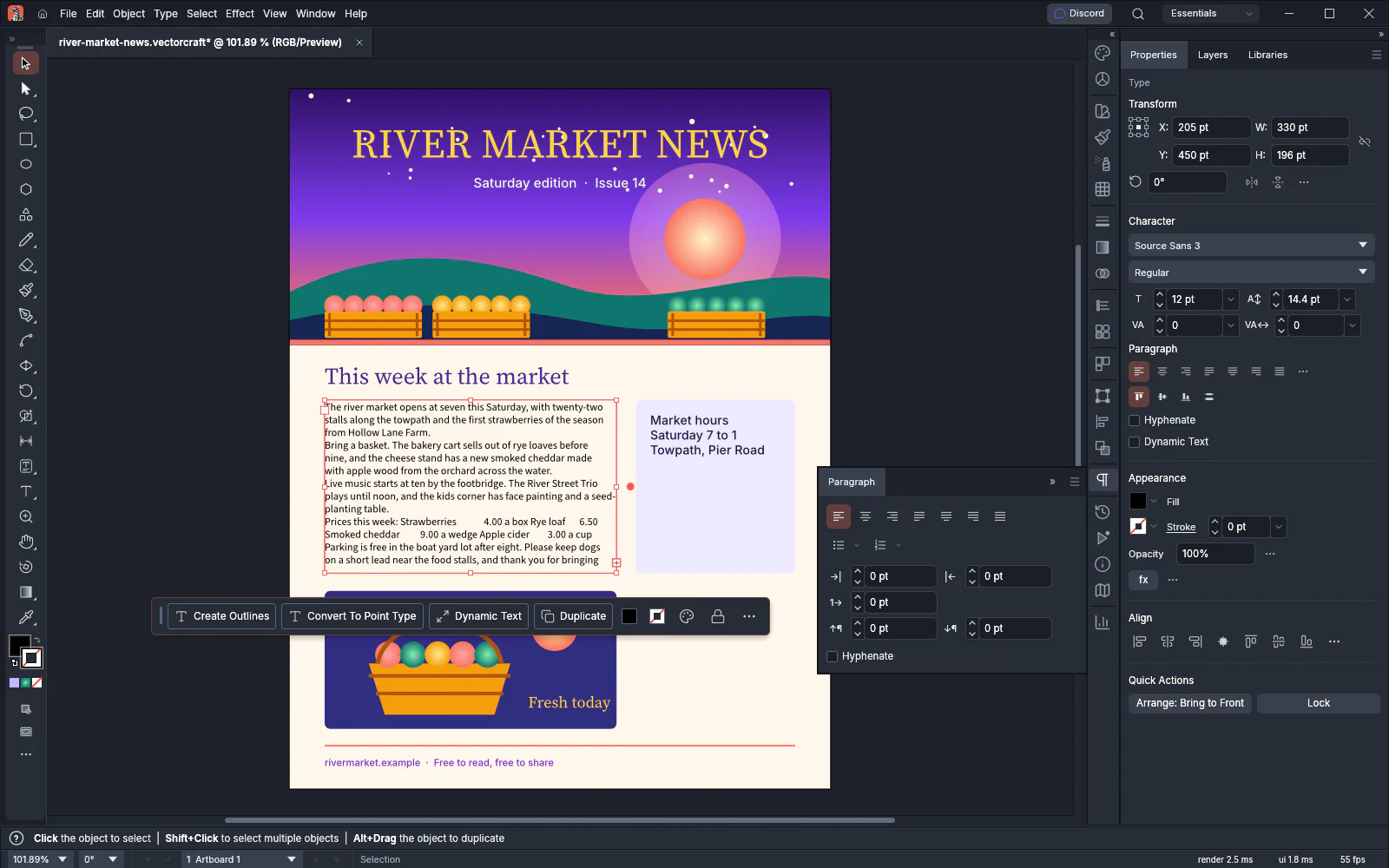
When the text is longer than the frame, a red plus appears in the frame’s out port. To show the rest of it:
- Choose Type → Area Type Options… and set a larger Width or Height, or set Fit to Auto Size, so the frame grows with the text, or to Shrink Text to Fit.
- Click the out port and click or drag on the canvas to flow the rest into another frame. See Flow text between frames.
After placing, style the text with paragraph and character styles, as described in Work with styles and long text. To change the case of the placed text, replace its straight quotes and double hyphens, or show its spaces and paragraph ends, see Change case and clean up text.
Save the text of a document as a text file
Section titled “Save the text of a document as a text file”- Choose File → Export → Export As….
- Set Format to Text and choose where to save the file.
- In the Text Export Options dialog, choose the Encoding and Line Endings. Turn on Selection Only to write only the text of the selected objects.
- Press Export.
The file holds the text of every type object, one after another, from the back of the stacking order to the front. Threaded frames are written as one story. Hidden objects and template layers are left out. Text Export Options lists the choices.
To move text between VectorCraft and another app without a file, copy and paste it, as described in Copy and paste between apps.