
Make lists and fit type to its frame
This guide shows how to turn paragraphs into bulleted and numbered lists, and how to make type fill the width of its frame.
Start a bulleted or numbered list
Section titled “Start a bulleted or numbered list”- Choose the Type tool (T) and click in a paragraph, or drag across several paragraphs. To change every paragraph of a type object, select the object with the Selection tool instead.
- Open the Paragraph panel with Window → Type → Paragraph (Ctrl+Alt+T, or Cmd+Option+T on macOS).
- Click Bullets to start each paragraph with a bullet, or Numbered List to number the paragraphs. A button shows pressed while every selected paragraph is in that kind of list.
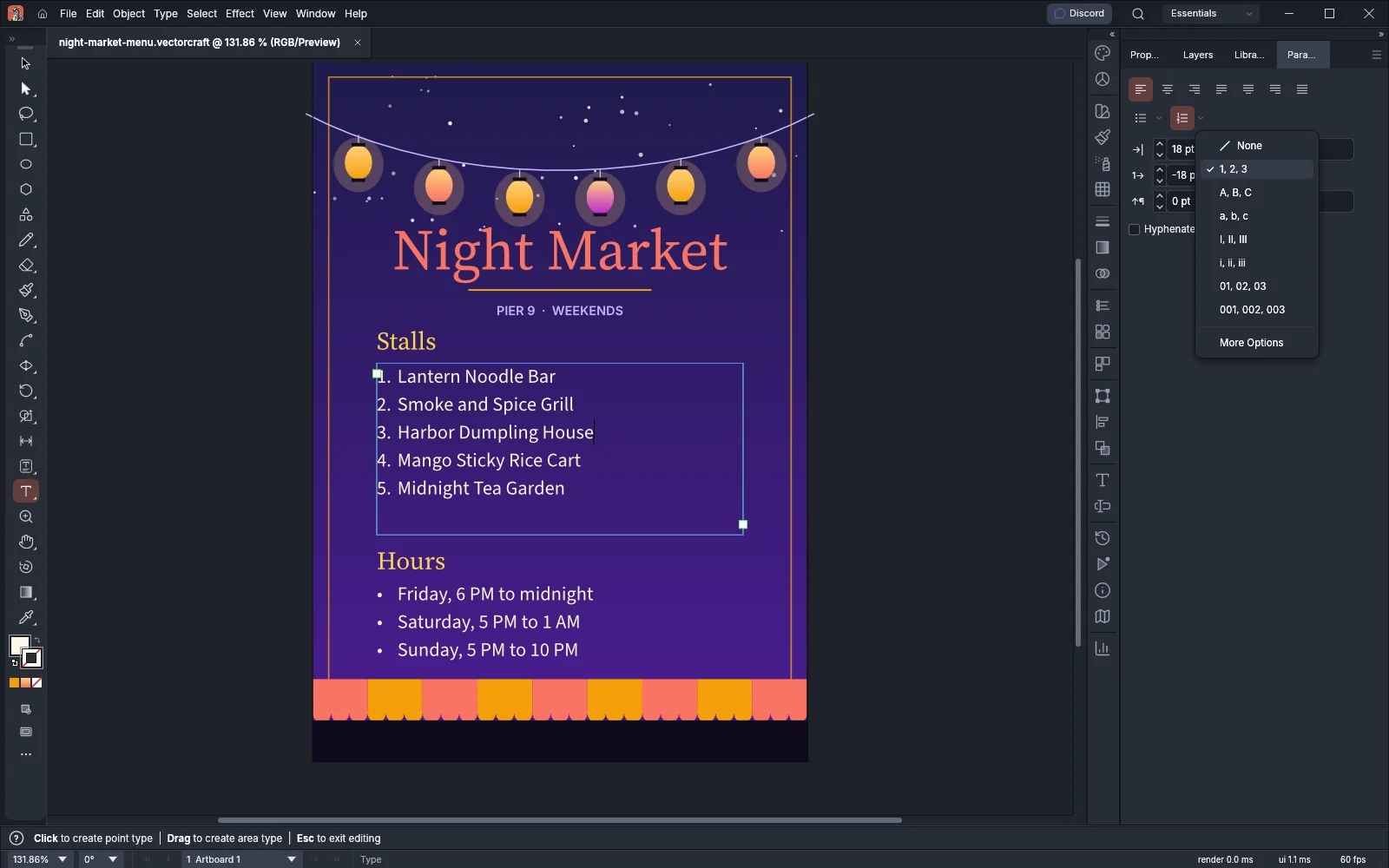
- To use another marker, click the arrow beside the button and choose a preset. A check mark shows the preset that the paragraphs use. None takes the paragraphs out of the list.
| Button | Presets |
|---|---|
| Bullets | None, Filled Dot, Dash, Hollow Circle and Filled Square, then More Options |
| Numbered List | None, 1, 2, 3, A, B, C, a, b, c, I, II, III, i, ii, iii, 01, 02, 03 and 001, 002, 003, then More Options |
Type → Bullets and Numbering → Apply Bullets and Apply Numbers also make the selected paragraphs a list. Apply Bullets keeps the bullet of a bulleted list and gives other paragraphs the filled dot. Apply Numbers keeps the number style of a numbered list and numbers other paragraphs 1, 2, 3. When you right-click type, the context menu has the same two commands under Bullets and Numbering.
How VectorCraft draws a list:
- A numbered list writes each number followed by a period, for example 1. or A. Letters run from A to Z, then AA, BB and so on. Letters and roman numerals past 3999 are written in Arabic digits.
- The numbers count the numbered paragraphs of the story, including the text in its threaded frames. The count starts again at 1 after a paragraph that is in no list. Empty paragraphs and bulleted paragraphs are not counted.
- The marker uses the font, size and color of the first character of its paragraph. The marker is not a character of the text, and an empty paragraph has no marker.
- When a paragraph with a left indent and a first-line indent of 0 joins a list, VectorCraft sets its Left Indent to 18 pt and its First-line Left Indent to -18 pt. VectorCraft then draws the marker in the first 18 pt of the first line, and the text starts after it.
Start a list as you type
Section titled “Start a list as you type”While Start Lists From Typed Markers is on, you can start a list with the Type tool. At the start of a paragraph that is in no list, type one of the markers in the following table and then a space. VectorCraft removes the characters you typed and makes the paragraph a list.
| Type this, then a space | List |
|---|---|
1. or 1) |
Numbered 1, 2, 3 |
A. or A) |
Numbered A, B, C |
* |
Bulleted with a filled dot |
+ |
Bulleted with a hollow circle |
# |
Bulleted with a filled square |
> |
Bulleted with a dash |
To keep the characters as you typed them, press Ctrl+Z (Cmd+Z on macOS) once. Undo removes the list and restores the characters.
The setting is on by default. To turn it off, open Preferences with Edit → Preferences… (Ctrl+K), or VectorCraft → Settings → General… (Cmd+K) on macOS. On the Type page, turn off Start Lists From Typed Markers under Options. While the setting is off, the characters stay in the text as you typed them.
Set list options
Section titled “Set list options”- Select the list. Click in it with the Type tool to change the paragraphs that the selection touches, or select the type object with the Selection tool to change all of its paragraphs.
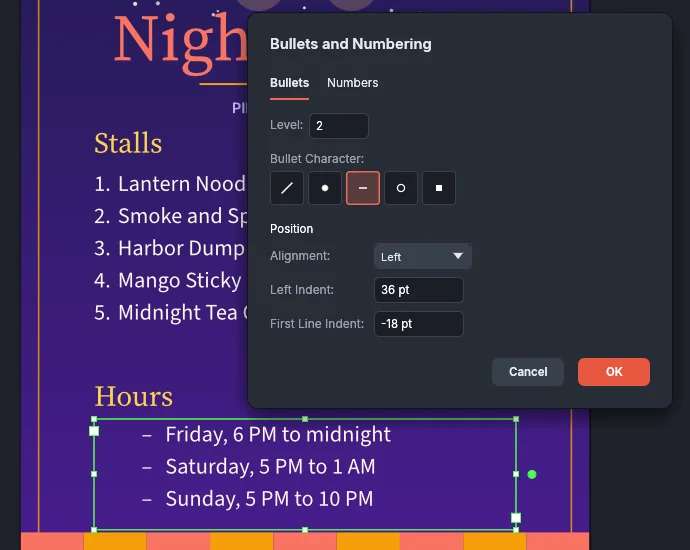
- In the Paragraph panel, click the arrow beside Bullets or Numbered List and choose More Options. The Bullets and Numbering dialog opens on the Bullets tab or the Numbers tab.
- Set the options from the following table. The type shows each change while the dialog is open.
- Click OK. Edit → Undo (Ctrl+Z, or Cmd+Z on macOS) takes back all the changes in one step. Cancel puts the type back as it was.
| Option | What it sets |
|---|---|
| Bullets and Numbers tabs | Which presets the dialog shows. On the Bullets tab, Bullet Character lists None and the four bullets. On the Numbers tab, Number Style lists None and the seven number styles, each shown by its first two numbers. A preset on either tab sets the kind of list, and None takes the paragraphs out of the list. |
| Level | The level of the paragraphs in the list, from 1 to 9. Paragraphs that are in no list show 1. |
| Alignment | Where VectorCraft draws the marker. Left puts the marker at the start of the first line. Right puts the end of the marker against the text. The text starts at the same place with either choice. |
| Left Indent | The space between the frame’s side and the paragraph, from -1296 to 1296 pt |
| First Line Indent | The extra indent of the first line, from -1296 to 1296 pt. With a negative value, the first line starts to the left of the other lines, and the marker is drawn there. |
The dialog opens with the values that the Paragraph panel shows, and no preset is selected. A field is blank when the selected paragraphs differ. Level and Alignment change only paragraphs that are in a list, or that a preset puts in one.
When you choose a preset for paragraphs that are in no list and have both indents at 0, the dialog fills in a Left Indent of 18 pt and a First Line Indent of -18 pt. If you then choose None while the fields still hold those values, they go back to 0.
When a preset has the keyboard focus, Left Arrow and Right Arrow move the choice along the row.
Nest a list
Section titled “Nest a list”- With the Type tool, click at the start of a list paragraph, before its first character.
- Press Tab to move the paragraph one level down, or Shift+Tab to move it one level up.
Each level past the first sets the paragraph 18 pt further in, and the marker and the text move with it. Each level counts its own numbers. A numbered paragraph one level down from the paragraph before it starts at 1, and a paragraph back at the higher level continues that level’s count.
The levels run from 1 to 9. Shift+Tab at level 1 and Tab at level 9 do not change the paragraph’s level. Anywhere else in the text, Tab types a tab character. To set the level of several paragraphs at once, select them and set Level in the Bullets and Numbering dialog.
Turn a list into ordinary text
Section titled “Turn a list into ordinary text”- Select the type object with the Selection tool, or select the list paragraphs with the Type tool.
- Choose Type → Bullets and Numbering → Convert to Text.
The markers become characters of the text, and the paragraphs leave the list. You can then edit each number or bullet as text. To remove a list together with its markers, choose None from the Bullets or Numbered List presets instead.
Fill a frame with Dynamic Text
Section titled “Fill a frame with Dynamic Text”Dynamic Text changes the font size of each line of area type so that the line fills the width of the frame.
- Make area type, and press Enter at the end of each line you want.
- Select the type object with the Selection tool.
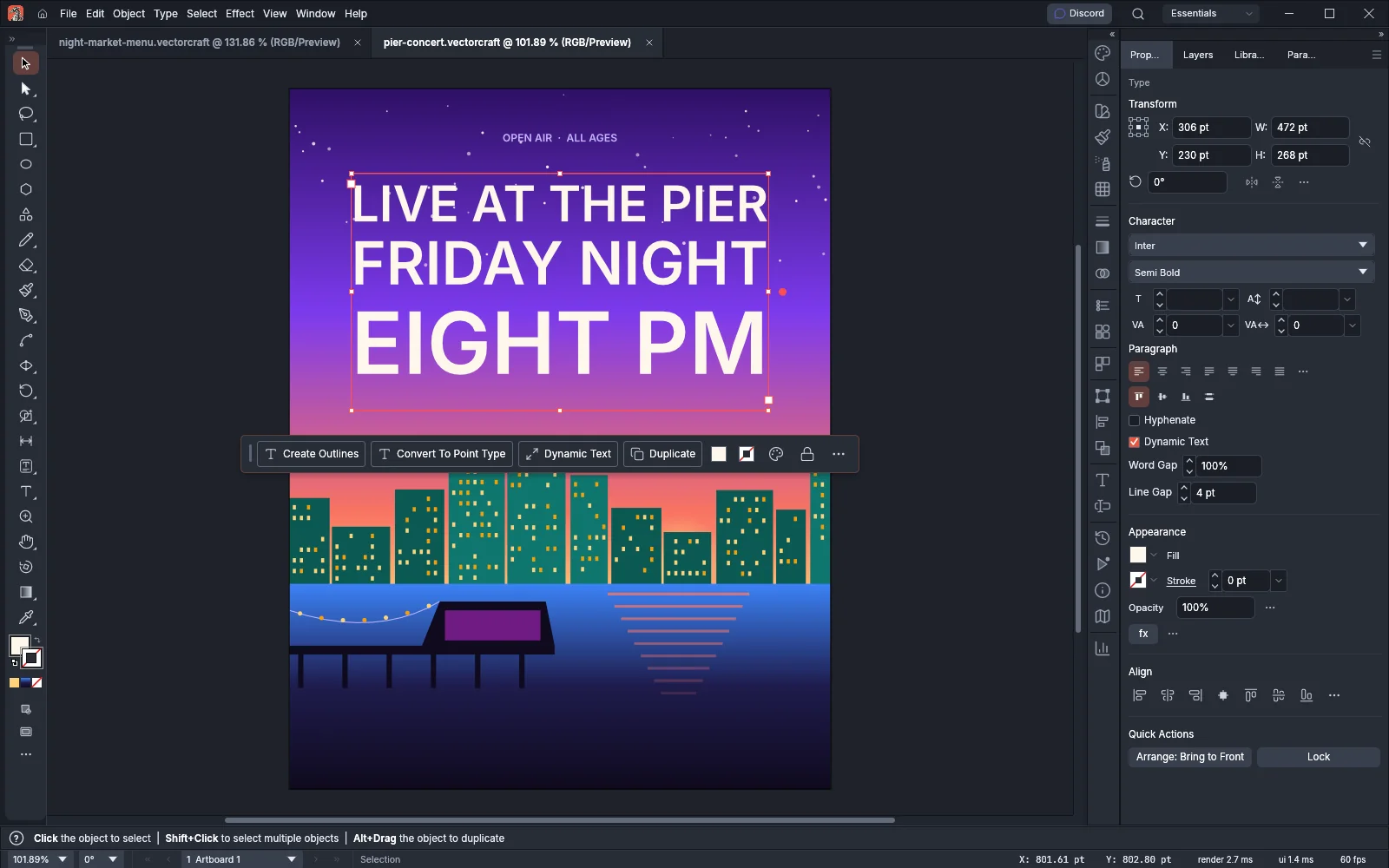
- Choose Type → Dynamic Text, click Dynamic Text in the Contextual Task Bar, or open the Properties panel and turn on Dynamic Text in the Paragraph section. A check mark appears next to the menu command.
- In the Properties panel, set Word Gap and Line Gap. The two fields show while Dynamic Text is on.
| Setting | What it sets | Default |
|---|---|---|
| Word Gap | The space between words, in percent of the font’s word space, from 0 to 1000. Each paragraph uses it as its desired word spacing. When the value lies outside the paragraph’s minimum or maximum word spacing, VectorCraft moves that limit out to the value. | 100% |
| Line Gap | The points added to each character’s size to give its leading, from -1296 to 1296 pt | 0 pt |
How Dynamic Text sets area type:
- Each line as you typed it is one paragraph, or one part of a paragraph between forced line breaks. VectorCraft does not break the lines again. It sets each line to the width of the frame, less the inset, the gutters and the paragraph’s indents.
- VectorCraft changes the font size of the line’s first character, in steps of 0.1 pt from 0.1 to 1,296 pt. The other characters of the line keep their sizes in proportion to it, and their baseline shifts follow. At either size limit, a line can end up narrower than the frame, or it can wrap. An empty line keeps its size.
- The type is fitted again after every edit to the text or the frame, in the same undo step as the edit.
- The frame keeps its height. When the lines need more height than the frame has, the last lines overflow and do not show, so make the frame taller.
- Dynamic Text replaces Auto Size and Shrink Text to Fit. While Dynamic Text is on, the Fit setting in Type → Area Type Options… shows Block. Choosing Block there turns Dynamic Text on, and choosing another Fit turns it off.
- Paragraphs keep their own Justification settings. Those settings apply again when you turn Dynamic Text off.
- When you turn Dynamic Text off, the text keeps the sizes it was drawn at.
On type on a path, Dynamic Text scales the whole text by one factor so that it fills the span between the start and end brackets. VectorCraft fits it again after every edit to the text, the path or the brackets. The size of the first character stays between 0.1 and 1,296 pt. If the text still runs past the end bracket at 0.1 pt, the rest overflows. The Properties panel shows the Dynamic Text checkbox for area type only. To turn Dynamic Text on or off for type on a path, choose Type → Dynamic Text or click Dynamic Text in the Contextual Task Bar.
Dynamic Text does not change point type. You cannot turn it on for threaded type, and the checkbox is dimmed when the selection holds a threaded frame. Threading type that has Dynamic Text on turns it off, and the text keeps the sizes it was drawn at.
Fit a headline to its frame
Section titled “Fit a headline to its frame”Fit Headline spreads or tightens the letters of a headline so that it fills the width of its frame. The font size does not change.
- Make area type whose first paragraph is the headline.
- Select the type object with the Selection tool.
- Choose Type → Fit Headline.
VectorCraft sets the tracking of the first paragraph to the largest value that keeps the paragraph on one line, from -200 to 2000 thousandths of an em, rounded down to 0.1. The rest of the text does not change. Edit → Undo takes back the change in one step.
Fit Headline works on area type only, and it skips point type and type on a path in the selection. A frame whose first paragraph does not fit on one line even at a tracking of -200 is left as it is. When no selected frame fits, the command shows an error and does not change the type.