
Present artwork and use screen modes
This page shows how to change the screen mode to give the artwork more room, and how to show your artboards full screen, one at a time, in Presentation Mode.
Change the screen mode
Section titled “Change the screen mode”- Choose View → Screen Mode.
- Choose Normal Screen Mode, Full Screen Mode with Menu Bar or Full Screen Mode.
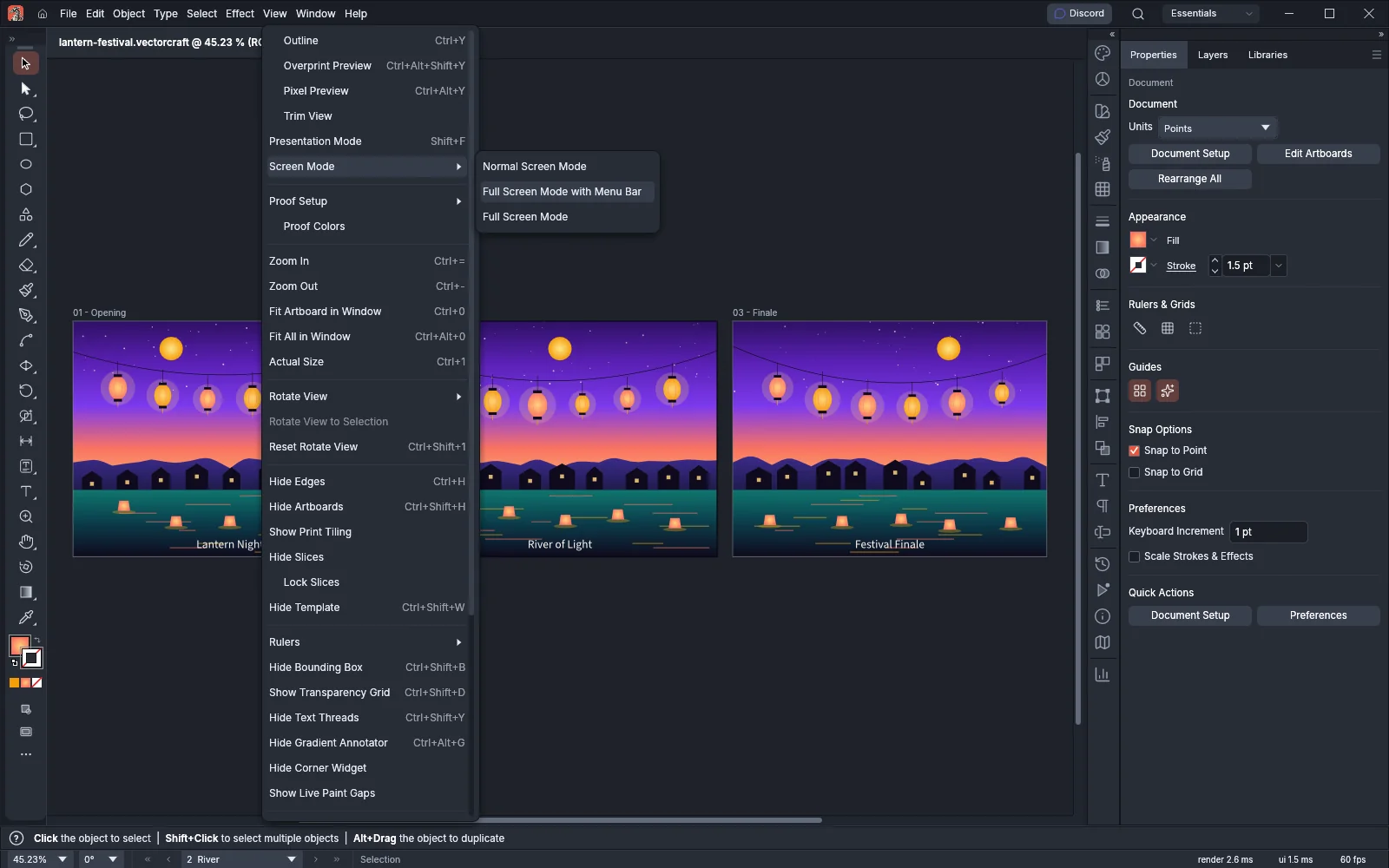
You can also press F, or click the Change Screen Mode button under the tools, to go to the next mode. The order is Normal Screen Mode, Full Screen Mode with Menu Bar, Full Screen Mode, and then Normal Screen Mode again.
| Mode | What you see |
|---|---|
| Normal Screen Mode | The VectorCraft window with the menu bar, the Control bar, the tabs, the Tools panel, the panels, the status bar and the scroll bars. |
| Full Screen Mode with Menu Bar | The same window, bars and panels as Normal Screen Mode. The window keeps its size. |
| Full Screen Mode | The window fills the screen and covers the taskbar and the window frame. The menu bar, the Control bar and the scroll bars are hidden. The tabs, the Tools panel, the panels, the status bar and the Help Bar stay, and so do the rulers when they are shown. |
To go back to Normal Screen Mode from either full screen mode, press Esc. Some things take the first Esc before the full screen mode does:
- An open menu or tool flyout closes.
- A text field that has the focus loses it.
- An edit mode such as isolation mode ends.
- With the Rotate View tool chosen and the view rotated, the view’s rotation resets.
The next Esc then leaves the full screen mode. Esc with Ctrl, Alt or Shift held (Cmd, Option, Control or Shift on macOS) does not leave the mode.
When you go back to Normal Screen Mode or Full Screen Mode with Menu Bar, the window returns to its earlier size. If you had already made the window full screen yourself, it stays full screen.
VectorCraft does not save the screen mode. It always starts in Normal Screen Mode.
Show or hide the Screen Mode Controls
Section titled “Show or hide the Screen Mode Controls”The Change Screen Mode button is one of the controls under the tools, and it shows by default.
- Click Edit Toolbar (…) at the bottom of the Tools panel.
- In the Show section at the bottom of the drawer, click Screen Mode Controls to hide or show the button.
Present your artboards
Section titled “Present your artboards”Presentation Mode shows the active artboard on the whole screen and hides the rest of the VectorCraft window.
- Make the artboard you want to start with the active one, for example by clicking its row in the Artboards panel or choosing it in the artboard list in the status bar.
- Choose View → Presentation Mode, or press Shift+F. The window fills the screen, and the artboard is fitted to it.
- To go to the next artboard, click anywhere or press →. To go back to the previous artboard, press ←.
- To leave Presentation Mode, press Esc. VectorCraft returns to Normal Screen Mode.
The artboards come in the same order as in the status bar’s artboard navigator. On the last artboard, a click or → leaves the view as it is, and on the first artboard ← leaves it as it is.
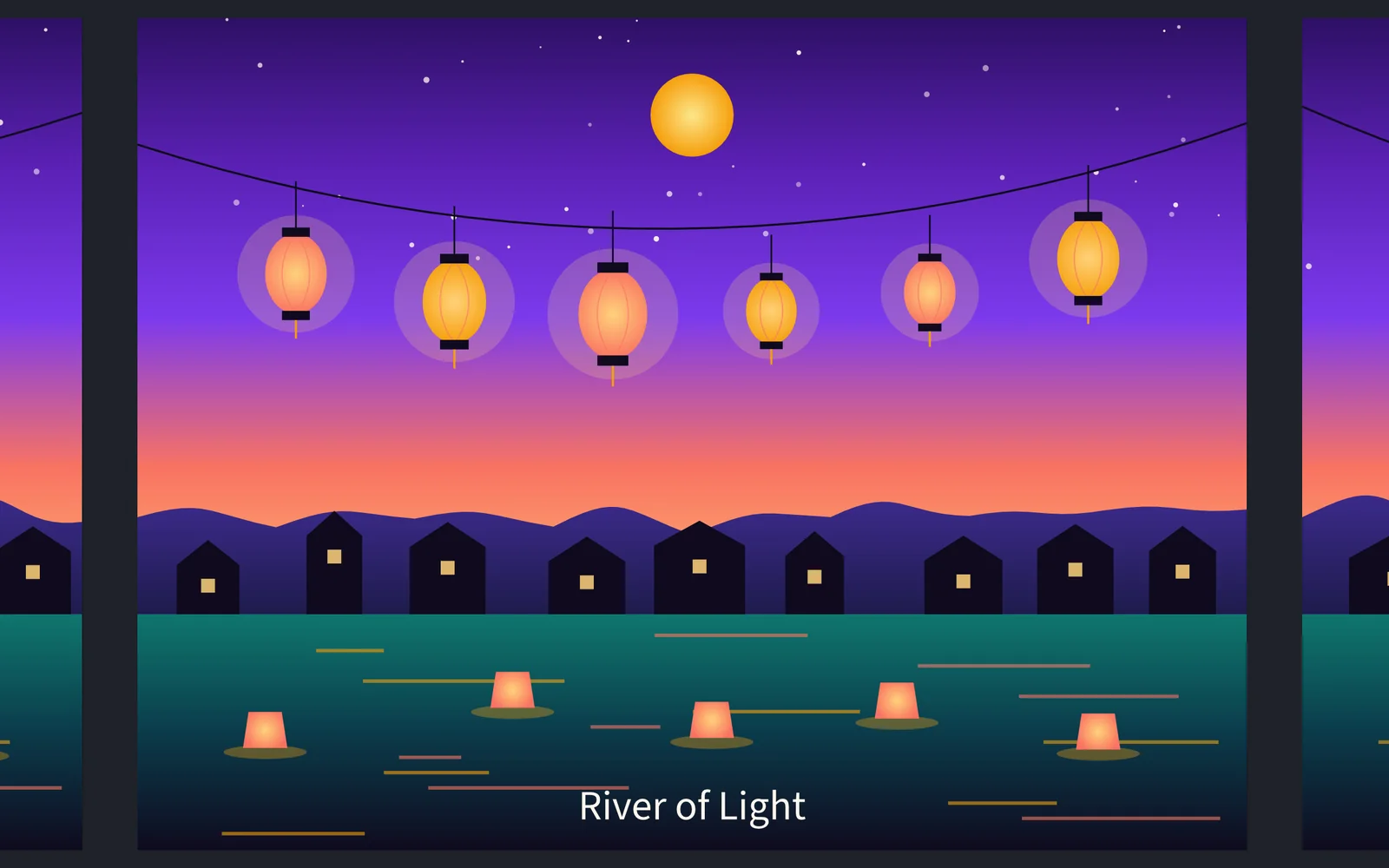
What Presentation Mode shows and blocks
Section titled “What Presentation Mode shows and blocks”Presentation Mode hides:
- the menu bar, the Control bar and the document tabs;
- the Tools panel, toolbars that you made with New Toolbar, and every panel;
- the status bar, the Help Bar, the rulers and the scroll bars;
- the selection, the bounding box, guides, grids, slices, print tiling, the artboard edges and names, and the Contextual Task Bar;
- floating document windows, until you leave the mode. When documents are tiled, only the current document shows.
The artboard is fitted to the screen. When the screen is wider or taller than the artboard, artwork on the artboards next to it can show at the edges, on the dark background.
While you present, VectorCraft does not let keys, tools or gestures change the document:
- Only →, ← and Esc have an effect. VectorCraft ignores every other key, including tool keys, Delete, Enter, Tab, F, Shift+F, the command shortcuts and the clipboard keys.
- The tools do not receive clicks or drags. A click goes to the next artboard, and a drag does not pan the view.
- A right click or a long touch does not open a context menu.
- A tap with two or three fingers does not undo or redo.
- The pointer is the standard arrow, not the tool’s cursor.
Shortcuts
Section titled “Shortcuts”| Action | Windows and Linux | macOS |
|---|---|---|
| Next screen mode | F | F |
| Leave a full screen mode | Esc | Esc |
| Presentation Mode | Shift+F | Shift+F |
| Next artboard in Presentation Mode | → or click | → or click |
| Previous artboard in Presentation Mode | ← | ← |
| Leave Presentation Mode | Esc | Esc |
To change these keys, see Keyboard shortcuts.