
Getting started
1. Install LightCraft
Section titled “1. Install LightCraft”The quickest way is ArtCraft Launcher: install it, then press Install on LightCraft’s card. To download LightCraft on its own, see Install and update.
2. Open LightCraft
Section titled “2. Open LightCraft”LightCraft opens your library, a folder at Pictures/LightCraft Library in your home folder. A new library starts with a few demo photos, so you can try things out right away.
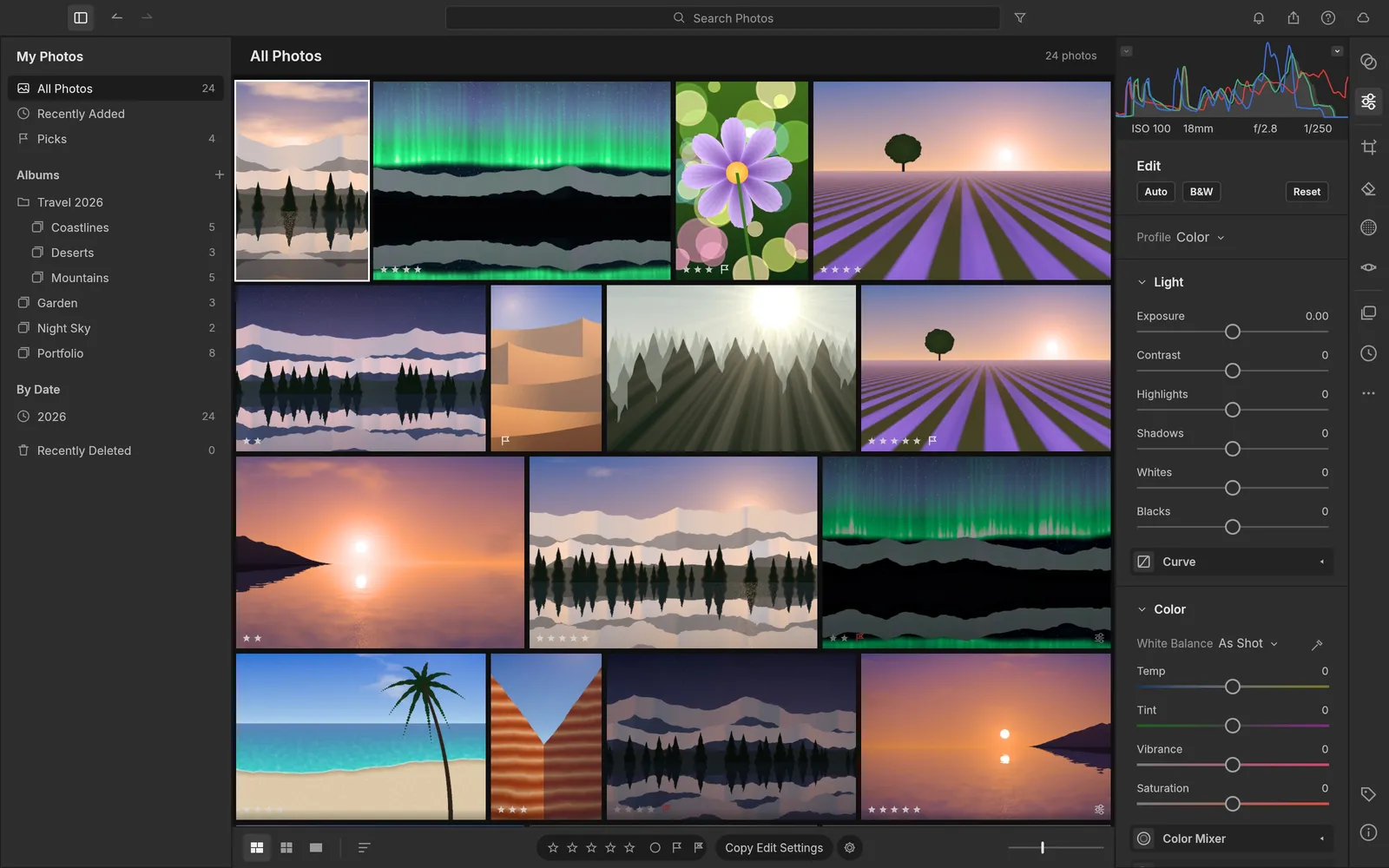
The sidebar on the left lists All Photos, Recently Added, Picks, your Albums, By Date and Recently Deleted.
3. Import your photos
Section titled “3. Import your photos”- Choose File › Import Photos… to pick files, or File › Import from Folder… to bring in a whole folder.
- In the Import Photos window, check the photos you want. Photos already in your library start unchecked.
- Under Transfer, choose Add in place to leave the files where they are, or Copy to copy them into the library.
- Click the import button at the bottom.
The import runs in the background, so you can carry on working. For more options, see Workflows.
4. Rate and flag
Section titled “4. Rate and flag”Select a photo and press a key:
- 1 to 5 sets the star rating, and 0 clears it.
- P flags it as a pick, X as rejected, and U clears the flag.
Turn on Photo › Auto Advance to move on to the next photo after each key.
5. Edit
Section titled “5. Edit”- Double-click a photo to open it in the Detail View.
- Press E to open the Edit panel.
- Click Auto for a quick start, then adjust the sliders in Light, Color and Effects.
- Press \ to switch between your edit and the original.
Every change can be undone with Edit › Undo (Ctrl+Z, or ⌘Z on a Mac). Reset at the top of the Edit panel removes all edits from the photo. Your original file is never changed.
6. Export
Section titled “6. Export”- Select the photos in the grid.
- Choose File › Export….
- Pick a Format, such as JPEG, and a size.
- Next to Folder, click Choose… and pick where the files go.
- Click the export button at the bottom of the window.
You don’t need to save: LightCraft saves your library as you work.
Next steps
Section titled “Next steps”- Workflows: masks, retouching, crop, presets and more.
- Move over from Lightroom: bring in your Lightroom Classic catalog.
- Troubleshooting: if something goes wrong.