
Find and replace fonts
This guide shows how to use Type → Find Font… to see every font in a document, select the type set in one font, and change that font to another one, including a font that is not installed, and how to select type by its font from the Select menu.
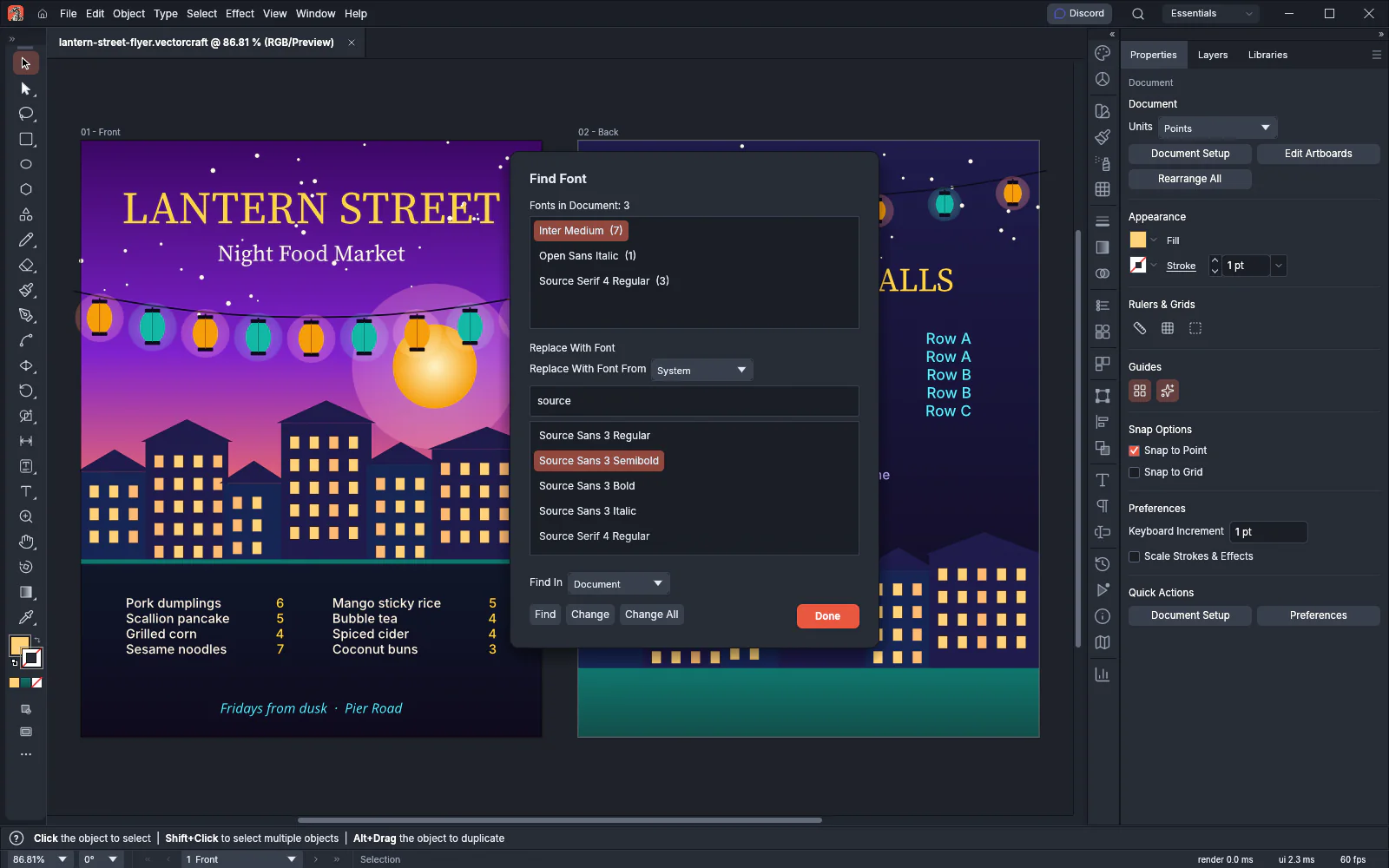
See the fonts a document uses
Section titled “See the fonts a document uses”- Choose Type → Find Font….
- Read the Fonts in Document list. The heading gives the number of fonts. Each row names a font family and style, then shows in parentheses how many runs of text use it. A run is a stretch of characters with the same character formatting, so one text object can hold several runs.
The list is sorted by name and includes the type inside symbols. A note after the name marks a font that VectorCraft cannot draw as it is set in the document:
| Note | Color | What it means |
|---|---|---|
| missing | Red | The family is not installed. VectorCraft draws the text in another font. |
| substituted by a style | Orange | The family is installed but the style is not. VectorCraft draws the text in the style named in the note. |
| n characters from another font | Orange | The font does not have n of the characters in the text, so VectorCraft draws those characters in another font. |
The dialog opens with the first font in the list picked. To close it, press Done or Escape.
Select the type set in one font
Section titled “Select the type set in one font”Find replaces the current selection with the text objects that use the picked font.
-
In Fonts in Document, click the font.
-
Choose where to look in Find In:
Find In What Find looks through Document The whole document Artboard The active artboard: objects that overlap it Layers The layers highlighted in the Layers panel, or the current layer when none is highlighted -
Press Find. The text objects in that font are selected, along with the symbol instances whose symbols contain type in that font.
Find does not select type that is hidden or locked, type in a hidden or locked group or layer, or type on a locked artboard. Find In keeps your last choice the next time you open the dialog. A document without artboards is searched whole when Find In is Artboard.
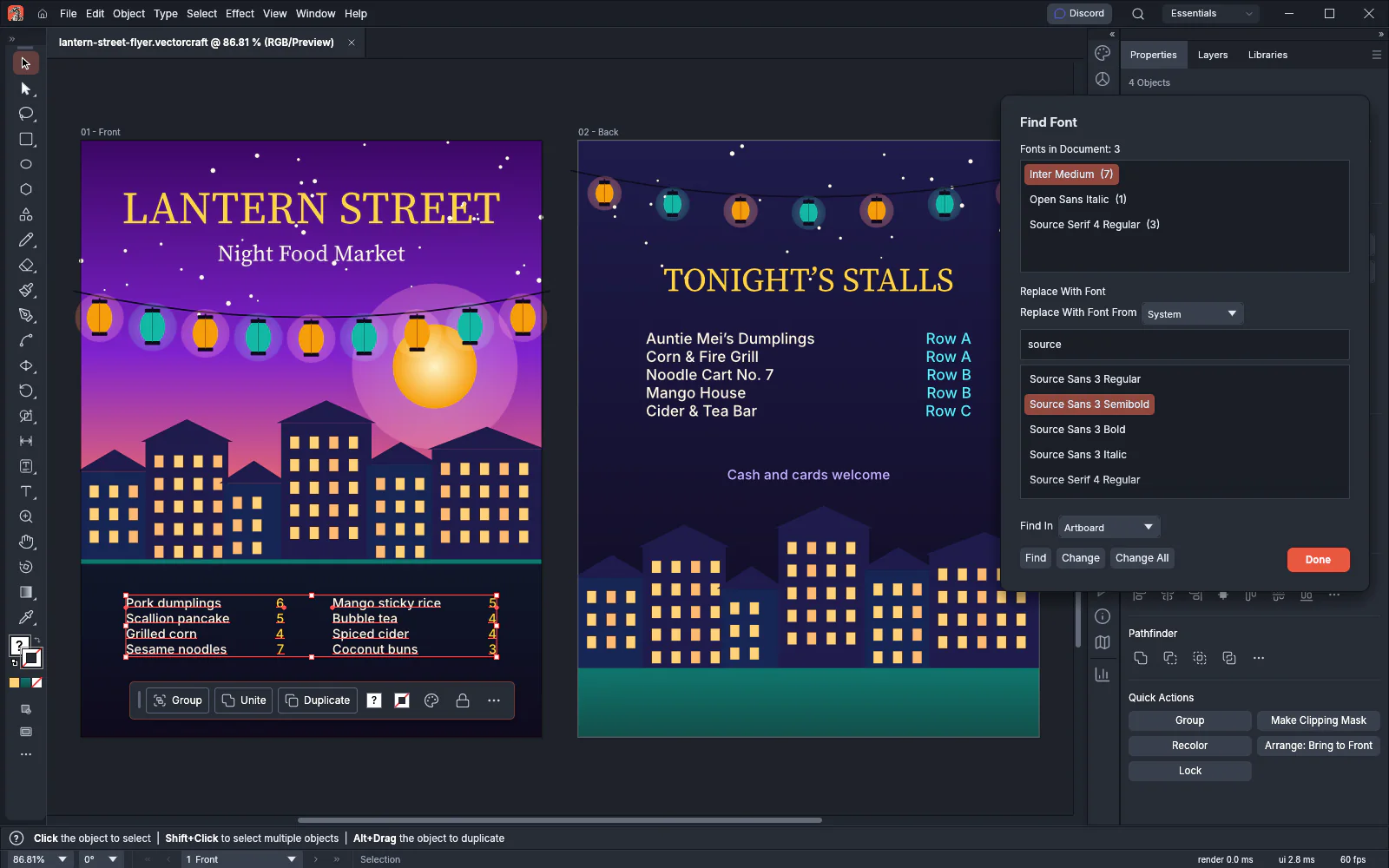
Replace a font
Section titled “Replace a font”-
In Fonts in Document, click the font to replace.
-
Choose a list in Replace With Font From:
List What it shows Document The family and style pairs the document already uses Recent Your recent font families that are installed, newest first. To set how many, choose Edit → Preferences…, choose Type and change Number of Recent Fonts. System Every installed family. This list is chosen when the dialog opens, with Source Sans 3 picked when it is installed. Recent and System list one row for each style of a family, with the family’s closest style first.
-
To shorten the list, type part of a family or style name in the Search field. The list keeps the rows whose family and style contain what you typed, in any letter case. Choosing another list empties the search.
-
Click a row to pick that family and style.
-
Press a button:
- Change replaces the font in the selected objects only.
- Change All replaces the font everywhere in the document.
While Change is available, double-clicking a row picks it and runs Change.
The replacement is one undo step. Type that is hidden or locked, in a hidden or locked group or layer, or on a locked artboard keeps its font. Change All also changes the type inside every symbol, so every instance of a symbol shows the new font. Change changes the type inside a symbol only when an instance of that symbol is selected. The new font does not keep the old font’s Variable Font settings. When no text would change, nothing is added to the undo history.
After a change, Fonts in Document updates. When you change only the selection, the new font gets its own row with the runs that moved to it, and the old font’s count goes down.
Change and Change All are available only when the picked row names an installed font in a style that the font has. You can click a missing font’s row in the Document list, but Change and Change All stay unavailable.
Replace a missing font
Section titled “Replace a missing font”When you open a document whose fonts are not installed, the Missing Fonts dialog opens first. Add or replace missing fonts describes that dialog. Its Find Fonts button opens Type → Find Font… with the first missing or substituted font picked. You can also open Find Font yourself at any time.
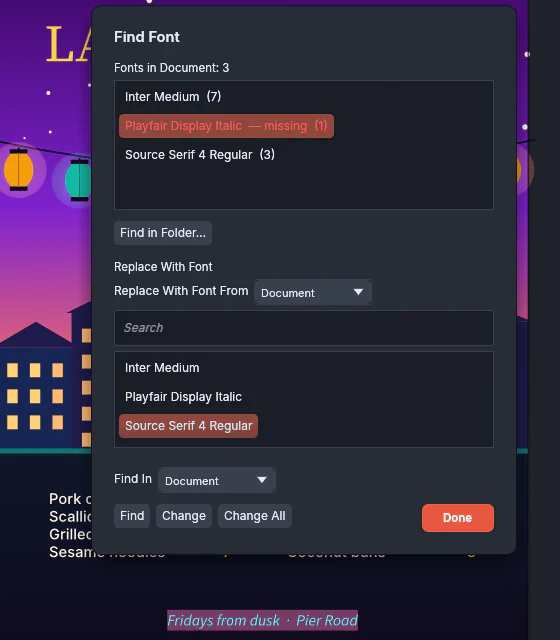
While Highlight Substituted Fonts is on, type in a missing or substituted font is highlighted in pink on the canvas. The setting is on by default. To change it, choose Edit → Preferences…, choose Type and clear or select Highlight Substituted Fonts.
- In Fonts in Document, click the font marked missing or substituted by.
- To set the text in a font the document already uses, choose Document in Replace With Font From. To use another font, choose Recent or System.
- Click the replacement font, then press Change All. To change only some of the text, select those objects first and press Change.
To install the missing font instead, press Find in Folder… under the list. VectorCraft asks for a folder and opens the Missing Fonts dialog with the font files it found there. The button appears only when the document uses a missing font and VectorCraft can ask you for a folder, so the web version does not show it.
Select type by font from the Select menu
Section titled “Select type by font from the Select menu”The font commands under Select → Same compare other type with the first character of the selected type object. Select a text object first, then choose one of these commands:
| Command | Selects the type objects that have characters with |
|---|---|
| Font Family | The same font family |
| Font Family & Style | The same family and style |
| Font Family, Style & Size | The same family, style and size |
| Font Size | The same size |
A type object counts when any of its characters match. Select → Same also has Text Fill Color, Text Stroke Color and Text Fill & Stroke Color, described in Select objects that share an attribute.
To select type whatever its font, choose Select → Object → All Text Objects, Point Text Objects or Area Text Objects. Select objects of one kind describes the rest of the Select → Object menu.