
Getting started
This guide takes you from installing Craft Anything to your own version of a small website, example.com, rebuilt in Clean room mode. Once it starts, the build runs on its own.
1. Install Craft Anything
Section titled “1. Install Craft Anything”Download the build for your computer from the latest release and install it. Install and update says which file to pick.
Studying a website also needs Chrome, Edge, Brave or another Chromium-based browser on your computer.
2. Install Claude Code and sign in
Section titled “2. Install Claude Code and sign in”Craft Anything builds with a coding agent on your computer. This guide uses Claude Code, which is supported first; Workflows lists the others.
-
Install Claude Code by following Anthropic’s setup guide.
-
Sign in once from a terminal:
Terminal window claude auth login
Craft Anything runs your own claude program with your own sign-in. It never sees or stores your account.
3. Open Craft Anything
Section titled “3. Open Craft Anything”The first time you start it, a few welcome screens set it up:
- Choose I’m new to this.
- Who builds what you make should name Claude Code. Press Continue.
- What brings you here? asks for one line in plain words; it stays on your computer. Press Continue.
- On You’re all set, press Let’s go.
If the second screen doesn’t find Claude Code, see Troubleshooting.
4. Start a project
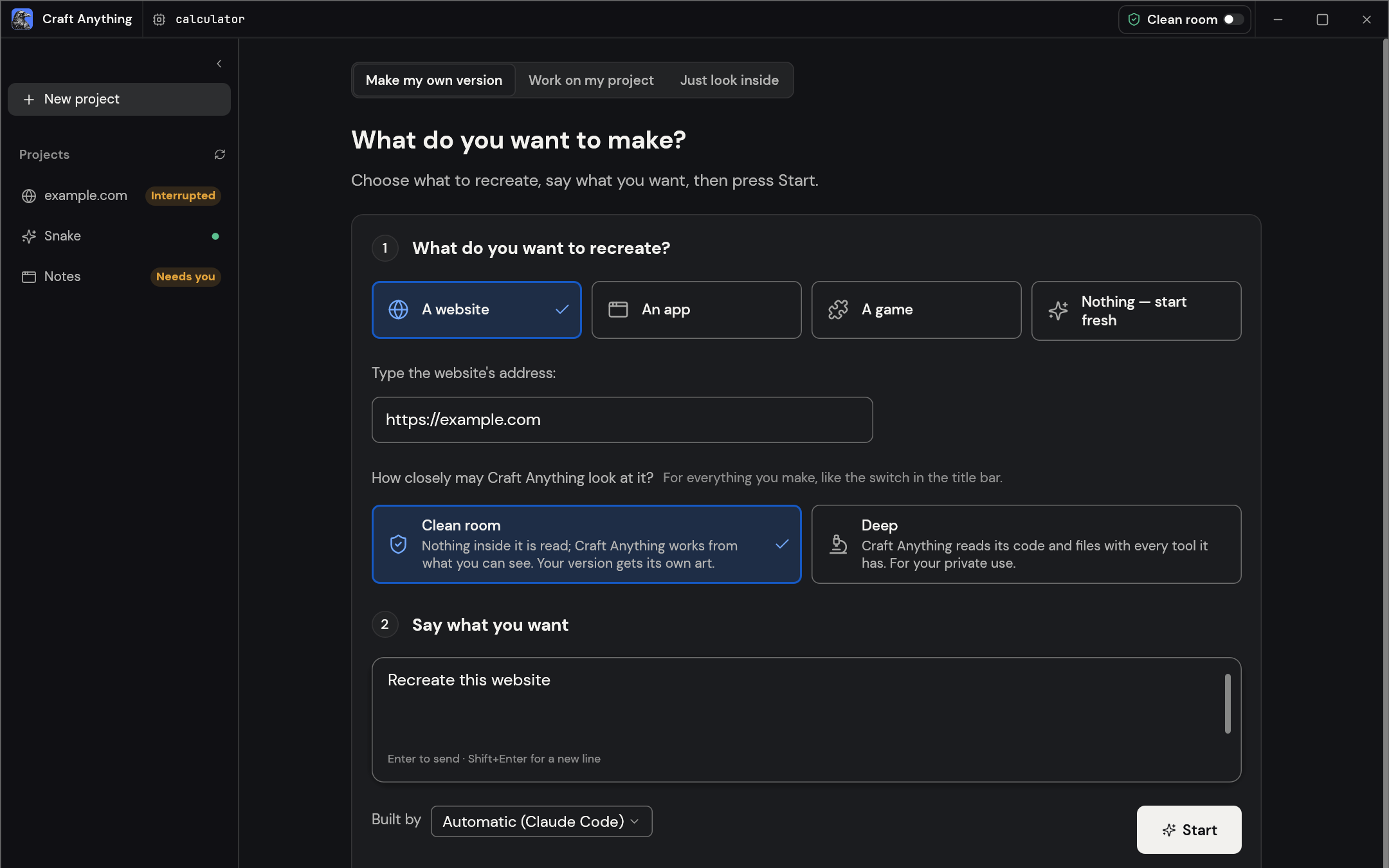
Section titled “4. Start a project”- On What do you want to make?, choose A website.
- Type
https://example.comas the address. - Leave Clean room selected. It works from what a visitor sees and never reads the site’s code.
- Type “Recreate this website” and press Start.
The project page opens. Its steps, Study, Build, Check and Ready, fill in as the run goes, and the feed says in plain words what the builder is doing.
5. Follow the run
Section titled “5. Follow the run”The builder keeps going on its own: when it has a choice to make, it decides and says what it chose. It never deletes anything outside its project, changes system settings or publishes anything.
To stop for now, press Pause beside Send; everything so far is kept, and Continue picks up where it stopped.
6. Open your version
Section titled “6. Open your version”When the run reaches Ready, Likeness in the side panel says how close your version is to the original, and the last check in the feed gives it page by page. Press Open the website to see your version, or Open folder to see its files.
7. Ask for a change
Section titled “7. Ask for a change”Type a change in the box at the bottom, for example “Make the heading blue”, and send it. The builder changes the project and checks it again.
Next steps
Section titled “Next steps”- Workflows: recreate apps and games, start from nothing, and choose what the builder may do without asking.
- Troubleshooting: if something didn’t work.