
Copy and paste between apps
This page shows how to move art, pictures, text and spreadsheet tables between VectorCraft and other apps with the system clipboard, and which paste command to choose.
Choose a paste command
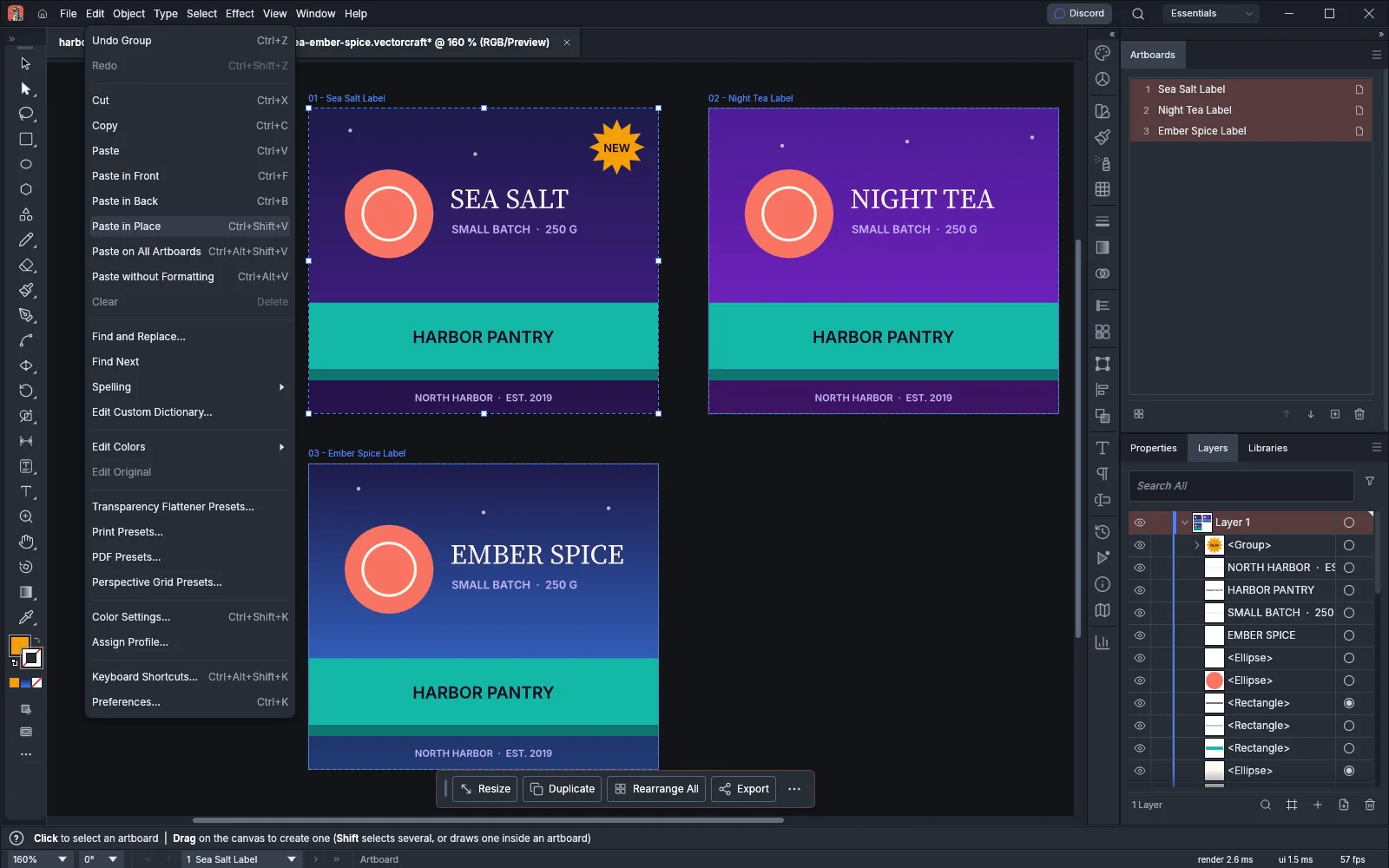
Section titled “Choose a paste command”The clipboard commands are in the Edit menu. Every paste command works with art copied in VectorCraft and with what another app copied.
| Command | Windows and Linux | macOS | What it does |
|---|---|---|---|
| Cut | Ctrl+X or F2 | Cmd+X | Removes the selection and puts it on the clipboard |
| Copy | Ctrl+C or F3 | Cmd+C | Puts a copy of the selection on the clipboard |
| Paste | Ctrl+V or F4 | Cmd+V | Pastes the objects in the middle of the window |
| Paste in Front | Ctrl+F | Cmd+F | Pastes the objects on the active artboard, at the place they had on the artboard you copied them from, just above the top selected object, or at the top of the current layer when nothing is selected |
| Paste in Back | Ctrl+B | Cmd+B | Pastes the objects on the active artboard, at the place they had on the artboard you copied them from, just below the bottom selected object, or at the bottom of the current layer when nothing is selected |
| Paste in Place | Ctrl+Shift+V | Cmd+Shift+V | Pastes the objects on the active artboard, at the place they had on the artboard you copied them from |
| Paste on All Artboards | Ctrl+Alt+Shift+V | Cmd+Option+Shift+V | Pastes a copy on every artboard, at the same position relative to each artboard |
| Paste without Formatting | Ctrl+Alt+V | Cmd+Option+V | Pastes as Paste does, and pasted text takes the default character style |
| Clear | Delete | Delete | Deletes the selection without putting it on the clipboard |
For example, art you copy from the top-left corner of artboard 1 and paste while artboard 2 is active goes to the top-left corner of artboard 2. Art you copied from outside every artboard keeps its place.
F2, F3 and F4 are extra shortcuts for Cut, Copy and Paste on Windows and Linux. macOS does not have them.
To put the same art on several artboards, select the artboards with the Artboard tool before you choose Paste in Place, Paste in Front or Paste in Back. VectorCraft puts a copy on each selected artboard. Manage artboards has the steps.
Copy art into another app
Section titled “Copy art into another app”- Select the art in VectorCraft.
- Choose Edit → Copy (Ctrl+C, or Cmd+C on macOS).
- Switch to the other app and paste.
What the other app receives depends on your system:
| System | What Copy puts on the clipboard |
|---|---|
| Windows | Every format that is turned on, all at once: the text and an SVG while Include SVG Code is on, a PNG, a bitmap for apps that do not read PNG, and a PDF when the PDF preference is on. When you copy only type, the text is there even with Include SVG Code off |
| macOS, Linux and the BSDs | One format. When you copy only type, the clipboard holds its text. Otherwise it holds the art’s SVG markup as text, or a PNG picture of the art when Include SVG Code is off |
- When you copy only type, the text has one line for each type object.
- VectorCraft leaves the SVG markup out of the text when the images in the art total more than 1 MB. On macOS, Linux and the BSDs, the clipboard then holds the PNG.
- The PNG is at most 4,096 pixels on its longest side. VectorCraft scales larger art down to fit.
The Clipboard Handling preferences turn the SVG and PDF formats on and off. Include SVG Code is on and PDF is off by default.
Paste art from another app
Section titled “Paste art from another app”- Copy the art, picture or text in the other app.
- Switch to VectorCraft and click the document you want it in.
- Choose Edit → Paste (Ctrl+V, or Cmd+V on macOS).
VectorCraft centers what you paste in the window, and selects it. When the clipboard holds several formats, VectorCraft takes vector art first, then text, then a picture. When the text next to a picture is only a web or file address, or markup that shows only images, VectorCraft pastes the picture. A browser’s Copy Image puts the image’s address on the clipboard this way. While VectorCraft decodes a pasted picture, the status bar shows Pasting.
| What you copied | What you get | Systems |
|---|---|---|
| SVG | Vector art | Windows and macOS |
| Vector art from the first page | Windows and macOS | |
| EPS | Vector art | Windows and macOS |
| Text that is SVG markup | Vector art | All |
| Other text | Point type, one paragraph per line, in the default type style | All |
| Cells from a spreadsheet | A table of point type over gridlines. See Paste a table from a spreadsheet | All |
| PNG | An embedded image | All |
| TIFF | An embedded image | macOS |
| A screenshot or a bitmap from another app | An embedded image | All |
- Pasted type takes the current fill color. When the fill is none or white, the type is black.
- VectorCraft does not paste text larger than 1 MB.
- A pasted picture comes in at its own size: its resolution, or 72 ppi when it has none. Work with placed images shows how to crop, link and trace it.
- With Keep Plain Text chosen for When pasting text in Clipboard Handling, text you paste while typing takes the style at the text cursor. Add and style type covers typing and styling.
Paste a table from a spreadsheet
Section titled “Paste a table from a spreadsheet”Cells copied from a spreadsheet paste as a table you can restyle.
- In the spreadsheet app, select the cells and copy them.
- In VectorCraft, deselect everything and set the fill color you want for the table’s type.
- Choose Edit → Paste (Ctrl+V, or Cmd+V on macOS).
VectorCraft pastes a group named Table. It holds one point type object for each cell that has text, and a group named Gridlines of 0.5 pt black lines around every cell. Each column is as wide as its widest cell, and each row is as tall as its tallest cell. The text sits 4 pt inside its gridlines.
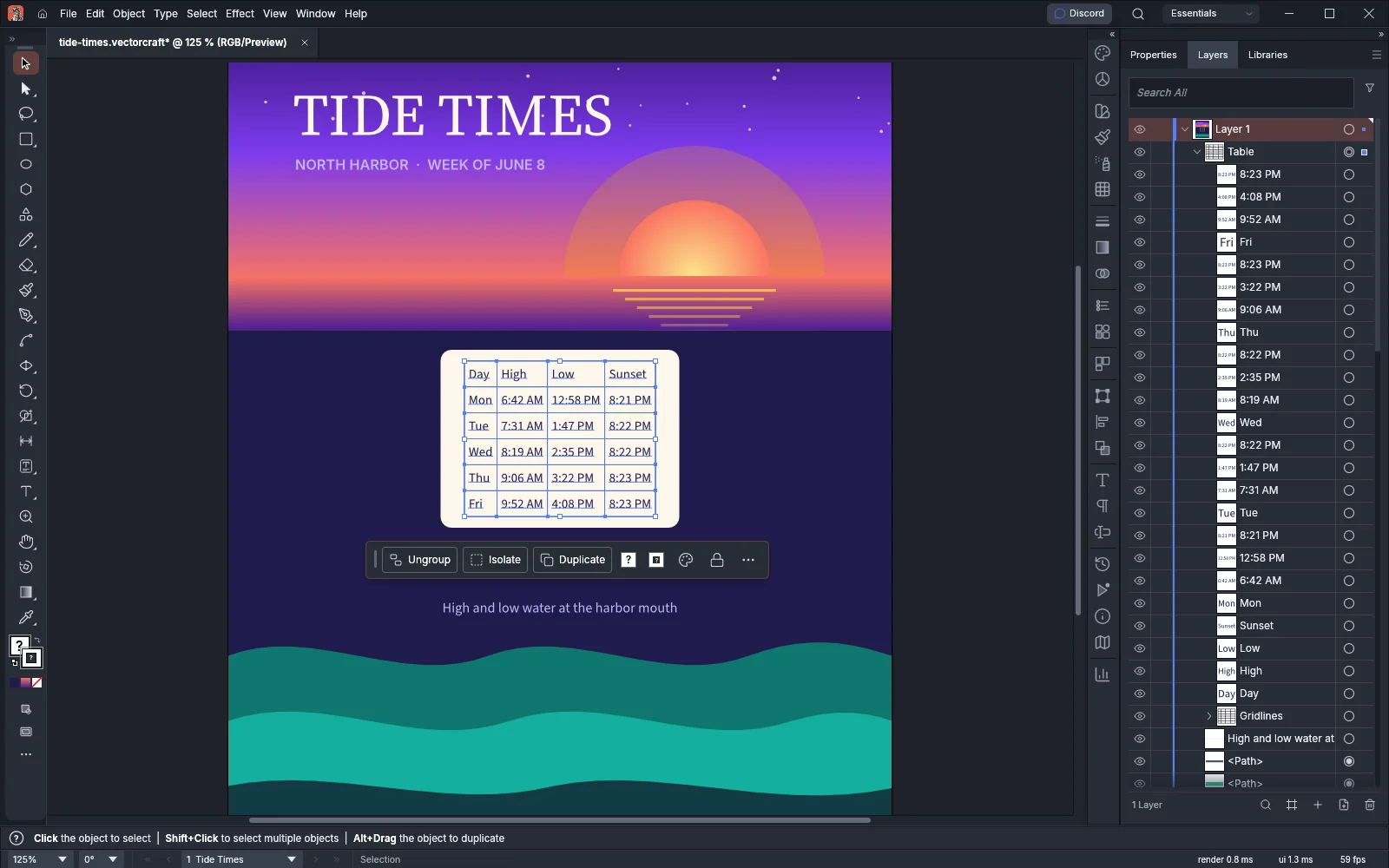
VectorCraft treats copied text as a table when all of these are true:
- The cells are separated by tabs, with one row on each line.
- The text has at least two columns, and every row has the same number of cells.
- The first and the last column each hold some text.
- The table has at most 1,000 rows, 256 columns and 20,000 cells.
A cell in double quotes can hold tabs, line breaks and quote marks, as spreadsheet apps copy them. Text that does not meet these conditions pastes as ordinary point type.
To fill a graph’s data instead, pick the first cell in the Graph Data window and paste there. See Make graphs and data-driven art.
Paste files copied in a file manager
Section titled “Paste files copied in a file manager”You can copy a file in your file manager and paste it into a document without opening it.
- In your file manager, select an art file or a picture and copy it.
- In VectorCraft, choose Edit → Paste (Ctrl+V, or Cmd+V on macOS).
These files paste as art or as images: SVG and SVGZ, PDF, EPS and PostScript, .ai and .ait, EMF and WMF metafiles, and pictures such as PNG and JPEG. When you copy several files, VectorCraft pastes the first one that is art or a picture. VectorCraft reads a copied file before the clipboard’s other formats, so you get the file and not its path as text.
This works on every system, including Wayland desktops, where dragging files onto the window does not work yet.
If a paste does nothing on Linux
Section titled “If a paste does nothing on Linux”On Linux and the BSDs, the app that copied sends its data when VectorCraft asks for it.
- VectorCraft waits at most 2 seconds for text or a copied file, and at most 10 seconds for a picture. If the other app has not answered by then, nothing is pasted.
- Until that app answers, later pastes fail at once. Wait a moment, or copy again, and paste again.
- When VectorCraft cannot open the clipboard, it tries again after a wait that grows to a minute.
- On Linux and the BSDs, VectorCraft reads text, pictures and copied files. It does not read the SVG, PDF and EPS formats that other apps put on the clipboard, so you get the picture the app copied, if it copied one. To paste the art as vector art, copy it as SVG text if the app offers that, or save it as a file and copy the file in your file manager.
- On Wayland, VectorCraft reads the desktop’s clipboard directly. Where the desktop does not allow that and there is no X11 either, as with a Flatpak install on GNOME, VectorCraft can paste text only.