
Install and manage plug-ins
This guide shows you how to install plug-ins from .wasm files, use the filters, effects, exporters and importers they add, remove a plug-in or clear its cache, and start VectorCraft without plug-ins in Safe Mode.
Install a plug-in
Section titled “Install a plug-in”A VectorCraft plug-in is a WebAssembly module in a single .wasm file. The same file works on Windows, macOS, Linux and the web version. Use the built-in plug-ins describes the plug-ins that come with VectorCraft.
- Choose Object → Plug-ins → Install Plug-in…. You can also choose File → Open… and pick the
.wasmfile. - Choose the
.wasmfile. - If the Install Plug-in dialog opens, read what the plug-in asks for, then click OK to install it, or Cancel to install nothing.
A plug-in installs at once when it lists no permissions that still need approval, is not a heavy filter and does not replace another plug-in. The status bar then shows Installed plug-in with its name. VectorCraft keeps each installed plug-in in the Plug-ins folder next to its preferences and installs it again each time it starts.
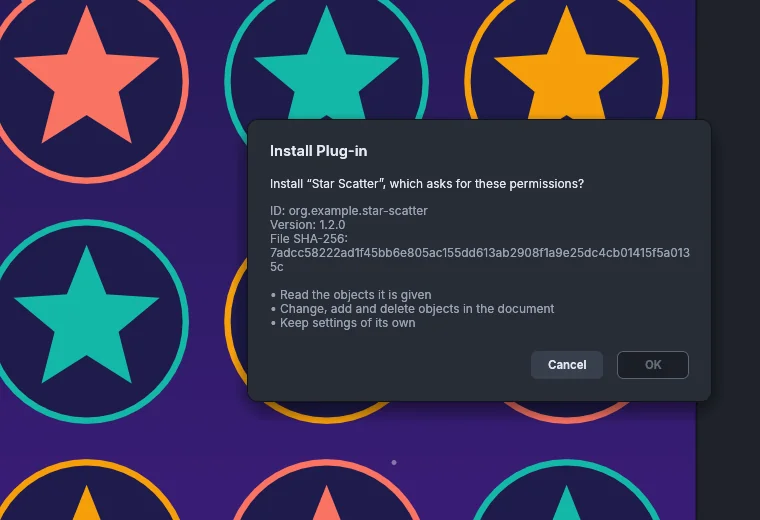
The Install Plug-in dialog opens in these cases:
- The plug-in lists permissions that nobody has approved for this file. The dialog shows the plug-in’s name, ID, version, the SHA-256 of the file and each permission in plain words.
- The filter asks for a heavy budget. The dialog says that each run may take up to 5 minutes and do 20 times the work other plug-ins may, and that it runs in the background, where you can cancel it.
VectorCraft also asks before a file replaces the plug-in with the same ID. That happens when a different file with that ID is installed, or when none is installed but the Plug-ins folder still holds settings and a cache for the ID. The new file gets the settings and cache kept for that ID. How VectorCraft asks depends on the file:
- When the file also lists permissions or asks for a heavy budget, the Install Plug-in dialog adds a line saying that the file is not the plug-in installed before with this ID.
- Otherwise VectorCraft asks a plain question instead of opening the Install Plug-in dialog, for example Install “Star Scatter” in place of the plug-in with the same ID? The question shows the ID and the file’s SHA-256, and says that the file gets the settings and cache kept for that ID. OK works at once and installs the file, and Cancel installs nothing.
How the Install Plug-in dialog’s buttons work:
- OK stays dimmed until the question has been on screen in the active window for half a second. The wait starts again for each new question and each time you switch back to the window. A click, or a press of Enter or Space, before then installs nothing.
- Enter clicks OK only when OK has the keyboard focus.
- Cancel and Esc work at once.
- VectorCraft installs the plug-in only if the file still has the SHA-256 that the dialog showed.
- Only a person can click OK. A program that controls VectorCraft, such as a Model Context Protocol (MCP) client, cannot click it, press keys in it or change what it installs.
- The dialog shows control characters and text-direction characters in names as escape codes, for example
\u{202E}, and cuts names to 64 characters.
VectorCraft records each approval with the plug-in’s ID and the SHA-256 of the file in grants.json in the Plug-ins folder. Installing the same file again does not ask again. A changed file with the same ID asks again, even when it lists the same permissions.
What each permission allows
Section titled “What each permission allows”The dialog shows each permission in plain words. The command line uses the name in the last column.
| Permission as the dialog shows it | Plug-in kinds | Name |
|---|---|---|
| Read the objects it is given | Filter, live effect, exporter | doc.read |
| Change, add and delete objects in the document | Filter, live effect with commands | doc.write |
| Keep data of its own with the document | Filter, live effect with commands | state |
| Change how the objects its effect is applied to are drawn | Live effect | effect.render |
| Write the document as a file in its own format | Exporter | export.write |
| Read files you open in its format and make documents from them | Importer | import.read |
| Show its progress, see Cancel and write log lines | All | progress |
| Keep settings of its own | All | settings |
| Keep a cache of its own, which you can clear | All | cache |
| Run these commands on the document, followed by the command IDs | Filter | commands |
A plug-in that lists no permissions gets the ones its kind needs, and VectorCraft does not ask about permissions. A filter gets doc.read, doc.write and state. A live effect gets doc.read and effect.render, and also doc.write and state when it adds commands of its own. An exporter gets doc.read and export.write, and an importer gets import.read.
Install every plug-in in a folder
Section titled “Install every plug-in in a folder”The Additional Plug-ins Folder works only in the desktop app. The web version has no Choose… button and installs plug-ins only from .wasm files you open.
- Choose Edit → Preferences… (Ctrl+K), then the Plug-ins & Scratch Disks page. On macOS, choose VectorCraft → Settings → Plug-ins & Scratch Disks…, or press Cmd+K and choose the Plug-ins & Scratch Disks page.
- Beside Additional Plug-ins Folder, click Choose… and pick the folder, or type its path.
- Click OK.
VectorCraft installs every .wasm file in the folder at once, and again each time it starts. It does not look in subfolders. VectorCraft refuses a folder whose contents it cannot list.
To install the folder’s plug-ins again, for example after you copy a new .wasm file into it, choose Object → Plug-ins → Reload Plug-ins.
Loading a folder never opens the Install Plug-in dialog. VectorCraft skips these files and reports them:
- A file that is not a valid plug-in.
- A heavy filter.
- A plug-in that lists permissions nobody has approved for that exact file. Install it once with Install Plug-in… and approve it. After that, the folder loads it.
- A plug-in that was turned off in Safe Mode.
See Plug-ins & Scratch Disks for the other settings on that page.
Use what a plug-in adds
Section titled “Use what a plug-in adds”Each plug-in is one of four kinds:
| Plug-in kind | What it does | Where it appears | How it runs |
|---|---|---|---|
| Object filter | Changes, adds or deletes the selected paths | Object → Plug-ins, by its name | Each run is one undo step. See Run a plug-in filter. |
| Live effect | Reshapes an object each time VectorCraft draws it, while the art stays editable | Effect → Plug-ins, and the Appearance panel’s effect menu | Like a built-in effect, it follows the art when you move or reshape it. Object → Expand Appearance makes it permanent. See Apply effects and appearance. |
| Exporter | Writes the whole document in a file format of its own, for example for a pen plotter or a cutting machine | A format in File → Export → Export As…, after the built-in formats | Use Artboards is dimmed. A plug-in with options asks for them after you pick the file, and Export writes it. |
| Importer | Reads files in a format of its own into a new document | File → Open…, and File → Open With by its name | See Open a file with a plug-in. |
More about where plug-ins appear:
- Object → Plug-ins shows No filter plug-ins installed while you have no filters installed. Effect → Plug-ins appears only after you install a live effect.
- A plug-in that adds commands of its own appears as a submenu named after it. The submenu holds the plug-in’s own item, then its commands.
- Edit → Keyboard Shortcuts… lists each installed filter under Object → Plug-ins, where you can give it a shortcut. The shortcut stays saved while the plug-in is not installed, and it works again when you reinstall it.
- A document keeps a plug-in’s live effect even when the plug-in is not installed. Without the plug-in, VectorCraft draws the object as if the effect were not there, and the effect comes back when you install the plug-in again.
Run a plug-in filter
Section titled “Run a plug-in filter”- Select the paths or compound paths to change. A filter also gets the paths inside selected groups and layers. It skips hidden, locked, guide and clipping paths, as well as type, images and symbols unless the plug-in asks for them.
- Choose Object → Plug-ins, then the filter.
- If the filter has options, set them in its dialog. Select Preview to see the result on the canvas while you change the values.
- Click OK to keep the result, or Cancel to put the art back as it was.
A filter without options runs as soon as you choose it. The run is one undo step named after the plug-in, so Edit → Undo (Ctrl+Z, or Cmd+Z on macOS) removes all of it. If a filter fails, the document stays as it was.
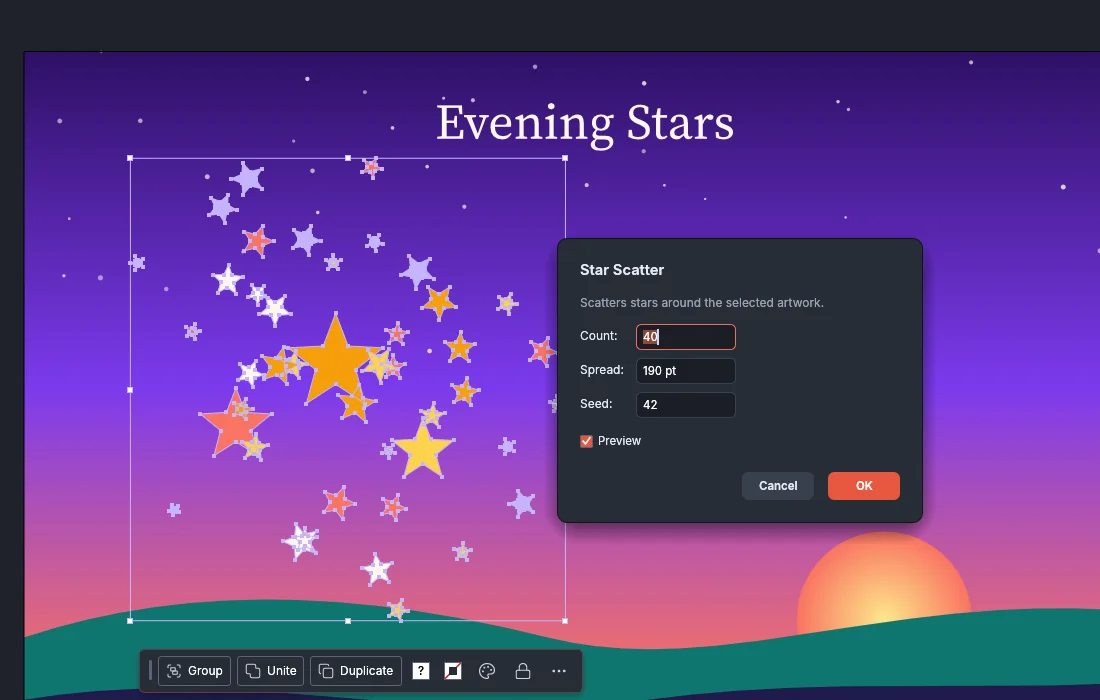
The dialog has one field for each option the plug-in declares: numbers, whole numbers, checkboxes, lists to choose from, text, lists of numbers and colors. A plug-in can label its fields, add help that shows when the pointer rests on a label, and sort fields into sections that fold. When the fields do not fit the window, they scroll inside the dialog.
Long runs in the background
Section titled “Long runs in the background”Some filters run in the background, so you can keep working while they compute:
- A heavy filter has no Preview in its dialog. The dialog says “It may take minutes, so it runs in the background, where you can cancel it.”
- A filter that reports its progress and runs no document commands also runs in the background.
While a background run works, the status bar shows it. After a moment a progress window opens with:
- Cancel, or Esc, which stops the run.
- Continue in Background, which hides the window while the run goes on.
When the run finishes, VectorCraft applies the result as one undo step. If you changed the document or the plug-in while it ran, VectorCraft does not apply the result, and the status bar asks you to run it again.
In the web version, a heavy filter runs at once instead of in the background, under the same limits.
Open a file with a plug-in
Section titled “Open a file with a plug-in”File → Open… uses an importer plug-in when no built-in format reads the file and the importer lists the file’s extension. The Open dialog lists the importer’s files under All readable files and under a filter named after the importer.
To choose the importer yourself:
- Choose File → Open With, then the importer. The menu shows No importer plug-ins installed when you have none.
- Choose a file.
- If the importer has options, set them in its dialog and click Open.
How an importer opens a file:
- On the desktop, a file that takes a while to open shows a progress window. Cancel stops it, and nothing opens.
- The file opens as a new document whose artboard fits the imported objects. The document has no file name yet, so Save asks for one.
- File → Open… runs the importer with its default options.
- File → Open Recent Files opens the file the way File → Open… does. It does not remember the importer or the options you chose in Open With.
- File → Place… reads only the built-in formats. A file that only an importer reads opens as a new document when you drop it on the canvas.
See Open and save files for the built-in formats.
Start without plug-ins in Safe Mode
Section titled “Start without plug-ins in Safe Mode”In Safe Mode, no plug-in loads or runs. Installed plug-ins stay installed:
- Installing a plug-in, running a filter, Reload Plug-ins and exporters report that Safe Mode is on.
- Live effects draw their objects unchanged, and the objects keep the effects.
- The top bar shows Safe Mode in orange. Click it to open Help → Safe Mode….
When VectorCraft stopped while a plug-in was loading
Section titled “When VectorCraft stopped while a plug-in was loading”If VectorCraft stopped the last time while it was loading a plug-in, it starts in Safe Mode and asks what to do. The Safe Mode dialog names the plug-in and notes that the plug-in may not be what stopped VectorCraft. Choose one of these:
| Button | What happens |
|---|---|
| Disable and Continue | Safe Mode ends and the other plug-ins load. That plug-in stays off at later launches until you turn it back on. |
| Start Normally | Safe Mode ends and every plug-in loads, that one included. |
| Start in Safe Mode | VectorCraft stays in Safe Mode until you quit, and asks again at the next launch. |
Turn a disabled plug-in back on
Section titled “Turn a disabled plug-in back on”- Choose Help → Safe Mode…. In Safe Mode, you can also click Safe Mode in the top bar.
- Select Enable on Re-launch beside each plug-in to turn back on.
- Click OK.
The plug-ins load again the next time VectorCraft starts. Installing a turned-off plug-in again also turns it back on. When VectorCraft found the same plug-in ID in several files, the plug-in appears once, and Enable on Re-launch turns all of the files back on.
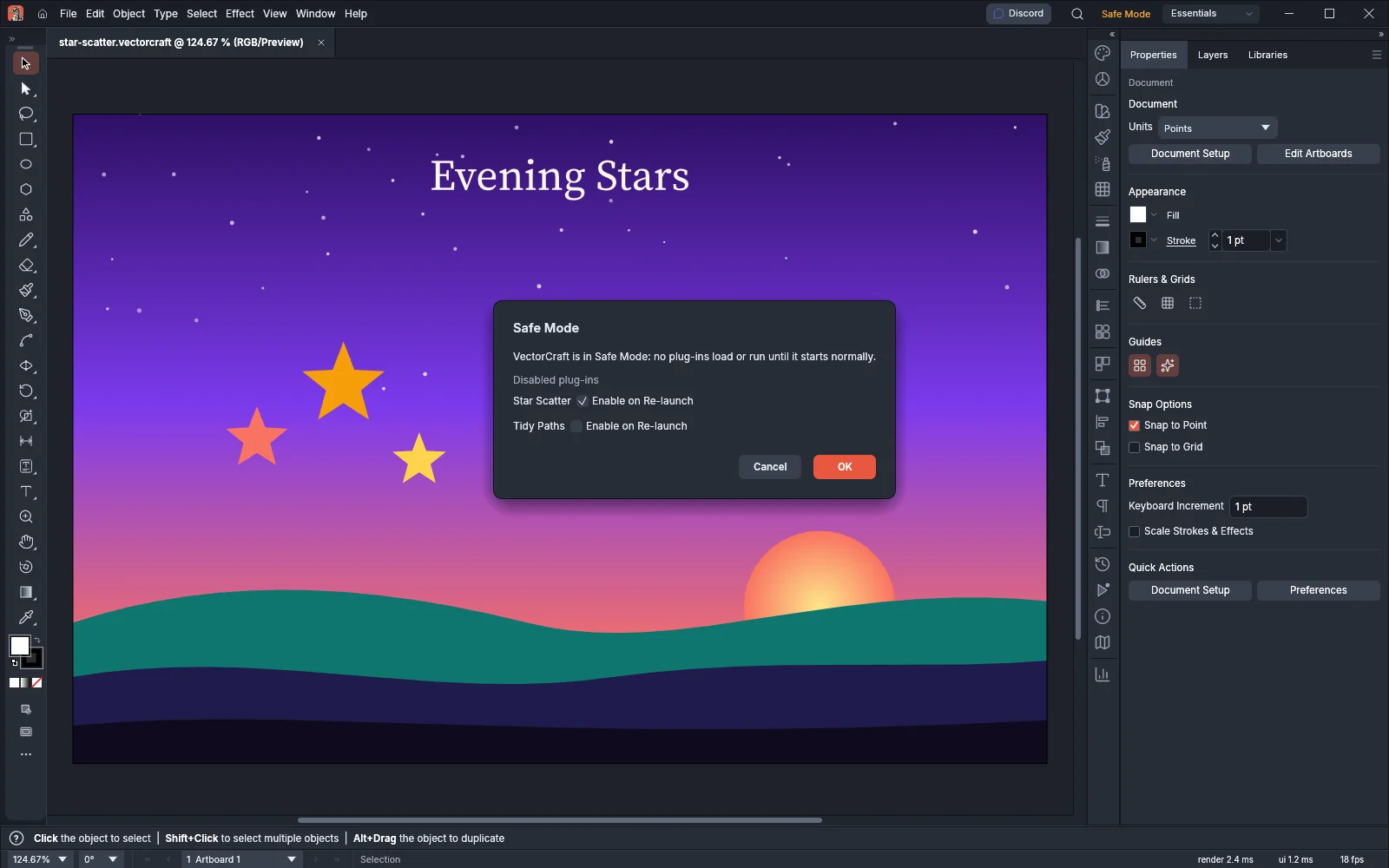
When no plug-ins are turned off, the dialog says No plug-ins are disabled.
Start in Safe Mode on purpose
Section titled “Start in Safe Mode on purpose”To start without plug-ins, for example to find out whether a plug-in causes a problem, start VectorCraft from a terminal with --safe-mode:
vectorcraft --safe-modeVectorCraft stays in Safe Mode until it starts normally. Files you name on the same command line open in a new window, as with --new-instance. Troubleshooting has more help with problems at startup.
Use plug-ins from the command line
Section titled “Use plug-ins from the command line”vectorcraft-cli uses the same Plug-ins folder as the app. Plug-ins installed in the app are installed for the command line too.
To run any vectorcraft-cli subcommand without plug-ins, put --safe-mode before the subcommand:
vectorcraft-cli --safe-mode convert poster.vectorcraft poster.pdfvectorcraft-cli --safe-mode mcpNo plug-in loads or runs, and plug-in commands report that Safe Mode is on. --safe-mode mcp serves a headless session and does not take --connect. To use a running app without plug-ins, start the app with vectorcraft --safe-mode --control <port>.
On the command line, nobody can click OK in the Install Plug-in dialog. Without an extra flag, the plugin.install command installs a plug-in that lists permissions only when its file was approved before, in the app or in an earlier session with the flag below. Without the flag, the command also refuses a heavy filter.
To let the commands of one run or mcp session grant permissions and a heavy budget, start it with --allow-plugin-grants. Anyone who sends commands to that session can then give a plug-in what it asks for, so use the flag only with commands you trust. Check the plug-in first with plugin.inspect, then pass its hash to plugin.install so that the file installed is the one you checked:
vectorcraft-cli run --cmd plugin.inspect --params '{"path": "Star Scatter.wasm"}'vectorcraft-cli run --allow-plugin-grants \ --cmd plugin.install --params '{"path": "Star Scatter.wasm", "grant": ["doc.read", "doc.write", "settings"], "hash": "<hash from plugin.inspect>"}'How --allow-plugin-grants works:
plugin.inspectreportsneedsApproval: truewhen installing the file needs an approval.- A grant accepted under the flag stays recorded in
grants.json. Later sessions without the flag, and the app, count it as approved. - With
VECTORCRAFT_NO_PREFSset, there is noPlug-insfolder, and a grant lasts for that session only. - The flag implies
--headless. - You cannot combine the flag with
--automation-read-rootor--automation-write-root.
Remove a plug-in or clear its cache
Section titled “Remove a plug-in or clear its cache”VectorCraft has no menu item to remove a plug-in or to clear its cache. Use the plugin.remove and plugin.clearCache commands instead.
To uninstall a plug-in, pass its ID to plugin.remove:
vectorcraft-cli run --cmd plugin.remove --params '{"id": "org.example.star-scatter"}'plugin.remove deletes the plug-in from the Plug-ins folder together with its settings and cache, and removes its approval from grants.json. If you install the same file again, VectorCraft asks for approval again.
To delete what a plug-in keeps in its cache, pass its ID to plugin.clearCache. Leave out the ID to clear the cache of every installed plug-in. The plug-ins keep their settings.
vectorcraft-cli run --cmd plugin.clearCache --params '{"id": "org.example.star-scatter"}'vectorcraft-cli run --cmd plugin.clearCacheSee Automate VectorCraft for more about vectorcraft-cli, and Run scripts for JavaScript files that drive VectorCraft.