
Place documents and PDF pages
This guide shows how to place another VectorCraft document, or a page of a PDF or .ai file, as one linked, locked object, how to pick the page and the box it is cropped to, how to edit the original in its own tab, and how to update, relink and embed the placed object.
Place a VectorCraft document
Section titled “Place a VectorCraft document”- Open the document you want to place the other document in.
- Choose File → Place… (Ctrl+Shift+P, or Cmd+Shift+P on macOS) and pick a
.vectorcraftfile. - In the Place dialog, leave Link turned on. Link is on by default, and the dialog keeps your last choice.
- Press Place. The document is placed in the center of the view as one object.
- Move, scale or rotate the object with the Selection tool, or drag its handles.
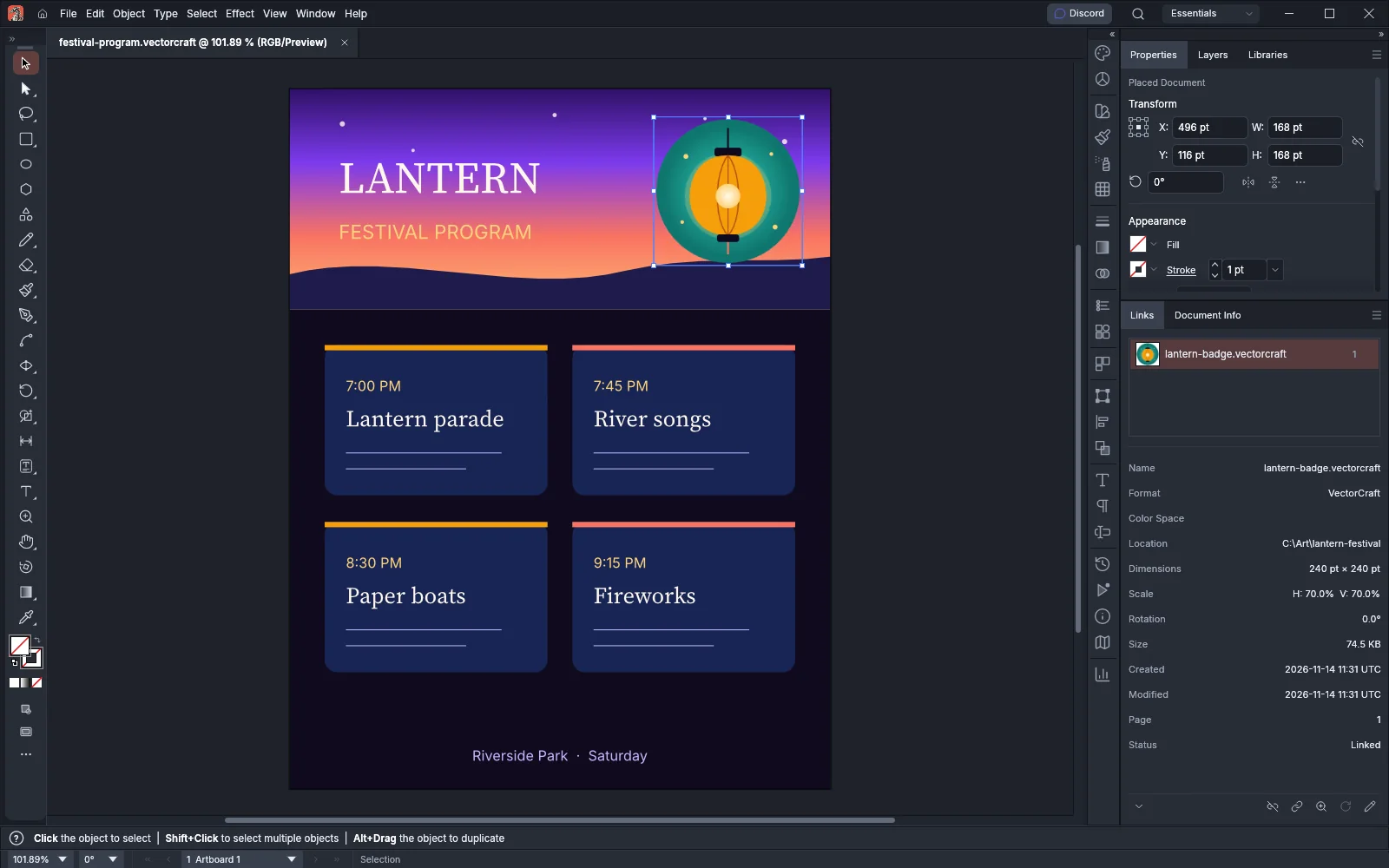
The placed object shows the first artboard of the document, clipped to the artboard. Guides and the art on hidden and template layers do not show. The art inside the object is locked: you cannot select or edit its paths in this document. To change the art, edit the original file (see Edit the placed document).
With Link turned off, the document’s art is placed as an editable group instead, with no link to the file.
The placed object keeps a copy of the file and a preview of up to 1024 pixels on its longer side. By default, a save writes only the preview in place of the file, and the object shows that preview when its file is missing. To keep the file itself in the saved document, turn on Include Linked Files in the VectorCraft Options dialog that follows File → Save As…. The object stays linked either way. The art is read from the file again for printing, for exporting and when you zoom in past the preview, and it is output as vectors. A file larger than 256 MiB cannot be placed.
When the object is selected, the Properties panel reads Placed Document, and the Links panel lists the file. Its Link Info shows Format VectorCraft, Dimensions in points, Scale as a percentage of the artboard’s size, the Page (the artboard number) and the Status.
To place several files at once, see Place a file instead of opening it.
Place a page of a PDF or .ai file
Section titled “Place a page of a PDF or .ai file”- Choose File → Place… and pick a PDF,
.aior.aitfile. - Leave Link turned on and press Place.
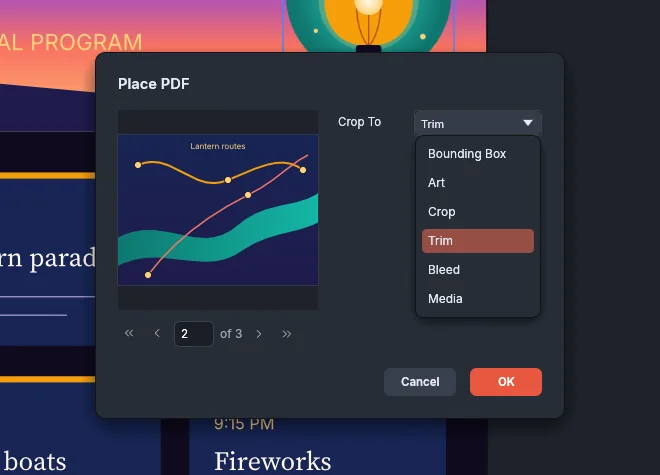
- If the file has more than one page, the Place PDF dialog opens. Pick the page with the arrows under the preview, or type its number in the box. The arrows go to the first, previous, next and last page.
- Choose a box in Crop To. The preview shows the page cropped to that box.
- Click OK.
A file with one page and no password is placed at once, cropped to its Crop box. The placed page is a linked object like a placed VectorCraft document, and its Link Info shows the page number.
| Crop To | What the placed page shows |
|---|---|
| Bounding Box | The bounds of the art on the page |
| Art | The page’s art box |
| Crop | The visible page area that PDF viewers show. This is the default |
| Trim | The finished page size |
| Bleed | The page with its bleed area |
| Media | The whole sheet |
A page with no Art, Trim or Bleed box uses its Crop box instead. Every box is clipped to the Media box.
Place a password-protected PDF
Section titled “Place a password-protected PDF”When the PDF has a password, the dialog first says that the file needs a password and shows a Password box.
- Type the password and click OK.
- If the file has more than one page, pick the page and the Crop To box, then click OK.
A page placed with a password is placed as an editable group, not as a linked object.
Edit the placed document
Section titled “Edit the placed document”- Select the placed document.
- Click Edit Original at the bottom of the Links panel, or choose Edit → Edit Original.
- Edit the document in the new tab that opens.
- Choose File → Save (Ctrl+S, or Cmd+S on macOS).
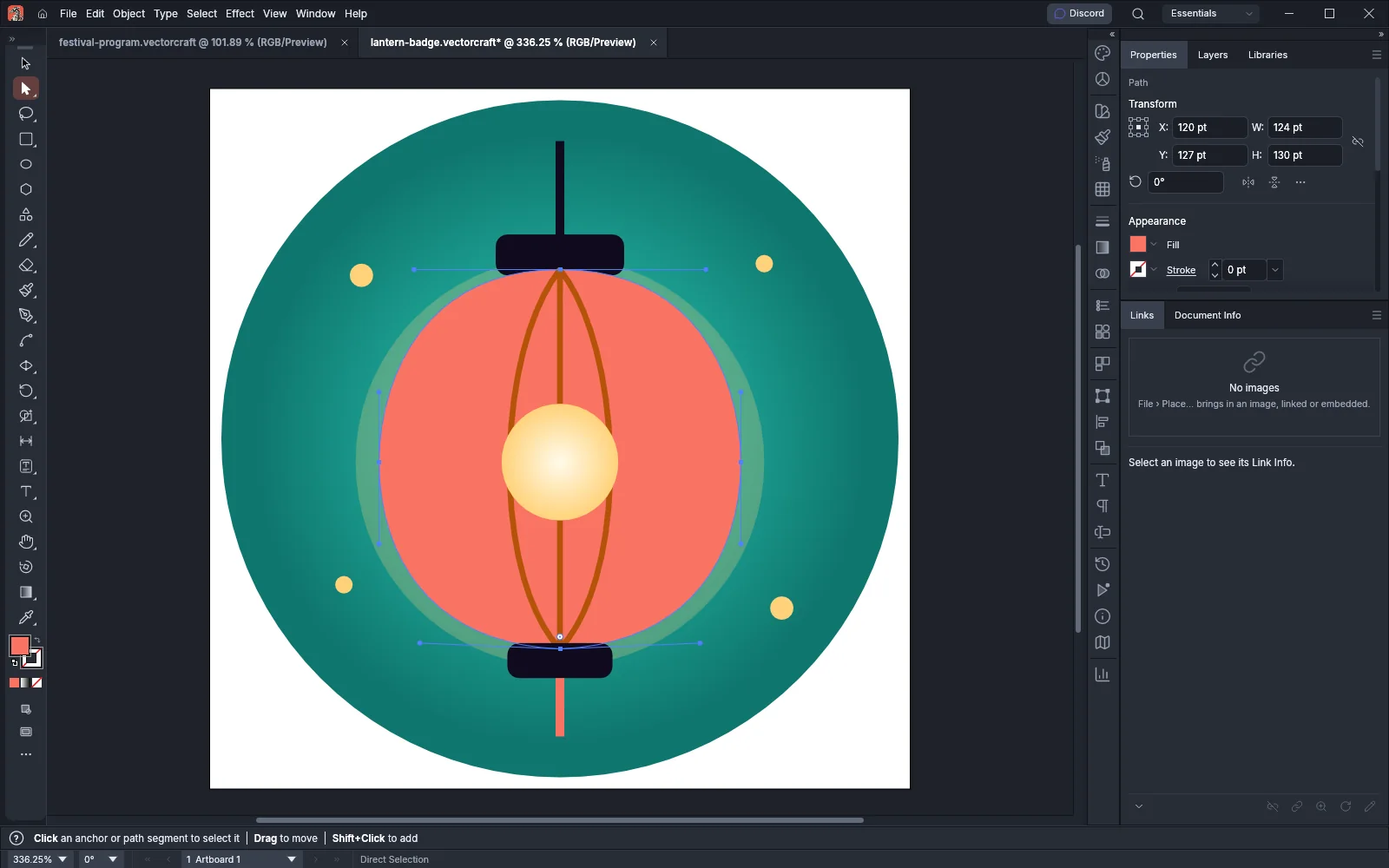
When you save the original in VectorCraft, every open document that places it shows the change at once, and each update is one undo step in that document.
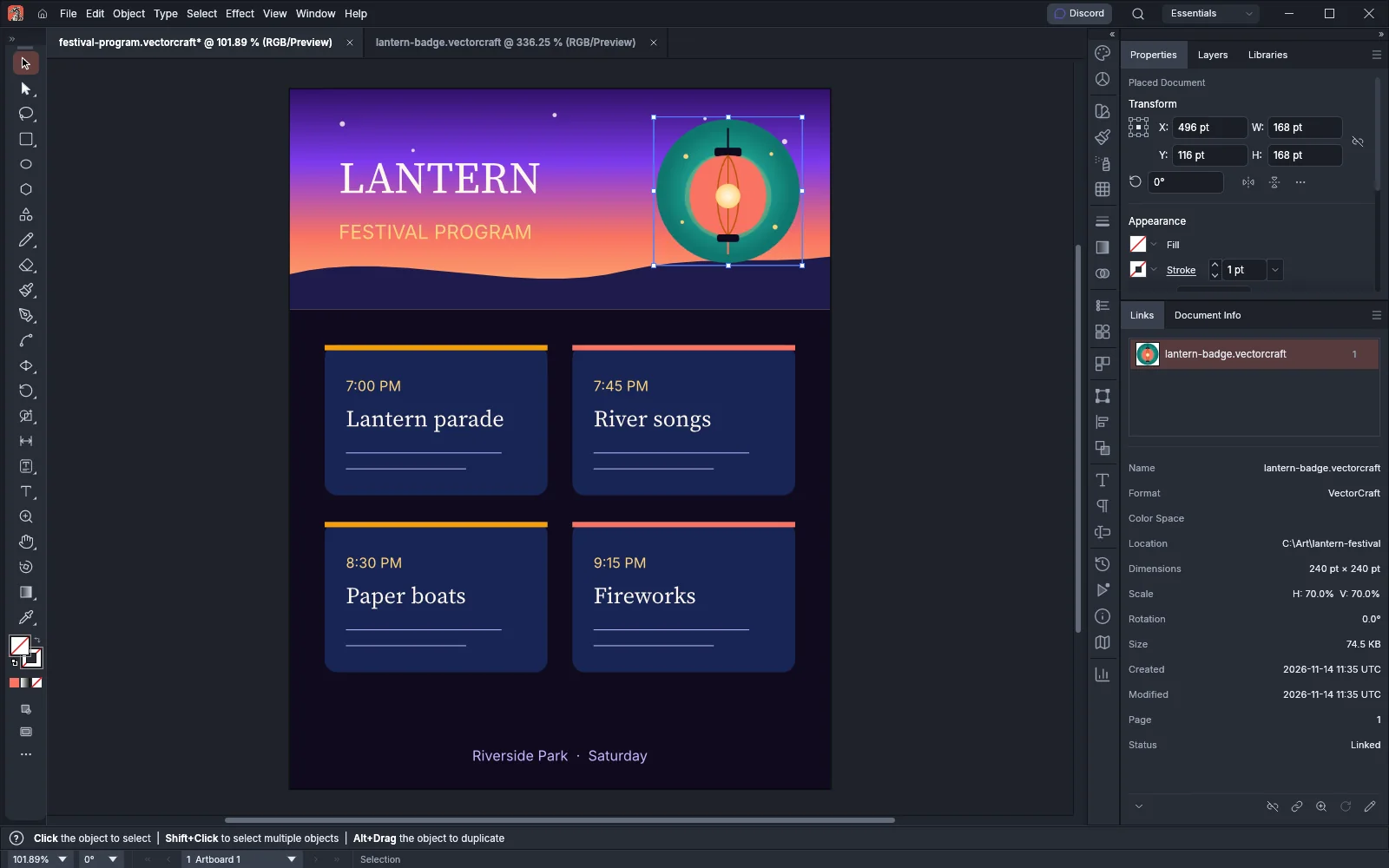
VectorCraft checks the linked files every two seconds for changes made by another app. What happens when a file changed depends on Update Links in Edit → Preferences… → File Handling on Windows and Linux, or VectorCraft → Settings → File Handling… on macOS:
| Update Links | What happens when the file changes |
|---|---|
| Automatically | The placed object is read again |
| Manually | The status bar reports the change. Use Update Link in the Links panel |
| Ask When Modified | The Update Modified Links dialog asks whether to show the new version. This is the default |
If the file is missing, Edit Original reports that it cannot be found. Relink it first.
Update, relink and embed a placed document
Section titled “Update, relink and embed a placed document”Select the placed document, or its row in the Links panel, and choose a command from the panel menu. Relink…, Go To Link, Update Link, Edit Original and Break Link are also buttons at the bottom of the panel.
| Command | What it does to a placed document |
|---|---|
| Relink… | Links the object to another file. The object shows the same artboard or page of the new file and keeps its bounds |
| Relink to Folder… | Links the object to the file with the same name in a folder you pick |
| Find in Folder… | Searches a folder and its subfolders for the file |
| Go To Link | Selects the object and scrolls the view to it |
| Update Link | Reads a modified file again. It is available only when the file changed |
| Edit Original | Opens the file in a new tab |
| Embed Image(s) | Replaces the object with an editable copy of its art, the same copy that placing the file without Link gives. The art’s symbols, patterns, swatches and images are added to the document. The Break Link button does the same |
| Placement Options… | Sets how the file takes the object’s place when it is updated or relinked |
| Show in Folder | Shows the file in the system’s file manager |
Object → Expand… also turns a placed document into an editable copy of its art. Each update, relink and embed is one undo step. A placed document stays linked when you embed it if its file cannot be read or has changed since it was read. Relink or update it first.
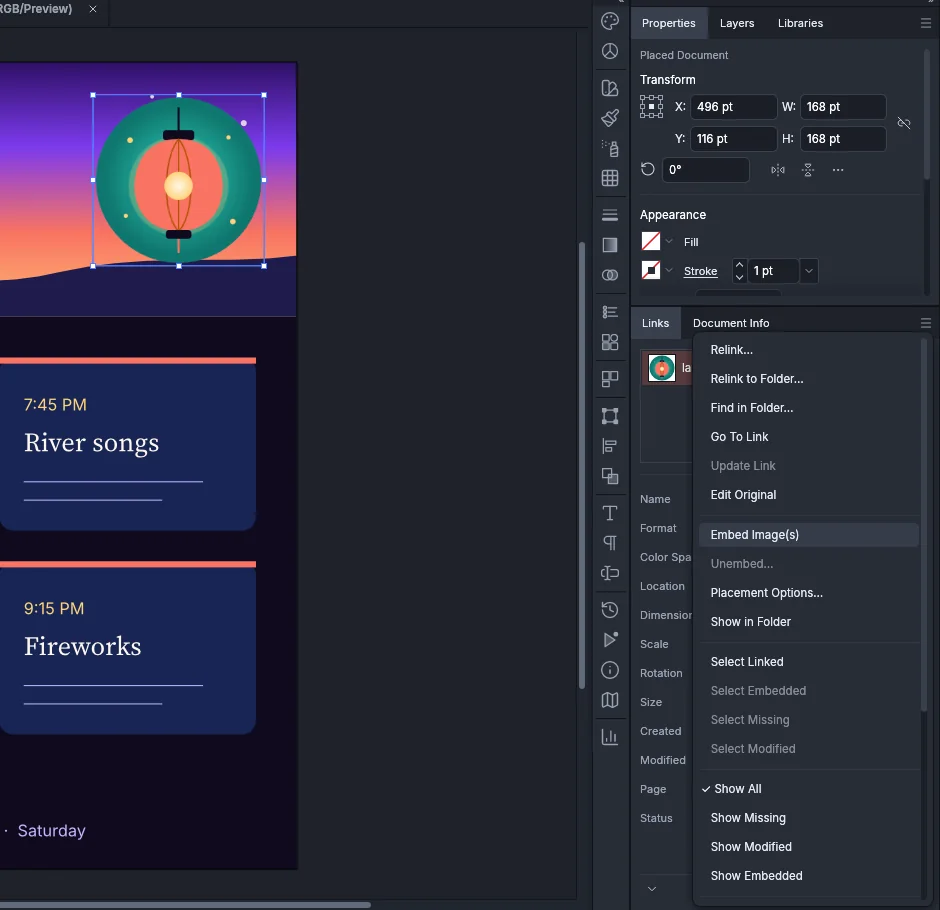
When you open a document, VectorCraft looks for each placed file at its saved path, then at its path relative to the document and by name in the document’s folder. A placed document whose file VectorCraft cannot find shows its saved preview, or its full art when the document was saved with Include Linked Files. See Fix missing links when a document opens.
Placed documents inside placed documents
Section titled “Placed documents inside placed documents”A placed document can hold placed documents of its own, and VectorCraft reads them the same way, up to 8 levels deep. A document placed deeper than that shows its saved preview. When two documents place each other, VectorCraft stops reading them at the same limit.