
Rotate the view
Rotating the view turns the canvas on screen. The artwork does not rotate: printing, export and the positions of objects stay the same. This page covers the Rotate View tool, the preset angles, Rotate View to Selection, resetting the view and the trackpad gesture.
Angles are measured clockwise on screen and run from -180° to 180°. A preset or a drag turns the view about the center of the canvas.
Turn the view with the Rotate View tool
Section titled “Turn the view with the Rotate View tool”- Press Shift+H to choose the Rotate View tool. In the Tools panel, its button is below the Hand tool.
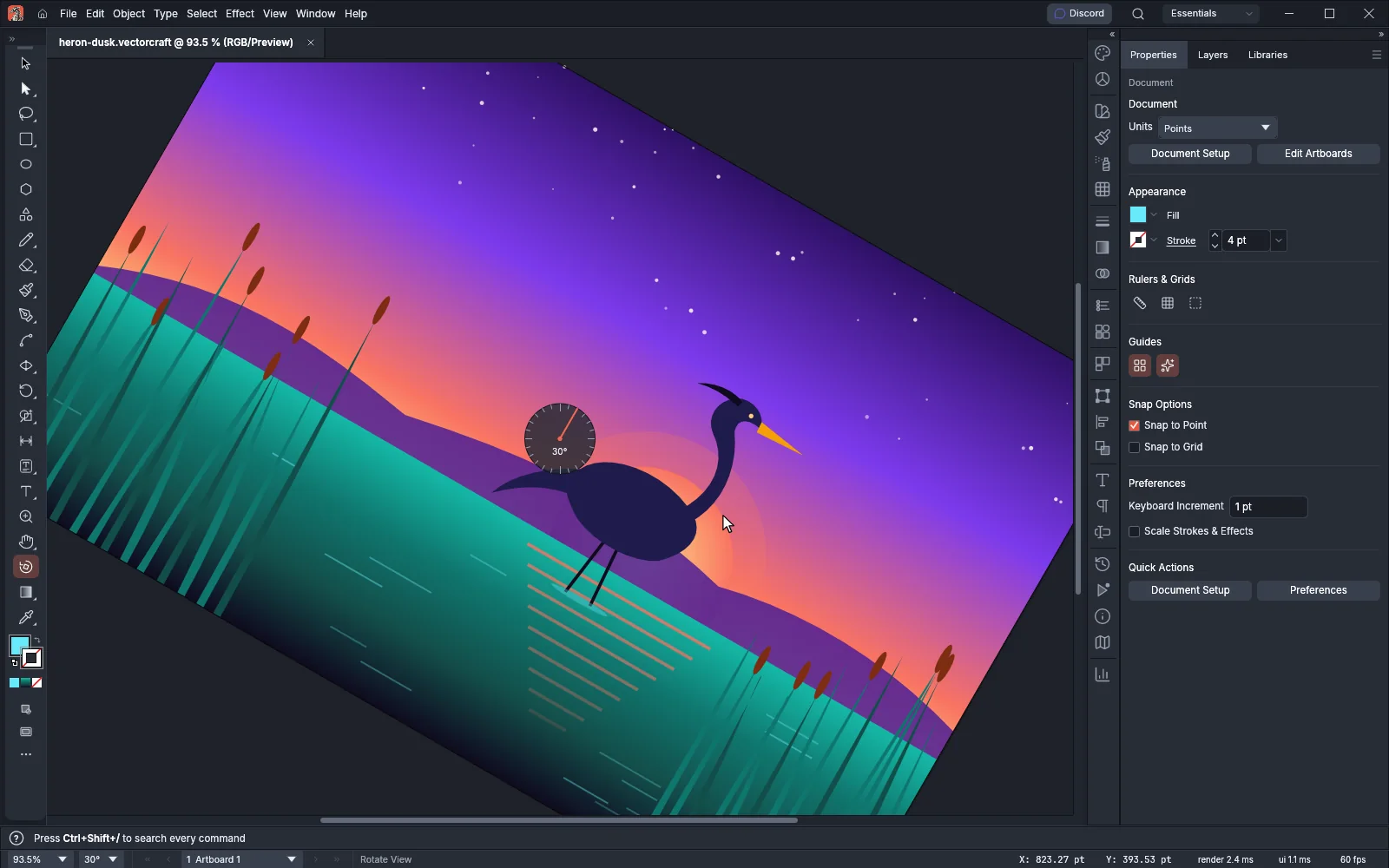
- Drag on the canvas. The view turns with the pointer as it moves around the center of the canvas. A dial at the center shows the angle, with a tick every 15° and a needle that points to the top of the artwork.
- Hold Shift while you drag to turn the view in 15° steps.
- Release the mouse button. The angle shows in the status bar, next to the zoom list.
To rotate the view without changing tools, hold Space and Shift, then drag. The view turns the same way, without the 15° steps.
Each document and each window of a document keeps its own angle. To show the same document at another angle, open a second window on it with Window → New Window, as Work in several windows describes. View → New View… saves the view’s position, zoom and angle in the document, so you can return to the angle later. See Save and recall views.
Choose a preset angle
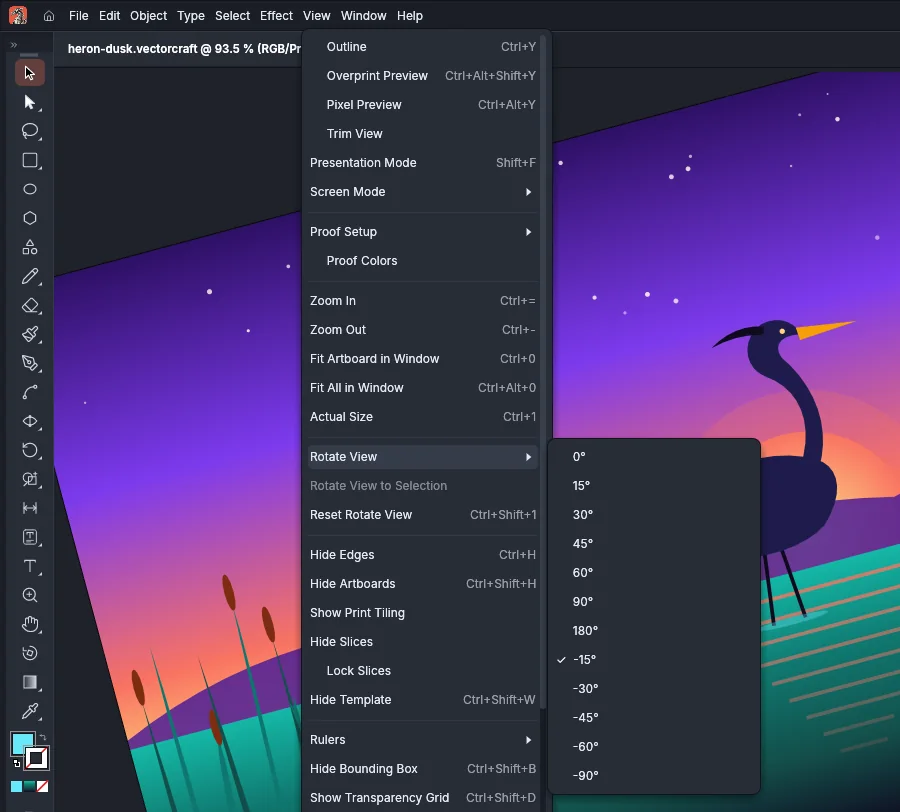
Section titled “Choose a preset angle”- Choose View → Rotate View.
- Choose an angle: 0°, 15°, 30°, 45°, 60°, 90°, 180°, -15°, -30°, -45°, -60° or -90°.
A check mark in the submenu shows the angle the view is turned to. The angle list in the status bar, to the right of the zoom list, holds the same angles.
Line up the view with the selection
Section titled “Line up the view with the selection”- Select an object that you rotated, such as a label turned to follow a path.
- Choose View → Rotate View to Selection.
The view turns to the angle of the selection’s bounding box, so the box lines up with the edges of the window. When the selected objects have different angles, the view turns to 0°. The command is dimmed while nothing is selected.
Reset the view
Section titled “Reset the view”Do one of these to turn the view back to 0°:
- Choose View → Reset Rotate View, or press Ctrl+Shift+1 (Cmd+Shift+1 on macOS).
- Press Esc. If the press ends something else first, such as a path you are drawing, pattern editing, isolation mode, Global Edit or an open tool flyout, press Esc again. With the Rotate View tool chosen, the first press resets the view before it leaves a full screen mode; with any other tool, it leaves the full screen mode first.
While a menu is open or a text field has the keyboard, Esc closes the menu or leaves the field and does not reset the view. Press Esc again to reset it.
Rotate with a trackpad
Section titled “Rotate with a trackpad”On a Mac trackpad, place two fingers on the trackpad and turn them. The view turns about the pointer. It starts to turn once your fingers have turned 5°.
The gesture works while Trackpad Gesture to Rotate View is on in Preferences → General (it is on by default). Fingers on a touch screen do not rotate the view. To change the setting, see Preferences.
Shortcuts
Section titled “Shortcuts”| Action | Windows and Linux | macOS |
|---|---|---|
| Rotate View tool | Shift+H | Shift+H |
| Turn in 15° steps with the tool | Shift+drag | Shift+drag |
| Rotate the view with any tool | Space+Shift+drag | Space+Shift+drag |
| Reset Rotate View | Ctrl+Shift+1 | Cmd+Shift+1 |
| Reset the view | Esc | Esc |
Keyboard shortcuts lists every shortcut.