
Save, load and share action sets
This guide shows you how to use the actions that come with VectorCraft, save an action set to a file, load a set from a file, write a set file by hand, and play an action’s steps without the Actions panel. To record actions, add stops and run an action on a folder of files, see Automate VectorCraft.
Use the Default Actions
Section titled “Use the Default Actions”A new VectorCraft profile starts with one action set, Default Actions. It holds six actions:
| Action | What it does to the selection |
|---|---|
| Duplicate and Offset 10 pt | Makes a copy 10 pt to the right and 10 pt down, and selects the copy |
| Unite and Simplify | Unites the selected shapes into one shape, then simplifies the result’s path with a tolerance of 0.5. This action has two steps. |
| Center on Artboard | Centers the selection on the artboard, horizontally and vertically |
| Outline Text | Converts the selected type to outlines |
| Rotate 90° CW | Rotates the selection 90° clockwise around the center of its bounding box |
| Reflect Horizontal | Mirrors the selection left to right across a vertical axis through its center |
To play one of them:
- Choose Window → Actions.
- Select the artwork on the canvas.
- In the Actions panel, click the action’s name to select it.
- Click Play Current Selection at the bottom of the panel, or choose Play Current Selection from the panel menu.
At the default Accelerated speed, the whole action is one undo step, so Ctrl+Z (Cmd+Z on macOS) reverses it. Click the arrow beside an action to see its steps. Each step shows the command it runs, for example object.move.
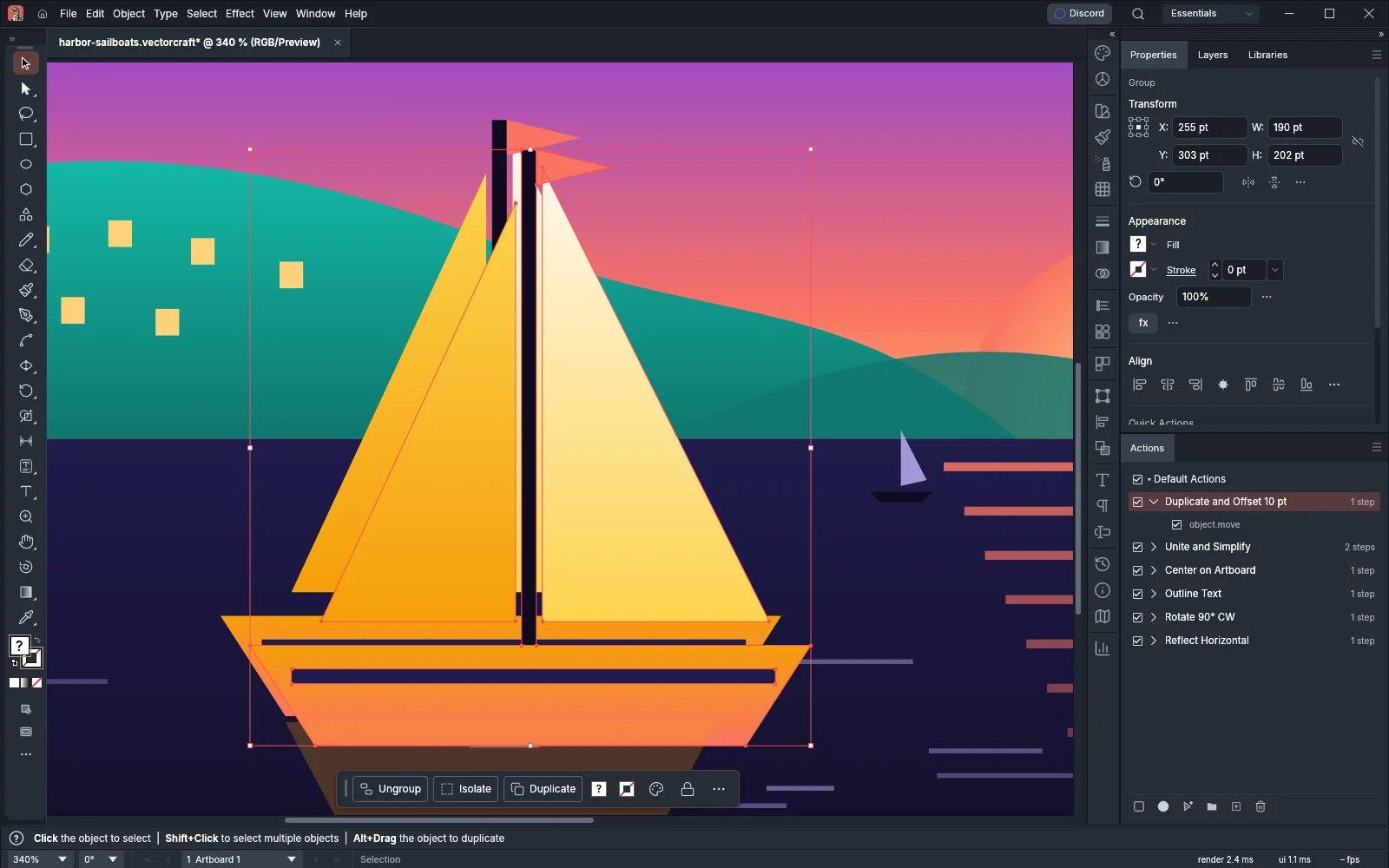
To copy, rename or remove the Default Actions, click the Default Actions set name in the Actions panel, then choose Duplicate, Set Options… or Delete from the panel menu. Duplicate copies the whole set when no action in it is selected. A new profile starts with the Default Actions again.
Save an action set
Section titled “Save an action set”- In the Actions panel, click the name of the set you want to save, or one of its actions. The set becomes the current set.
- Choose Save Actions… from the panel menu. The command is unavailable until a set is current.
- Choose a folder. VectorCraft suggests the set’s name with the
.vcactionsextension, for exampleStudio.vcactions. - Click Save. The status bar shows “Saved” followed by the file’s path.
In the suggested file name, VectorCraft replaces each character that file systems do not allow (/ \ : * ? " < > |) with -. A set whose name is a Windows device name, such as CON or LPT1, gets a - after that name. A set with an empty name is saved as Actions.vcactions.
The file keeps every action in the set with its name, its steps and their settings, the steps whose check boxes are cleared, the function key and the color. VectorCraft does not save a set that it could not load again: one larger than 8 MiB as a file, one with more than 1,000 actions, or one with an action of more than 10,000 steps.
Load an action set
Section titled “Load an action set”- Choose Load Actions… from the Actions panel menu.
- Choose a
.vcactionsfile. The file dialog’s Action sets filter lists.vcactionsand.aiafiles. - Click Open.
VectorCraft adds the set below the other sets, with all its actions. The other sets, and the current set, stay as they were. If the panel already has a set with the same name, the new set gets the next free number: loading Studio.vcactions while Studio is in the panel adds Studio 2. Loaded actions keep their function keys.
Load Actions… does not load the file and shows the reason in the status bar in these cases:
| File | Message |
|---|---|
| Larger than 8 MiB | the action set file is larger than 8 MiB |
| More than 1,000 actions | the action set file holds more than 1,000 actions |
| An action with more than 10,000 steps | an action in the action set file has more than 10,000 steps |
A version other than 1, 2 or 3 |
the action set file needs a later version of VectorCraft |
| Text that is not JSON, or JSON that is not laid out as an action set | not an action set file, followed by the details in parentheses, for example “not an action set file (expected value at line 1 column 1)” |
A format other than vcactions, a stop with settings VectorCraft cannot read, or text that is not UTF-8 |
not an action set file |
Load Actions… is unavailable in the web version of VectorCraft.
Load an action set saved as text (.aia)
Section titled “Load an action set saved as text (.aia)”Load Actions… also reads action sets saved as text in .aia files. VectorCraft reads any file whose text starts with /version as one of these sets. VectorCraft adds such a set with all its actions, and keeps only the steps that it can run without any settings.
- Choose Load Actions… from the Actions panel menu.
- Choose the
.aiafile and click Open. - Read the status bar. When VectorCraft leaves steps out, it shows how many, for example “Loaded “Poster Prep”: 3 steps were left out”. When it keeps every step, the status bar does not change.
- Expand each action in the new set and check its steps before you play it.
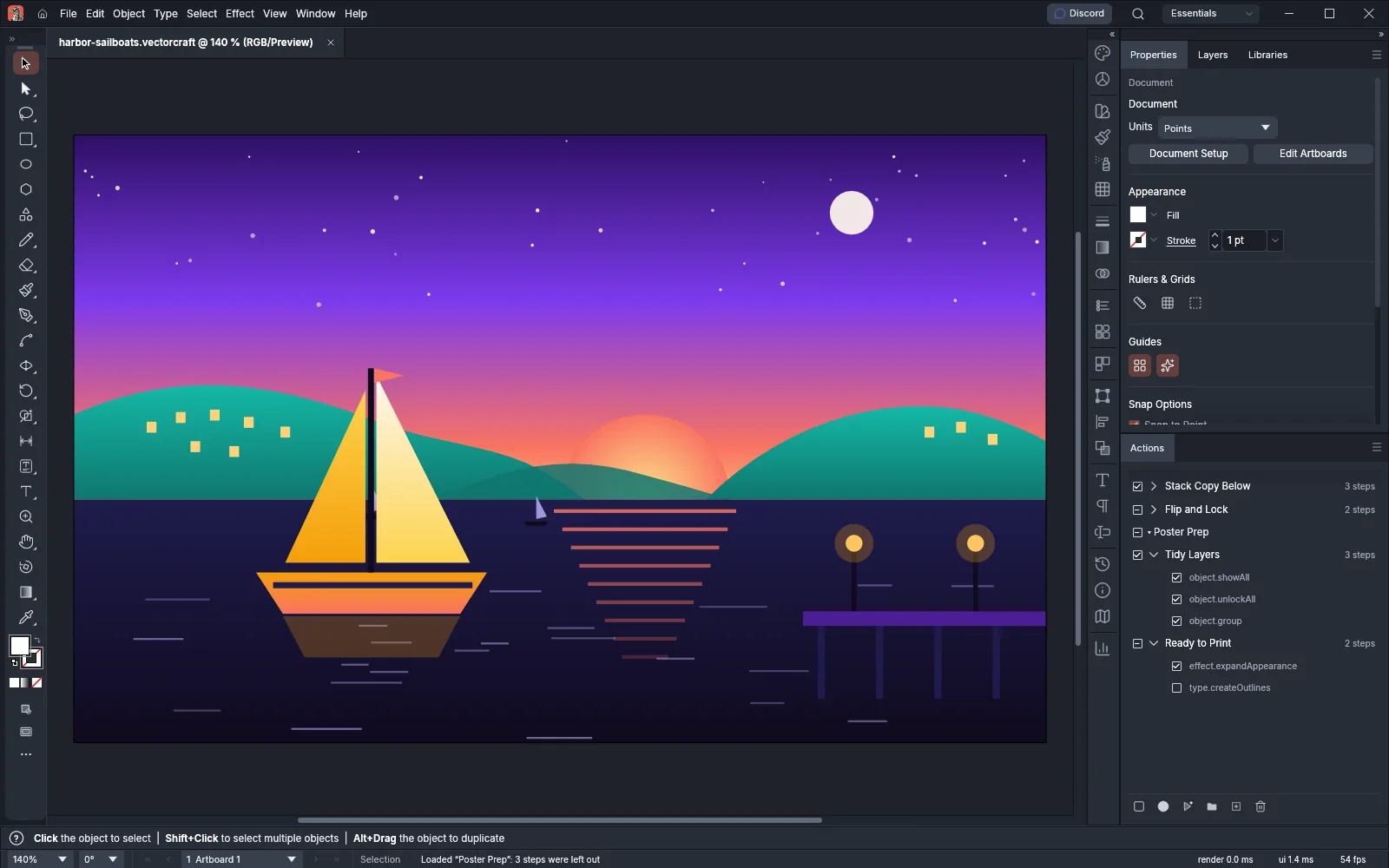
VectorCraft keeps a step when all of these are true:
- The step has a name, and it was recorded without any values.
- Exactly one VectorCraft menu command has that name, in English or in the interface language. Letter case and a final
…or...do not matter. - The command is one that VectorCraft can record in an action.
- The command sits directly in a top-level menu, not in a submenu.
- The command’s menu item has no
…in its name, and the command runs from the menu without any settings. - The command is not a file or document command, Paste, Undo, Redo, or a plug-in’s command.
VectorCraft adds each kept step as that command with no settings. A step that is turned off in the file keeps its check box cleared, so playback skips it.
VectorCraft leaves out every other step. These include steps recorded with values (a move by a distance, for example), steps with no name, steps that open or save files, and steps whose name is not the name of a VectorCraft menu item. For example, a step named Group becomes Object → Group, but a step named Select All is left out, because the VectorCraft menu item is Select → All.
A set with no name takes the file’s name. An action with no name is called Action 1, Action 2 and so on, by its place in the set. A set named like one in the panel gets the next free number, as with .vcactions files.
An .aia file larger than 8 MiB is not loaded, and the status bar shows “the action set file is larger than 8 MiB”, as for a .vcactions file.
If the file is damaged or VectorCraft cannot read it in full, VectorCraft shows “the action set file can’t be read in full” and adds no set. That happens when the file nests more than 16 blocks, has more than 1,000 actions, more than 10,000 steps in an action or more than 100,000 steps in all, has a name longer than 1,024 bytes, ends in the middle of a block, or has counts or names that do not match what follows them.
A file whose text starts with /version but has no number after it is not read as an action set. Load Actions… shows “not an action set file” and adds no set.
Write an action set file by hand
Section titled “Write an action set file by hand”A .vcactions file is JSON text in UTF-8. You can write one in a text editor, or save a set and edit the file. This file holds a set named Studio with two actions:
{ "format": "vcactions", "version": 3, "name": "Studio", "actions": [ { "name": "Stack Copy Below", "key": { "key": 5, "cmd": false, "shift": true }, "color": "blue", "steps": [ { "command": "object.move", "params": { "dx": 0, "dy": 40, "copy": true } }, { "command": "action.stop", "params": { "message": "Check the copy, then click Continue to center it.", "allowContinue": true } }, { "command": "object.align", "params": { "horizontal": "center", "to": "artboard" } } ] }, { "name": "Flip and Lock", "steps": [ { "command": "object.reflect", "params": { "axis": "vertical" } }, { "command": "object.lock", "params": {}, "excluded": true } ] } ]}The top level of the file has these fields:
| Field | Value |
|---|---|
format |
Always "vcactions" |
version |
1, 2 or 3. Save Actions… writes 3 when a step is a stop, 2 when a step has excluded, and 1 otherwise. Earlier versions of VectorCraft do not load a file with a version they cannot read. |
name |
The set’s name. When it is empty, the set takes the file’s name without its extension. |
actions |
The list of actions, in the order the panel shows them |
Each action has these fields:
| Field | Value |
|---|---|
name |
The action’s name |
steps |
The list of steps, in the order they play |
key |
Optional. The function key that plays the action: key is 1 to 15 for F1 to F15, cmd adds Ctrl (Cmd on macOS), and shift adds Shift. A key VectorCraft cannot use loads as no key. |
color |
Optional. "red", "yellow", "green", "blue" or "violet". Any other value loads as no color. The Actions panel does not show the color. |
Each step has these fields:
| Field | Value |
|---|---|
command |
A command id, for example object.move |
params |
The command’s settings, as a JSON object. Use {} for a command that takes none. |
excluded |
Optional. true keeps the step with its check box cleared, so playback skips it |
A stop is a step with the command action.stop. Its params take message, the text the stop shows, and allowContinue, which is true to offer Continue in the message box. Both are optional. Load Actions… does not load a file that has a stop whose message is not text, or whose allowContinue is not true or false, and shows “not an action set file”.
To find command ids and the settings each one takes, run vectorcraft-cli commands, which prints the command list as JSON. See Write command steps for vectorcraft-cli. Load Actions… does not check the command ids. A step whose command does not exist fails when the action plays.
Play an action from the command line
Section titled “Play an action from the command line”Each step of an action is an ordinary VectorCraft command with its settings. The engine command command.batch plays a list of such steps as one undo step. It stops at the first step that fails and undoes the steps before it.
To play an action with vectorcraft-cli, copy the action’s steps from its .vcactions file into the commands list of a command.batch step. This steps file, play-reflect.json, selects all the artwork and plays the steps of Reflect Horizontal:
[ { "command": "select.all", "params": {} }, { "command": "command.batch", "params": { "label": "Reflect Horizontal", "commands": [{ "command": "object.reflect", "params": { "axis": "vertical" } }] } }]Run it on a document and export the result:
vectorcraft-cli run --in harbor-sailboats.vectorcraft --commands play-reflect.json --export harbor-flipped.pngBefore you copy the steps, take out the steps marked "excluded": true and every stop. command.batch does not read excluded and runs those steps. A stop is not a command, so it makes the batch fail with “unknown command action.stop”.
From a Model Context Protocol (MCP) client, run command.batch with the command_run tool, and pass the steps as commands. The command_batch tool is different: it takes steps: [{id, params}]. See AI agents.
To run the same steps from a script, see Write a script.