
Convert files from the command line
This guide shows you how to convert files with vectorcraft-cli convert, which opens a file and writes it in another format without opening a VectorCraft window. It also covers the options for artboards, image resolution, SVG and legacy .ai files, how to read the result, how to convert a folder of files, and the info and bench subcommands.
Convert one file
Section titled “Convert one file”-
Open a terminal. On Windows the installer does not add
vectorcraft-clitoPATH; Automate VectorCraft lists where each install puts it. -
Type
vectorcraft-cli convert, the file to read, and the file to write:Terminal window vectorcraft-cli convert festival-posters.vectorcraft festival-posters.pdf -
Press Enter. VectorCraft reads the first file, writes the second one in the format its extension names, and prints one line of JSON that describes the result.
convert reads any format that File → Open… reads. It writes these formats: .vectorcraft, .svg, .svgz, .pdf, .ai, .ait, .png, .jpg, .gif, .webp, .tif, .bmp, .vctemplate, .txt, .dxf, .eps, .emf, .wmf, .tga and .psd. A conversion keeps live effects and hidden layers and objects. SVG and PSD files mark the hidden ones as hidden.
To write a .ait template, give an output file that ends in .ait. The template holds every artboard, so --artboard and --range cannot be used with it.
vectorcraft-cli --help prints every subcommand with its options, followed by the formats VectorCraft reads and writes. --help or -h after a subcommand, as in vectorcraft-cli convert --help, prints the same text. vectorcraft-cli --version (or -V) prints the version, for example vectorcraft-cli 0.24.1.
When a conversion fails, vectorcraft-cli prints the reason after vectorcraft-cli: on standard error and exits with a nonzero status.
Choose the artboards
Section titled “Choose the artboards”Each artboard has a number in the Artboards panel. --artboard (-a) picks one artboard, counted from 0. --range (-r) picks artboards by the numbers the panel shows, counted from 1. A range can list single artboards and spans, such as 1-3,5, or be all.
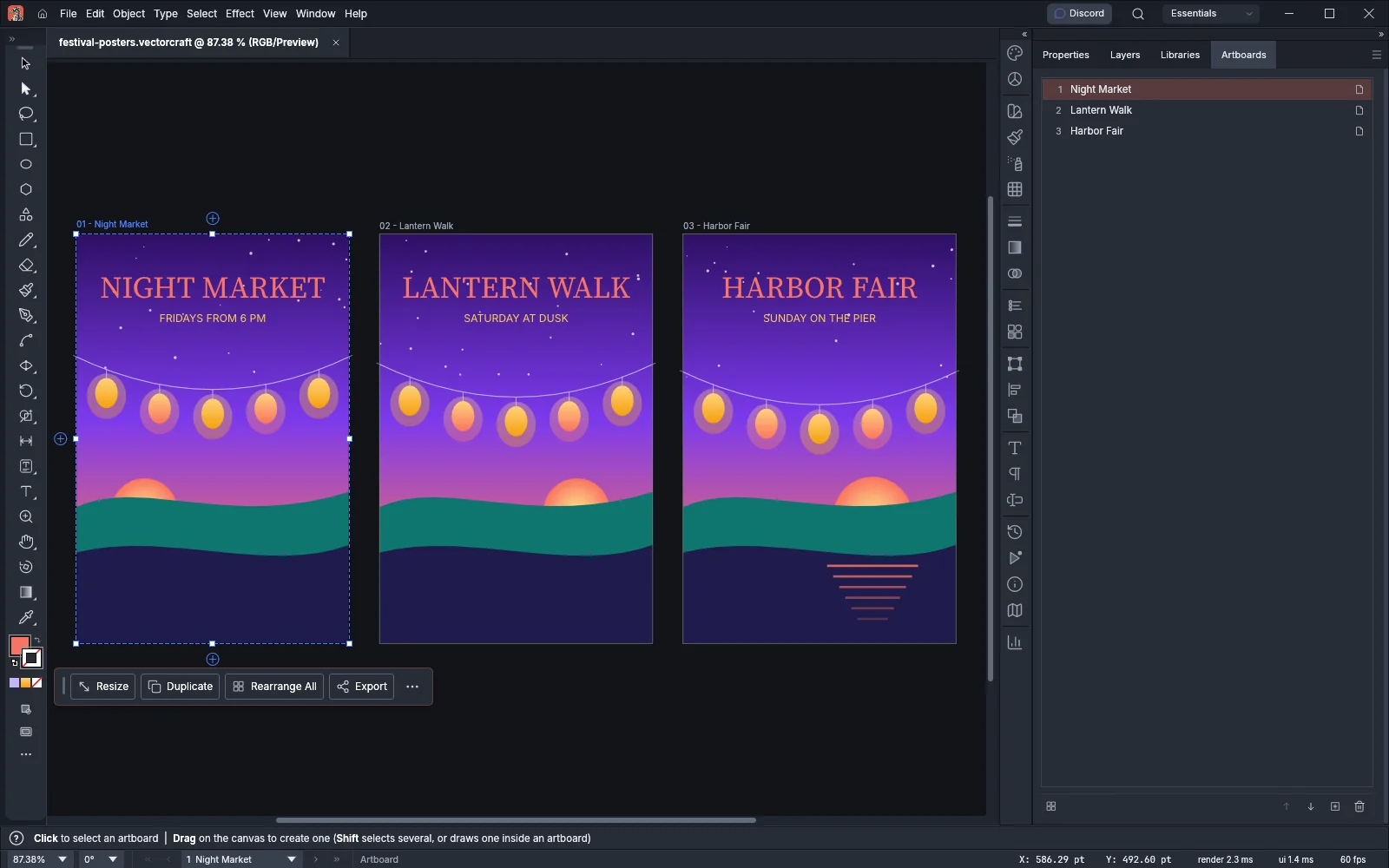
In this document, --artboard 1 picks Lantern Walk, and --range 2-3 picks Lantern Walk and Harbor Fair:
vectorcraft-cli convert festival-posters.vectorcraft lantern-walk.png --artboard 1vectorcraft-cli convert festival-posters.vectorcraft walk-and-fair.pdf --range 2-3When you give neither option, the output format sets what is written:
| Output | Artboards written by default | With several artboards picked |
|---|---|---|
PDF and PDF-compatible .ai |
Every artboard, one page each | One page for each picked artboard |
| EPS | The bounds of all the artwork | A file of all the artwork, plus one file for each picked artboard |
| SVG | The first artboard | One file for each picked artboard |
| PNG, JPEG, GIF, WebP, TIFF, BMP, TGA, PSD, EMF, WMF | The first artboard | Not possible: these formats hold one artboard |
| DXF | One drawing of all the artwork, with the bottom-left corner of the first artboard as its origin | Not possible: a DXF drawing has one origin. With one picked artboard, the bottom-left corner of that artboard is the origin. |
Legacy .ai (version 7) |
Every artboard, one file each | One file for each picked artboard |
.ait template |
Every artboard | Not possible: the conversion stops with an error |
.vectorcraft, .vctemplate |
The whole document | The whole document: the options have no effect |
.txt |
The text of every type object in the document | The same text: the options have no effect |
When a format cannot take the artboards you picked, the conversion stops with an error and writes no file.
When an export writes one file for each artboard, VectorCraft names each file after the output file and the artboard, for example walk-and-fair-Lantern-Walk.svg. EPS files join the two parts with _ instead of -, as in walk-and-fair_Lantern-Walk.eps. Characters other than letters, digits, - and _ in an artboard name become -, an artboard with no name is written as Artboard- and its number, and a name that is already used gets -2, -3 and so on. The result’s files field lists every file that was written.
To export several artboards as images, export a PDF, or use File → Export → Export for Screens… as described in Export for screens and the web. To rename or reorder artboards, see Manage artboards.
Set the resolution of image exports
Section titled “Set the resolution of image exports”For PNG, JPEG, GIF, WebP, TIFF, BMP, TGA and PSD files, VectorCraft sets the number of pixels from the first of these that applies:
--ppi: pixels per inch, a positive number.--scale(-s): pixels per point, so--scale 2gives 144 pixels per inch.- The document’s raster effects resolution, which you set with Effect → Document Raster Effects Settings…. A document with no setting uses 72 pixels per inch.
For example, a 360 by 540 pt artboard exports at 360 by 540 pixels at 72 pixels per inch, at 720 by 1080 pixels with --scale 2, and at 1500 by 2250 pixels with --ppi 300:
vectorcraft-cli convert festival-posters.vectorcraft lantern-walk-2x.png --artboard 1 --scale 2vectorcraft-cli convert festival-posters.vectorcraft lantern-walk-print.png --artboard 1 --ppi 300When you give both options, --ppi is used. Formats that are not images ignore both options.
SVG options
Section titled “SVG options”| Option | Default | What it does |
|---|---|---|
--outline-text |
Off | Writes each piece of type as paths, so the SVG shows the same letter shapes on a computer that does not have the fonts. The text can no longer be edited as text. |
--decimals N |
3 |
Sets how many decimal places SVG coordinates keep, from 1 to 7. Any other number stops the conversion with the error decimals must be 1–7. |
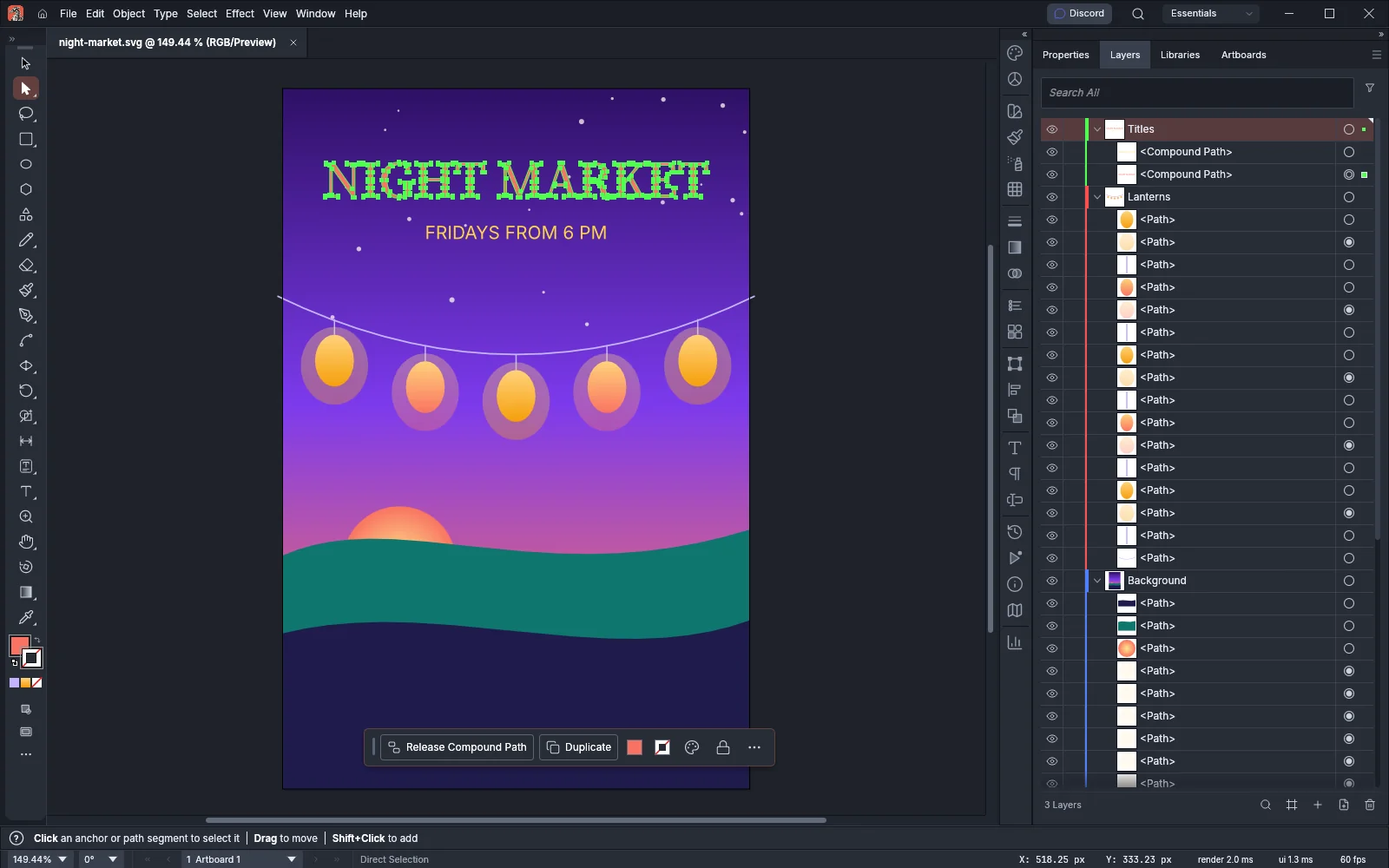
For example, this command writes the Night Market poster with its titles as outlines:
vectorcraft-cli convert festival-posters.vectorcraft night-market.svg --artboard 0 --outline-textWhen you open night-market.svg in VectorCraft, each title is a compound path instead of a type object, and the Direct Selection tool shows the anchor points of its letters.
Write a legacy .ai file
Section titled “Write a legacy .ai file”By default, a .ai output file is a PDF-compatible .ai file that carries the VectorCraft document. --ai-version 7 writes a legacy .ai file of version 7 instead, for apps that read only that older form. A version 7 file keeps layers, groups, compound paths, clipping groups, type, colors, gradients and images. Other appearance features are expanded into plain objects, and transparent objects are written opaque.
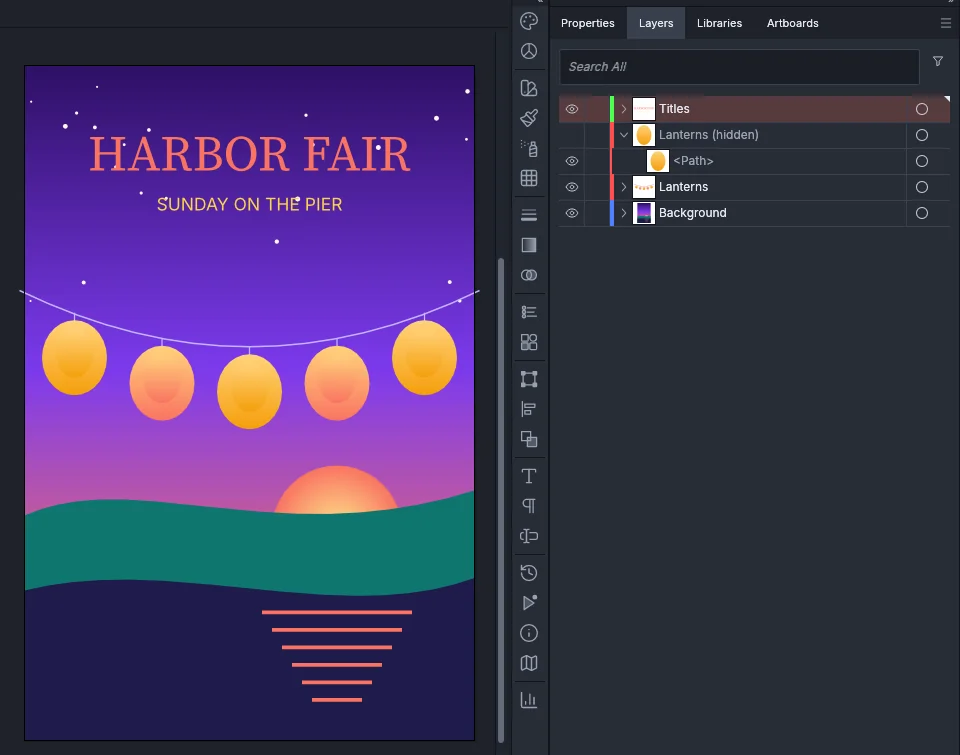
vectorcraft-cli convert festival-posters.vectorcraft harbor-fair.ai --range 3 --ai-version 7A version 7 file holds one artboard. Without --artboard or --range, VectorCraft writes one file for each artboard, named after the output file and the artboard. For example, vectorcraft-cli convert festival-posters.vectorcraft festival.ai --ai-version 7 writes festival-Night-Market.ai, festival-Lantern-Walk.ai and festival-Harbor-Fair.ai.
In the Harbor Fair file below, the lantern glows, the stars and the water lines are solid. They are partly transparent in the source document, so the version 7 file writes them opaque: each glow is now the larger solid oval around its lantern.
--ai-version takes pdf (the default) or 7. A .ait template cannot be version 7. These two options apply only with --ai-version 7:
| Option | Values | What it does |
|---|---|---|
--hidden-objects |
layer (default), omit, visible |
Version 7 files can hide layers but not objects. layer moves each layer’s hidden objects to a hidden layer just above it, named after the layer with (hidden) added. omit leaves hidden objects out. visible writes them as visible objects in their places. |
--transparent-images |
flatten (default), omit |
Version 7 images cannot be see-through. flatten turns each image with see-through pixels, opacity or a blending mode into an opaque image of itself and the art under it, and keeps that art as it was. omit leaves those images out. |
--outline-text works with version 7 files as it does with SVG: it writes type as outlines instead of text. Without it, an app that opens the version 7 file sets the text in the fonts the file names, so those fonts need to be installed.
To save a .ai file from the app with File → Save As…, see Open and save files.
Overwrite the source file
Section titled “Overwrite the source file”Some files open with parts left out. For example, VectorCraft might read a .ai file from its PDF part, which leaves out the art outside its artboards, or skip hidden text, art or layers that it cannot read in a .ai or EPS file. When the output file is the same file as the input and reading the input left something out, convert stops with an error that names what would be lost, and the original file is not changed.
To write over the original file anyway, add --replace-lossy:
vectorcraft-cli convert poster.ai poster.ai --replace-lossyRead the warnings
Section titled “Read the warnings”convert prints the result as one line of JSON. This is the result of the --ai-version 7 command in Write a legacy .ai file:
{"bytes":20704,"format":"ai","path":"harbor-fair.ai","warnings":["a legacy .ai (version 7) keeps layers, groups, compound paths, clipping groups, type, colours, gradients and images, not the rest: save as VectorCraft to keep everything editable","transparency (opacity, blending modes, opacity masks) is written opaque: legacy .ai files have none","hidden objects are moved to a hidden layer above their own (legacy .ai files can hide only layers)"]}| Field | What it holds |
|---|---|
path |
The file that was written, or the first one when there are several |
files |
Every file that was written, when the export wrote more than one |
bytes |
The size of the file in path, in bytes |
format |
The format that was written |
warnings |
What the output file could not keep, such as transparency that a format does not support |
importWarnings |
What reading the input left out or changed. The field appears only when there is something to report. |
Its warnings say what a version 7 file keeps, that transparency is written opaque, and that hidden objects moved to a hidden layer. The source document opened without notes, so the result has no importWarnings field. Check both lists before you replace or send the converted file. --preserve-editing, --editing-data and --legacy-name-encoding, which change how .ai, EPS and PDF files are read and written, are described in Automate VectorCraft.
Convert a folder of files
Section titled “Convert a folder of files”convert takes one file at a time. To convert a folder, run it in a loop in your shell.
In PowerShell on Windows, this loop writes a PDF for every .ai file in C:\Art\posters into C:\Art\pdf:
$cli = "$env:LOCALAPPDATA\Programs\ArtCraft\VectorCraft\vectorcraft-cli.exe"New-Item -ItemType Directory -Force C:\Art\pdf | Out-NullGet-ChildItem C:\Art\posters -Filter *.ai | ForEach-Object { & $cli convert $_.FullName (Join-Path C:\Art\pdf ($_.BaseName + '.pdf')) if ($LASTEXITCODE -ne 0) { Write-Warning "Failed: $($_.Name)" }}In a sh shell on macOS or Linux, this loop writes a PNG at twice the size for every .svg file in posters:
mkdir -p pngfor f in posters/*.svg; do vectorcraft-cli convert "$f" "png/$(basename "$f" .svg).png" --scale 2 || echo "failed: $f" >&2doneEach loop goes on to the next file when one fails and names the file that failed. To run recorded steps on each file instead of converting it, use Batch… in the Actions panel, or vectorcraft-cli run with a steps file, as described in Write command steps for vectorcraft-cli.
Check a file with info
Section titled “Check a file with info”vectorcraft-cli info FILE opens a file and prints a JSON summary of it without changing it:
vectorcraft-cli info festival-posters.vectorcraft| Field | What it holds |
|---|---|
file |
The file you gave |
warnings |
What did not come in as it was, for example an EPS file read from its preview, and why |
info |
The title, color mode, units, number of artboards, number of objects, and the file information such as author, description, keywords, and the created and modified dates |
artboards |
Each artboard’s name and its rectangle as [x, y, width, height] in points |
kinds |
The number of objects of each kind, such as Path, Ellipse, Type and Layer. Ruler guides are not counted. |
fonts |
Each font the document uses, whether it is missing, the font used in its place, and how many objects and text runs use it |
Run info before a conversion to check which artboard numbers to pick and whether any fonts are missing.
Measure how fast a file draws with bench
Section titled “Measure how fast a file draws with bench”vectorcraft-cli bench FILE draws a file and prints how many milliseconds each frame takes:
vectorcraft-cli bench festival-posters.vectorcraft --size 1920x1080 --iters 10| Option | Default | What it does |
|---|---|---|
--size WxH |
2880x1800 |
The size of the frame in pixels. bench centers the first artboard in the frame and scales it until its width or its height fills 95% of the frame. |
--iters N |
5 |
How many frames are drawn and averaged for each measurement |
bench measures the drawing twice, first with several threads and then with a single thread (threads 0), and prints a line for each. Before each measurement it draws one frame that is not timed.
festival-posters.vectorcraft: 142 nodes, 2880x1800 threads 8: 8.2 ms/frame (drawn 82, culled 59) threads 0: 11.3 ms/frame (drawn 82, culled 59)drawn counts the objects that were drawn and culled counts the objects that were skipped because they lie outside the frame. A file with no artboard stops with the error document has no artboard.