
Edit in isolation mode
This page shows how to isolate a group, a single object, a layer or a sublayer so that you can edit it while the rest of the artwork is dimmed and cannot be selected. It also covers drawing and pasting into the isolated art, the isolation bar, and the ways to leave isolation mode. For a short introduction, see Edit a group in isolation mode.
Isolate a group or an object
Section titled “Isolate a group or an object”- Choose the Selection tool (V).
- Double-click a group, or a single path, compound path, image, mesh or placed file. You can also right-click a single selected group and choose Isolate Selected Group.
- Edit the art. The selection is cleared when isolation mode starts, so click the object you want to change first.
When the Control bar is showing (Window → Control) and one object that can be isolated is selected, its Isolate Selected Object button isolates that object. The button also isolates a path inside a group that you selected with the Direct Selection tool (A).
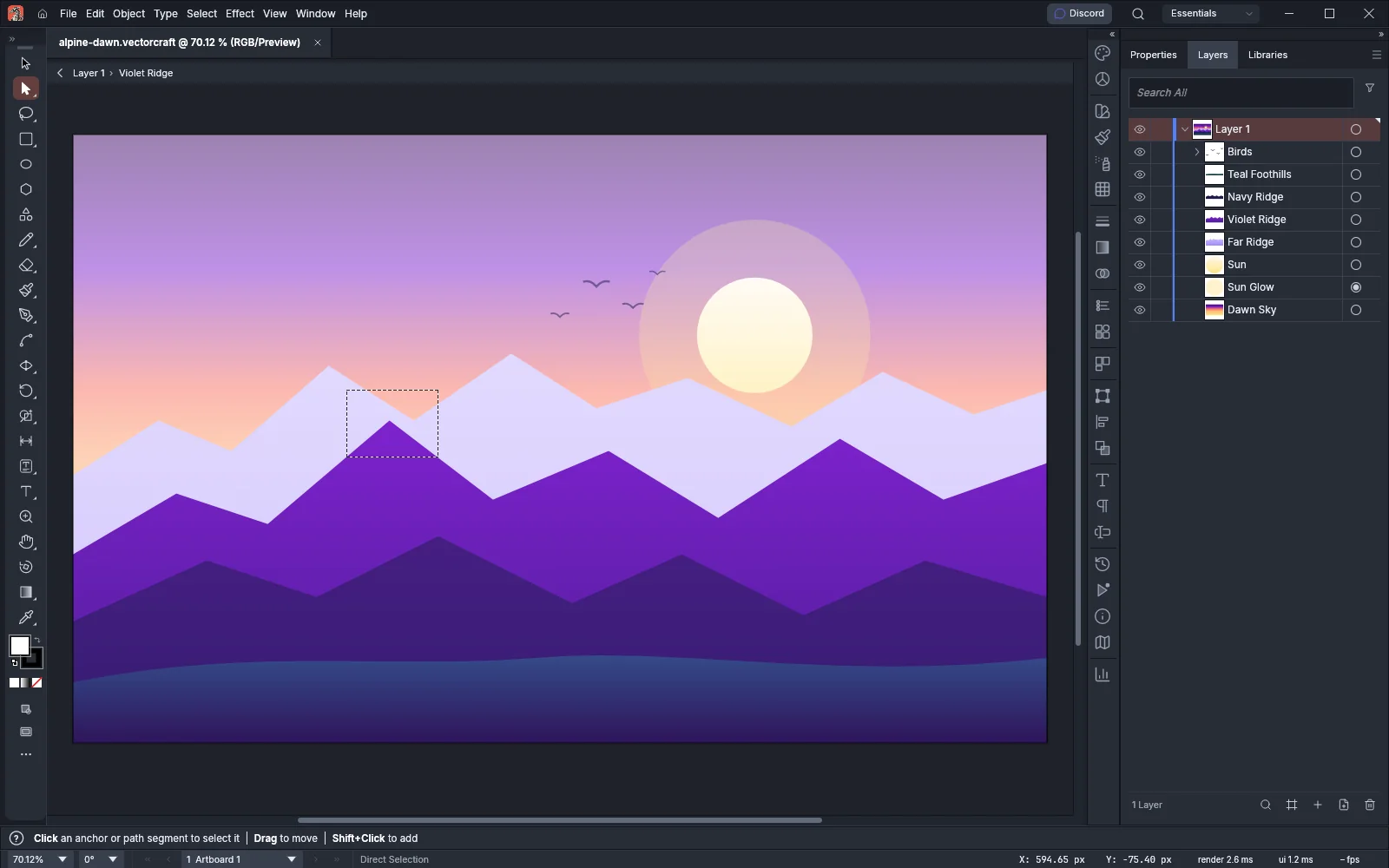
In the following image, the violet ridge, a single path, is isolated. The Direct Selection tool is dragging a marquee around the anchor point at the ridge’s tallest peak. The sky, the sun and the other ridges are dimmed.
A double-click opens some objects in their own editing modes instead:
| Object you double-click | What happens |
|---|---|
| Type | The Type tool starts, and you edit the text. |
| Symbol instance | The symbol opens in symbol editing mode. |
| Repeat | The repeat opens in isolation mode, and you edit its source art. |
| Blend or envelope | Nothing is isolated. |
Isolate a layer or sublayer
Section titled “Isolate a layer or sublayer”- Open the Layers panel with Window → Layers (F7).
- Click the row of the layer or sublayer to highlight it. When no row is highlighted, the command acts on the current layer.
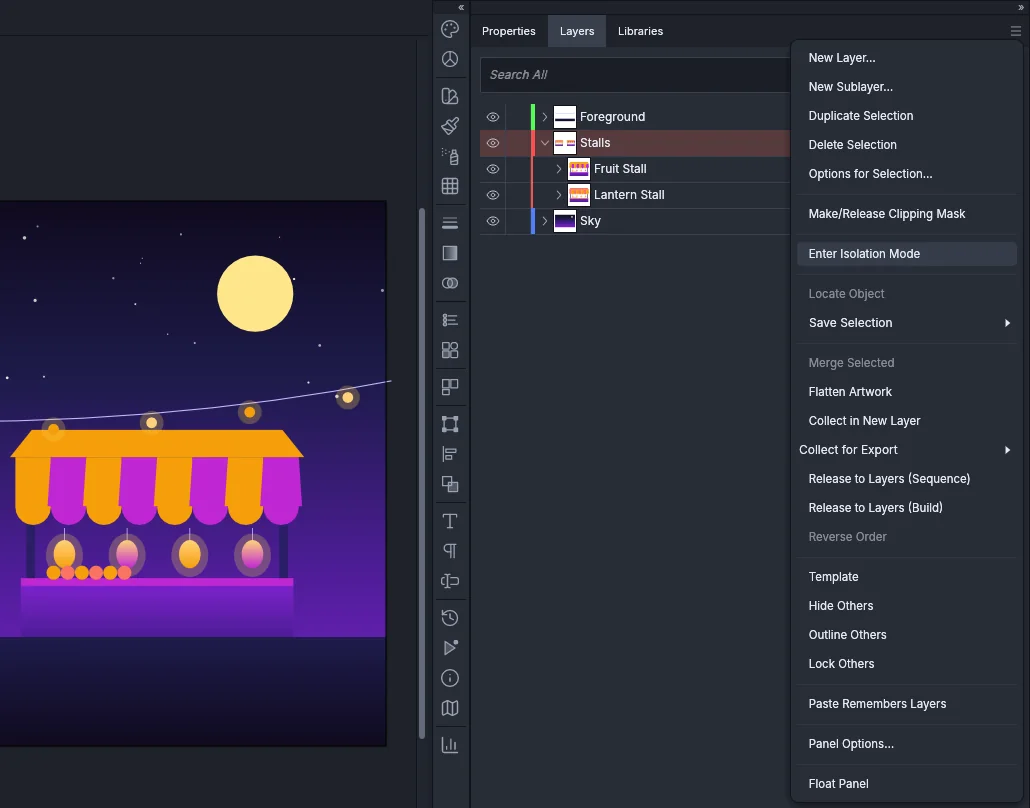
- Open the Layers panel menu and choose Enter Isolation Mode.
Enter Isolation Mode is available only when the highlighted row is one layer or one group. You can also isolate a group this way. To highlight several rows and reorganize them, see Move, copy and merge layers.
What you can isolate
Section titled “What you can isolate”You can isolate a layer, a sublayer, a group, a compound path, and a single path, image, mesh or placed file. VectorCraft does not isolate these:
- Type objects. A double-click on type edits the text.
- A hidden or locked object, and any object in a hidden or locked layer or group. Show or unlock it first.
- A guide path while View → Guides → Lock Guides (Ctrl+Alt+;, or Cmd+Option+; on macOS) is on.
- Any object while an opacity mask is being edited.
- While a symbol is being edited, any art outside the symbol’s art.
Draw and edit inside isolation mode
Section titled “Draw and edit inside isolation mode”While an object is isolated, VectorCraft draws the artwork around it dimmed. You can click and marquee only the art inside the isolated object.
- New art that you draw goes into the isolated group or layer. When a single object is isolated, new art goes into the group or layer that holds it.
- When a compound path is isolated, a new path that you draw becomes part of the compound path. Other new art goes into the layer or group that holds the compound path.
- Art that you paste stays in the isolated group, even when Paste Remembers Layers is on in the Layers panel menu.
- When a single path or compound path is isolated, you can draw inside it. Select it and press Shift+D until Draw Inside is on, then draw or paste. VectorCraft then isolates the new clip group that holds the path and the new art, so the new art stays undimmed and you can keep editing it.
- Object → Lock → Selection, Object → Hide → Selection, All Artwork Above and Unselected Artwork act only on art inside the isolated object. Object → Unlock All and Object → Show All unlock and show only the art inside it. Object → Lock → Other Layers and Object → Hide → Other Layers do not change anything.
- To make or edit an opacity mask, leave isolation mode first.
- If an undo or redo removes the isolated object, isolation mode ends.
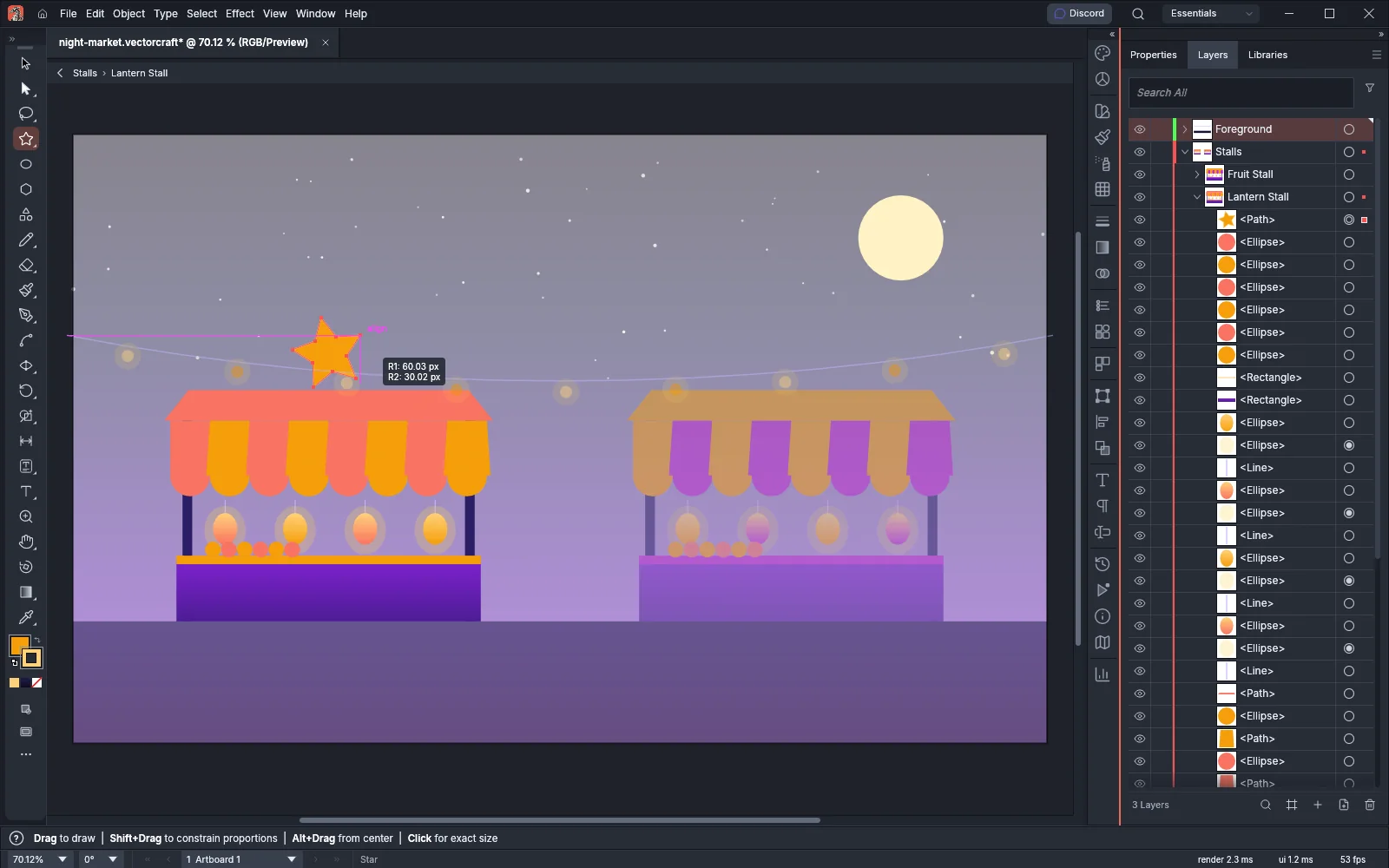
In the following image, the Lantern Stall group is isolated, and the Star tool is drawing a new star above its awning. The star goes into the group and is not dimmed.
Move between levels with the isolation bar
Section titled “Move between levels with the isolation bar”While an object is isolated, a bar across the top of the canvas lists the layer, each group that holds the isolated object, and the isolated object’s own name, with › between them.
- To isolate a group that holds the current object, click that group’s name in the bar.
- To go up one level, click the ‹ button at the left end of the bar. When the isolated object sits directly in a layer, the button leaves isolation mode.
- To leave isolation mode, click the layer’s name in the bar.
In pattern editing mode, the bar shows the pattern’s name with Save a Copy, Done and Cancel, and the ‹ button acts as Done.
Leave isolation mode
Section titled “Leave isolation mode”Use any of these:
- Press Esc. When you are editing type inside the isolated art, the first Esc ends the text edit and the second leaves isolation mode.
- Double-click an empty area of the canvas with the Selection tool or the Direct Selection tool.
- Click the layer’s name or the ‹ button in the isolation bar.
- Click Exit Isolation Mode on the Control bar.
- Right-click and choose Exit Isolation Mode.
- In the Layers panel menu, choose Exit Isolation Mode.
After you leave, the object that was isolated is selected. VectorCraft does not select it when it is a guide path and Lock Guides is on, or when it is on a locked artboard. When you leave a group that you isolated inside a symbol’s art, VectorCraft stays in symbol editing mode and selects that group.
Turn off double-click isolation
Section titled “Turn off double-click isolation”The Double Click To Isolate setting turns the double-click on and off. It is on by default.
- Choose Edit → Preferences… → General on Windows and Linux, or VectorCraft → Settings → General… on macOS.
- Clear Double Click To Isolate.
With the setting off, a double-click with the Selection tool does not isolate anything. The right-click menu, the Control bar and the Layers panel menu still isolate objects. For the other General settings, see Preferences.
Related editing modes
Section titled “Related editing modes”Three other modes isolate their own art the same way. Leaving isolation mode while one of them is on also leaves that mode, except when a group inside a symbol’s art is isolated (see Leave isolation mode).
| Mode | How to start it | How to leave it |
|---|---|---|
| Symbol editing | Double-click a symbol instance with the Selection tool | Exit Symbol Editing Mode on the Control bar |
| Pattern editing | Object → Pattern → Edit Pattern (Ctrl+Shift+F8, or Cmd+Shift+F8 on macOS) | Done in the isolation bar, or Esc |
| Opacity mask editing | Click the mask thumbnail in the Transparency panel | Click the art thumbnail |
For details, see Edit a symbol, Edit a pattern later and Fade art with an opacity mask.