Getting started
1. Install WordCraft
Section titled “1. Install WordCraft”The quickest way is ArtCraft Launcher: install it, then press Install on WordCraft’s card. To download WordCraft on its own, see Install and update.
2. Open WordCraft
Section titled “2. Open WordCraft”WordCraft opens on the File tab’s start page. From here you can start a blank document, pick a template (Studio handbook, Letter, Résumé or Report), or open a recent document.
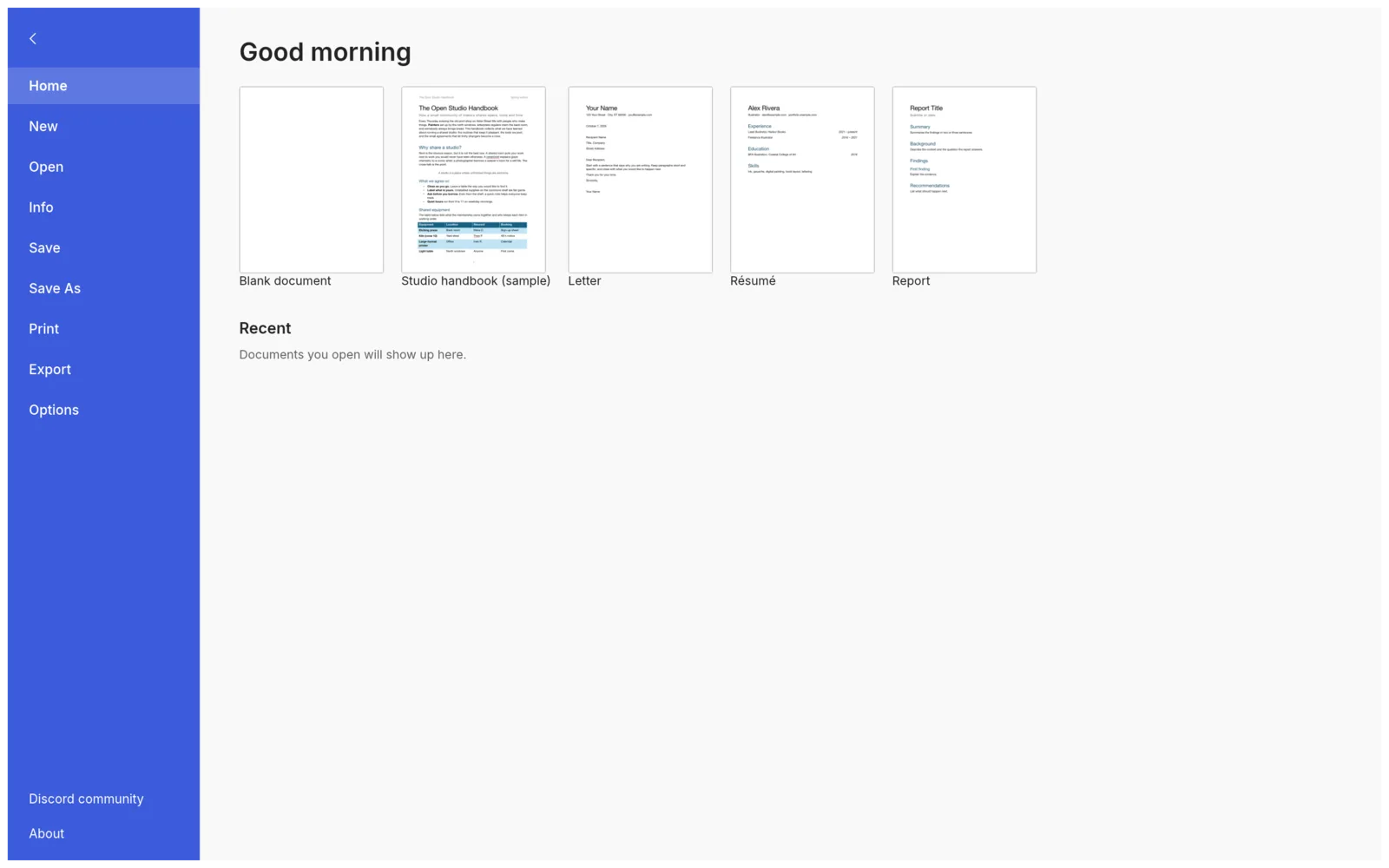
More templates → opens File › New, with a search box for templates. Your own templates are listed there under Personal. WordCraft shows the .dotx and .dotm files from your User templates folder, which you set in File › Options › Advanced. To add one, choose File › Save As › Save as Word Template…, which saves a .dotx into that folder.
To look around before writing anything, open the Studio handbook template. It is a sample document that uses headings, lists, tables and a table of contents.
3. Write
Section titled “3. Write”Choose Blank document and start typing. A few things that work as you would expect:
- Type
*or1.at the start of a line to begin a list. Enter continues it, Tab indents it. - Ctrl+B (⌘B on a Mac) bolds the word the cursor is in, with no need to select it first.
- Quotes and dashes turn into typographic ones as you type.
4. Use styles for headings
Section titled “4. Use styles for headings”Click in a line, then choose Heading 1 in the Styles gallery on the Home tab. The gallery previews each style when you point at it.
Headings do more than change the look. They appear in the Navigation pane (on the View tab) for jumping around the document, and a table of contents is built from them.
5. Save
Section titled “5. Save”Press Ctrl+S (⌘S on a Mac). WordCraft saves as .docx by default, so others can open your document in most word processors. To pick another format, choose File › Save As.
WordCraft keeps a copy of unsaved work in the background. If it closes unexpectedly, see Document recovery.
6. Share as a PDF
Section titled “6. Share as a PDF”Choose File › Export and pick PDF. The PDF keeps selectable text, links, and bookmarks for your headings.
Next steps
Section titled “Next steps”- Workflows: tables, references, review, mail merge and page layout.
- Languages and spelling: check spelling in a language other than English.
- Troubleshooting: if the window doesn’t open or something looks wrong.