
Choose fonts
This guide shows how to pick a font family and style for your type from the font menu, narrow the list with search and filters, keep favorite and recent fonts at hand, and set the axes of a variable font.
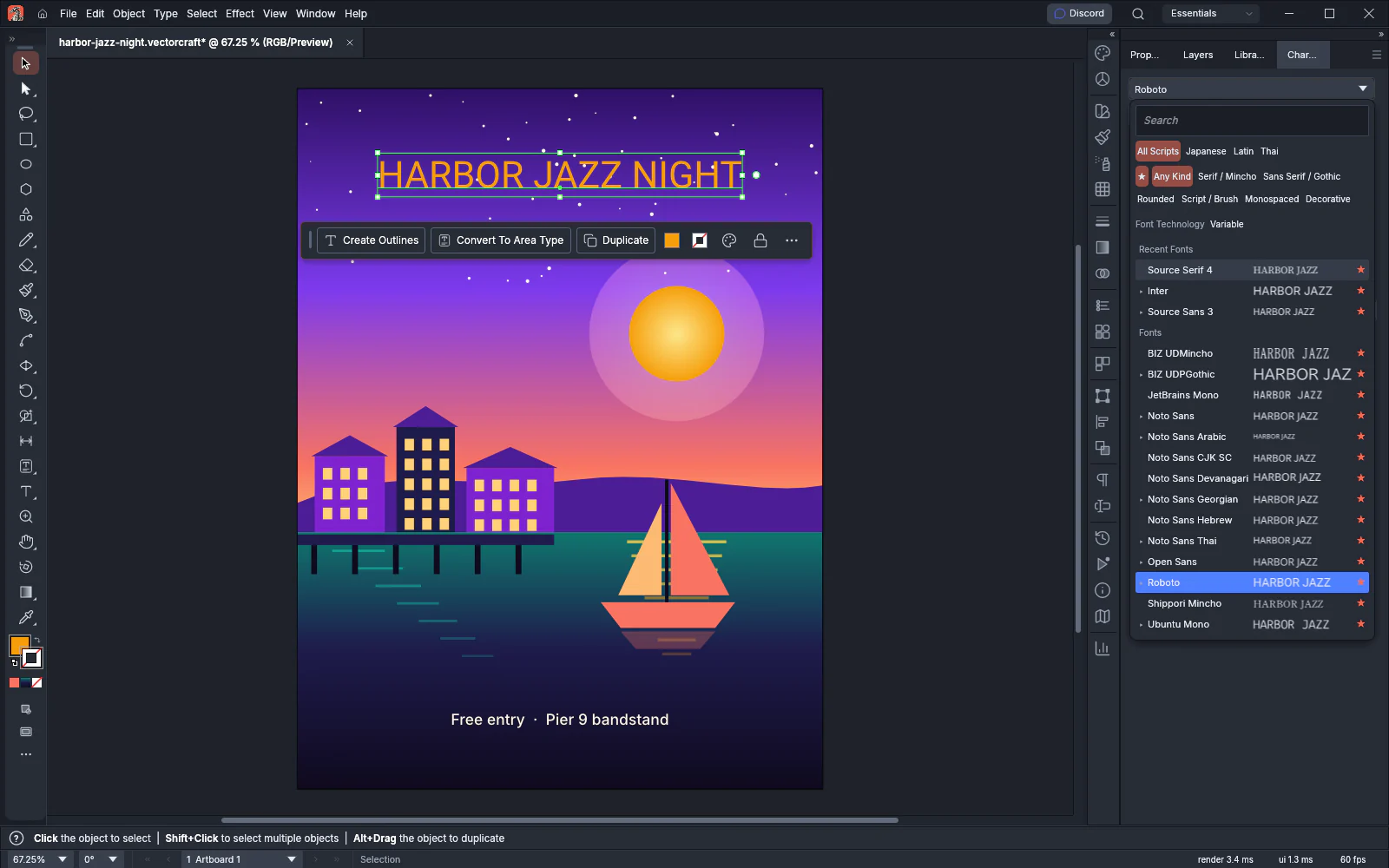
Pick a font from the font menu
Section titled “Pick a font from the font menu”The font menu is the family field at the top of the Character panel. The same menu is in the Character section of the Properties panel when a text object is selected, and on the Control bar while type is selected or edited.
- Select one or more type objects with the Selection tool. To change only some characters, select them with the Type tool instead. While you edit text with the Type tool and nothing is selected, the menu changes the whole text object.
- Open the Character panel with Window → Type → Character (Ctrl+T, or Cmd+T on macOS).
- Click the font family field. The menu opens with the current family highlighted. Each row shows the family’s name and a sample of your text: the selected characters, or the first line of the selected text object, up to 12 characters. A row shows the word “Sample” when the font does not have your characters.
- Move the pointer over the rows. The type on the canvas shows each font as you point at it. You can also press Up and Down to move through the list. Pointing at the current family again shows the type in its own font.
- Click a row, or press Enter, to apply the font. The change is one undo step. To close the menu and keep the font the type had, press Escape or click outside the menu.
A preview is not added to the undo history. In the font menus of the Glyphs panel and Type → Find Font…, the font you point at is not previewed on the document.
You can also choose a family from Type → Font, which lists every available family. While Enable in-menu font previews is on, each item shows a sample of the font after its name. Type → Size sets the selected type to 6, 8, 9, 10, 11, 12, 14, 18, 24, 30, 36, 48, 60 or 72 pt. The other size and spacing fields are described in Set the font, size and spacing.
Search and filter the list
Section titled “Search and filter the list”The search field has the keyboard focus when the menu opens. The list shows the families whose name contains the text you type, in any letter case. Each time the menu opens, the search field is empty. The filters stay as you last set them.
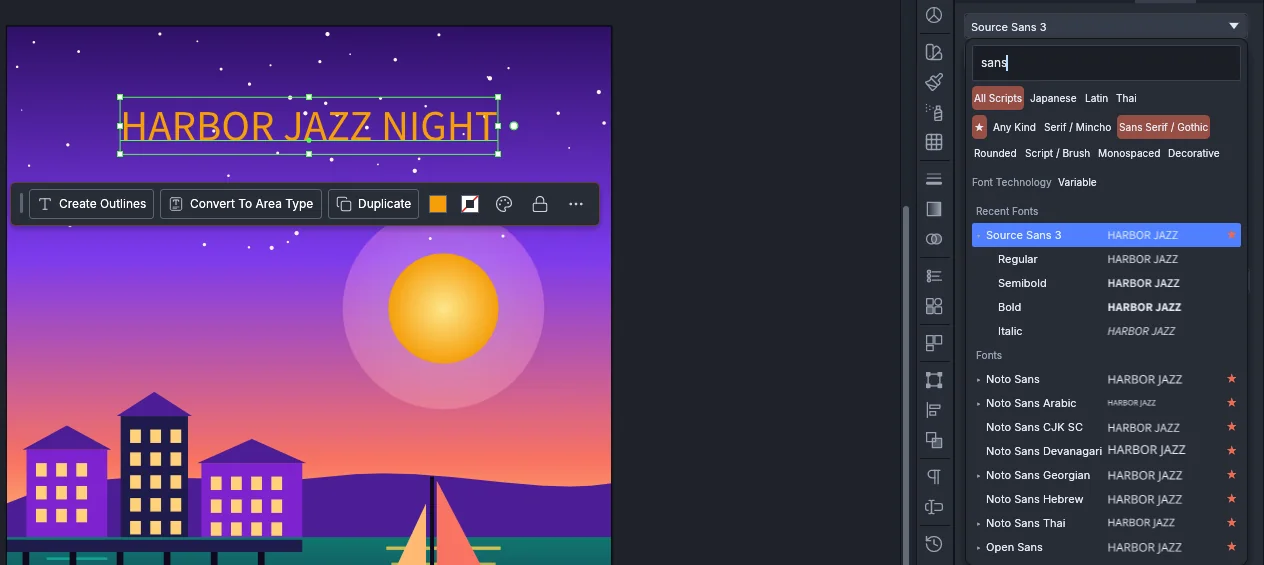
The rows under the search field hold the filters:
| Filter | Choices | What it lists |
|---|---|---|
| Script | All Scripts, Japanese, Latin, Thai | Families for that script. Latin lists the families that are neither Japanese nor Thai |
| Favorites | ★ | Only the families you starred |
| Kind | Any Kind, Serif / Mincho, Sans Serif / Gothic, Rounded, Script / Brush, Monospaced, Decorative | Families of that kind. Click a selected kind again, or click Any Kind, to list every kind |
| Font Technology | Variable | Only variable fonts. Click it again to turn it off |
When nothing matches the search and the filters, the menu shows “No matching fonts”.
Star your favorite fonts
Section titled “Star your favorite fonts”- Open the font menu and point at a family. A hollow star appears at the right end of its row.
- Click the star. It fills in, and the family is now a favorite.
- To list only your favorites, click ★ at the start of the second filter row.
Click a filled star to take the family out of your favorites. You can also star families in the font menus of the Glyphs panel and of Type → Find Font…. VectorCraft keeps your favorites from one session to the next.
Choose a style
Section titled “Choose a style”Use either of these ways to choose a weight or style of the family:
- Pick it in the style field. In the panels it sits under the font family field, and on the Control bar it sits to the right of it. The list holds every style the family has.
- In the font menu, click the triangle at the left of a family’s row to list its styles, then click a style. With the keyboard, press Right to open the highlighted family’s styles and Left to close them. Only families with more than one style have a triangle.
When you choose a family without a style, the text keeps its current style if the new family has it. Otherwise it takes the closest style the family has.
Type → Bold and Type → Italic switch the selected text to the Bold or Italic face of its family, as described in Set the font, size and spacing.
Step through fonts with the mouse wheel
Section titled “Step through fonts with the mouse wheel”In the Character panel, the Properties panel and the Control bar, you can try one family after another without opening the menu:
- Select the type.
- Move the pointer onto the closed font family field.
- Turn the mouse wheel. Each notch applies the next or previous family to the selected type as its own undo step.
The wheel follows the menu’s order with no search: your recent families first, then the rest, under the filters you set. That order stays fixed until the pointer leaves the field or the selection changes. The steps stop at the first and the last family. The field responds to the wheel only when you have moved the pointer onto it and start turning the wheel there. Turning the wheel while a panel scrolls past the field does not change the font.
Use recent fonts
Section titled “Use recent fonts”Each family you apply becomes your most recent font. Applying a family from the font menu, from Type → Font, with the mouse wheel or by replacing a font in Type → Find Font… counts. Pointing at a family to preview it does not.
- The font menu lists your recent families first, under the heading Recent Fonts, and the other families under Fonts. The menu opens scrolled to the recent families. The search and the filters apply to them too.
- Type → Recent Fonts lists the same families by name. Choose one to apply it to the selected type.
Number of Recent Fonts in Preferences sets how many recent families both lists show, from 1 to 15. The default is 10. VectorCraft keeps the list from one session to the next.
Adjust a variable font
Section titled “Adjust a variable font”A variable font holds a range of designs along one or more axes, such as weight or width. When the selected text uses a variable font, the Character panel and the Character section of the Properties panel show a Variable Font button under the style field. To list only variable fonts in the font menu, click Variable next to Font Technology.
- Select the type set in a variable font.
- Click Variable Font. A slider and a number field appear for each axis, with the axis names the font gives them.
- Drag a slider, or type a value in its field. A typed value is limited to the axis’s range. The type on the canvas updates as you drag, and each drag is one undo step.
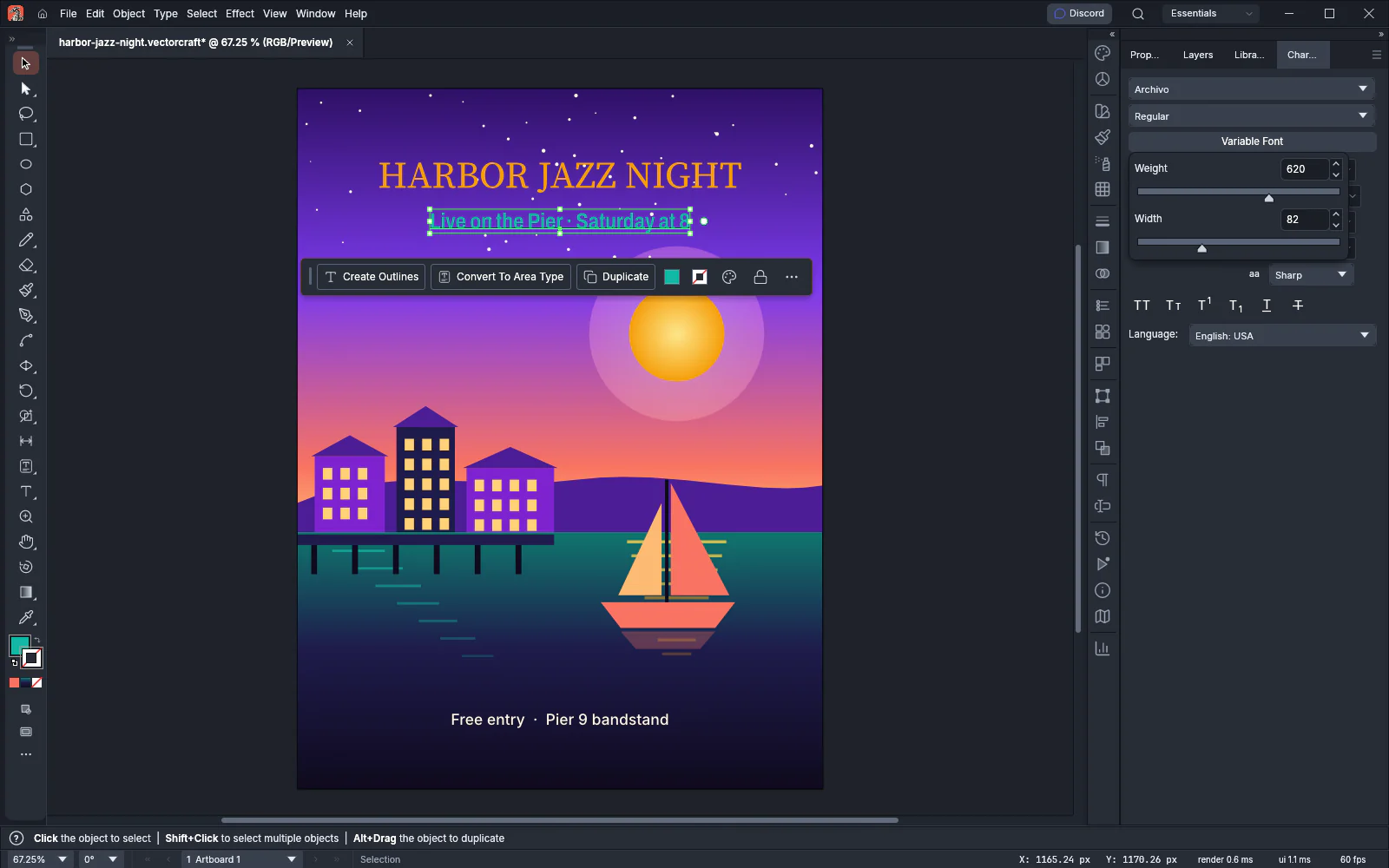
A blank field means the selected characters have different values for that axis. Axes that the font marks as hidden are not shown.
Add fonts while VectorCraft is open
Section titled “Add fonts while VectorCraft is open”VectorCraft lists fonts you install while it runs, and removes fonts you uninstall from its font lists. It checks the system’s fonts every 2 seconds and each time its window becomes active again, and updates the font lists when they changed. Type set in a font that becomes available redraws in it. Type set in a family that was removed redraws in the fallback font.
To check right away, open the Character panel menu and choose Refresh Font List. The status bar then shows how many font families are available.
To use fonts from a folder without installing them, set Additional Fonts Folder on the Type page of Preferences. VectorCraft lists and uses the fonts in that folder and its subfolders as if they were installed. To add the fonts a document needs, see Add or replace missing fonts.
Change how the font menu looks
Section titled “Change how the font menu looks”Four settings on the Type page of Preferences change the font menus. Open Preferences with Edit → Preferences… (Ctrl+K) on Windows and Linux, or VectorCraft → Settings → General… (Cmd+K) on macOS, then choose the Type page.
| Setting | Default | What it does |
|---|---|---|
| Enable in-menu font previews | On | Shows a sample of each font in the font menu and in Type → Font. Turn it off to list names only |
| Font Preview Size | Medium | Sets the height of the font menu’s rows: Small, Medium or Large |
| Number of Recent Fonts | 10 | Sets how many recent families the font menu and Type → Recent Fonts show, from 1 to 15 |
| Show Font Names in English | On | When off, the font menu and Type → Font show each family by its name in its own language, where the font has one. Style names stay as they are, and the search matches either name |
Preferences lists every setting on the Type page.