Workflows
GridCraft’s ribbon groups its tools into tabs: Home, Insert, Draw, Page Layout, Formulas, Data, Review, View and Automate. More tabs, such as Table Design and Chart Design, appear when you select a table or a chart. If you can’t find a command, click the search icon at the top right of the window, or choose Automate › Command Palette, and type its name.
Write formulas
Section titled “Write formulas”A formula starts with =. While you type one, click or drag across cells to add their references.
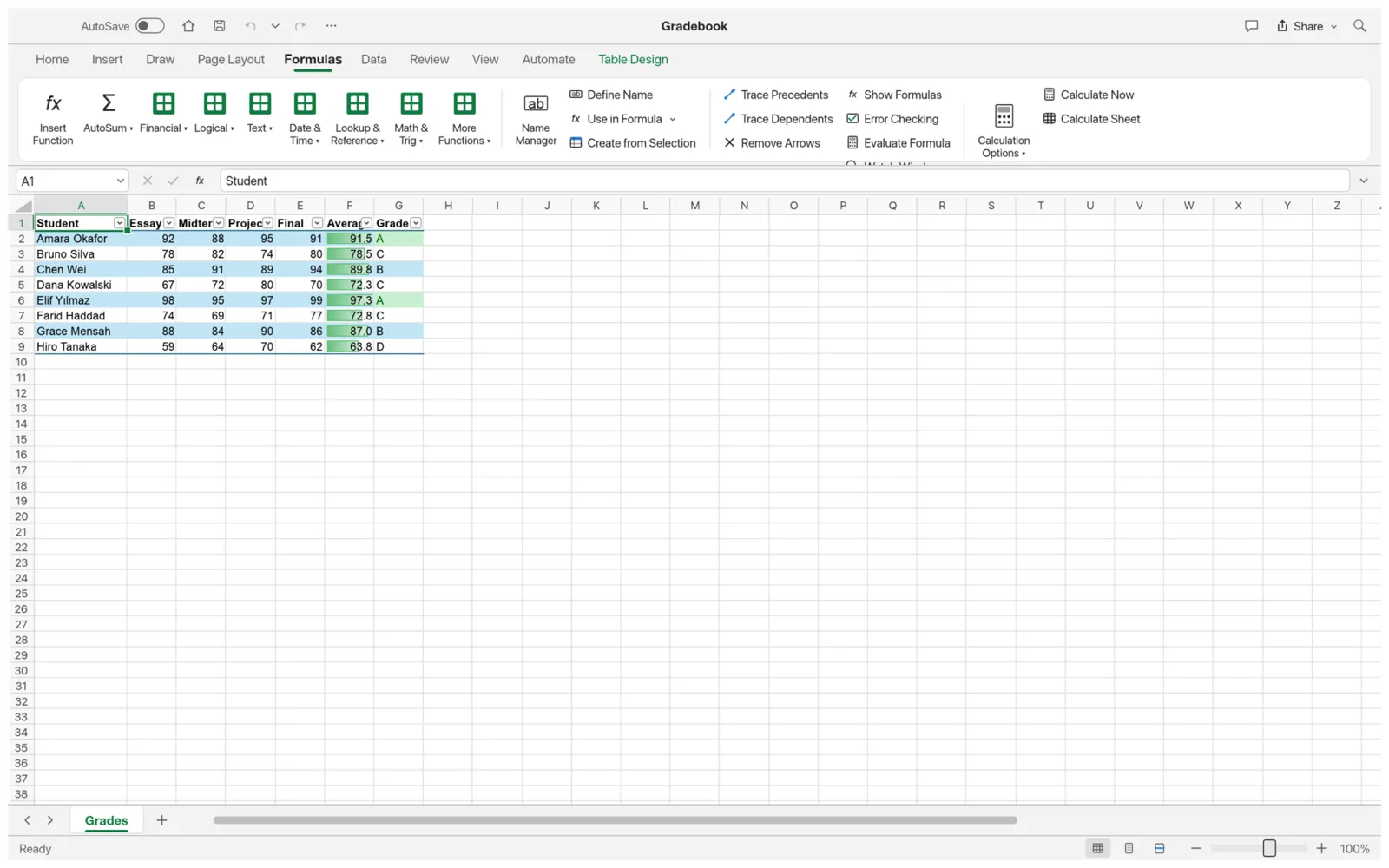
On the Formulas tab:
- Insert Function helps you find a function and fill in its arguments. The function library buttons next to it list functions by category.
- AutoSum adds a total of the cells next to the selection.
- Name Manager and Define Name give a cell or range a name you can use in formulas.
- Trace Precedents and Trace Dependents draw arrows to the cells a formula uses, or that use it. Evaluate Formula steps through a formula one part at a time.
- Show Formulas shows formulas in the cells instead of their results.
- Calculation Options switches between automatic and manual calculation. Calculate Now (F9) recalculates.
Dynamic-array formulas, such as =SORT(A2:A20) or =UNIQUE(B2:B50), spill their results into the cells below and to the right.
Regional formats
Section titled “Regional formats”In every language but Spanish, you type formulas the English way: a comma between arguments and a period as the decimal point, as in =ROUND(A1*0.29,2). A formula such as =A1*0,29 shows an error.
GridCraft doesn’t follow your system’s number and date settings yet, and has no setting to pick a comma for decimals or a period for thousands. Numbers such as 12,34 are stored as text, and a format like 1.000,00 isn’t available (#3461, #3447, #3384, #3148).
Format cells
Section titled “Format cells”On the Home tab:
- Font, fill color, borders, alignment, Wrap Text and Merge & Center.
- Number formats, such as currency, percentage and dates. Ctrl+1 opens Format Cells for every option.
- Cell Styles applies a ready-made look, such as a heading or a total.
- Conditional Formatting colors cells by their values: Highlight Cells Rules, Top/Bottom Rules, Data Bars, Color Scales and Icon Sets. Manage Rules… lists and edits them.
- Format Painter copies formatting from one place to another.
Work with tables
Section titled “Work with tables”Select your data and choose Home › Format as Table, Insert › Table, or press Ctrl+T. A table has banded rows and filter buttons on its header row. On the Table Design tab you can turn the Total Row, Header Row and Banded Rows on or off, and pick another style.
In a formula, you can refer to a table’s columns by name, for example =SUM(Sales[Q1]).
Sort, filter and clean up data
Section titled “Sort, filter and clean up data”On the Data tab:
- Sort and Filter. Ctrl+Shift+L turns filter buttons on or off.
- Text to Columns splits one column into several. Flash Fill (Ctrl+E) fills a column by following an example you type.
- Remove Duplicates and Data Validation, which limits what can be typed in a cell, for example to a list.
- Advanced filters a list with a Criteria range you write on the sheet. You can filter in place, or choose Copy to another place, and select Unique rows only.
- Group, Ungroup and Subtotal to outline and summarize rows.
- What-If Analysis, Forecast Sheet and Solver for working out numbers.
- Get Data (Text/CSV) brings in data from a text file.
Data Analysis
Section titled “Data Analysis”Data › Data Analysis has statistics tools that write a report into a new sheet, or to a cell you choose. Pick a tool, such as Descriptive Statistics, Histogram, Regression, Correlation, Moving Average, Sampling, Random Number Generation or a t-Test, then fill in its form. Select your data first and it’s filled in as the Input Range. If the cells for the report already hold data, GridCraft asks before it replaces them. The report holds fixed values, so it doesn’t change when your data does. Run the tool again to refresh it.
Add charts and sparklines
Section titled “Add charts and sparklines”Select your data, then on the Insert tab choose Recommended Charts, or one of the chart buttons next to it. Sparklines draws a tiny chart inside a cell.
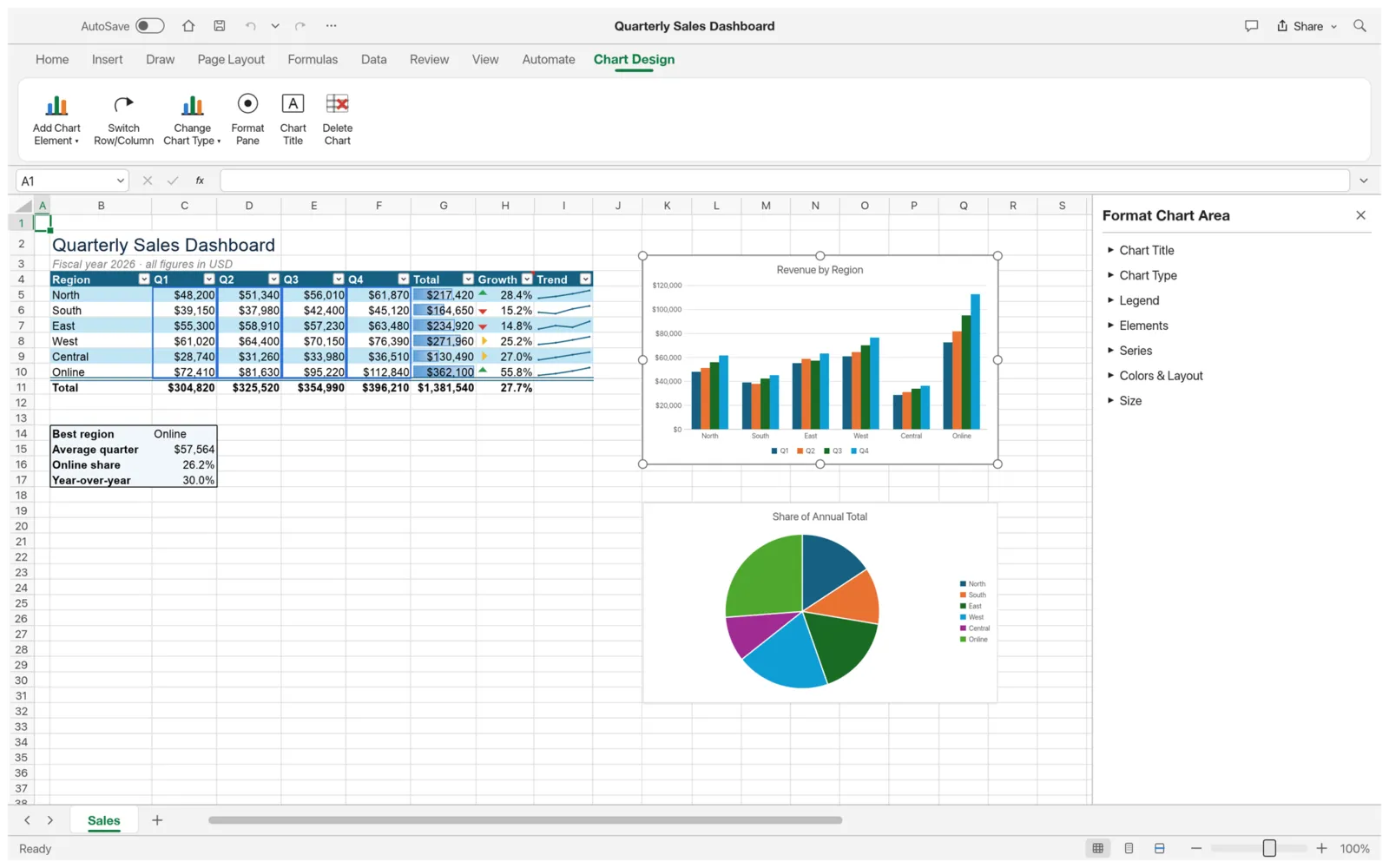
When you select a chart, GridCraft outlines its source data on the sheet and opens the Chart Design tab. From there you can add chart elements, switch rows and columns, change the chart type, or open the Format Pane to change the title, legend, series and colors.
Summarize with a pivot table
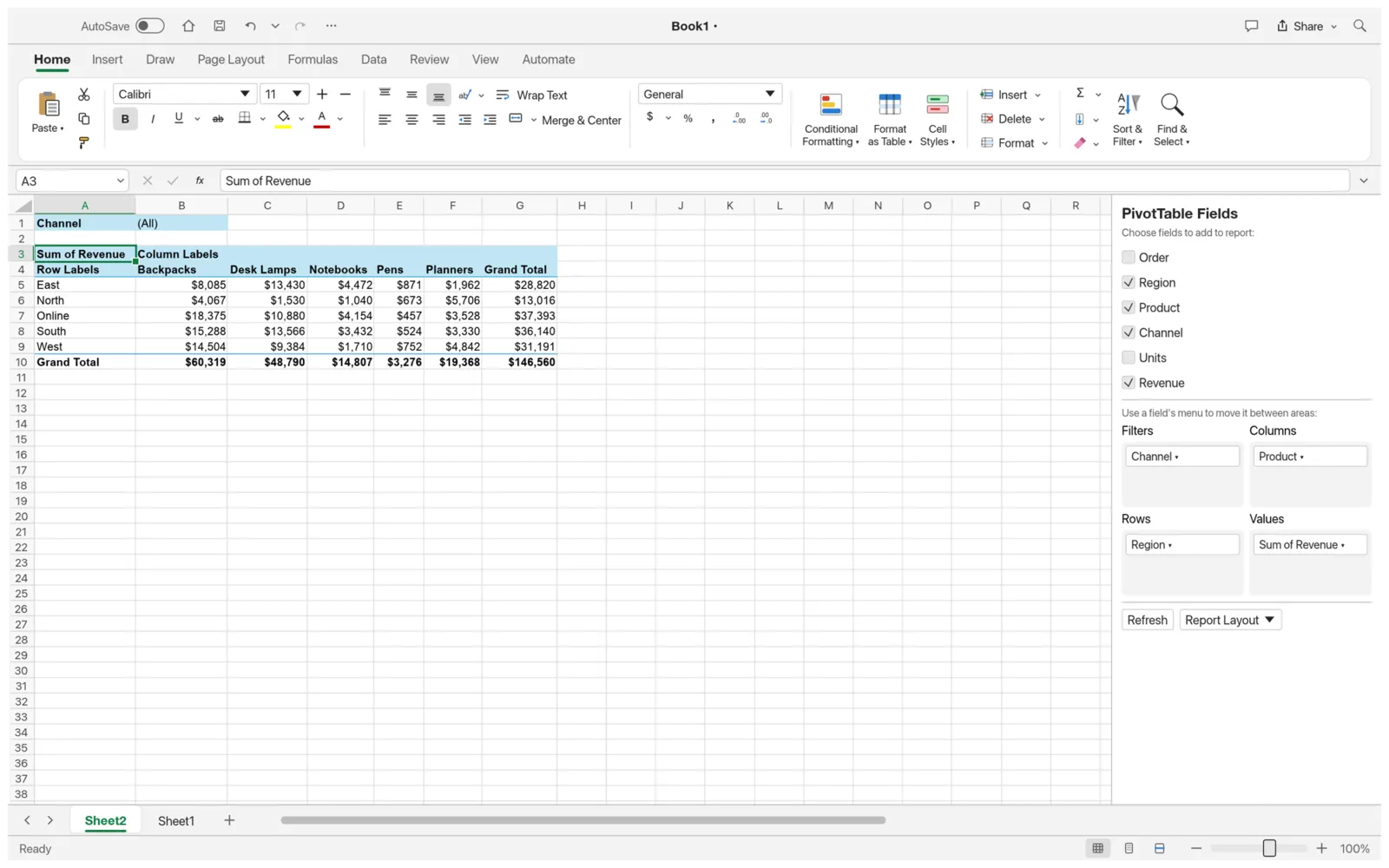
Section titled “Summarize with a pivot table”Click in a table or range, then choose Insert › PivotTable. In the PivotTable Fields pane, select the fields you want and move them between Filters, Columns, Rows and Values. Press Refresh after the source data changes. Report Layout changes how the table is laid out.
Add pictures, shapes and comments
Section titled “Add pictures, shapes and comments”On the Insert tab:
- Pictures › Place over Cells floats a PNG or JPEG over the sheet. Place in Cell puts it inside the active cell, where it stays with the cell when you sort, filter or resize rows and columns.
- Shapes, Icons, Text Box and Symbol.
- Link adds a hyperlink (Ctrl+K).
- Comment starts a comment thread on a cell.
On the Review tab you can add notes, go through comments, check spelling (F7), run the accessibility checker, and protect a sheet or the workbook’s structure with an optional password. Allow Edit Ranges lists ranges that stay editable when a sheet is protected, each with its own optional password. Workbook Statistics shows figures about the workbook.
Draw with ink
Section titled “Draw with ink”The Draw tab is for freehand marks on a sheet. Choose Pen Blue, Pen Black, Pen Red or Highlighter, and draw. Eraser removes ink strokes. Select Objects selects and moves ink and shapes. Ink to Shape turns your last stroke into a shape.
Slicers, checkboxes and equations
Section titled “Slicers, checkboxes and equations”On the Insert tab:
- Slicer adds buttons that filter a table.
- Checkbox puts a checkbox in each selected cell.
- Button, Slider and Spin Button draw a form control on the sheet. A slider and a spin button set a whole number in a cell you link. A new button asks what it should run: a macro or a command.
- Equation opens an equation editor, and its arrow lists ready-made equations.
- Header & Footer switches to the page layout view, where you type the header and footer in place.
Print and export
Section titled “Print and export”On the Page Layout tab, set Margins, orientation, paper Size, the Print Area, page Breaks and Print Titles (rows or columns that repeat on every page).
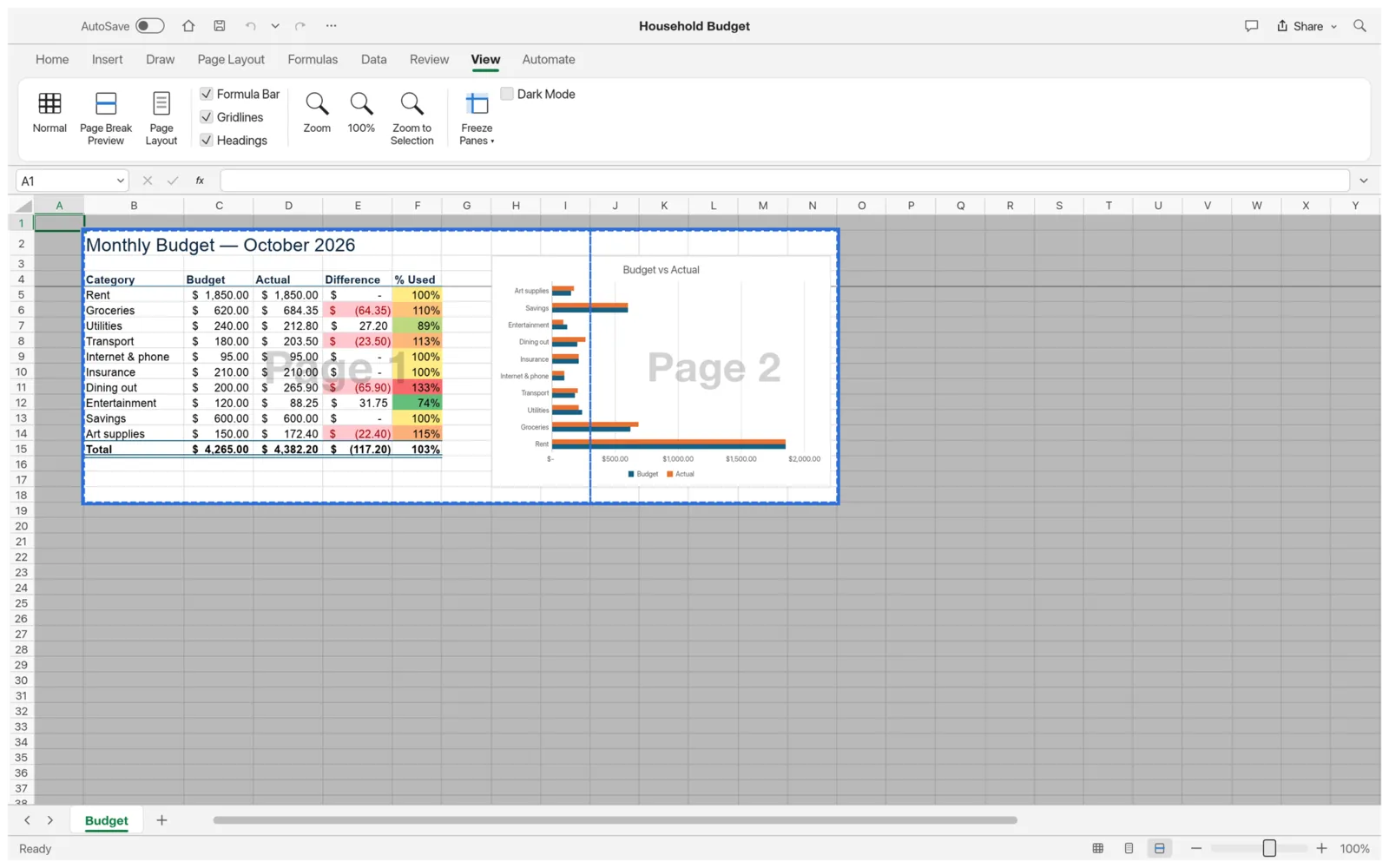
View › Page Break Preview shows where each page starts and ends.
- Choose File › Print (Ctrl+P).
- Pick your printer under Printer. If you’ve only now plugged it in, choose Refresh printers.
- Set Copies, Two-sided printing and Grayscale if you need them.
- Choose Print Active Sheets or Print Entire Workbook.
- To squeeze each sheet onto one page, select Fit Sheet on One Page.
- Check the preview, then choose Print.
Print stays dimmed until a printer is selected. The preview is simplified, so small details such as borders can look a little different on paper.
Page Setup… on the print screen sets the margins and the Page order. Orientation, paper Size, Print Area and printed Gridlines and Headings are on the Page Layout tab, and header and footer text is in Insert › Header & Footer.
You can’t print a page range or only the selection yet. See Printing doesn’t work as I expect.
Export
Section titled “Export”File › Export › Create PDF saves the active sheet as a PDF with its page layout. File › Export also saves the active sheet as CSV, or the workbook as a web page. These are copies: your workbook stays an .xlsx file.
Record and run macros
Section titled “Record and run macros”A macro records a sequence of steps and plays them back, so you can repeat a task in one go. On the Automate tab:
- Select the cells to work on, then choose Record Macro. Give the macro a name and, if you like, a Ctrl+Shift shortcut letter.
- Do the steps you want to repeat.
- Choose Stop Recording.
With Use Relative References on (the default), the macro works on whatever cells you select when you run it, not only the cells you recorded it on.
Run Macro runs the last macro you used, and its menu lists them all. Macros opens a list where you can run, edit, step through or delete each one. New Macro lets you write one step by step.
A macro runs as a single step, so one Ctrl+Z undoes all of it. If a step fails, GridCraft puts the workbook back as it was. Before a macro writes over cells that already hold data, it asks whether to overwrite them or shift them down or right.
To run a macro from the sheet, draw a Button on the Insert tab and choose the macro when it asks what to run.
Change how GridCraft looks
Section titled “Change how GridCraft looks”On the View tab:
- Normal, Page Break Preview and Page Layout views.
- Show or hide the Formula Bar, Gridlines and Headings.
- Zoom, 100% and Zoom to Selection.
- Freeze Panes keeps header rows or columns in view as you scroll.
- New Window and Arrange All to see two parts of a workbook at once.
- Display theme: System, Light or Dark.
- Interface size makes the whole window bigger or smaller.
- Interface language. By default, GridCraft follows your system’s language.
More settings are in File › Options. See The File view.
The File view
Section titled “The File view”File opens a full-screen view with these pages:
| Page | What it does |
|---|---|
| Home, New, Open | Start a workbook, or open one from your recent list |
| Info | Shows the title, path and number of sheets, and lets you edit Title, Subject, Author, Company, Keywords and Description. Protect Workbook is here too |
| Save As | Saves as Excel Workbook (*.xlsx), CSV UTF-8 (Comma delimited) (*.csv), Web Page (*.html) or PDF (*.pdf) |
| Print, Export | See Print and export |
| Options | Settings, listed below |
| Account | Version and platform, and About GridCraft |
Options has:
- Show formula bar, and Highlight the active cell’s row.
- Enable AutoComplete for cell values.
- Save .xlsx workbooks automatically after every change (AutoSave).
- For this workbook only: Show horizontal scroll bar, Show vertical scroll bar and Show sheet tabs.
- Display theme and Interface language.
- Workbook calculation: Automatic, Automatic Except for Data Tables or Manual. Enable iterative calculation lets a formula refer to itself, with a Maximum Iterations and Maximum Change you set. The calculation settings are saved with the workbook.
Keyboard shortcuts
Section titled “Keyboard shortcuts”GridCraft uses the shortcuts you’d expect from a spreadsheet app. On a Mac, use ⌘ in place of Ctrl for most of them.
| Shortcut | What it does |
|---|---|
| Ctrl+N, Ctrl+O, Ctrl+S | New, open, save |
| Ctrl+Shift+S or F12 | Save As |
| Ctrl+B, Ctrl+I, Ctrl+U | Bold, italic, underline |
| Ctrl+Z | Undo |
| Ctrl+Y or Ctrl+Shift+Z | Redo |
| Ctrl+C, Ctrl+X, Ctrl+V | Copy, cut, paste |
| Ctrl+F, Ctrl+H | Find, replace |
| Ctrl+G or F5 | Go To |
| Ctrl+1 | Format Cells |
| Ctrl+T | Make a table |
| Ctrl+Shift+L | Turn filters on or off |
| Ctrl+D, Ctrl+R | Fill down, fill right |
| Ctrl+E | Flash Fill |
| Ctrl+; | Enter today’s date |
| Ctrl+` | Show formulas |
| F2 | Edit the active cell |
| F9 | Recalculate |
| Shift+F11 | Insert a sheet |
| Ctrl+Page Down, Ctrl+Page Up | Next sheet, previous sheet |
To use the ribbon from the keyboard, press and release Alt (or press F10, which also works on a Mac), then type the letters that appear.