
Split and join type objects
This guide shows how to cut type objects into smaller ones, put pieces of point type back together, and tidy type with the type commands under Object → Plug-ins → Artwork Cleanup.
Each command on this page is one undo step, so Edit → Undo (Ctrl+Z, or Cmd+Z on macOS) reverses the whole change. The commands have no keyboard shortcuts of their own. Except for Replace Missing Fonts…, they leave locked and hidden objects and objects on a locked artboard unchanged. When a command cannot act on the selection, the status bar shows a message and the document stays as it was.
The Artwork Cleanup panel has the same commands in its Text section. To open the panel, choose Object → Plug-ins → Artwork Cleanup → Document Health Check. Click the Text heading to show or hide the text buttons. Use the built-in plug-ins describes the rest of the panel.
Break type into pieces
Section titled “Break type into pieces”Break Text makes a separate point type object from each line, paragraph, word or glyph of a type object.
- Select one or more point or area type objects with the Selection tool. Type inside a selected group or layer is included.
- Choose Object → Plug-ins → Artwork Cleanup, then one of these commands:
| Command | Each new object holds |
|---|---|
| Break Text into Lines | One line, as the type is drawn |
| Break Text into Paragraphs | One paragraph. Lines that wrapped stay separate lines, each ending in a forced line break |
| Break Text into Words | One word. The command splits each line at spaces and other white space |
| Break Text into Glyphs | One character. Characters that form a ligature stay together |
The new objects take the original’s place in the stacking order, and they are selected. Each piece keeps the character styles, paint and effects of the original, and its first letter stays where it was drawn. Spaces at the start and end of each piece are removed.
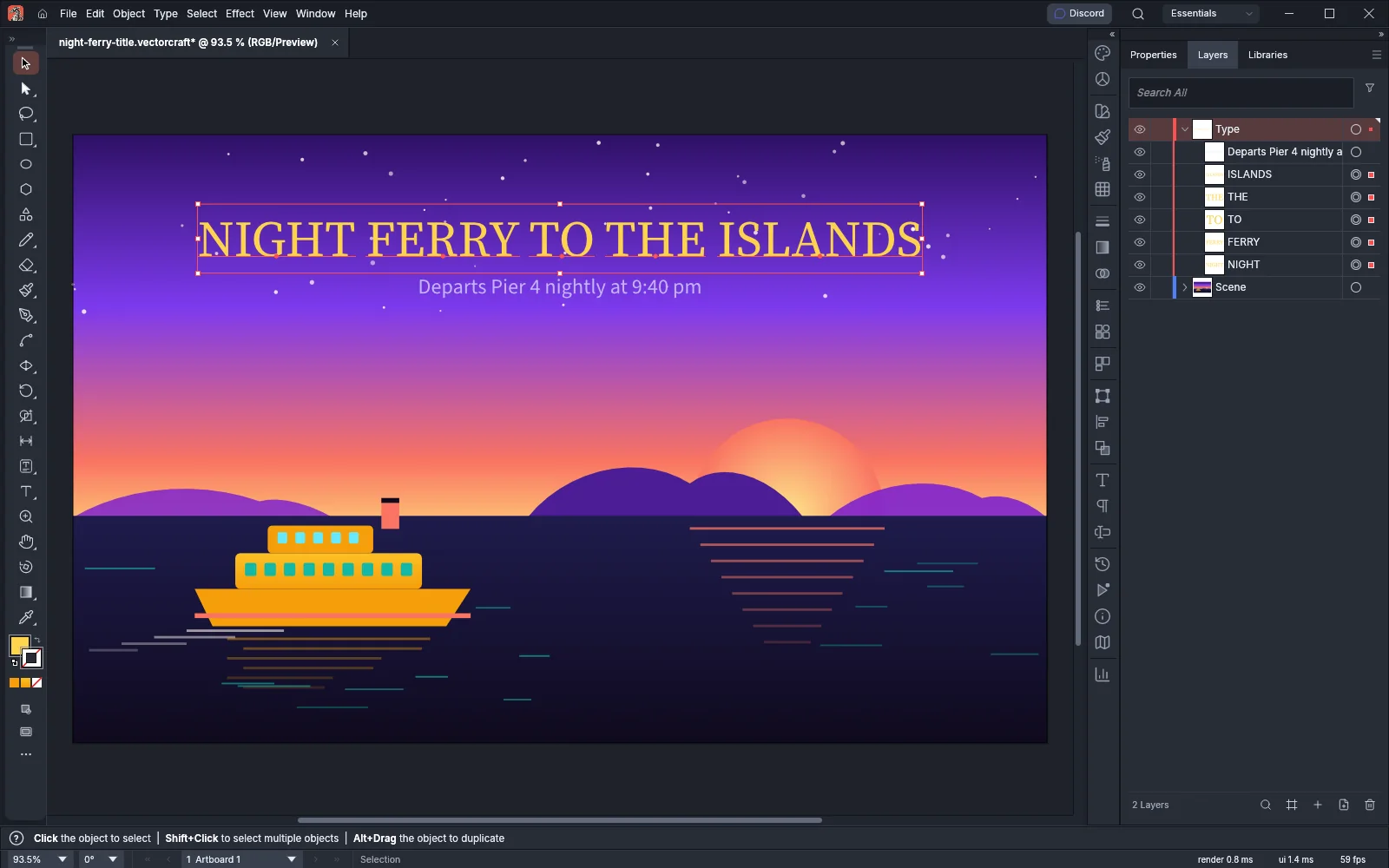
- A justified paragraph becomes left, center or right aligned point type, to match its justification.
- Break Text into Paragraphs keeps the bullet of a bulleted paragraph. Numbered paragraphs lose their numbers, and the pieces that the other three commands make have no list markers.
- Area type that shrinks its text to fit the frame is broken at the size the text is drawn at.
- Type on a path, vertical type, threaded type and area type whose text does not fit its frame stay as they are. When nothing in the selection can be broken, the status bar shows “Select horizontal point or area type whose text fits”.
- One command makes at most 20,000 pieces.
In the Artwork Cleanup panel, the Lines, Words and Glyphs buttons under Break Text into run the same commands. Shift-click Lines to break the type into paragraphs.
Split type at the cursor
Section titled “Split type at the cursor”- Choose the Type tool (T) and click in horizontal point or area type where the type should split. To cut out a word or a phrase, drag across it instead.
- Choose Object → Plug-ins → Artwork Cleanup → Split Text at Cursor.
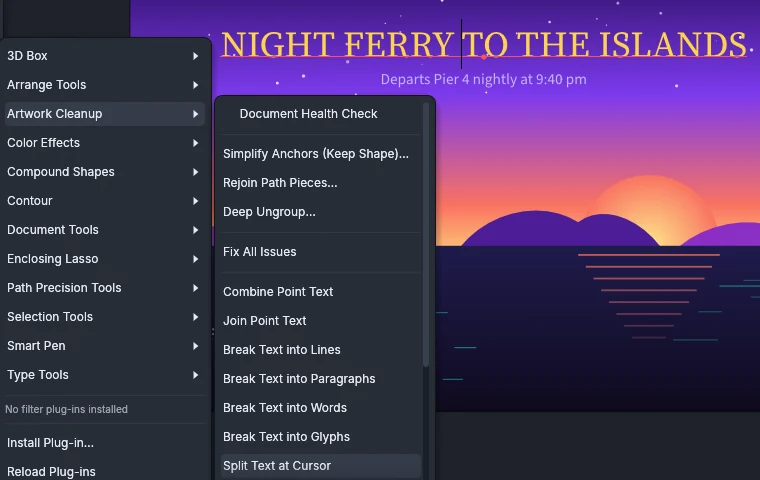
With a cursor, the text before it and the text after it become two point type objects. With characters selected, the text before them, the selected characters and the text after them become three objects. Each object stays where its characters were, and spaces at its ends are removed. Editing ends, and the new objects are selected.
Split Text at Cursor is dimmed until you edit type with a Type tool. When the cursor is at the start or the end of the text, the status bar shows “Nothing to split at the cursor”. Type on a path, vertical type, threaded type and area type whose text does not fit its frame cannot be split.
Combine pieces of point type
Section titled “Combine pieces of point type”Type in a file from another app, for example a PDF file, can open as many small point type objects, one for each word or letter. Combine Point Text and Join Point Text merge such pieces. Both work on point type with one line of text.
Combine Point Text
Section titled “Combine Point Text”- Select the pieces with the Selection tool.
- Choose Object → Plug-ins → Artwork Cleanup → Combine Point Text.
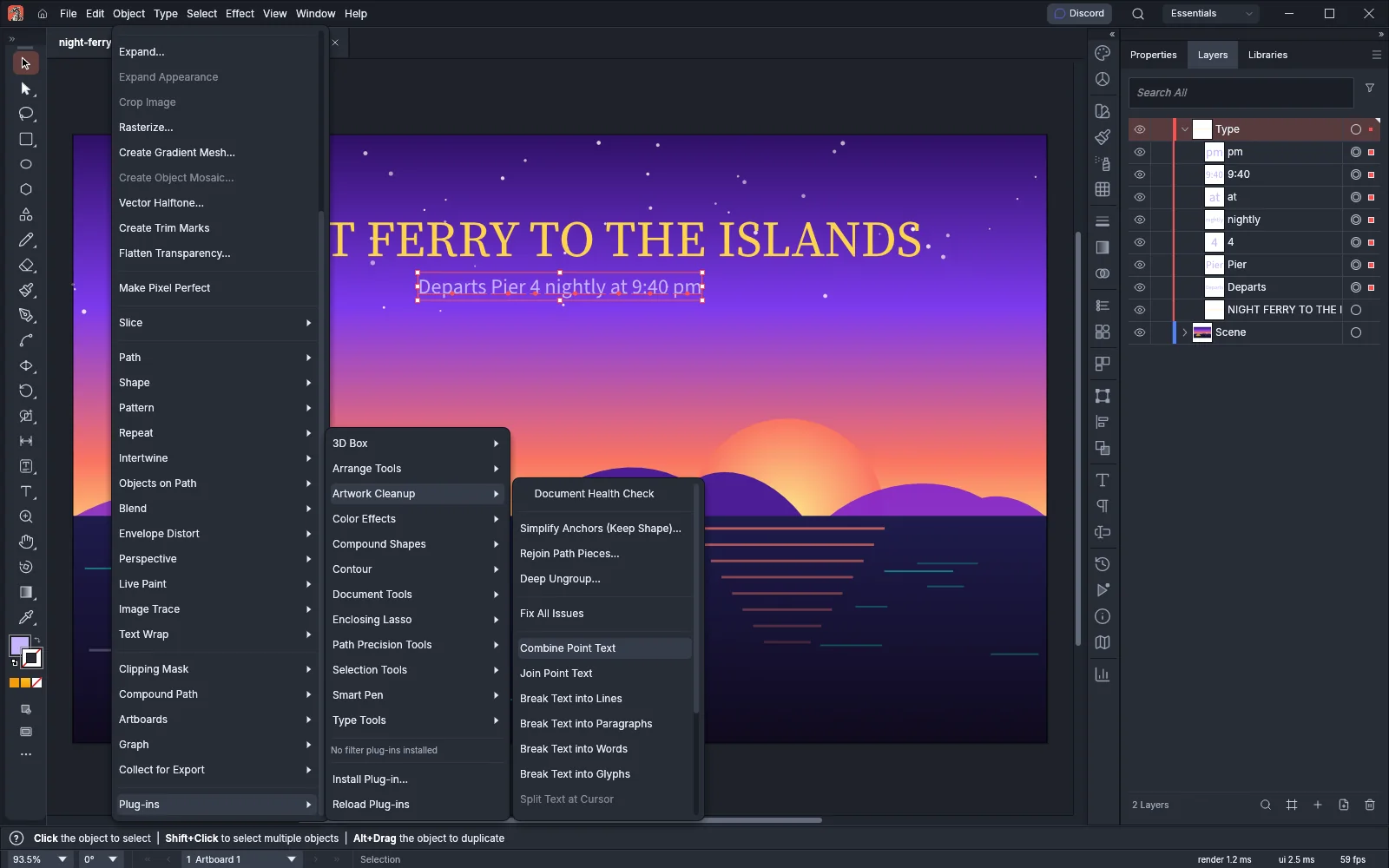
Combine Point Text joins the pieces on each baseline from left to right into as few objects as it can, and keeps every letter where it was:
- Pieces whose baselines are within 0.4 em of each other share a line. The difference between their baselines becomes baseline shift.
- A space goes between two pieces that are at least half a space apart. The command adds tracking to the character before each piece, so the letters keep their spacing.
- Pieces join only when they are rotated and sheared alike and have the same paint, opacity, blending mode and effects.
- A gap wider than 10 em, or an overlap of more than 1 em, starts another object. A piece that cannot keep its place in the joined text, for example where two letters would form a ligature, also starts another object.
- Each new object takes the place and paint of its leftmost piece and keeps the character styles of every piece. The new objects are selected.
When no two pieces can be combined, the status bar shows “Select two or more one-line point type objects on one baseline to combine”.
Join Point Text
Section titled “Join Point Text”Join Point Text makes one type object with one paragraph for each line of pieces.
- Select the pieces with the Selection tool.
- Choose Object → Plug-ins → Artwork Cleanup → Join Point Text.
The command reads the pieces from top to bottom and each line from left to right. Pieces whose baselines are within 0.4 em of each other form one line. One space goes between the pieces of a line, so the gaps between them are not kept. Each line becomes a left-aligned paragraph, and its leading is the distance from the baseline above.
The joined object takes the place and paint of the top-left piece and keeps the character styles of the text. The command deletes the other pieces and selects the joined object. Pieces that are rotated or sheared differently from the top-left piece are left out. Join Point Text needs at least two pieces.
Remove line and paragraph breaks
Section titled “Remove line and paragraph breaks”- Select type objects with the Selection tool, or select characters with a Type tool.
- Choose Object → Plug-ins → Artwork Cleanup → Remove Line Breaks to remove forced line breaks, or Remove Paragraph Breaks to remove paragraph returns.
With characters selected, the command removes only the breaks inside the selection. With objects selected, it removes every break of that kind in them. A break between two words becomes a space. When every frame of a threaded story is selected, or you choose Select All while you edit one of its frames, the command reads the frames as one text.
When the type has no breaks of that kind, the status bar shows “No line breaks to remove” or “No paragraph breaks to remove”.
Change alignment without moving type
Section titled “Change alignment without moving type”Set Alignment, Keep Position changes the alignment of point type and moves the object so the text stays in place.
- Select point type with the Selection tool.
- Choose Object → Plug-ins → Artwork Cleanup → Set Alignment, Keep Position, then Left, Center or Right.
Every paragraph of each object takes the new alignment. The command moves the object so that its longest line stays where it was, and the shorter lines line up with it on the new side. One line of type does not move. Area type and vertical type stay as they are. When the type is already aligned that way, the status bar shows “The point type is aligned that way already”.
In the Artwork Cleanup panel, the Left, Center and Right buttons under Set Alignment, Keep Position run the same command.
Reset rotated or skewed type
Section titled “Reset rotated or skewed type”- Select point type with the Selection tool.
- Choose Object → Plug-ins → Artwork Cleanup → Reset Text Transform, or Reset Text Transform and Scale.
| Command | What it removes |
|---|---|
| Reset Text Transform | The rotation, shear and reflection of each object. A horizontal stretch stays |
| Reset Text Transform and Scale | The rotation, shear and reflection, and the horizontal scale of the object and of every character, which return to 100% |
Each object keeps its height, and the center of its text stays where it was. When the selected type has nothing to reset, the status bar shows “The point type has no transform to reset”.
In the Artwork Cleanup panel, click Reset Transform. Alt-click it (Option-click on macOS) to reset the horizontal scale too.
Replace missing fonts in one step
Section titled “Replace missing fonts in one step”Replace Missing Fonts sets all the type in a missing font family to one installed family. It works on the whole document, whatever is selected.
- Choose Object → Plug-ins → Artwork Cleanup → Replace Missing Fonts….
- In the Replace Missing Fonts dialog, enter a font family name in Font. The field starts with Source Sans 3, the default type font.
- Click OK.
Every character whose font family is not installed changes to the chosen family, including type in the art of symbols. Each character takes the style of the new family that is closest to its old style. When you enter a composite font, each character keeps its style. Variable font axis settings on the changed characters are cleared. Characters in an installed family that lacks their style are not changed.
When no font family is missing, the status bar shows “No fonts are missing”. When the family you enter is not installed, the command reports an error and changes nothing.
To choose a replacement font and style for each missing font, or to add the missing font files, see Find and replace fonts and Add or replace missing fonts.