
Customize keyboard shortcuts
This guide shows you how to change the keyboard shortcuts of tools, menu commands, panels and plug-in commands in the Keyboard Shortcuts dialog, how to resolve a conflict, and how to save, load and import shortcut sets. The default shortcuts are listed in Keyboard shortcuts.
Open Keyboard Shortcuts
Section titled “Open Keyboard Shortcuts”- Choose Edit → Keyboard Shortcuts…, or press Ctrl+Alt+Shift+K (Cmd+Option+Shift+K on macOS).
- Choose the Tools tab or the Menu Commands tab.
- Type part of a name in the Search box. The list shows the entries whose name, menu path or shortcut contains the text, so you can also search for a shortcut such as
Ctrl+Y.
Each row shows the entry’s name and its shortcut. On the Menu Commands tab the name is the command’s full menu path, with › between the menu names: the row for Object → Path → Outline Stroke reads Object › Path › Outline Stroke. Panels are listed under Window, and each item of the Effect menu has its own row. A row with no shortcut shows a dash. A shortcut that differs from the default is drawn in the accent color.
If two entries share a shortcut, a line under the list says how many shortcuts are assigned more than once.
Your changes stay in the dialog until you click OK. Cancel discards every change you made since the dialog opened.
Give a tool, command or panel a shortcut
Section titled “Give a tool, command or panel a shortcut”- Find the entry on the Tools or Menu Commands tab.
- Click the shortcut cell next to it. The cell reads Press keys…, and its tooltip says “Click, then press the new shortcut (Esc cancels)”.
- Hold the modifier keys you want, then press the key. Pressing a modifier key on its own does not record anything. To stop without a change, press Esc.
- Click OK to keep the new shortcut.
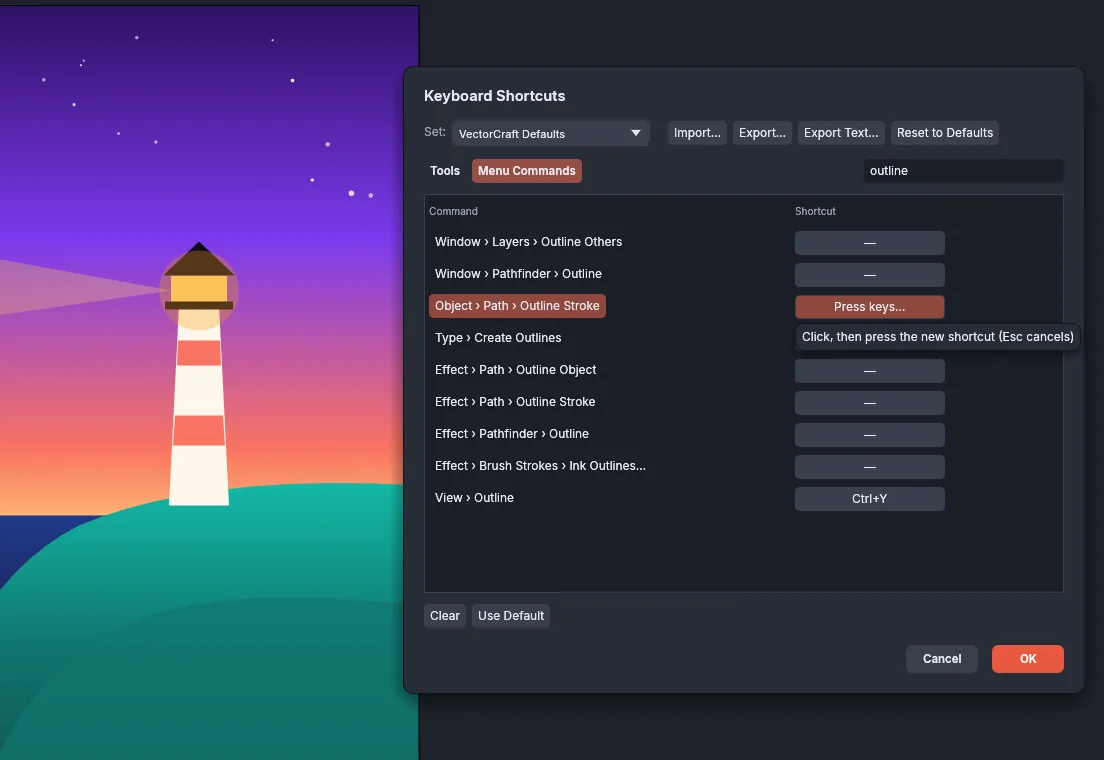
A tool’s shortcut must be a single key, with or without Shift. VectorCraft does not accept a tool shortcut that uses Ctrl, Alt or Cmd.
VectorCraft does not accept a key that the system reserves, for a tool, a menu command or a panel.
When VectorCraft does not accept a shortcut, the dialog shows the reason under the list.
As soon as you record a shortcut, the Set list shows Custom.
A tool with a single-key shortcut can also be held down to use the tool for a moment. See Switch tools for a moment.
Resolve a conflict (Go to Conflict)
Section titled “Resolve a conflict (Go to Conflict)”If the keys you press already belong to another entry, VectorCraft moves them to the entry you are editing and removes them from the other one. A red message under the list names the other entry, for example “A was already used by Direct Selection Tool”, and says that the shortcut has been removed there.
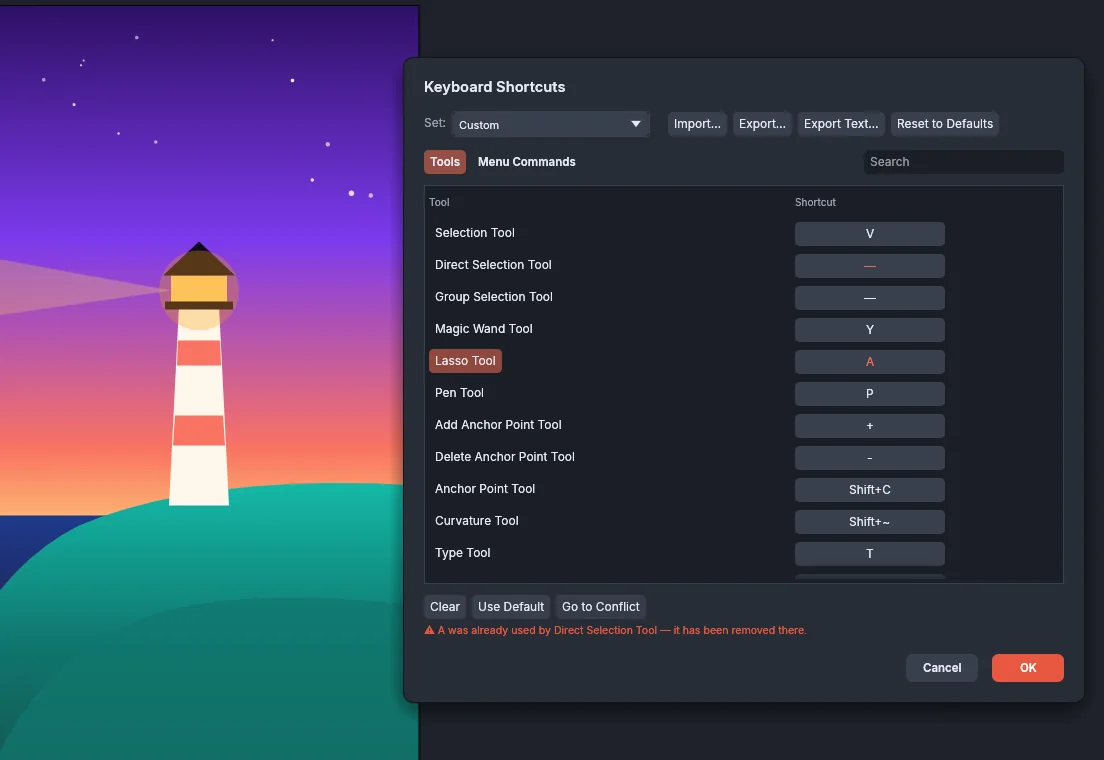
To give the other entry a new shortcut:
- Click Go to Conflict. The dialog switches to that entry’s tab, clears the search, selects the entry and scrolls to it.
- Click its shortcut cell and press the new keys.
To undo the move, click Cancel. The dialog closes and both entries keep the shortcuts they had.
Clear a shortcut or go back to the default
Section titled “Clear a shortcut or go back to the default”Select a row first. Clear and Use Default are unavailable while no row is selected.
| Button | What it does |
|---|---|
| Clear | Removes the selected entry’s shortcut. The Set list shows Custom. |
| Use Default | Gives the selected entry its default shortcut again. |
| Reset to Defaults | Returns every shortcut to the defaults and sets the Set list to VectorCraft Defaults. The dialog shows “All shortcuts reset to defaults.” |
Click OK to keep the result.
Shortcut sets: VectorCraft Defaults, Classic Defaults and Custom
Section titled “Shortcut sets: VectorCraft Defaults, Classic Defaults and Custom”The Set list at the top of the dialog names the current set.
| Set | What it is |
|---|---|
| VectorCraft Defaults | The default shortcuts listed in Keyboard shortcuts. |
| Classic Defaults | The same shortcuts as VectorCraft Defaults. |
| Custom | Shown after you change, clear or record a shortcut. To leave it, choose a built-in set. |
Choosing VectorCraft Defaults or Classic Defaults replaces every shortcut in the dialog with that set. Use Default does not change the set’s name, so the list still shows Custom after you return every shortcut to its default one at a time. A set loaded from a file shows the name stored in the file, and the list also offers Custom while that name is shown.
Save your shortcuts to a file (Export…, Export Text…)
Section titled “Save your shortcuts to a file (Export…, Export Text…)”Both buttons save the shortcuts as the dialog shows them, including changes you have not kept with OK yet.
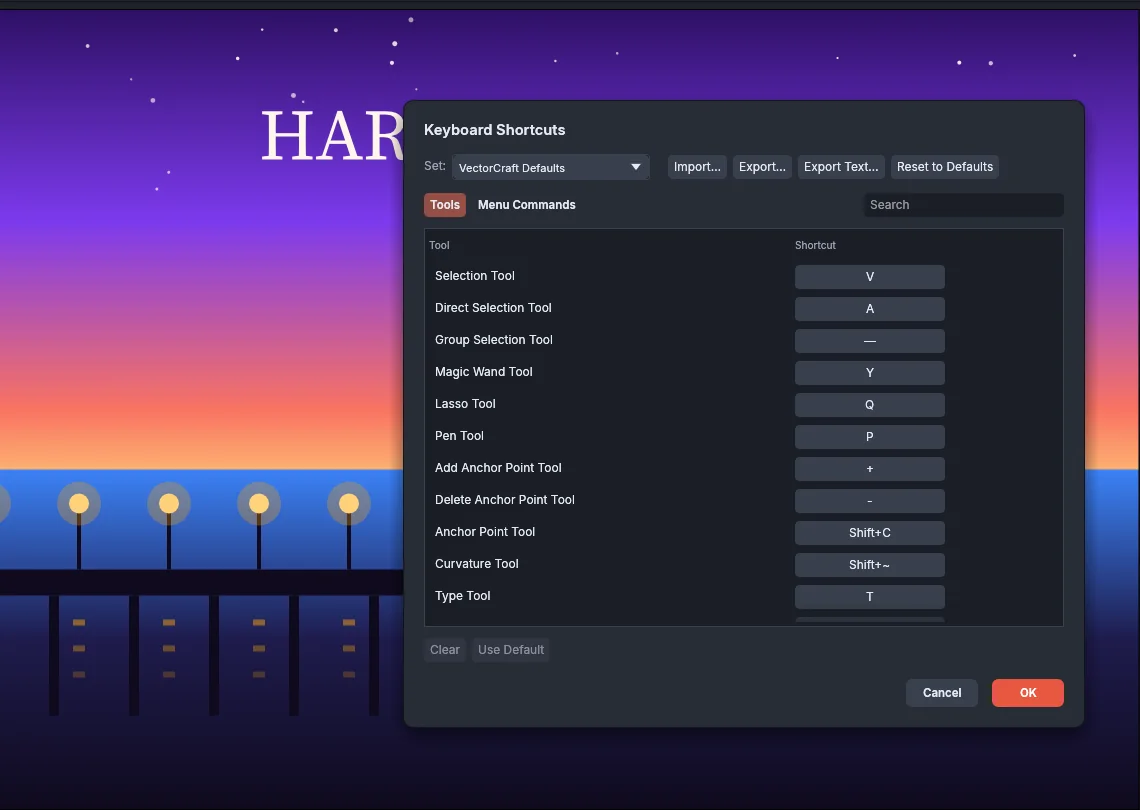
| Button | What it saves |
|---|---|
| Export… | A shortcut set that Import… can read back. The file is named VectorCraft Shortcuts.json unless you change it, and the save dialog lists it under Shortcut sets. It holds the set’s name and every shortcut that differs from the defaults. In the web version, the browser downloads the file. |
| Export Text… | A plain text list named VectorCraft Shortcuts.txt. It starts with “Keyboard Shortcuts” and the set’s name, then lists the Tools and the Menu Commands with one entry per line: the name, a tab, and the shortcut. The shortcut is empty for an entry without one. |
Use Export Text… to print or read your shortcuts. Import… does not read the text file back. To move your shortcuts to another computer, use Export…. Back up and move your settings covers your other settings.
Load a saved set (Import…)
Section titled “Load a saved set (Import…)”- In Keyboard Shortcuts, click Import….
- Choose a
.jsonfile saved with Export…. The open dialog lists.jsonand.kysfiles. - The dialog shows the loaded set and the message “Imported. Press OK to keep the imported set.”
- Click OK to keep it, or Cancel to keep your earlier shortcuts.
The loaded set replaces all of your shortcuts. Any shortcut you changed that the file does not list goes back to its default. If the file is not a VectorCraft shortcut set, nothing is loaded and the status bar says why.
Import a shortcut set saved as text (.kys)
Section titled “Import a shortcut set saved as text (.kys)”Another app can save its shortcuts as a .kys text file. VectorCraft reads these files in the Import Shortcut Set dialog. To open it, do one of the following:
- In Keyboard Shortcuts, click Import… and choose the
.kysfile. - Choose File → Open… and choose the
.kysfile. The file is also added to File → Open Recent.
A shortcut file in another form, such as XML, does not open, and VectorCraft shows the message “This shortcut file is in a form VectorCraft can’t read.” It reads the first 4 MiB of a larger file and says that only the first part is listed.
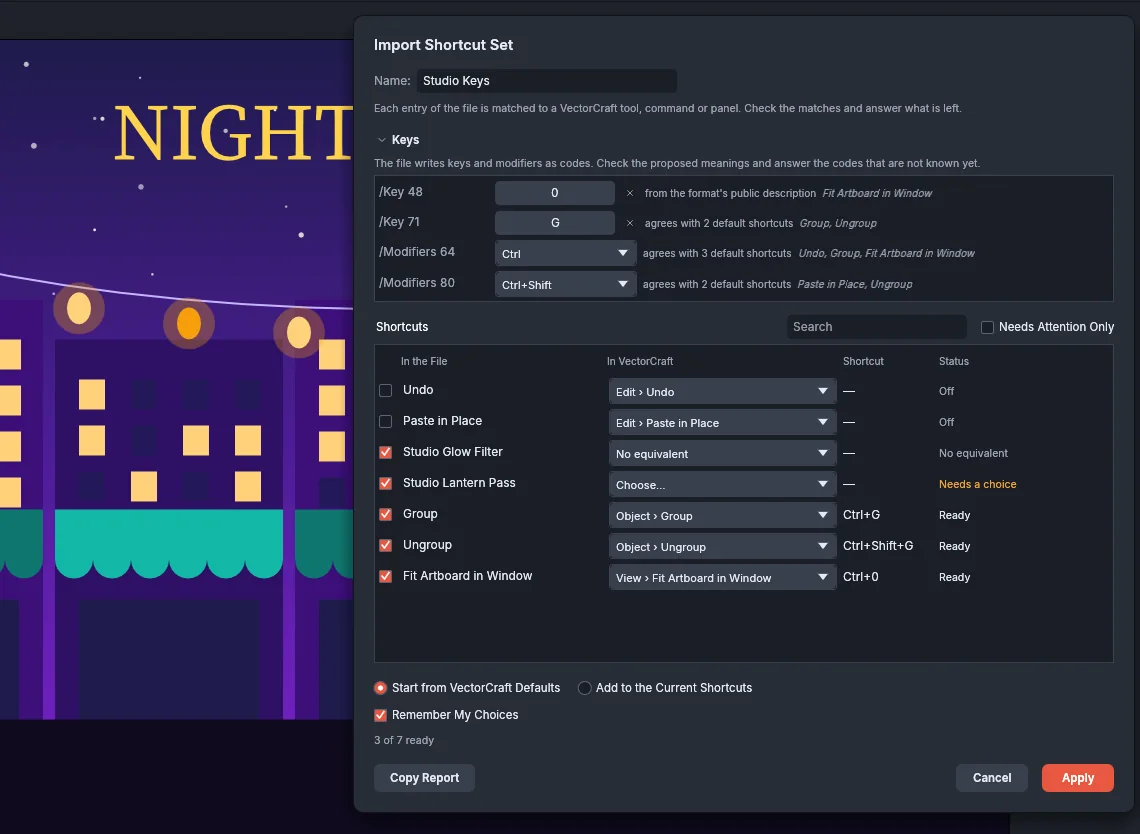
- Check the Name. It starts as the file’s name without its extension, and it becomes the set’s name in Keyboard Shortcuts. If you clear it, the set is named Custom.
- Answer the codes in the Keys section that are not known yet (see below).
- Check the match of each row in the Shortcuts table, and choose one where the row needs it.
- Choose where to start (see below).
- Click Apply. Keyboard Shortcuts shows the result with the message “Imported. Press OK to keep the imported set.”
- Click OK in Keyboard Shortcuts to keep the set.
Cancel goes back to Keyboard Shortcuts without importing anything.
Start point
Section titled “Start point”| Option | What Apply starts from |
|---|---|
| Start from VectorCraft Defaults | The default shortcuts. This option is selected when the dialog opens. |
| Add to the Current Shortcuts | The shortcuts in Keyboard Shortcuts when you opened the import. |
The set’s shortcuts are then applied in the order the file lists them. When two rows use the same shortcut, the later row gets it. If the set gives a shortcut to one entry, any other tool, command or panel that had that shortcut loses it.
The Keys section
Section titled “The Keys section”A .kys file stores each key and each set of modifier keys as a number, such as /Key 71 or /Modifiers 2. The Keys section lists the codes used by the checked rows that have a match, with the unknown codes first. The section is open when the dialog opens if any code is not known yet.
Each code shows where its meaning came from:
| Source | Meaning |
|---|---|
| from your earlier imports | You answered this code in an earlier import with Remember My Choices on. |
| from the format’s public description | The code is described publicly: /Key 48 is the 0 key and /Modifiers 0 is no modifier. |
| agrees with n default shortcuts | At least two rows whose match has a default shortcut point to the same key, and four out of five such rows agree. |
| not known yet | You need to answer the code. |
To answer a key code, click its button, which shows ? while the key is unknown, and press the key. The button reads Press a key… while it waits. Click × next to a code that has no equivalent key. A modifier code is answered by choosing the modifiers from its list.
The Shortcuts table
Section titled “The Shortcuts table”Each row of the table has a check box, the entry’s name In the File, its match In VectorCraft, the Shortcut it will get, and a Status. Point at the name to see the section and line of the file it comes from. Clear the check box to leave a row out.
To change a match, click the In VectorCraft list. It shows the row’s likely matches at the top, a Search box and No equivalent.
| Status | Meaning |
|---|---|
| Ready | Apply gives the entry this shortcut. |
| Off | The row’s check box is cleared. |
| Needs a choice | The row has no match yet. Choose one in In VectorCraft. |
| Needs a key | One of the row’s codes is not known yet. Answer it in the Keys section. |
| No equivalent | The row matches nothing in VectorCraft, or its key has no equivalent. Apply skips it. |
| Tools take a single key (optionally with Shift) | The row gives a tool a shortcut with Ctrl, Alt or Cmd. |
| A later row takes this shortcut | A later row in the file uses the same shortcut and gets it. |
| Same item as a later row | A later row gives the same tool, command or panel a shortcut, and Apply uses that row. |
Select Needs Attention Only to list just the rows with Needs a choice, Needs a key or one of the last three statuses. Type in the Search box above the table to find a row by name.
Summary, Remember My Choices and Copy Report
Section titled “Summary, Remember My Choices and Copy Report”The line above the buttons counts the ready rows, for example “3 of 7 ready”, and also counts any parts of the file that VectorCraft could not read.
Remember My Choices is selected by default. With it selected, Apply keeps your matches and key answers, so the next import of a similar file starts with them.
Copy Report copies a text report to the clipboard: the set’s name, then one line for each row that is not Ready and for each part of the file that was not read, in the form Line 12: Paste in Place: Needs a key. The status bar says “Report copied”.
Give a plug-in filter or plug-in command a shortcut
Section titled “Give a plug-in filter or plug-in command a shortcut”Plug-in commands are listed on the Menu Commands tab under Object → Plug-ins. Type plug-ins in the Search box to list them.
The commands of the plug-ins that come with VectorCraft are already listed, so you do not need to install anything to give them a shortcut. Object → Plug-ins → Arrange Tools → Arrange in Grid is one of them. See Use the built-in plug-ins.
- For a plug-in you add yourself, install it first. See Install and manage plug-ins.
- Open Edit → Keyboard Shortcuts… and choose the Menu Commands tab.
- Search for the plug-in’s name or for
plug-ins. - Click the shortcut cell of the filter or command and press the new keys, then click OK.
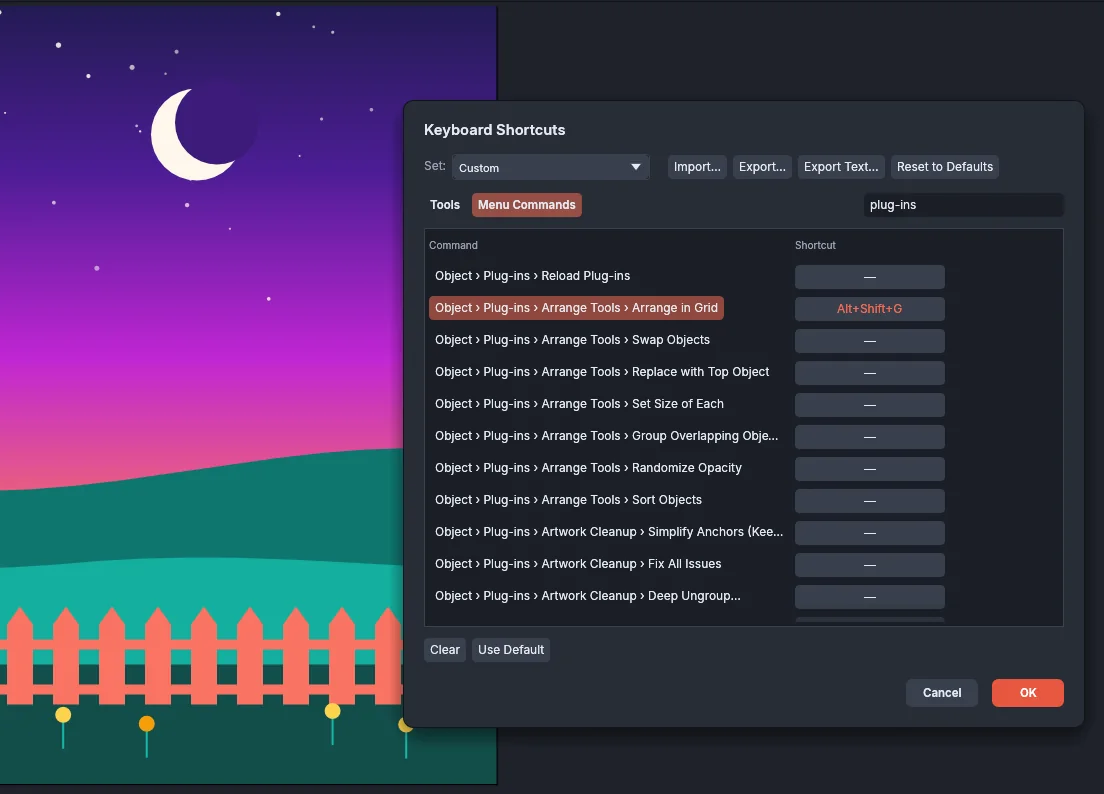
- An installed filter plug-in has a row under Object → Plug-ins. Each command that an installed plug-in adds is listed under the plug-in’s own submenu of Object → Plug-ins. A live effect’s command is listed under Effect → Plug-ins.
- A plug-in cannot set its own shortcuts. You assign them here.
- If you remove a filter plug-in, VectorCraft keeps the shortcut of its row under Object → Plug-ins and uses it again when you reinstall the plug-in. A command that a plug-in adds is removed with the plug-in.
- Plug-in names are shown as the plug-in gives them and are not translated.