
Check spelling
Auto Spell Check marks the words in your type that are not in VectorCraft’s dictionaries, and the context menu replaces each marked word with a suggestion or adds it to your custom dictionary.
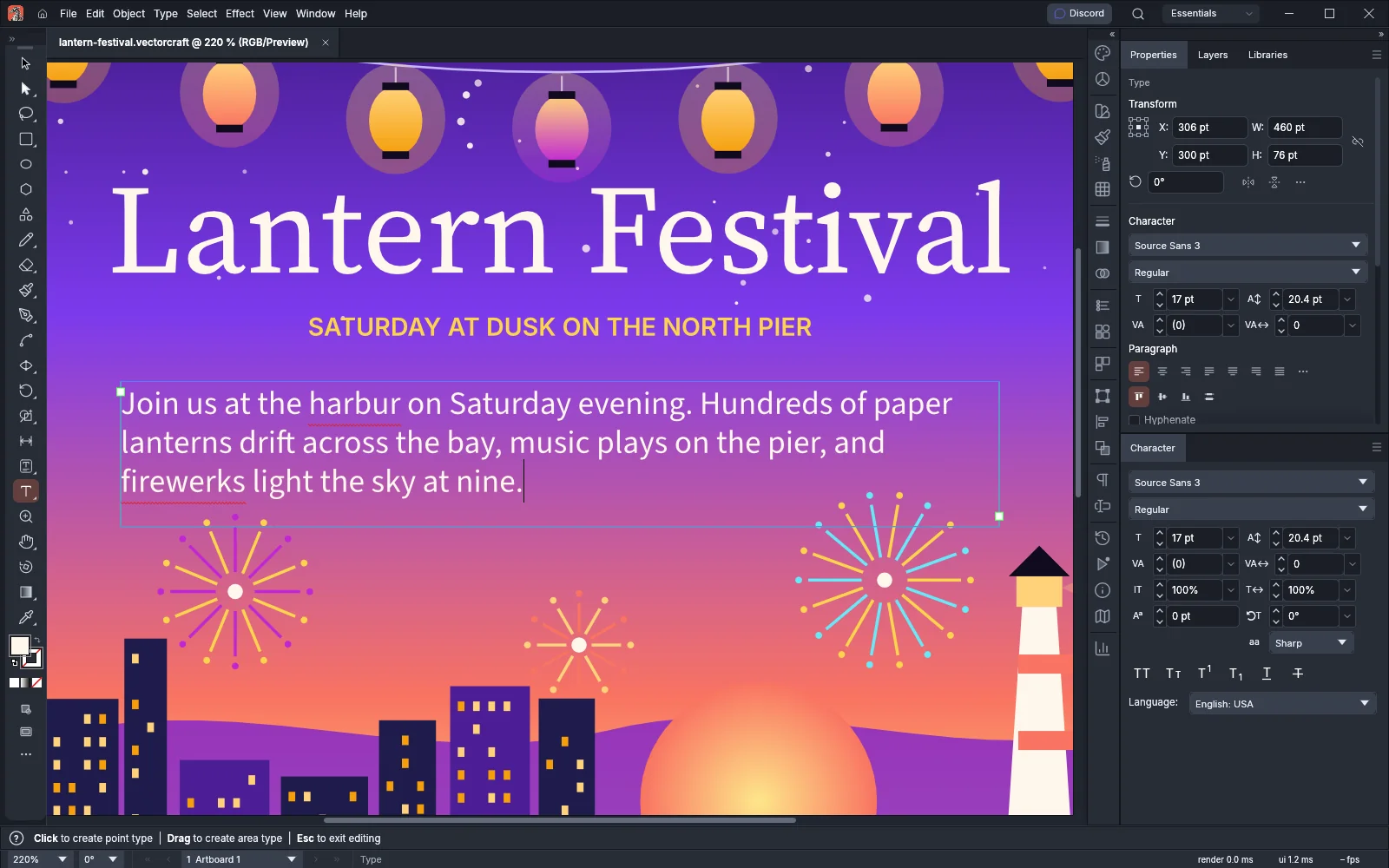
Turn on Auto Spell Check
Section titled “Turn on Auto Spell Check”- Choose Edit → Spelling → Auto Spell Check, or right-click a type object (or right-click while you edit type with the Type tool) and choose Spelling → Auto Spell Check. A check mark appears next to the command.
- Look for words with a red wavy underline. Those words are not in the dictionary for their language or in your custom dictionary.
To turn Auto Spell Check off, choose the command again. Auto Spell Check is off until you turn it on. VectorCraft saves the setting with your other settings, so the setting is the same the next time VectorCraft starts.
Auto Spell Check underlines words in every visible type object, whichever tool is active. It does not underline these words:
- Words in hidden type.
- Words in type that has a visible effect, either on the type object or on one of its fills or strokes.
- Words in a language that VectorCraft has no dictionary for. Type with no language set is checked in English.
Fix an underlined word
Section titled “Fix an underlined word”- Right-click the underlined word. At the top of the menu, VectorCraft lists up to five suggestions, best first. When it has no suggestion, the menu shows No Suggestions instead.
- Choose what to do with the word:
- Click a suggestion to replace the word. Edit → Undo (Ctrl+Z, or Cmd+Z on macOS) puts the old word back in one step.
- Click Ignore All to stop underlining the word anywhere in this document. Auto Spell Check skips the word in this document until you close the document. VectorCraft does not save ignored words with the document, and Edit → Undo does not bring the underline back.
- Click Add to Dictionary to add the word to your custom dictionary. Auto Spell Check then stops underlining the word in every document and every language.
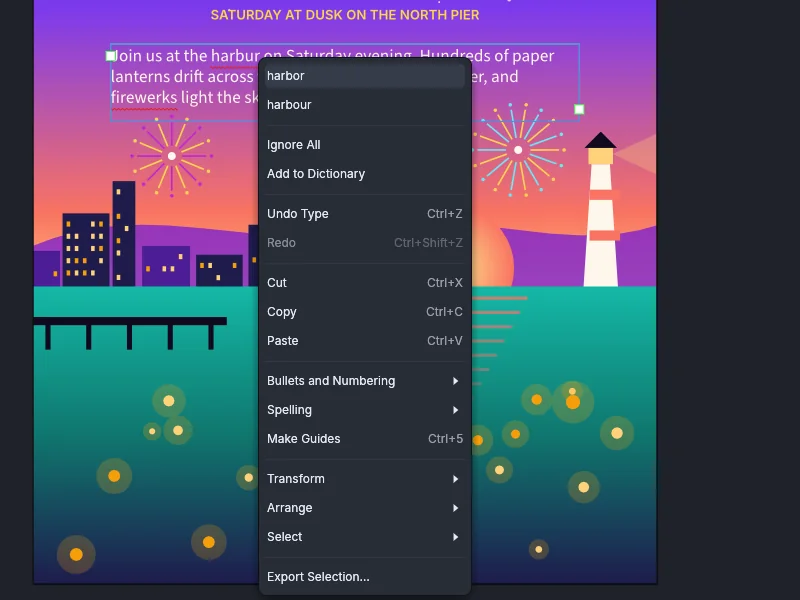
The menu shows the suggestions, Ignore All and Add to Dictionary only while Auto Spell Check is on. When type objects overlap, the menu shows them for the word in the topmost type under the pointer. Locked type, and type on a locked layer or in a locked group, keeps its underlines, but the menu shows no suggestions, Ignore All or Add to Dictionary for it.
Edit your custom dictionary
Section titled “Edit your custom dictionary”- Choose Edit → Edit Custom Dictionary…. The dialog lists the words in your custom dictionary.
- To add a word, type it in Entry and click Add.
- To remove a word, select it in the list and click Delete.
- To correct a word, select it in the list, edit it in Entry, and click Change.
- Click Done to save the changes, or Cancel to close the dialog without changing the dictionary.
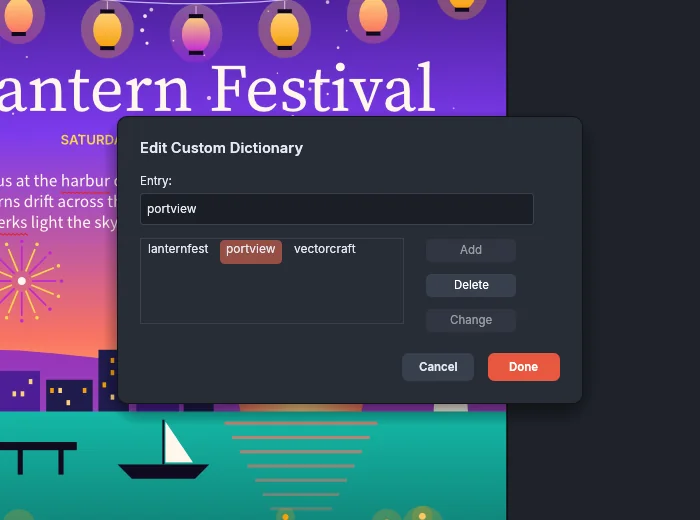
| Control | What it does |
|---|---|
| Entry | Holds the word to add, or the new spelling for Change. Selecting a word in the list puts that word here. |
| Add | Adds the word in Entry to the list and selects it. The button is available when Entry holds one word that is not in the list yet. |
| Delete | Removes the selected word from the list and selects the next word, or the previous word when you removed the last one. |
| Change | Replaces the selected word with the word in Entry. The button is available when a word is selected and Entry holds a word that is not in the list yet. |
| Done | Saves every change at once. If VectorCraft cannot save the dictionary, it keeps none of the changes, and the dialog stays open and shows the error. |
| Cancel | Closes the dialog. The dictionary stays as it was. |
The dictionary does not change until you click Done. Each entry is one word of at most 64 characters, and VectorCraft stores the words in lower case.
VectorCraft keeps the custom dictionary in the file Custom Dictionary.txt in its settings folder, one word per line. Where VectorCraft keeps its settings lists the folder for each system. When you start VectorCraft with VECTORCRAFT_NO_PREFS, it keeps the words you add only until it closes.
Check type in another language
Section titled “Check type in another language”Auto Spell Check checks each run of characters in that run’s language.
- Select a type object, or select characters with the Type tool.
- In the Character panel, choose a language from the Language menu, for example French or German.
Auto Spell Check then checks those characters against the dictionary for that language, when VectorCraft has one. The language also sets how VectorCraft hyphenates the text. Set type in other languages covers the other language settings.
What is not available yet
Section titled “What is not available yet”Edit → Spelling → Check Spelling… is grayed out. That command is not built yet. To find misspelled words, turn on Auto Spell Check.