Getting started
1. Install GridCraft
Section titled “1. Install GridCraft”The quickest way is ArtCraft Launcher: install it, then press Install on GridCraft’s card. To download GridCraft on its own, see Install and update.
2. Open GridCraft
Section titled “2. Open GridCraft”GridCraft opens on a blank workbook called Book1. To open a file instead, press Ctrl+O (⌘O on a Mac), or drag the file onto the window.
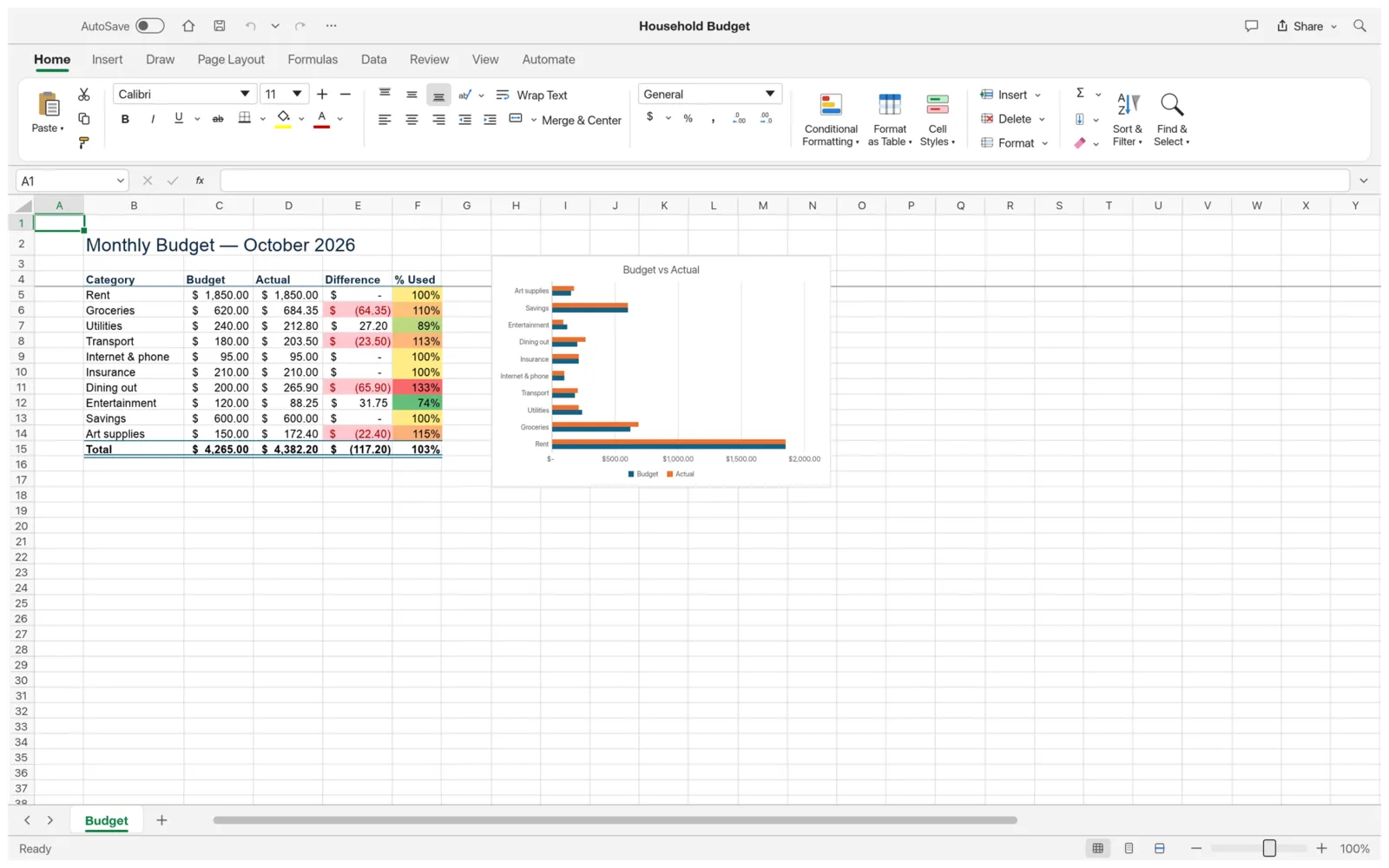
To look around before typing anything, open a sample. Click File, then choose Household Budget, Quarterly Sales Dashboard or Gradebook. Each one uses formulas, formatting and charts you can take apart.
3. Enter data and formulas
Section titled “3. Enter data and formulas”Click a cell and type. Press Enter to move down, or Tab to move right.
To add a formula, start with =, for example =SUM(B2:B10). While you type a formula, click or drag across cells to put their references into it. Each reference gets its own color in the cell and on the sheet.
A few things that work as you would expect:
- Drag the small square at the corner of the selection (the fill handle) to fill a series or copy a formula.
- Ctrl+D fills down, Ctrl+R fills right.
- F2 edits the active cell.
- Ctrl+Z undoes, Ctrl+Y redoes.
4. Turn your data into a table
Section titled “4. Turn your data into a table”Click inside your data and press Ctrl+T, or choose Format as Table on the Home tab. A table gets banded rows, filter buttons on its header row, and grows when you add rows under it.
5. Save
Section titled “5. Save”Press Ctrl+S (⌘S on a Mac). The first time, GridCraft asks where to save. It saves as .xlsx, so others can open your workbook in most spreadsheet apps.
To save after every change without thinking about it, turn on AutoSave at the top left of the window. It works for workbooks that already have a file.
6. Share as a PDF
Section titled “6. Share as a PDF”Choose File › Export › Create PDF. The PDF keeps the sheet’s page layout. To set margins, orientation and what fits on a page first, see Print and export.
Next steps
Section titled “Next steps”- Workflows: formulas, charts, pivot tables, printing and macros.
- Troubleshooting: if the window doesn’t open or a file won’t save.