
Package a document with its links and fonts
File → Package… copies a saved document into a folder of its own, together with the images it links to, the fonts its type uses and a text report, so you can hand the whole job to someone else or open it on another computer.
Package a document
Section titled “Package a document”- Choose File → Package…, or press Ctrl+Alt+Shift+P (Cmd+Option+Shift+P on macOS). The command is unavailable when no document is open.
- If the document has never been saved, VectorCraft asks Save the document first? instead of opening the Package dialog. Press OK to save it with File → Save As…, then choose File → Package… again. For a document that was saved before but has unsaved changes, the Package dialog opens directly, and VectorCraft saves the document when you press Package in step 4.
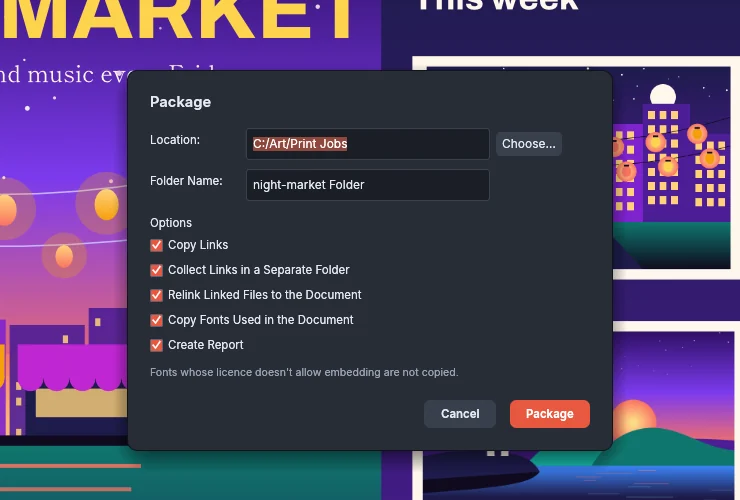
- In the Package dialog, set Location to the folder that will hold the package. Type a path or press Choose…. Then check Folder Name and the options listed under Package options.
- Press Package.
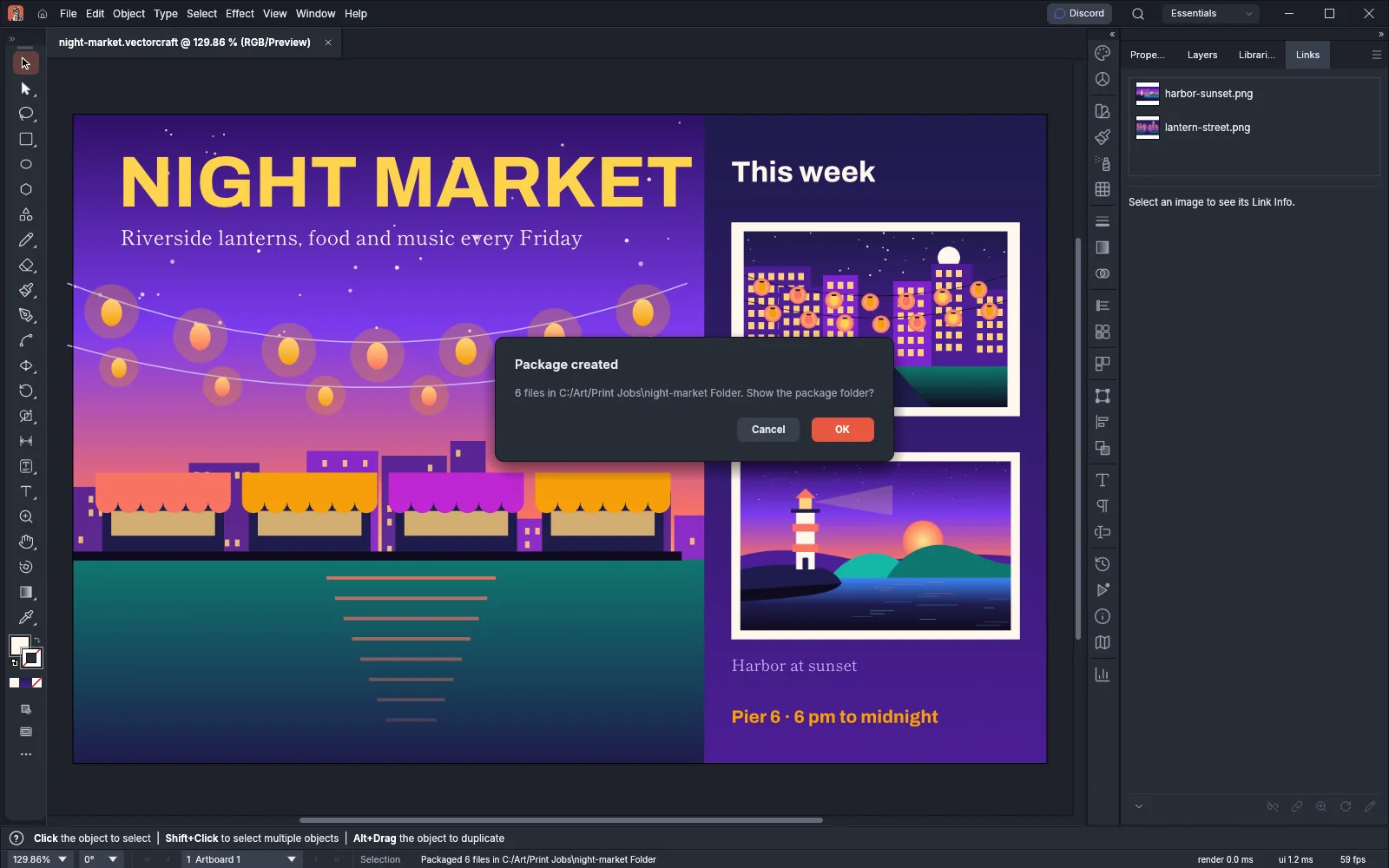
- When the package is written, the Package created prompt gives the number of files and the folder. Press OK to show the package folder in your system’s file manager, or Cancel to close the prompt. The status bar also reports the result, for example
Packaged 6 files in C:/Art/Print Jobs\night-market Folder.
Packaging does not change the open document. It keeps its own links and fonts, and you go on working in it.
Package options
Section titled “Package options”| Option | Default | What it does |
|---|---|---|
| Location | The folder that holds the document | The folder the package folder is made in. Package does not run with an empty location. |
| Folder Name | The document’s name followed by Folder, for example night-market Folder |
The name of the package folder. The name cannot be empty, cannot be . or .., and cannot contain / \ : * ? " < > |. |
| Copy Links | On | Copies the files that linked images and placed documents show. |
| Collect Links in a Separate Folder | On | Puts the copied files in a Links folder. When it is off, they go next to the document. Available only while Copy Links is on. |
| Relink Linked Files to the Document | On | Makes the packaged document link to the copies inside the package. When it is off, the packaged document keeps the original paths. Available only while Copy Links is on. |
| Copy Fonts Used in the Document | On | Copies the font files of the type in the document into a Fonts folder. |
| Create Report | On | Writes a text report of the package. |
Package does not write over the open document or a file the document links to. If the location and folder name would replace one of them, VectorCraft shows an error and asks you to choose a different folder or name.
What the package folder holds
Section titled “What the package folder holds”With every option on, the package folder holds:
- the document, saved as a VectorCraft file named after it, for example
night-market.vectorcraft. A document opened from another format is packaged as a VectorCraft file; Links, with a copy of each linked file. When two linked files have the same name, the second copy gets a number, for examplelantern-street 2.png;Fonts, with the font files the document’s type uses;<document> Report.txt, for examplenight-market Report.txt.
The report starts with the packaged document and the file it came from. A LINKED FILES section lists each linked file with the place its copy went, and a FONTS section lists each font with its file in Fonts. The report ends with the same list of the document’s setup and contents that the Document Info panel gives (see Measure and dimension).
Placed PDF and .ai files are copied as they are. With Copy Fonts Used in the Document on, Package also collects the fonts of the type on the placed pages, even when Copy Links is off. A placed VectorCraft document is copied with the files it links to, and with Relink Linked Files to the Document on, its copy links to them too.
A placed .ai file that holds editing data is also copied with the files that editing data links to. Those files go in the same place as the .ai copy, and the .ai copy links to them by file name. If one of them had to be renamed, for example to lantern-street 2.png, the report adds a warning: the .ai copy still links to the original name, so it shows a file of that name if there is one, and otherwise it shows its preview. Package follows placed documents inside placed documents up to 8 levels deep. A placed file at that limit is copied unchanged without the files it links to, and the report notes it with a warning. When a placed document links back to a document that places it, directly or through other placed documents, Package does not follow that link again, and the report adds a warning.
Fonts that are not copied
Section titled “Fonts that are not copied”Package leaves a font out in two cases:
- The font’s license does not allow embedding. A note under the options in the Package dialog gives this rule.
- The font is not available on this computer. The type shows in another font, and there is no font file to copy.
The Package created prompt names the fonts that were left out, after fonts not copied:, and the report gives the reason for each one. If the type uses a style that its family does not have, Package copies the file of the style the type is shown in, and the report notes which style that is.
Make sure the person who receives the package can get the fonts that were left out, or change the type to another font before you package it. Copy fonts only when their license allows it.
Missing linked files
Section titled “Missing linked files”A linked file that VectorCraft cannot find is not copied. The Package created prompt and the status bar add the number of linked files not found, for example (1 linked file not found), and the report lists each one with the path the document expected. To find the file before you package the document, see Work with placed images.
Package in the background
Section titled “Package in the background”While Enable Background Export is on in the File Handling section of Preferences (it is on by default), the Package dialog closes as soon as you press Package. VectorCraft collects and writes the files in the background, and the status bar shows Packaging <folder name> while you go on editing. The package holds the document as it was when you pressed Package.
When the package is written, the Package created prompt opens. If another dialog is open at that moment, the prompt does not open, and the status bar names the folder instead. With Enable Background Export off, VectorCraft writes the package before you can go on working.
Open a package on another computer
Section titled “Open a package on another computer”Copy the whole package folder to the other computer and open the document inside it. With Relink Linked Files to the Document on, the linked images open from the package’s Links folder.
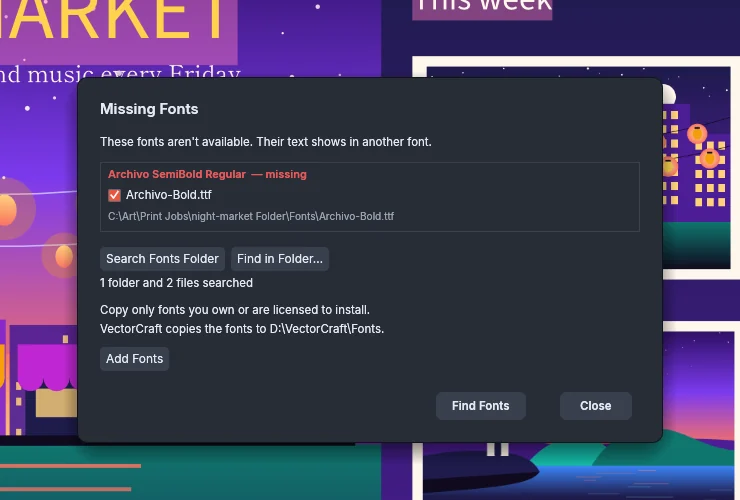
If a font in the package’s Fonts folder is not installed on the other computer, the Missing Fonts dialog lists it as missing after the document opens:
- Press Search Fonts Folder. VectorCraft searches the
Fontsfolder next to the document and lists the files it found under each font, with the first file checked. The button appears only when that folder exists. - Clear the check box of any file you do not want to add.
- Press Add Fonts. VectorCraft copies the checked files into its own Fonts folder, which the dialog names, and redraws the type set in those fonts.
For Find in Folder…, Find Fonts and replacing a font instead, see Add or replace missing fonts.
Package in a browser
Section titled “Package in a browser”In the web version of VectorCraft, the Package dialog has no Location field. Pressing Package downloads a zip file named after Folder Name, for example night-market Folder.zip, with the package’s files in a folder of that name. The web version shows no Package created prompt. Instead, the status bar gives the number of files, the number of linked files not found and the names of any fonts not copied. A package too large for a zip file stops with an error that asks you to package to a folder, which needs the desktop app.