
Command reference
This page explains how VectorCraft 0.24.1 names its commands and lists the 76 namespaces that hold the 1,430 built-in commands, with an example from each and the guide that covers it.
Menu items, panel buttons and editing steps in VectorCraft run commands. Actions, scripts, keyboard shortcuts, vectorcraft-cli and the Model Context Protocol (MCP) server name the same commands by the same ids. To set up the command-line tool or an MCP client, see Automate VectorCraft and AI agents.
How commands are named
Section titled “How commands are named”A command id has a namespace, a dot and a name, for example object.group. The namespace names the area of the app, and the name is in camel case. Some ids have more parts, such as window.control.dock, perspective.grid.show or addon.arrange.grid.
Each command in the catalog has these fields:
| Field | What it holds |
|---|---|
id |
The command id, for example select.all |
label |
The name the menus show, for example All |
menu |
Where the command sits in the menus, for example ["Select"]. For every ui command and for some other menu items, menu is empty or missing. Examples are help.commandPalette (Help → Search Commands…), perspective.grid.show (View → Perspective Grid → Show Grid) and file.print (File → Print…). |
shortcut |
The default keyboard shortcut, written with Cmd, for example Cmd+A. VectorCraft shows Cmd as Ctrl on Windows and Linux. |
params |
A description of the parameters the command takes and what it returns |
enabled |
Whether the command can run now. When it cannot, disabled_reason says why, for example no document open. In the vectorcraft-cli commands catalog, enabled is always true for ui commands, so it does not show whether they can run. |
schema, inputSchema |
The parameter schema, only for a command that has one |
ui |
true for a command of the desktop window, such as a dialog or a panel action. These commands run only in the VectorCraft app. A headless vectorcraft-cli session lists them but stops with an error when you run one. |
host |
true for the six commands that vectorcraft-cli and the MCP server run themselves: file.open, file.save, file.export, file.exportForScreens, tool.select and tool.setOption |
Of the 1,430 commands, 446 are desktop commands marked ui, 6 are marked host, and the other 978 run with or without a window.
A menu item runs one command. Some menu items pass the command fixed parameters, and some run a command that opens a dialog:
| Menu item | Command it runs |
|---|---|
| Object → Group (Ctrl+G) | object.group |
| Object → Align → Horizontal Align Left | object.align with {"horizontal": "left"} |
| View → Proof Setup → Working CMYK | view.proofSetup with {"target": "workingCmyk", "proof": true} |
| Window → Layers (F7) | window.panel with {"panel": "layers", "toggle": true} |
| File → New… (Ctrl+N) | file.newDialog, which opens the New Document dialog. file.new creates a document from parameters without the dialog. |
One id, object.convertDocumentColorMode, is kept so that older scripts keep working. It runs file.documentColorMode, and Search Commands does not list it.
Look up a command
Section titled “Look up a command”| Where | What you get |
|---|---|
| Help → Search Commands… (Ctrl+Shift+/, or Cmd+Shift+/ on macOS) | A search box over every command and tool, in the open app |
vectorcraft-cli commands |
The whole catalog as JSON, with every field that How commands are named lists |
The MCP server’s list_commands tool |
The same catalog, filtered by a search word, a menu or the enabled field |
The command engine.apiReference |
Markdown reference sections for the commands that have a parameter schema |
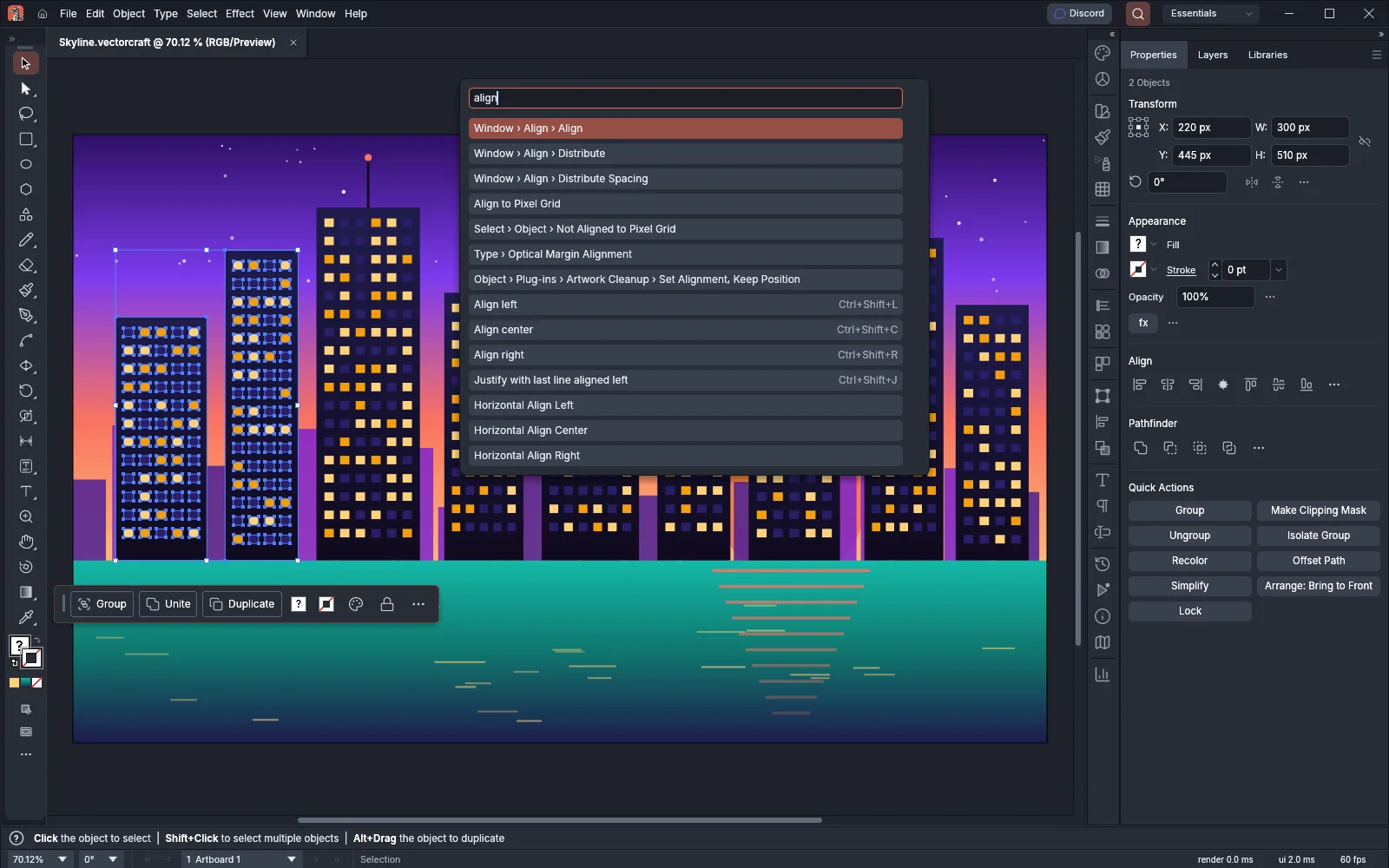
Search Commands
Section titled “Search Commands”- Choose Help → Search Commands…, or press Ctrl+Shift+/ (Cmd+Shift+/ on macOS).
- Type one or more words. A result appears when every word matches its label, its menu path or its id, so typing
object.groupfinds the Group command. - Press the Up and Down arrow keys to highlight a result, then press Enter, or click a result. Choosing a command runs it, and choosing a tool selects the tool.
The list shows up to 14 results. A command with a menu placement shows it before its label, as in “Window › Align › Distribute”, and the command’s shortcut appears beside it. A command with an empty menu field shows only its label, as in “Show Perspective Grid”. Tools, plug-in commands and the filter plug-ins you installed are in the list too.
The command line and the MCP server
Section titled “The command line and the MCP server”vectorcraft-cli commands prints the catalog as a JSON array, one object per command. The 0.24.1 catalog holds 1,430 commands when no plug-in is installed.
The MCP server’s list_commands tool takes these options:
| Option | What it does |
|---|---|
filter or query |
Keeps the commands whose id, label or menu path contains the text, ignoring case |
menu |
Keeps the commands whose menu path contains the text, for example Object. It does not find a command whose menu field is empty. That covers every ui command, such as edit.keyboardShortcuts or ui.recolorDialog, and some other menu items, such as perspective.grid.show and file.print. To find those, use filter with a word from the label or the id. |
enabledOnly |
Keeps only the commands whose enabled field is true |
brief |
Leaves out the parameter descriptions and schemas |
command_list returns the same commands as a plain array and takes enabled_only. The server also lists the catalog as the resource vectorcraft://commands and one command as vectorcraft://command/{id}, for example vectorcraft://command/paint.setFill.
The API reference
Section titled “The API reference”engine.apiReference returns Markdown with a section for each built-in command that has a parameter schema: its label, menu, API level, what it writes, what it returns and a table of its parameters. In 0.24.1 seven commands have a schema, all of them view commands except engine.apiReference itself. For every other command, read the params field in the catalog.
Command namespaces
Section titled “Command namespaces”The table lists the 41 namespaces that hold 8 or more commands, largest first. The Example column gives a main-menu path in bold, or names the panel button or panel menu item that runs the command. A command with no menu item or button runs only from an action, a script, the command line or the MCP server. Shortcuts are the Windows and Linux defaults. On macOS, use Cmd for Ctrl and Option for Alt.
| Namespace | Commands | What it covers | Example | Guide |
|---|---|---|---|---|
object |
152 | The Object menu: transform, arrange, group, lock and hide, compound paths, clipping masks, align and distribute, blends, envelopes, text wrap, patterns and repeats | object.group: Object → Group (Ctrl+G) |
Object menu |
ui |
121 | Dialogs and panel actions of the desktop window, such as the Actions panel and the recolor, color balance and saturate dialogs | ui.recolorDialog: Edit → Edit Colors → Recolor Artwork… |
Fill, stroke and color |
window |
96 | Panels, toolbars, the Control bar, docking, workspaces and interface brightness | window.toolbar: Window → Tools |
Panels |
view |
81 | Zoom, Outline and preview modes, rulers, guides, grids, proofing and saved views | view.outline: View → Outline (Ctrl+Y) |
Set up a document and artboards |
select |
81 | The Select menu: all, none, inverse, same, object and saved selections | select.all: Select → All (Ctrl+A) |
Select artwork |
file |
77 | New, open, save, place, export, print and close | file.saveAs: File → Save As… (Ctrl+Shift+S) |
File and Edit menus |
addon |
77 | The commands of the built-in plug-ins, named addon.<plug-in>.<command> |
addon.arrange.grid: Object → Plug-ins → Arrange Tools → Arrange in Grid… |
Use the built-in plug-ins |
type |
61 | The Type menu: create outlines, type orientation, change case, type on a path and fonts | type.createOutlines: Type → Create Outlines (Ctrl+Shift+O) |
Type, Select and Effect menus |
text |
44 | Type objects: creating and editing text, area type options, threaded text and tabs | text.areaOptions: Type → Area Type Options… |
Add and style type |
document |
37 | Document setup, units, inspecting and finding objects, and exporting documents and selections | document.exportForOffice: File → Save for Office Documents… |
Set up documents and artboards |
edit |
34 | Undo and redo, the clipboard, Edit Colors and undo groups | edit.undo: Edit → Undo (Ctrl+Z) |
File and Edit menus |
path |
34 | Making paths and moving anchors and handles, and the Object → Path menu | path.join: Object → Path → Join (Ctrl+J) |
Cut, join and refine paths |
layer |
26 | The Layers panel: new layers and sublayers, duplicate, delete and the current layer | layer.new: the Layers panel’s Create New Layer button (Ctrl+L) |
Organize with layers and symbols |
symbol |
26 | Symbols, symbol instances and symbol libraries | symbol.new: the Symbols panel’s New Symbol button |
Organize with layers and symbols |
perspective |
25 | The perspective grid, its planes and attaching art to a plane | perspective.grid.show: View → Perspective Grid → Show Grid (Ctrl+Shift+I) |
Draw in perspective |
swatch |
23 | The Swatches panel and swatch libraries | swatch.new: the Swatches panel’s New Swatch button |
Fill, stroke and color |
paint |
22 | Fill and stroke paint, gradients and the default colors | paint.swap: the swap arrow beside the Fill and Stroke boxes (Shift+X) |
Fill, stroke and color |
graphicStyle |
18 | The Graphic Styles panel and graphic style libraries | graphicStyle.new: the Graphic Styles panel’s New Graphic Style button |
Apply effects and appearance |
brush |
18 | The Brushes panel, brush libraries and brush strokes | brush.apply: clicking a brush in the Brushes panel while art is selected |
Paint with brushes |
transparency |
17 | Opacity, blending modes and opacity masks | transparency.makeOpacityMask: the Transparency panel menu’s Make Opacity Mask |
Fill, stroke and color |
appearance |
16 | The Appearance panel: fills, strokes and their order | appearance.addFill: the Appearance panel’s Add New Fill button (Ctrl+/) |
Apply effects and appearance |
artboard |
16 | Artboards and the Object → Artboards menu | artboard.fitToArt: Object → Artboards → Fit to Artwork Bounds |
Manage artboards |
library |
16 | The Libraries panel and its saved graphics, colors and styles | library.create: the Libraries panel’s Create New Library button |
Fill, stroke and color |
align |
15 | The buttons of the Align panel | align.horizontalLeft: the Align panel’s Horizontal Align Left button |
Arrange, group and align |
variable |
14 | The Variables panel: variables and dynamic text and visibility | variable.define: the Variables panel menu’s New Variable… |
Make graphs and data-driven art |
effect |
13 | Applying, editing and removing effects, and Expand Appearance | effect.last: Effect → Last Effect… (Ctrl+Alt+Shift+E) |
Apply effects and appearance |
links |
13 | The Links panel: check, update, relink and go to linked files | links.editOriginal: Edit → Edit Original |
Work with placed images |
plugin |
13 | Installing, listing, running and removing plug-ins | plugin.reload: Object → Plug-ins → Reload Plug-ins |
Install and manage plug-ins |
clipboard |
12 | Reading the clipboard as SVG, PNG, PDF or text, and loading SVG into it | clipboard.exportSvg (Clipboard as SVG): no menu item |
Copy and paste between apps |
stroke |
12 | Stroke weight, caps, joins, dashes and width profiles | stroke.set: the settings of the Stroke panel |
Fill, stroke and color |
dataset |
12 | Data sets for the Variables panel | dataset.new: the Variables panel menu’s New Data Set… |
Make graphs and data-driven art |
charStyle |
11 | Character styles | charStyle.new: the Character Styles panel’s Create New Character Style button |
Work with styles and long text |
paraStyle |
11 | Paragraph styles | paraStyle.new: the Paragraph Styles panel’s Create New Paragraph Style button |
Work with styles and long text |
imageTrace |
11 | Image Trace and its presets | imageTrace.make: Object → Image Trace → Make |
Trace an image |
print |
11 | Print settings, print preview and print presets | print.setup: OK in the dialog of File → Print… (Ctrl+P) |
Print your artwork |
shape |
10 | Drawing rectangles, ellipses, polygons, stars, flares, lines, arcs, spirals and grids from numbers | shape.rectangle (Rectangle): no menu item. It draws a rectangle from numbers you pass, such as x, y, width and height. |
Draw and transform shapes |
help |
9 | The Help menu, Search Commands and About VectorCraft | help.commandPalette: Help → Search Commands… (Ctrl+Shift+/) |
Getting started |
assets |
9 | Collecting assets for export and exporting them | assets.add: Object → Collect for Export → As Single Asset |
Export for screens and the web |
livePaint |
8 | Live Paint groups and their gaps | livePaint.make: Object → Live Paint → Make (Ctrl+Alt+X) |
Combine and cut shapes |
script |
8 | Running, checking and stopping scripts, and the Script Console | script.run: runs the file you choose in File → Scripts → Other Script… (Ctrl+F12) |
Run scripts |
shortcuts |
8 | Setting, listing, resetting, importing and exporting keyboard shortcuts | shortcuts.set (Set Keyboard Shortcut): no menu item. Edit → Keyboard Shortcuts… sets keys in a dialog instead. |
Keyboard shortcuts |
The other 35 namespaces hold 112 commands between them:
| Namespace | Commands | What it covers |
|---|---|---|
color, colorTheme, recolor |
6, 4, 4 | The Color Guide, color profiles, gamut warnings, color themes and Recolor Artwork |
graph |
6 | Making graphs, and Object → Graph → Data… and the other items of the Graph menu |
guide |
6 | Adding, moving, selecting and removing guides |
prefs |
6 | Reading, setting, resetting, importing and exporting preferences |
flattener |
6 | Transparency flattener presets and the Flattener Preview |
svgInteractivity, svgFilter, css |
6, 5, 5 | SVG events and JavaScript files, SVG filters, and CSS properties for the web |
gradient |
5 | Gradient stops and gradient presets |
shaper |
5 | Shaper groups, such as Object → Shaper → Release Shaper Group |
pdf, webExport |
5, 4 | PDF presets, and Save for Web settings and presets |
pattern |
4 | Pattern Options and transforming patterns |
toolbar, tool |
4, 3 | Editing the Tools panel, choosing a tool and setting tool options |
dimension |
3 | Dimensions: create, update and apply to all |
attributes |
3 | The Attributes panel |
importMatches |
3 | The matches that importing remembers |
app |
3 | Interface language, the Home screen and File → Exit (Ctrl+Q). On macOS, Quit is in the VectorCraft menu (Cmd+Q). |
magicWand, shapeBuilder, eyedropper |
2, 2, 1 | Magic Wand, Shape Builder and Eyedropper options |
command, action |
1, 1 | command.batch, which runs several commands as one undo step, and action.batch, which plays an action’s steps on a folder of files or on data sets |
actionSet, shortcutSet |
1, 1 | Reading another app’s action set or shortcut set file without changing anything |
node, image, slice, pathfinder, textStyle, docInfo, engine |
1 each | Reordering objects, image information, the list of slices, Repeat Pathfinder (Ctrl+4), Load All Styles…, Save Document Info… and engine.apiReference |
Commands in actions, scripts and shortcuts
Section titled “Commands in actions, scripts and shortcuts”The same id names a command everywhere it runs:
| Where | How it uses the command id |
|---|---|
| Actions | The Actions panel records each command you run, with its parameters, as one step of the action. Commands that only return information are not recorded. |
command.batch |
{"commands": [{"command": "select.all"}, {"command": "paint.setFill", "params": {"color": "#2ec4b6"}}]} runs the steps as one undo step and undoes all of them if one fails. |
vectorcraft-cli run |
Each --cmd names a command id, and a --commands file lists steps with command and params. |
| Scripts | vc.run("object.group", {}) runs a command and returns its result. A command that fails throws an error that the script can catch. vc.commands lists the id, label and parameters of each command a script may run. |
| Keyboard shortcuts | Edit → Keyboard Shortcuts… (Ctrl+Alt+Shift+K) assigns keys to commands. The command shortcuts.set takes a command id, or tool: and a tool id, and the keys, for example {"id": "path.reverse", "shortcut": "Cmd+Alt+Shift+R"}, which gives Object → Path → Reverse Path Direction the keys Ctrl+Alt+Shift+R (Cmd+Option+Shift+R on macOS). |
An action step and a command.batch step have the same form, a command id with its parameters. Automate VectorCraft shows how to record and play actions and how to run commands from the command line, and Run scripts shows how to run a script.
Plug-in commands
Section titled “Plug-in commands”A filter or live-effect plug-in can add commands of its own. While the plug-in is installed, each of its commands has the id plugin.<plug-in id>.<command id>, and the catalog lists these commands after the built-in ones, in plug-in id order.
- A filter plug-in’s commands appear under Object → Plug-ins → the plug-in’s name, and a live-effect plug-in’s commands under Effect → Plug-ins → its name.
- A plug-in command runs on the selected paths and compound paths, or on the objects whose ids you pass in
ids, as one undo step. It takes the plug-in’s own parameters inparams. - Actions record plug-in commands, and Search Commands lists them.
- A plug-in command has no default shortcut. You can give it one in Edit → Keyboard Shortcuts….
engine.apiReferenceleaves plug-in commands out.- In Safe Mode no plug-in loads, and a plug-in command reports that Safe Mode is on.
The commands of the built-in plug-ins are always in the catalog, in the addon namespace. Each id names the plug-in and then the command, for example addon.arrange.grid for Object → Plug-ins → Arrange Tools → Arrange in Grid…. The plugin namespace holds the commands that install, list, run and remove plug-ins, such as plugin.reload for Object → Plug-ins → Reload Plug-ins. See Install and manage plug-ins and Use the built-in plug-ins.