
Start documents from a template
This page shows how to save a document as a template, start new documents from it, change it, and choose where templates are kept.
A template is a saved document that you start new work from. Its artboards, layers, art, swatches and guides open as a new untitled document, and the template file itself stays as it was.
Save a document as a template
Section titled “Save a document as a template”- Set up the document the way every new copy should start: its artboards, layers, guides, swatches, styles and placeholder art and type.
- Choose File → Save as Template…. The save dialog opens in the Templates folder and suggests the document’s name followed by “template”, for example
Postcard set template.vctemplate. - In Save as type, pick the kind of template. The following table describes both kinds.
- Type a name if you want a different one, and click Save.
| Save as type | Extension | What it holds |
|---|---|---|
| VectorCraft Template | .vctemplate |
The whole document, as a .vectorcraft file holds it, marked as a template. This is the default |
| PDF-compatible .ait template | .ait |
A PDF page for each artboard, plus the whole document, written the way VectorCraft writes a .ai file. VectorCraft opens the whole document from it. Apps that read PDF files show the artboards as pages |
VectorCraft does not show an options dialog for either kind of template. The document you saved from keeps its own file, name and unsaved changes.
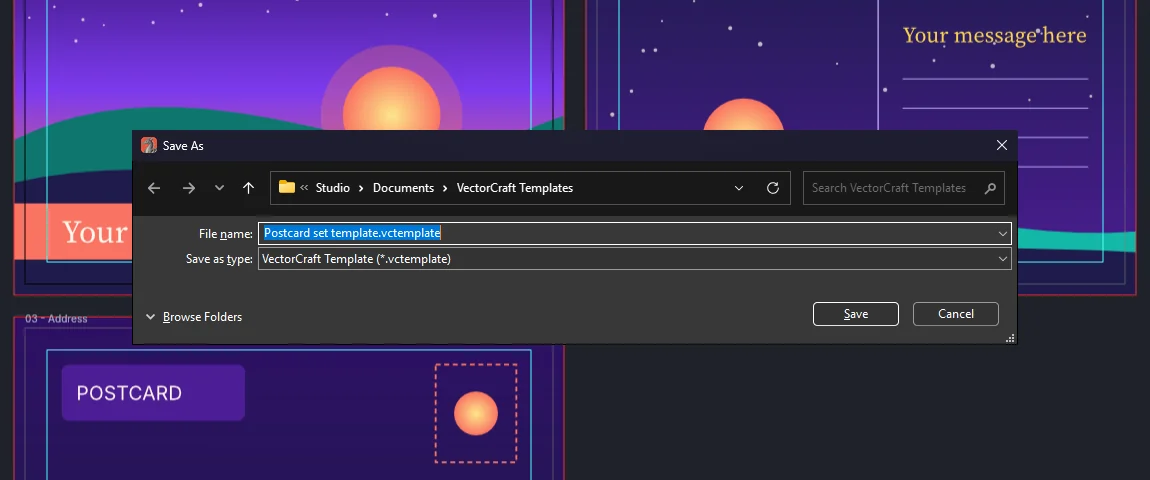
If you type a name that ends in another format’s extension, such as card.png, VectorCraft replaces that extension with the template’s. A name without an extension gets one.
Start a document from a template
Section titled “Start a document from a template”- Choose File → New from Template… (Ctrl+Shift+N, or Cmd+Shift+N on macOS). The open dialog starts in the Templates folder.
- Pick a template and click Open.
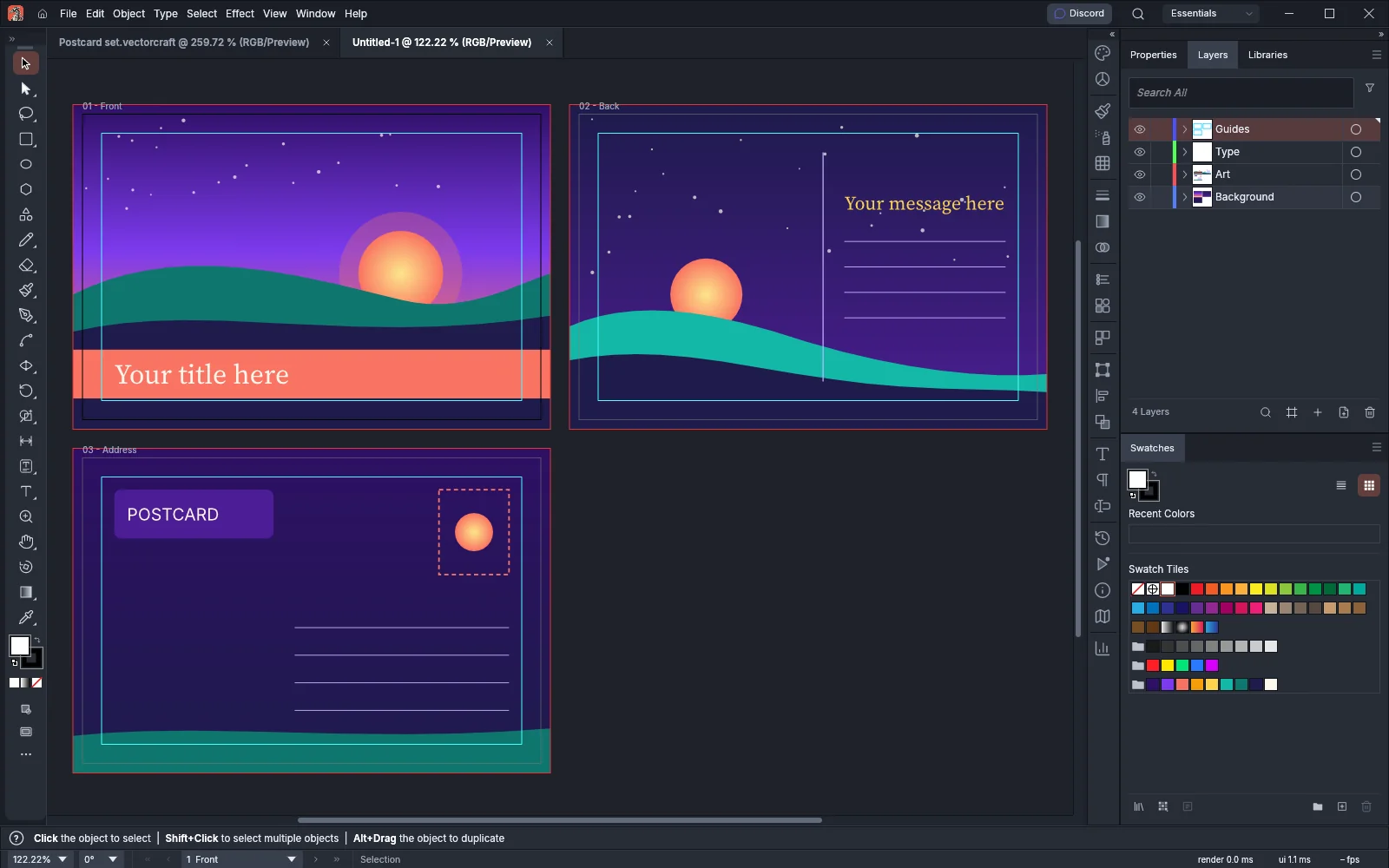
The template opens as a new document named Untitled and a number, for example Untitled-1. It has the template’s artboards, layers, art, swatches and guides. Because the document has no file yet, File → Save asks for a name and a folder.
The open dialog’s Templates file type lists .vctemplate, .ait, .vectorcraft and .drawcraft files. The other file types list every format VectorCraft opens. New from Template… opens any of these files as a new untitled document, an ordinary .vectorcraft document included.
Change a template
Section titled “Change a template”- Open the template with File → New from Template… or File → Open…. It opens as an untitled document.
- Make your changes.
- Choose File → Save as Template….
- Pick the template’s existing file in the Templates folder, with the same Save as type, and click Save.
- When the save dialog asks whether to replace the existing file, confirm that you want to replace it.
Documents you already started from the template do not change.
Choose where templates are kept
Section titled “Choose where templates are kept”File → Save as Template… and File → New from Template… start in the Templates folder. By default this is the VectorCraft Templates folder in your Documents folder. On Linux and the BSDs, VectorCraft uses the documents folder set in your desktop’s user folder settings (XDG_DOCUMENTS_DIR).
To use another folder:
- Choose Edit → Preferences… (Ctrl+K). On macOS, choose VectorCraft → Settings → General… (Cmd+K).
- Click the File Handling page.
- In Templates Folder, type the full path of the folder. The field has no Choose… button.
- Click OK.
Clear the field to go back to the default folder. When the Templates folder does not exist, VectorCraft makes it the next time one of the two dialogs opens. If VectorCraft cannot make it, the dialog starts in the nearest folder above it that exists. If no folder above it exists, the dialog starts in your home folder.
A preferences file made with Export Preferences… in the Preferences dialog does not include Templates Folder. Set the folder on each computer.