
Workflows
In VectorCraft, every shape, line and letter is a path: an outline that stays sharp at any size. The guides below start with a new document and end with automation, and you can read each one on its own.
Shortcuts are written for Windows and Linux first, then macOS: Ctrl+G (Cmd+G on macOS). You can change every shortcut in Edit → Keyboard Shortcuts… (Ctrl+Alt+Shift+K, or Cmd+Option+Shift+K on macOS). Help → Search Commands… (Ctrl+Shift+/, or Cmd+Shift+/ on macOS) finds any menu command by name.
Guides
Section titled “Guides”Documents and artboards
7 pagesDocuments
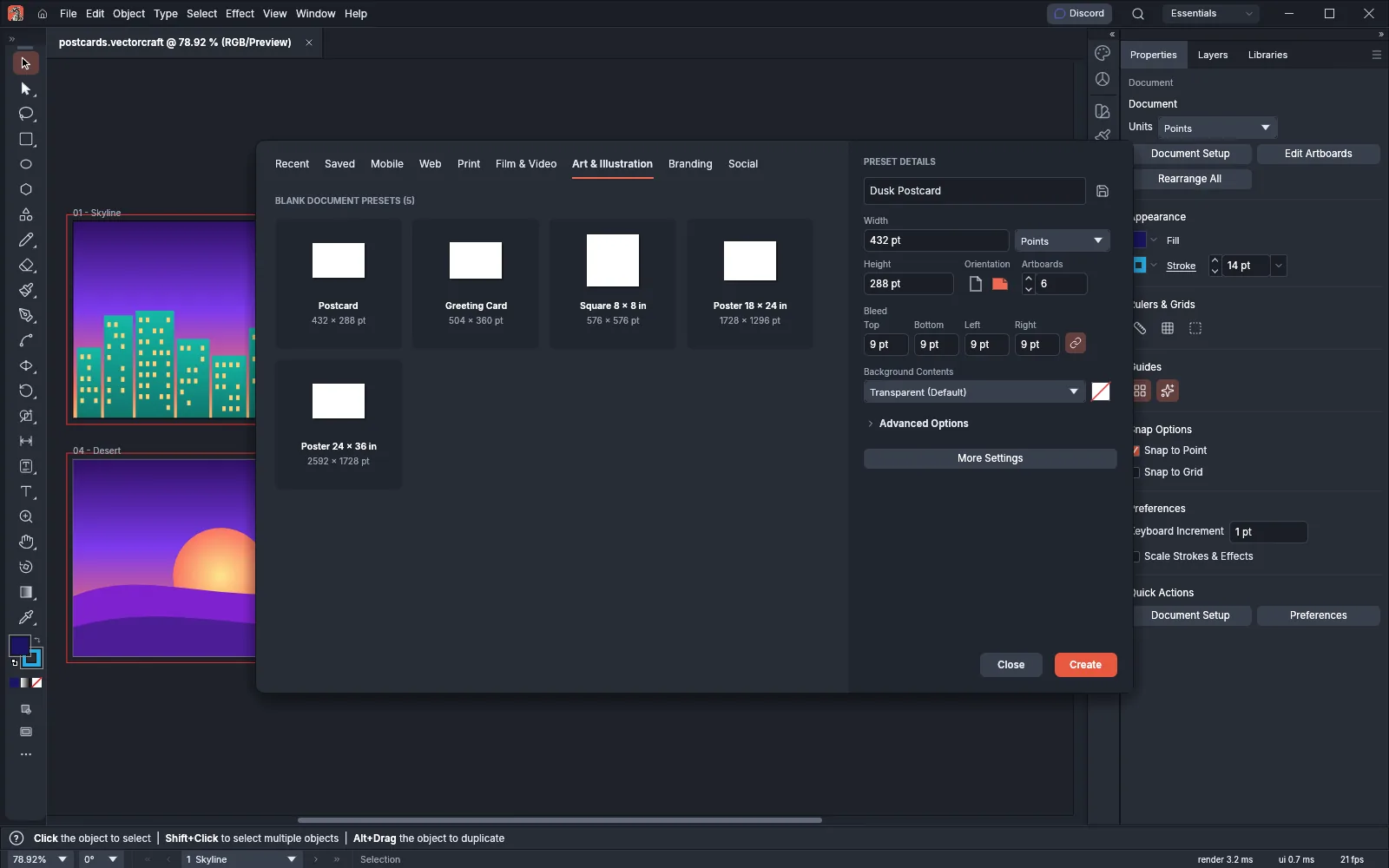
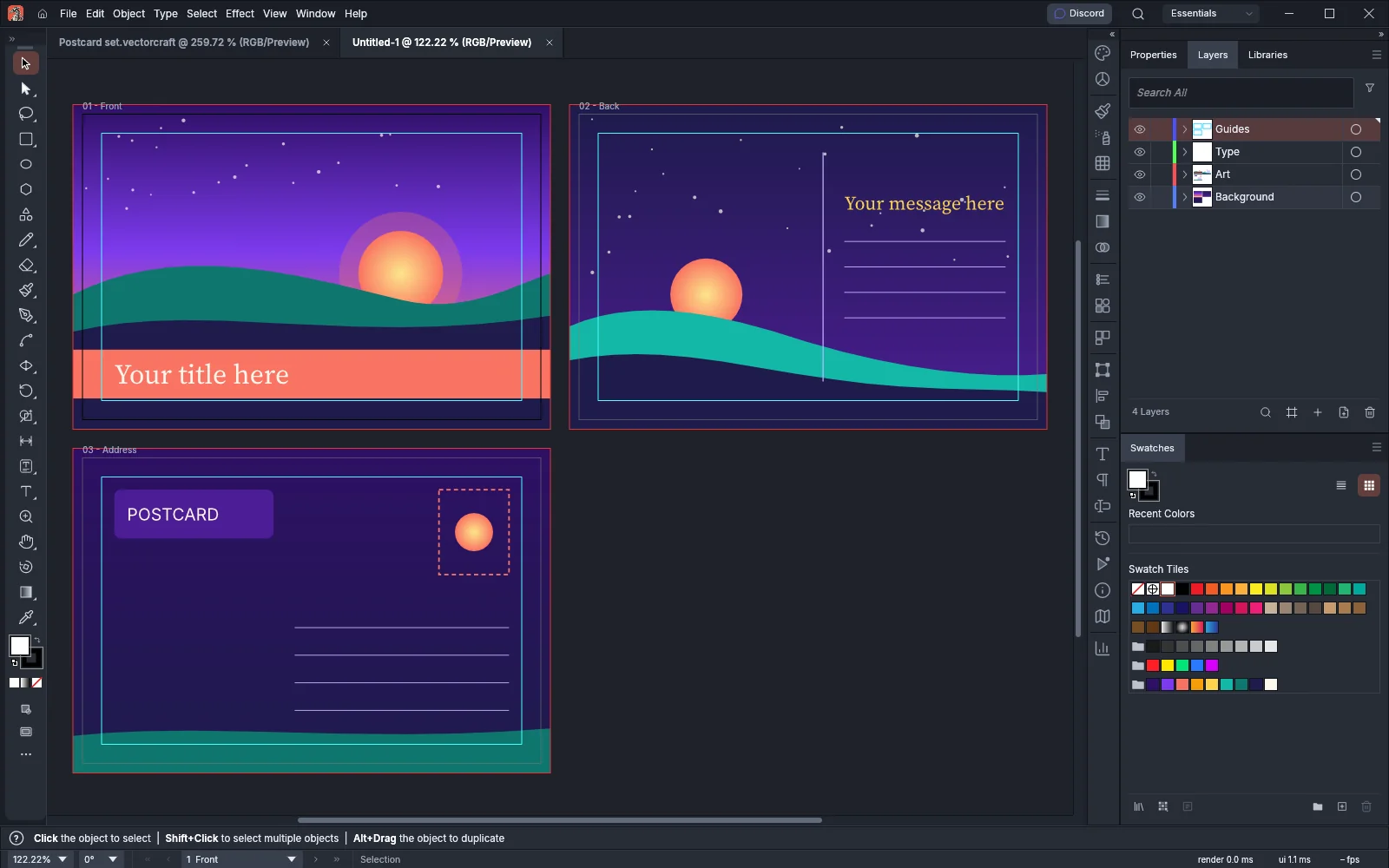
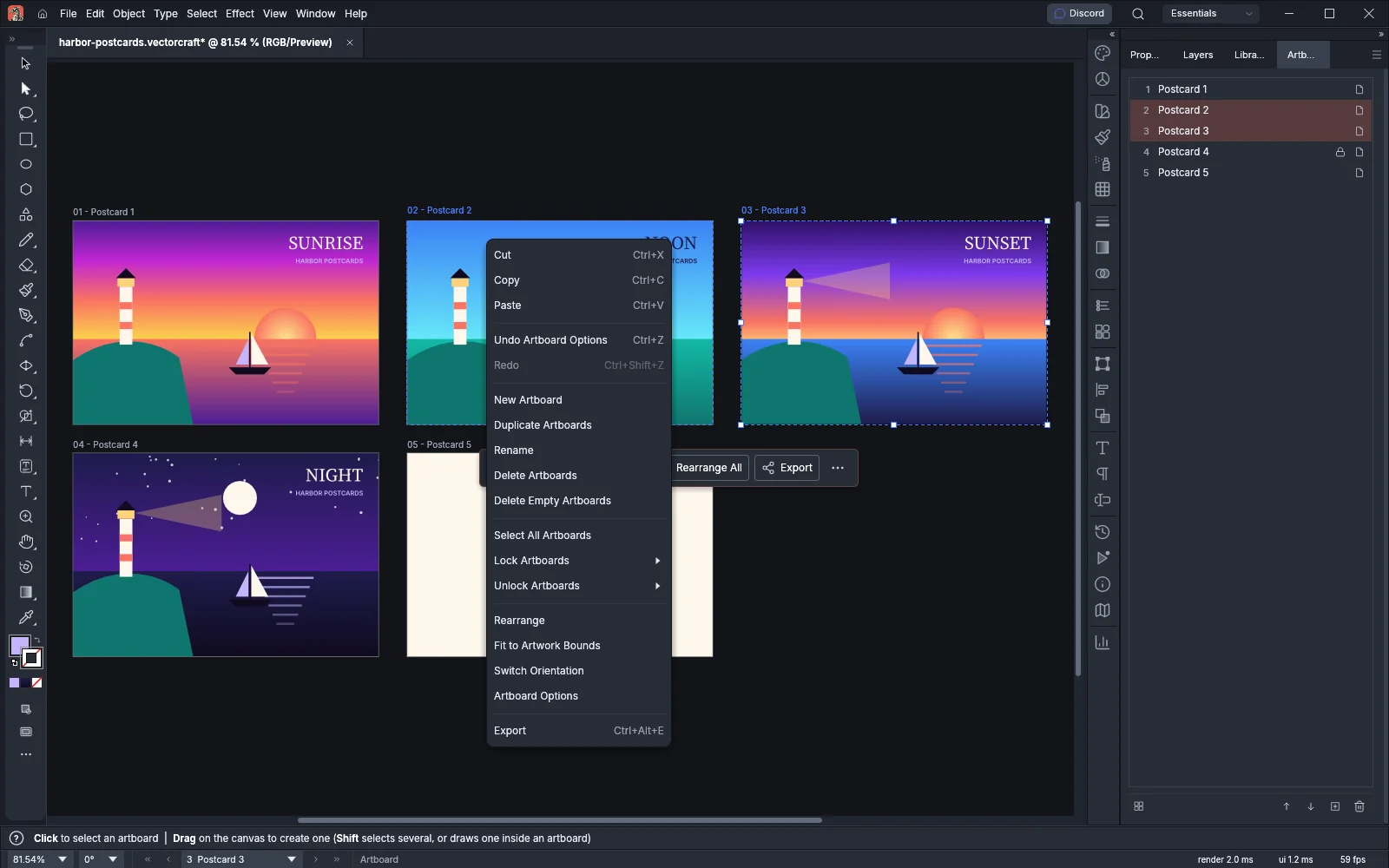
Artboards
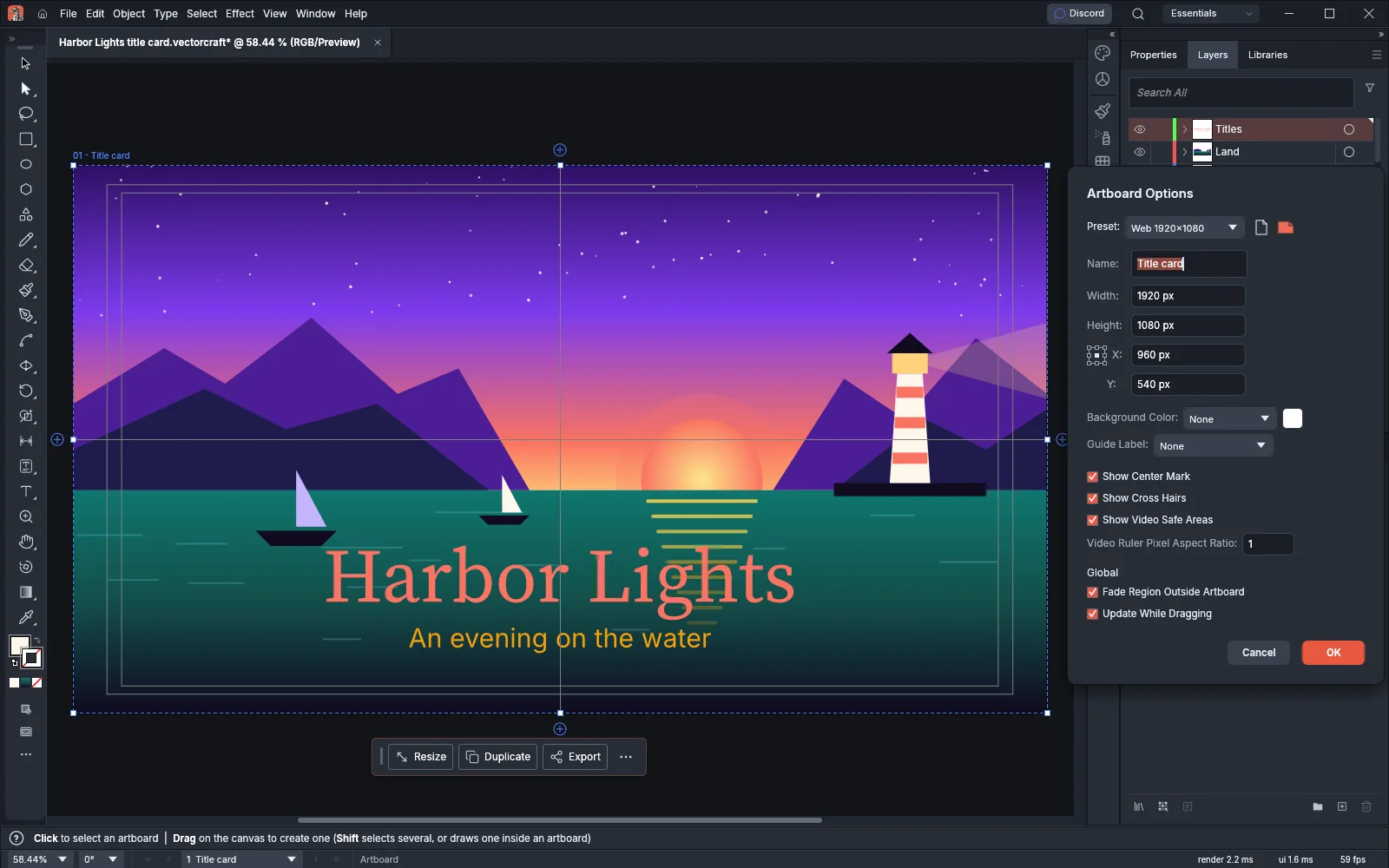
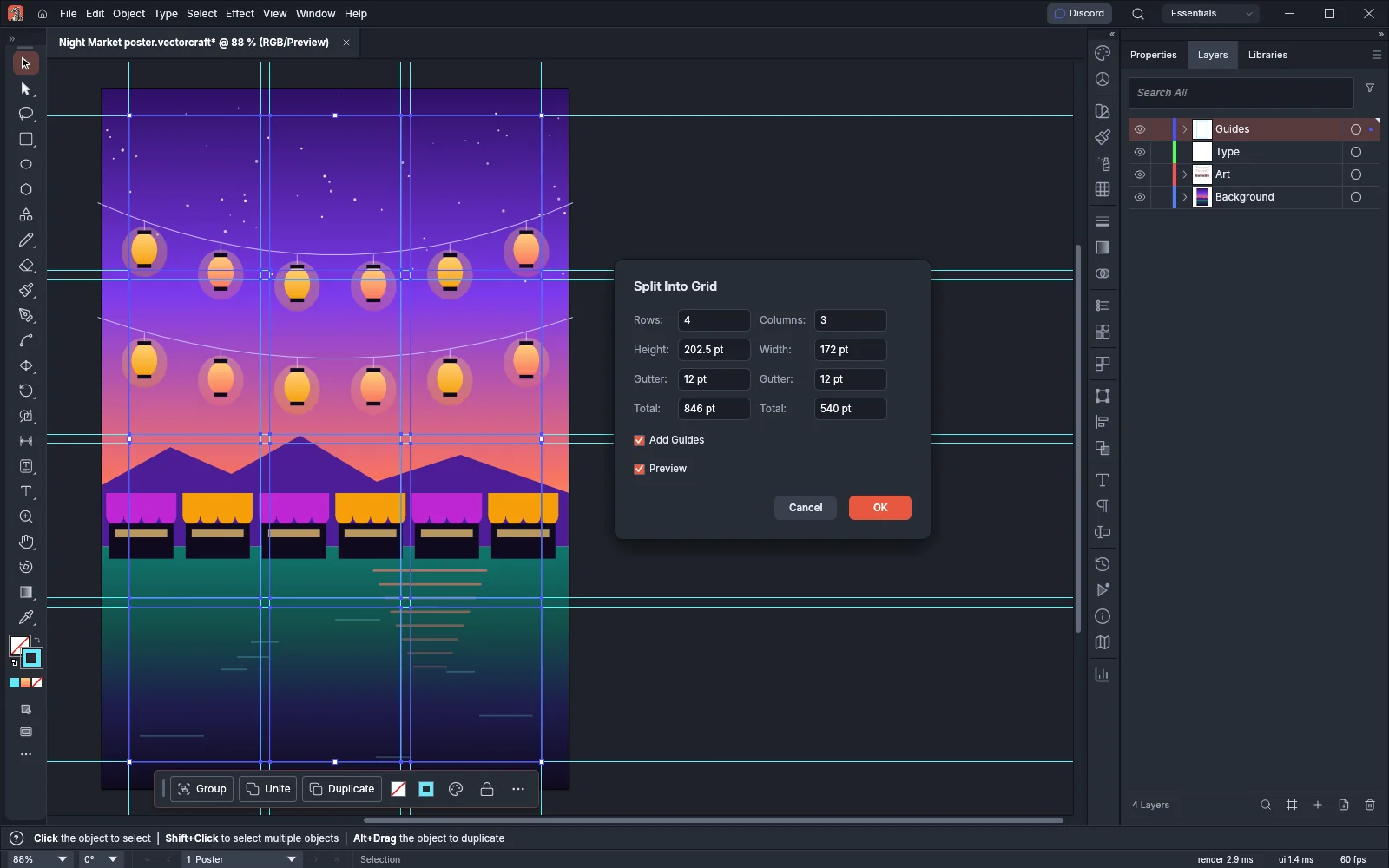
Rulers, grids and guides
View and navigate
7 pagesZoom and pan
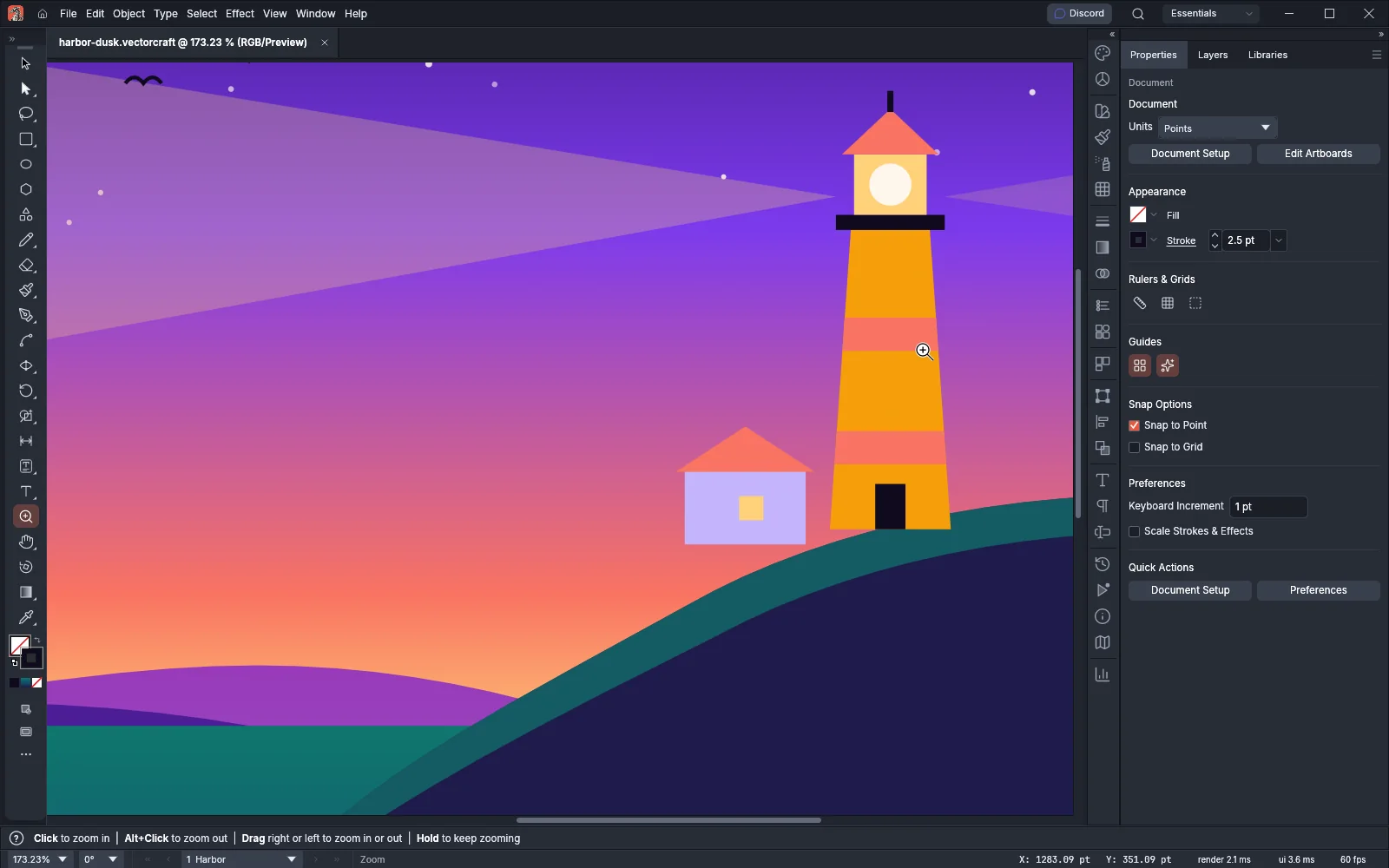 GuideZoom and pan the canvasZoom in and out and move around a document with tools, keys, the wheel and the status bar.
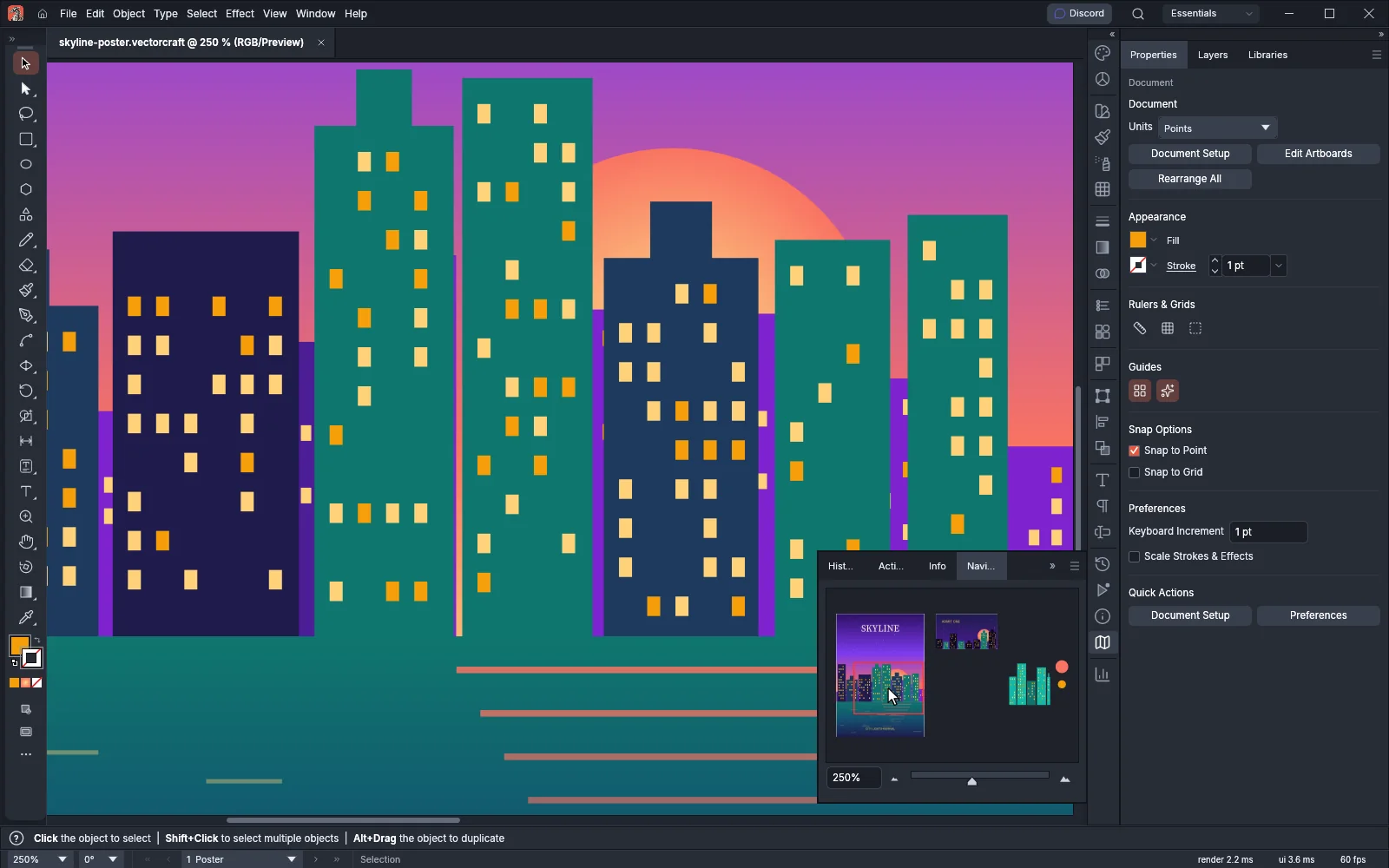 GuideFind your place with the Navigator panelSee the whole document in a thumbnail and move the view by dragging its view box.
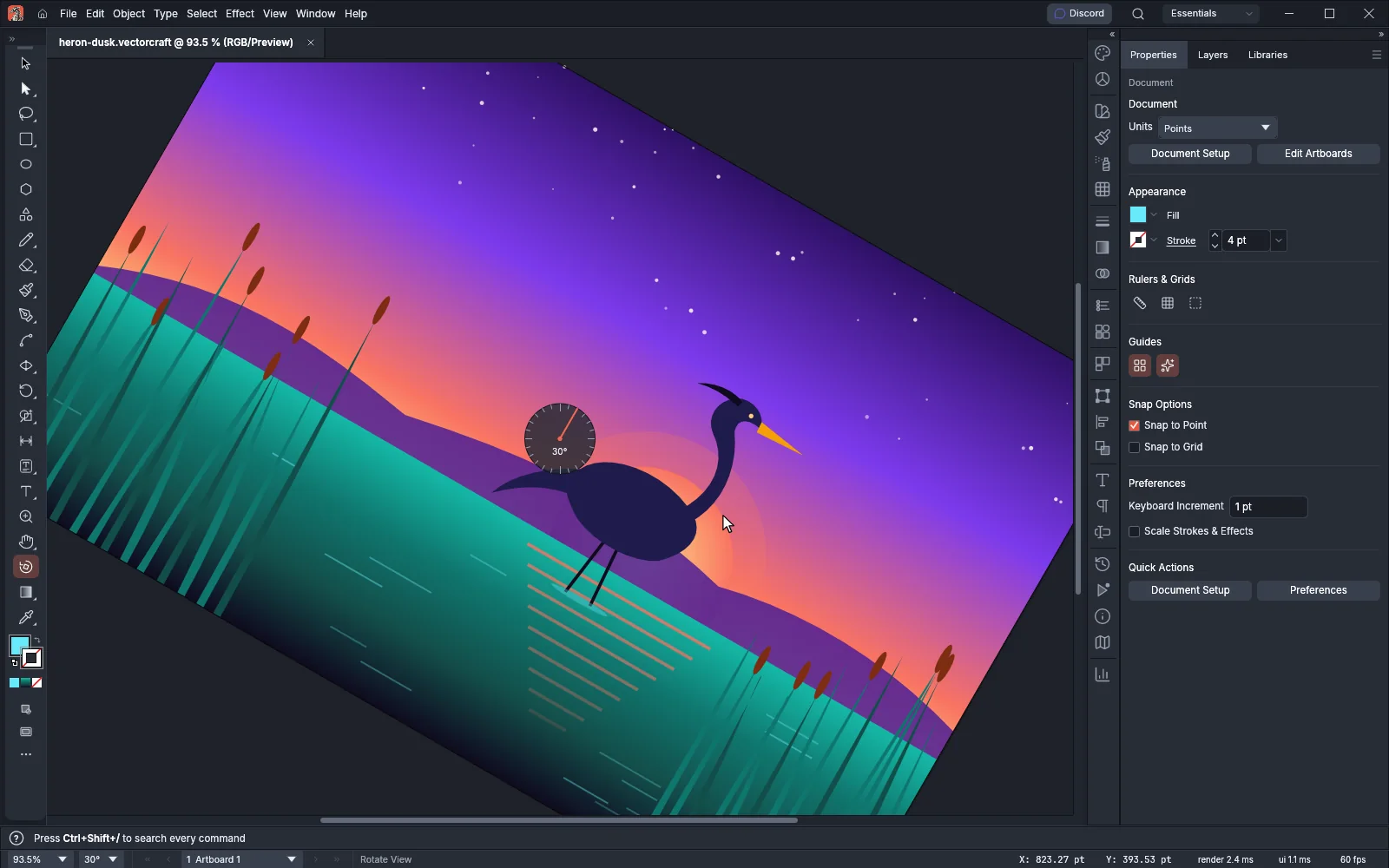 GuideRotate the viewTurn the canvas to a comfortable drawing angle without rotating the artwork.
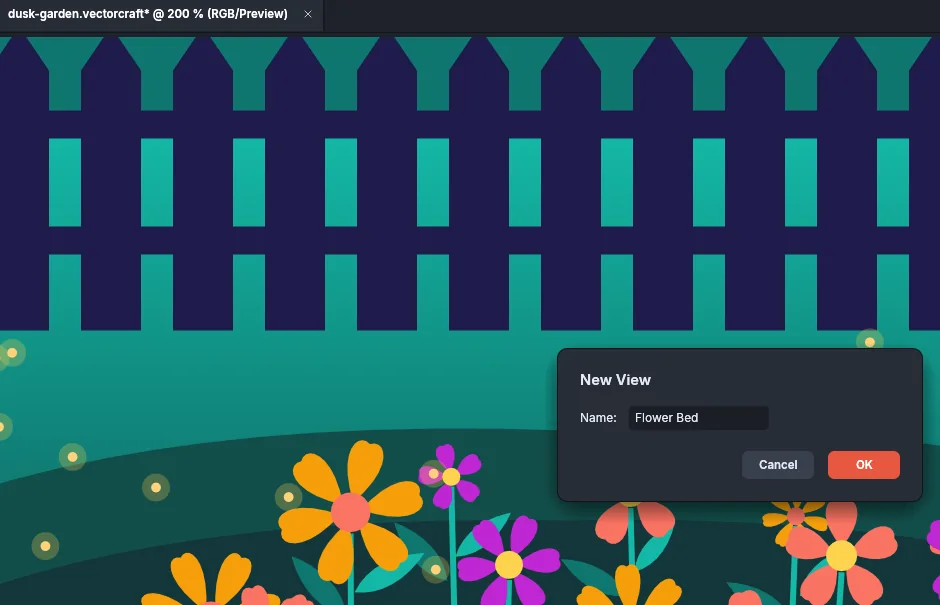 GuideSave and recall viewsName the parts of a document you return to and jump back to them from the View menu.
Screen modes and windows
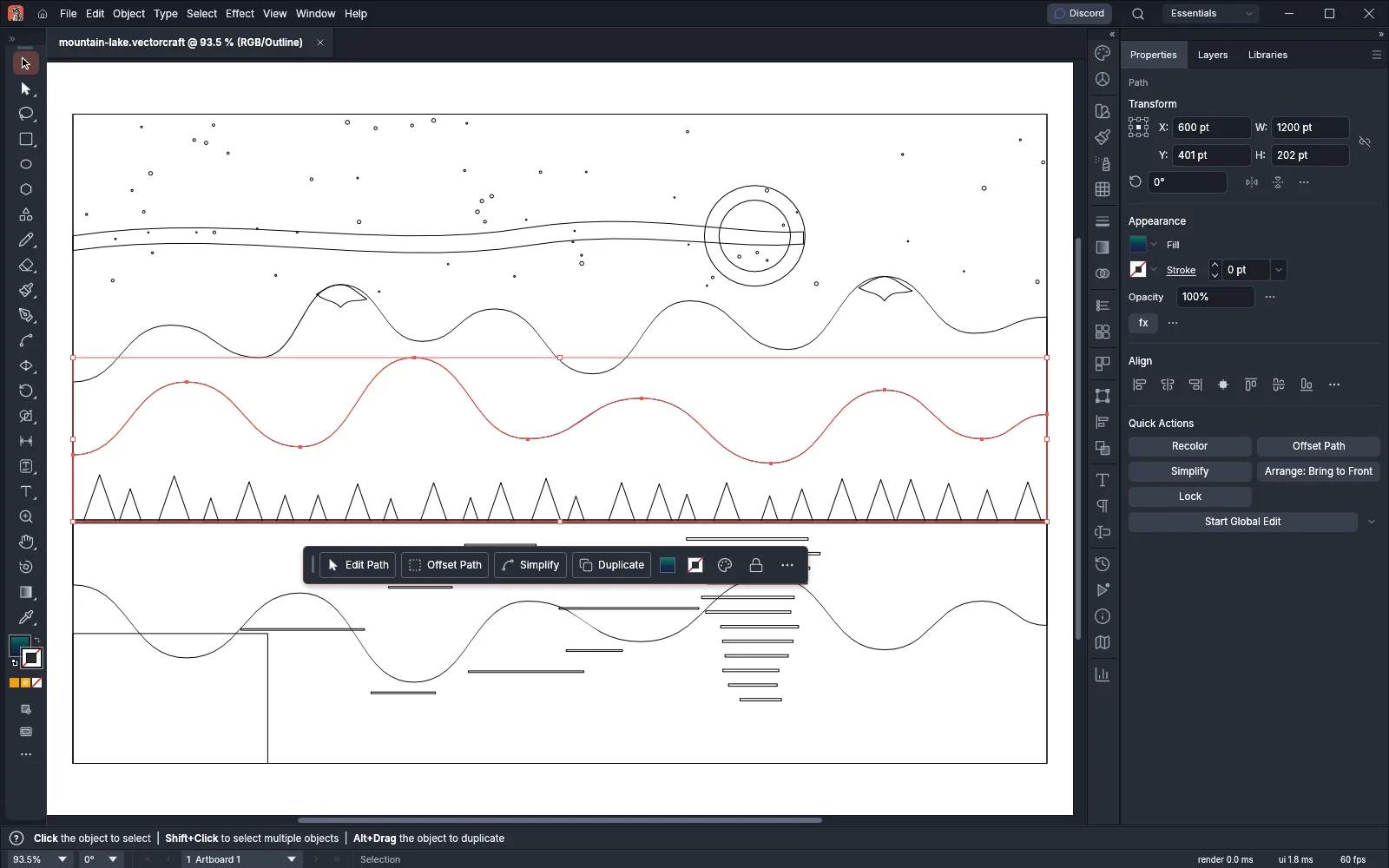 GuideSwitch between Outline, Preview and Pixel PreviewShow the artwork as outlines, as pixels or in full color.
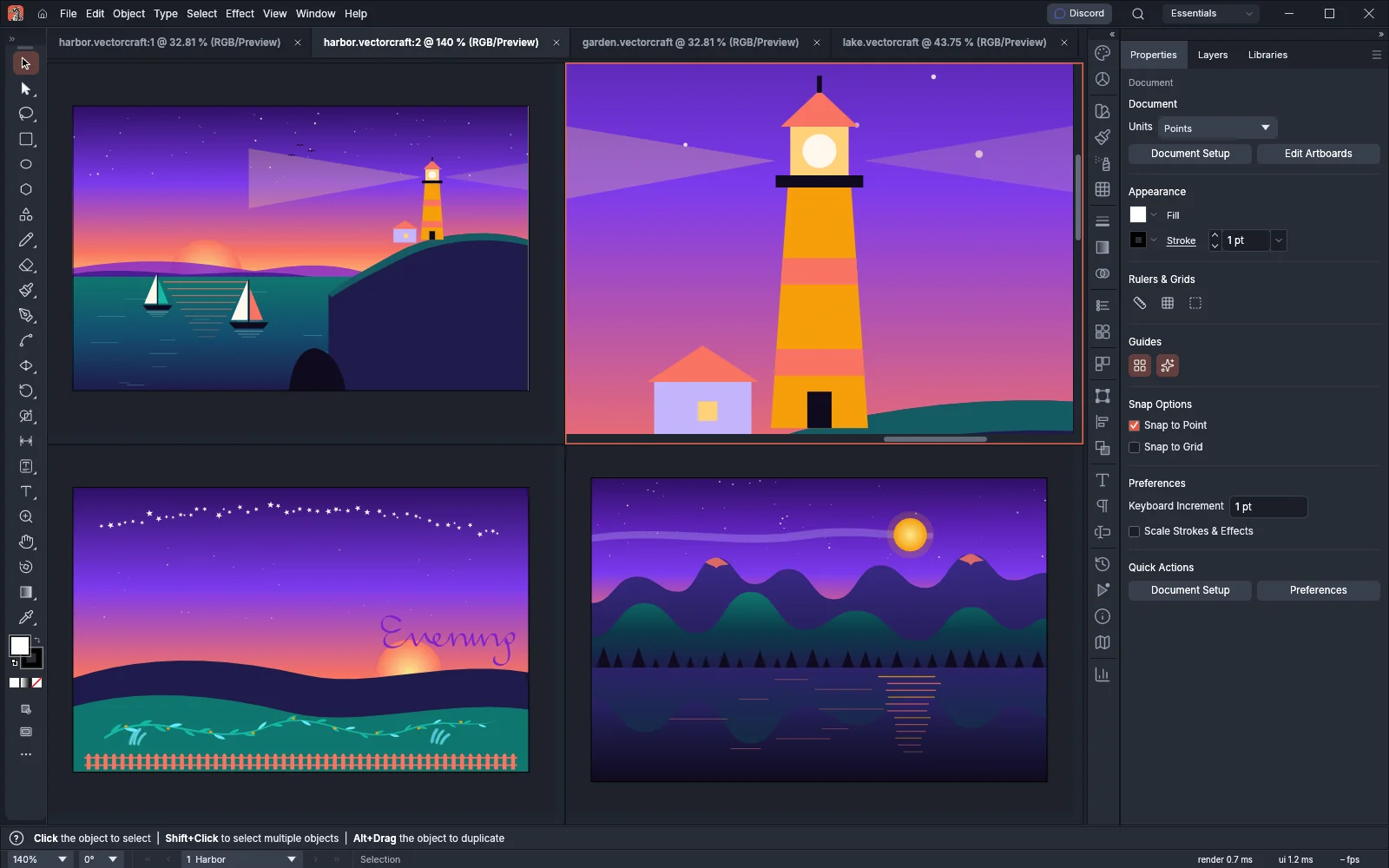 GuideWork in several windowsOpen several views of a document and arrange your documents side by side.
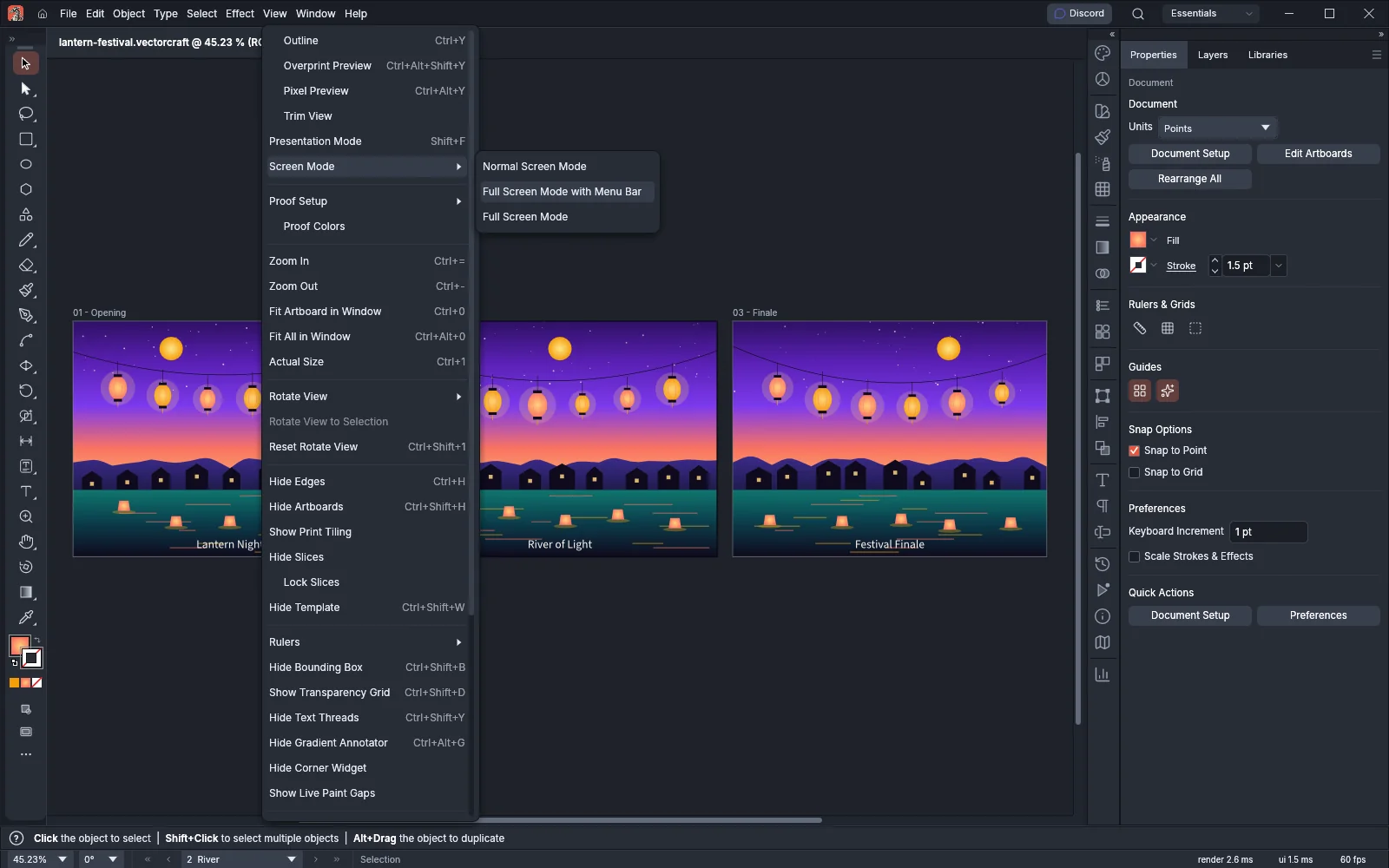 GuidePresent artwork and use screen modesGive the artwork more of the screen, or present your artboards one at a time.
Select and transform
6 pagesSelecting
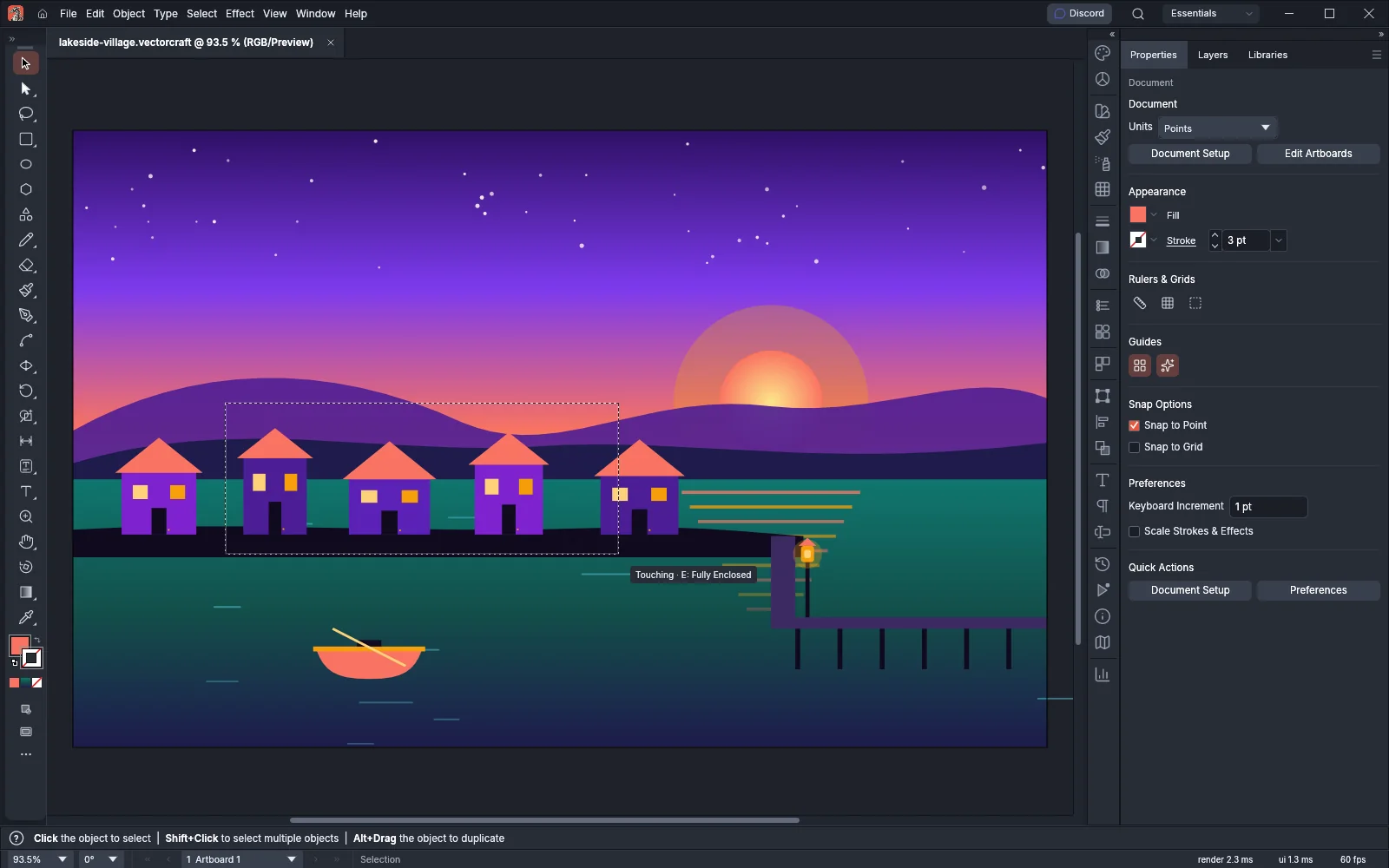
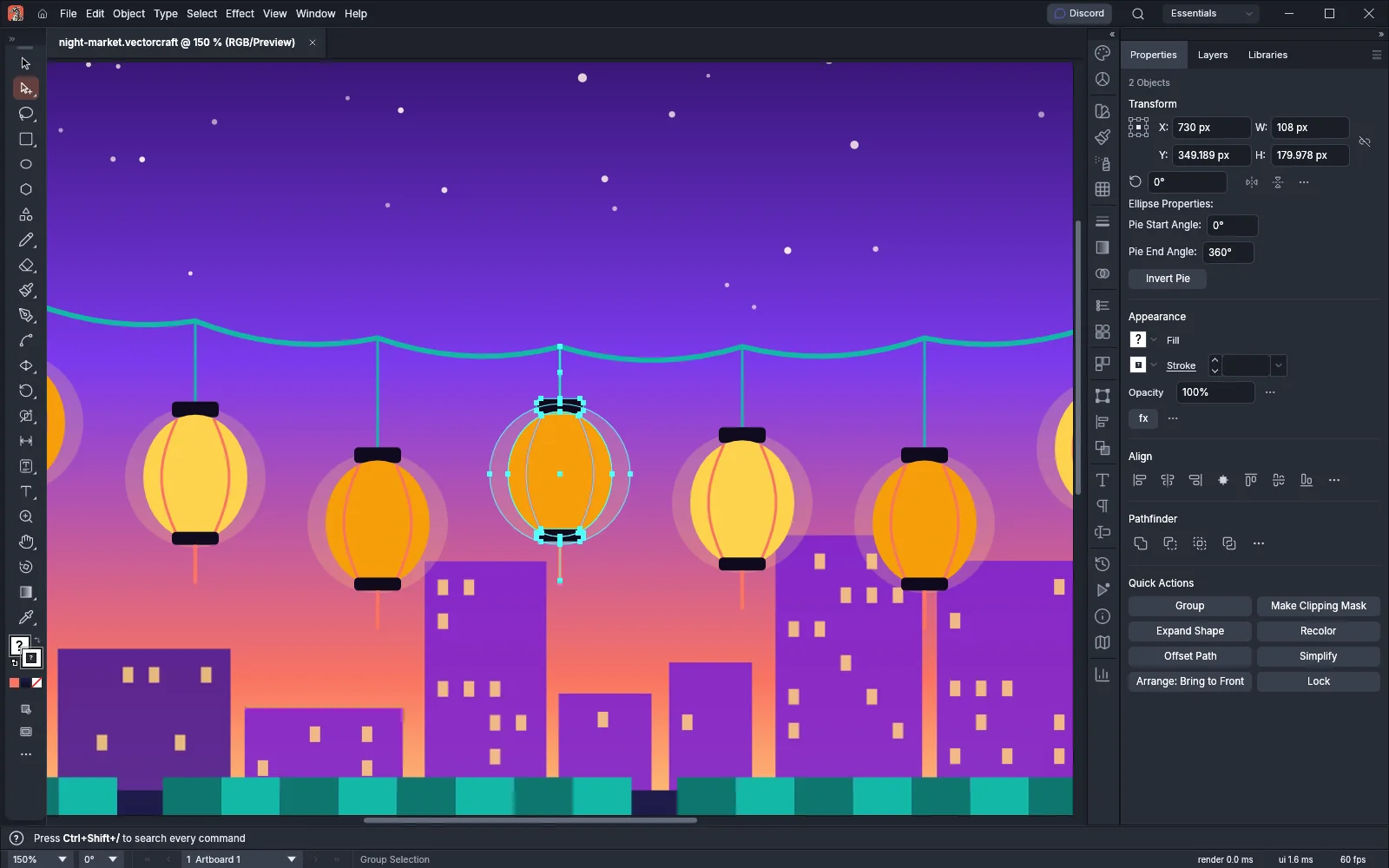
Transforming
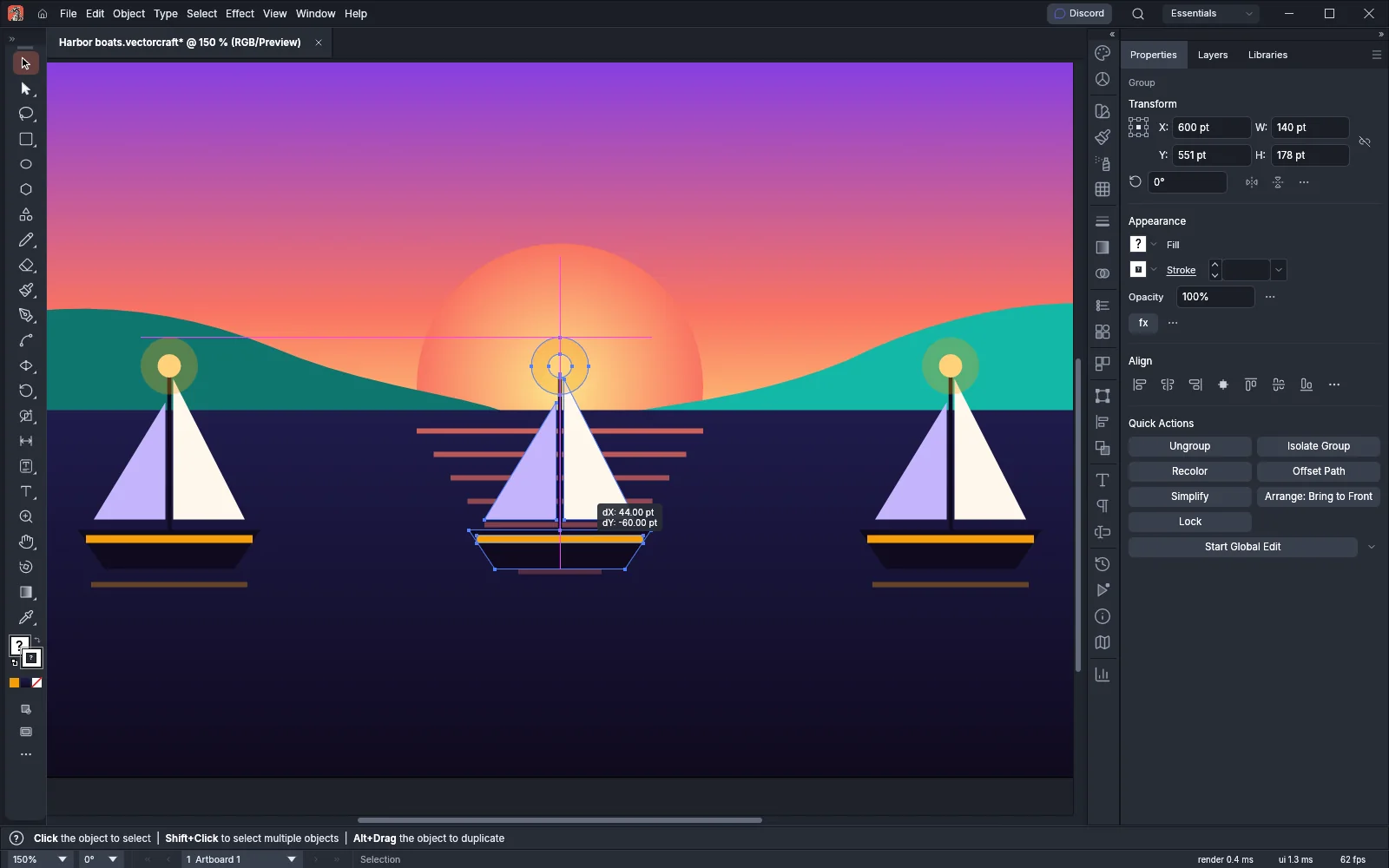
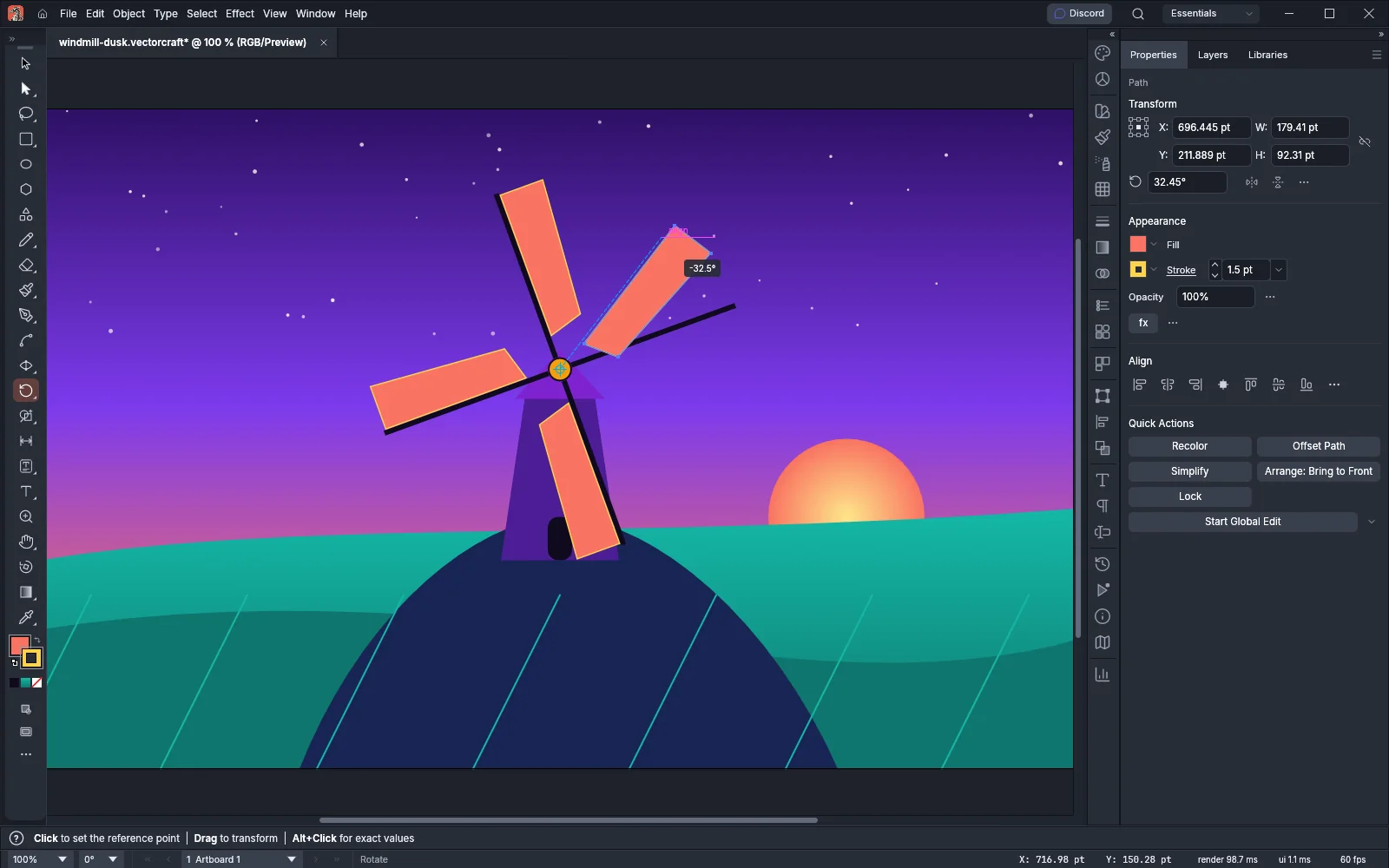 GuideRotate, reflect, scale and shear objectsRotate, mirror, resize and slant objects about a point you choose.
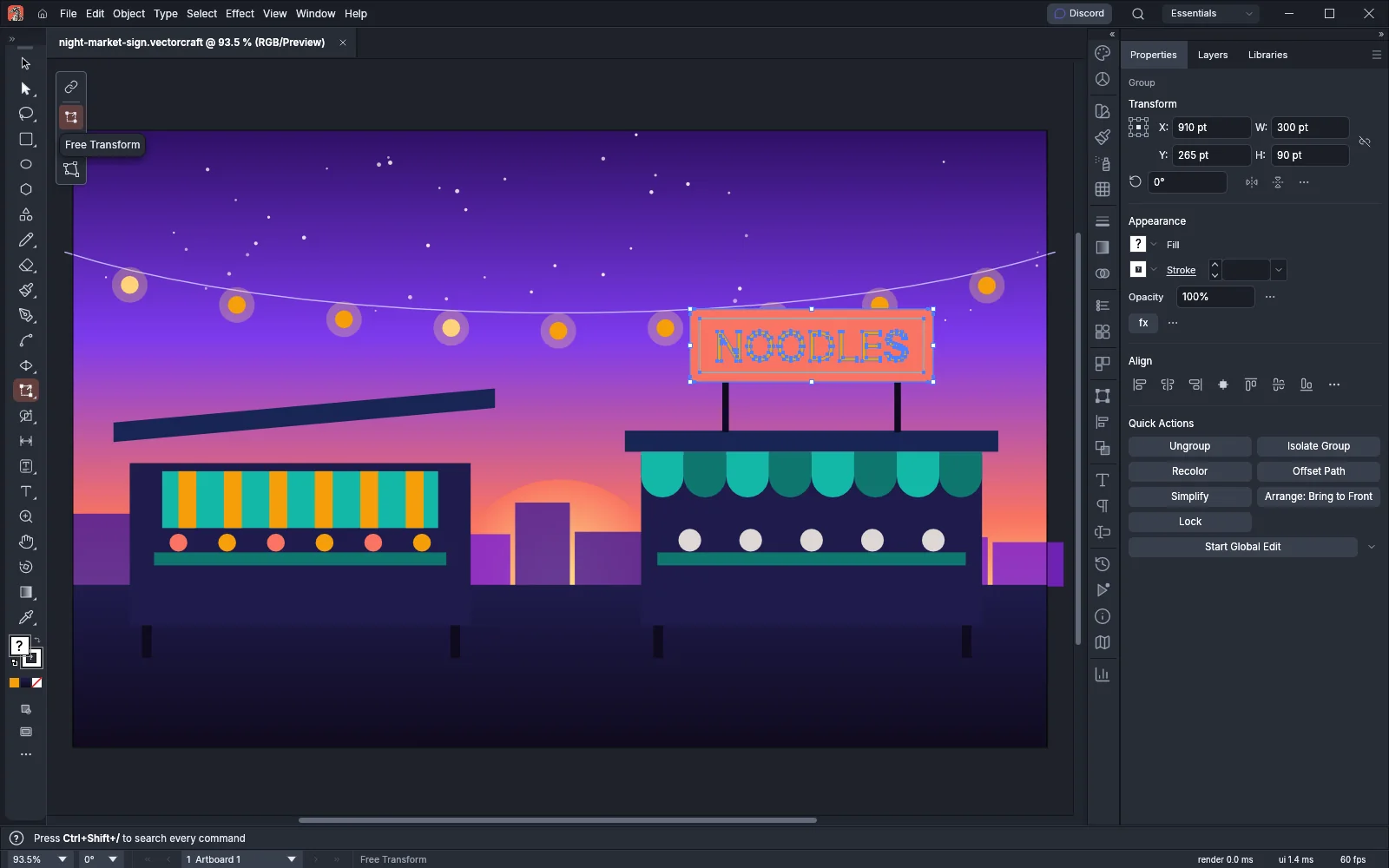 GuideDistort with the Free Transform toolScale, rotate and shear with one tool, or pull corners in perspective or freely.
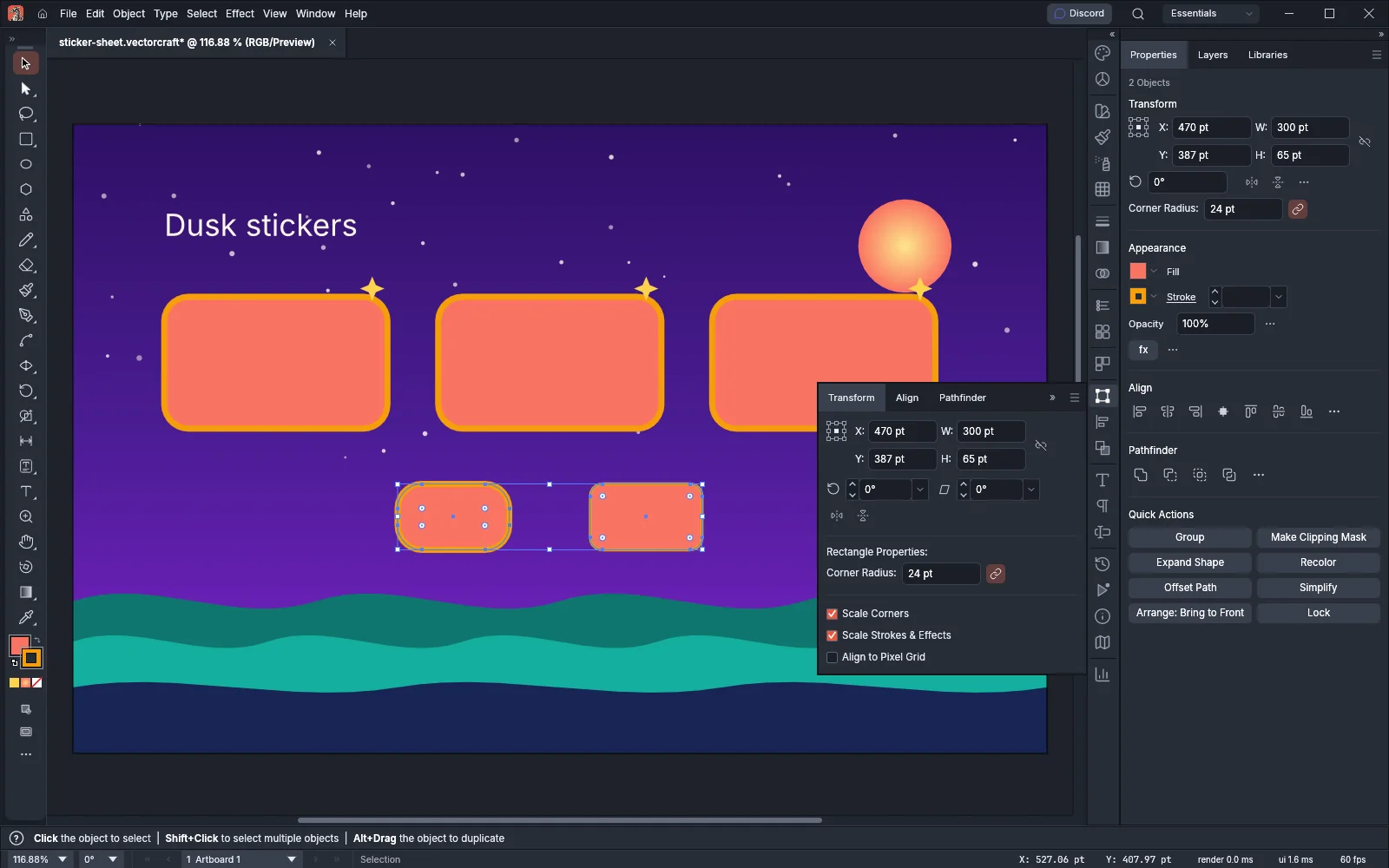 GuideTransform strokes, corners and patternsChoose what scales and turns with an object, or transform only its pattern.
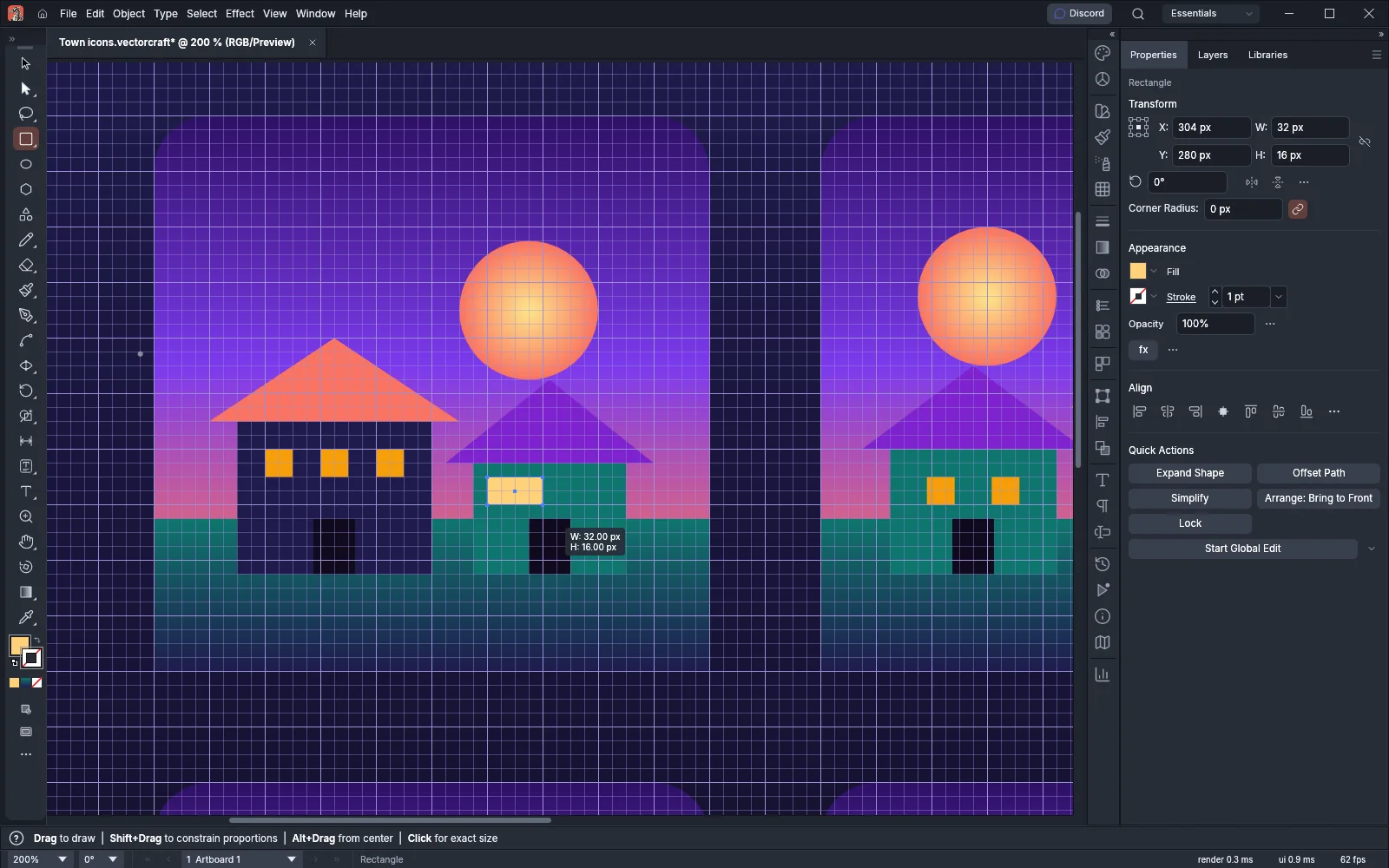
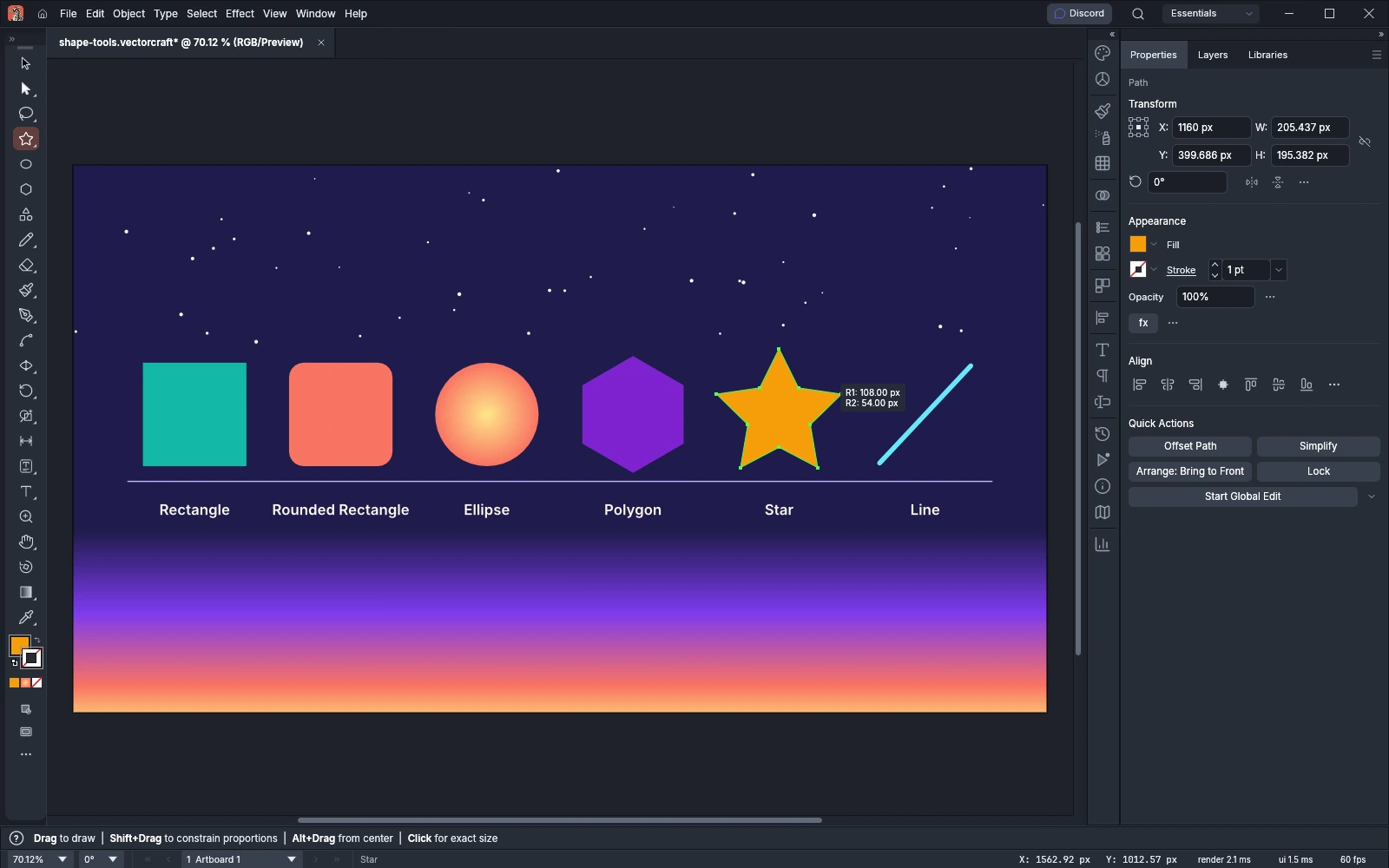 GuideDraw and transform shapesDraw shapes, round their corners, and move, rotate, scale and reflect them.
Draw and edit
9 pagesPaths
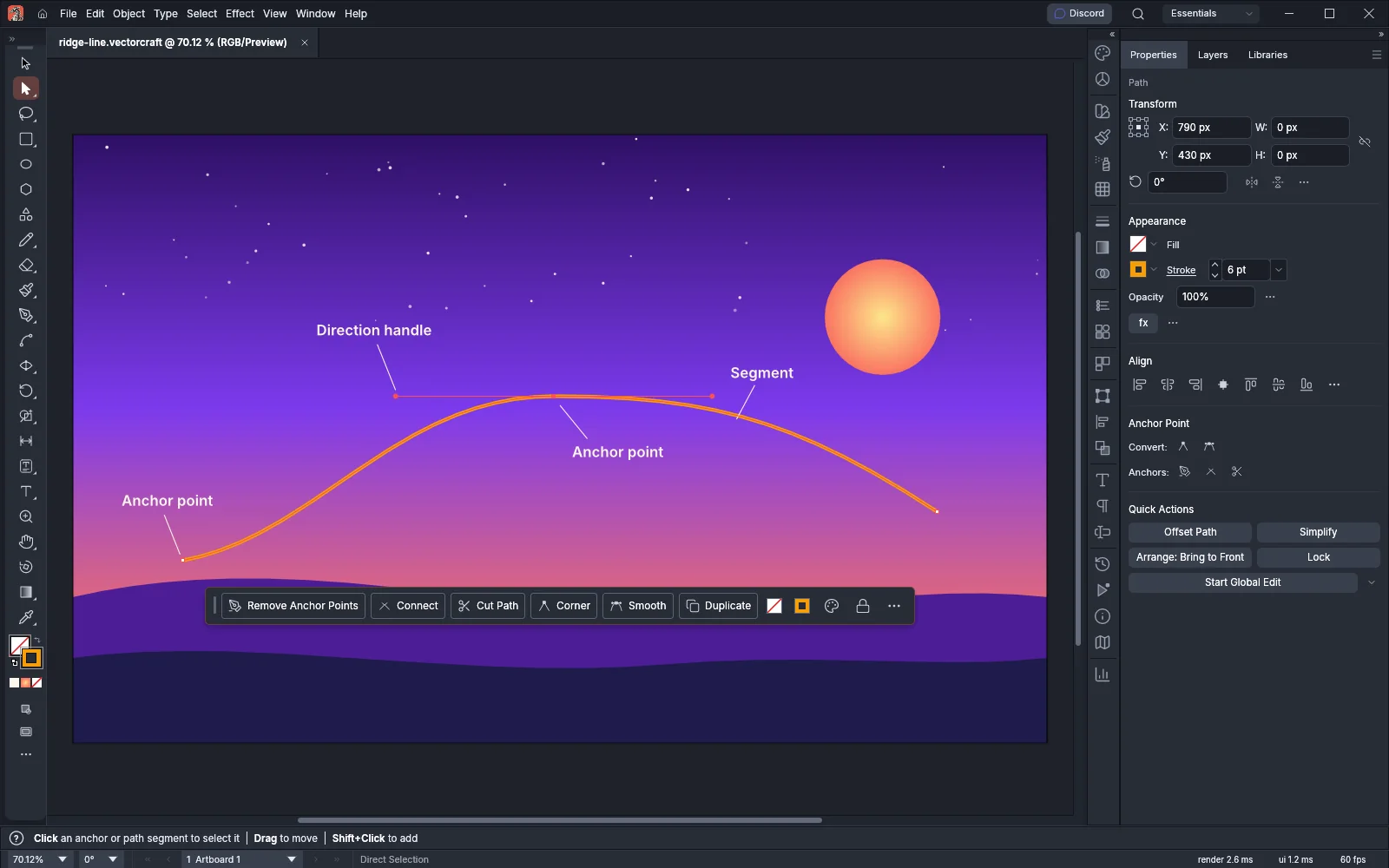 GuideDraw and edit pathsDraw with the Pen, Curvature and Pencil tools, then edit the anchor points.
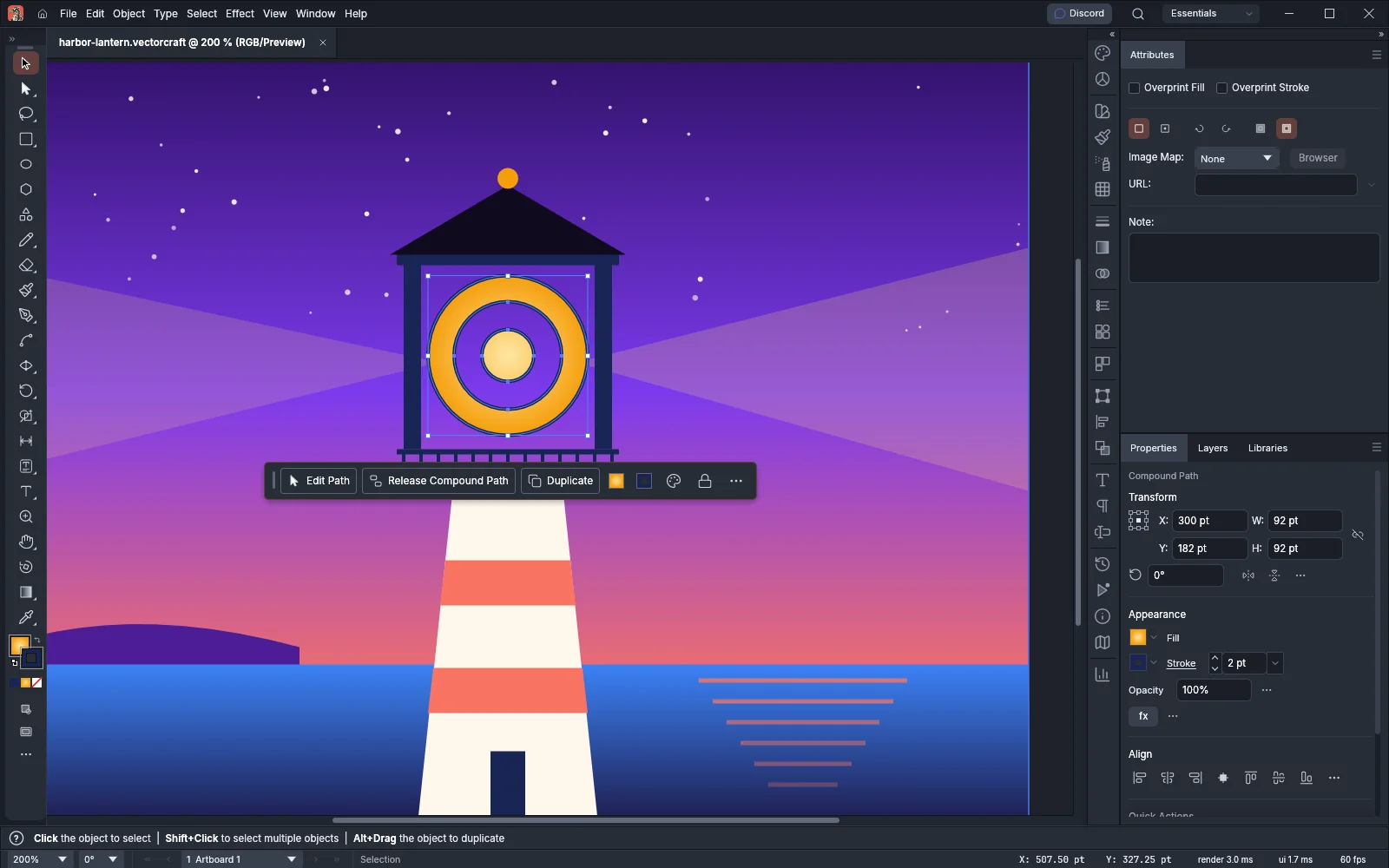 GuideSet path direction and fill ruleChoose which overlapping areas fill and which become holes.
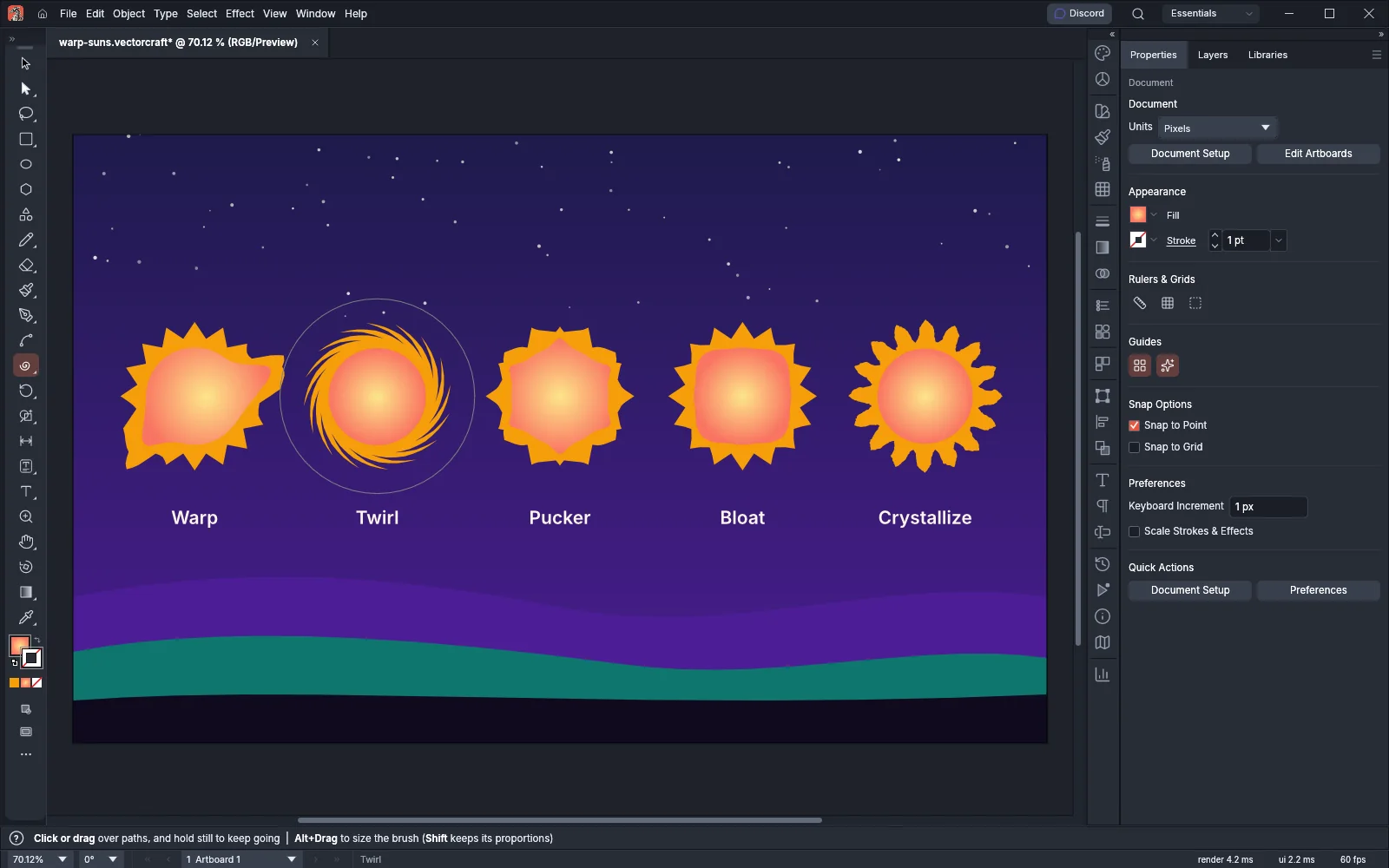 GuideReshape with the warp toolsPush, twist and bend art with the warp tools, Puppet Warp and envelopes.
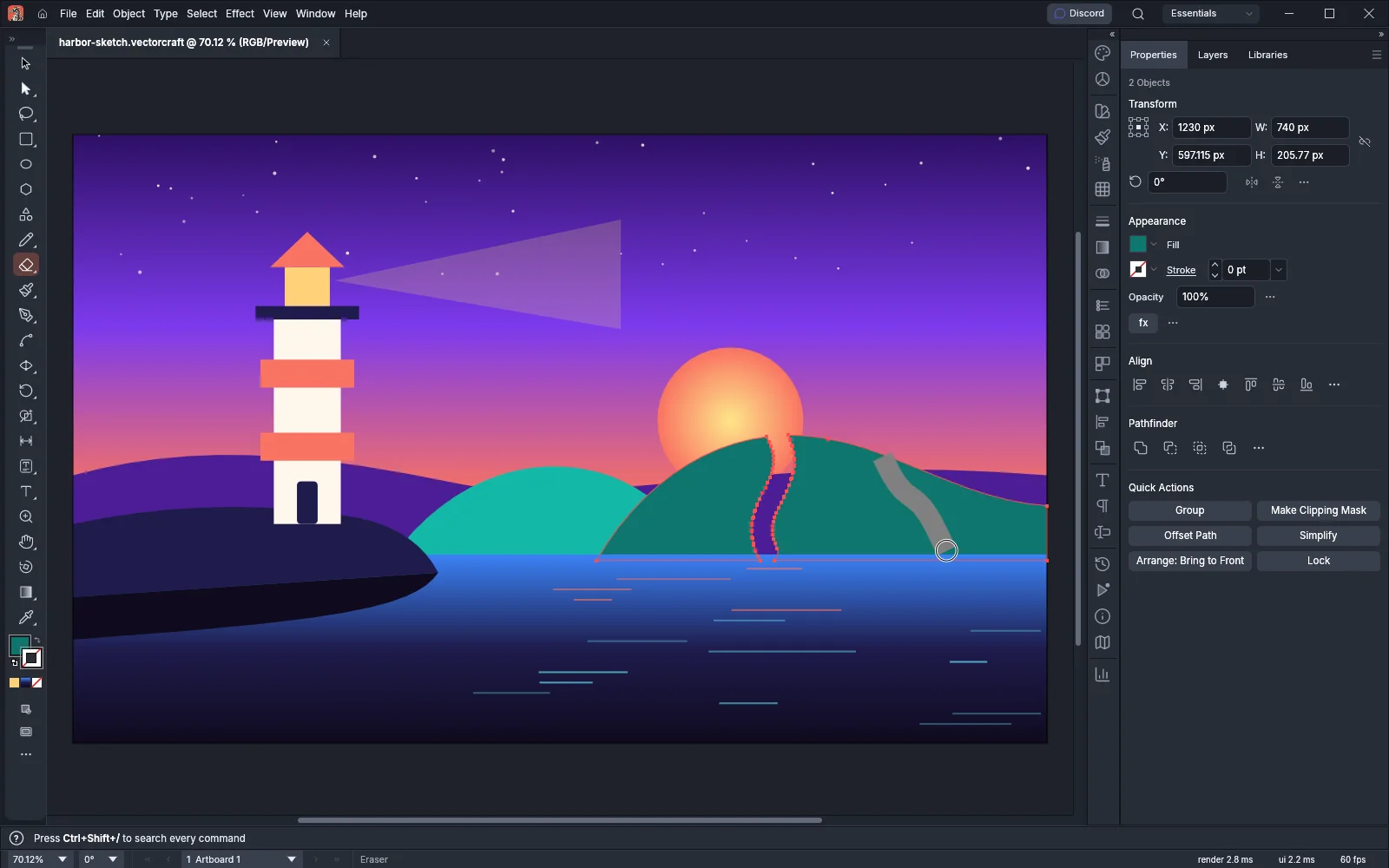 GuideCut, join and refine pathsErase, cut and join paths, then clean up anchor points and corners.
 GuideExpand objects into pathsTurn live objects, fills and strokes into plain art you can edit.
Freehand
Drawing aids
 GuideDraw behind and inside objectsPut new art behind an object, or clip it inside a shape or type as you draw.
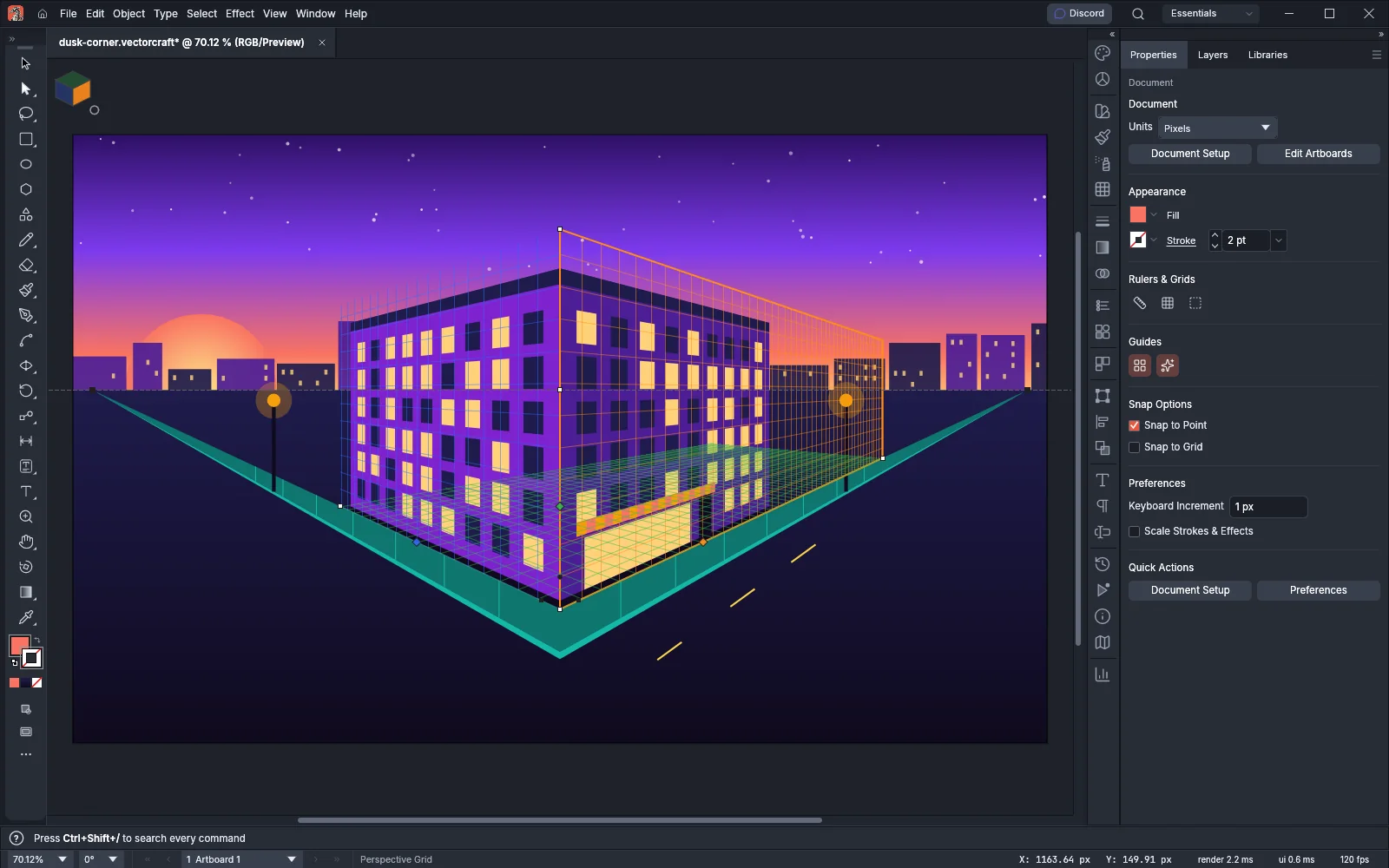 GuideDraw in perspectiveDraw shapes and type on one-, two- or three-point perspective grids.
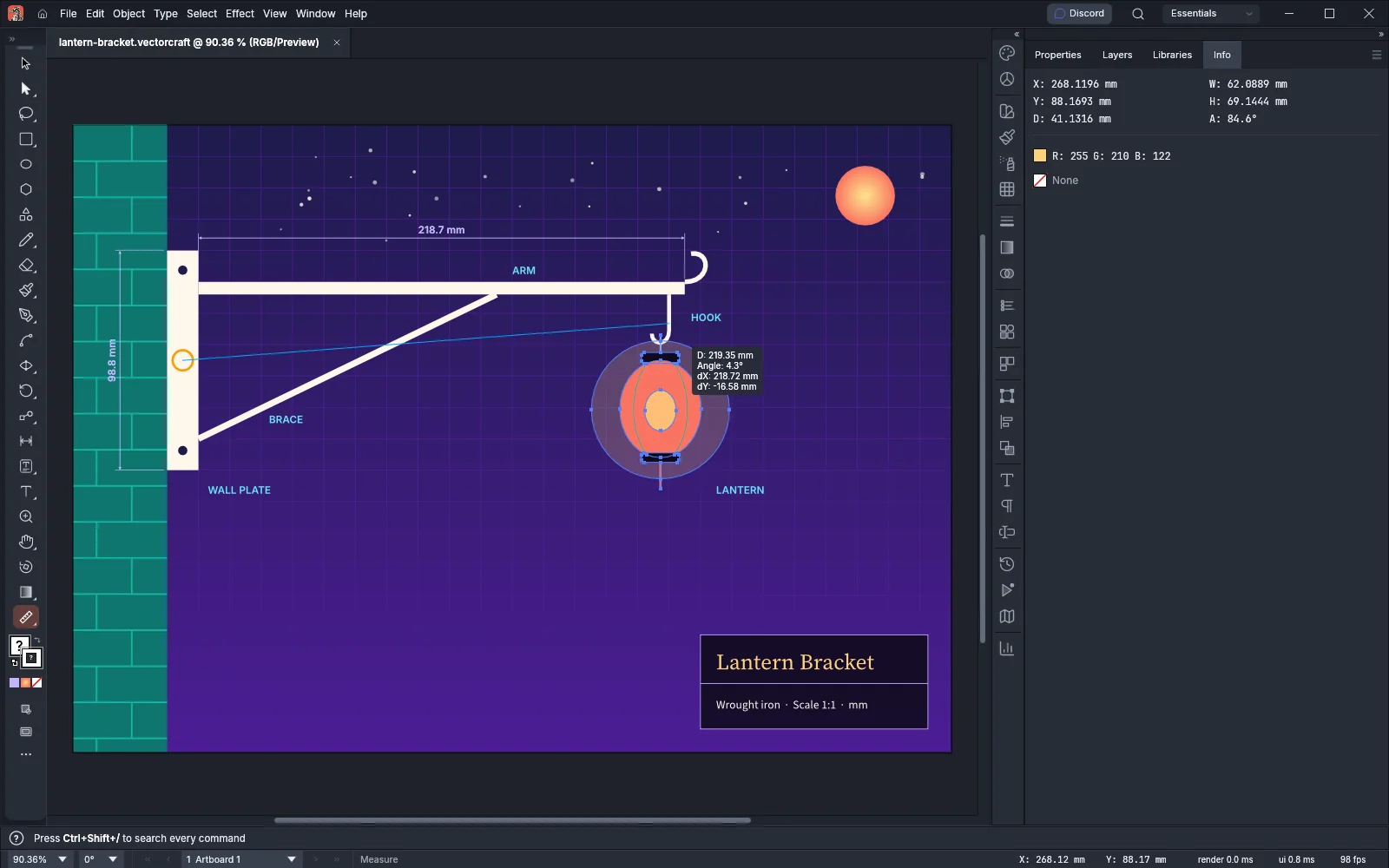 GuideMeasure and dimensionMeasure distances and add dimensions that follow the art when it changes.
Images and data
6 pagesImages
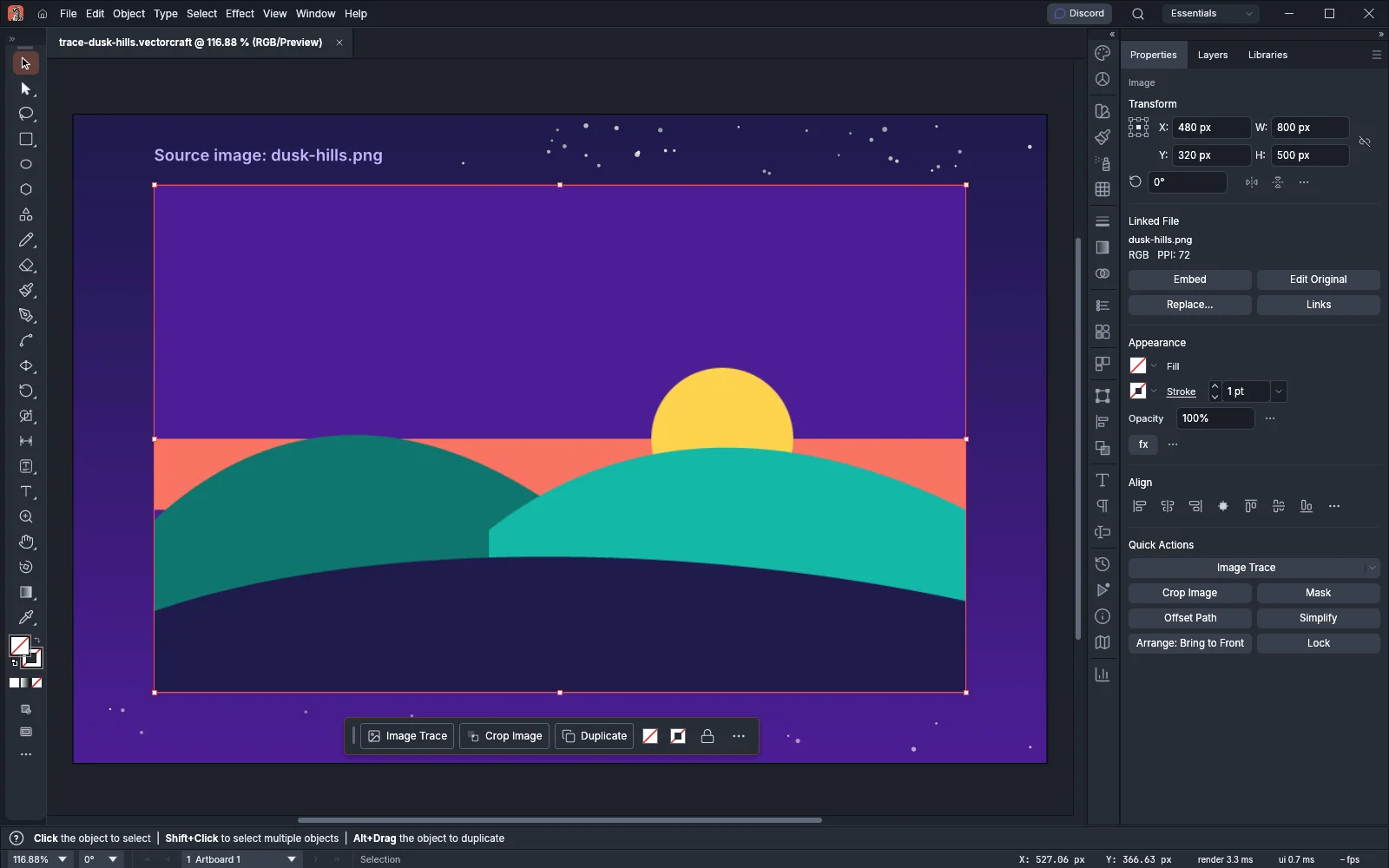 GuideTrace an imageTurn a placed picture into editable paths with Image Trace.
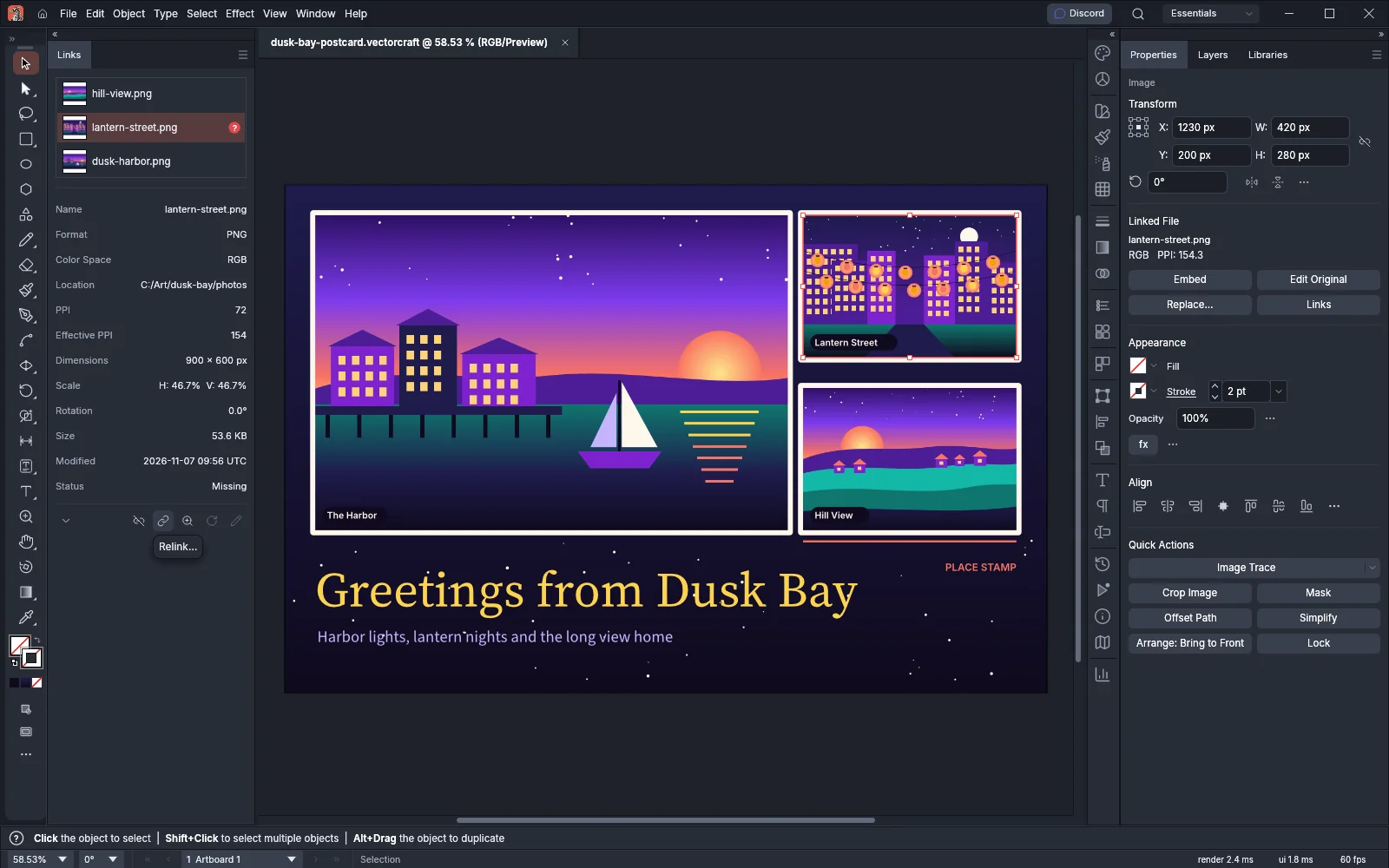 GuideWork with placed imagesTrack, relink, embed, crop and mask placed images.
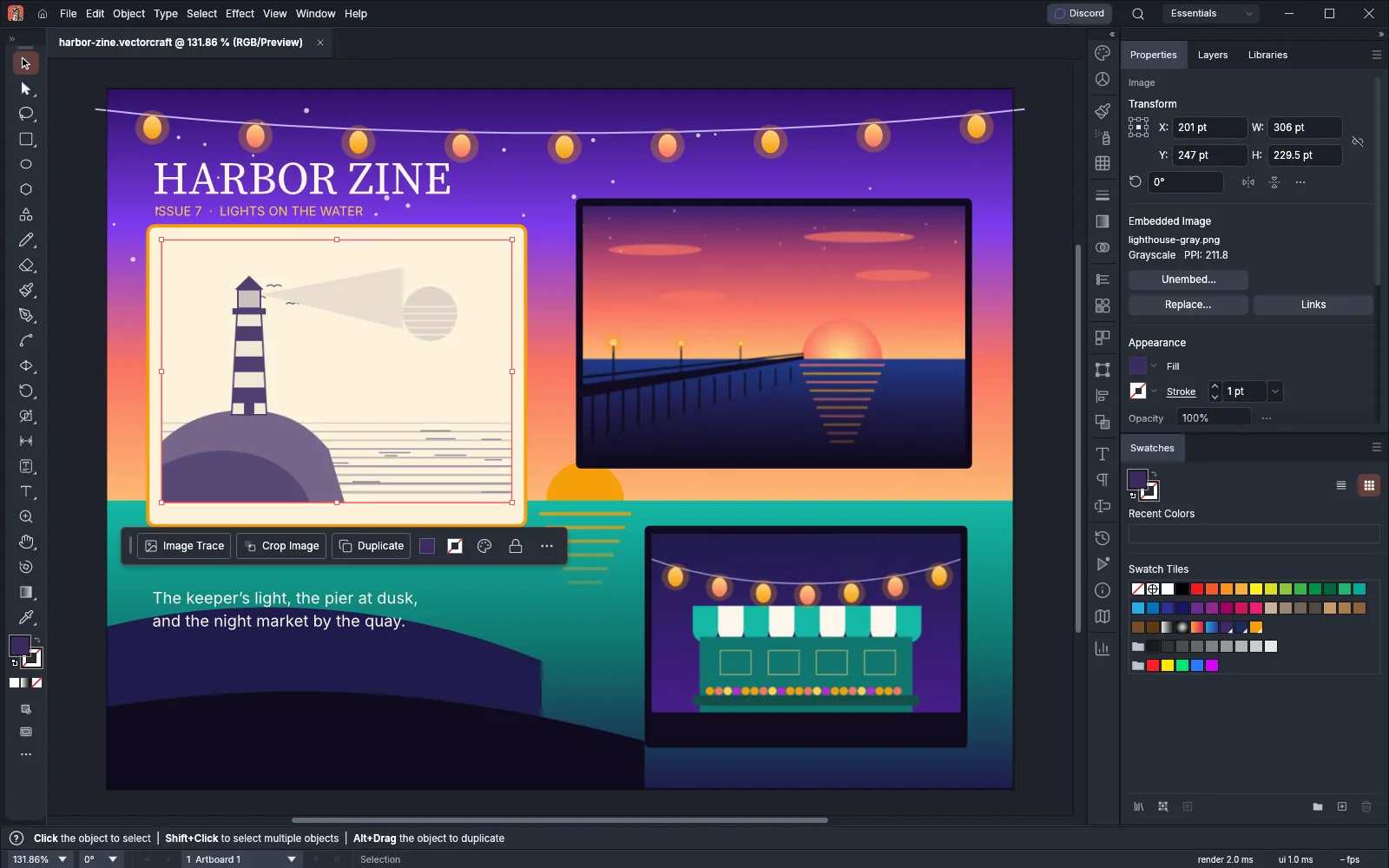 GuideAdjust the colors of an imageColorize, adjust and recolor placed and embedded images.
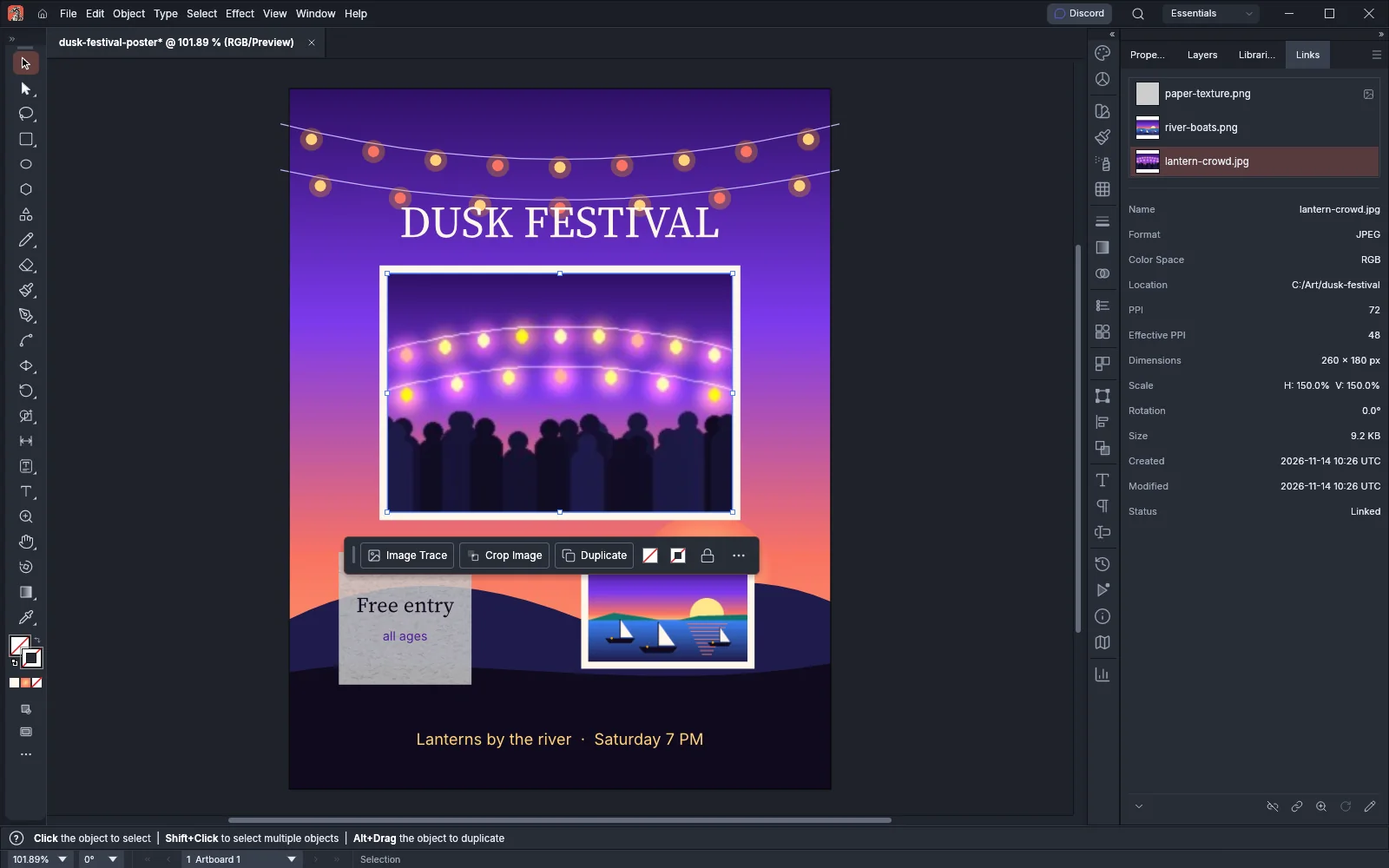 GuideCheck image resolution and color modeCheck each image's PPI and color space, and fix them before print.
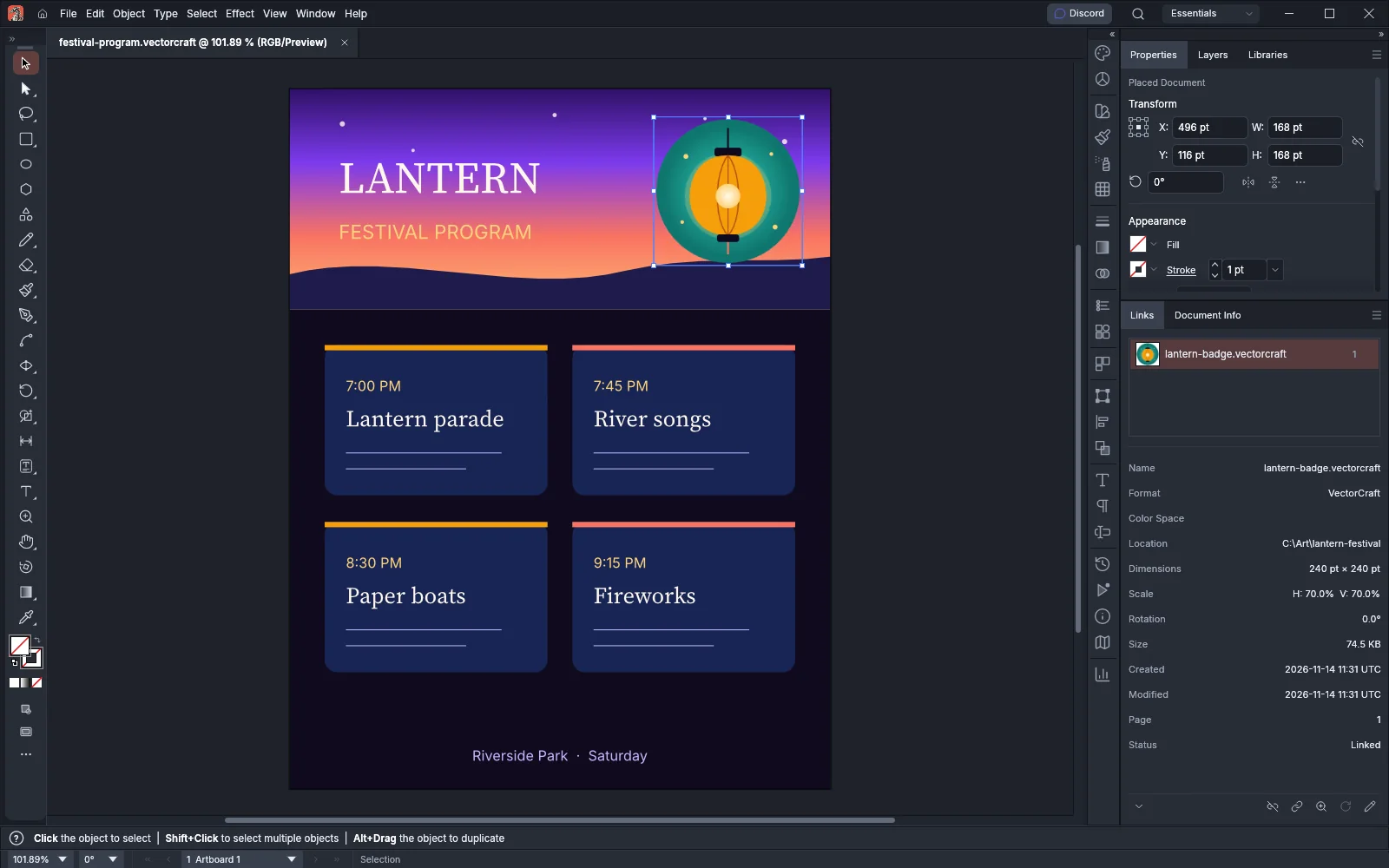 GuidePlace documents and PDF pagesPlace a document or PDF page as one linked object and keep it updated.
Color and paint
10 pagesColor
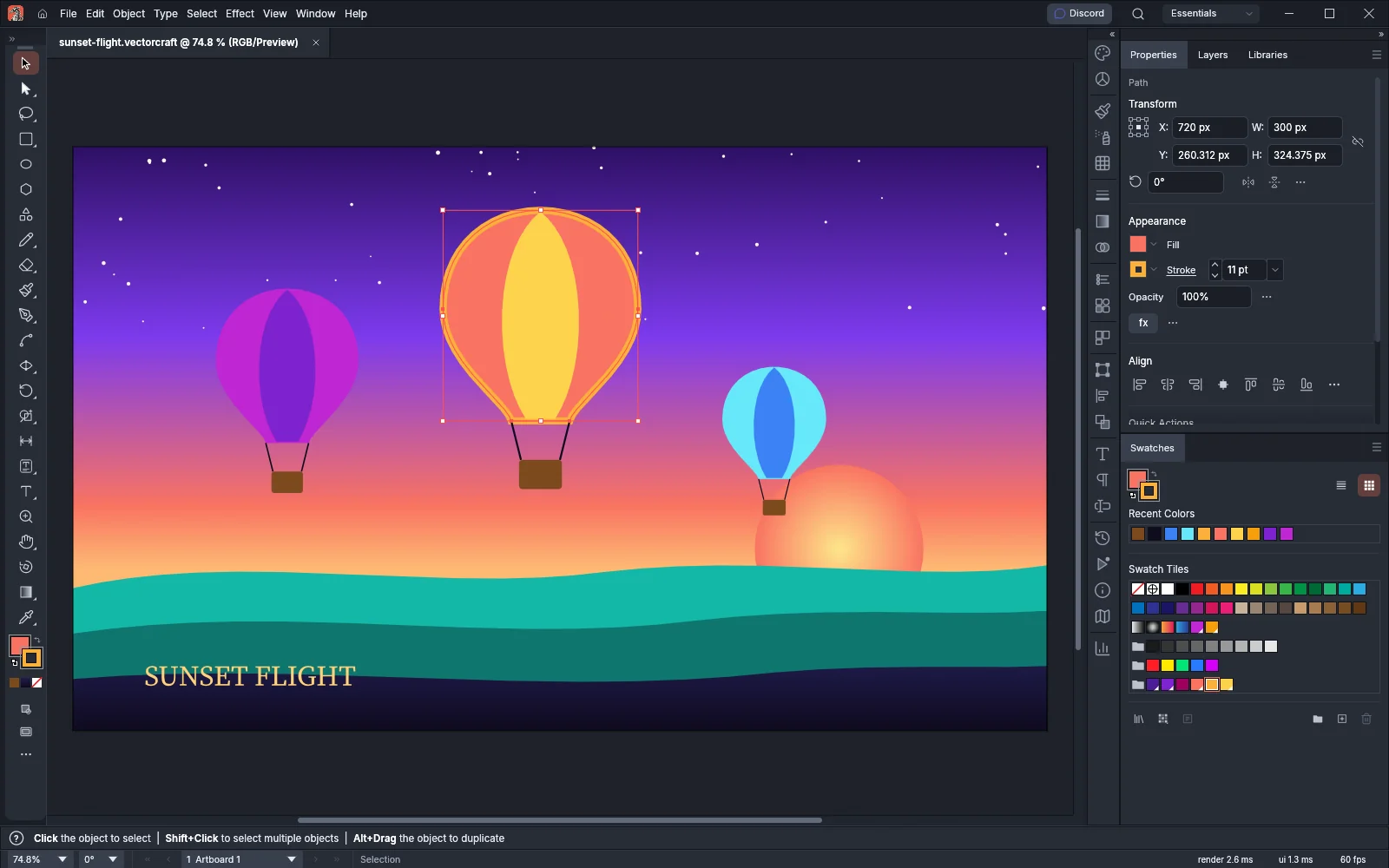 GuideFill, stroke and colorPaint fills and strokes with swatches, gradients, meshes and patterns.
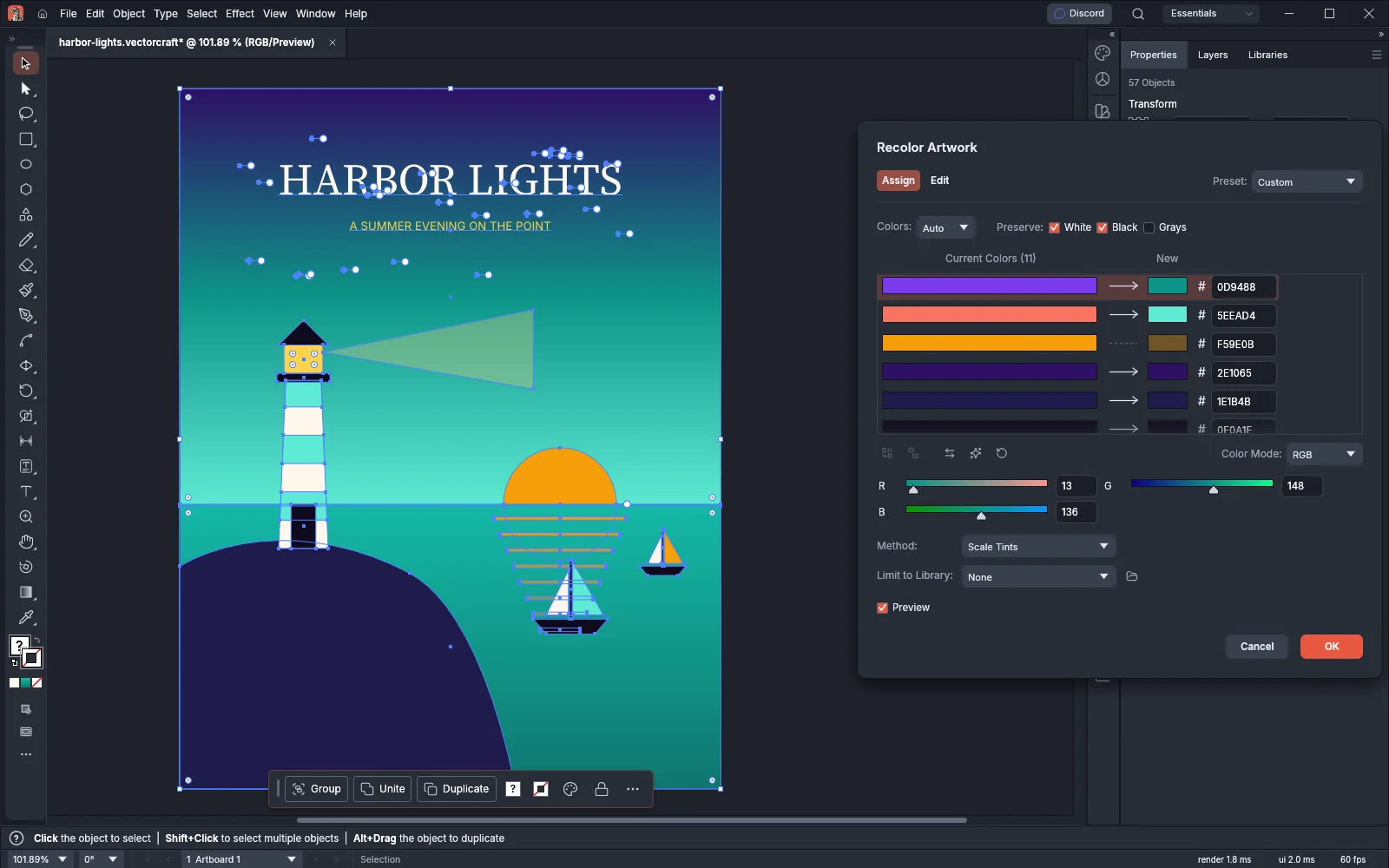 GuideRecolor artworkChange every color of finished artwork in one dialog.
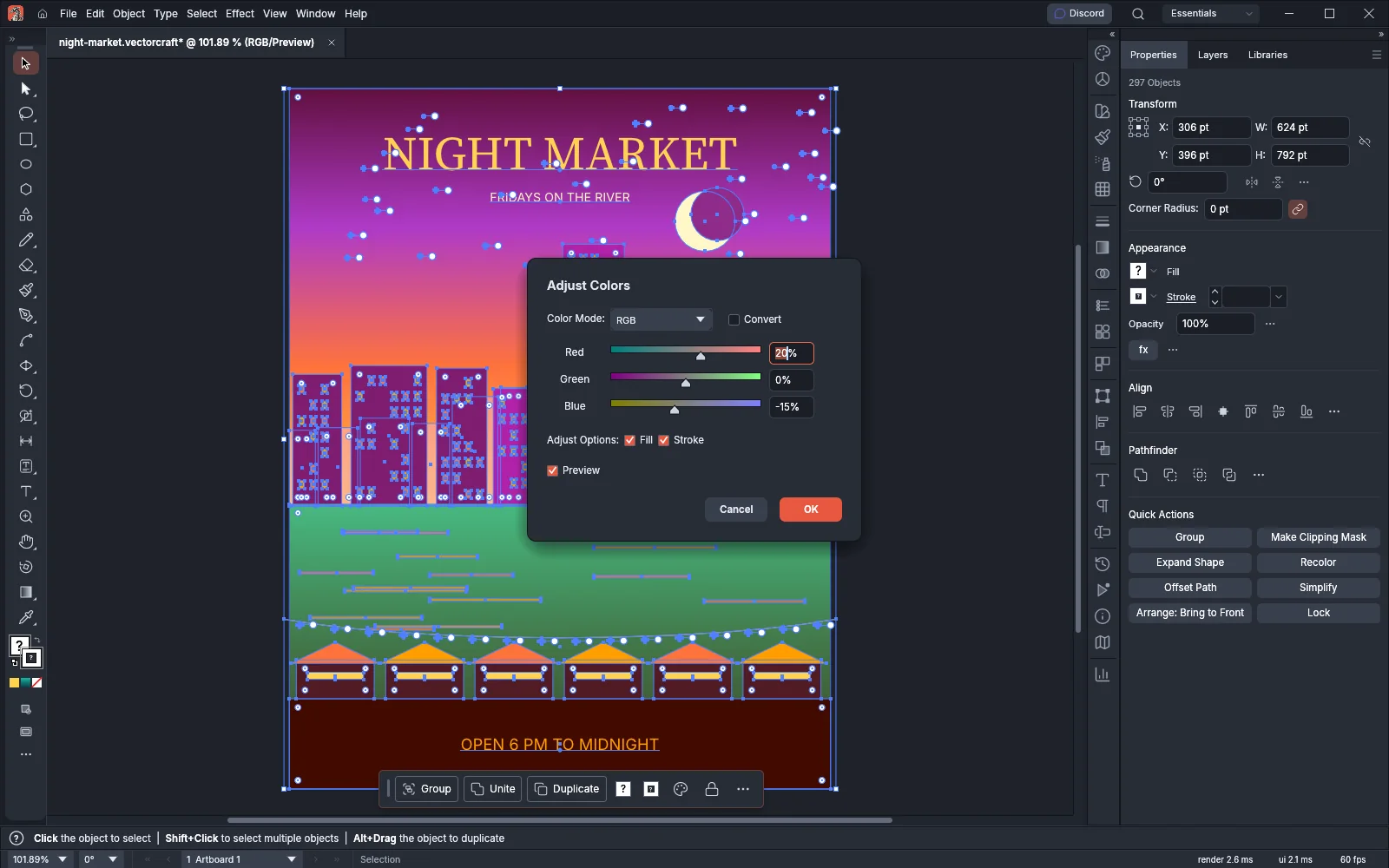 GuideAdjust the colors of artworkShift, saturate, convert, invert and blend the colors of selected art.
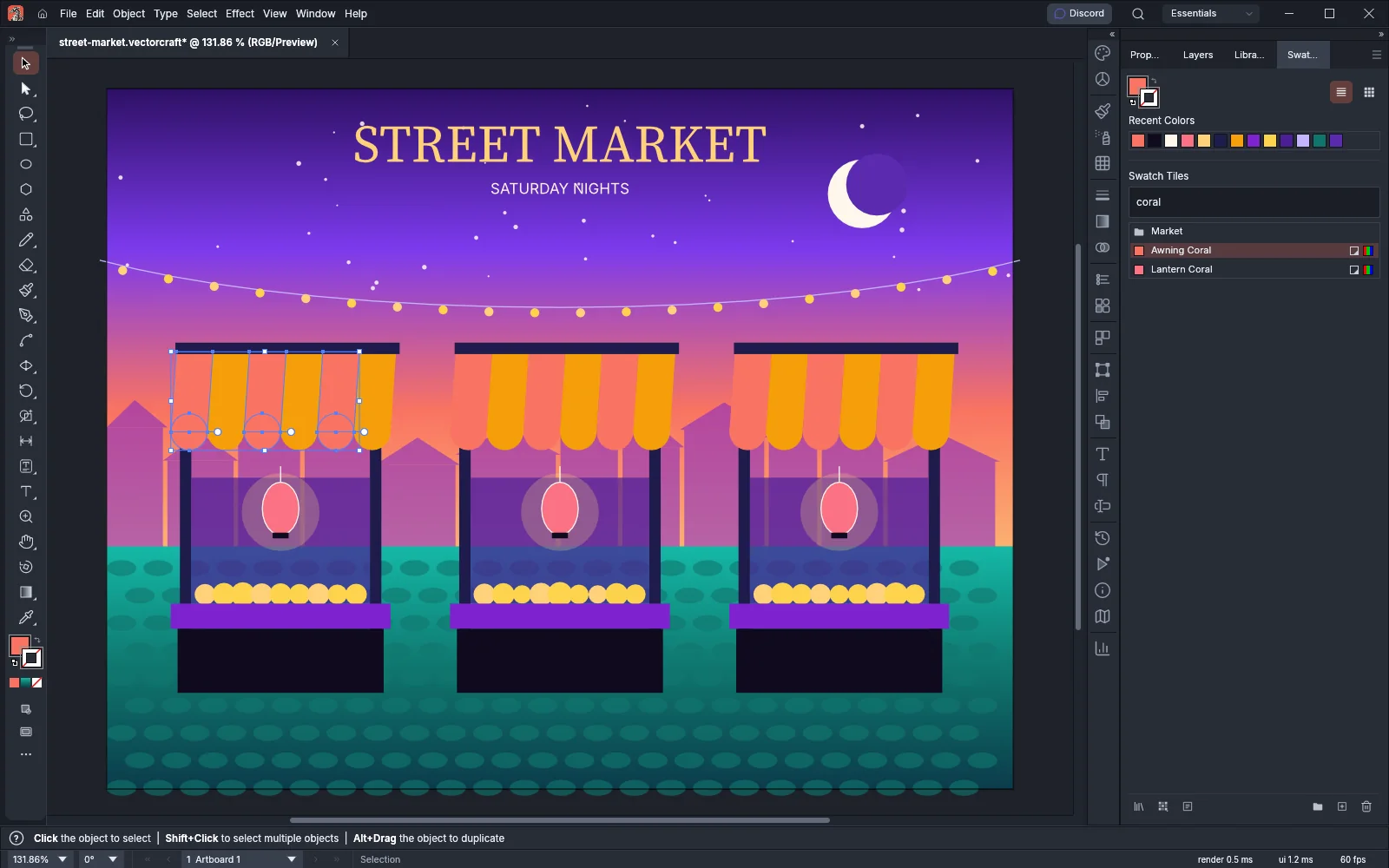 GuideOrganize swatches and color groupsKeep the Swatches panel tidy with groups, filters and sorting.
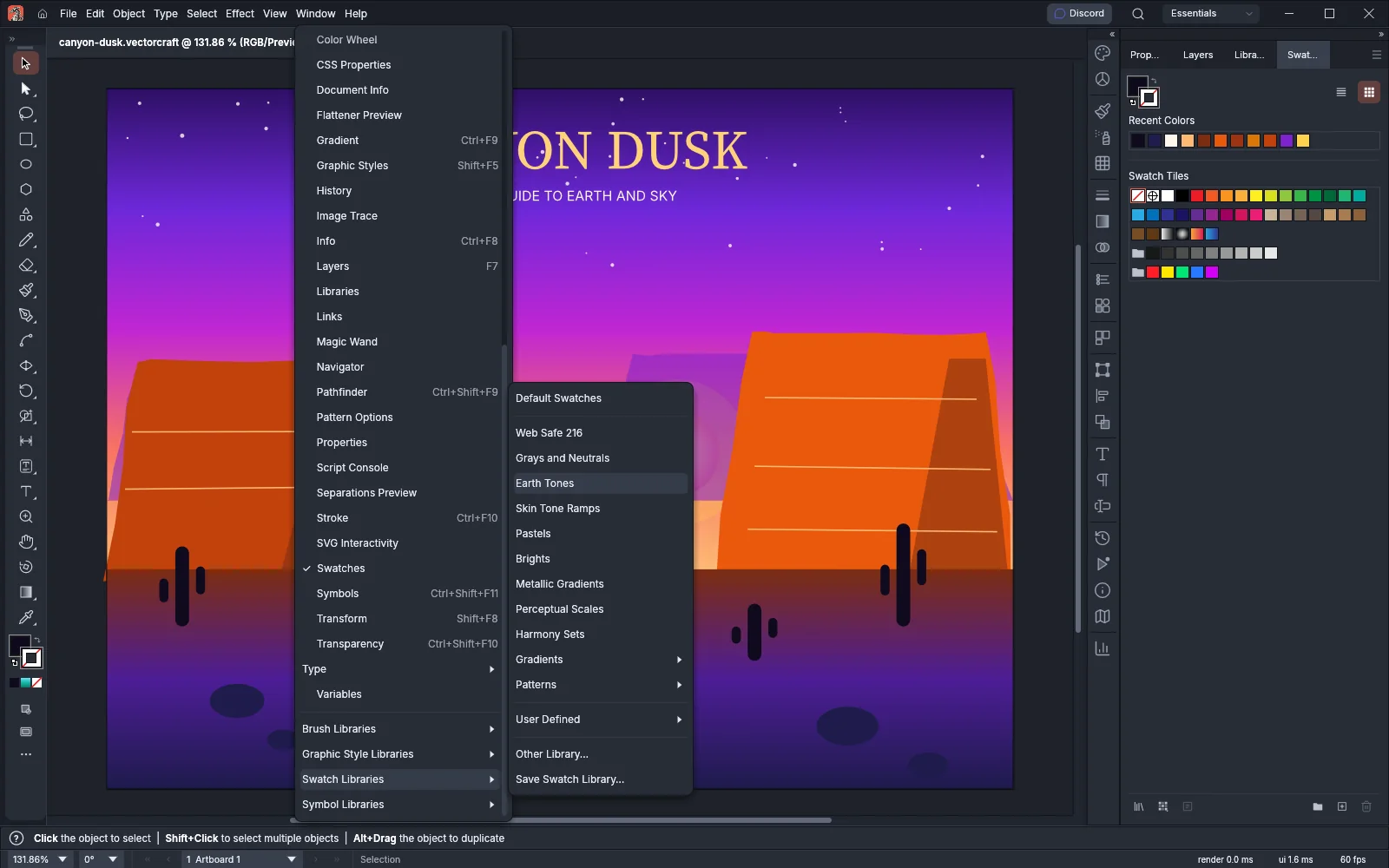 GuideUse swatch librariesPick colors from ready-made libraries and save your own.
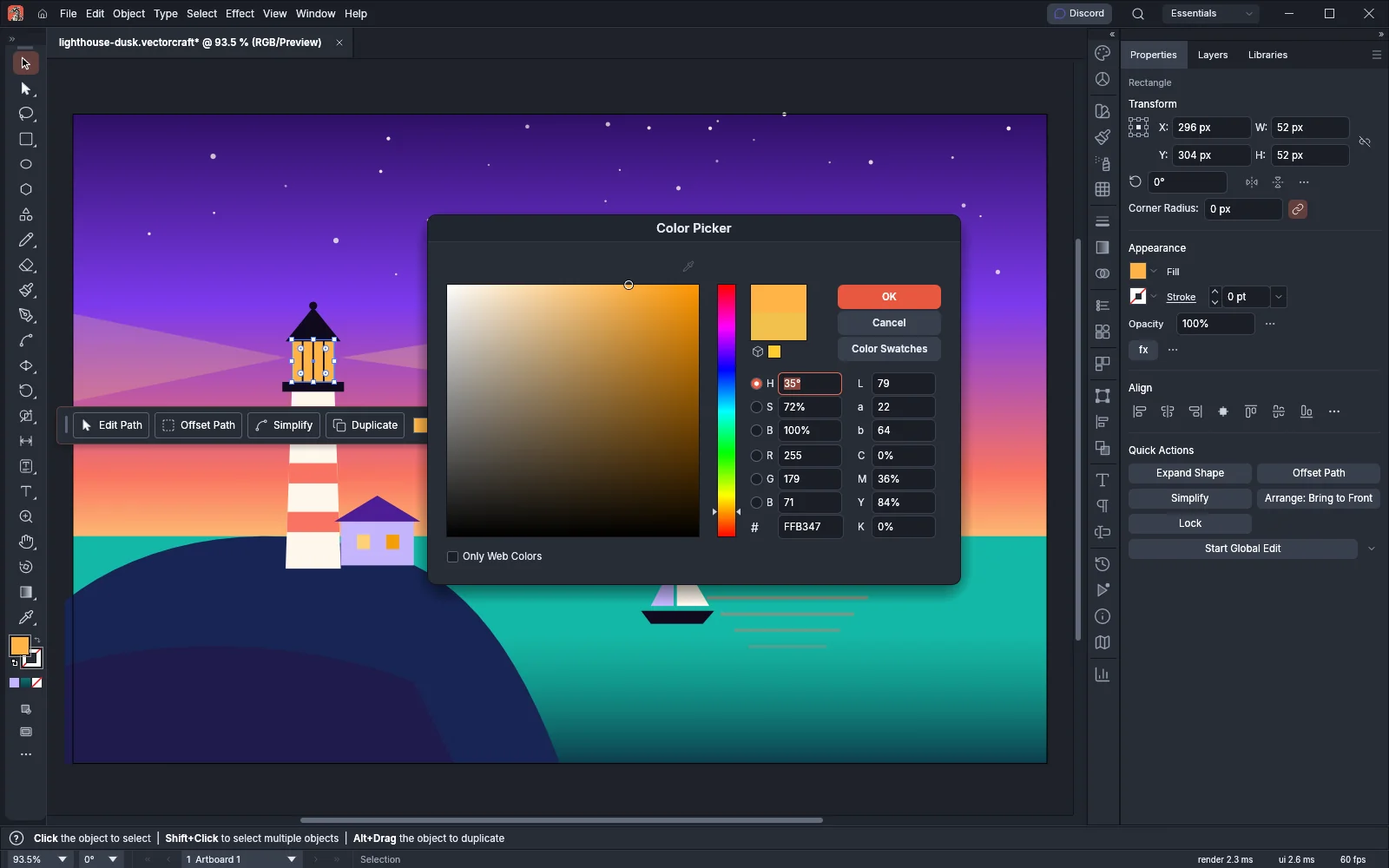 GuidePick and sample colorsChoose exact colors and control what the Eyedropper copies.
Gradients
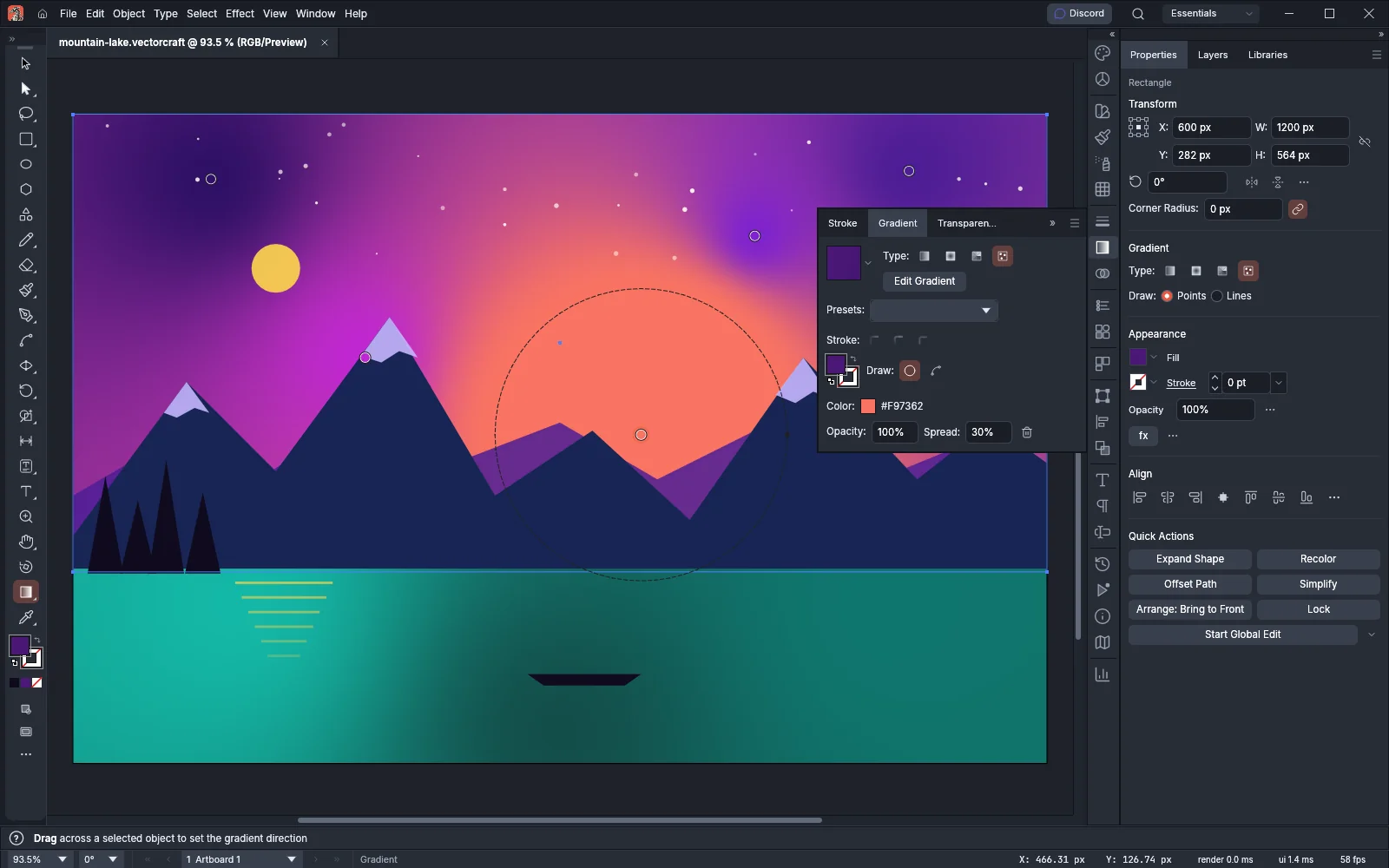
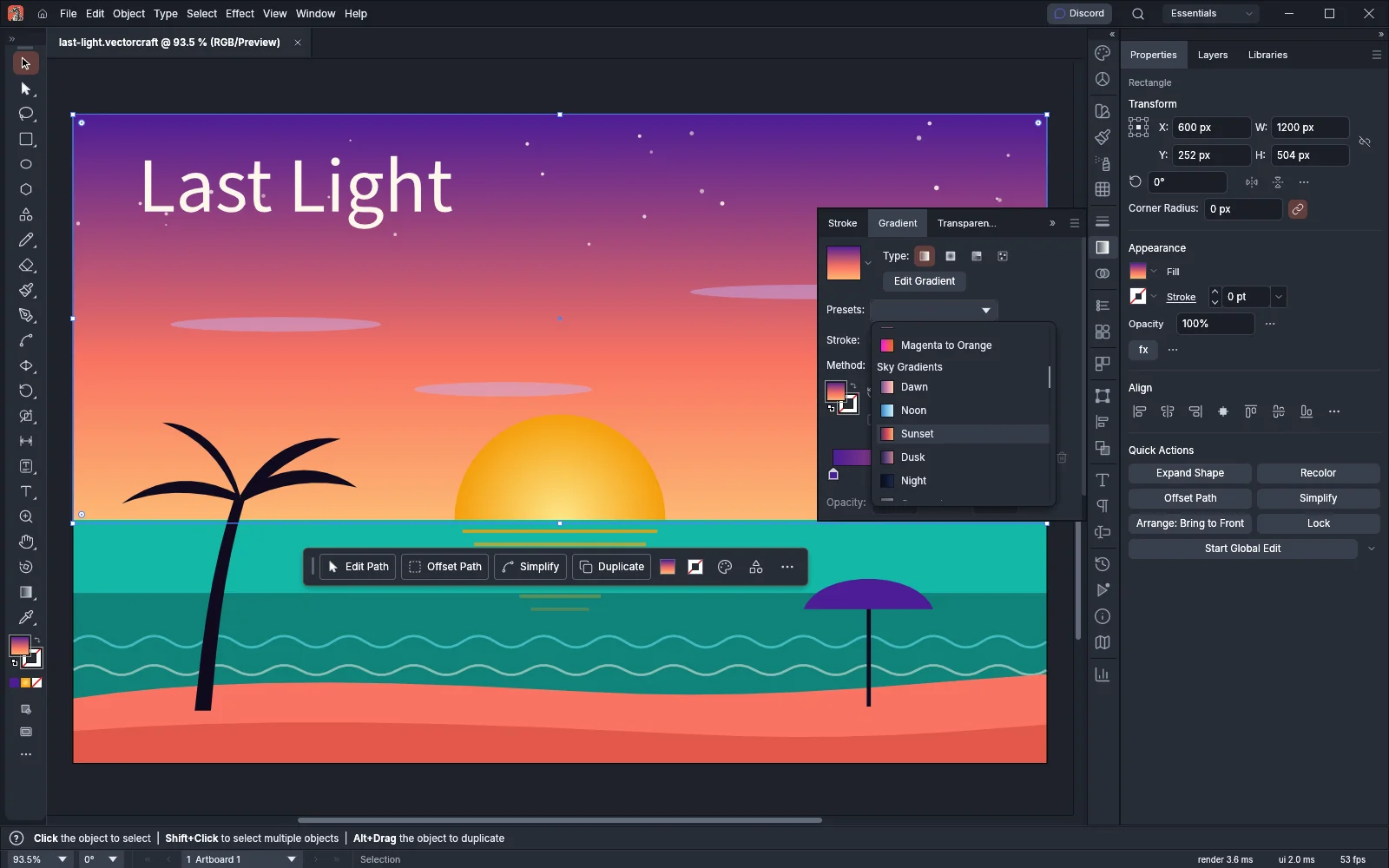
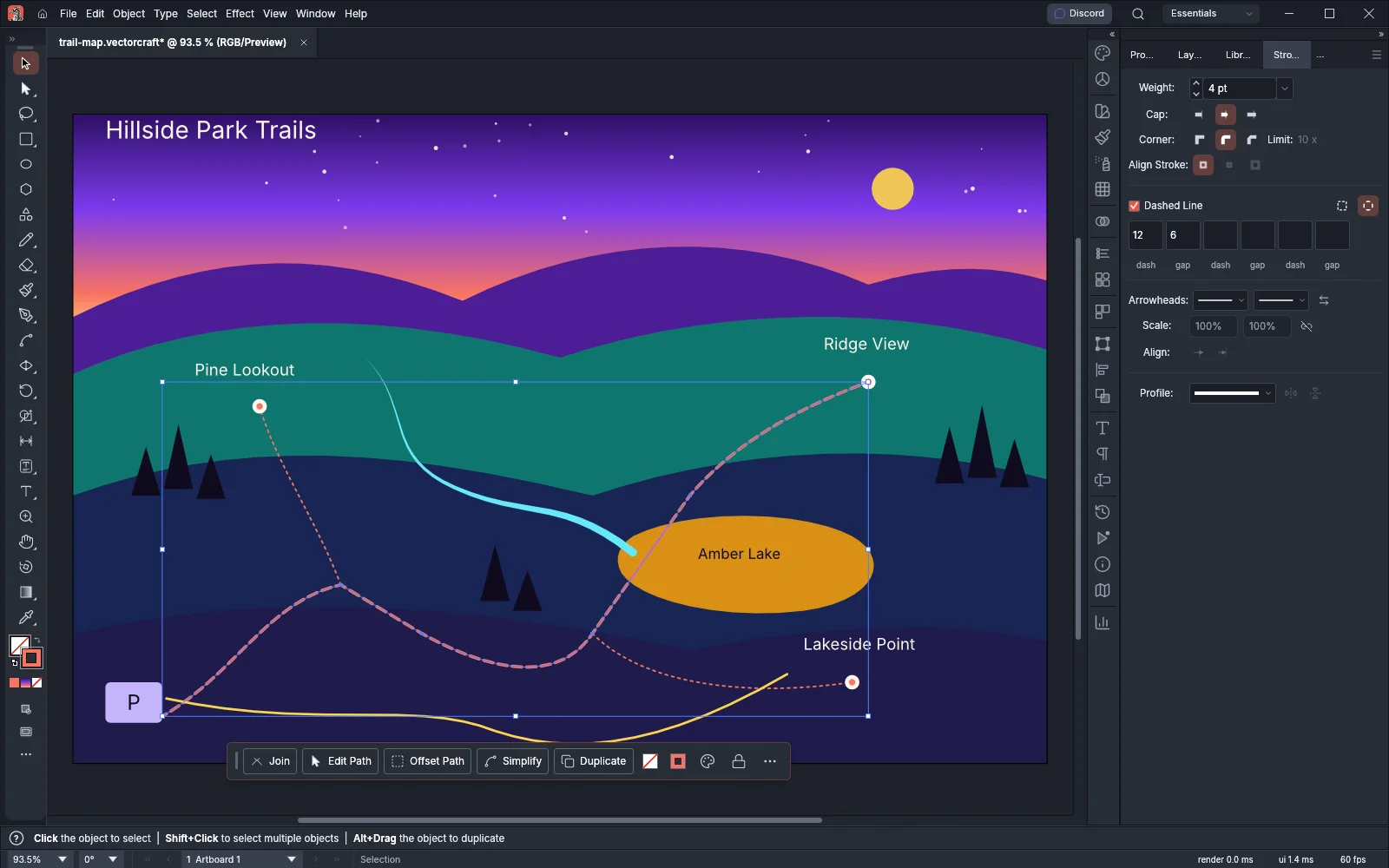
Effects and appearance
9 pagesEffects
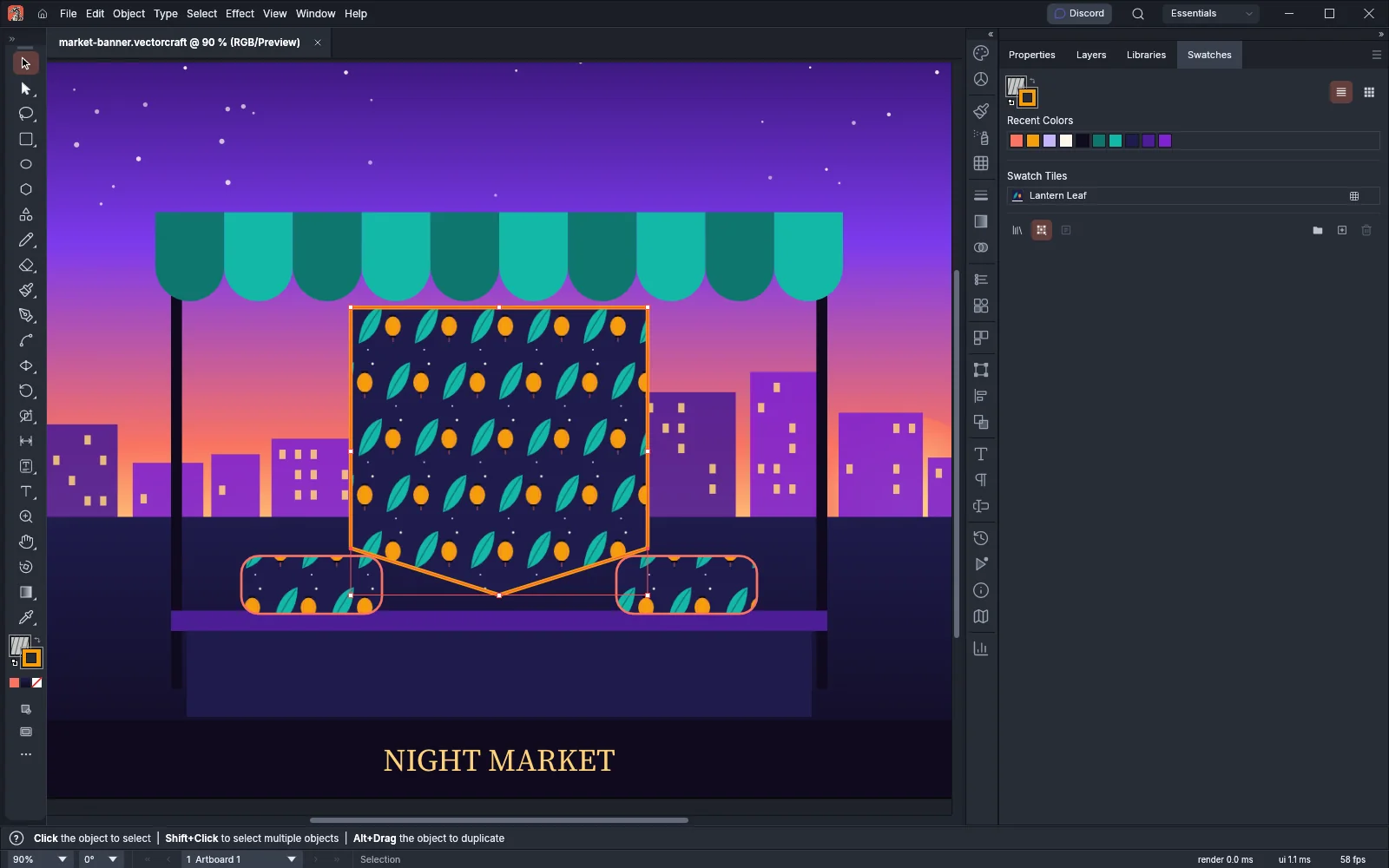 GuideMake patterns, blends and repeatsMake pattern swatches, repeat art in circles and grids, and blend between shapes.
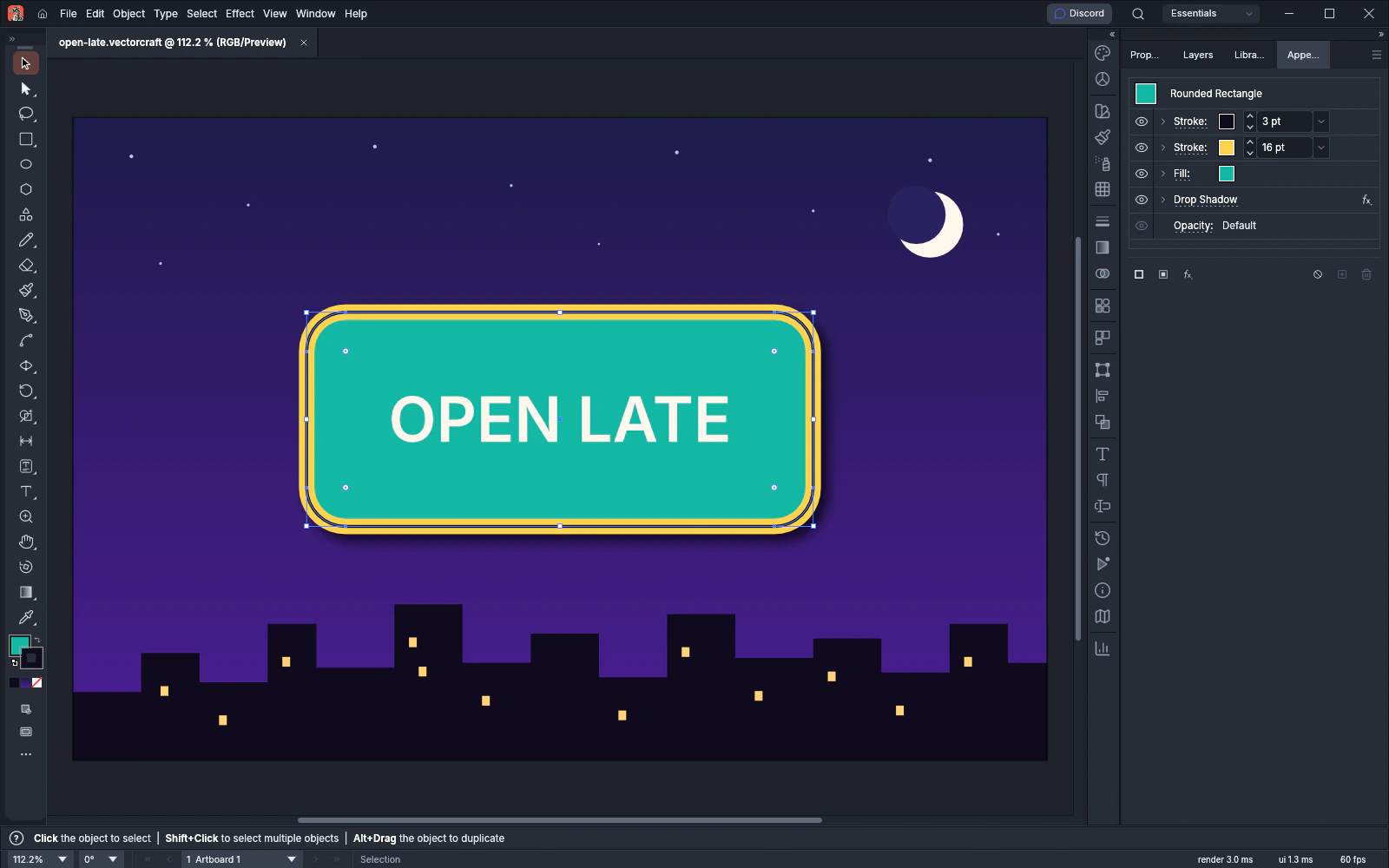 GuideApply effects and appearanceStack fills, strokes and live effects, and save the look as a graphic style.
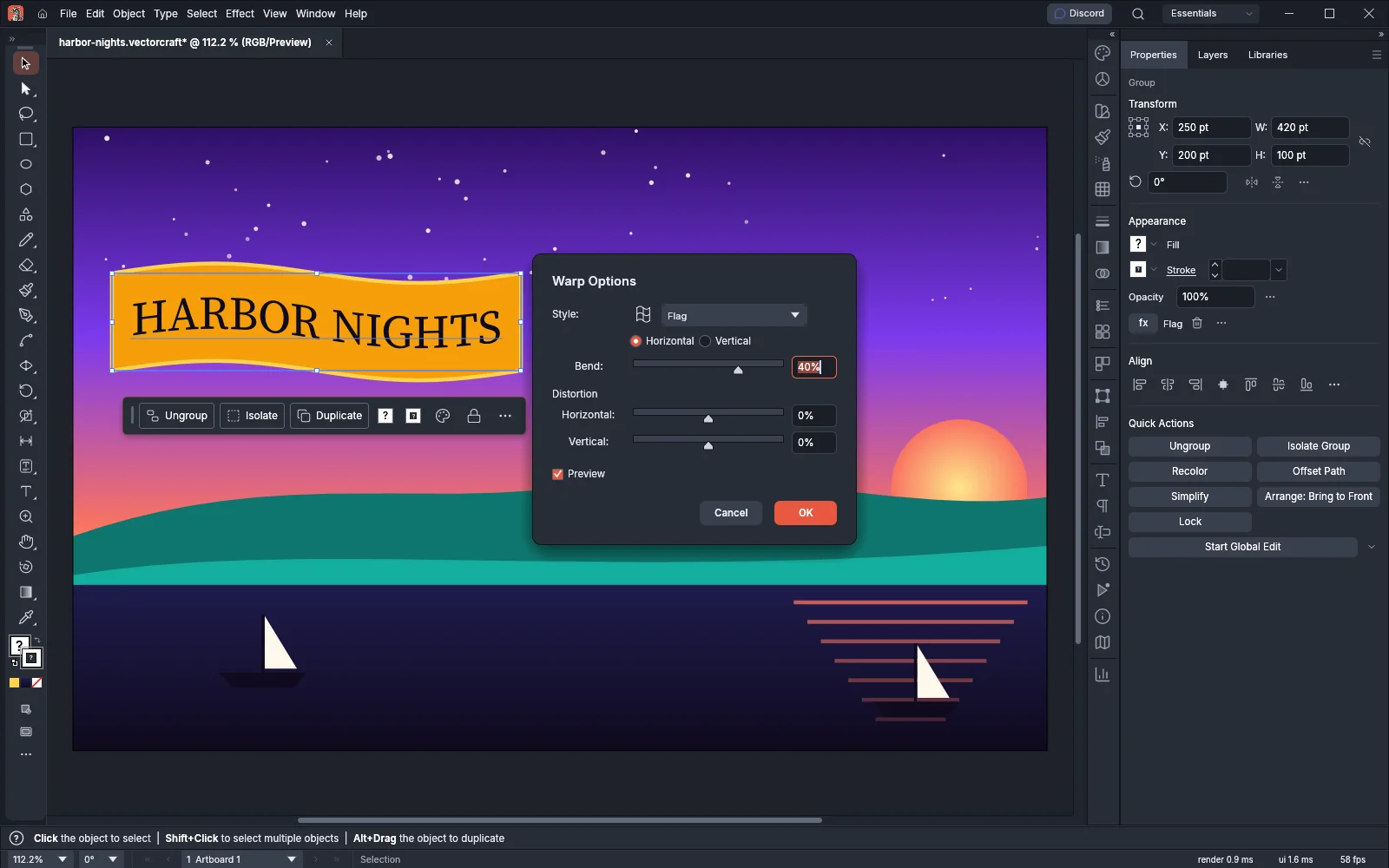 GuideWarp and distort with effectsWarp, roughen, twist and copy objects with live effects.
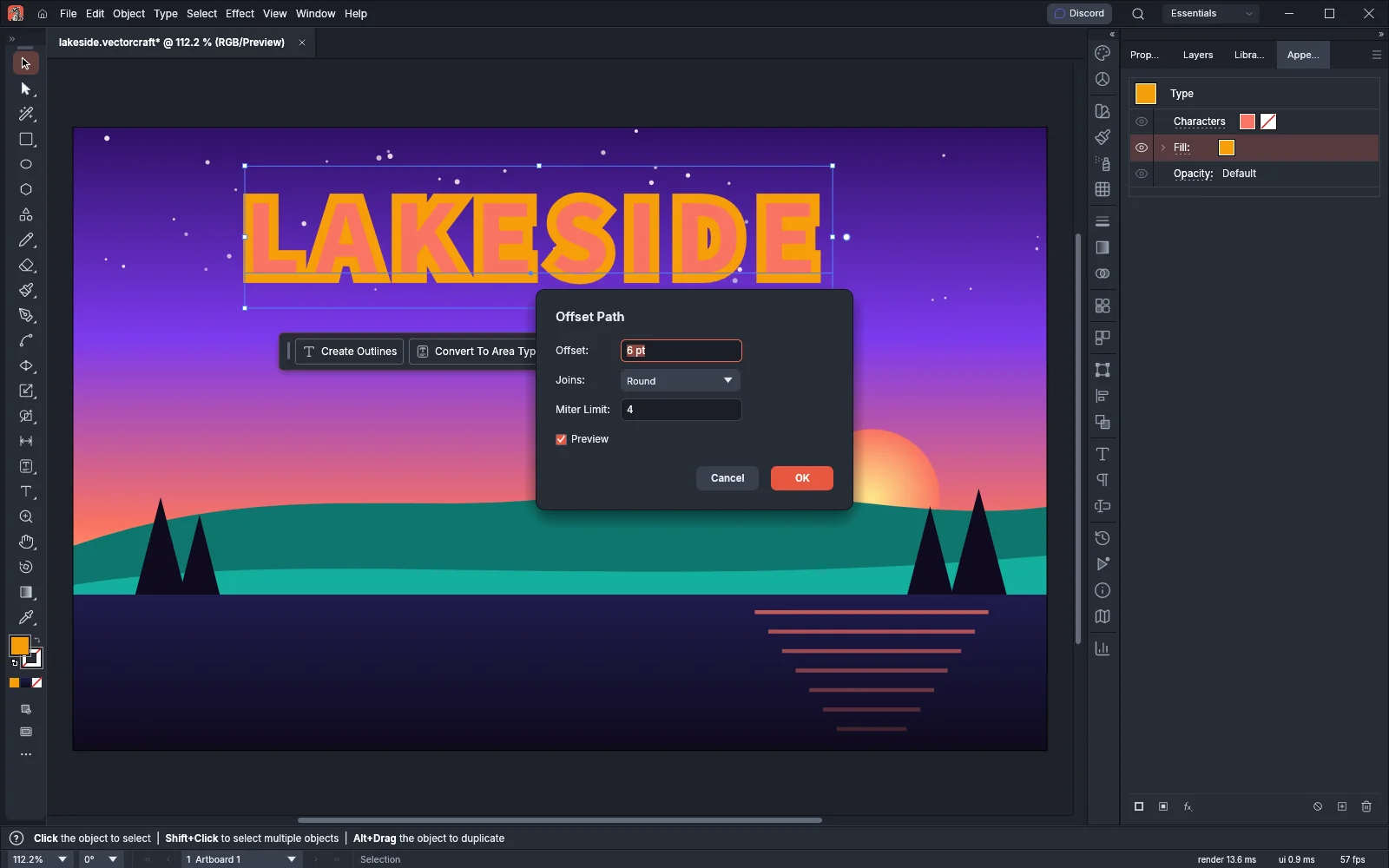 GuideChange paths with effectsOffset, dash, reshape and combine paths with live effects.
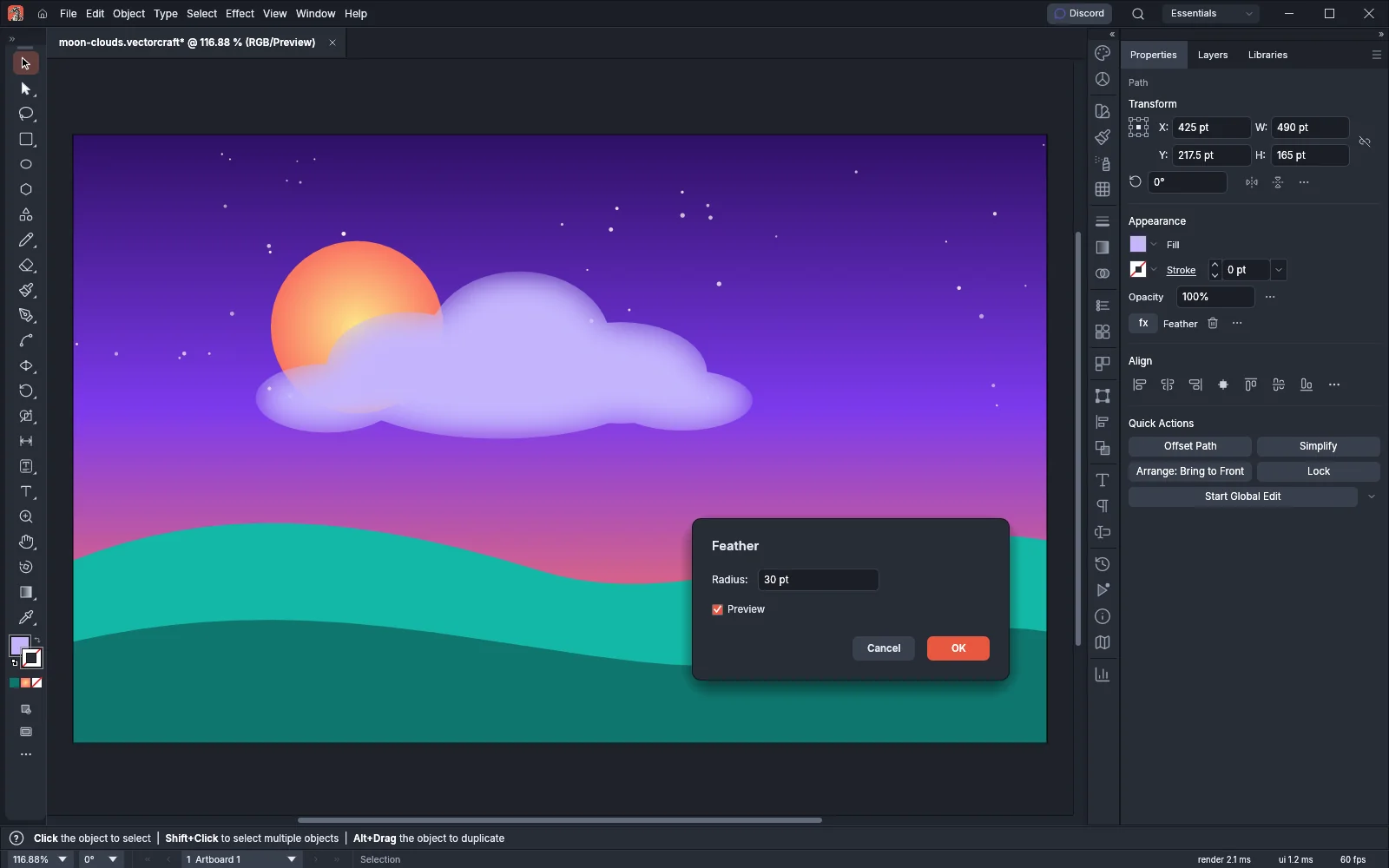 GuideAdd shadows, glows and scribblesFeather, round, glow and scribble objects with the Stylize effects.
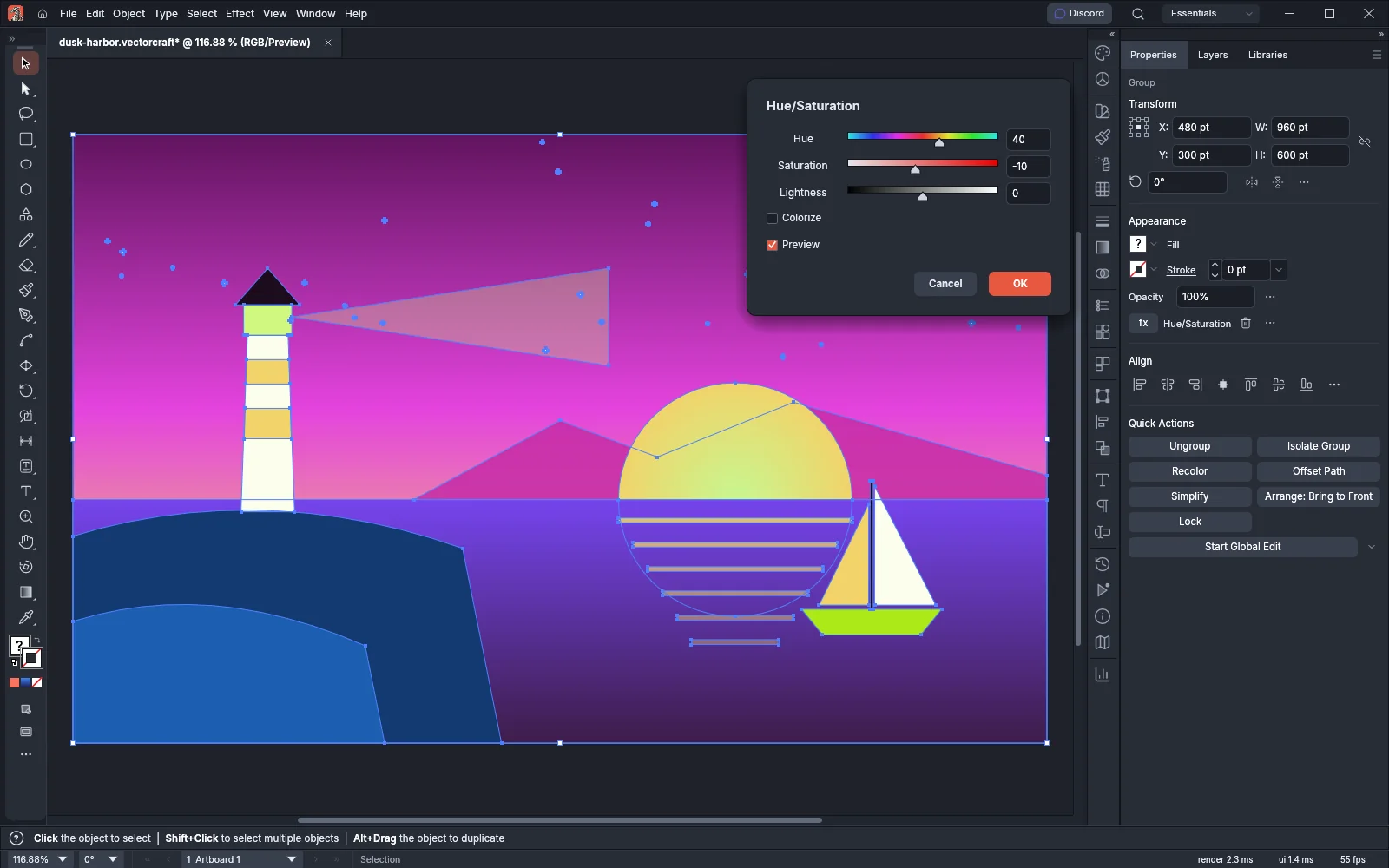 GuideAdjust colors with effectsRecolor art with live Color Adjustments and Color Effects.
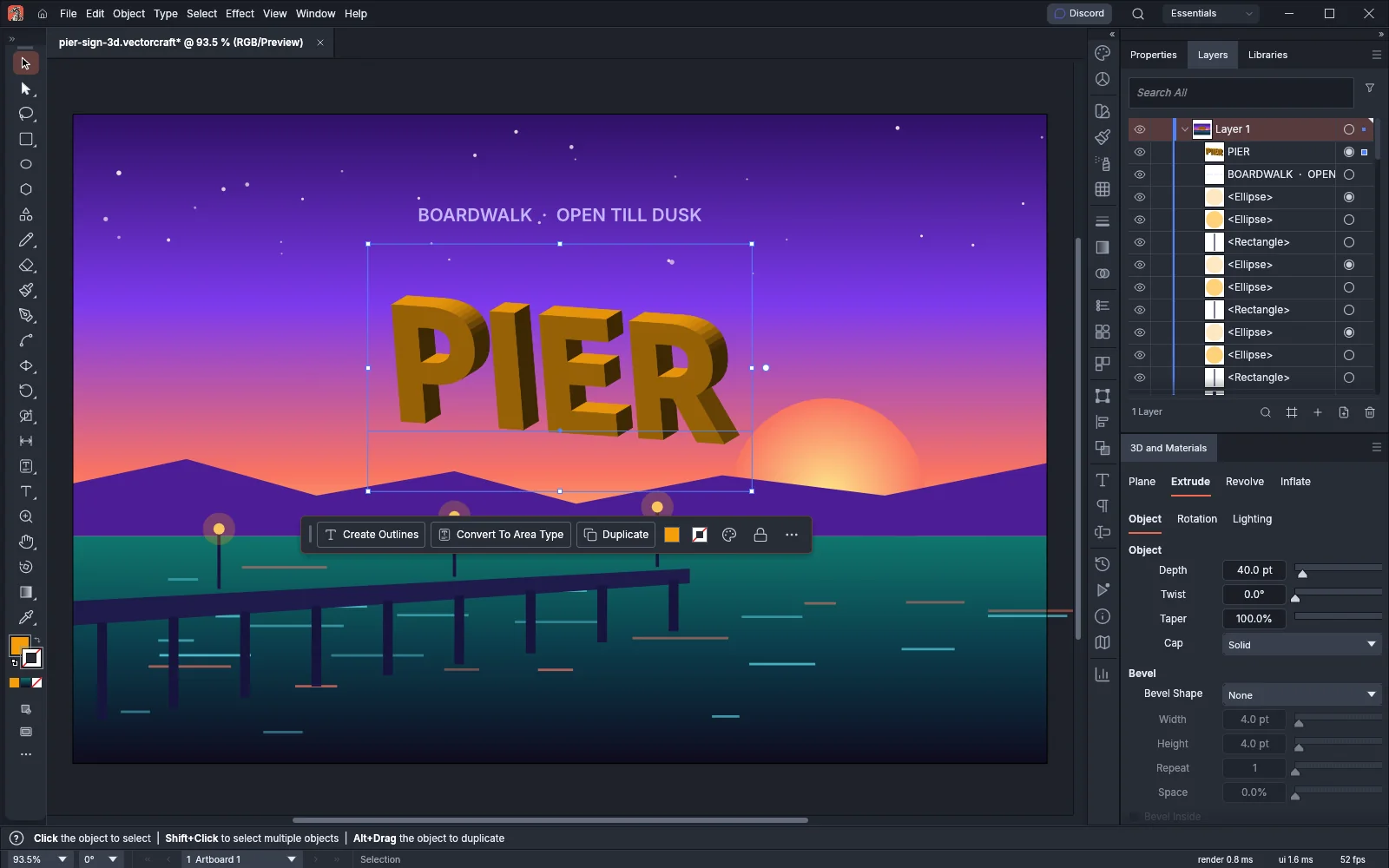 GuideMake 3D artworkExtrude, revolve and light shapes and type in 3D.
Transparency and masks
Type
12 pagesSetting type
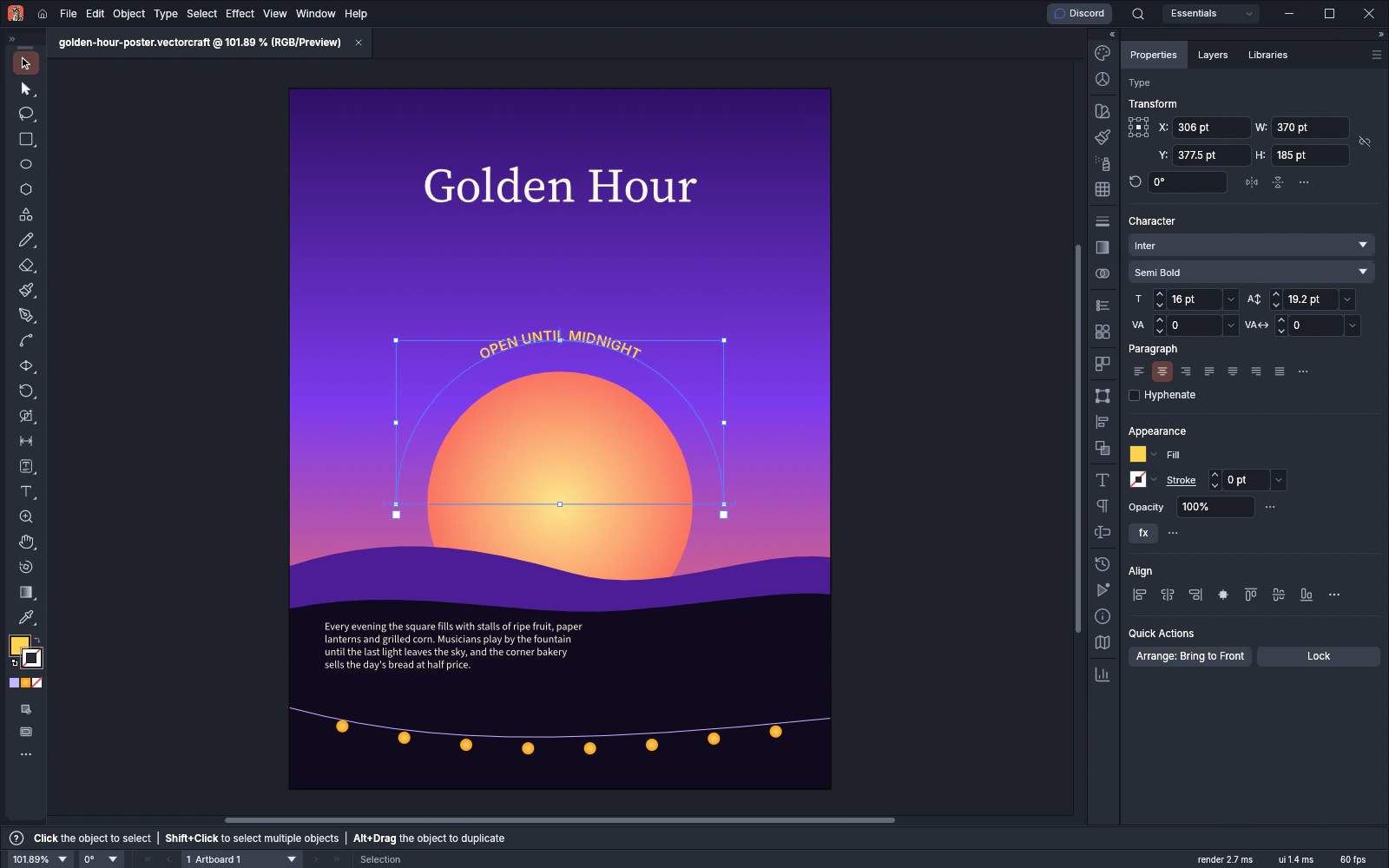 GuideAdd and style typeMake point, area and path type, and set fonts, sizes and alignment.
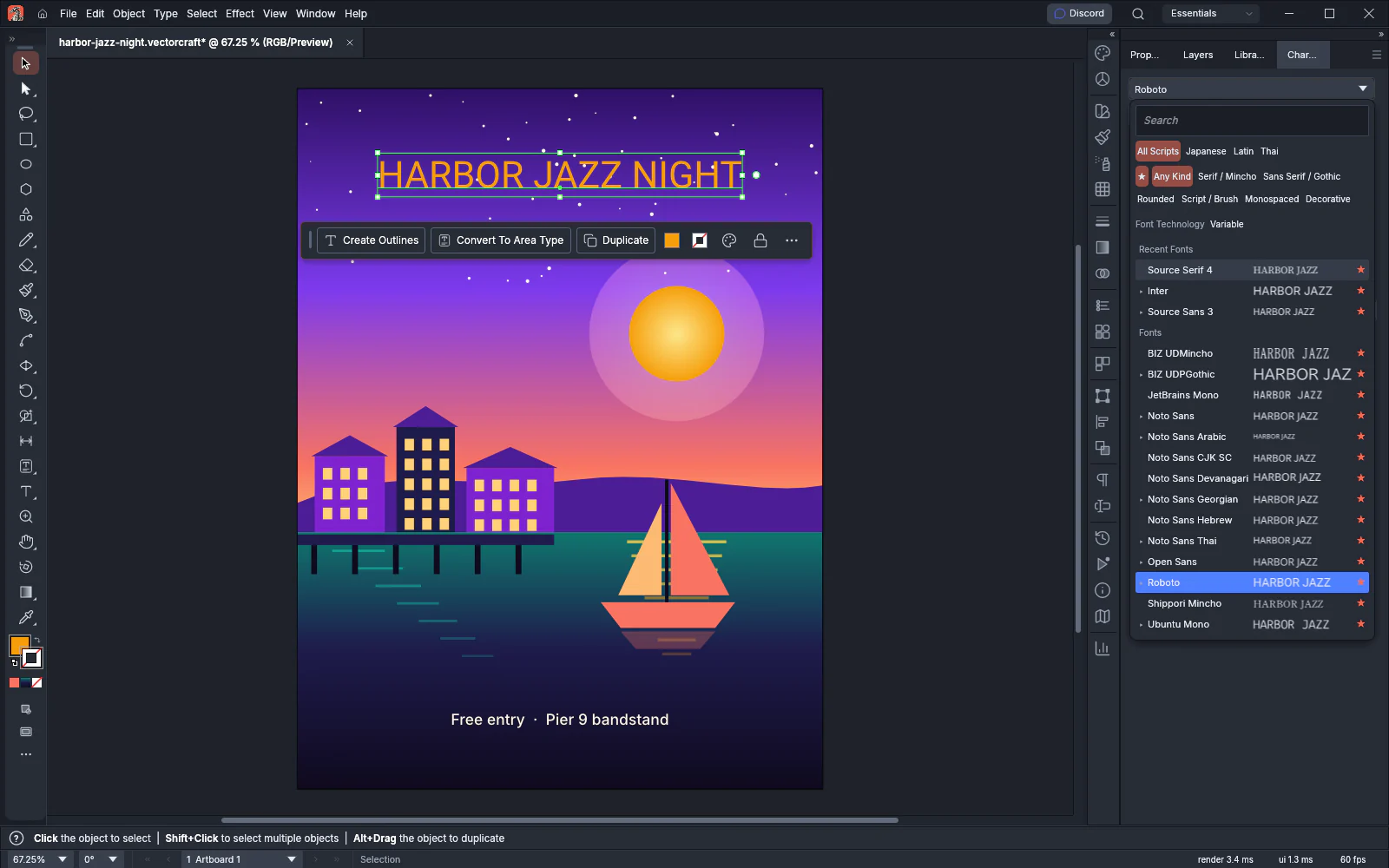 GuideChoose fontsSearch, preview and apply fonts, and keep your favorites close.
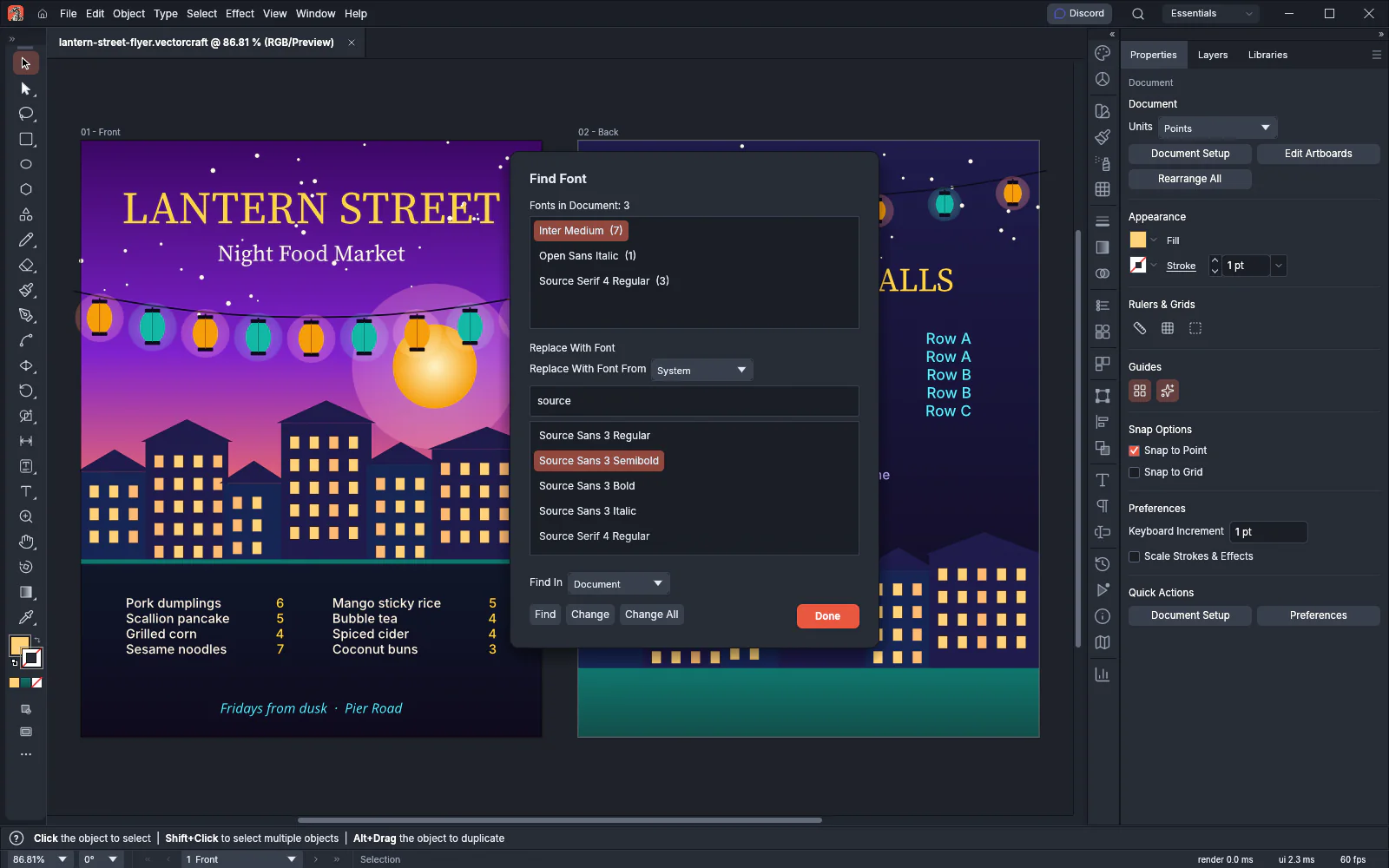 GuideFind and replace fontsList, select and replace the fonts a document uses.
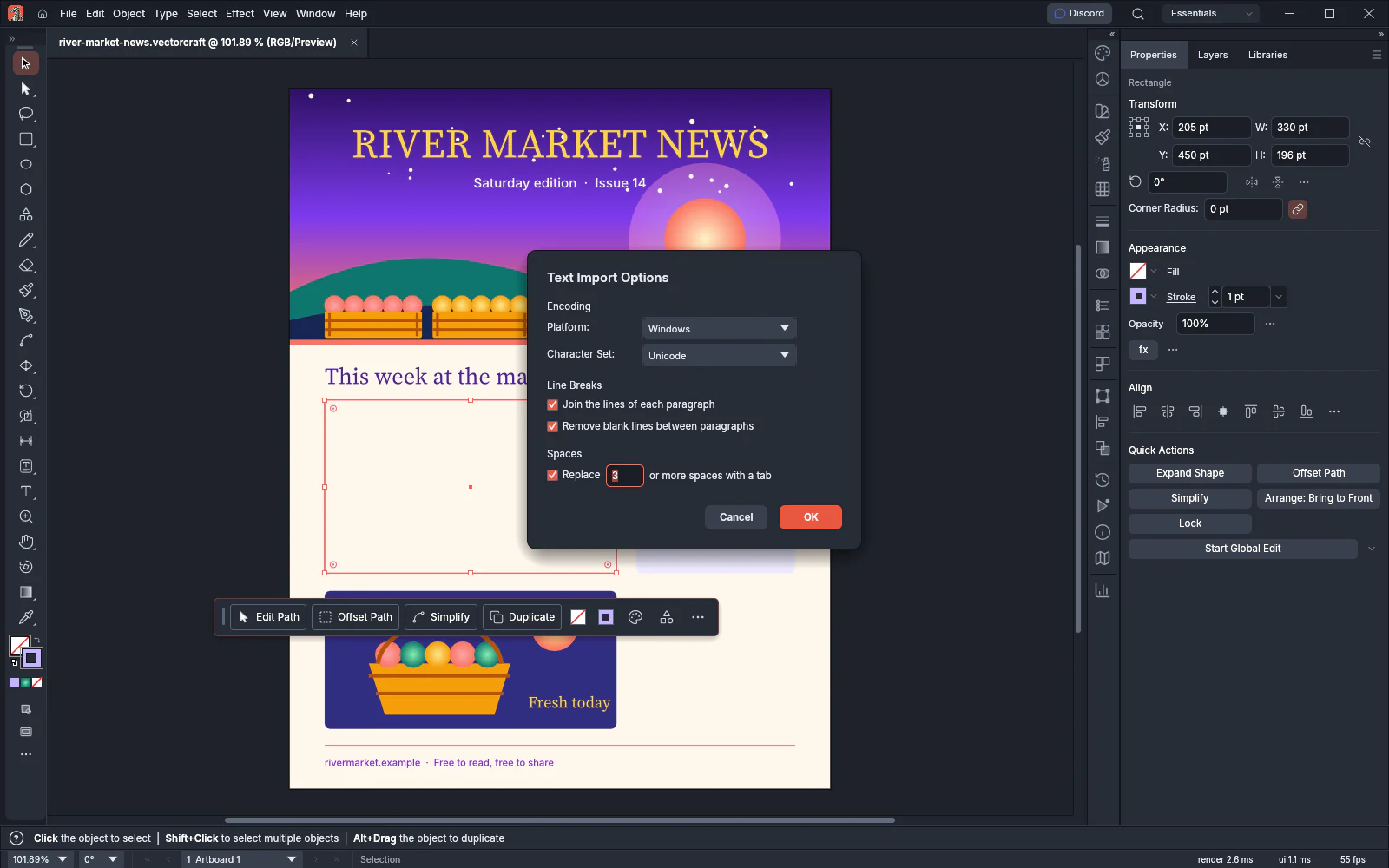 GuidePlace text from other filesBring text from text, Rich Text and Word files into a document.
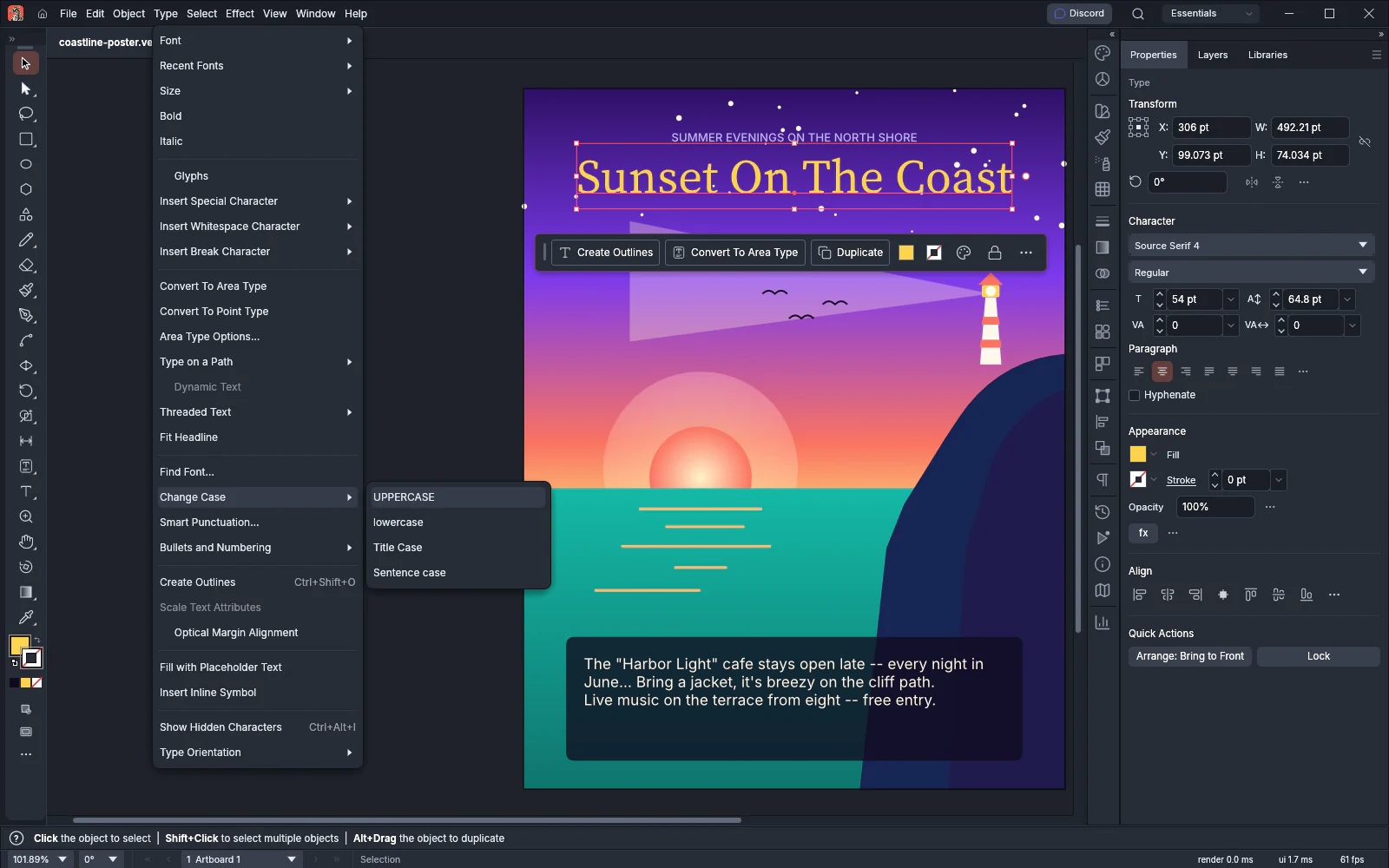 GuideChange case and clean up textFix the case, punctuation and characters of type.
Type layout
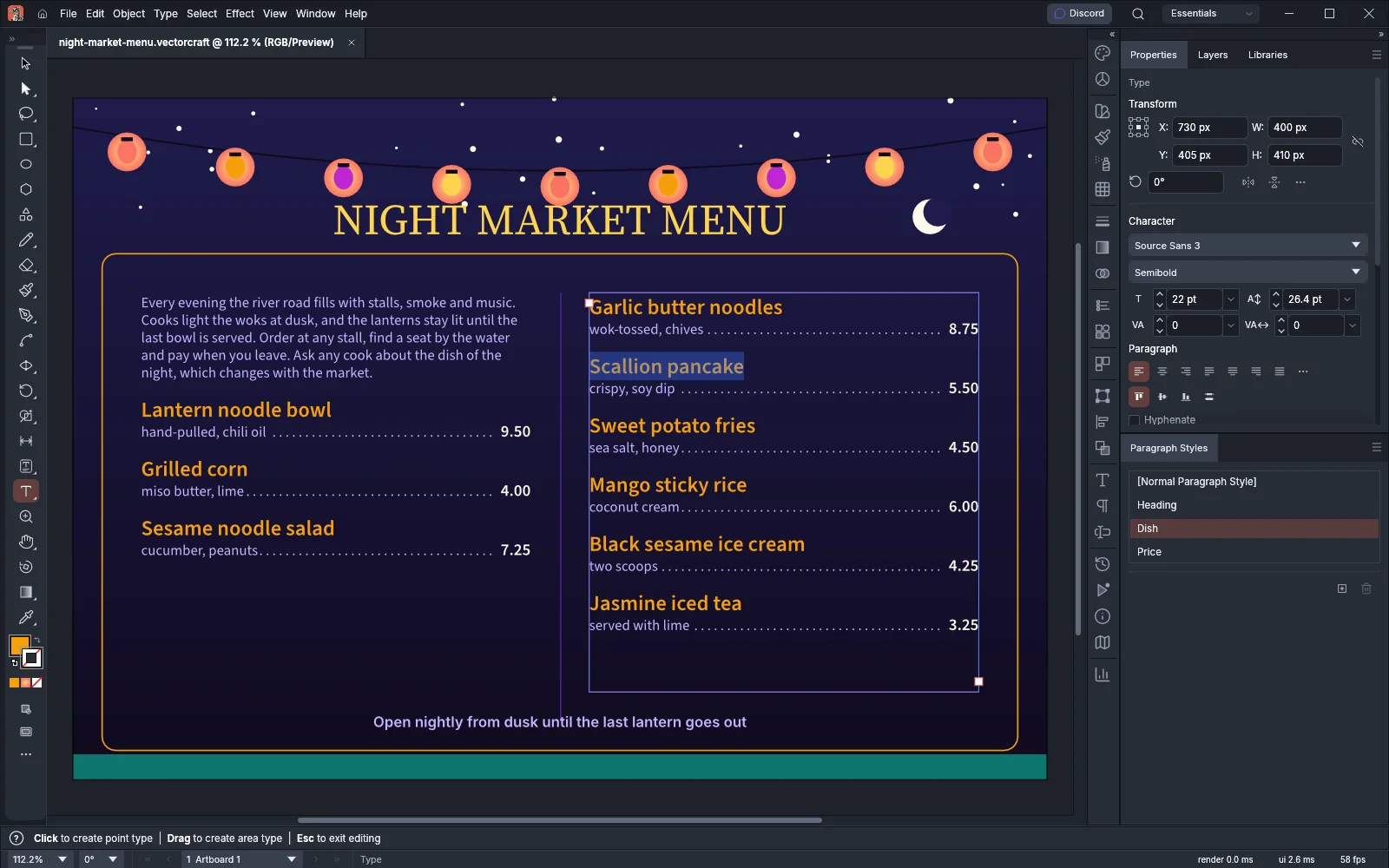 GuideWork with styles and long textUse paragraph and character styles, OpenType features, tabs and text wrap.
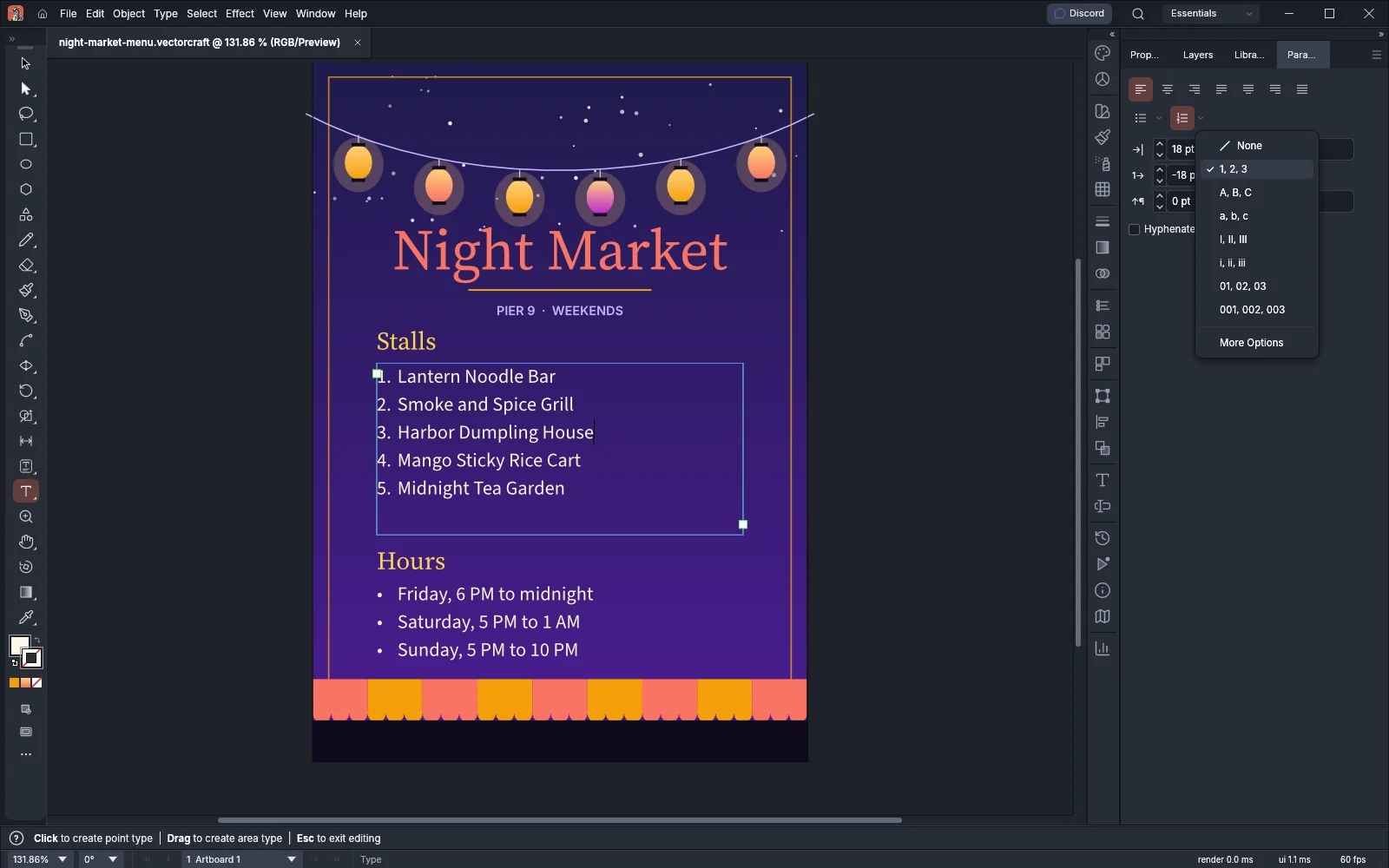 GuideMake lists and fit type to its frameMake bulleted and numbered lists, and fit headlines to their frames.
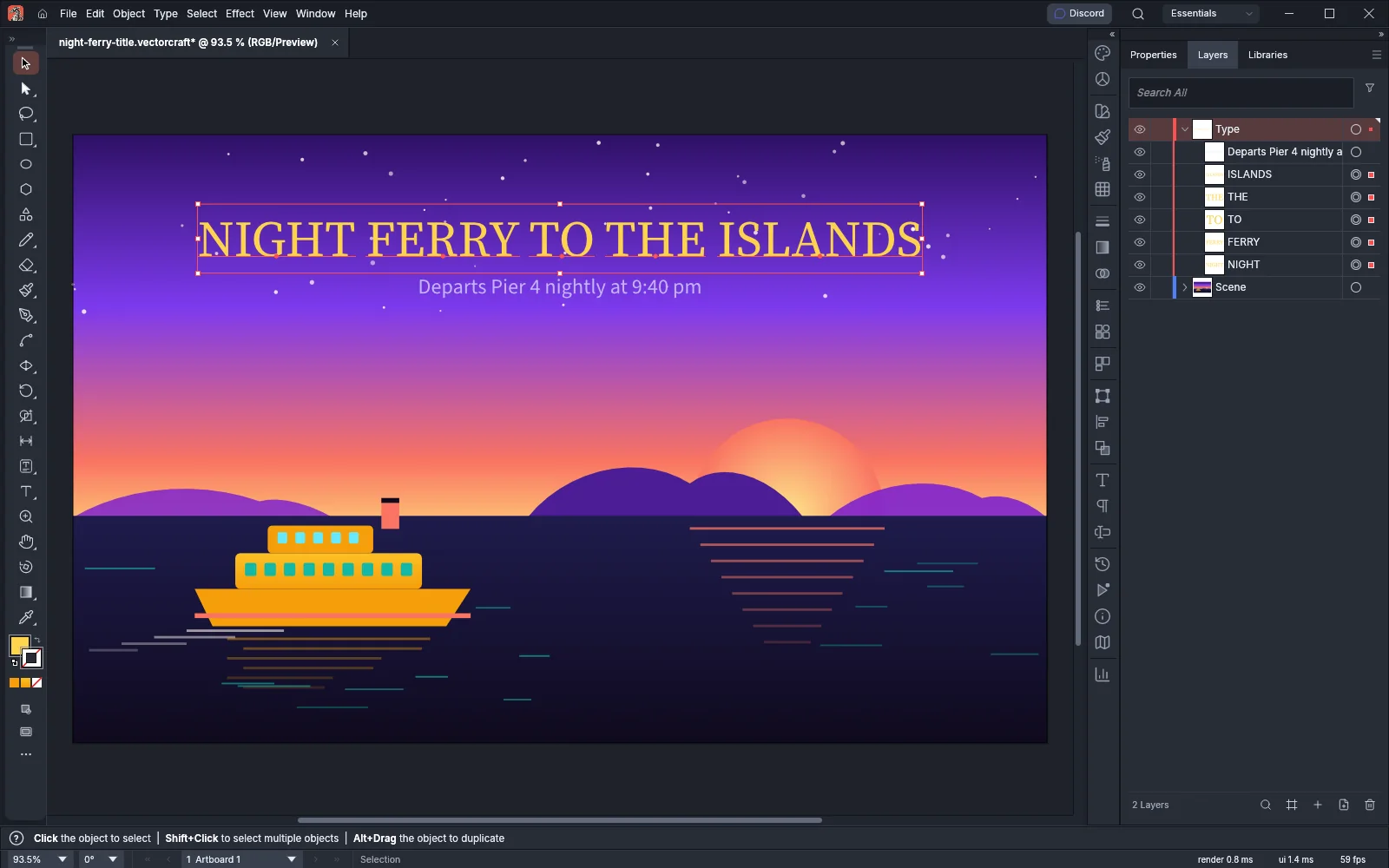 GuideSplit and join type objectsBreak type into separate objects and put pieces of type back together.
Languages and spelling
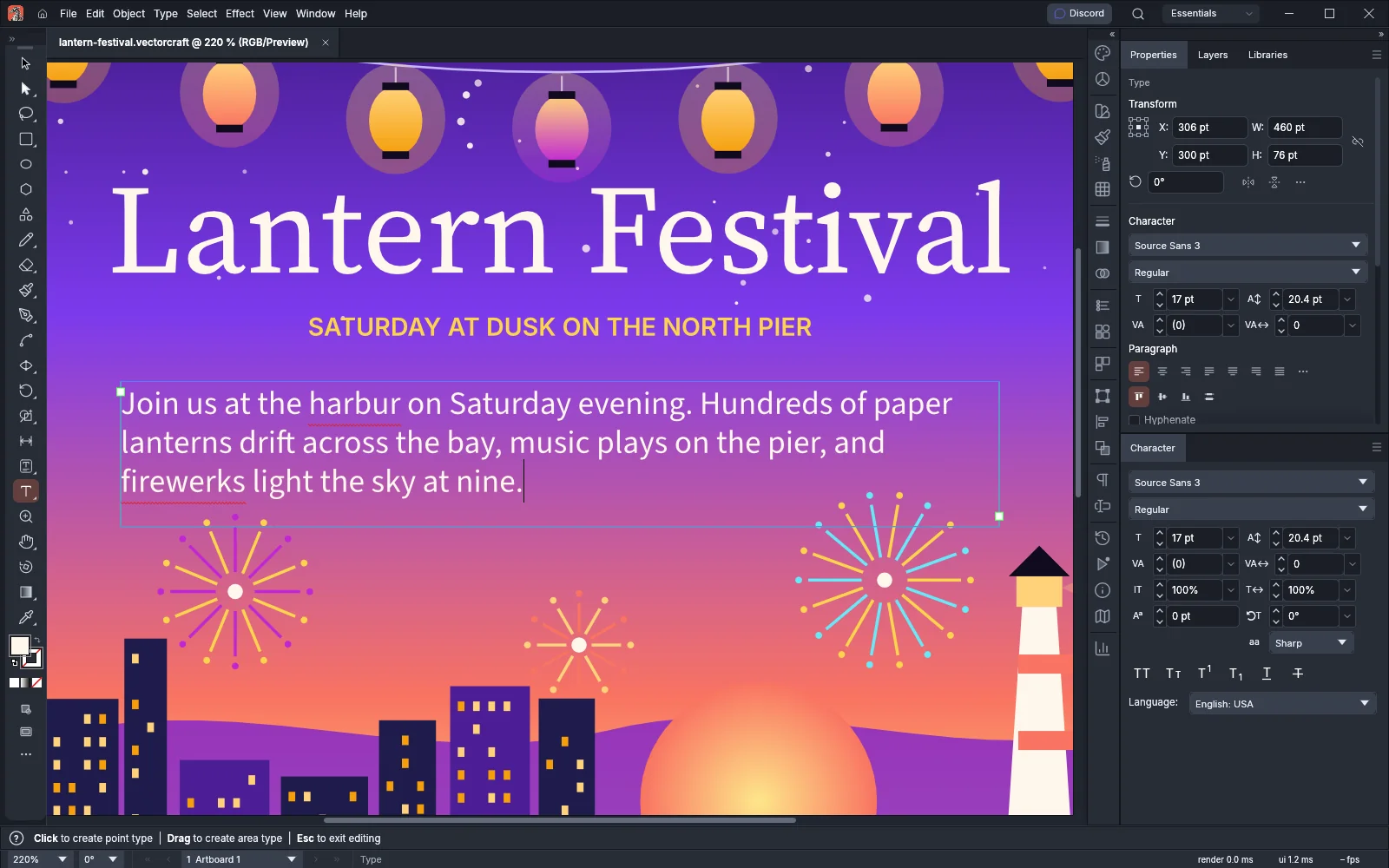 GuideCheck spellingFind and fix misspelled words, and keep your own words in a dictionary.
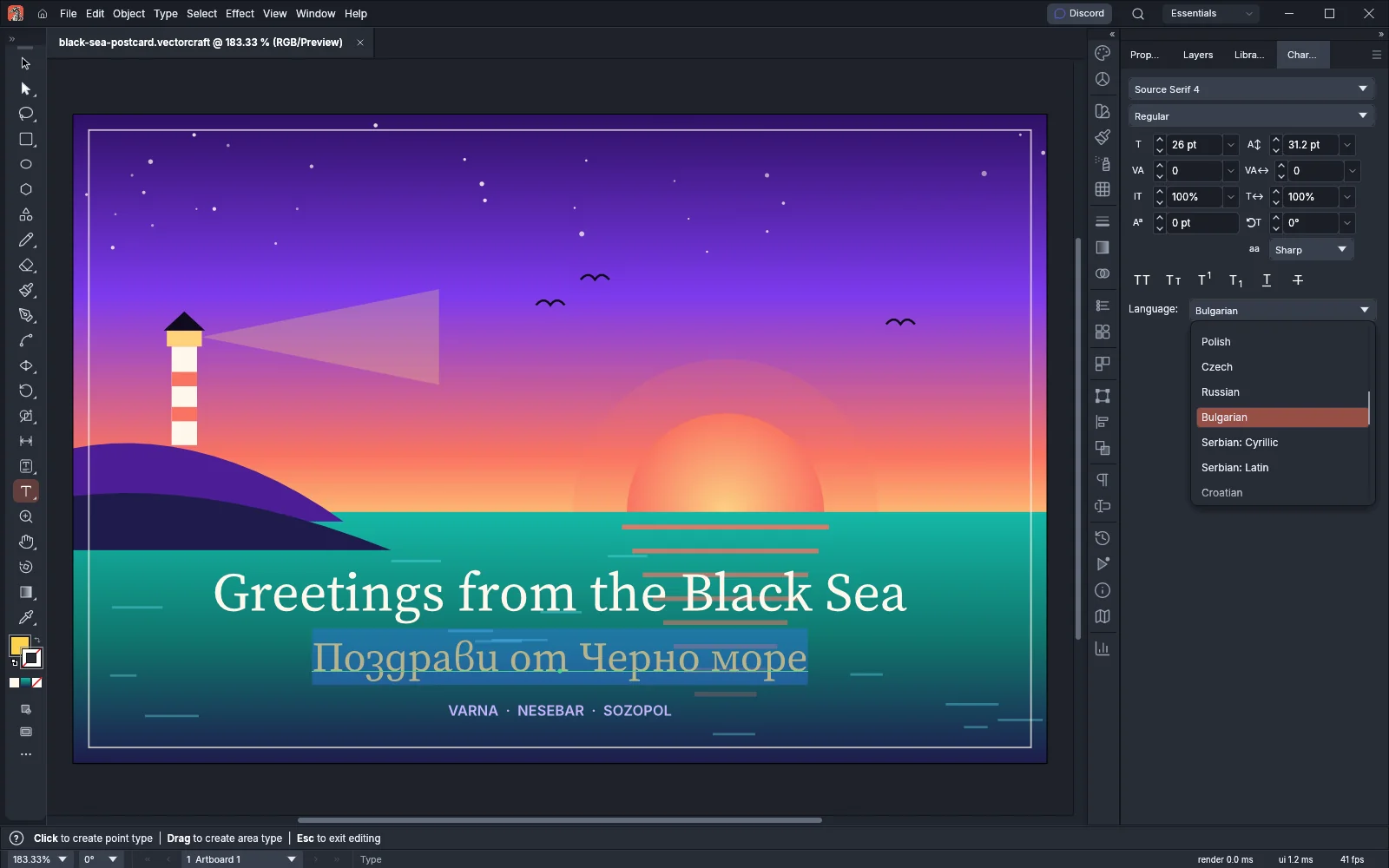 GuideSet type in other languagesSet the language of type, the East Asian options and composite fonts.
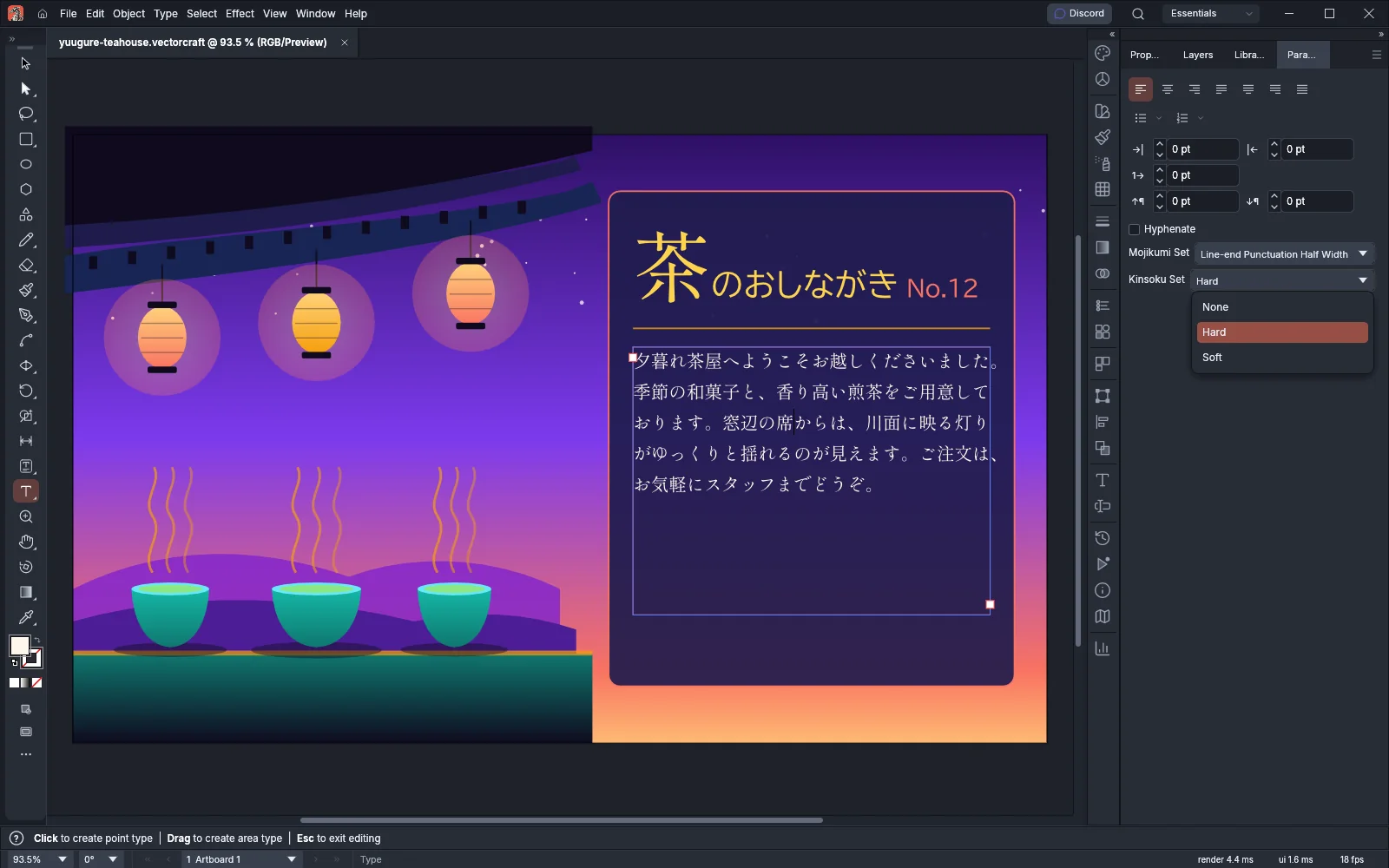 GuideSet Japanese typeSet line breaks, punctuation spacing, leading and alignment for Japanese type.
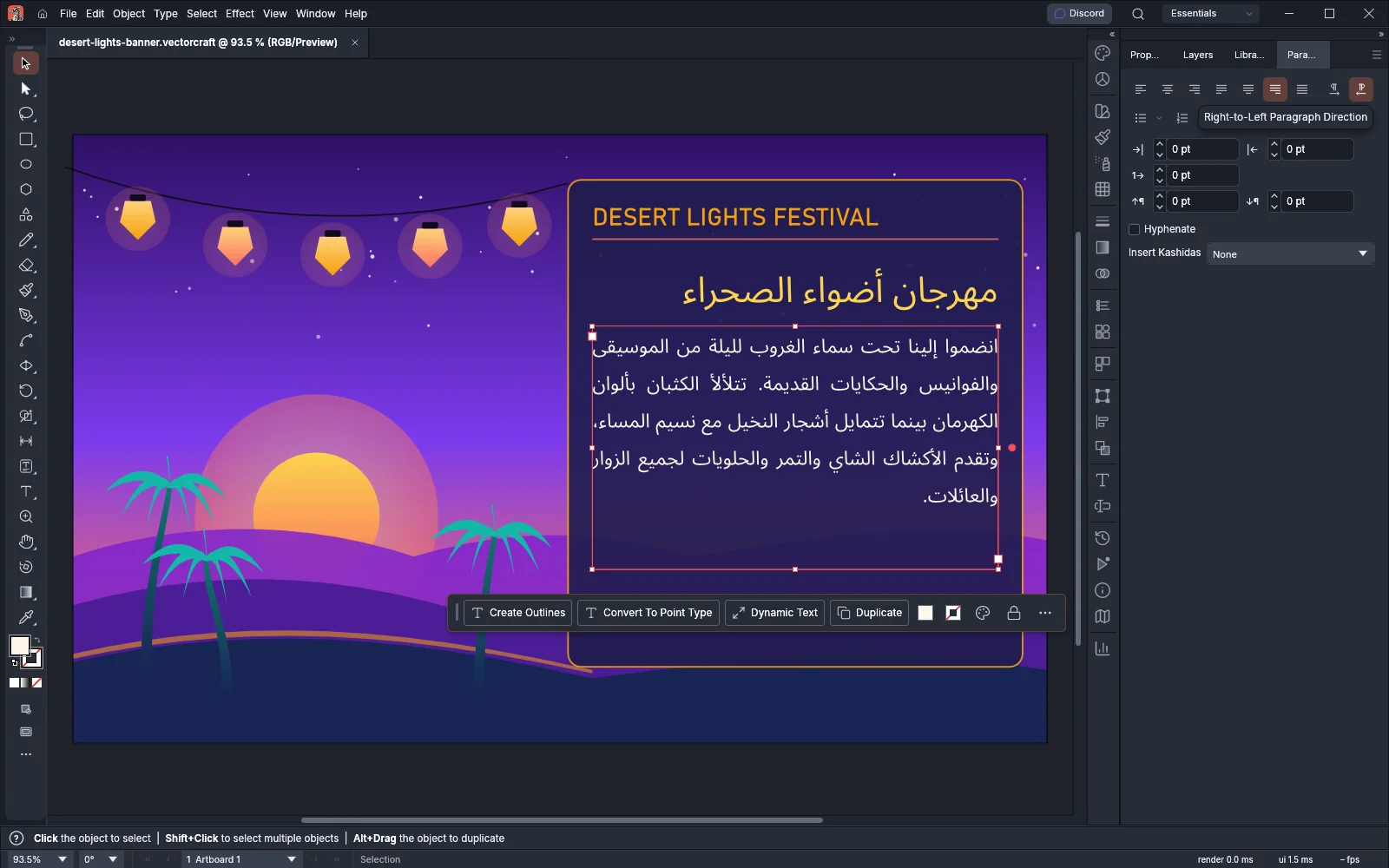 GuideSet right-to-left and Indic typeSet the direction, digits and kashidas of Arabic, Hebrew and Indic type.
Organize
6 pagesArrange and align
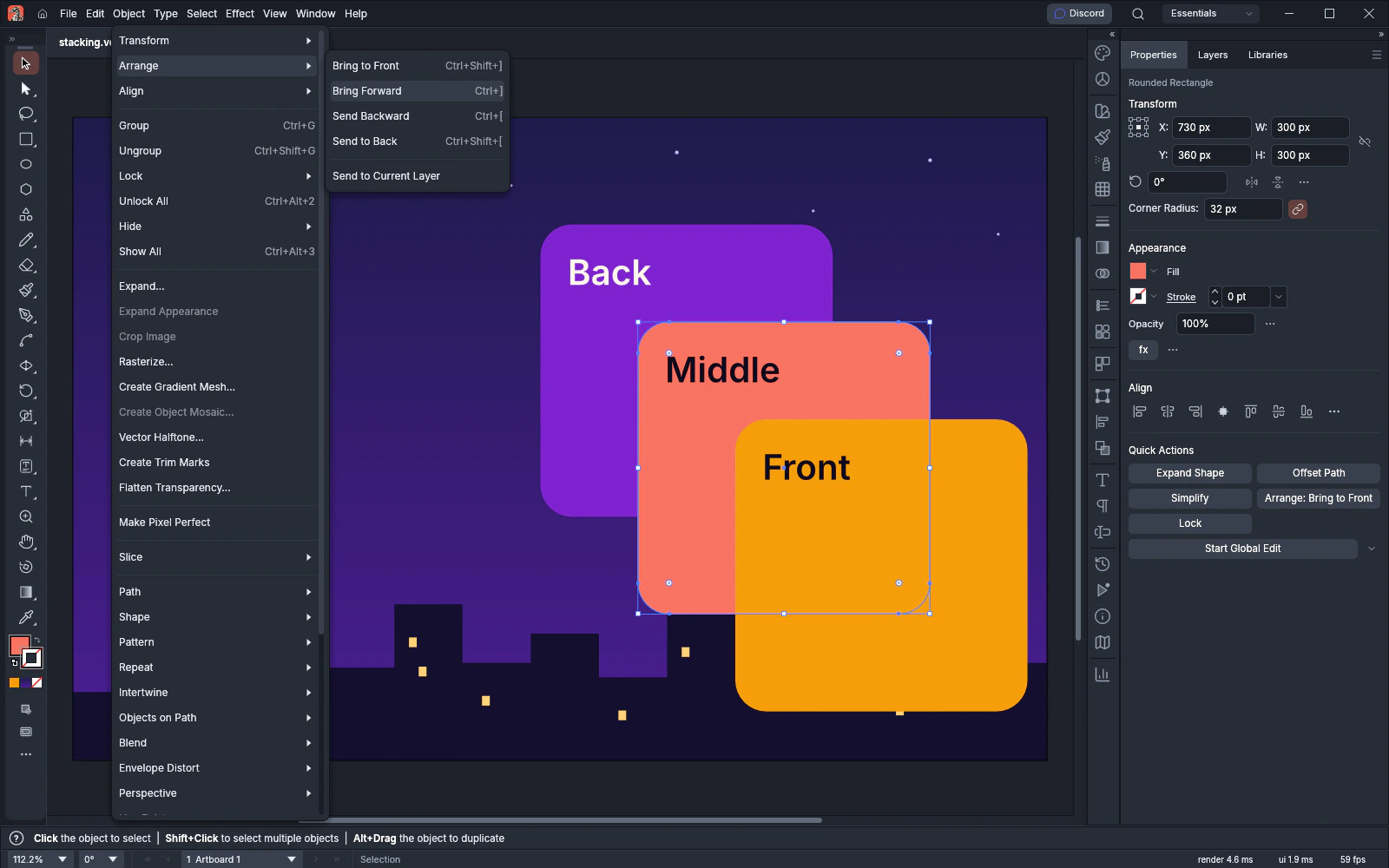 GuideArrange, group and alignChange the stacking order, and group, lock, hide and align objects.
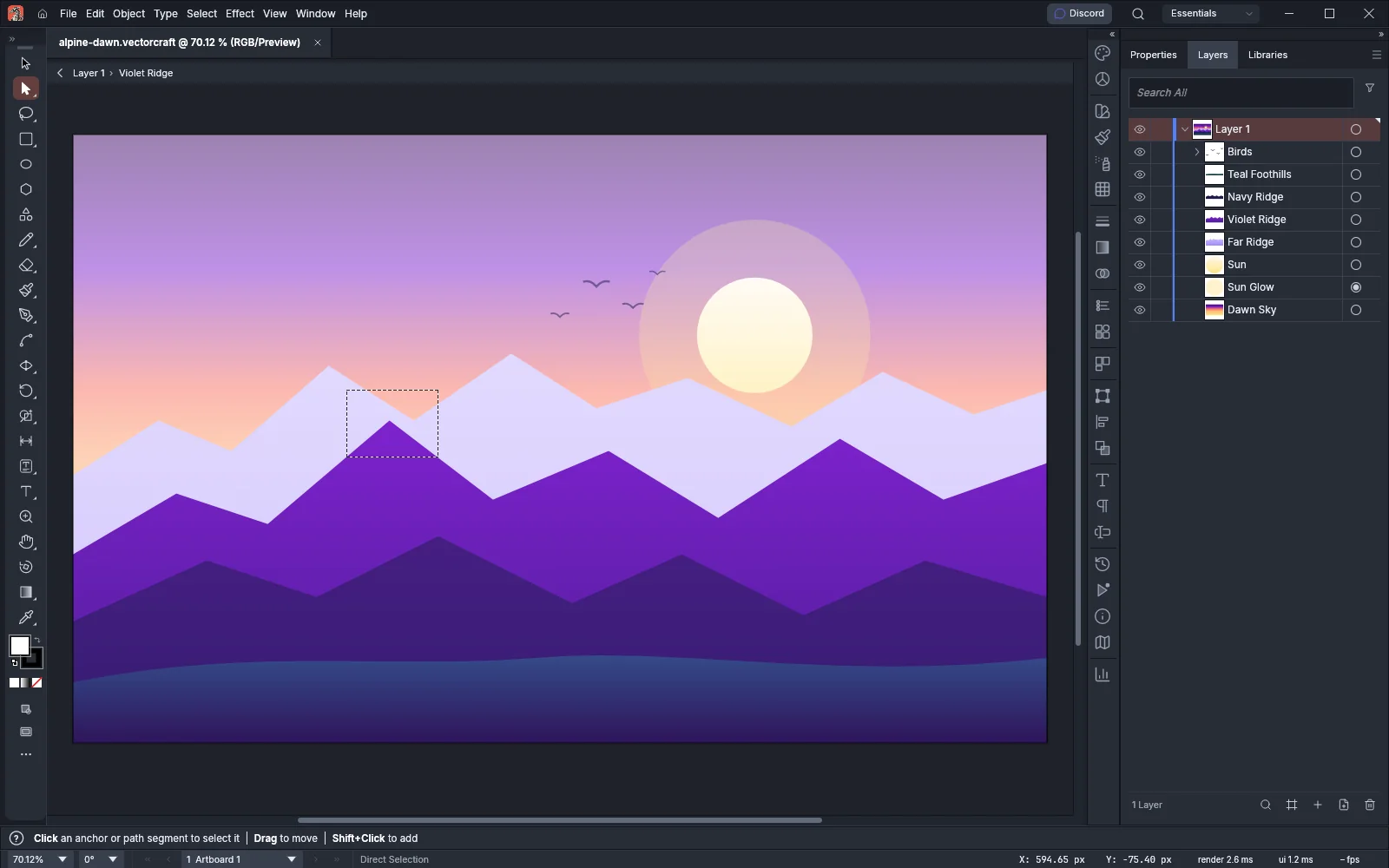 GuideEdit in isolation modeEdit one group, object or layer while the rest of the artwork is dimmed.
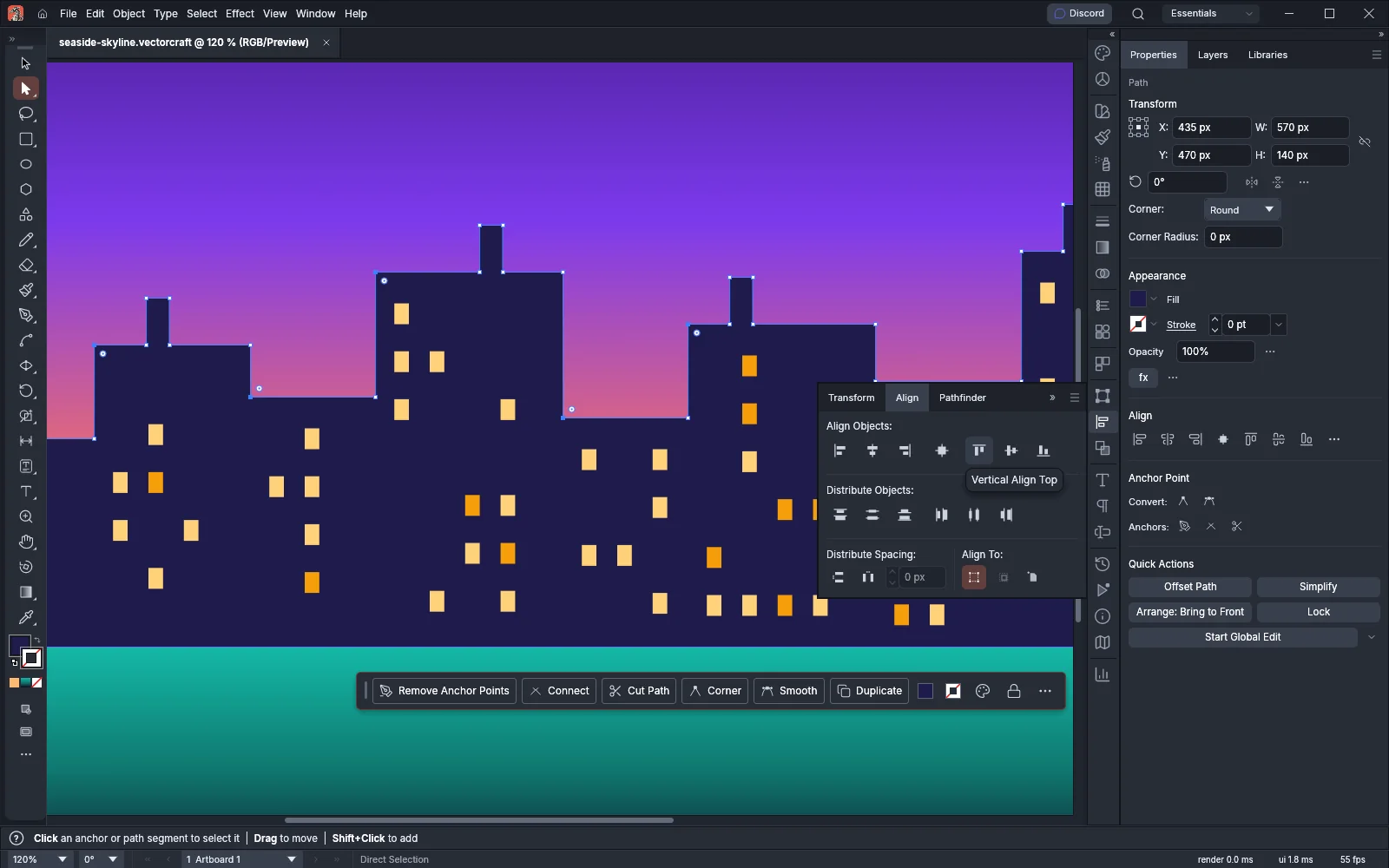 GuideAlign anchor points and guidesLine up anchor points, and align objects to guides or the guides themselves.
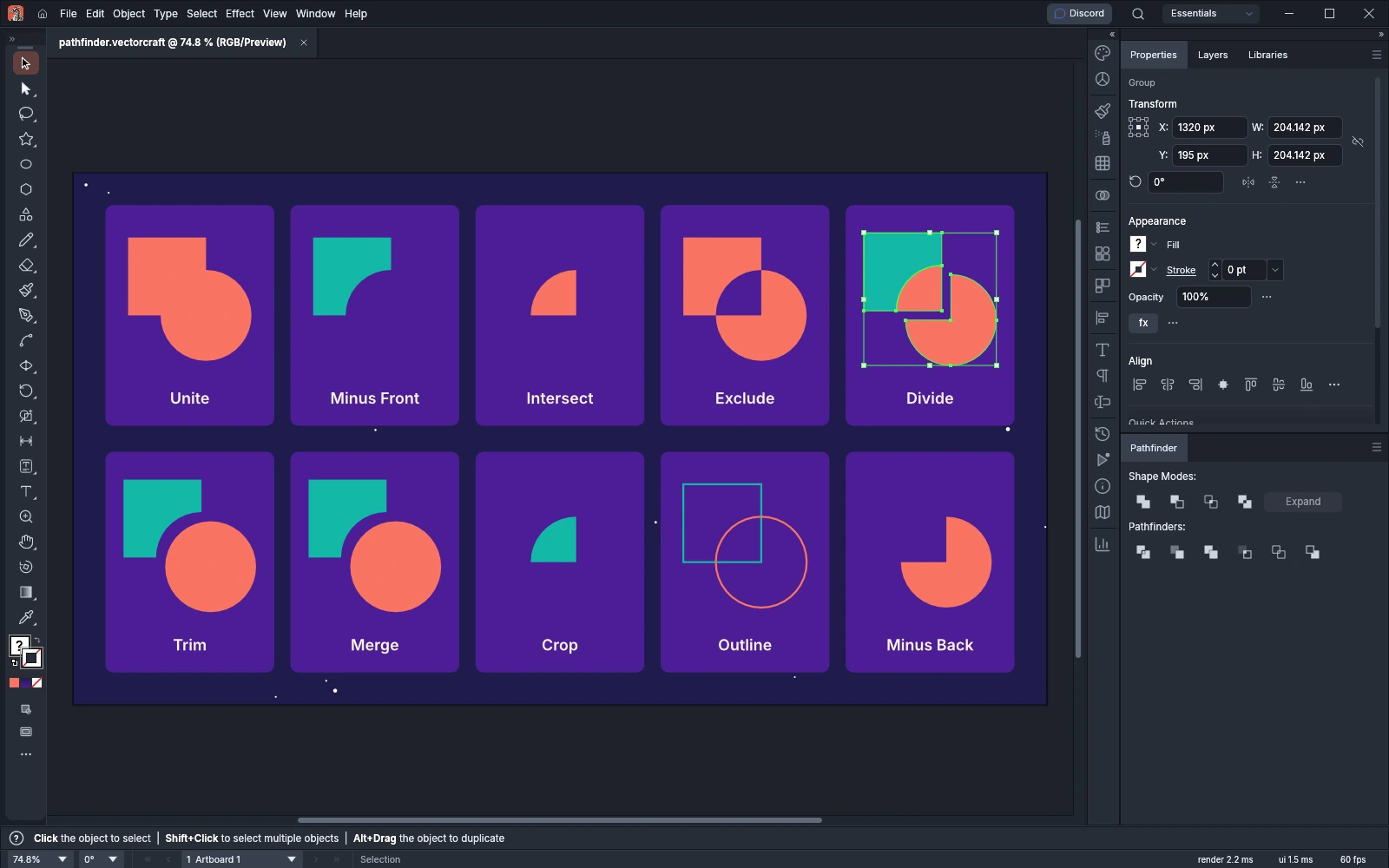 GuideCombine and cut shapesBuild shapes with Pathfinder and Shape Builder, and use masks and Live Paint.
Files and formats
8 pagesOpen and save
 GuideOpen and save filesSave, open and place files, and recover your work after a crash.
 GuideCopy and paste between appsPaste art, pictures, text and tables between VectorCraft and other apps.
 GuidePackage a document with its links and fontsCollect a document, its linked files and its fonts in one folder.
 GuideDrag files into VectorCraftDrop files on the window to open documents and place pictures.
Formats
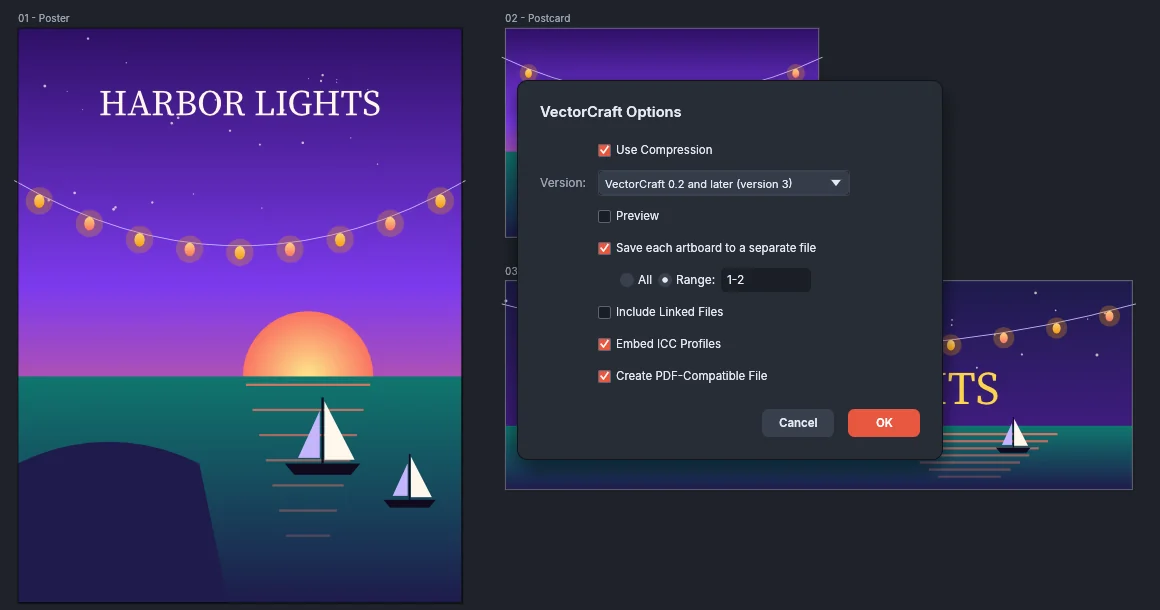 GuideSave for older versions and other appsPick the save options for VectorCraft, .ai, EPS and template files.
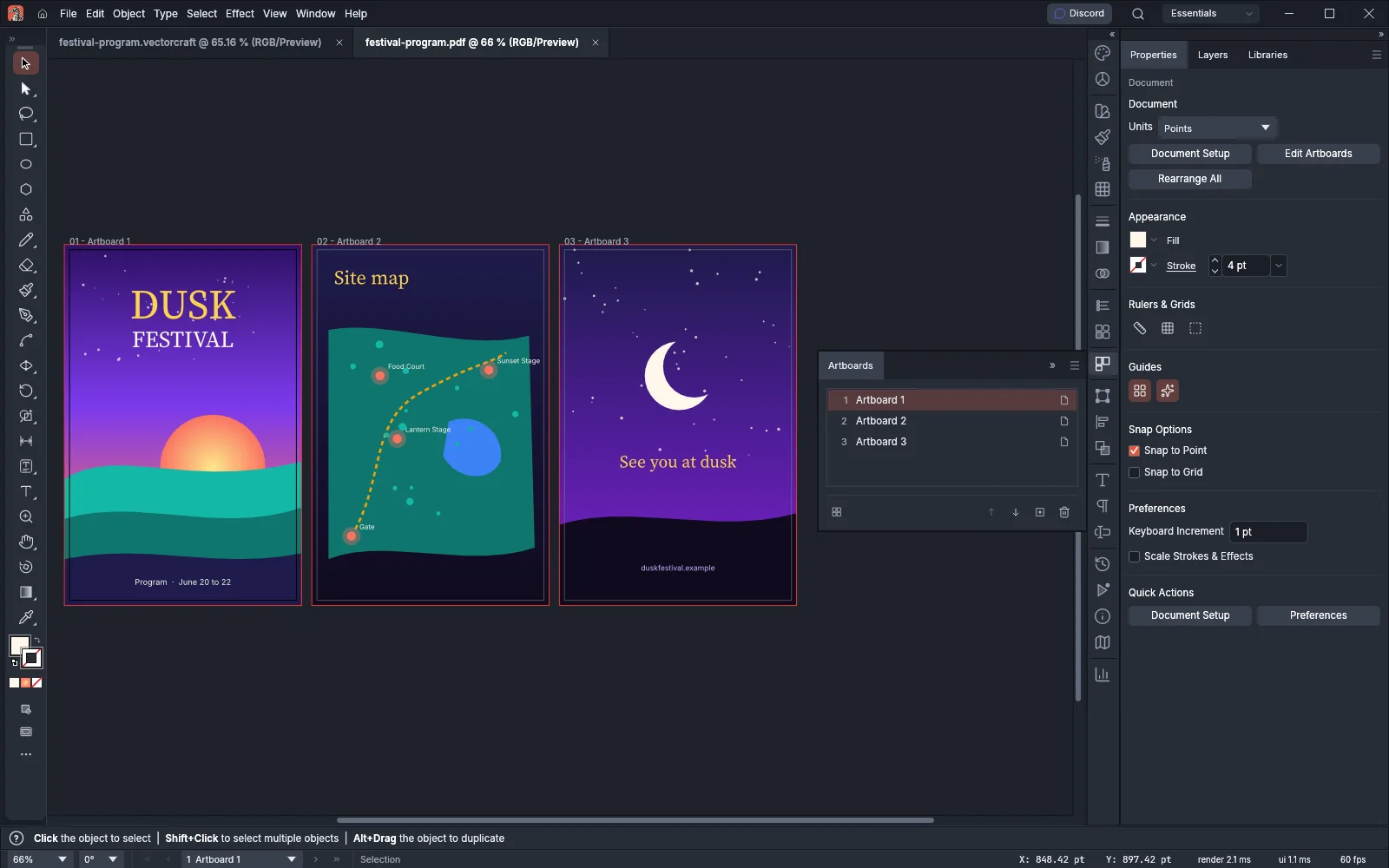 GuideOpen and place PDF and .ai pagesPick the pages, page box and password when you open or place a PDF.
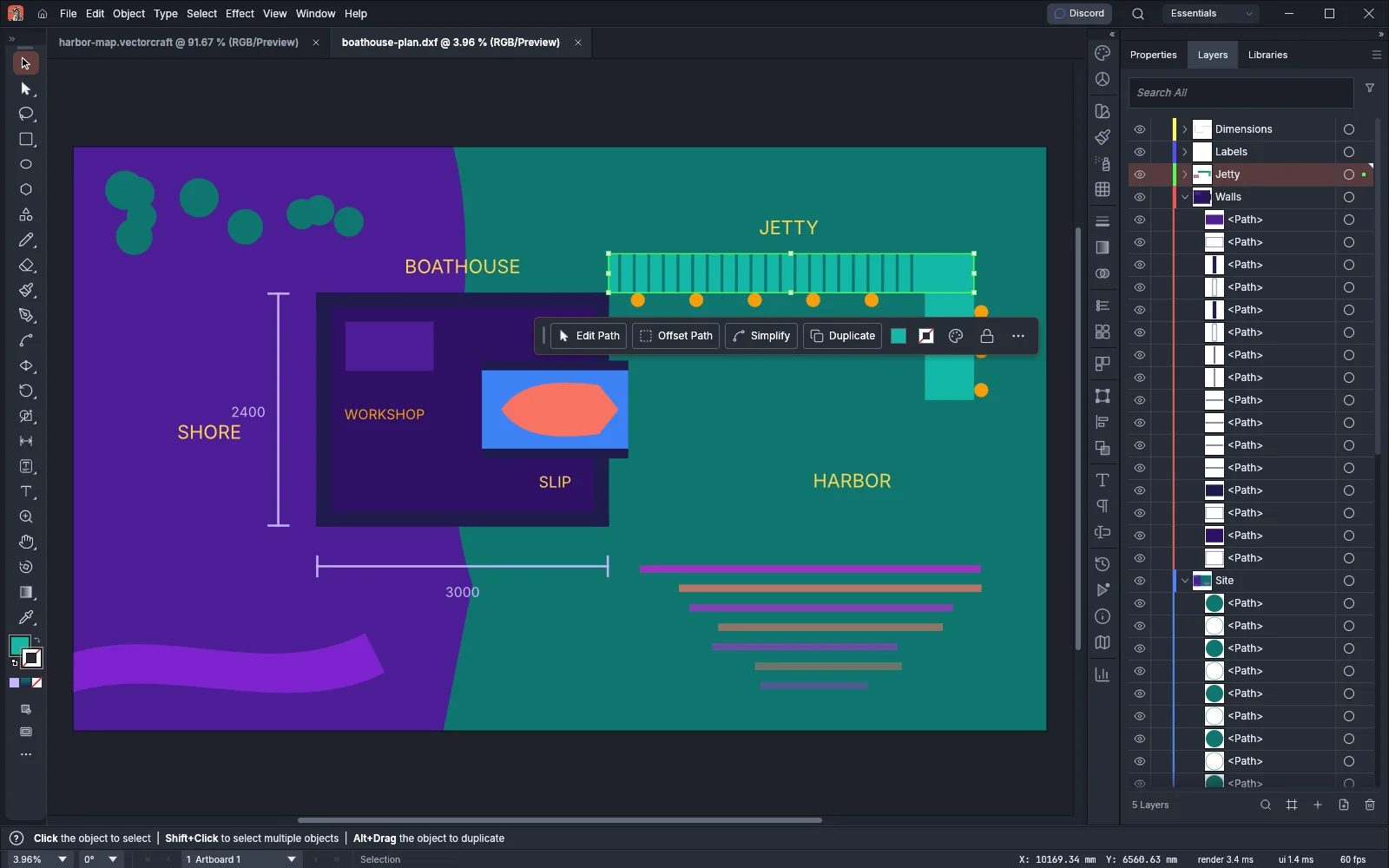 GuideOpen and place DXF drawingsChoose the layout, scale and layers when you open or place a DXF drawing.
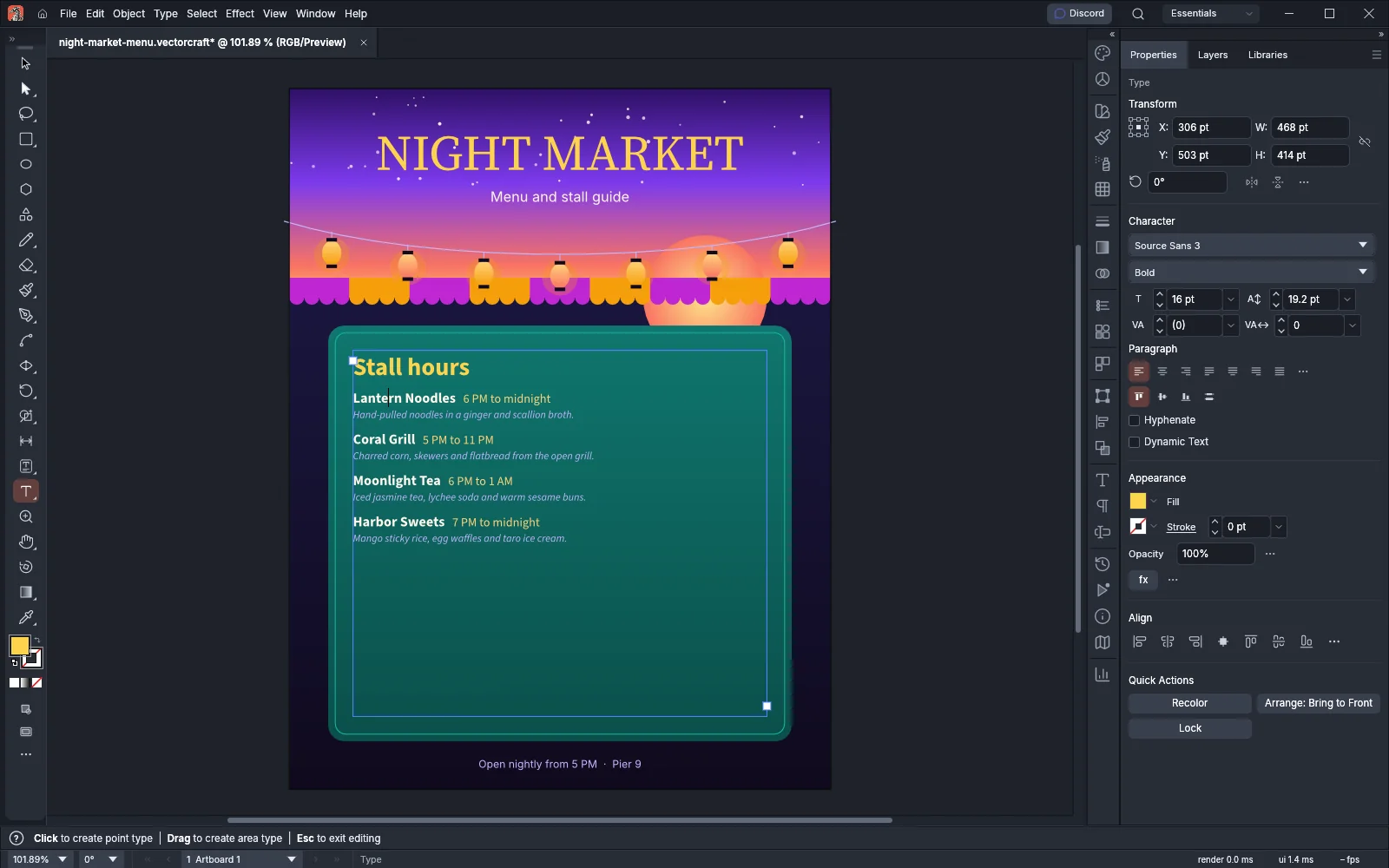 GuidePlace text from text and word processor filesBring the text of a .txt, .rtf, .docx or .doc file into a document as area type.
Export
6 pagesExport
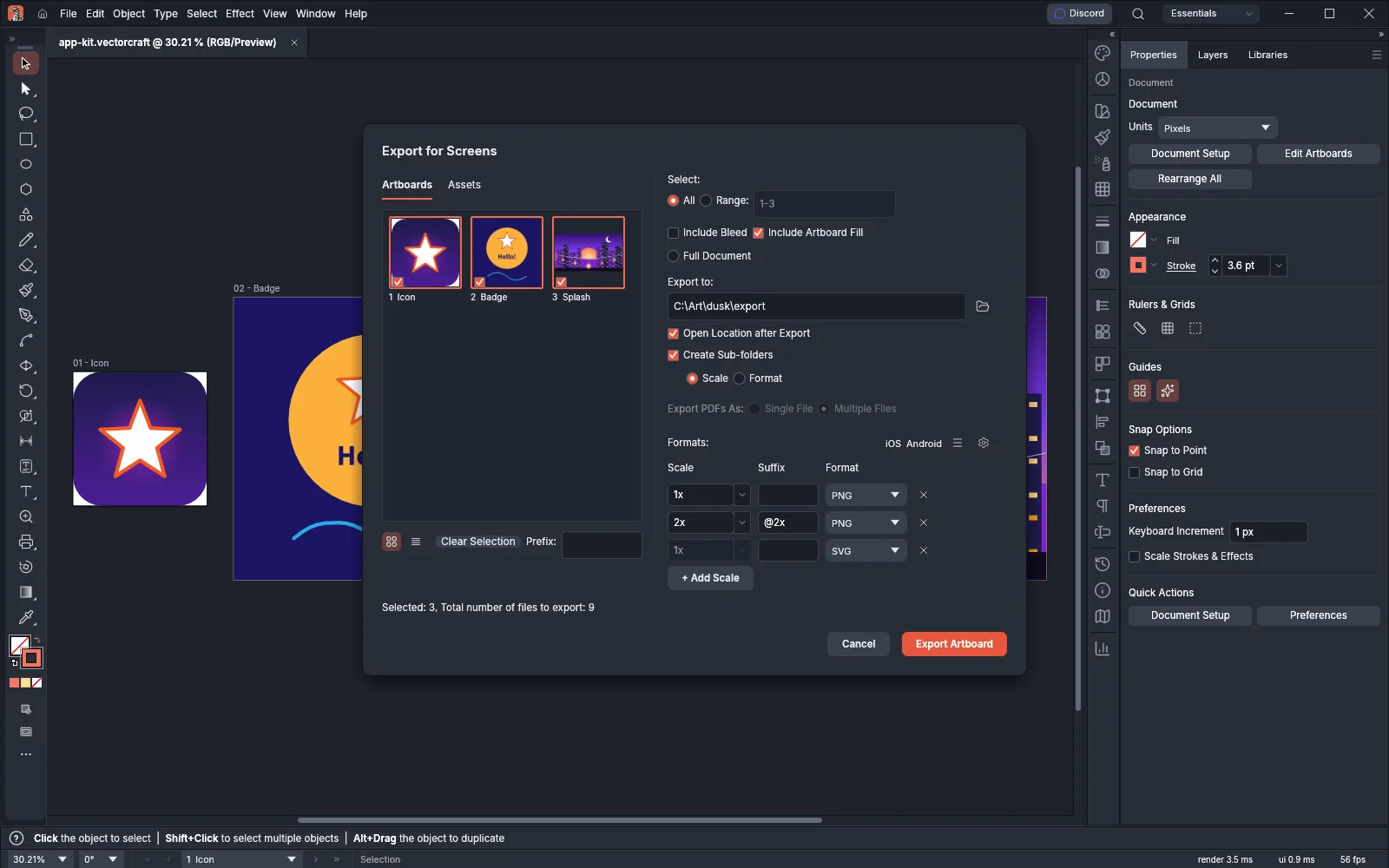 GuideExport for screens and the webExport artboards and assets at several sizes and formats in one pass.
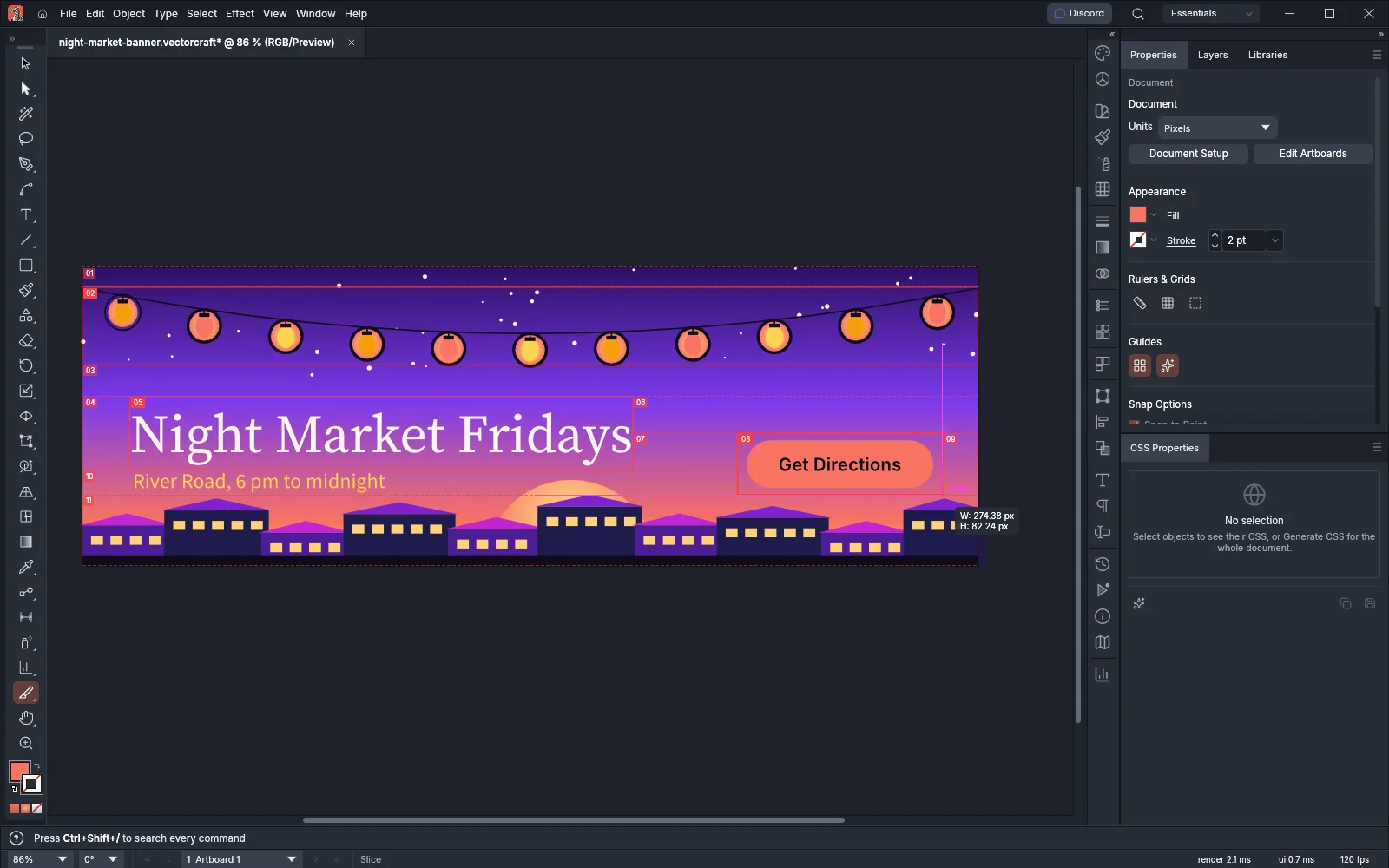 GuideSlice artwork for the webCut a design into slices and save them with an HTML page.
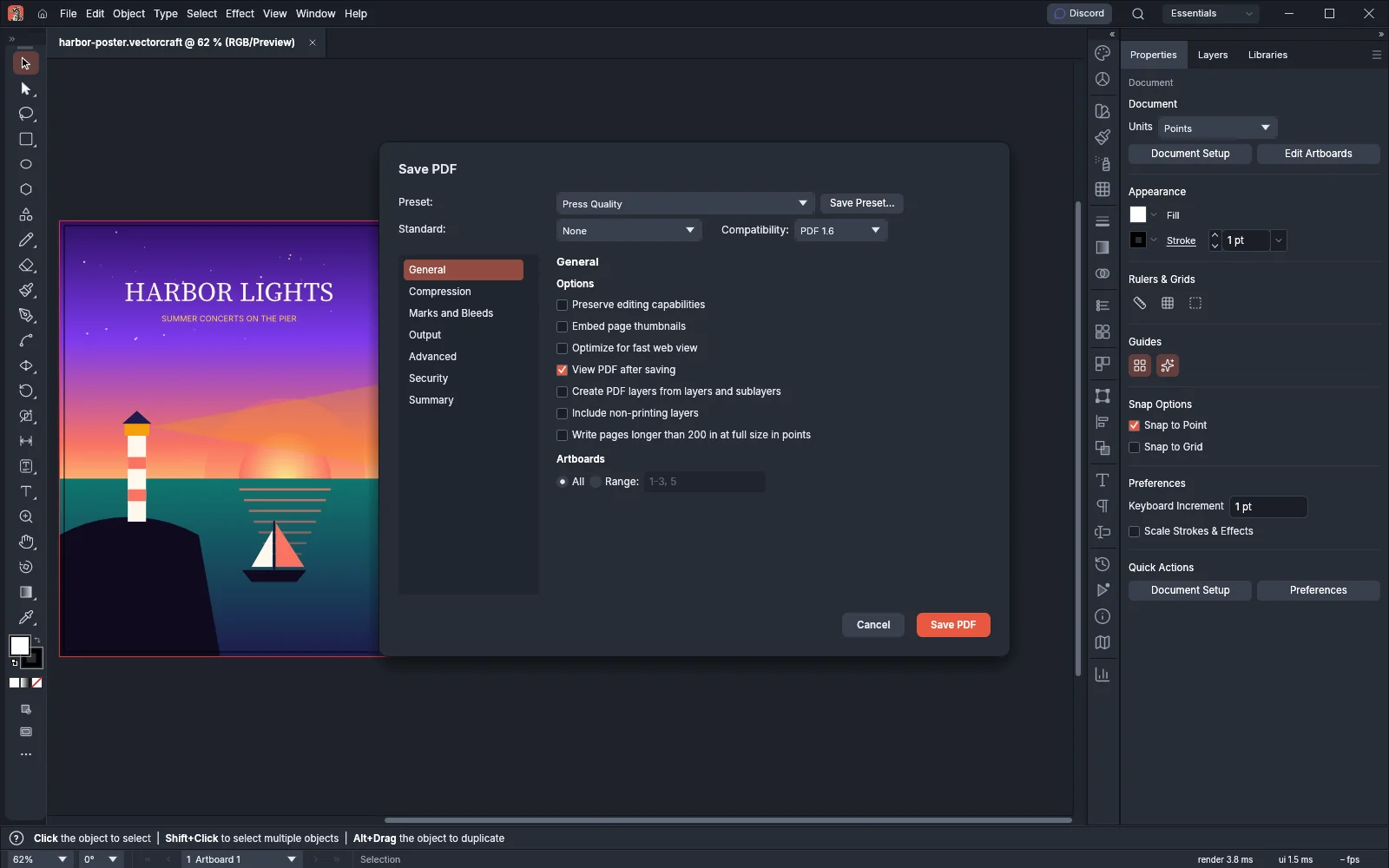 GuideSave PDF files for print and sharingSave artboards as PDF files with presets, standards, marks and passwords.
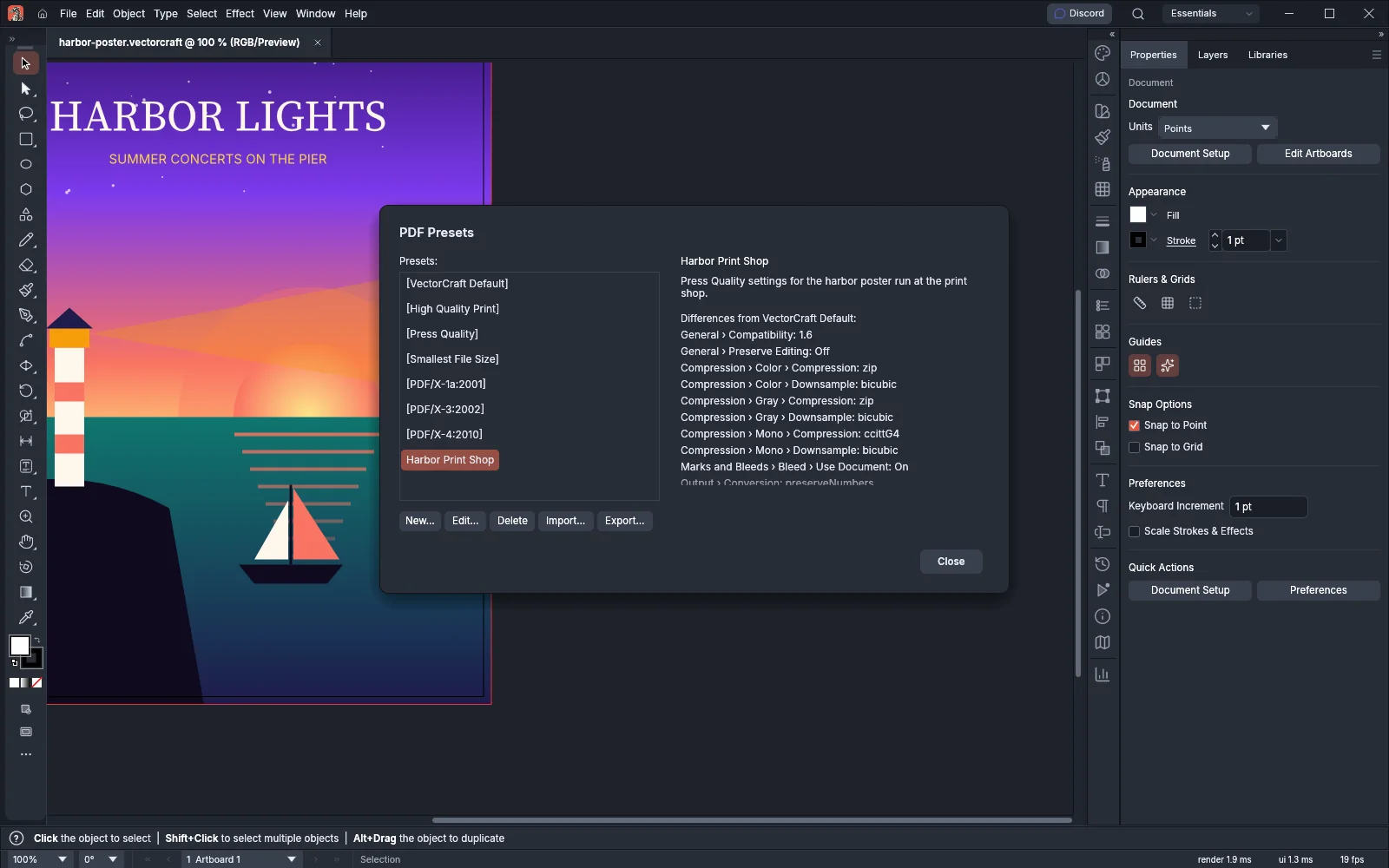 GuideCreate and share PDF presetsMake, edit and share the presets that Save PDF uses.
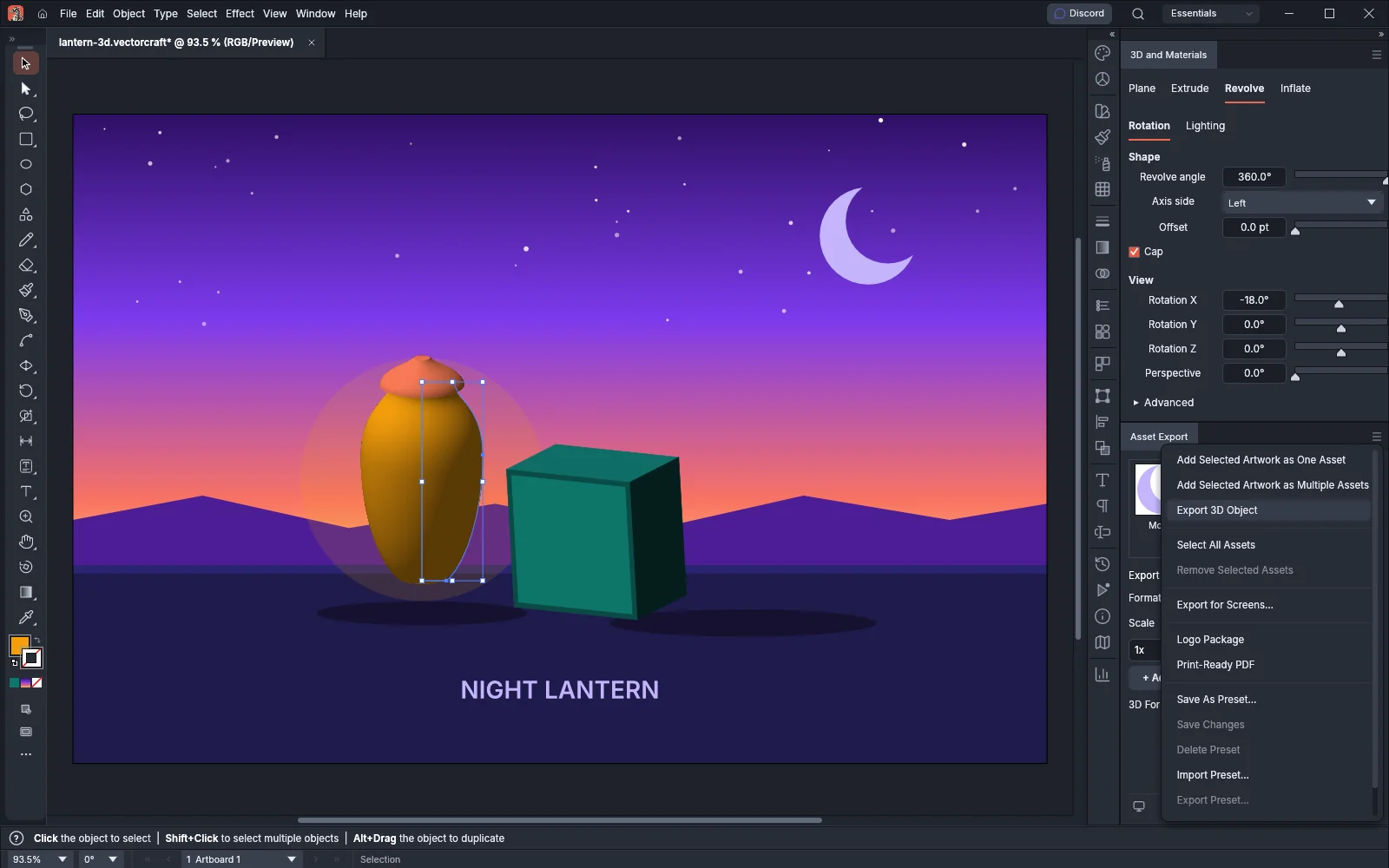 GuideExport 3D objects as mesh filesExport extruded, revolved and inflated objects as USDA, USDZ, glTF or OBJ meshes.
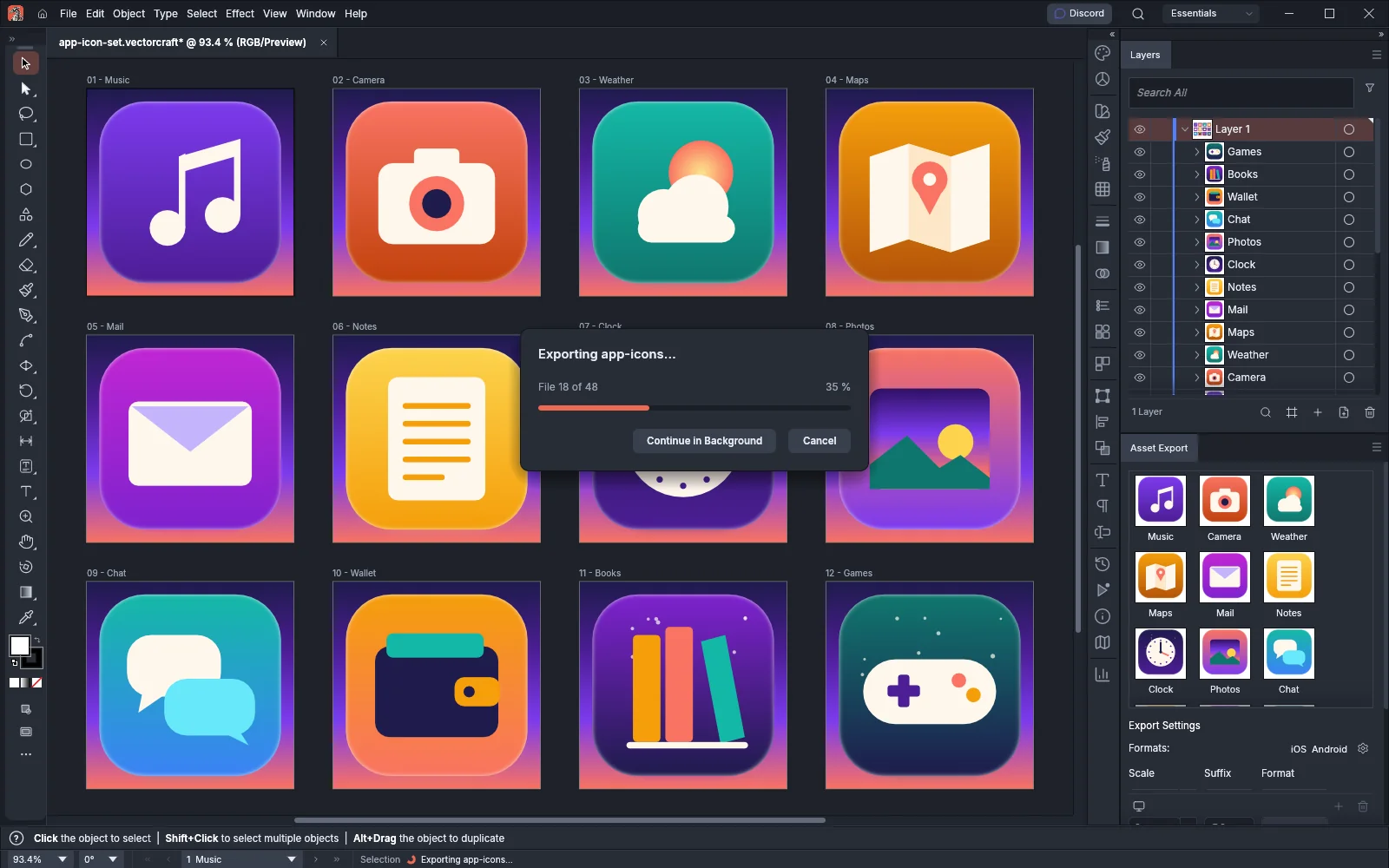 GuideFollow and cancel long exportsWatch, cancel or hide an export while VectorCraft writes the files.
Print and color management
6 pages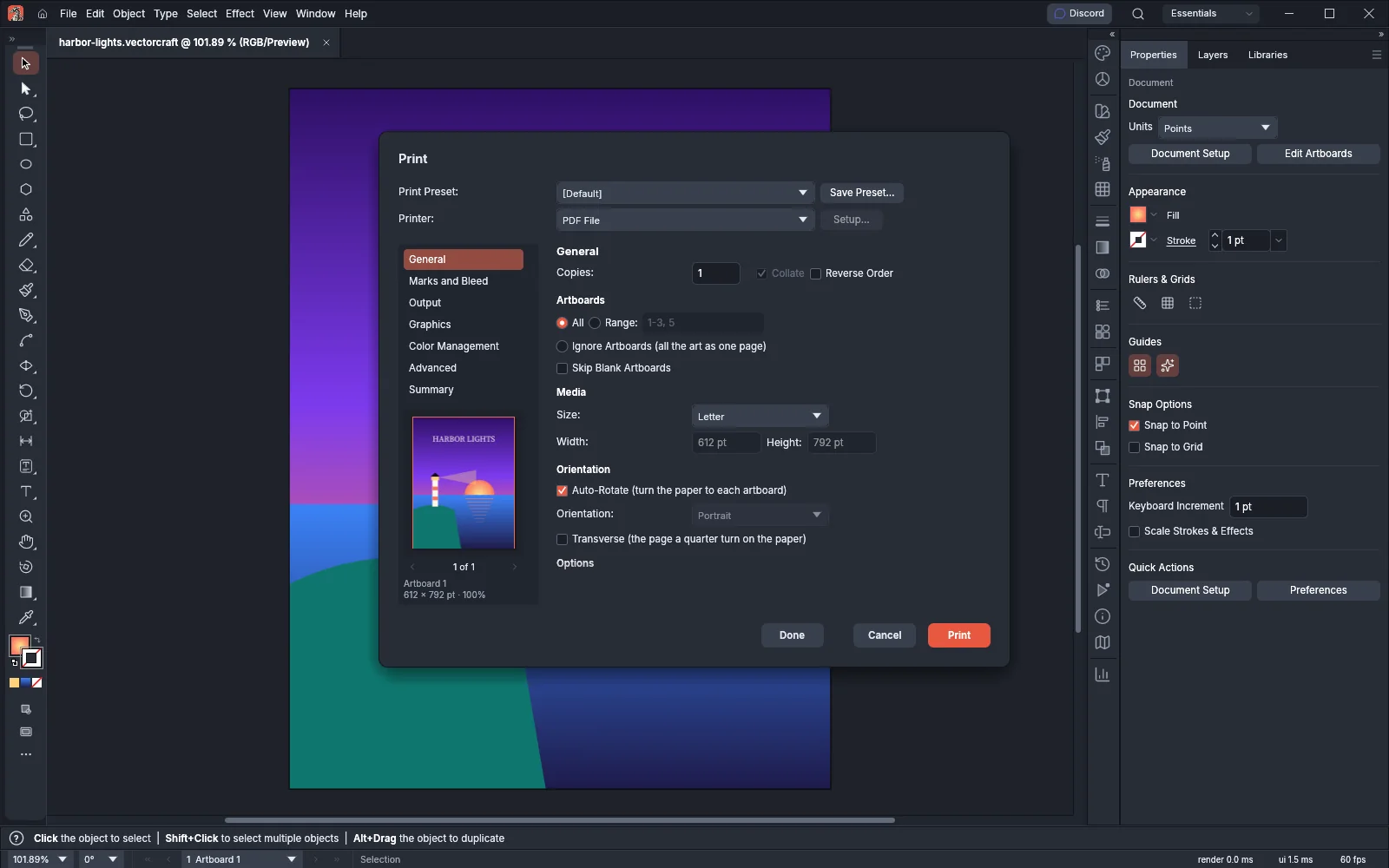 GuidePrint your artworkPrint artboards with marks and bleed, and save your settings as presets.
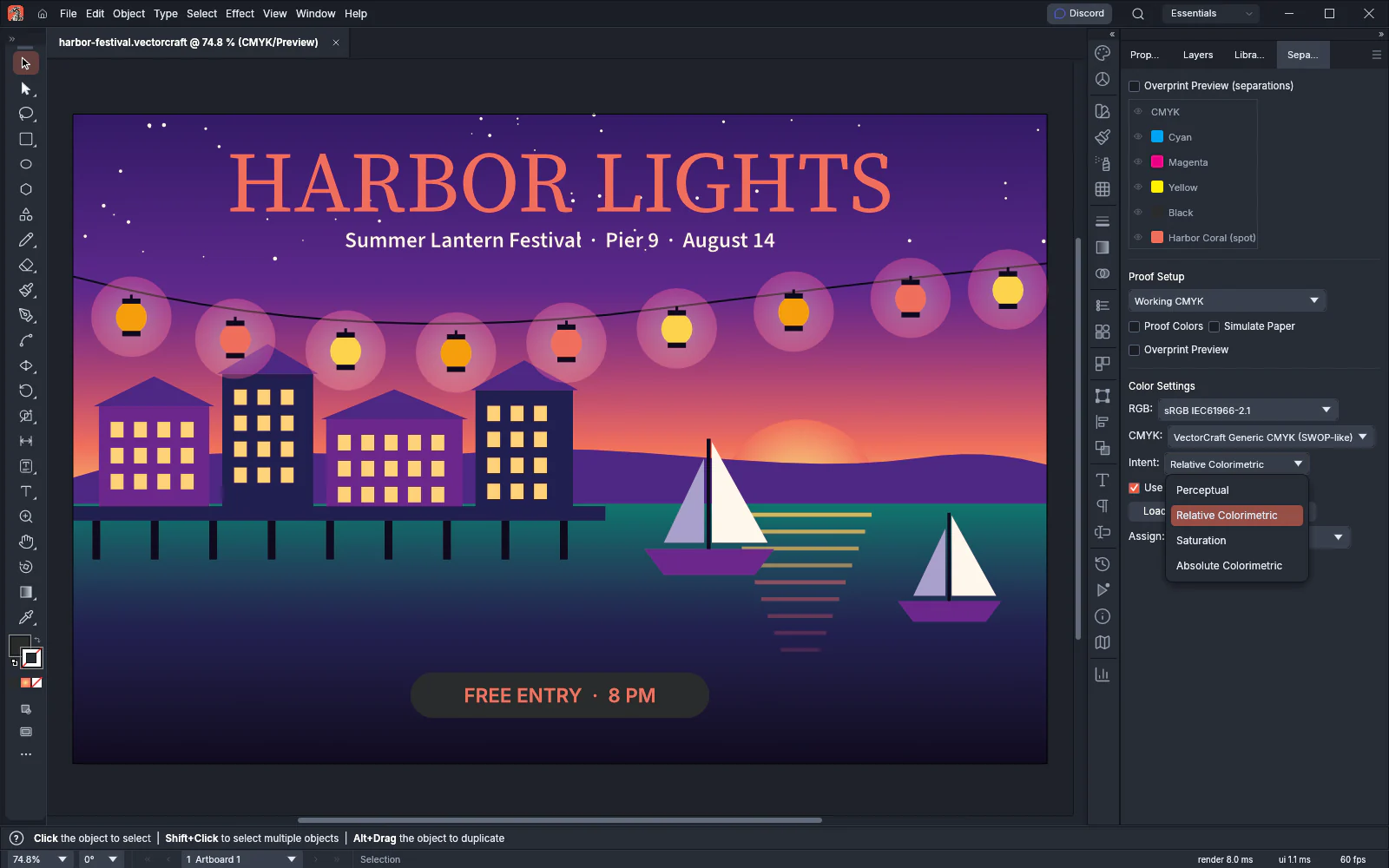
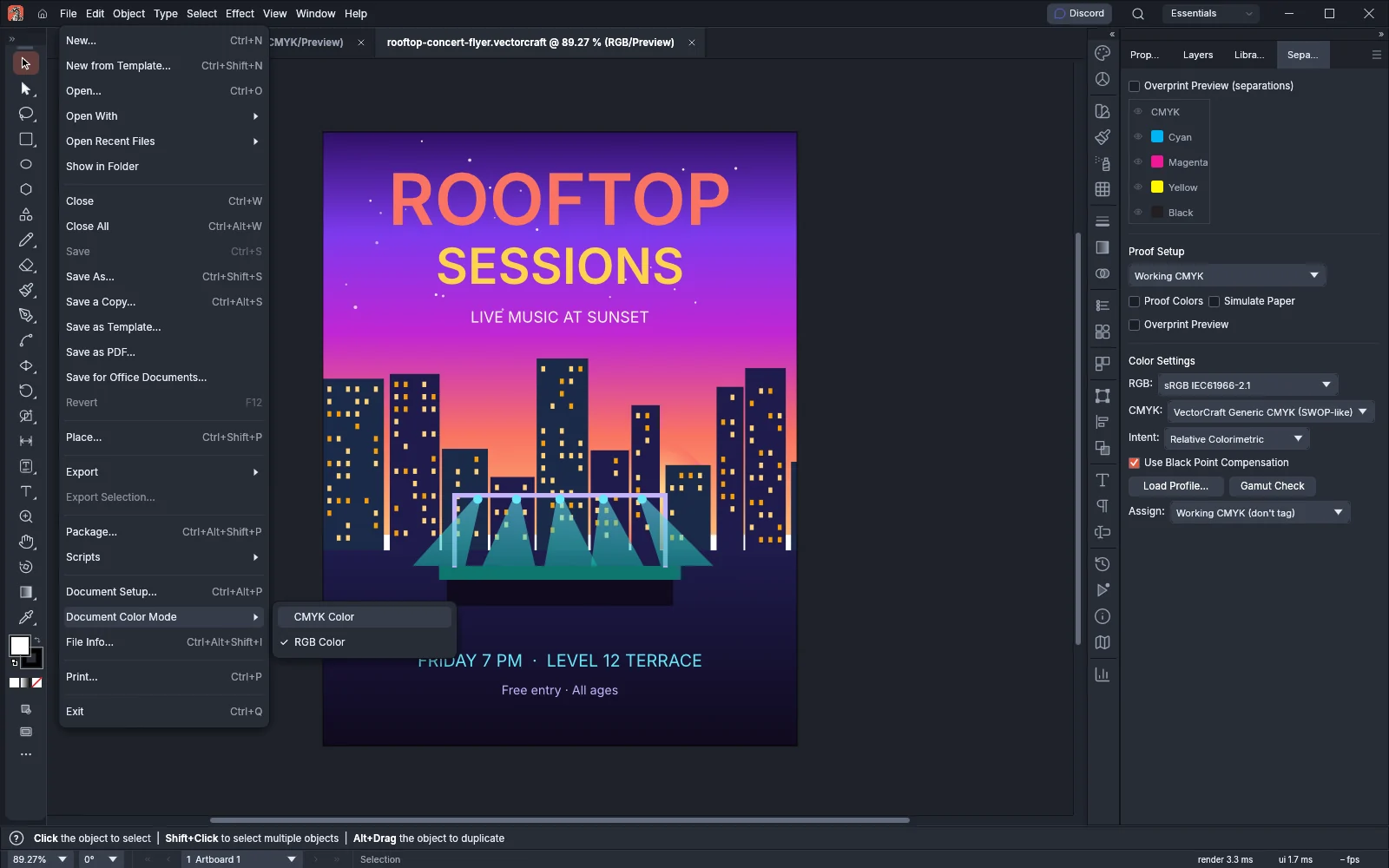
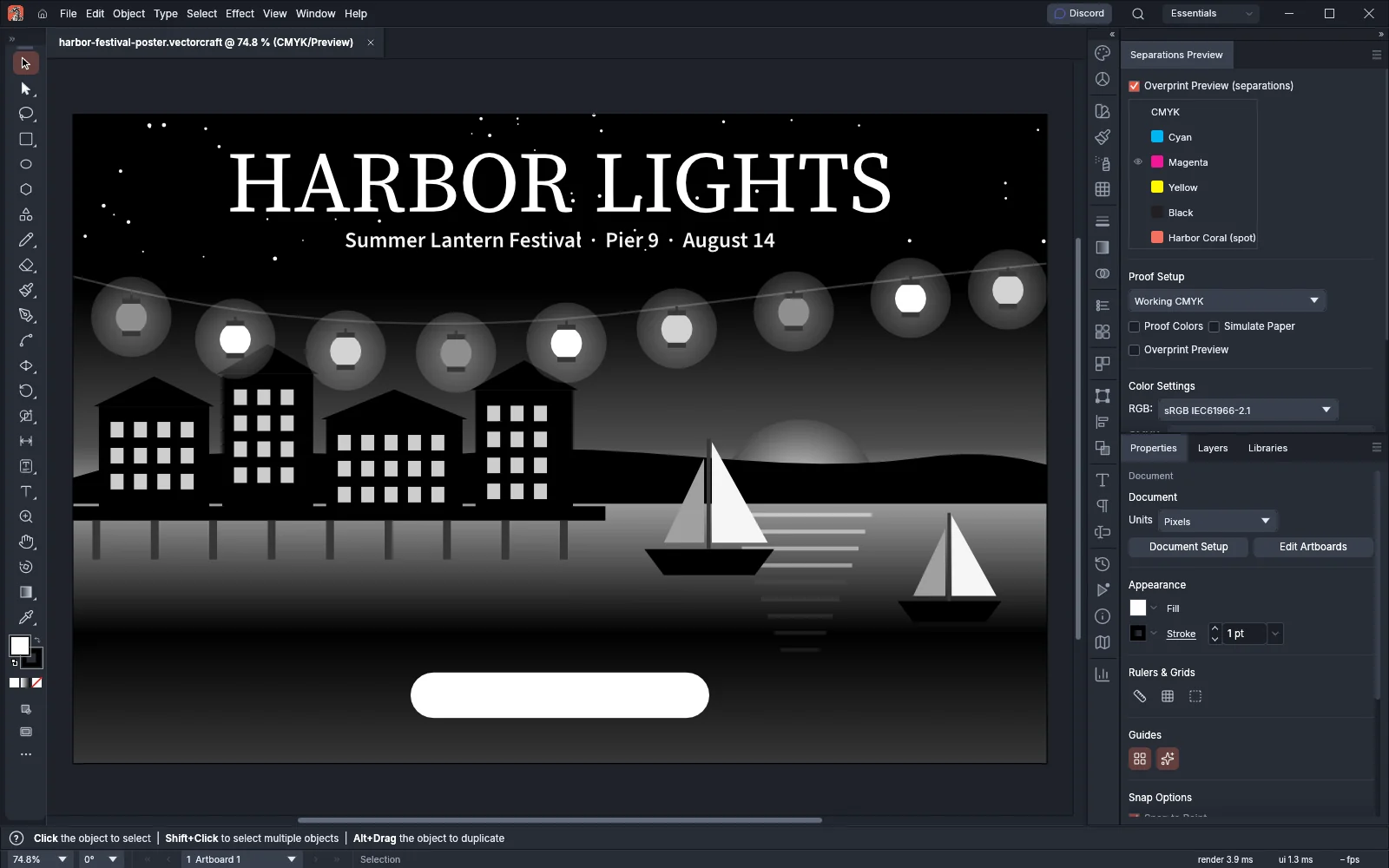 GuidePrint color separationsPrint one page per ink and check each plate before the job goes out.
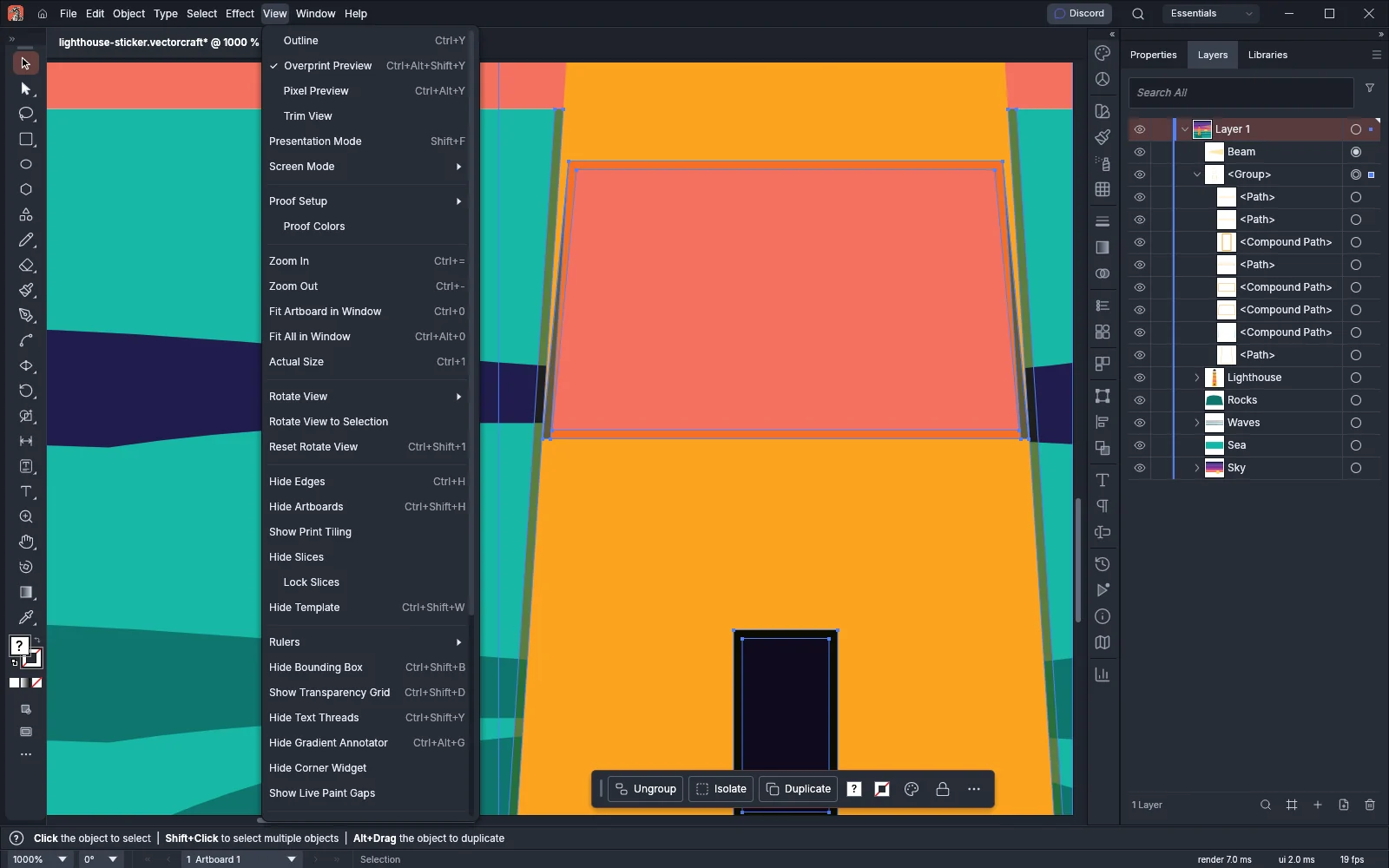 GuideTrap colors where inks meetAdd overprinting traps where colors meet so misregistration leaves no gaps.
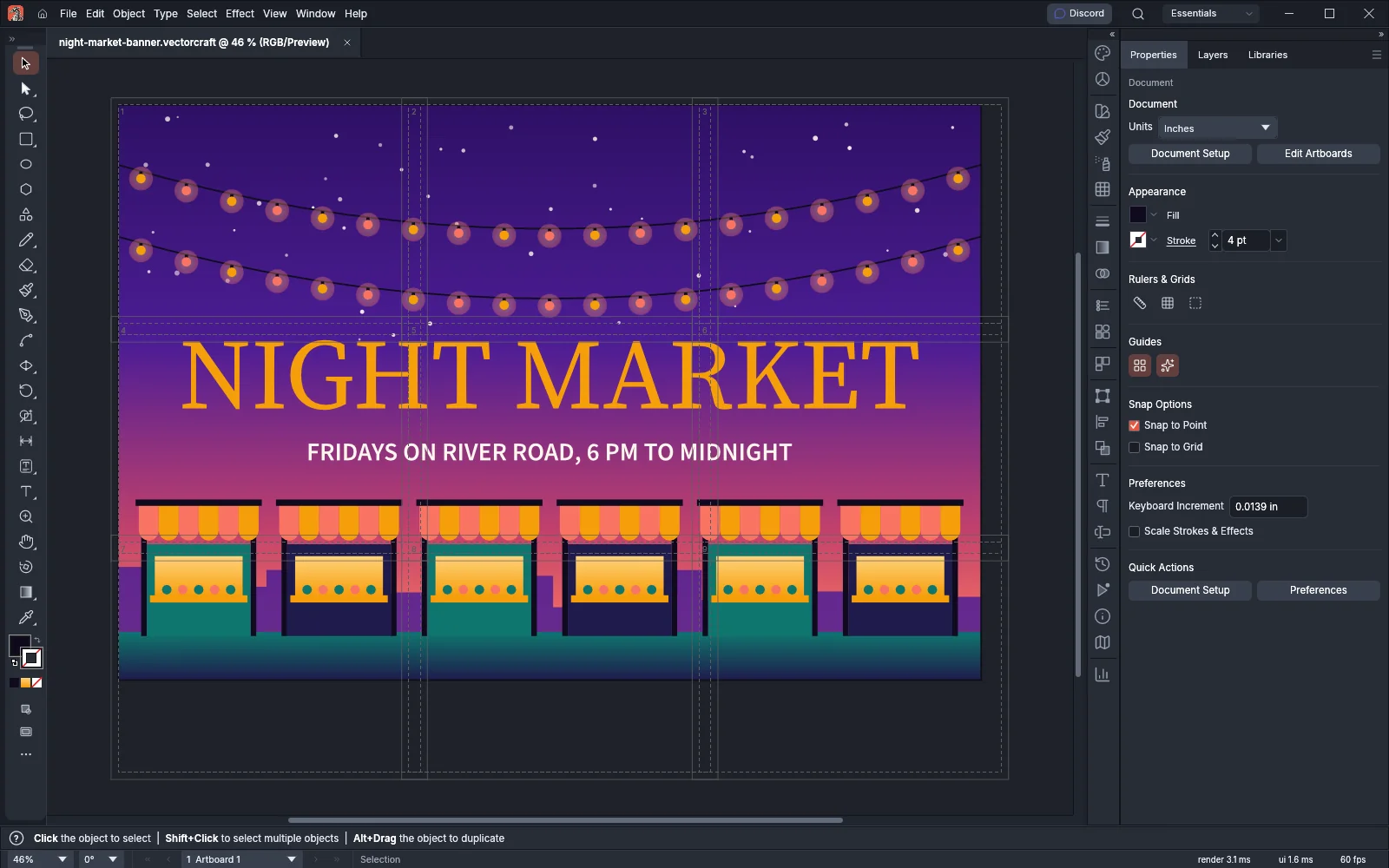 GuidePrint a large posterPrint a poster or a sign across several sheets of paper.
Automate
6 pagesAutomation
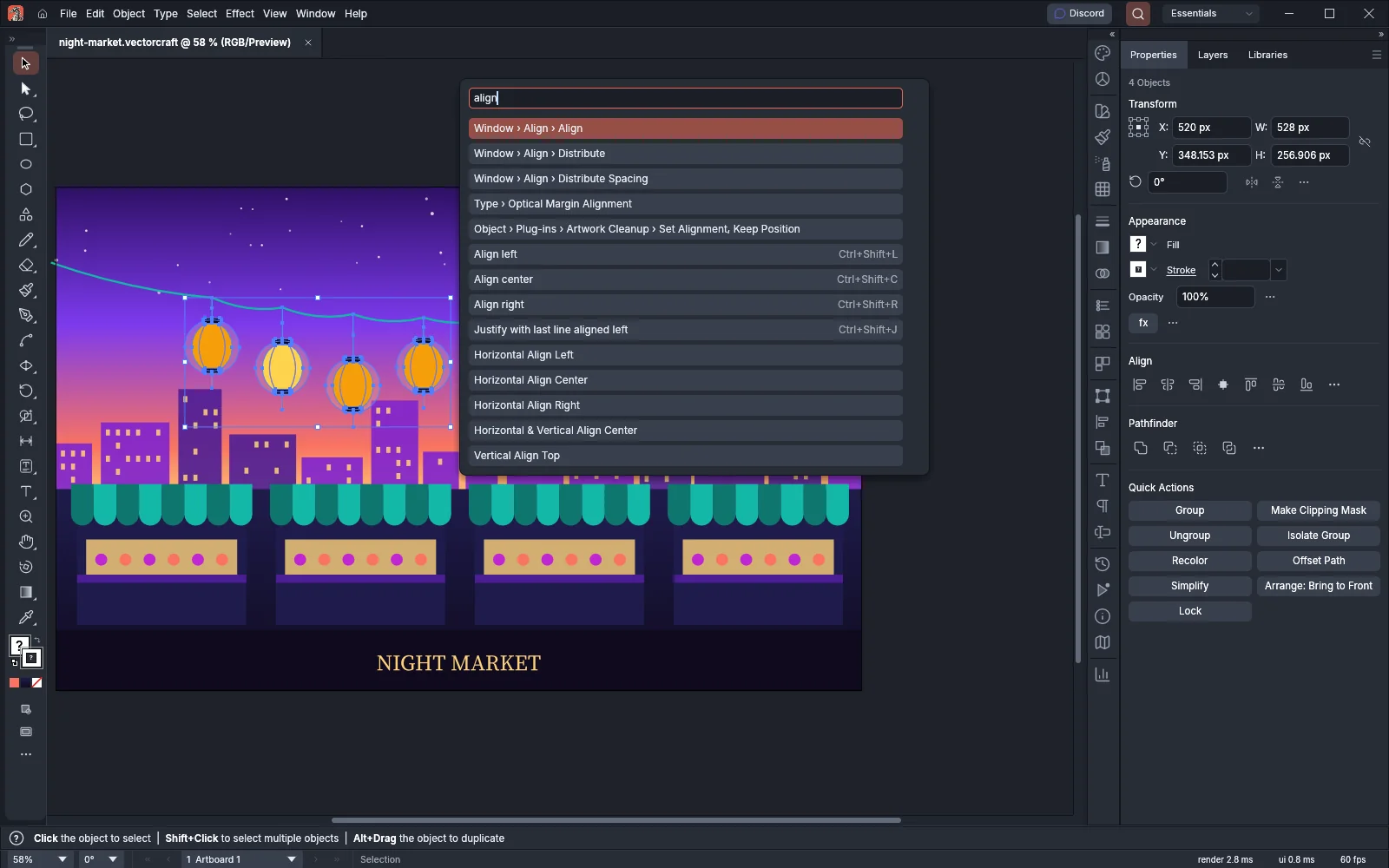 GuideAutomate VectorCraftRun commands by name, record actions and drive VectorCraft from the command line.
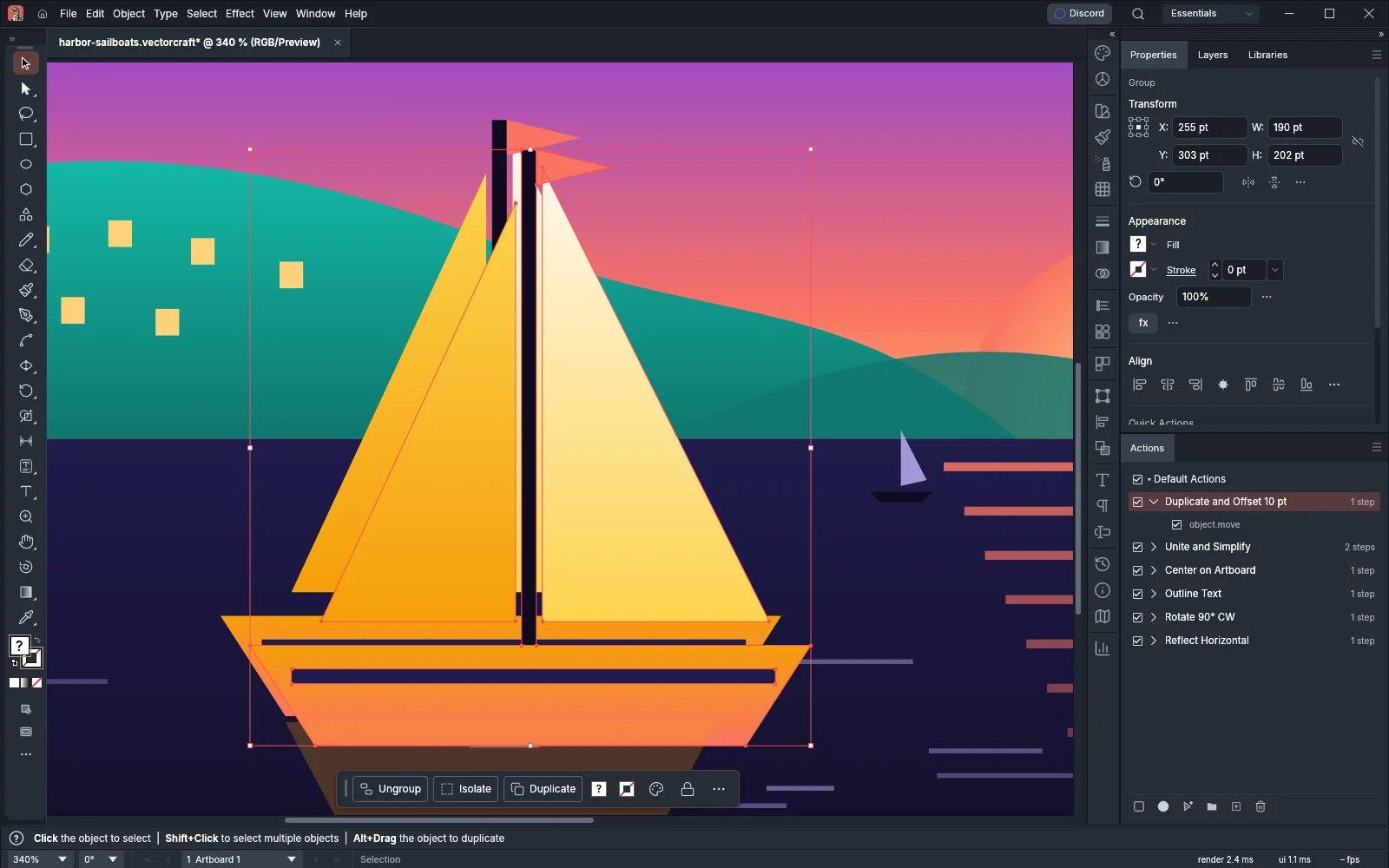 GuideSave, load and share action setsSave action sets to files, load them on another computer and play them from the command line.
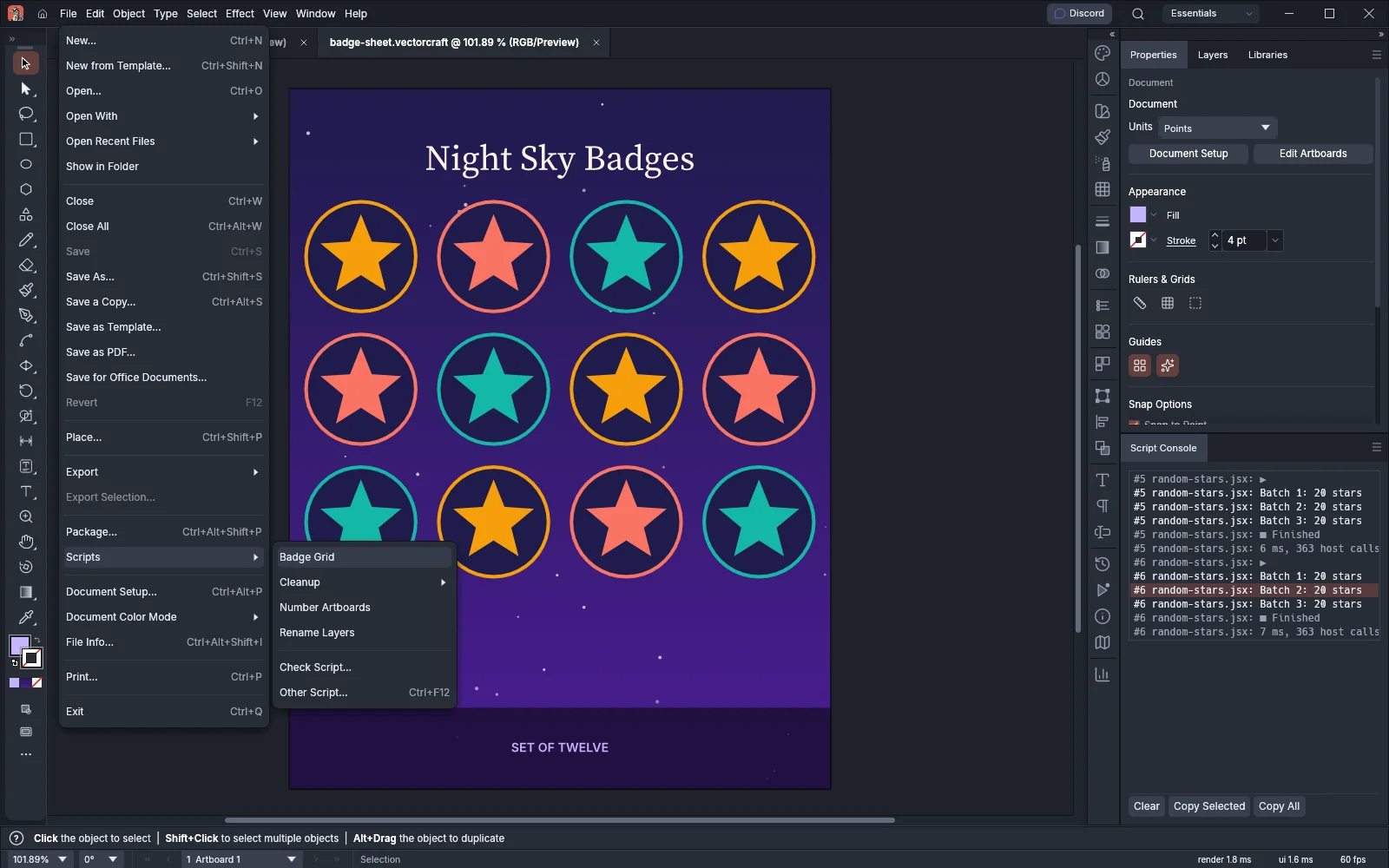 GuideRun scriptsRun JavaScript files from the Scripts menu and read their output.
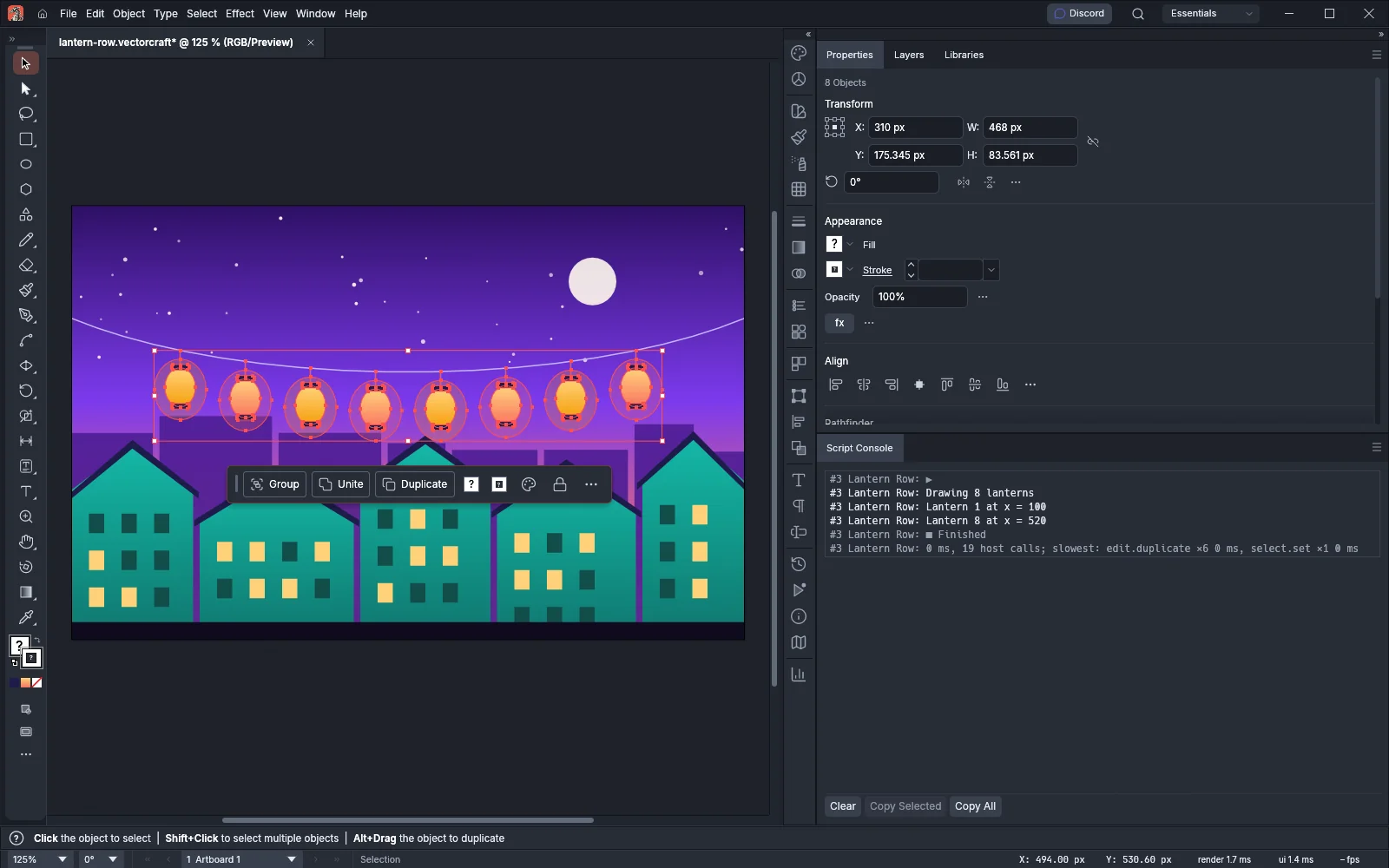 GuideWrite a scriptWrite JavaScript files that run VectorCraft's commands.
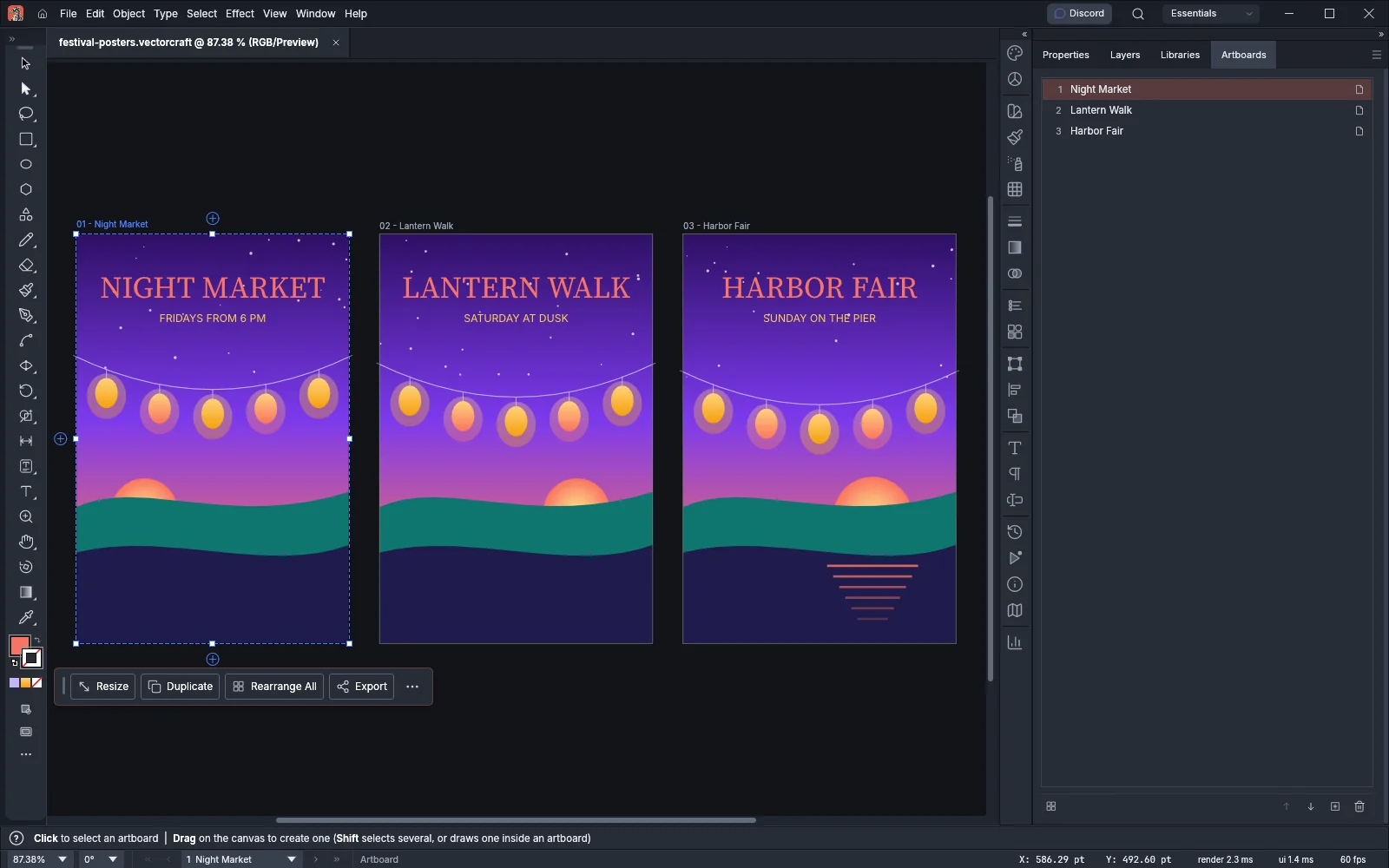 GuideConvert files from the command lineConvert files between formats with vectorcraft-cli, one file or a whole folder.
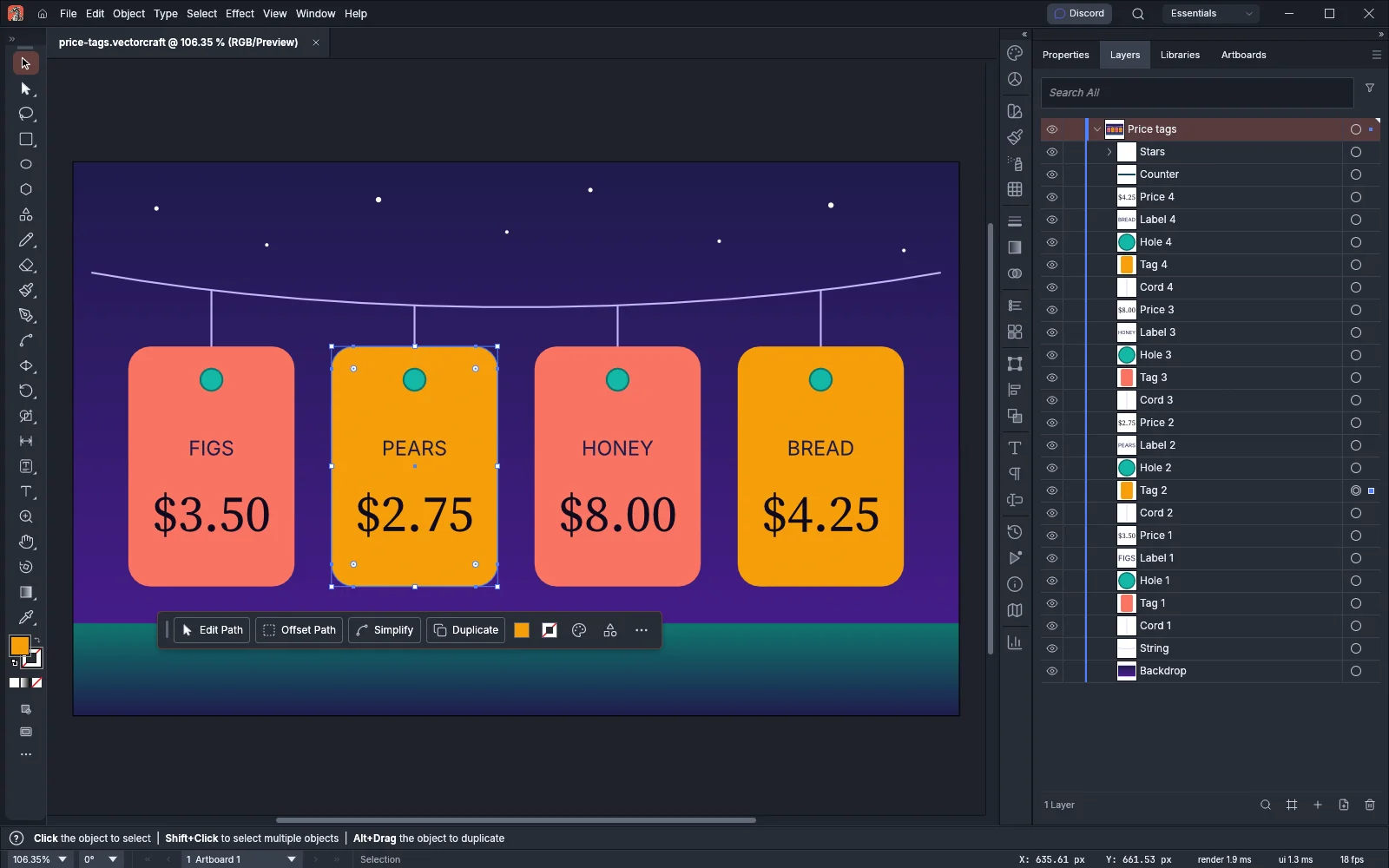 GuideWrite command steps for vectorcraft-cliBuild artwork from a file of commands that vectorcraft-cli runs in order.
Customize and extend
7 pagesWorkspace
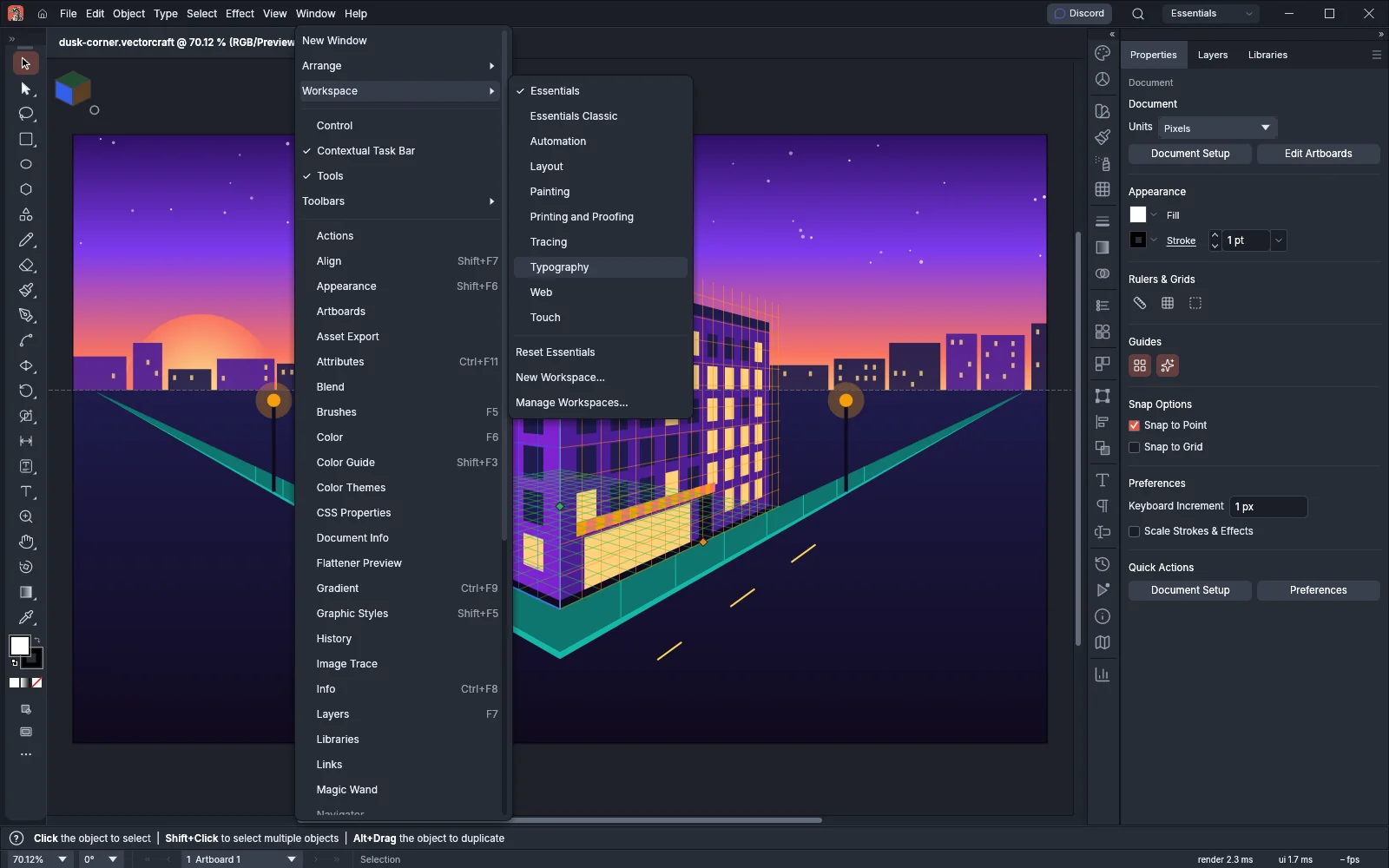 GuideCustomize the workspaceArrange panels, save workspaces and build your own toolbars.
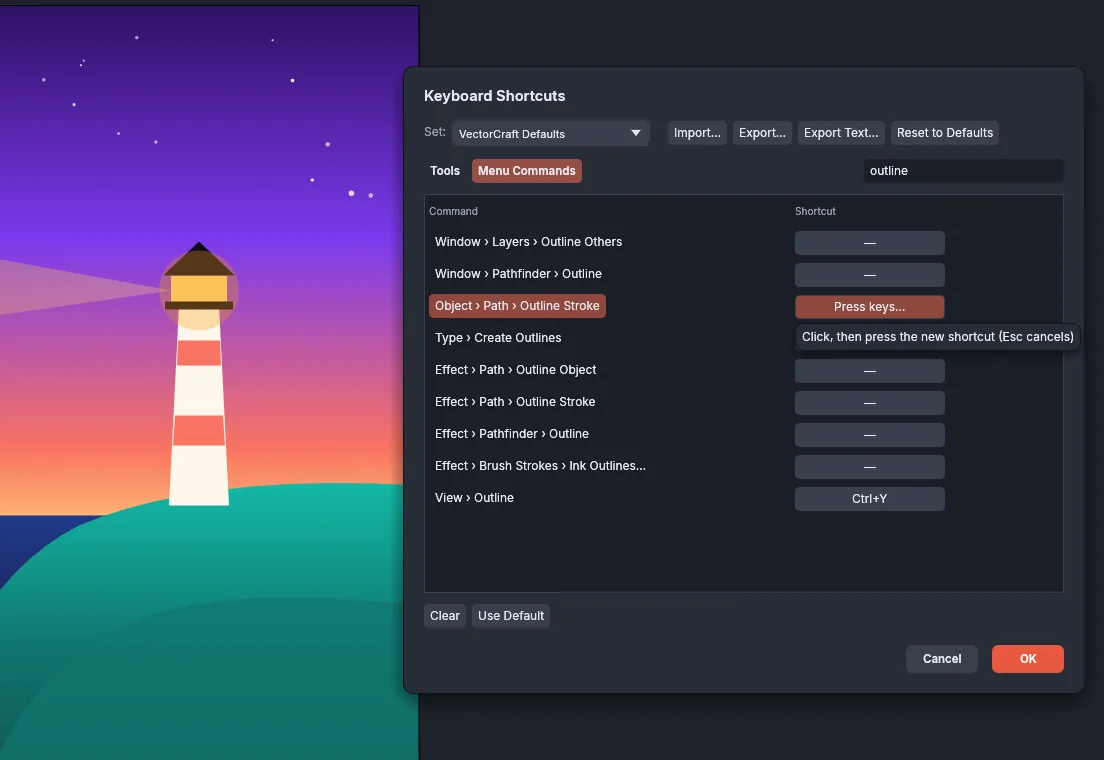 GuideCustomize keyboard shortcutsChange, save and import your keyboard shortcuts.
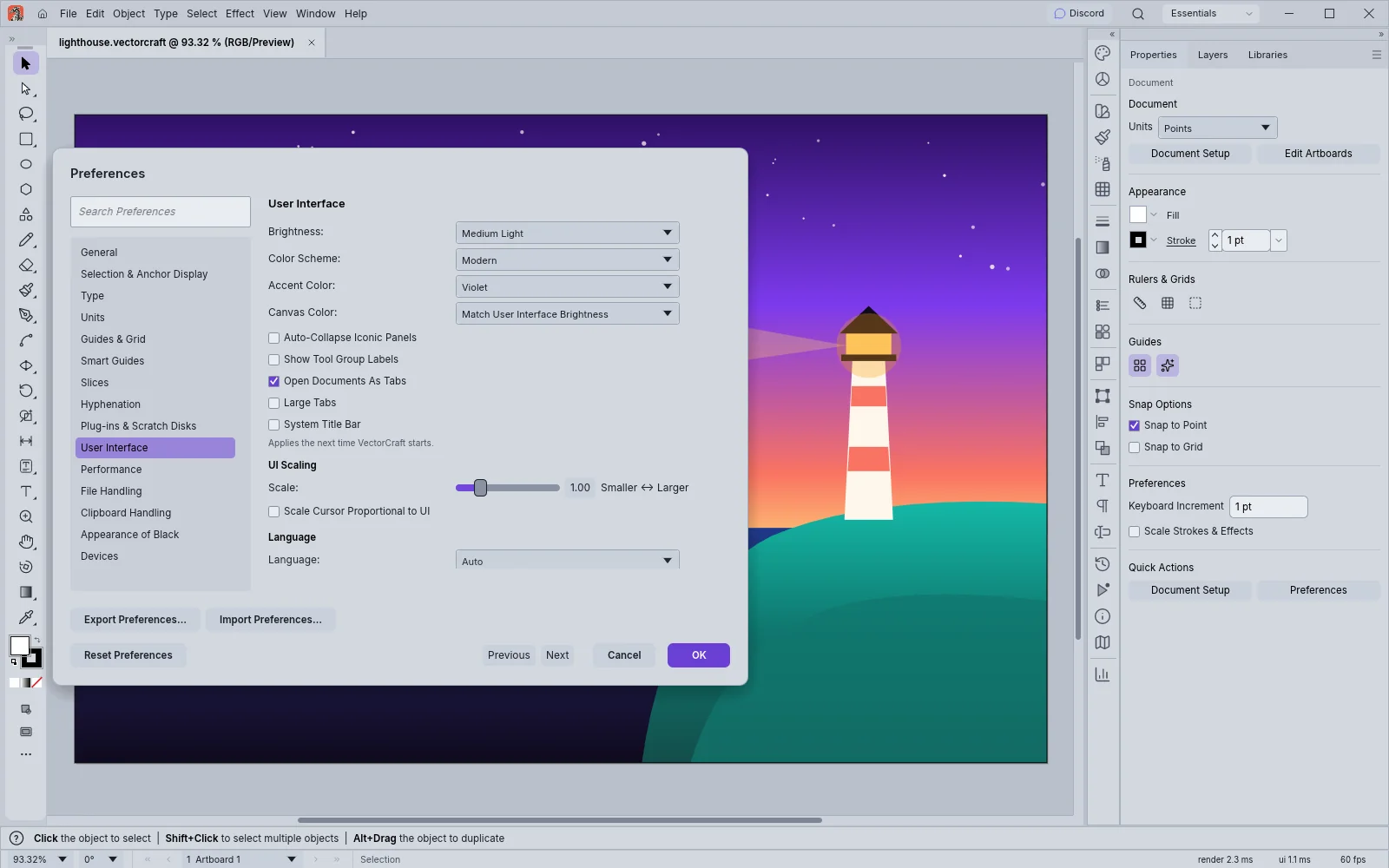 GuideChange the look and language of VectorCraftSet the brightness, colors, size and language of the interface.
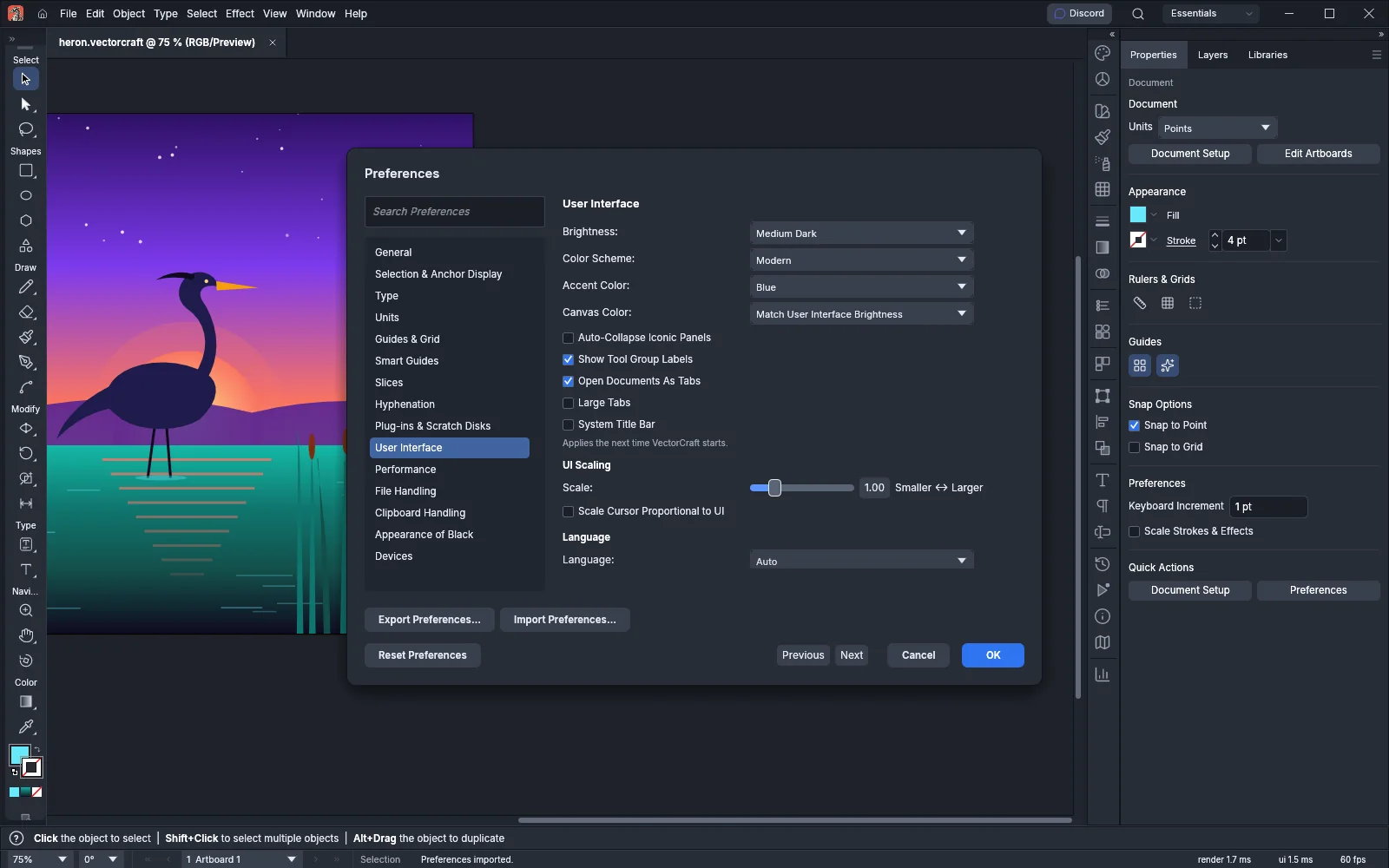 GuideBack up and move your settingsSave, move and restore your settings.
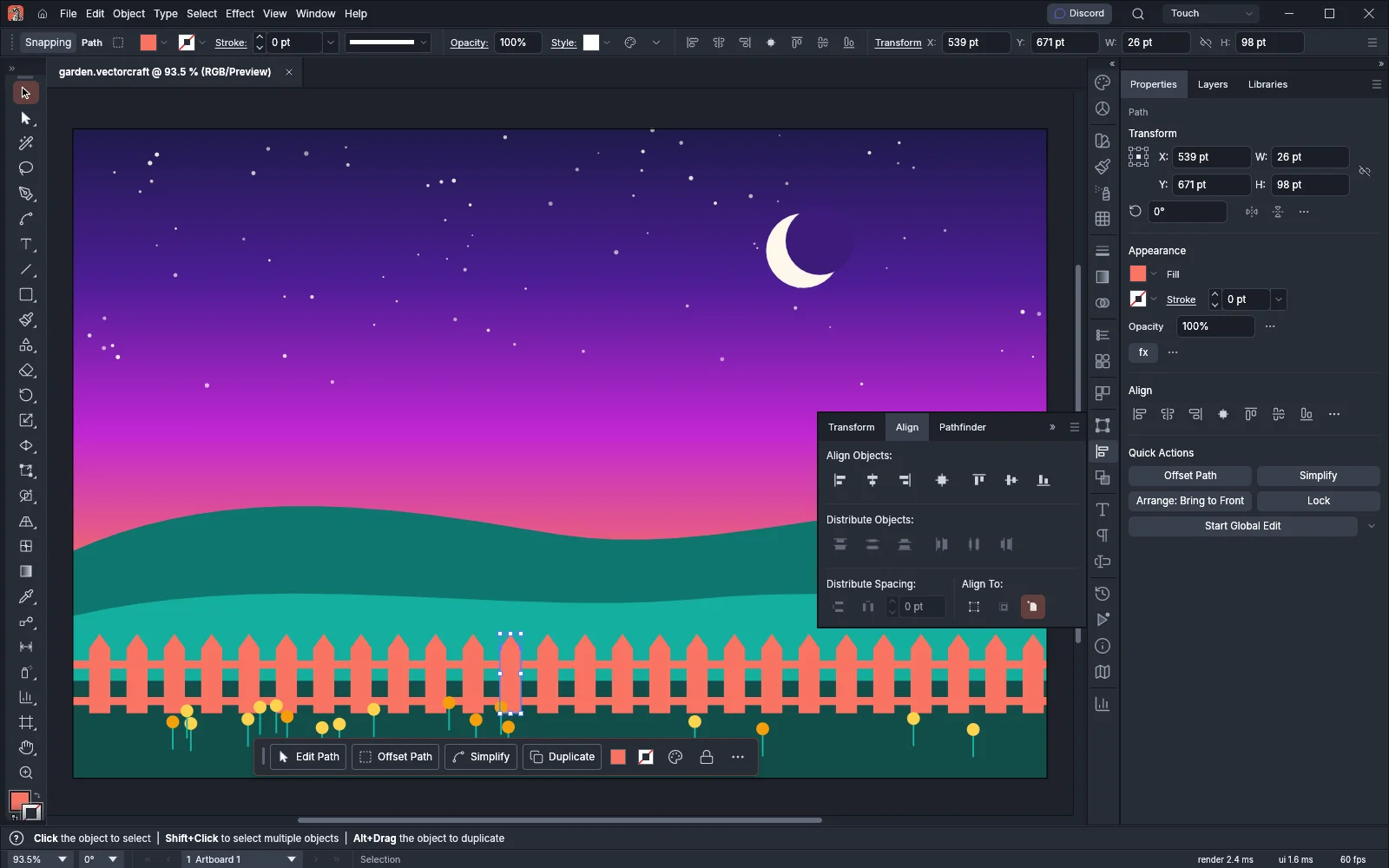 GuideWork on a touch screenUse the Touch workspace, finger gestures and a pen.
Reference
10 pagesReference
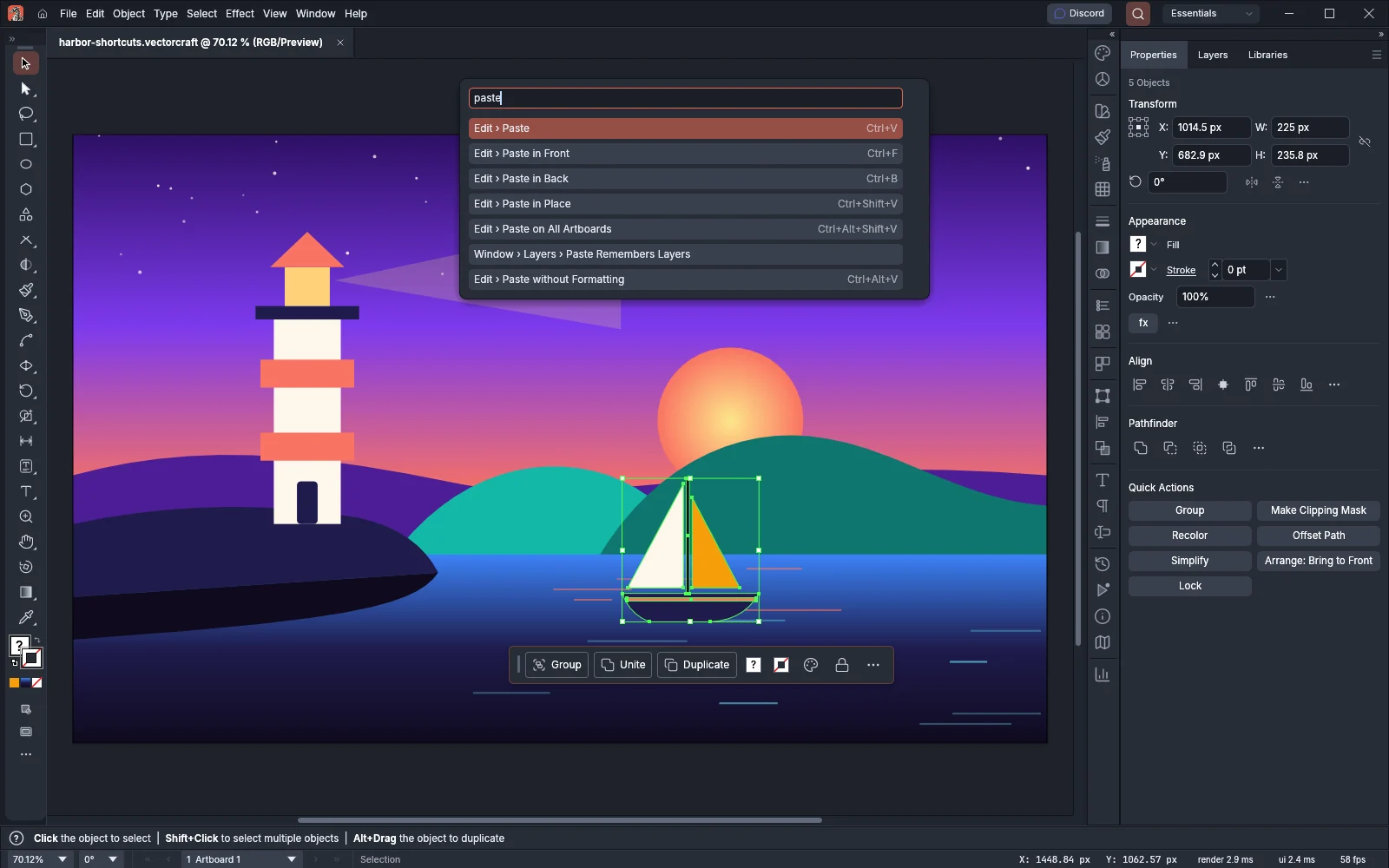 ReferenceKeyboard shortcutsLook up every default shortcut by menu and tool.
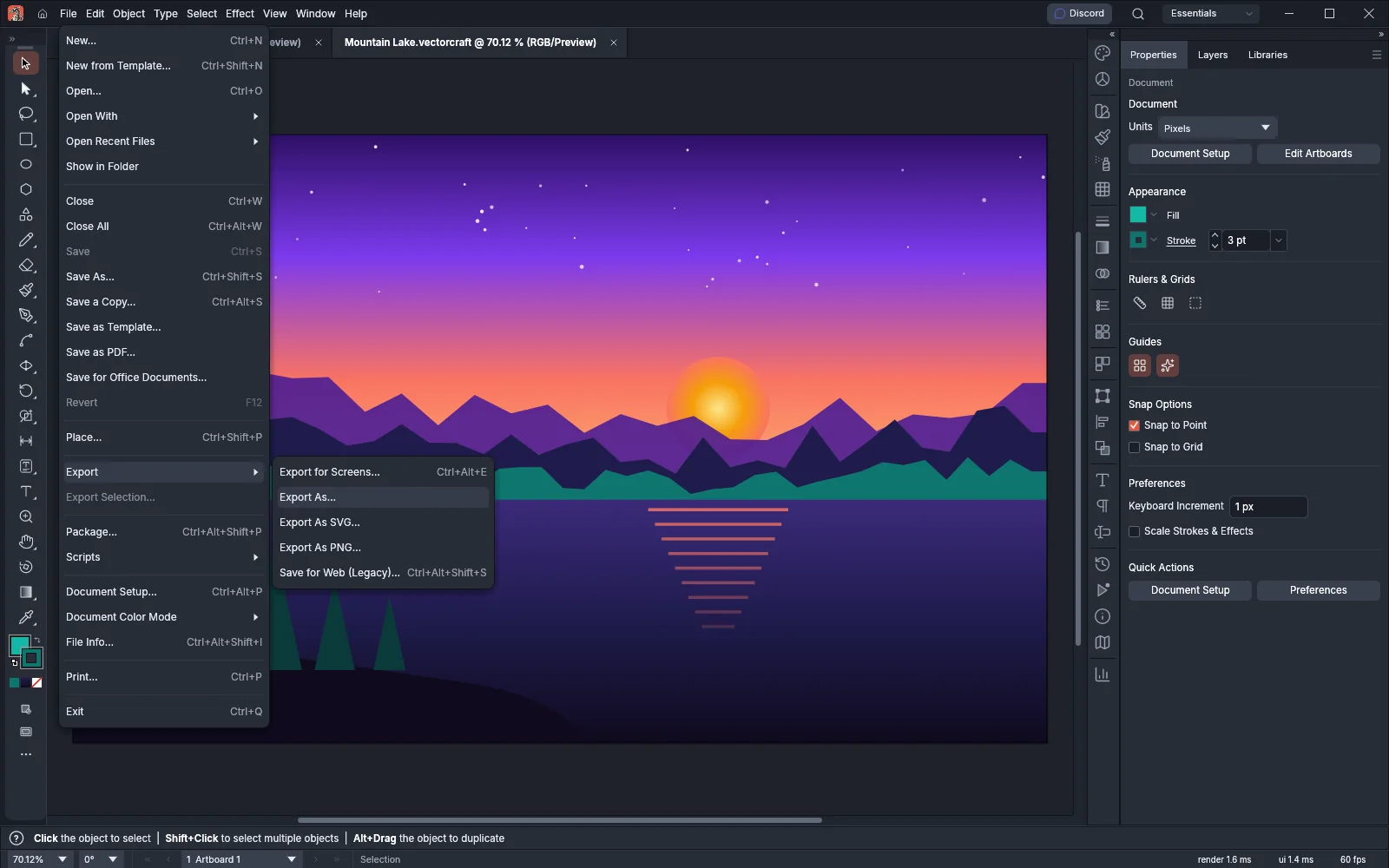 ReferenceFile and Edit menusLook up what each File and Edit menu item does and its shortcut.
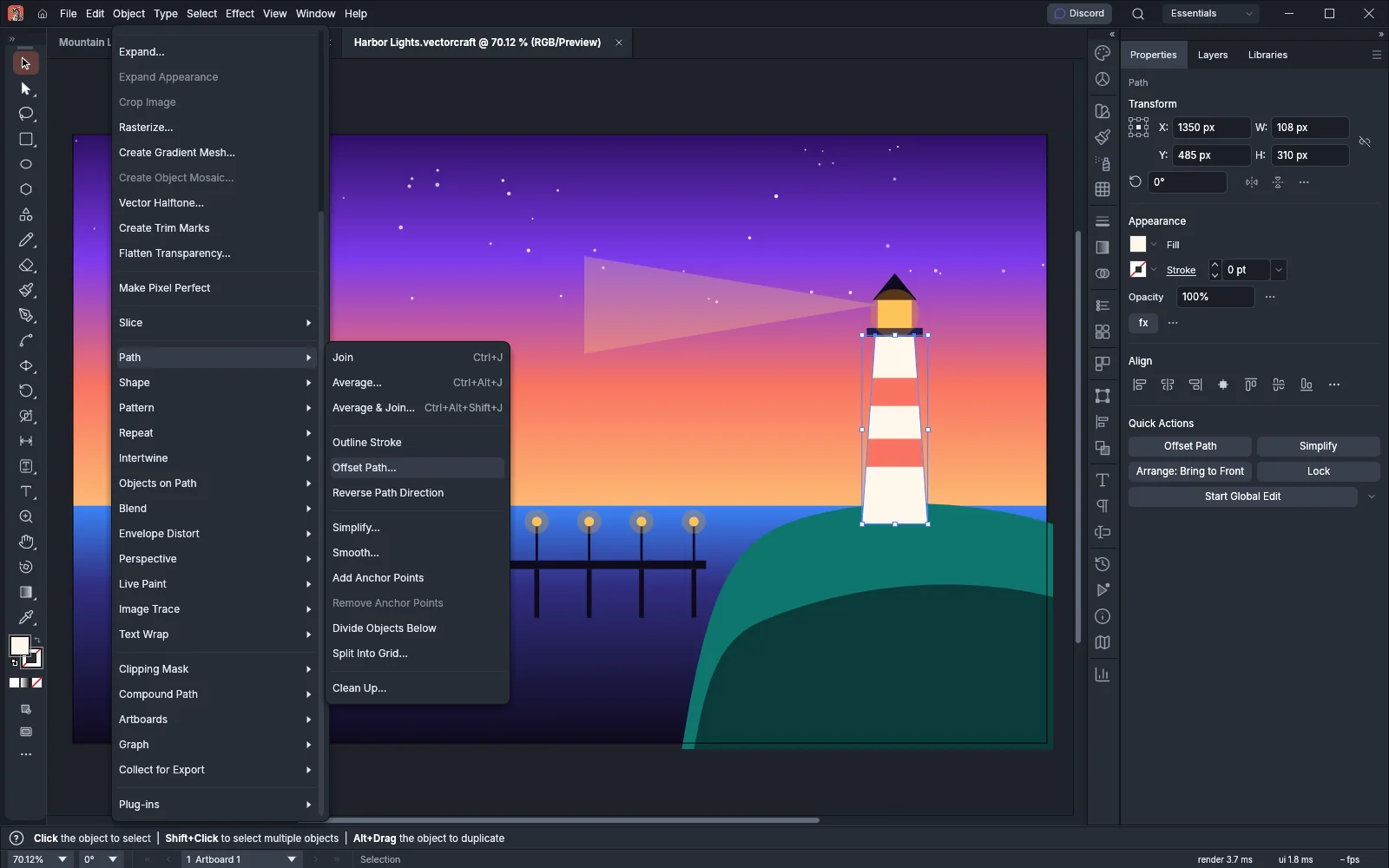 ReferenceObject menuLook up what each Object menu item does and its shortcut.
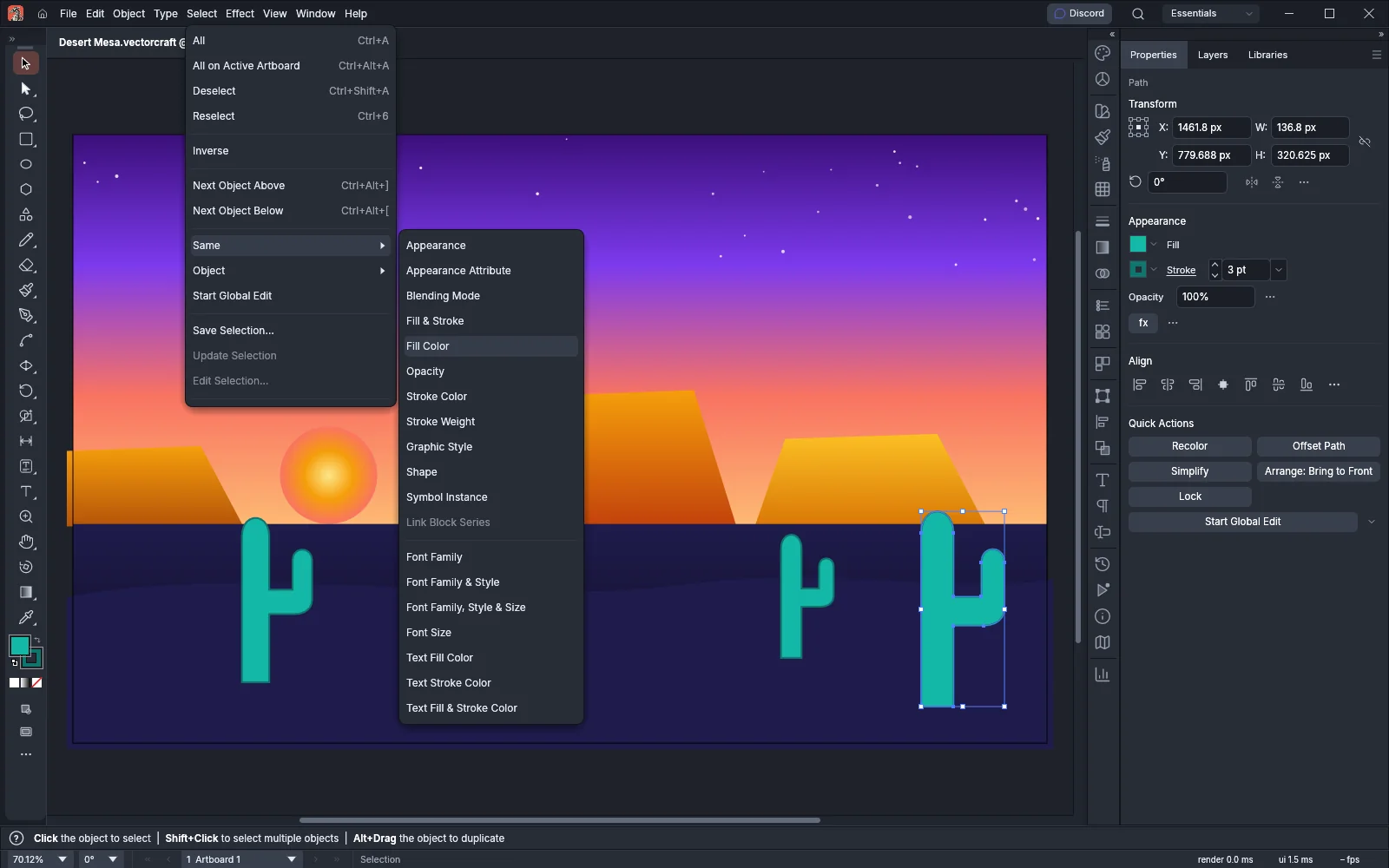 ReferenceType, Select and Effect menusLook up what each Type, Select and Effect menu item does and its shortcut.
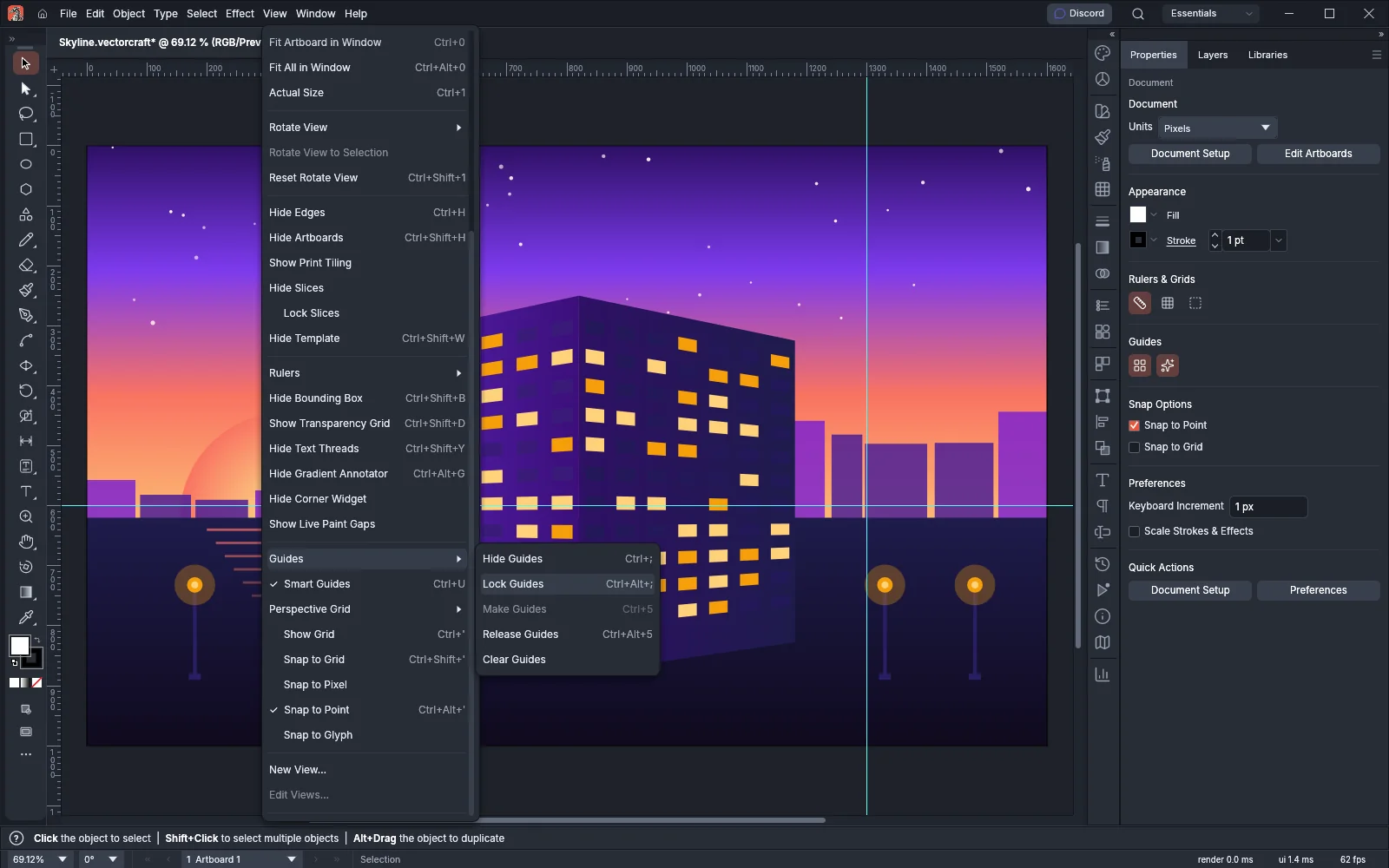 ReferenceView, Window and Help menusLook up what each View, Window and Help menu item does and its shortcut.
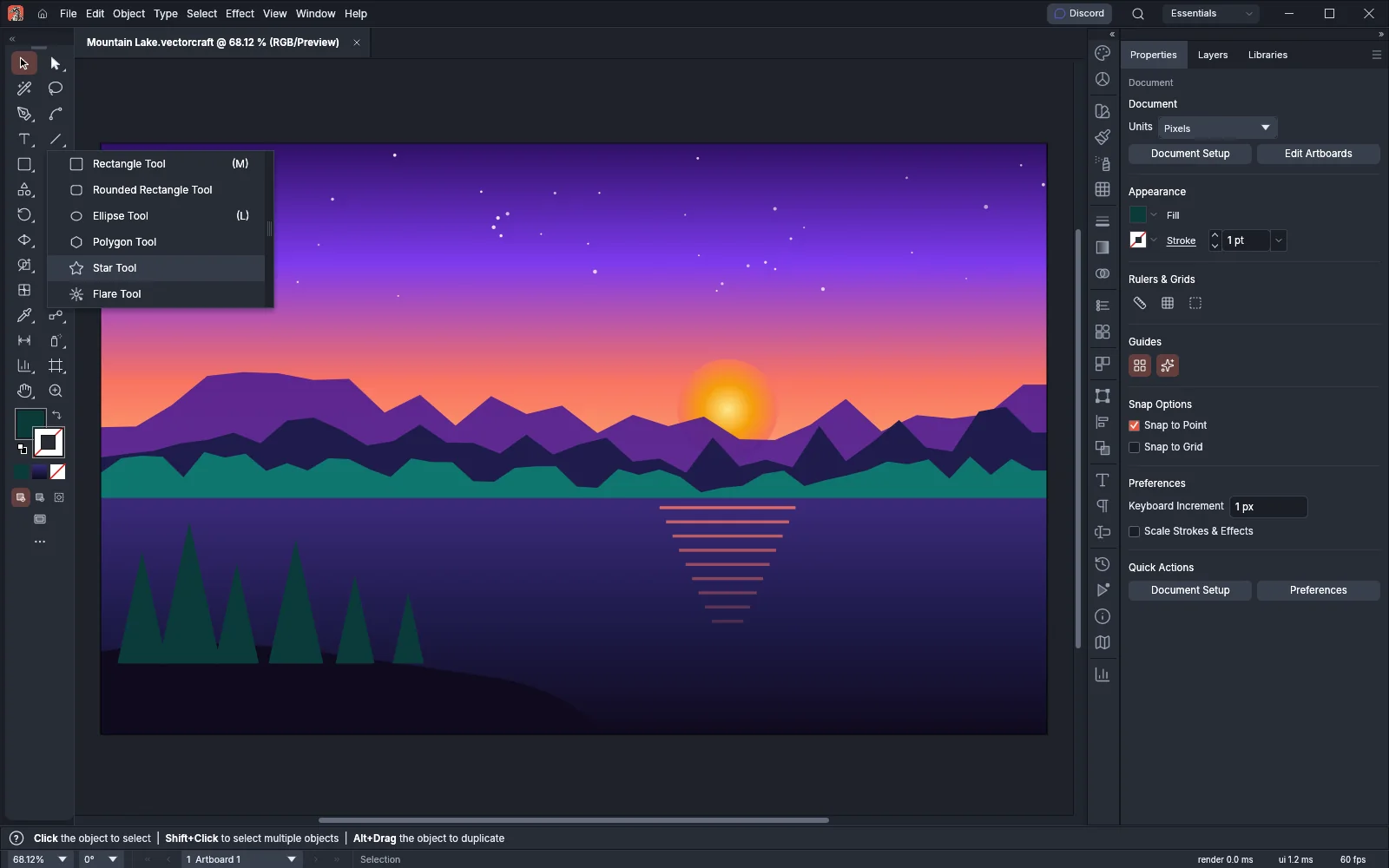 ReferenceTools referenceLook up any tool's key, options and guide.
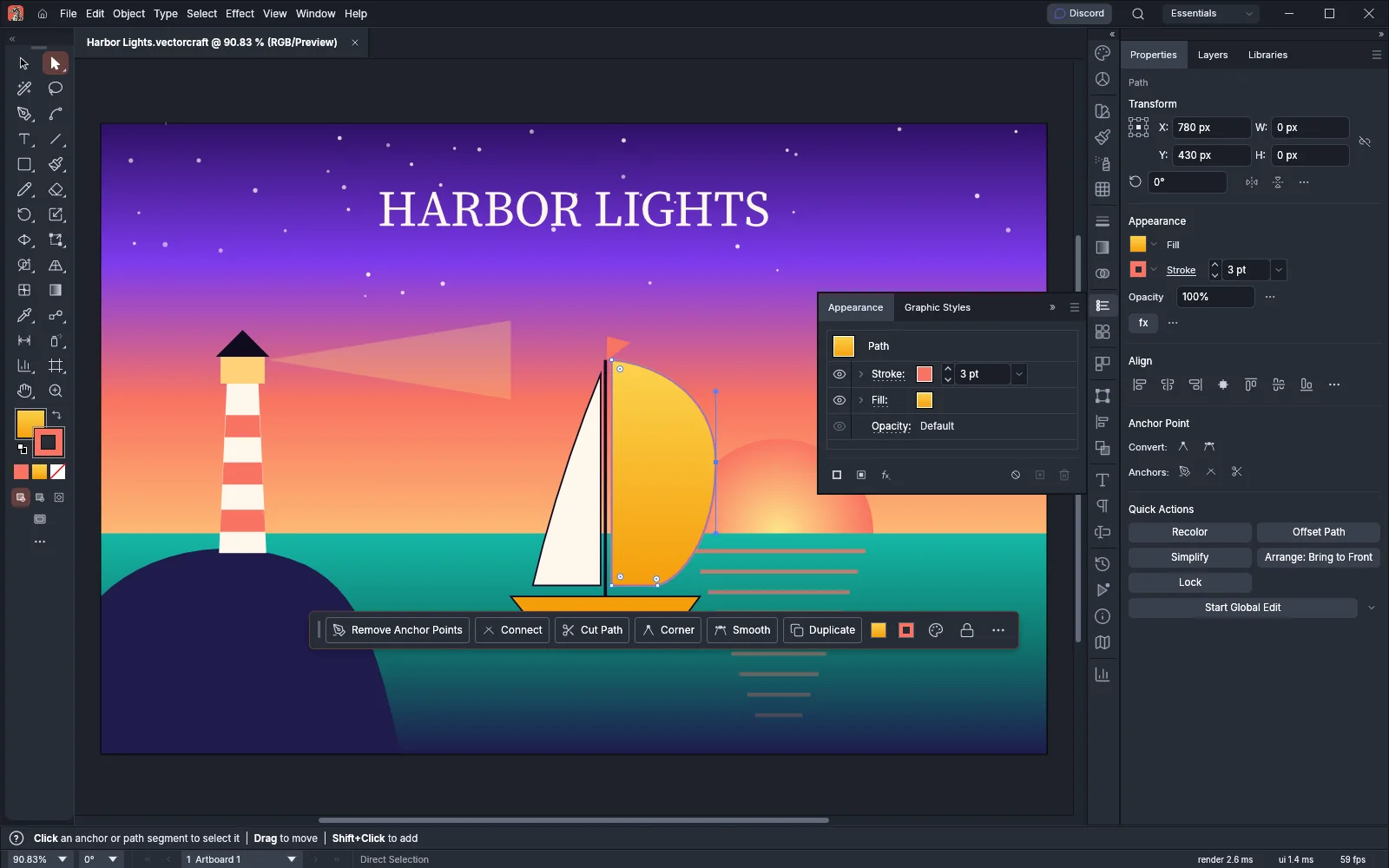 ReferenceGlossaryLook up a term from the guides and find the guide that teaches it.
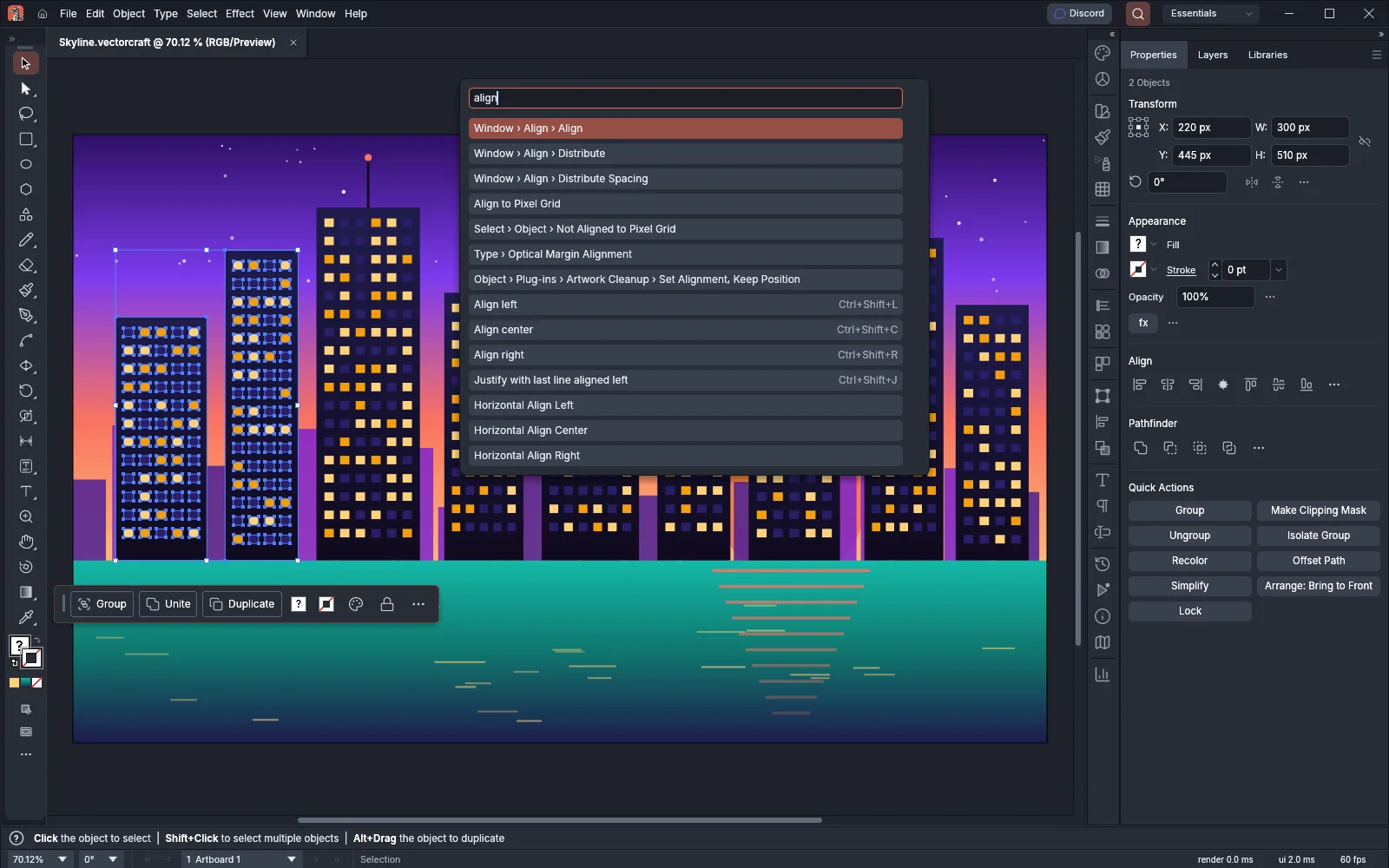 ReferenceCommand referenceFind a command's id, where it sits in the menus and which guide covers it.
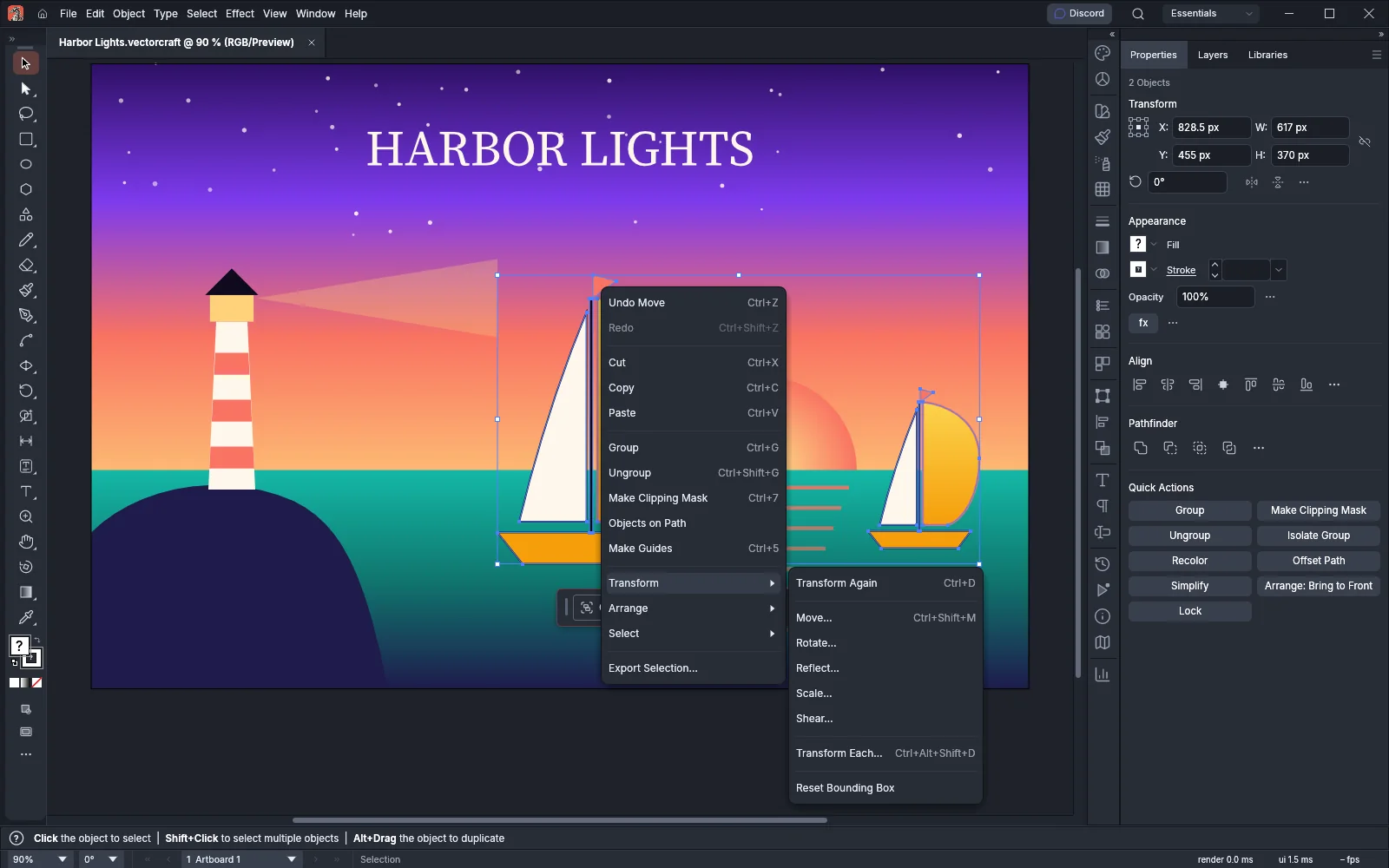 ReferenceRight-click menusSee what each right-click menu offers and where the same command sits in the menu bar.
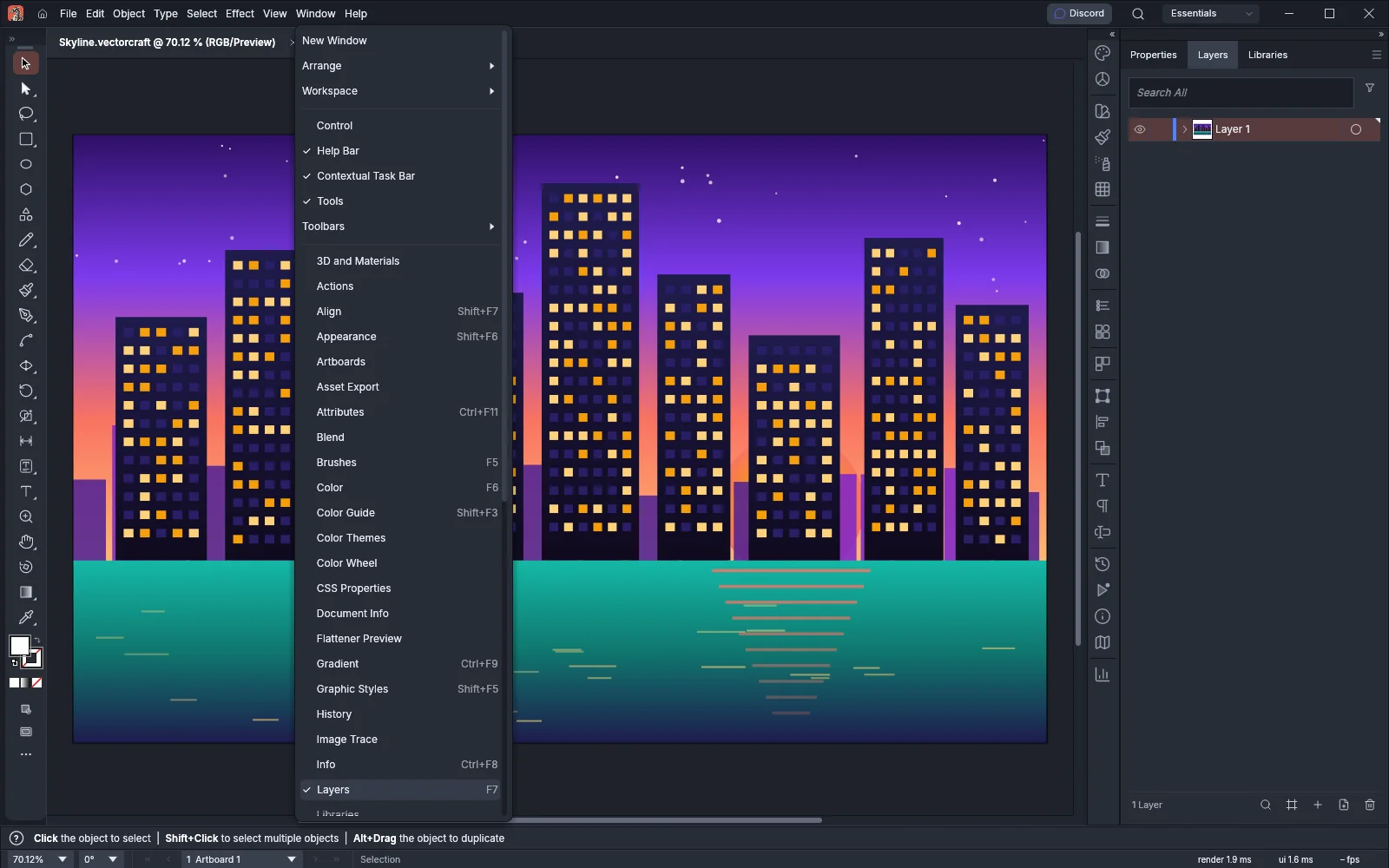 ReferencePanelsFind out what each panel in the Window menu does.
Find a tool
Section titled “Find a tool”Each button in the Tools panel holds one tool or a group of tools. A button with a small triangle in its corner holds a group. Press and hold the button, or click the triangle, to choose another tool from the group. The default toolbar shows fewer groups. Choose Window → Toolbars → Advanced to show every group, in the order of the following table.
Press a tool’s key to select it, even when its button is not showing. Tool keys are the same on every platform. You can give a tool without a key its own key in Edit → Keyboard Shortcuts….
| Tools in the group | Windows and Linux | macOS | Guide |
|---|---|---|---|
| Selection | V | V | Draw and transform shapes |
| Direct Selection, Group Selection | A (Direct Selection) | A (Direct Selection) | Draw and edit paths, Select artwork |
| Magic Wand | Y | Y | Select artwork |
| Lasso | Q | Q | Select artwork |
| Pen, Add Anchor Point, Delete Anchor Point, Anchor Point | P, +, -, Shift+C | P, +, -, Shift+C | Draw and edit paths |
| Curvature | Shift+~ | Shift+~ | Draw and edit paths |
| Type, Area Type, Type on a Path, Vertical Type, Vertical Area Type, Vertical Type on a Path, Touch Type | T (Type), Shift+T (Touch Type) | T (Type), Shift+T (Touch Type) | Add and style type, Work with styles and long text |
| Line Segment, Arc, Spiral, Rectangular Grid, Polar Grid | \ (backslash, Line Segment) | \ (backslash, Line Segment) | Draw and transform shapes |
| Rectangle, Rounded Rectangle, Ellipse, Polygon, Star, Flare | M (Rectangle), L (Ellipse) | M (Rectangle), L (Ellipse) | Draw and transform shapes |
| Paintbrush, Blob Brush | B, Shift+B | B, Shift+B | Paint with brushes and variable widths |
| Shaper, Pencil, Smooth, Path Eraser, Join | Shift+N (Shaper), N (Pencil) | Shift+N (Shaper), N (Pencil) | Draw and edit paths, Cut, join and refine paths |
| Eraser, Scissors, Knife, Mirror & Cut, Line Cut, Rectangle Cut | Shift+E (Eraser), C (Scissors) | Shift+E (Eraser), C (Scissors) | Cut, join and refine paths |
| Rotate, Reflect | R, O | R, O | Draw and transform shapes |
| Scale, Shear, Reshape | S (Scale) | S (Scale) | Draw and transform shapes, Reshape with the warp tools |
| Width, Warp, Twirl, Pucker, Bloat, Scallop, Crystallize, Wrinkle | Shift+W (Width), Shift+R (Warp) | Shift+W (Width), Shift+R (Warp) | Paint with brushes and variable widths, Reshape with the warp tools |
| Free Transform, Puppet Warp | E (Free Transform) | E (Free Transform) | Draw and transform shapes, Reshape with the warp tools |
| Shape Builder, Live Paint Bucket, Live Paint Selection | Shift+M, K, Shift+L | Shift+M, K, Shift+L | Combine and cut shapes |
| Perspective Grid, Perspective Selection | Shift+P, Shift+V | Shift+P, Shift+V | Draw in perspective |
| Mesh | U | U | Fill, stroke and color |
| Gradient | G | G | Fill, stroke and color |
| Eyedropper, Measure | I (Eyedropper) | I (Eyedropper) | Fill, stroke and color, Measure and dimension |
| Blend, Objects on Path | W (Blend) | W (Blend) | Make patterns, blends and repeats |
| Dimension | No key | No key | Measure and dimension |
| Symbol Sprayer, Symbol Shifter, Symbol Scruncher, Symbol Sizer, Symbol Spinner, Symbol Stainer, Symbol Screener, Symbol Styler | Shift+S (Symbol Sprayer) | Shift+S (Symbol Sprayer) | Organize with layers and symbols |
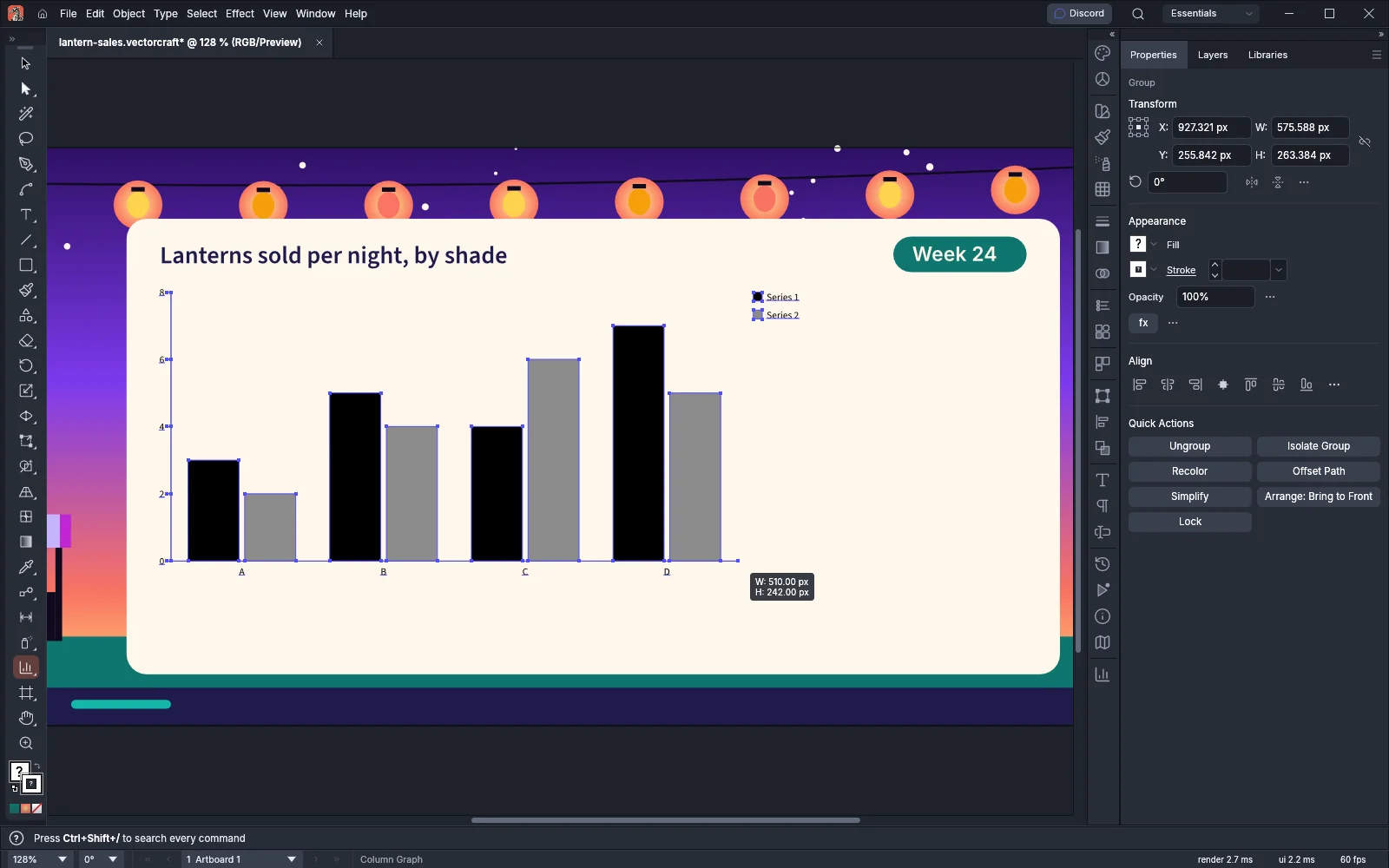
| Column Graph, Stacked Column Graph, Bar Graph, Stacked Bar Graph, Line Graph, Area Graph, Scatter Graph, Pie Graph, Radar Graph | J (Column Graph) | J (Column Graph) | Make graphs and data-driven art |
| Artboard, Slice, Slice Selection | Shift+O (Artboard), Shift+K (Slice) | Shift+O (Artboard), Shift+K (Slice) | Set up a document and artboards, Slice artwork for the web |
| Hand, Rotate View, Print Tiling | H (Hand), Shift+H (Rotate View) | H (Hand), Shift+H (Rotate View) | Set up a document and artboards, Customize the workspace, Print a large poster |
| Zoom | Z | Z | Set up a document and artboards |
For the Curvature tool, hold Shift and press the key to the left of 1, which types ~ on a US keyboard.
Draw in perspective
Section titled “Draw in perspective”Show the grid with View → Perspective Grid → Show Grid (Ctrl+Shift+I, or Cmd+Shift+I on macOS). Choose One Point Perspective, Two Point Perspective or Three Point Perspective from the same menu. While the grid is showing, the Rectangle, Ellipse, Polygon, Star and Line tools draw on its active plane. Use the Perspective Selection Tool (Shift+V) to move art along its plane.
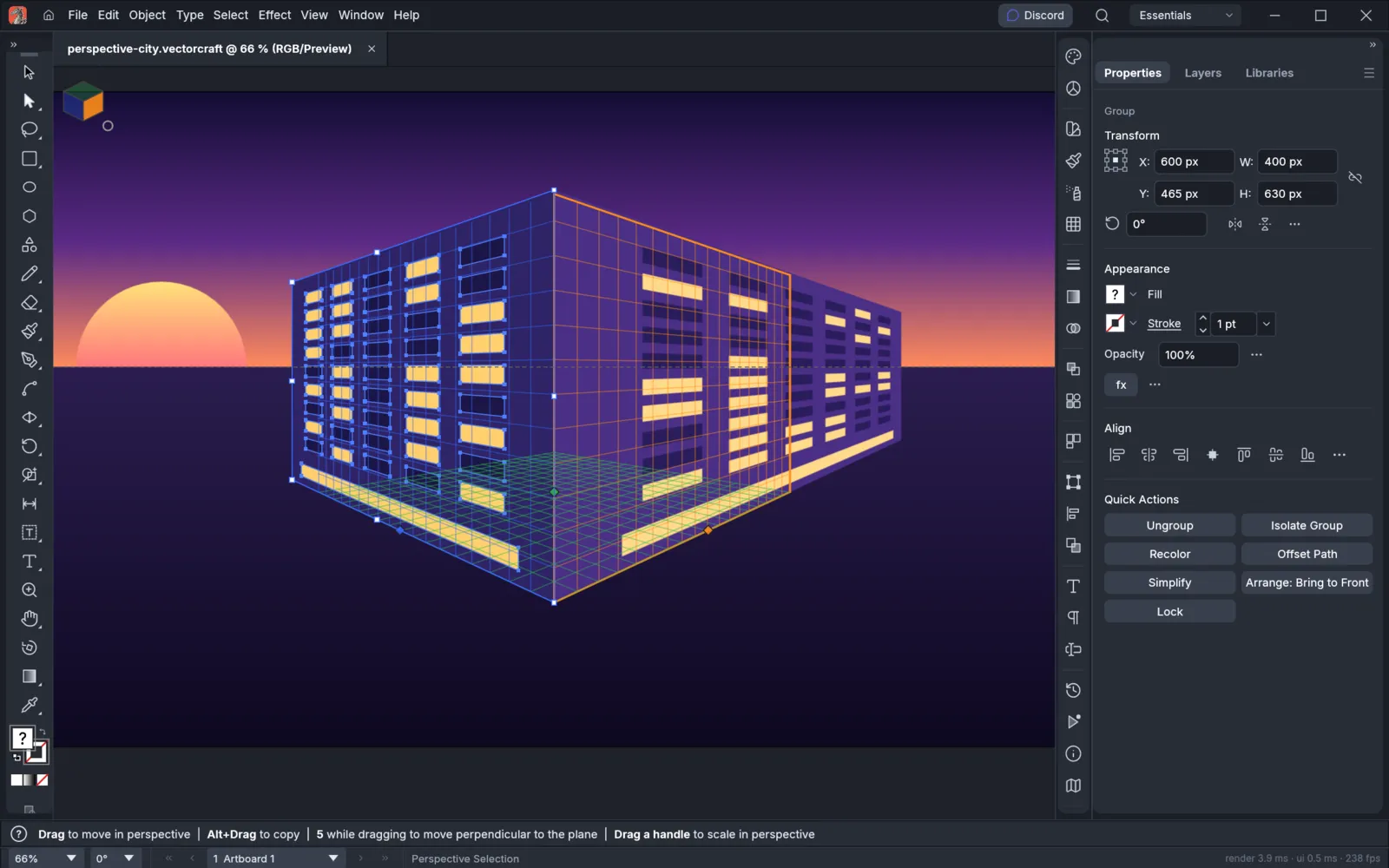
Draw in perspective covers adjusting the grid, choosing the active plane, putting flat art and type on a plane, and saving grid presets.
Measure and dimension
Section titled “Measure and dimension”The Dimension Tool adds lengths, angles and radii to technical drawings. Choose Linear, Angular or Radial in its bar, then drag out from an edge or click two points. The dimension follows the art when you change it. Set the units, precision and style in the Properties panel.
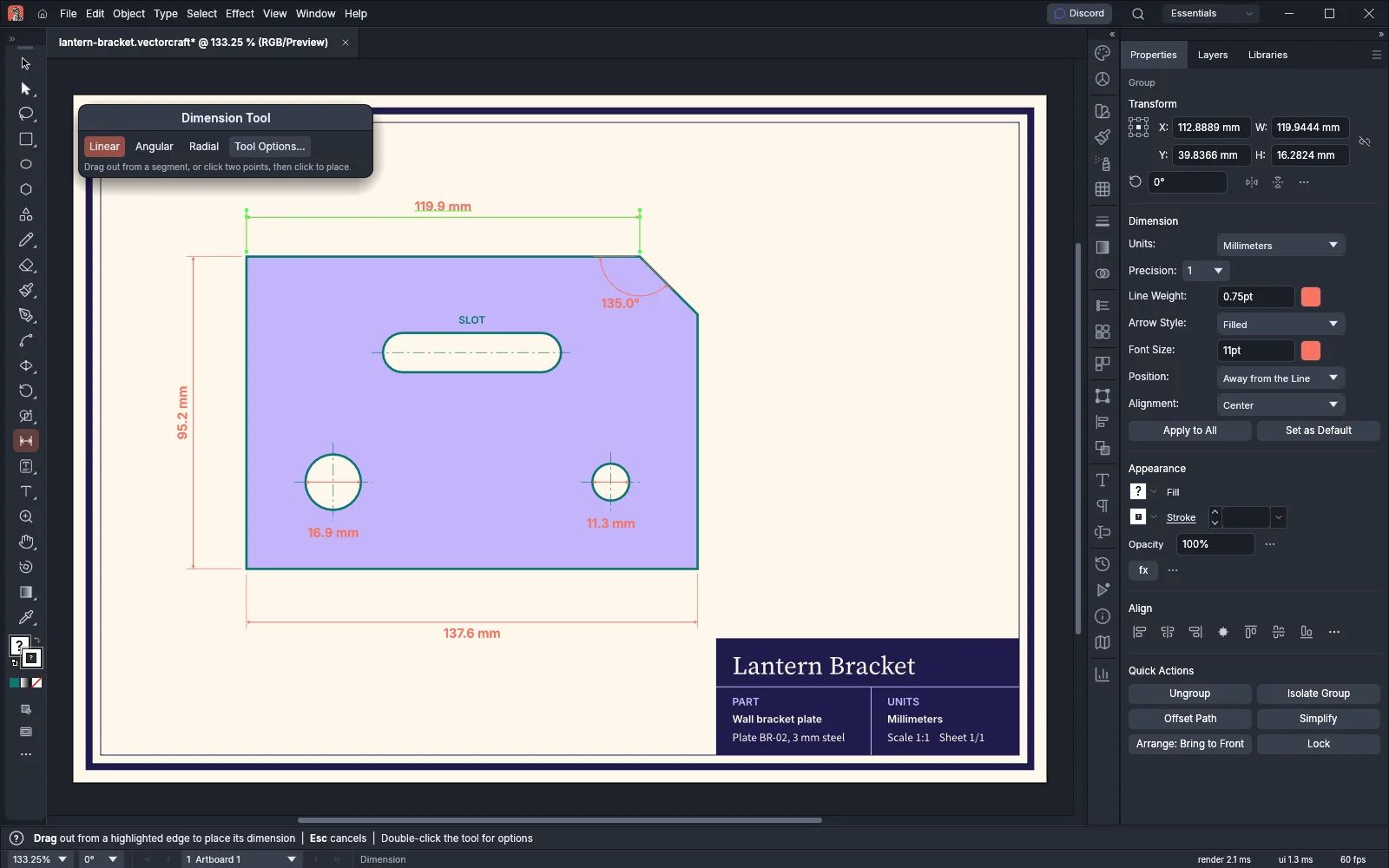
Measure and dimension covers the Measure tool, the Info panel, every dimension option and Document Info.
Undo and the History panel
Section titled “Undo and the History panel”- Edit → Undo (Ctrl+Z, or Cmd+Z on macOS) reverses the last change, and Edit → Redo (Ctrl+Shift+Z, or Cmd+Shift+Z on macOS) makes it again. The menu item names the step, for example Undo Move. Undo and Redo are also at the top of the menu that opens when you right-click the canvas.
- Window → History lists the steps you can undo and redo, oldest first. The first row, Open, is the earliest state the panel can return to, and the highlighted row is the current state.
- Click a row to take the document back to that step. The steps after it turn gray, and you can click one of them to go forward again. When you make a new change, the gray steps are removed.
- The panel menu has Step Backward, Step Forward, Clear History and Set History Limit…. Clear History removes every step and leaves the artwork as it is; you cannot undo it.
- Set History Limit… opens the Performance page of Preferences. History States sets how many steps each document keeps, from 5 to 1000 (500 by default). When the steps use a lot of memory, VectorCraft removes the oldest ones first and keeps at least the last 8 steps.
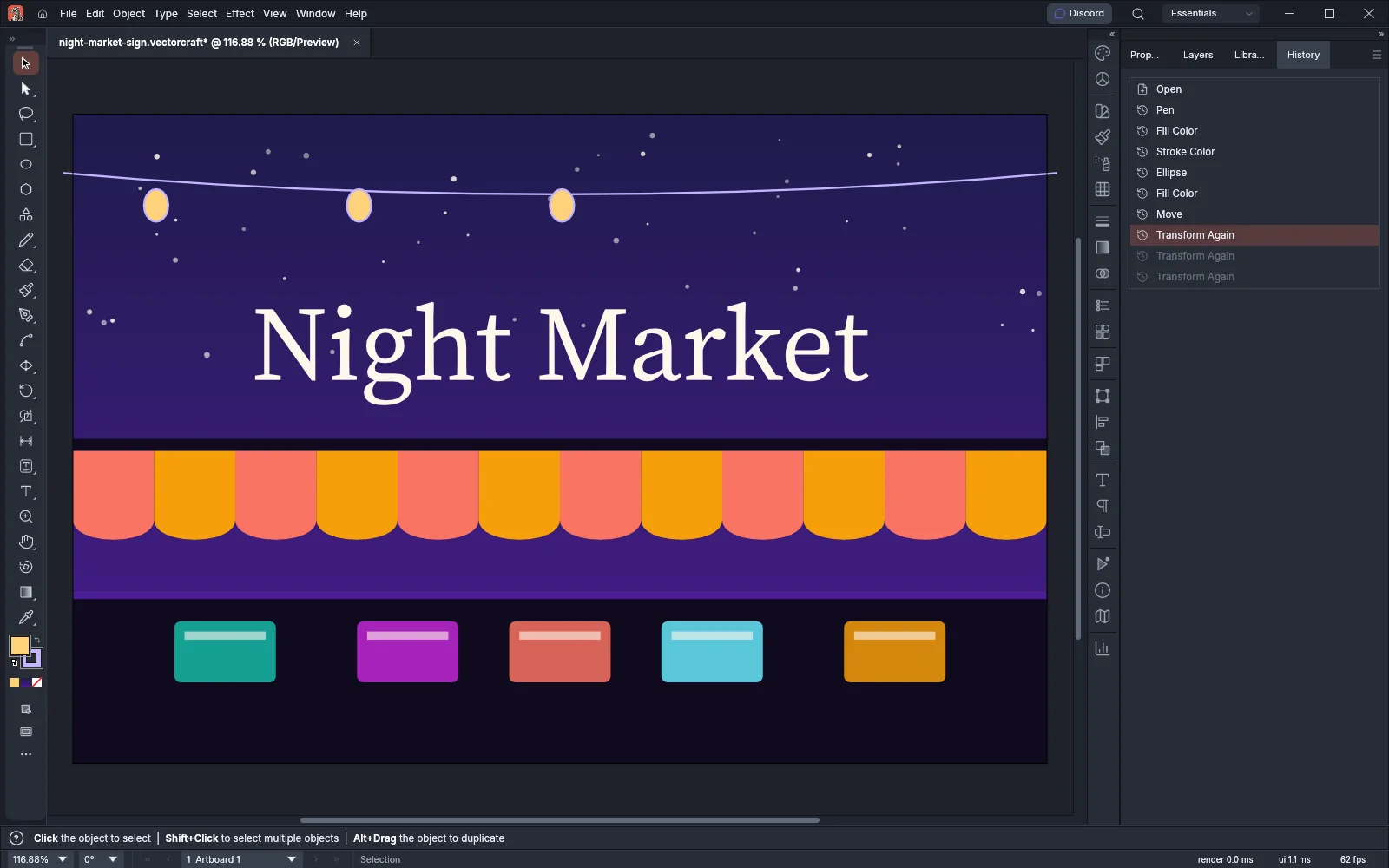
Customize the workspace covers docking the History panel and the other panels.
Change how VectorCraft looks
Section titled “Change how VectorCraft looks”- Choose Edit → Preferences… (Ctrl+K) and open the User Interface page. On macOS, choose VectorCraft → Settings → User Interface…. The page sets the Brightness (Dark, Medium Dark, Medium Light or Light), the Accent Color, the Canvas Color and the interface size under UI Scaling.
- Language on the same page changes the interface language. By default, VectorCraft follows your system’s language.
- Window → Workspace switches between panel layouts and saves your own.
- Preferences lists every page of the dialog, and Customize the workspace covers panels, workspaces and toolbars.
Keyboard shortcuts
Section titled “Keyboard shortcuts”| Command | Windows and Linux | macOS |
|---|---|---|
| Selection, Direct Selection | V, A | V, A |
| Pen, Type | P, T | P, T |
| Rectangle, Ellipse | M, L | M, L |
| Hand, Zoom | H, Z | H, Z |
| New, Open, Save | Ctrl+N, Ctrl+O, Ctrl+S | Cmd+N, Cmd+O, Cmd+S |
| Save As | Ctrl+Shift+S | Cmd+Shift+S |
| Undo, Redo | Ctrl+Z, Ctrl+Shift+Z | Cmd+Z, Cmd+Shift+Z |
| Copy, Cut, Paste | Ctrl+C, Ctrl+X, Ctrl+V | Cmd+C, Cmd+X, Cmd+V |
| Paste in Front, Paste in Back | Ctrl+F, Ctrl+B | Cmd+F, Cmd+B |
| Group, Ungroup | Ctrl+G, Ctrl+Shift+G | Cmd+G, Cmd+Shift+G |
| Bring Forward, Send Backward | Ctrl+], Ctrl+[ | Cmd+], Cmd+[ |
| Transform Again | Ctrl+D | Cmd+D |
| Zoom In, Zoom Out | Ctrl+=, Ctrl+- | Cmd+=, Cmd+- |
| Fit Artboard in Window | Ctrl+0 | Cmd+0 |
| Outline view on or off | Ctrl+Y | Cmd+Y |
| Show or hide rulers | Ctrl+R | Cmd+R |
| Smart Guides on or off | Ctrl+U | Cmd+U |
| Preferences | Ctrl+K | Cmd+K |
Keyboard shortcuts lists every default shortcut, grouped by menu and tool.
Before you start
Section titled “Before you start”- Install and update lists where to download VectorCraft for your platform.
- Getting started covers a first document, from a blank artboard to an exported PNG and SVG.
- Troubleshooting covers common problems and where to find the log.