
Open and place DXF drawings
This guide covers the DXF Import Options and Place DXF dialogs, which VectorCraft shows when you open or place an ASCII DXF drawing, and what the drawing becomes in the document. It also covers EMF and WMF metafiles, which open without a dialog.
Open a DXF drawing
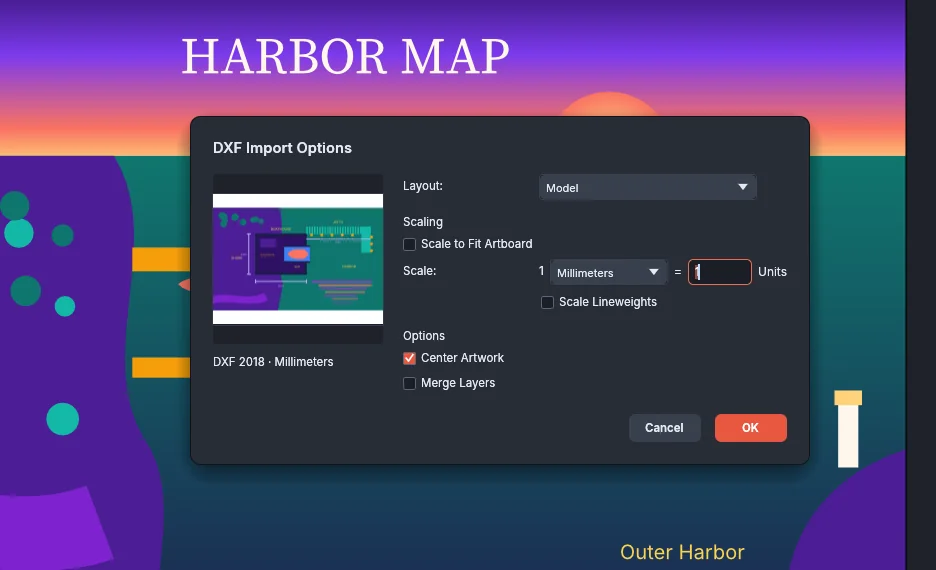
Section titled “Open a DXF drawing”- Choose File → Open… (Ctrl+O, or Cmd+O on macOS) and pick a
.dxffile. The DXF Import Options dialog opens. - Read the line under the preview. It shows the DXF version and the unit the drawing declares, for example DXF 2018 · Millimeters.
- In Layout:, choose Model for the drawing’s model space, or one of its paper layouts. The preview shows the layout you choose.
- Under Scaling, turn on Scale to Fit Artboard, or leave it off and set Scale: (see Draw a drawing at its real size).
- Under Options, choose Center Artwork and Merge Layers if you want them.
- Press OK.
The drawing opens as a new document with one artboard. Each DXF layer that holds art becomes a layer with the same name, in the order the drawing first uses them. A layer that is off or frozen in the drawing becomes a hidden layer, a locked layer stays locked, and a layer that does not plot (such as Defpoints) becomes a non-printing layer. With Merge Layers on, all the art goes on one layer named Layer 1.
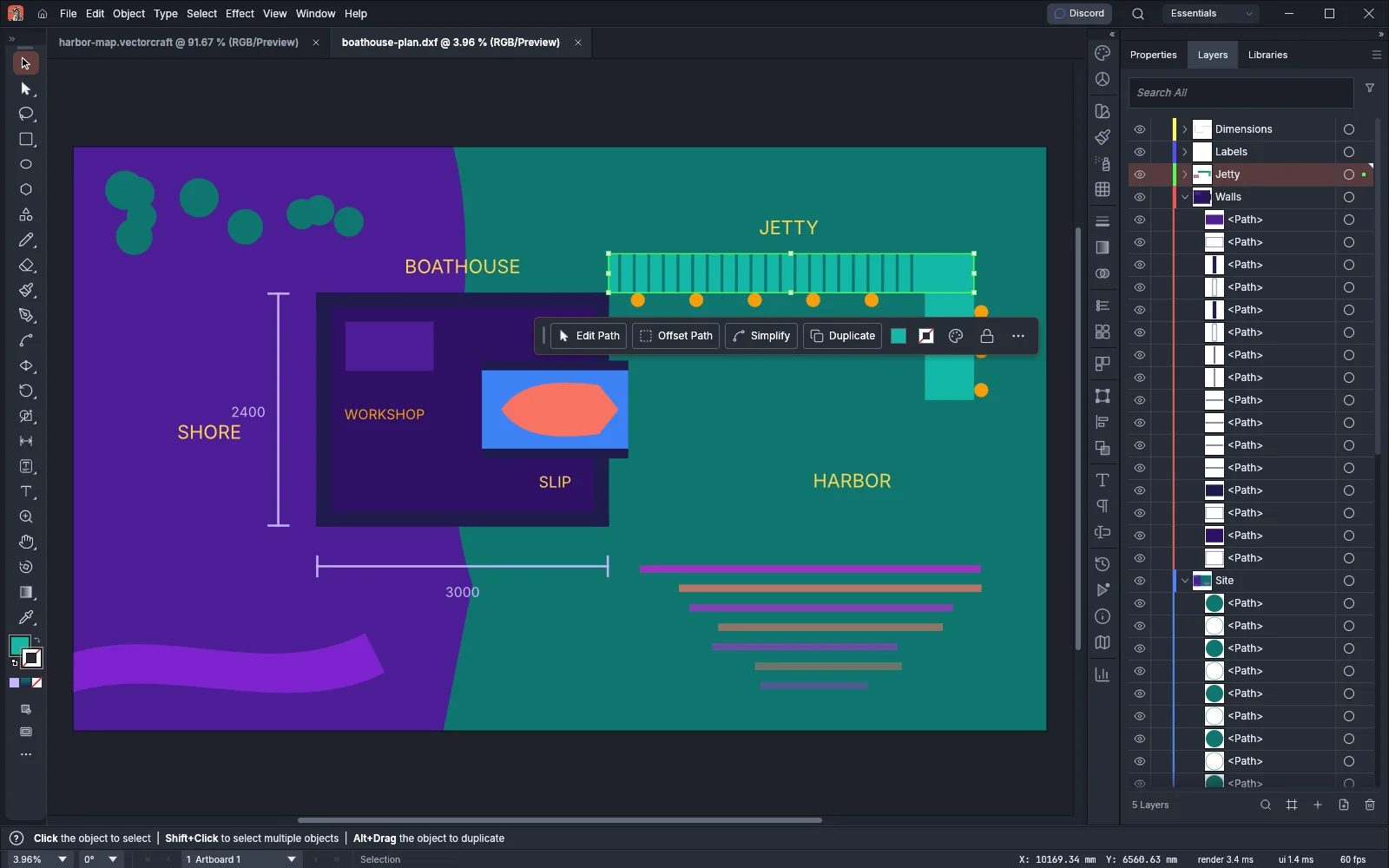
Lines, polylines (including arc segments), circles, arcs, ellipses, splines, solid hatches and solids become paths. Text and multiline text become point type. Named blocks become symbols, and anonymous blocks, such as dimensions, become groups. VectorCraft reads colors, lineweights, linetypes and transparency through the layers and blocks that set them. When it cannot read part of the drawing, it lists that part in the warnings after the drawing opens.
If VectorCraft cannot open the drawing with the options you chose, it shows an error and the dialog stays open with your choices. A drawing that is too large at the scale you chose gives an error that says how large it would be in points; choose a smaller scale, or turn on Scale to Fit Artboard.
VectorCraft reads ASCII DXF files of any version. It does not read binary DXF files or DWG drawings. Save the drawing from the CAD program as an ASCII DXF and open that file instead.
DXF Import Options
Section titled “DXF Import Options”| Option | Starts at | What it does |
|---|---|---|
| Layout: | Model | Picks the space to bring in: Model (the model space) or one of the drawing’s paper layouts, listed in tab order. A drawing that has paper-space art but no named layouts lists one paper layout, Layout1. |
| Scale to Fit Artboard | Off | Scales the art to fill the artboard and keeps its proportions. When you open a drawing, the artboard is Letter size (612 × 792 pt), turned to match the art’s orientation. While this option is on, Scale: is unavailable. |
| Scale: | 1 of the drawing’s unit = 1 Units | Sets how large the drawing comes in: 1 of the unit you pick equals the number of drawing units you type. The unit list holds Points, Picas, Inches, Millimeters, Centimeters, Pixels, Meters, Yards and Feet. The number runs from 0.000001 to 1000000. |
| Scale Lineweights | Off | Scales the drawing’s lineweights with the art. When it is off, lines keep their printed widths at any scale. |
| Center Artwork | On | Centers the art on the artboard. When it is off, the drawing’s origin goes on the artboard’s bottom-left corner, or, with Scale to Fit Artboard on, the art’s bottom-left corner does. |
| Merge Layers | Off | Puts all the art on one layer instead of one layer for each DXF layer. |
When you press OK, VectorCraft remembers Scale to Fit Artboard, Scale Lineweights, Center Artwork and Merge Layers, and the next drawing you open or place starts with those choices. Layout: starts at Model for every drawing. Scale: starts at each drawing’s own unit at 1:1.
Draw a drawing at its real size
Section titled “Draw a drawing at its real size”A drawing comes in at its real size when 1 of its unit equals 1 drawing unit. VectorCraft sets Scale: that way when the dialog opens, so for a drawing in millimeters it shows 1 Millimeters = 1 Units, and you can press OK without changing it.
- When the drawing declares a unit that the list does not have, such as microns, Scale: starts at Millimeters with the number that keeps the drawing at its real size.
- When the drawing declares no unit, Scale: starts at 1 Inches = 1 Units for a drawing set up for imperial measurements, and at 1 Millimeters = 1 Units otherwise.
- To bring in a scaled copy, keep the unit and type the scale’s second number. For example, 1 Millimeters = 50 Units brings a millimeter drawing in at 1:50.
The artboard takes the size of the art at the scale you chose, and the document uses the unit from Scale: for its rulers and measurements. With Scale to Fit Artboard on, the document uses the drawing’s own unit. The boathouse plan above is 10,000 × 6,000 mm, so it opens on an artboard of that size. To check sizes and distances in the opened drawing, see Measure and dimension.
The smallest zoom is 3.13%. A large drawing at its real size can be wider than the window shows at that zoom, so bring in a building or a site plan at a scale such as 1:50 or 1:100 if you want to see all of it at once.
While Scale Lineweights is off, a 0.25 mm line is 0.25 mm wide at every scale. Turn on Scale Lineweights to scale the lines with the art.
Place a DXF drawing in a document
Section titled “Place a DXF drawing in a document”- Open the document that the drawing goes into.
- Choose File → Place… (Ctrl+Shift+P, or Cmd+Shift+P on macOS), pick the
.dxffile, and press Place in the Place dialog. - The Place DXF dialog opens. It has the same options as DXF Import Options.
- Choose the layout and the scale, and press OK.
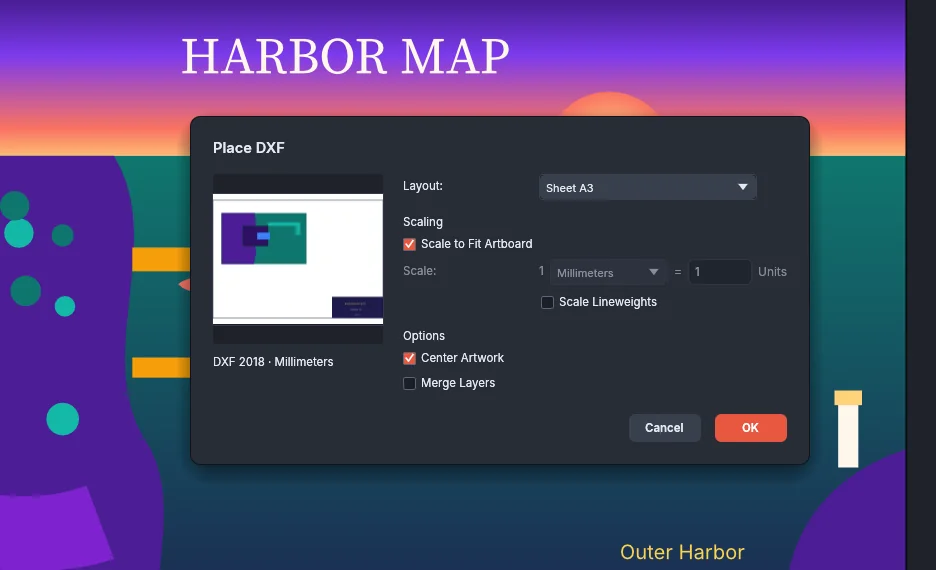
The drawing is placed as one group, in one undo step, and the group is selected. Art on the drawing’s hidden layers is left out. With Scale to Fit Artboard on, the drawing fills the artboard at the center of the window, or the first artboard when no artboard is there. A fitted drawing, or one placed with Center Artwork off, is placed on that artboard in the position it has on its own artboard when you open the drawing. Otherwise the drawing is centered in the window. For working with placed art afterward, see Work with placed images.
Open EMF and WMF metafiles
Section titled “Open EMF and WMF metafiles”EMF and WMF files open without a dialog. File → Open… opens a metafile as a new document with one artboard, the size of the picture’s frame, and one layer. Paths keep their fills and strokes, and clipping, images and text come in as well. When the file holds records that VectorCraft does not read, it skips them and shows one warning.
File → Place… places a metafile as one group, clipped to the picture’s frame.