
Save for older versions and other apps
This page covers the options VectorCraft asks for when you save a VectorCraft, .ai, EPS or template file, including files that older releases and other apps can open.
In the desktop app, VectorCraft shows a format’s options after you pick a file in the save panel and before it writes the file. Which commands ask depends on the format you pick:
- VectorCraft file: only File → Save As… asks.
.aifile: File → Save As… and File → Save a Copy… ask.- EPS file: File → Save As…, File → Save a Copy… and File → Save on a document that has no file yet all ask. Saving an SVG or PDF file opens that format’s own options dialog in the same cases (see Open and save files).
File → Save on a document that already has a file does not ask. In the desktop app, File → Save also does not ask when you save a new document as a VectorCraft or .ai file, and File → Save as Template… never asks. These saves use the options you last saved with in that format, or the defaults.
| Command | Windows and Linux | macOS |
|---|---|---|
| Save As… | Ctrl+Shift+S | Cmd+Shift+S |
| Save a Copy… | Ctrl+Alt+S | Cmd+Option+S |
| Save as Template… | None | None |
In a browser, File → Save As…, File → Save a Copy…, File → Save as Template… and File → Save on a document that has no file yet open a dialog with File Name and Format and the options for the chosen format. For Save as Template…, Format lists the template formats.
Save a VectorCraft file for an older release
Section titled “Save a VectorCraft file for an older release”- Choose File → Save As… (Ctrl+Shift+S, or Cmd+Shift+S on macOS).
- In the save panel, keep the VectorCraft file type, name the file and click Save. The VectorCraft Options dialog opens.
- Open the Version menu and choose the oldest release that has to open the file.
- Set the other options (see the next section) and click OK.
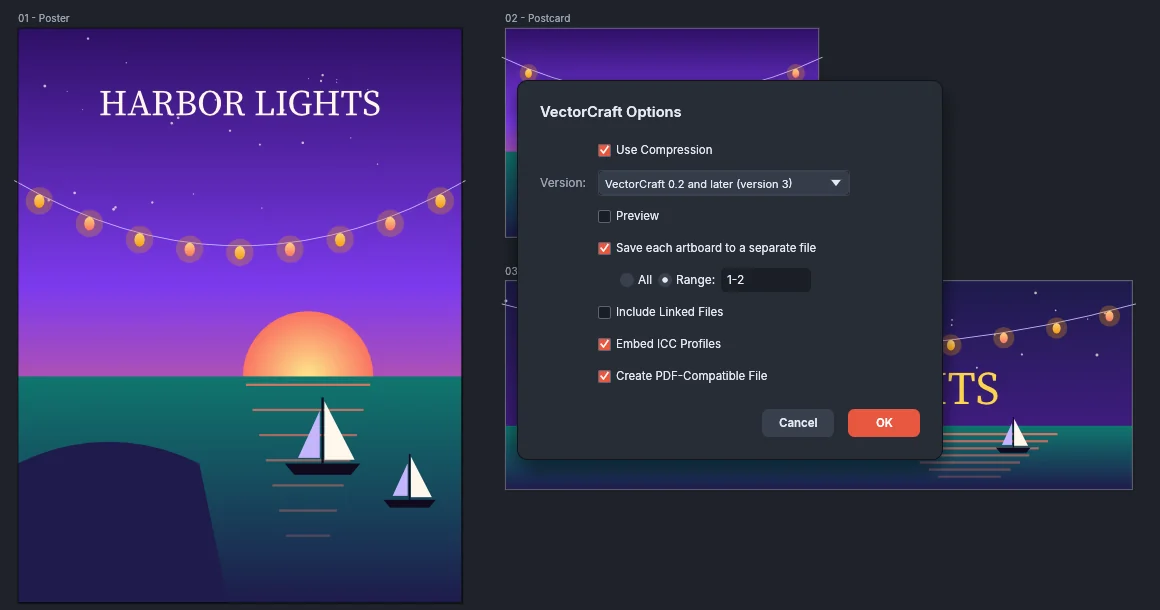
| Version | Opens in |
|---|---|
| VectorCraft 0.8 and later (version 4) | VectorCraft 0.8 and later. This is the current version and the default. |
| VectorCraft 0.2 and later (version 3) | VectorCraft 0.2 and later |
| VectorCraft 0.1 and later (version 2) | VectorCraft 0.1 and later |
| VectorCraft 0.1 and later (version 1) | VectorCraft 0.1 and later |
- When you save in an older version, VectorCraft leaves out features that those releases do not have, and saves a placed VectorCraft document as a group of its art.
- Versions 1 and 2 cannot be compressed. When you choose one of them, Use Compression turns off and becomes unavailable.
VectorCraft Options
Section titled “VectorCraft Options”| Option | Default | What it does |
|---|---|---|
| Use Compression | The Use Compression setting in Preferences (off) | Compresses the file. A compressed file is smaller and cannot be read as text. |
| Version | VectorCraft 0.8 and later (version 4) | Sets which releases can open the file |
| Preview | Off | Adds a PNG picture of the first artboard, at most 256 pixels on its longer side, for file browsers |
| Save each artboard to a separate file | Off | Also saves each artboard as its own file beside this one, named name-artboard.vectorcraft, with that artboard and the art on it. All saves every artboard. Range takes artboard numbers such as 1-3, 5. |
| Include Linked Files | Off | Keeps a copy of each linked file’s pixels in the document. The images stay linked, and the document shows them in full where the linked files cannot be found. |
| Embed ICC Profiles | On | Carries the color profiles that the document uses and that were loaded from files (Edit → Assign Profile…), so the document keeps them on a computer where they are not installed |
| Create PDF-Compatible File | On | Adds a PDF of every artboard to the file, so apps that read PDF can show it. The file is larger. |
The dialog opens with the options you last saved with. If the range names an artboard the document does not have, the dialog stays open when you click OK.
Save a .ai file for other apps
Section titled “Save a .ai file for other apps”- Choose File → Save As… or File → Save a Copy….
- In the save panel, name the file with the
.aiextension and click Save. The PDF-compatible .ai Options dialog opens. - Leave Version set to PDF-compatible, set the options and click OK.
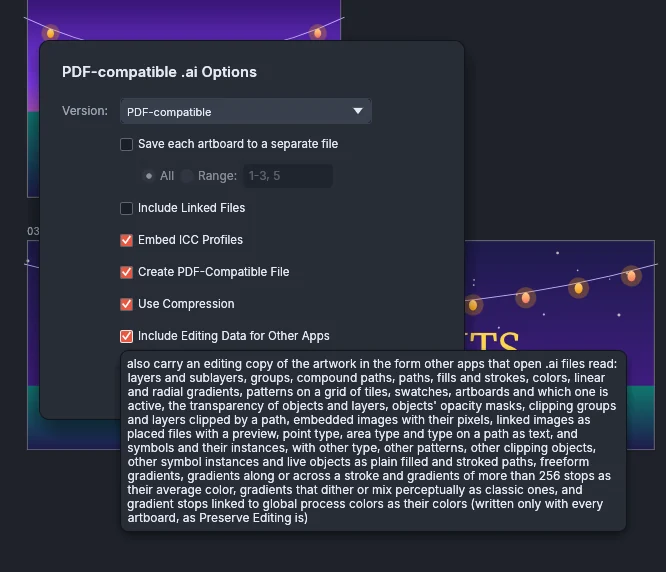
A PDF-compatible .ai file holds every artboard as a PDF page and carries the full VectorCraft document, so VectorCraft reopens it exactly as saved.
| Option | Default | What it does |
|---|---|---|
| Version | PDF-compatible | PDF-compatible or Legacy (version 7) (see the next section) |
| Save each artboard to a separate file | Off | Also saves each artboard of All or Range as name-artboard.ai beside the file |
| Include Linked Files | Off | Keeps a copy of each linked file’s pixels in the file. The images stay linked. |
| Embed ICC Profiles | On | Carries the color profiles that the document uses and that were loaded from files |
| Create PDF-Compatible File | On | Writes the artwork as PDF pages that other apps show. When it is off, the file holds only the VectorCraft document: it is smaller and saves faster, and other apps show empty pages. |
| Use Compression | On | Compresses the PDF content and the VectorCraft document inside the file |
| Include Editing Data for Other Apps | On | Adds an editing copy of the artwork for other apps that open .ai files |
The editing copy holds layers and sublayers, groups, compound paths, paths, fills and strokes, colors, linear and radial gradients, patterns on a grid of tiles, swatches, the artboards, the transparency of objects and layers, opacity masks, clipping groups, embedded and linked images, point type, area type, type on a path, and symbols and their instances. VectorCraft writes other type, other patterns, other clipping objects, other symbol instances and live objects as plain filled and stroked paths. Some gradients and colors are written differently:
- Freeform gradients, gradients along or across a stroke, and gradients with more than 256 stops are written as their average color.
- Gradients that dither or mix perceptually are written as classic gradients.
- Gradient stops linked to global process colors are written as their colors.
Only a file that holds every artboard carries the editing copy. The separate files that Save each artboard to a separate file writes do not carry it.
Save a legacy .ai file (version 7)
Section titled “Save a legacy .ai file (version 7)”A legacy .ai file keeps layers, groups, compound paths and clipping groups in apps that read that older form. It holds one artboard, so VectorCraft writes one file for each artboard you choose.
- Choose File → Save As… or File → Save a Copy…, name the file with the
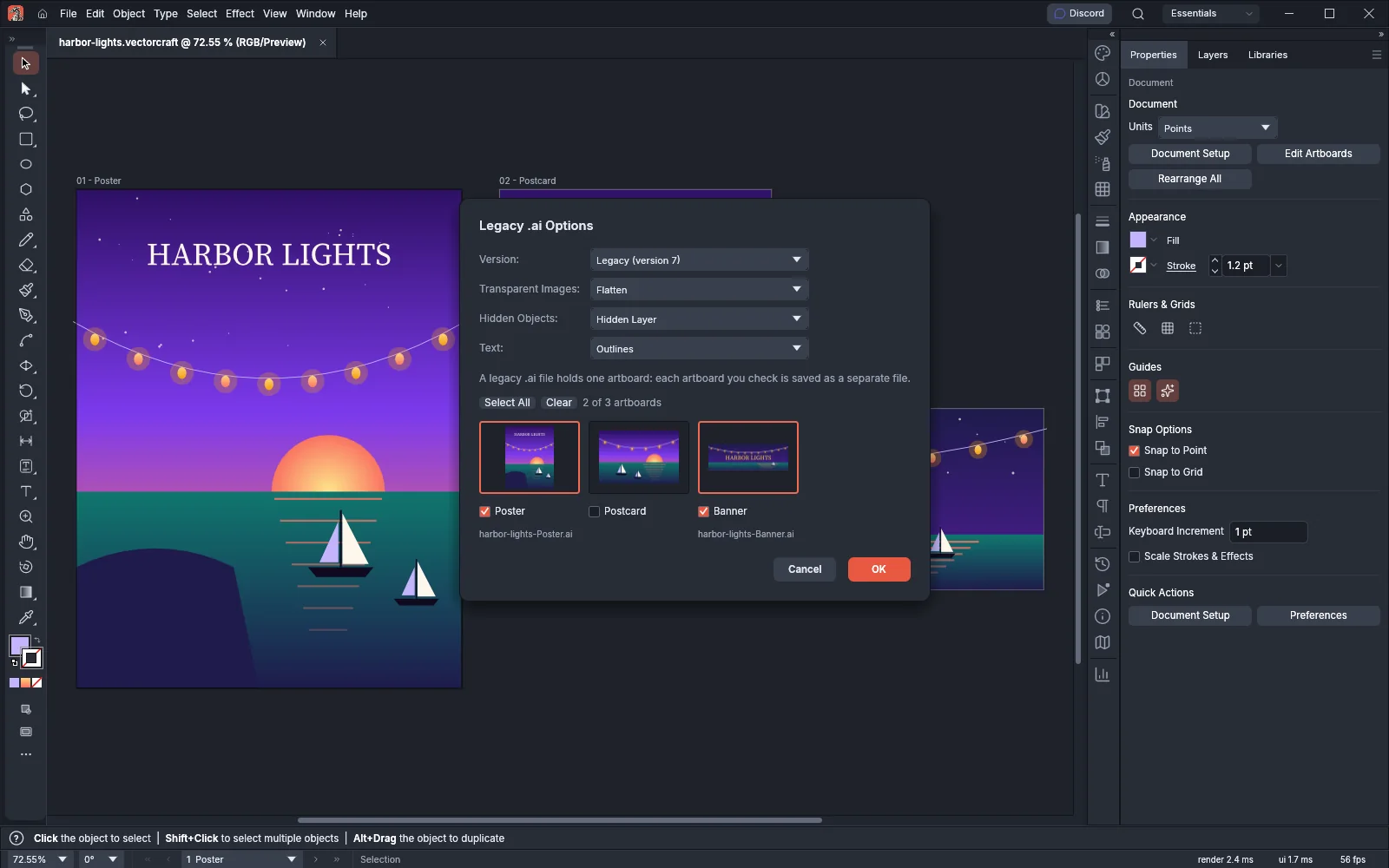
.aiextension and click Save. - In the options dialog, set Version to Legacy (version 7). The dialog becomes Legacy .ai Options.
- Set Transparent Images, Hidden Objects and Text.
- If the document has several artboards, check the artboards to save. Select All checks every artboard, Clear unchecks them all, and the count shows how many are checked.
- Click OK. OK is unavailable until at least one artboard is checked.
| Option | Choices |
|---|---|
| Transparent Images | Flatten (the default) replaces each image that has see-through pixels, opacity or a blending mode with an opaque image of itself and the art under it. Omit leaves those images out. |
| Hidden Objects | Hidden Layer (the default) moves each layer’s hidden objects to a hidden layer of their own just above it. Omit leaves them out. Make Visible shows them where they are. |
| Text | Editable (the default) writes type as text, and the app that opens the file needs the fonts installed. Outlines writes type as outlines. Type that the format cannot hold as text, such as vertical type or characters outside Windows Latin-1, is always written as outlines. |
- With one artboard checked, VectorCraft writes the file under the name you gave. With several, it writes name-artboard.ai for each one, and the picker shows each file name under its thumbnail.
- Transparent objects other than images are written opaque, and VectorCraft shows a warning about them. Several fills or strokes, effects and brushes are expanded into plain objects.
- Legacy (version 7) is not available for
.aittemplates.
Save an EPS file
Section titled “Save an EPS file”An EPS file holds one artboard. VectorCraft writes that artboard, with its page margins, and the whole editable document inside the file. Transparency is flattened.
- Choose File → Save As… or File → Save a Copy…, or File → Save on a document that has no file yet. Pick the EPS file type, name the file and click Save. The EPS Options dialog opens.
- In Range, type the number of the artboard to save, or leave it empty for the first artboard. If you type a range of several artboards, the save stops with an error. To write several artboards, export them instead (see Export for screens and the web).
- Set the other options and click OK.
| Option | Default | What it does |
|---|---|---|
| Level | 3 | PostScript language level, 2 or 3 |
| Preview Format | tiffColor | The preview other apps show: none, tiffBw (1-bit) or tiffColor |
| Transparent Preview | On | Keeps transparency in the color preview. When it is off, the preview is on white. |
| Overprints | preserve | preserve keeps overprinting fills and strokes, and discard drops them |
| Flattener Preset | medium | The preset that flattens transparency: high, medium, low or the name of a preset you saved |
| Embed Fonts | On | VectorCraft writes type as outlines whether this is on or off, so the file does not need fonts |
| Include Linked Files | Off | Keeps linked images whole in the document inside the file. When it is off, the file keeps their previews. |
| Thumbnails | On | Adds a small PNG thumbnail |
| Cmyk Post Script | On | Writes an RGB document in CMYK, for devices without RGB |
| Compatible Gradients | Off | Writes gradients as stepped fills at level 3 too |
The same settings are described with the export dialog’s names under EPS Options.
Save a template
Section titled “Save a template”File → Save as Template… writes a template that opens as a new untitled document. The open document does not change.
- Choose File → Save as Template…. The save panel suggests name template and starts in the Templates folder.
- Pick a file type and click Save:
- VectorCraft Template (
.vctemplate, the default) - PDF-compatible .ait template (
.ait), which VectorCraft writes the same way as a PDF-compatible.aifile
- VectorCraft Template (
In the desktop app, no options dialog opens. A template uses the options you last saved with, or the defaults and the Use Compression setting. To change the folder the panel starts in, set Templates Folder in the File Handling section of Preferences. When it is empty, the panel starts in Documents/VectorCraft Templates.